Use Reader View for iOS
Reader View presents PDF content in a single-column layout for mobile devices. Use it for text-heavy documents, such as magazines, books, articles, and scientific papers. Refer to the Reader View features guide for details.
Reader View only shows the text content of a PDF document. It detects headings and displays them with larger or bolder text. It ignores other elements — such as images, stylized page content, page headers, and page footers — to keep the reading flow focused. On iOS, Reader View also supports Dark Mode and Apple’s Dynamic Type(opens in a new tab), which scales fonts and uses the user’s preferred text size.
Reader View tries to structure text in the intended reading order. If you find documents where it doesn’t and can share them with us, contact us(opens in a new tab).
The following images compare the normal view and Reader View.
| Normal view | Reader View |
|---|---|
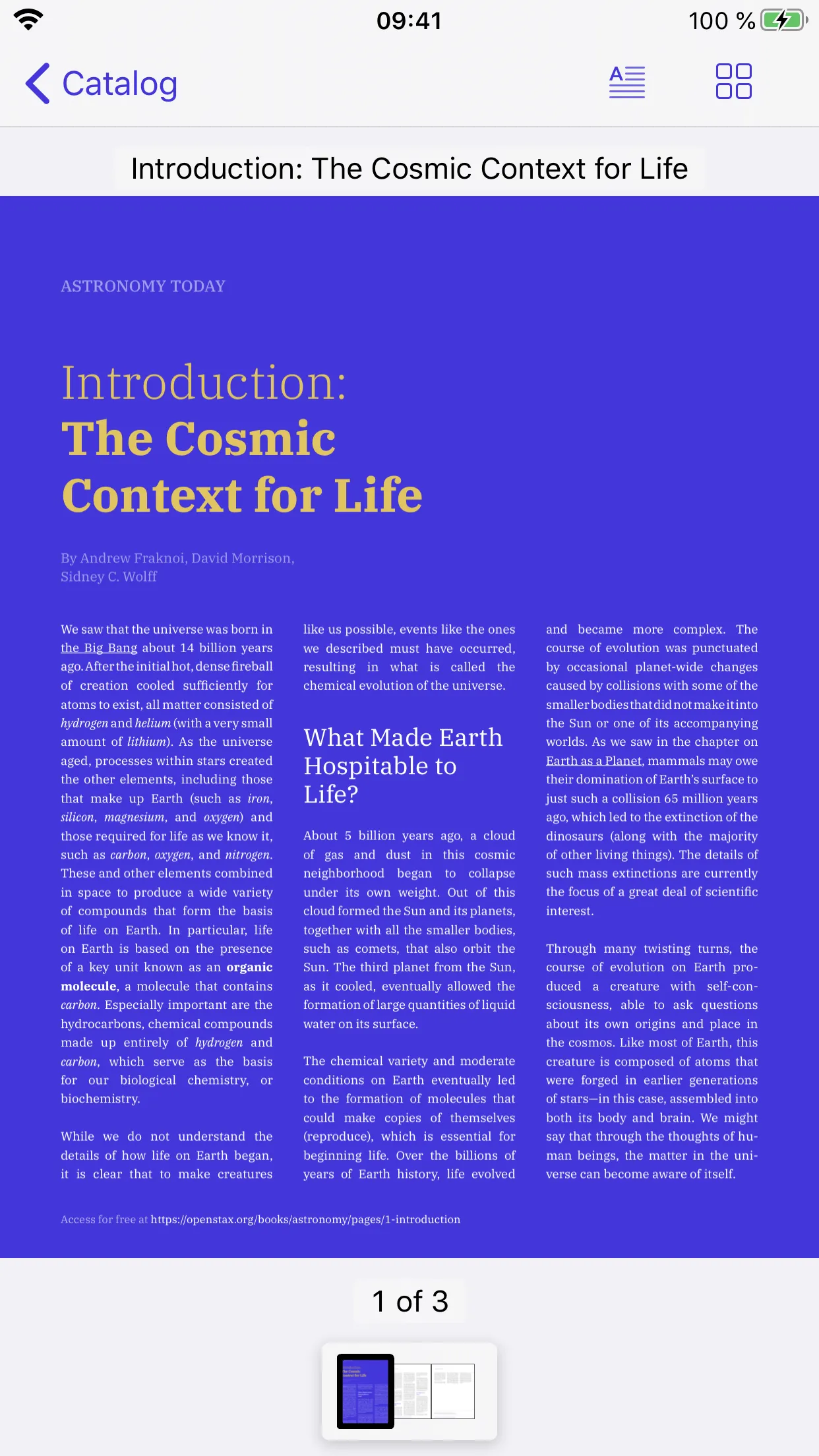 | 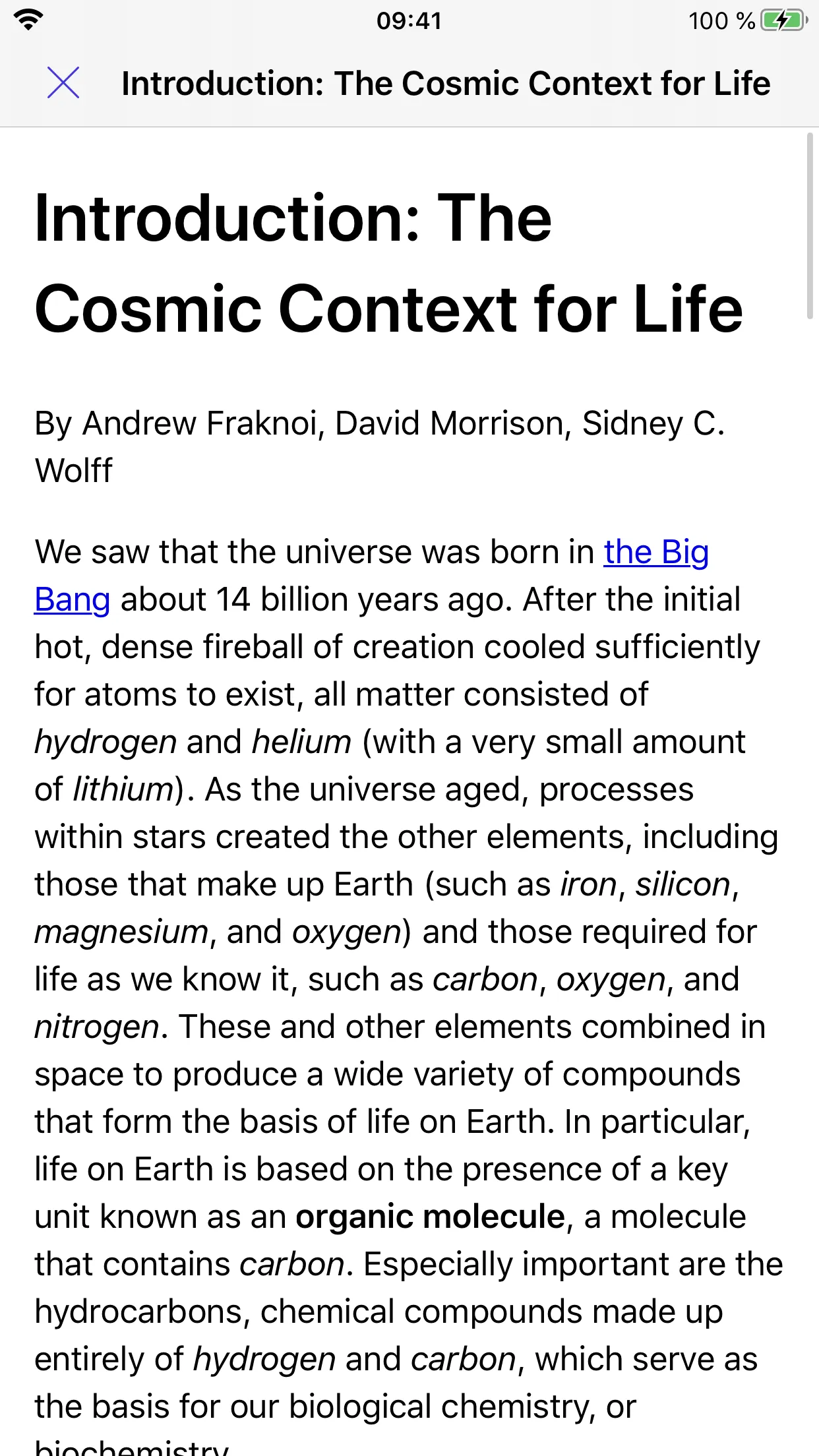 |
To use Reader View, your license must include the Reader View component.
Show the Reader View button
Use the Reader View button to enable users to open the current document in Reader View. The following example shows the Reader View button programmatically:
NutrientViewConfiguration( iosConfig: IOSViewConfiguration( // `leftBarButtonItems` can also be used. rightBarButtonItems: ['readerViewButtonItem'], ),)Reader View is currently only available on iOS. Support for Reader View on Android is coming soon.