



Making metadata matter: improving content findability with SharePoint

Table of contents

Try Nutrient Document Searchability
Metadata is essential for making content in SharePoint usable and findable. Without it, documents become hard to search, navigate, and manage — leading to inefficiencies and frustration. This article explains the types and quality of metadata, the benefits of managed metadata, and how to use tools like Nutrient Document Searchability for auto-tagging using rules or NLP. Whether you’re migrating content or improving existing libraries, strong metadata practices are key to a successful SharePoint environment.
Every day, everywhere, information workers deal with a huge volume of content. They create as well as consume. They need to be able to find the document they need, determine if a newly discovered item is what they’re looking for, use the content the way they want, and make business-critical decisions based on it.
This isn’t as simple as it sounds.
There are many pieces that need to fit together to make content usable and findable. If your information architecture and metadata are well designed, your users will be able to find and use content quickly and efficiently.
But without quality metadata, the chances of building a strong search experience are minimal. Content without metadata is little more than files dumped into a network drive. Findability is poor. Navigation becomes the only option. Over time, this lack of structure leads users to recreate documents over and over, resulting in a rapid growth of duplicates and, eventually, a content silo — with near-zero findability.
Sometimes metadata is present, but it’s inconsistent or poorly applied. This happens when users:
- Lack the necessary knowledge
- Don’t know how to create good metadata or use the form fields properly
- Aren’t motivated to spend time tagging content
Or any combination of the above.
The result is incorrect, inconsistent, and messy metadata that actively hurts usability and findability. Bad metadata misleads. Inconsistent metadata is difficult to track and clean up. And no amount of investment in a search engine can compensate for weak metadata.
Good metadata is essential, and its benefits are obvious:
- Improved usability and findability
- Enhanced search performance
- Less time wasted searching
- Better overall user satisfaction
When your metadata is high quality, the findability of your content skyrockets. The result? Happy employees who get work done faster.
Types of metadata
This section will provide a quick overview of metadata types in SharePoint. The most common type is that of unmanaged metadata, which includes:
- A single line of text
- Multiline text
- Numbers
- Dates/times
In these cases, users can enter any value, resulting in a broad and inconsistent dataset. Even with guidelines and best practices, it’s ultimately up to individuals to apply them correctly.
Alternatively, managed metadata is curated by taxonomists or metadata owners — people responsible for maintaining a consistent structure aligned to the organization’s knowledge framework.
Benefits of managed metadata include:
- Consistent, controlled values
- Strong governance and quality assurance
- Simplified content discovery
- Greater user confidence
- Better alignment with business rules
- Improved collaboration
SharePoint supports several managed metadata types:
- Choice
- Lookup
- Managed metadata (via the Term Store)
Among these, managed metadata (Term Store) offers the richest capabilities and highest flexibility.
Quality of metadata
Storing metadata is just the beginning. Quality is what determines its usefulness.
Good metadata improves all aspects of content discovery: navigation, filtering, classic search — all of it depends on metadata.
While managed metadata is easier to control, it requires ongoing maintenance. Unmanaged metadata demands less maintenance but is prone to inconsistency.
It’s a tradeoff. The primary goal should always be high-quality metadata — because usability and findability depend on it.
Why create a document if it won’t be found or used?
Automated generation of metadata
People make mistakes. They forget. They’re overwhelmed. Or they simply don’t know how to apply good metadata.
Auto-tagging tools can solve this by generating metadata with little or no user input. These tools reduce human error and increase consistency.
Rule-based tagging
Rule-based tagging relies on predefined logic to assign metadata:
- Text rules — Compare document content to SharePoint Term Store terms. Matching terms are applied as tags. Rules may also use regex for advanced matching.
- Zonal rules —Tag documents based on text found in specific PDF zones (e.g. invoices).
- Barcodes — Extract and tag based on barcode values within PDF areas.
- PDF form fields — Extract values (like customer name or invoice number) and map them to SharePoint columns.
These rules require upfront planning: Define what, where, and how to extract and map metadata.
NLP-based tagging
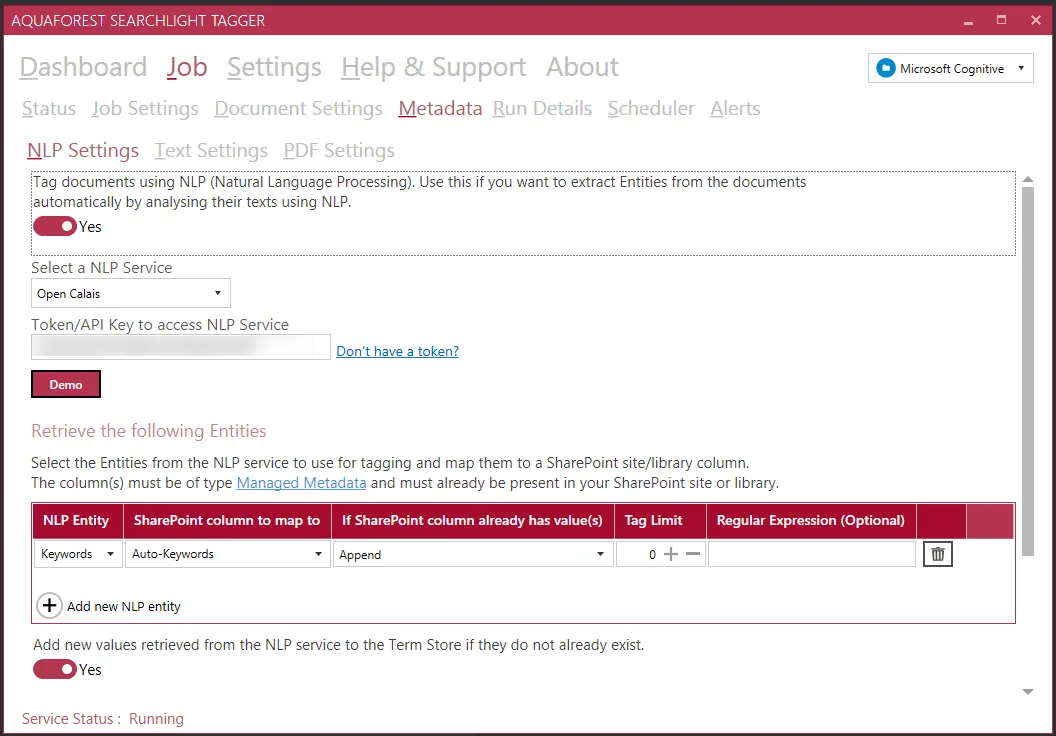
Natural language processing (NLP) is another powerful approach. It allows tools to “understand” document content and assign appropriate tags based on that understanding.
When migrating from file shares to SharePoint, users often skip metadata tagging. NLP-based tagging can analyze document text, identify appropriate metadata, and apply it automatically.
You don’t have to build NLP yourself — many mature services are available:
- Rosette — Combines linguistic analysis, machine learning, and statistical modeling
- Open Calais (Thomson Reuters) — Tags people, places, events, and more
- Microsoft Cognitive Services — Provides sentiment analysis, key phrase extraction, and more
- Google Natural Language API — Extracts entities, topics, and sentiment
These services reduce the need for rule configuration — but always test before applying to production data.
Getting started and best practices
This section will cover how to begin with metadata and auto-tagging.
How to decide which metadata columns to define
Start by planning your information architecture: site structure, libraries, site columns, content types, term sets, search setup, etc.
Consider the following:
- If the value set can’t be predefined, use unmanaged fields (e.g. title, description).
- Use number/date fields if values are numeric or time-based but not predictable.
- Use choice fields for limited, stable values (e.g. days of the week).
- Use lookup fields when values are flat but managed by a small group (e.g. team names).
- Use managed metadata for complex or hierarchical values (e.g. location, document type).
These decisions must be made early to enable auto-tagging later.
Prerequisites
Auto-tagging tools need access to text content. Scanned images or fax PDFs must be converted to text-searchable PDFs using OCR tools like Nutrient Document Searchability.
Taxonomies requirements
Good taxonomies require good care — design, delivery, and maintenance. Combining strong taxonomies with auto-tagging improves governance, discovery, and search.
Nutrient Document Searchability
Nutrient Document Searchability is a lightweight but powerful tool for auto-tagging. It supports:
- Rule-based tagging
- NLP-based tagging
- PDF zone/form-based tagging
It works with SharePoint on-premises and Office 365.
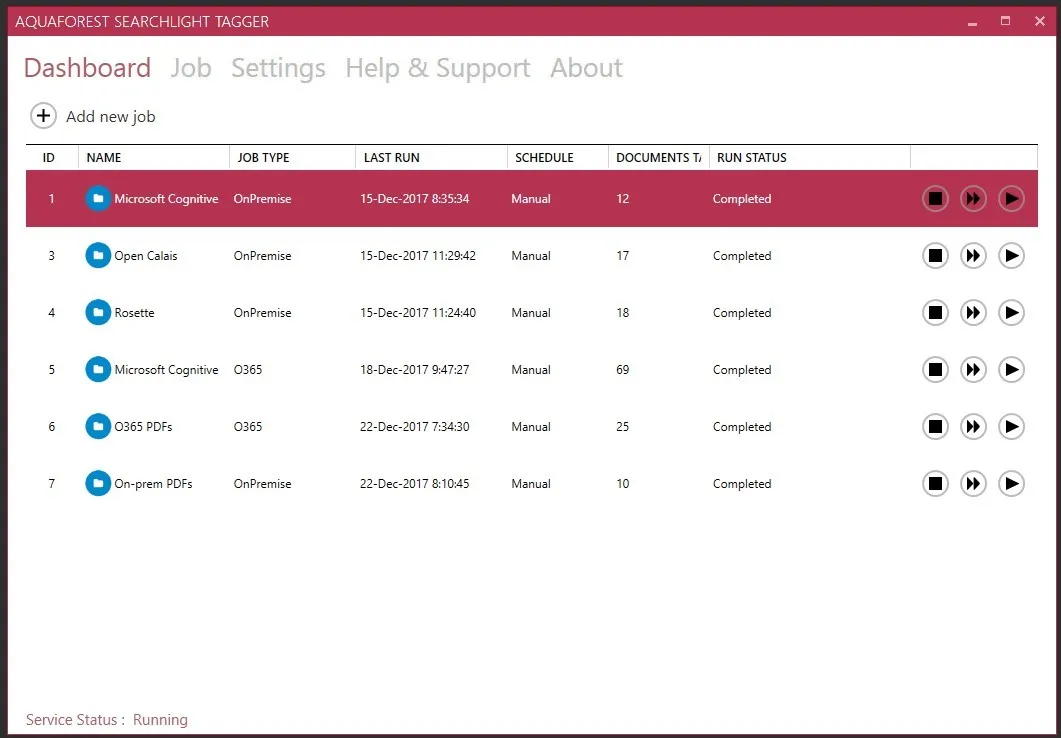
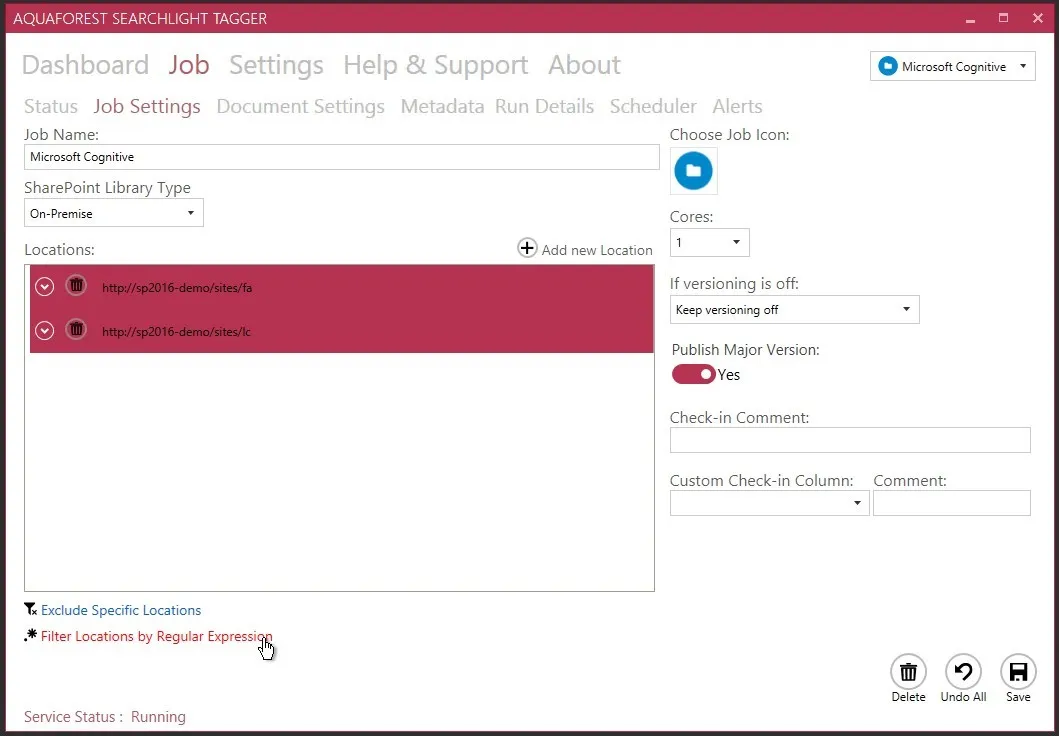
When setting up a job, first define the deployment type: on-premises or Office 365. You can add multiple site collections, lists, or libraries. Filter content by URL or regex.
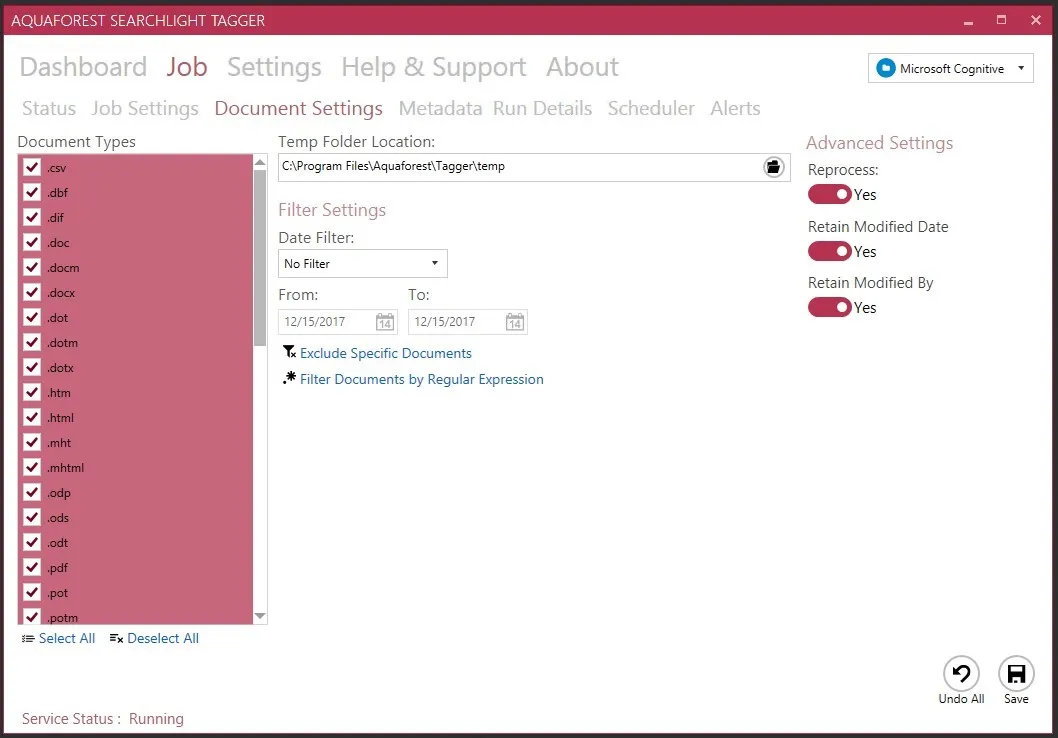
Next, configure document settings:
- Document types
- Date filters
- URL or regex filters
- Preserve “modified date/by” (recommended)
- Reprocess already-tagged documents (for testing)
Then, define metadata extraction methods:
- NLP
- Text rules
- PDF zones/forms
Specify which SharePoint columns (managed and unmanaged) should store the extracted metadata.
For text rule tagging, the field must be a managed metadata column.
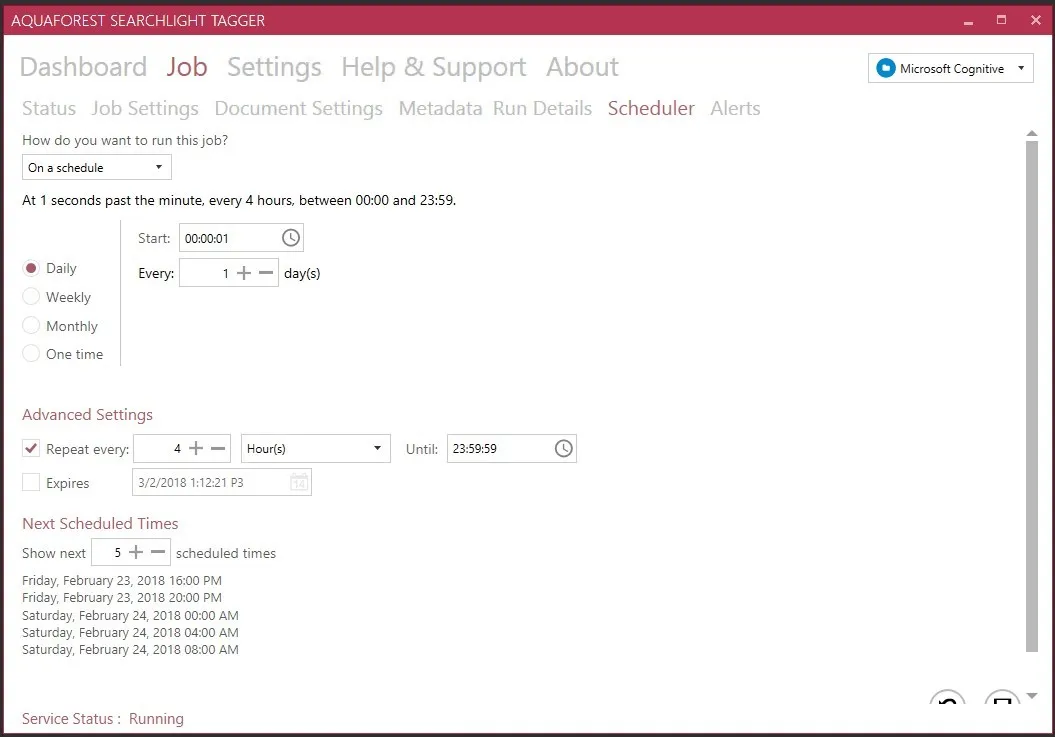
Finally, schedule your job to run manually (good for testing) or at regular intervals.
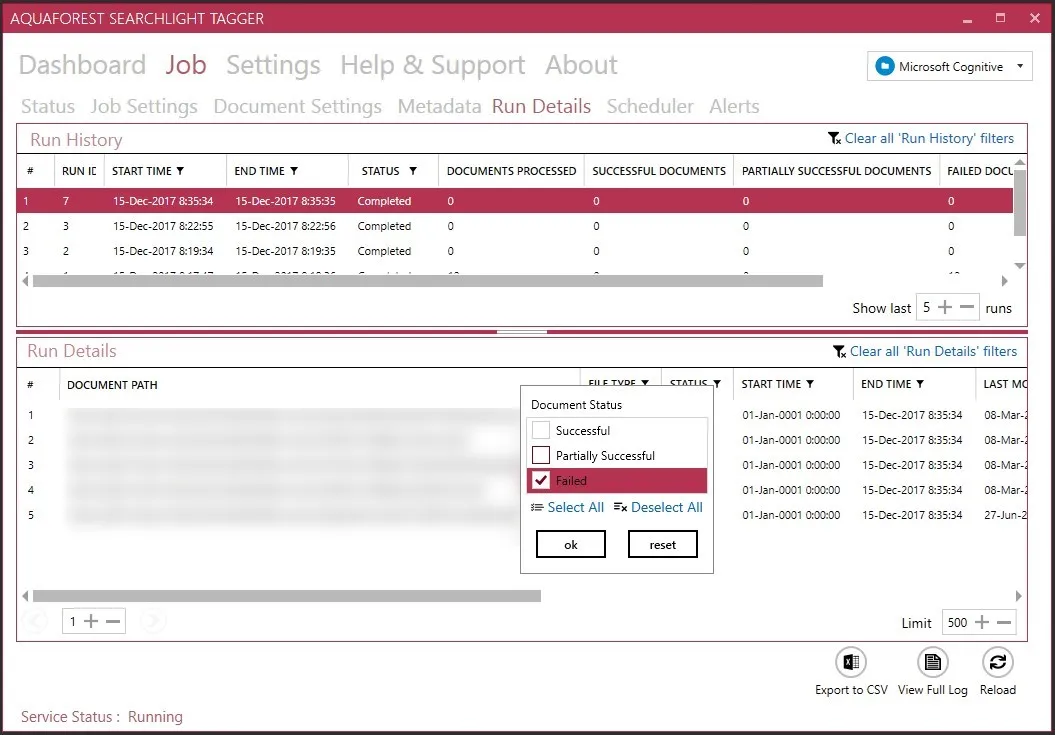
Advanced logging is included to support debugging and troubleshooting.
Summary
This guide outlined options for managing metadata in SharePoint and how to tag and auto-tag documents. Metadata is a shared responsibility, and its quality directly impacts your users’ ability to work effectively.
If your organization needs a lightweight, flexible auto-tagging solution, Nutrient Document Searchability may be a great fit. Try the free trial here.