How to convert Word documents to accessible PDF/UA

Table of contents
Headings, lists, tables, and reading order tagged through Nutrient Accessibility API — start free with $5 of usage every month.
- Turn Word documents into accessible PDFs in three API calls: Convert a file with the Office-to-PDF API, auto-tag the PDF with Nutrient Accessibility API, and validate the result against PDF/UA-1.
- Auto-tagging adds the structure screen readers need: headings, paragraphs, lists, tables, and reading order.
- Accessibility Studio lets your team refine what automation can’t judge, such as a complex table or alt text, in the browser.
- Both APIs run on the same Nutrient account and plan, and the free plan includes $5 of usage every month.
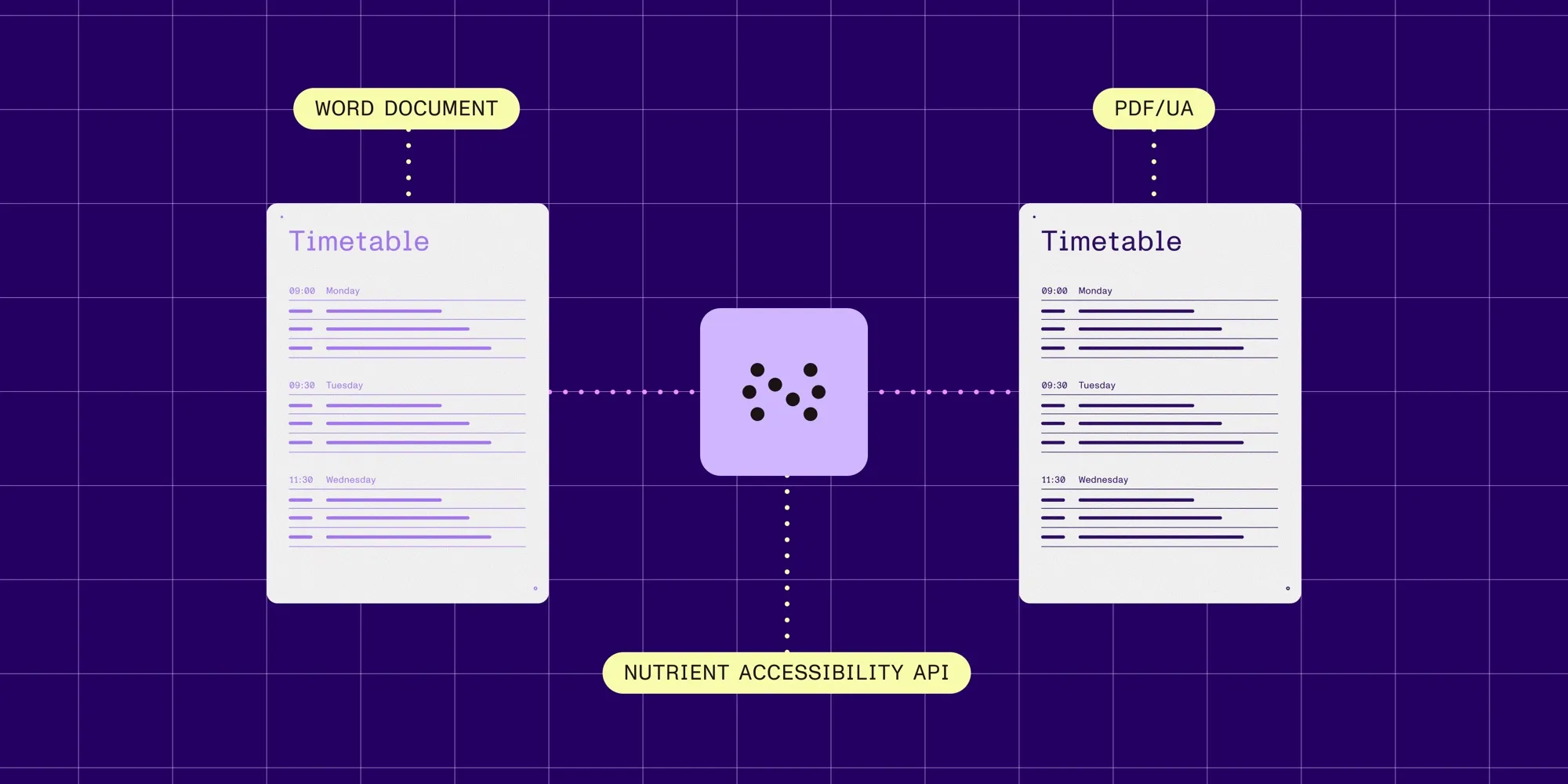
To make an accessible PDF from a Word document, convert it with the Nutrient Office-to-PDF API, auto-tag it to PDF/UA-1 with Nutrient Accessibility API, and validate the result. For a single file, upload the .docx file to Accessibility Studio instead.
Many PDFs that need to be accessible start as Word documents: reports, policies, forms, and course materials. Saving a Word file as a PDF keeps the look of the page, but not always the structure a screen reader needs. When a document skips Word’s built-in styles or the export leaves tags out, headings become large bold text, lists become lines that start with a bullet, and tables become text in a grid. Converting alone doesn’t fix that, which is why the workflow adds auto-tagging and validation.
Nutrient Accessibility API turns that output into a tagged PDF that targets PDF/UA-1, the ISO standard for accessible PDFs. It runs on a server, so it handles batches of documents without Office installed, and it returns a validation report for every file. Below, working requests take a .docx file to a validated, tagged PDF, and you’ll see which fixes still need a person.
Before you start
You’ll need:
- A Nutrient account and API key. Create a free account(opens in a new tab). The same key works for the Office-to-PDF API and Nutrient Accessibility API.
curland a Bash shell.- A Word document (
.docx).
The workflow at a glance
Converting a Word document into an accessible PDF takes three API calls and an optional review:
- Convert the Word document to PDF with the Office-to-PDF API.
- Auto-tag the PDF with Nutrient Accessibility API so it gets a structure tree and a logical reading order.
- Validate the tagged PDF against PDF/UA-1 to get a report you can keep.
- Refine the result in Accessibility Studio when a document needs a human decision.
Each API call uses the same API key and the same https://api.nutrient.io base URL.
Step 1: Convert the Word document to PDF
The Office-to-PDF API converts .docx, .xlsx, and .pptx files to PDF. Send the file as a multipart upload with build instructions that name it as the only part:
curl -X POST "https://api.nutrient.io/build" \ -H "Authorization: Bearer YOUR_API_KEY" \ -F "document=@report.docx" \ -F 'instructions={"parts": [{"file": "document"}]}' \ --fail \ -o report.pdfThe response is the converted PDF. It looks right on screen, but it isn’t tagged for assistive technology yet.
On the free plan, converted documents include an evaluation watermark until you add a wallet, which is the balance that covers usage beyond your plan’s monthly allowance. Auto-tagging treats the watermark as page content, so add a wallet before you convert documents you plan to publish.
Step 2: Auto-tag the PDF
Send the converted PDF to the auto-tagging endpoint:
curl -X POST "https://api.nutrient.io/accessibility/autotag" \ -H "Authorization: Bearer YOUR_API_KEY" \ -F "file=@report.pdf" \ --fail \ -o report-tagged.pdfNutrient Accessibility API analyzes the layout and writes a structure tree to a copy of the PDF. It detects headings, paragraphs, lists, figures, tables with a clear grid, and reading order. It also sets the document title from the first heading and marks running headers, footers, and page numbers as artifacts (decoration), so screen readers skip them. Auto-tagging is built to produce PDFs that conform to PDF/UA-1.
Step 3: Validate against PDF/UA-1
Check the tagged PDF against PDF/UA-1:
curl -X POST "https://api.nutrient.io/accessibility/validate_pdfua" \ -H "Authorization: Bearer YOUR_API_KEY" \ -F "file=@report-tagged.pdf" \ --fail \ -o report-validation.jsonValidation returns HTTP 200 whether or not the PDF conforms, so check isValid in the report. A passing report looks like this:
{ "conformance": "pdfua-1", "isValid": true, "validationReport": { "failedChecks": [], "failureCount": 0, "profile": { "conformance": "pdfua", "part": 1 }, "result": { "isCompliant": true, "statement": "PDF file is compliant with validation profile requirements." } }}The report gives you a record of the check for your compliance office. For more on what PDF/UA validation checks and how to run it in Nutrient’s SDKs, see PDF/UA validation.
Step 4: Refine the result in Accessibility Studio
Auto-tagging infers structure from the layout, so review the tags to make sure they match what readers expect. Automated checks also cover only what a machine can test. They confirm that a figure has alt text, for example, but not that the text describes the figure. Some layouts need a person’s judgment, such as a table without clear borders or a chart that needs a description.
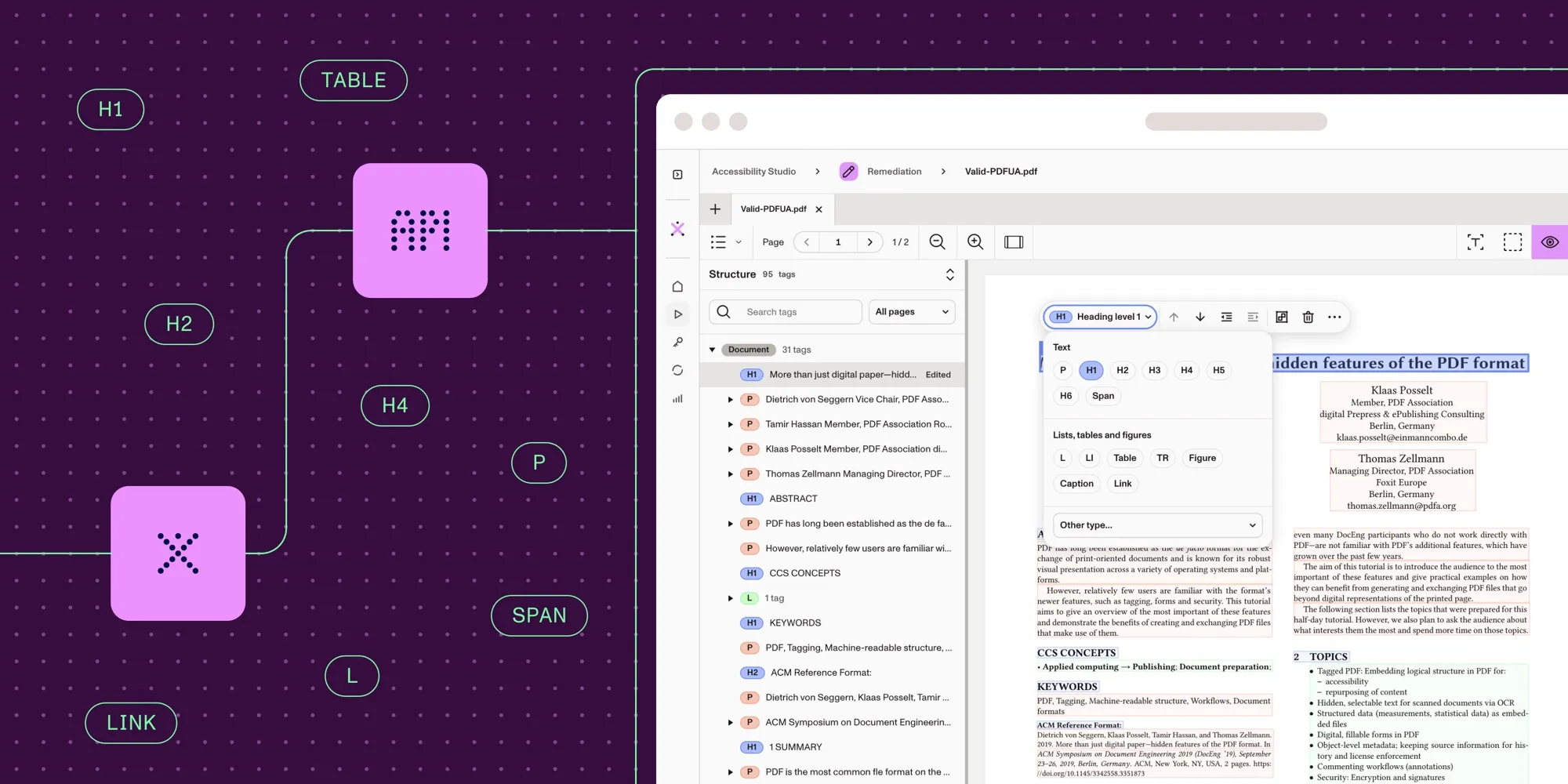
Accessibility Studio handles these cases. Open the tagged PDF there from the Nutrient dashboard(opens in a new tab), and every tag appears as a box on the page and as a row in the tag tree. From there, your team can:
- Rebuild a table — Group the content into rows and a table when the layout didn’t make the table obvious.
- Write alt text — Describe charts and images for screen reader users.
- Adjust headings — Change a paragraph to a heading, or a heading to the right level.
- Fix the reading order — Drag blocks into the order a screen reader should follow.
Every change stays a draft until you review and apply it, and editing tags in Studio is free. Download the refined PDF and validate it again.
For a single file, you can skip the API calls: Upload the .docx file to Accessibility Studio, which converts it to PDF and then auto-tags it. Our introductory post about Accessibility Studio covers every step in the browser.
Run the whole workflow in one script
The three requests chain together in a short script. It reads your API key from the NUTRIENT_API_KEY environment variable and takes the Word document as its first argument:
#!/usr/bin/env bashset -euo pipefail
API_KEY="${NUTRIENT_API_KEY:?Set NUTRIENT_API_KEY to your API key}"INPUT="${1:?Usage: ./make-accessible.sh file.docx}"NAME="${INPUT%.*}"
# 1. Convert the Word document to PDF.curl -sS -X POST "https://api.nutrient.io/build" \  -H "Authorization: Bearer $API_KEY" \  -F "document=@$INPUT" \  -F 'instructions={"parts": [{"file": "document"}]}' \  --fail -o "$NAME.pdf"
# 2. Auto-tag the PDF.curl -sS -X POST "https://api.nutrient.io/accessibility/autotag" \  -H "Authorization: Bearer $API_KEY" \  -F "file=@$NAME.pdf" \  --fail -o "$NAME-tagged.pdf"
# 3. Validate the tagged PDF against PDF/UA-1.curl -sS -X POST "https://api.nutrient.io/accessibility/validate_pdfua" \  -H "Authorization: Bearer $API_KEY" \  -F "file=@$NAME-tagged.pdf" \  --fail -o "$NAME-validation.json"
if grep -Eq '"isValid"[[:space:]]*:[[:space:]]*true' "$NAME-validation.json"; then  echo "PASS: $NAME-tagged.pdf"else  echo "FAIL: $NAME-tagged.pdf. Review it in Accessibility Studio."  exit 1fi
Save it as make-accessible.sh, make it executable with chmod +x make-accessible.sh, and run ./make-accessible.sh report.docx. The script prints PASS when the tagged PDF passes PDF/UA-1. In a batch job, loop the script over a folder and collect the files that fail validation for review in Accessibility Studio.
Handle errors
With --fail, curl stops at the first HTTP error. In the script above, -sS also prints the reason. The most common errors are:
- 401 — The API key is missing or invalid.
- 402 — Your plan’s monthly usage and wallet can’t cover the request.
- 413 — The file is too large. Nutrient Accessibility API accepts PDFs up to 150 MB.
Run the conversion on your own servers
When documents can’t leave your network, Nutrient’s server SDKs convert Word documents to PDF/UA directly. See the guides for Python, Java, and .NET.
FAQ
Convert the Word document to PDF with the Office-to-PDF API, auto-tag the PDF with Nutrient Accessibility API, and validate the result against PDF/UA-1. Then review the tagged PDF in Accessibility Studio when a table, chart, or reading order needs a person’s judgment.
Not on its own. A saved PDF keeps the look of the page, but its structure depends on how the Word document was built. Auto-tagging adds the headings, lists, tables, and reading order that screen readers rely on, and validation checks the result against PDF/UA-1.
Yes. Nutrient Accessibility API detects headings from the layout, such as larger or bold text, so it doesn’t depend on Word’s heading styles. Using heading styles in Word still helps keep heading levels consistent. If your document already uses heading styles and alt text, saving it from Word as a tagged PDF and validating the result may be all it needs.
Yes. The Office-to-PDF API also converts .xlsx and .pptx files, and the auto-tagging and validation steps are the same.
A PDF that passes validation meets the machine-testable PDF/UA-1 requirements. Some requirements, such as whether alt text describes an image and whether the reading order is logical, need a person to check. Web Content Accessibility Guidelines (WCAG), Americans with Disabilities Act (ADA) Title II, Section 508, and the European Accessibility Act also depend on the content, so review documents before publishing.