Bank statement to Excel with Python and Nutrient

Table of contents
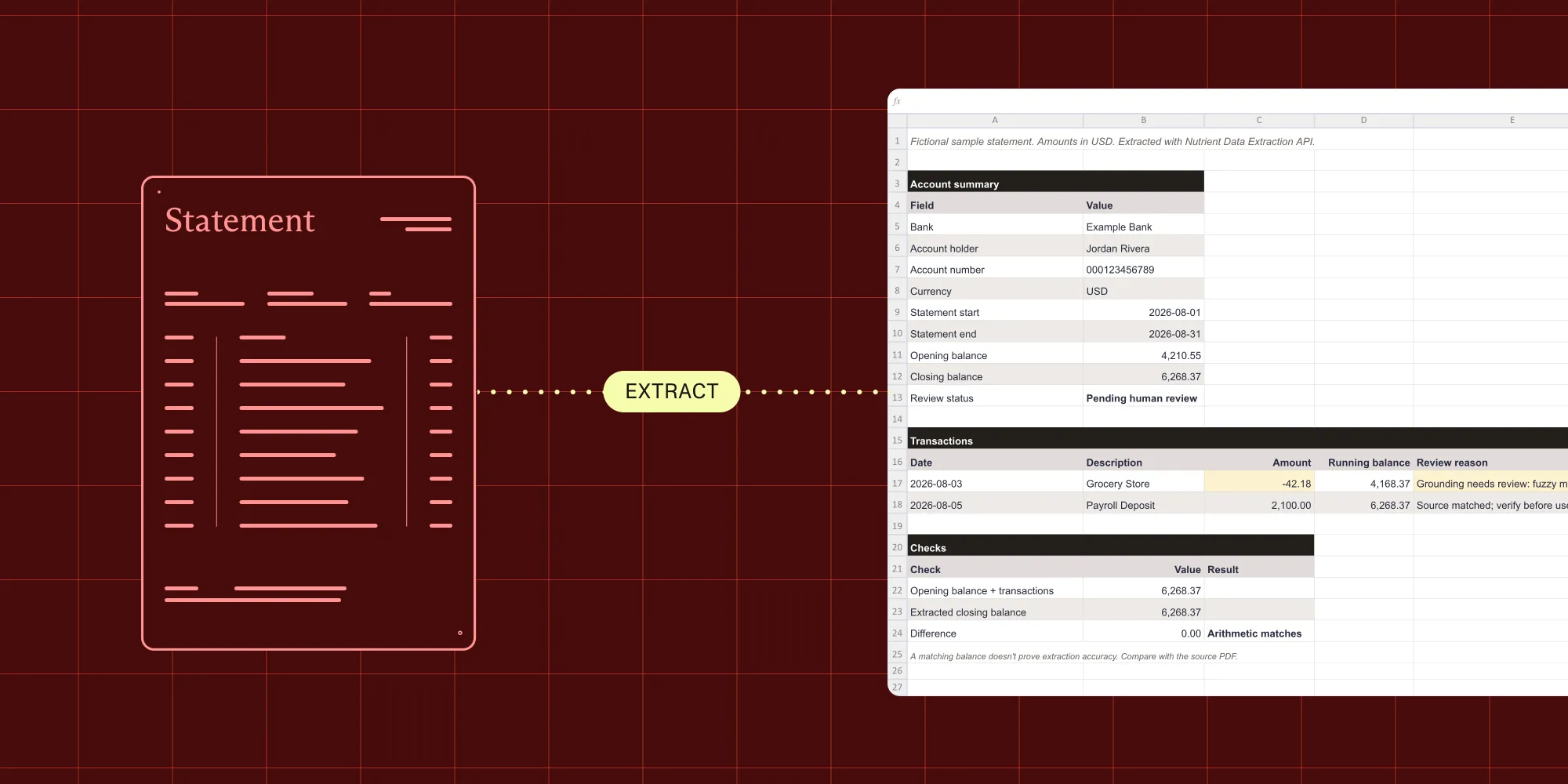
Structured output with per-field confidence scores through the Nutrient Data Extraction API.
Extract bank statement data with Nutrient Data Extraction API, and write it to Excel with Python. The workbook includes balance checks and source citations, with yellow cells marking values that need attention. Check the results against the original statement before using them.
Missing transactions and misread amounts can leave a bank statement spreadsheet looking complete while its balances are wrong. This tutorial uses Nutrient Data Extraction API and openpyxl to build a workbook with transaction rows, balance checks, and source citations.
Choose layout conversion or structured extraction
Convert a bank statement directly to a workbook with Nutrient’s PDF-to-XLSX API. Use these instructions in a multipart /build request:
{ "parts": [{ "file": "document" }], "output": { "type": "xlsx" }}For named fields such as opening_balance and a transactions array, use the Data Extraction API’s /extract endpoint with a JSON Schema. That’s the approach used below: Extract the fields, check their values, and arrange them in a workbook.
What the script builds
The script creates four sheets: Summary, Transactions, Review, and Checks. Yellow cells mark citation or balance issues. It saves the full API response as a JSON file beside the workbook, so the source details stay available for lookup.
Prerequisites
- Python 3.10 or later.
- A Nutrient Document Web Services (DWS) account and a key with Data Extraction access. Create an account(opens in a new tab). Then follow the API key setup guide. The Data Extraction free plan includes 5,000 credits per month, with no credit card required.
- A statement for one account in one currency. The balance checks assume transactions are listed from oldest to newest, with credits positive and debits negative.
Use a synthetic or redacted statement while testing. The API processes the uploaded document; the workbook and JSON response can contain account details. Keep the API key, input files, and outputs out of version control. Review Nutrient’s data handling guidance before uploading customer documents.
Project setup
Create a project and install the dependencies. On systems that use python3, use it instead of python to create the virtual environment. These activation commands are for macOS or Linux; on Windows PowerShell, use .venv\Scripts\Activate.ps1 instead of source:
mkdir bank-statement-extractcd bank-statement-extractpython -m venv .venvsource .venv/bin/activatepython -m pip install requests python-dotenv openpyxl jsonschemaCreate a .env file with the API key, and add .env to .gitignore:
NUTRIENT_API_KEY=your_data_extraction_api_key_hereSave each Python block below in the named file in this directory. Run the commands from this directory in the same terminal session.
Step 1: Define the schema
Save this as schema.py. The descriptions tell the API what to extract. The script checks for required fields before writing the workbook and keeps the account number as a string to preserve leading zeros.
# schema.py.
BANK_STATEMENT_SCHEMA = {    "type": "object",    "properties": {        "bank_name": {            "type": "string",            "description": "Name of the financial institution that issued the statement",        },        "account_holder_name": {            "type": "string",            "description": "Name of the account holder the statement belongs to",        },        "account_number": {            "type": "string",            "description": "Account number or IBAN, however it's labeled on the statement",        },        "currency": {            "type": "string",            "description": "ISO 4217 currency code, e.g. USD or EUR",        },        "statement_start_date": {            "type": "string",            "format": "date",            "description": "First date of the statement period",        },        "statement_end_date": {            "type": "string",            "format": "date",            "description": "Last date of the statement period",        },        "opening_balance": {            "type": "number",            "description": "Account balance at the start of the statement period",        },        "closing_balance": {            "type": "number",            "description": "Account balance at the end of the statement period",        },        "transactions": {            "type": "array",            "description": "One entry per row in the transaction table, in statement order",            "items": {                "type": "object",                "properties": {                    "date": {"type": "string", "format": "date"},                    "description": {                        "type": "string",                        "description": "Transaction description or memo as printed",                    },                    "amount": {                        "type": "number",                        "description": "Signed amount — negative for debits, positive for credits",                    },                    "running_balance": {                        "type": "number",                        "description": "Account balance after this transaction, if the statement shows one",                    },                },                "required": ["date", "amount"],            },        },    },    "required": ["account_number", "currency", "opening_balance", "closing_balance", "transactions"],}
The API supports a subset of JSON Schema, including objects, arrays, required fields, and date formats. It rejects unsupported keywords such as $ref, anyOf, and minimum. See the schema guide for supported keywords and limits.
Step 2: Call the extract endpoint
Save this as extract.py. The request enables citations and uses understand, the default parsing mode. It checks the HTTP status before reading a success response and handles error bodies that use either errorMessage or message.
# extract.py.import jsonimport os
import requestsfrom dotenv import load_dotenv
from schema import BANK_STATEMENT_SCHEMA
load_dotenv()ENDPOINT = "https://api.nutrient.io/extraction/extract"

def extract_statement(pdf_path: str) -> dict:    """Extract fields, retaining the full API response for review."""    api_key = os.getenv("NUTRIENT_API_KEY")    if not api_key:        raise RuntimeError("Set NUTRIENT_API_KEY in your environment or .env file.")    instructions = {        "schema": BANK_STATEMENT_SCHEMA,        "instructions": "Extract all transactions in statement order. Include fees and interest as separate rows. Use negative amounts for debits and positive amounts for credits. Do not invent missing transactions.",        "parseConfig": {"mode": "understand"},        "options": {"includeCitations": True},    }    try:        with open(pdf_path, "rb") as source:            response = requests.post(                ENDPOINT,                headers={"Authorization": f"Bearer {api_key}"},                files={"file": source},                data={"instructions": json.dumps(instructions)},                timeout=(10, 330),            )    except requests.RequestException as exc:        raise RuntimeError("Extraction request failed; check connectivity and retry deliberately.") from exc
    try:        result = response.json()    except ValueError as exc:        raise RuntimeError(f"API returned HTTP {response.status_code} with a non-JSON body.") from exc
    if not response.ok:        details = result if isinstance(result, dict) else {}        message = details.get("errorMessage") or details.get("message") or "Request failed"        raise RuntimeError(f"API HTTP {response.status_code}: {message}")    if not isinstance(result, dict) or result.get("status") != 200:        raise RuntimeError("Unexpected extraction response; expected status 200.")    if not isinstance(result.get("output"), dict) or not isinstance(result["output"].get("data"), dict):        raise RuntimeError("Extraction response is missing output.data.")    return result
The read timeout is slightly longer than the API’s five-minute processing limit. The server may still be processing after a timeout, so the script doesn’t retry automatically. See the error handling guide for status codes and troubleshooting.
Choose the parsing mode based on a representative sample of the statements:
| Mode | When to evaluate it | Credits per page, including extraction |
|---|---|---|
structure | Clean, predictable layouts; includes optical character recognition (OCR). | 7.5 |
understand | Tables and more complex layouts; the default used here. | 15 |
agentic | Degraded scans or dense visual content that lower modes struggle with. | 24 |
Test scanned statements in structure or understand before paying for agentic. Compare the results with the source documents. See parse configuration for mode details and pricing for all modes and costs.
Step 3: Inspect the response
The API returns extracted values in output.data and available citation details in output.metadata. Metadata follows the same nested structure as the data, including transaction arrays. This excerpt comes from the live extraction of the fictional statement used below. It shows one transaction amount and selected citation fields:
{ "output": { "data": { "transactions": [ { "amount": -42.18 } ] }, "metadata": { "transactions": [ { "amount": { "match": "id_match", "citation": { "confidence": { "groundedness": 0.9997683167457581, "schemaValid": true }, "regions": [ { "bbox": { "height": 31.70635986328125, "width": 77.5469970703125, "x": 1091.9189453125, "y": 902.34375 }, "pageIndex": 0, "pageNumber": 1 } ], "status": "cited" }, "pageNumber": 1, "bbox": { "height": 31.70635986328125, "width": 77.5469970703125, "x": 1091.9189453125, "y": 902.34375 } } } ] } }}This response includes citation.confidence.groundedness and no top-level confidence score. Keep those signals separate; the workbook records them under different columns when available. A missing top-level score doesn’t mean the source citation is missing. The checks below use match labels and source locations.
Step 4: Check fields and balances
Save this as review.py. It flags missing citations, partial or approximate matches, and missing source locations. It doesn’t apply a shared threshold to different confidence signals or automatically approve any field.
# review.py.from decimal import Decimal
from jsonschema import FormatChecker, validate
from schema import BANK_STATEMENT_SCHEMA

def review_fields(data, metadata, path=""):    """Yield each scalar value with its citation and any review reason."""    if isinstance(data, dict):        for key, value in data.items():            citation = metadata.get(key, {}) if isinstance(metadata, dict) else {}            yield from review_fields(value, citation, f"{path}.{key}" if path else key)    elif isinstance(data, list):        for index, value in enumerate(data):            citation = metadata[index] if isinstance(metadata, list) and index < len(metadata) else {}            yield from review_fields(value, citation, f"{path}[{index}]")    else:        citation = metadata if isinstance(metadata, dict) else {}        match = citation.get("match")        if not citation:            reason = "Missing citation; check source"        elif match not in ("id_match", "id_match_multiblock"):            reason = f"Grounding needs review: {match or 'missing match'}"        else:            reason = ""        if not reason and (citation.get("pageNumber") is None or not citation.get("bbox")):            reason = "Missing source location; check source"        yield {"field": path, "value": data, "reason": reason, "citation": citation}

def check_balances(data):    """Validate schema and compare balances for a single-currency statement."""    validate(data, BANK_STATEMENT_SCHEMA, format_checker=FormatChecker())
    def money(value):        amount = Decimal(str(value))        if not amount.is_finite():            raise ValueError("Balances and amounts must be finite numbers.")        return amount
    checks = []    balance = money(data["opening_balance"])    if not data["transactions"]:        checks.append({"field": "transactions", "reason": "No transactions extracted; confirm against the statement"})    for index, transaction in enumerate(data["transactions"]):        balance += money(transaction["amount"])        if transaction.get("running_balance") is not None and money(transaction["running_balance"]) != balance:            checks.append({"field": f"transactions[{index}].running_balance", "reason": f"Balance mismatch: expected {balance}"})    if balance != money(data["closing_balance"]):        checks.append({"field": "closing_balance", "reason": f"Opening balance plus transactions is {balance}; extracted closing balance is {data['closing_balance']}"})    return checks
The balance checks use Decimal arithmetic. They compare each available running balance and the closing balance with the opening balance plus signed transactions. Schema validation catches missing required fields, wrong types, and invalid dates before workbook generation. If validation fails, inspect the retained JSON response.
Balance checks can catch missing or misread transactions, but errors that cancel each other out can still pass. Check empty transaction lists against the statement too. Statements with multiple accounts or currencies need a different schema and balance checks. See citations and confidence for more on interpreting the metadata.
Step 5: Write the workbook
Save this as to_excel.py. The script stores strings as text so Excel won’t interpret a description beginning with = as a formula. It writes dates as Excel date cells and keeps numeric fields as numbers.
# to_excel.py.import jsonfrom datetime import date
from openpyxl import Workbookfrom openpyxl.styles import Font, PatternFillfrom openpyxl.utils import get_column_letter
FLAG_FILL = PatternFill(start_color="FFF2CC", end_color="FFF2CC", fill_type="solid")

def put(sheet, row, column, value):    """Write source text literally, even when it starts with an equals sign."""    cell = sheet.cell(row=row, column=column, value=value)    if isinstance(value, str):        cell.data_type = "s"    return cell

def write_statement_to_excel(data, reviews, checks, output_path):    wb = Workbook()    summary = wb.active    summary.title = "Summary"    flagged = {item["field"] for item in reviews if item["reason"]}    flagged.update(check["field"] for check in checks)    fields = [        ("Bank", "bank_name"), ("Account holder", "account_holder_name"),        ("Account number", "account_number"), ("Currency", "currency"),        ("Statement start", "statement_start_date"), ("Statement end", "statement_end_date"),        ("Opening balance", "opening_balance"), ("Closing balance", "closing_balance"),    ]    summary.append(["Field", "Value"])    for row, (label, key) in enumerate(fields, start=2):        put(summary, row, 1, label)        value = data.get(key)        if key.endswith("_date") and value is not None:            value = date.fromisoformat(value)        cell = put(summary, row, 2, value)        if key in flagged:            cell.fill = FLAG_FILL    summary.append(["Review status", "Pending human review"])
    transactions = wb.create_sheet("Transactions")    transactions.append(["Date", "Description", "Amount", "Running balance"])    for index, transaction in enumerate(data["transactions"]):        for column, key in enumerate(["date", "description", "amount", "running_balance"], start=1):            value = transaction.get(key)            if key == "date":                value = date.fromisoformat(value)            cell = put(transactions, index + 2, column, value)            if f"transactions[{index}].{key}" in flagged:                cell.fill = FLAG_FILL
    evidence = wb.create_sheet("Review")    evidence.append(["Field", "Value", "Review reason", "Match", "Confidence (if returned)",                     "Citation confidence metadata", "Page", "Bounding box"])    for row, item in enumerate(reviews, start=2):        citation = item["citation"]        details = citation.get("citation")        signals = details.get("confidence") if isinstance(details, dict) else None        values = [item["field"], item["value"], item["reason"] or "Source matched; verify before use",                  citation.get("match"), citation.get("confidence"),                  json.dumps(signals) if signals is not None else None, citation.get("pageNumber"),                  json.dumps(citation.get("bbox")) if citation.get("bbox") else None]        for column, value in enumerate(values, start=1):            cell = put(evidence, row, column, value)            if item["reason"]:                cell.fill = FLAG_FILL
    balances = wb.create_sheet("Checks")    balances.append(["Field", "Result"])    rows = checks or [{"field": "Balances", "reason": "Arithmetic matches; this does not prove extraction accuracy"}]    for row, check in enumerate(rows, start=2):        put(balances, row, 1, check["field"])        put(balances, row, 2, check["reason"])        if checks:            balances.cell(row, 2).fill = FLAG_FILL
    for sheet in wb:        sheet.freeze_panes = "A2"        sheet.auto_filter.ref = sheet.dimensions        for cell in sheet[1]:            cell.font = Font(bold=True)        for column in sheet.columns:            width = min(65, max(14, max(len(str(cell.value or "")) for cell in column) + 2))            sheet.column_dimensions[get_column_letter(column[0].column)].width = width        for row in sheet:            for cell in row:                if isinstance(cell.value, date):                    cell.number_format = "yyyy-mm-dd"    wb.save(output_path)
Use the Review sheet to find available page numbers, bounding boxes, match labels, and confidence metadata. The top-level confidence score and nested citation signals occupy separate columns. The saved JSON contains additional details, including source_bboxes and page dimensions. Even when the balances match, the workbook stays marked “Pending human review.”
Step 6: Run and inspect the result
Save this as main.py. It keeps the API response beside the workbook and refuses to overwrite existing output files:
# main.py.import jsonimport sysfrom pathlib import Path
from jsonschema import ValidationError
from extract import extract_statementfrom review import check_balances, review_fieldsfrom to_excel import write_statement_to_excel

def process_statement(pdf_path: str, output_path: str) -> None:    source = Path(pdf_path)    target = Path(output_path)    evidence_path = target.with_suffix(".json")    if target.suffix.lower() != ".xlsx":        raise ValueError("Use an .xlsx output path.")    if source.resolve() in (target.resolve(), evidence_path.resolve()):        raise ValueError("Output files must not overwrite the source.")    if target.exists() or evidence_path.exists():        raise ValueError("Choose a new output name; the workbook or evidence file already exists.")
    result = extract_statement(str(source))    evidence_path.write_text(json.dumps(result, indent=2, ensure_ascii=False), encoding="utf-8")    data = result["output"]["data"]    checks = check_balances(data)    reviews = list(review_fields(data, result["output"].get("metadata", {})))    write_statement_to_excel(data, reviews, checks, target)    print(f"Wrote {target}; status: pending human review")    print(f"{sum(bool(item['reason']) for item in reviews)} citation review flag(s); {len(checks)} balance issue(s)")    print(f"Full response and citations: {evidence_path}")

if __name__ == "__main__":    try:        if len(sys.argv) != 3:            raise ValueError("Usage: python main.py statement.pdf statement.xlsx")        process_statement(sys.argv[1], sys.argv[2])    except (OSError, RuntimeError, ValueError, ValidationError) as exc:        print(f"Error: {exc}", file=sys.stderr)        sys.exit(1)
For a first run, download the synthetic bank statement and save it as statement.pdf. It contains fictional account details and two transactions. Run the script against that file:
python main.py statement.pdf statement.xlsxOpen the workbook and follow these steps:
- Compare the account, currency, period, and balances on Summary with the source PDF.
- Check transaction count and order, including rows continued across page breaks.
- Inspect yellow cells, using Review and the saved JSON for source locations and review reasons.
- Resolve entries on Checks. A matching balance still requires a check against the original statement.
- Correct any errors and complete the review before using the data.
Example workbook
Download the recorded API response and the example workbook from the live test on 12 October 2026. The response omits the request identifier and remaining account credits; the extracted values and citation metadata are unchanged. All 16 fields matched the fictional statement, and both transactions reconciled. The checks produced no citation flags. This verifies one simple layout, not extraction accuracy across different banks.
The image below illustrates a separate review case: A manually constructed response gives the first transaction amount a fuzzy match. Its yellow cell shows how a review flag appears. This image doesn’t show the recorded live result.
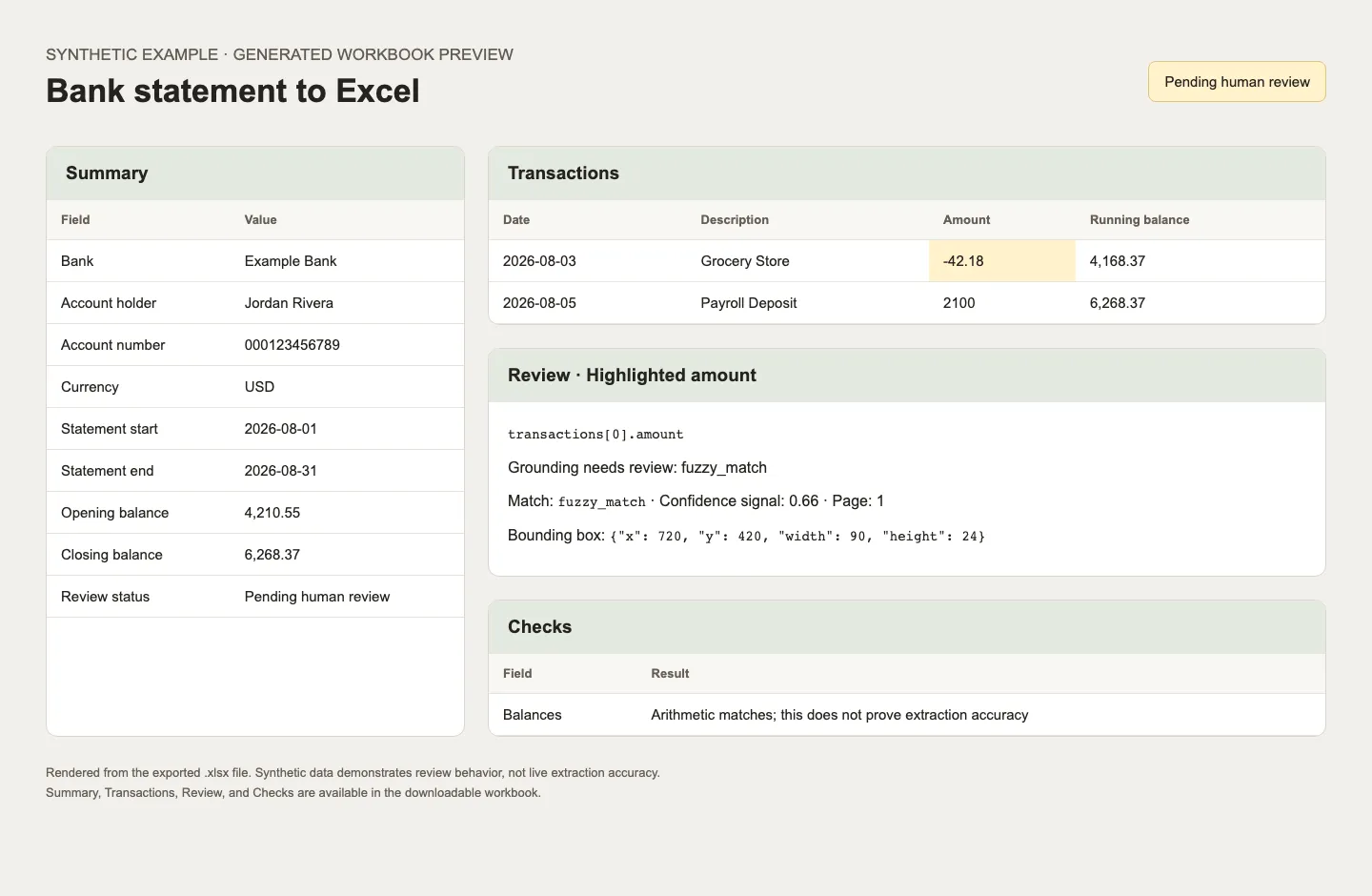
The downloadable workbook contains all four sheets. The fictional statement starts at 4,210.55, includes transactions of −42.18 and 2,100.00, and closes at 6,268.37.
For loan processing, see how Nutrient extracts bank statements for lending workflows.
Additional layout and scan tests
We also ran the script in understand mode on five fictional statements on 12 October 2026. All 124 extracted field values matched the expected values, including account-number leading zeros, dates, transaction signs, and balances.
| Test statement | Extracted values | Balance checks |
|---|---|---|
| USD with separate debit and credit columns | All matched | No issues |
| EUR across two pages, with decimal commas and repeated headers | All matched | No issues |
| GBP with newest transactions first | All matched | Three running-balance mismatches |
| USD as a 150 dots per inch (DPI) grayscale scan | All matched | No issues |
| USD as a faint 100 DPI scan, rotated 90 degrees | All matched | No issues |
The GBP result exposes a limitation in this script: It checks running balances from the opening balance in row order, which assumes oldest-first transactions. The extracted values were correct, but the checks need adapting before you use newest-first statements.
All five responses had source locations and produced no citation flags. Inspection of the source crops found the expected values; some locations covered a whole text block.
These tests cover the five samples above, not real banks’ full range of layouts or scan quality. USD, EUR, and GBP were tested in separate statements; mixed currencies within one statement weren’t tested.
Production considerations
- Document coverage — Test each bank’s layouts, date conventions, debit/credit signs, and page breaks. For reverse-ordered statements, adapt the schema instructions and balance checks before use.
- Review policy — Check why each field was flagged. Verify important fields against the source even when they aren’t highlighted.
- Languages — Set
parseConfig.options.languagefor non-English statements. See multilingual extraction. - Output handling — Store the source and response together with appropriate access controls. Apply the retention policy to the workbook and JSON as well as the original statement.
Try Nutrient with your bank statements
Try Nutrient Data Extraction API to extract account fields and transactions from bank statements. Create an account(opens in a new tab), follow the API key setup guide, and run the script on the sample PDF. Compare the workbook with the source before adapting the schema and parsing mode for another bank’s layout.
FAQ
Yes. Use the PDF-to-XLSX API for direct conversion to a workbook. To extract specific account fields and transaction rows, use the Data Extraction API with a schema, and export the JSON to Excel.
No. The script checks field types, citations, and balances, but those checks can miss extraction errors. Compare the workbook with the original statement before approving the data.
Yes. The structure, understand, and agentic modes include OCR. Start with understand, or test structure for simpler layouts. Try agentic if those modes struggle with degraded scans or complex content.
The extract endpoint charges the parsing cost plus 6 credits per page. The understand example costs 15 credits per page; structure costs 7.5 and agentic costs 24. Check pricing for the current rates. New accounts receive 5,000 free credits per month.
The schema is reusable, but test the output for each bank. The balance checks here assume one account, one currency, and transactions ordered from oldest to newest. Adapt them for other statement structures.
Related reading
- Extract invoice data with a schema — Apply the same endpoint to invoice fields and line items.
- Citations and confidence — Interpret grounding and confidence signals.
- Lending and underwriting data extraction — Explore bank statement extraction in lending workflows.
- PDF-to-XLSX API — Convert a PDF directly to a spreadsheet.