Mailroom automation: Split, classify, and route incoming documents with an API

Table of contents
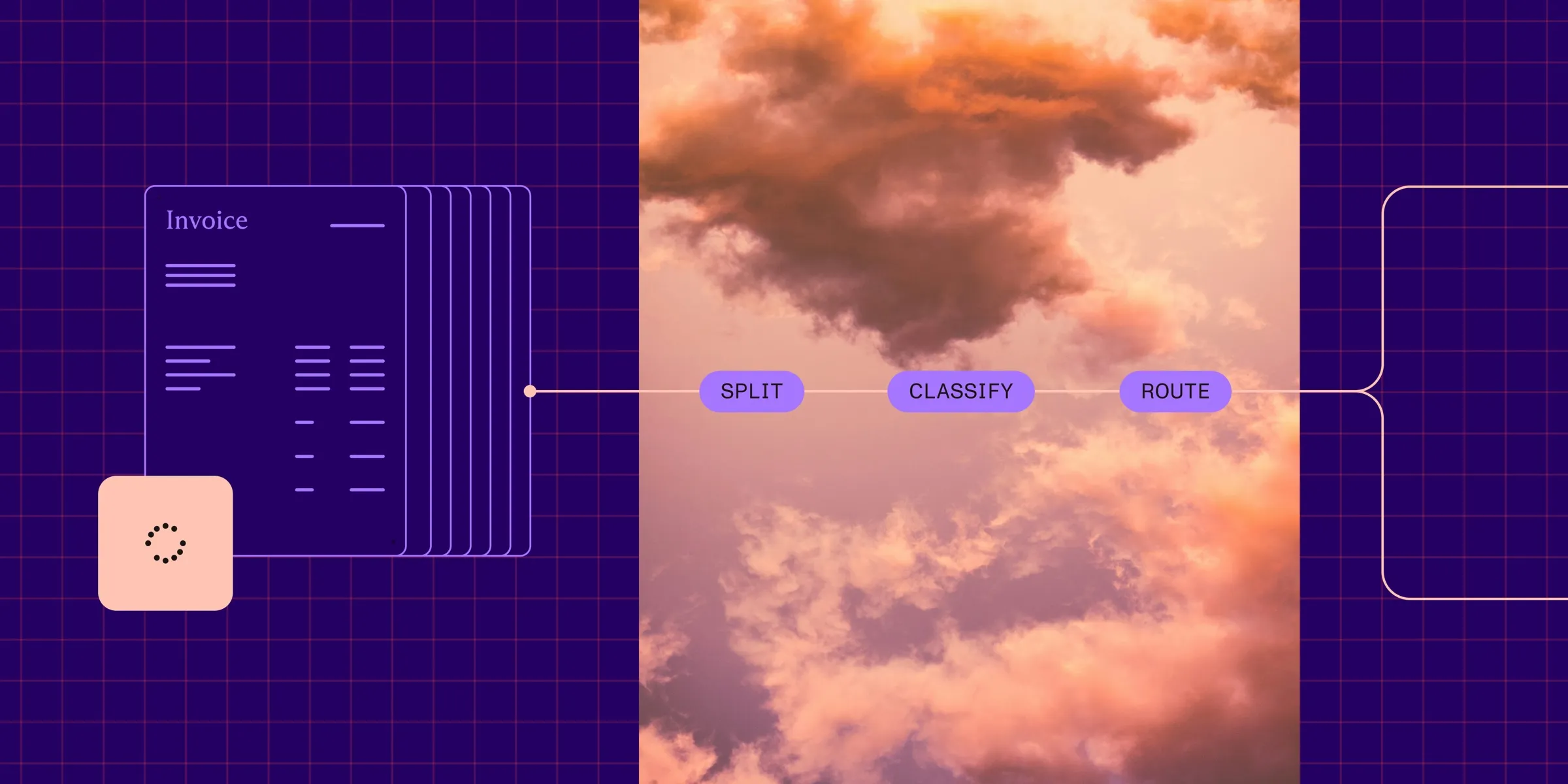
A mailroom scan rarely holds just one document. Yesterday’s mail goes through the scanner in batches, so one PDF can contain a claim form, two invoices, a contract amendment, and a copy of someone’s driver’s license. Before anything else happens, a person opens the file, works out where each document starts, decides what it is, and forwards it.
Mailroom automation is supposed to remove that step, and in a lot of setups, it doesn’t. The scanner works, the optical character recognition (OCR) works, and someone still sits between the scanner and the rest of the business, sorting pages.
This post builds the sorting part with Nutrient Data Extraction API: split the batch into documents, classify each one against your own labels, and route it. It also covers what to do with the documents the API isn’t sure about, because that’s where most of a mailroom’s real work ends up.
What is mailroom automation?
Mailroom automation is software that takes incoming documents (scanned paper, email attachments, uploads) and gets each one to the right team or system without someone sorting it by hand. When the starting point is paper, you’ll often see it called a digital mailroom.
Most pipelines do four things, in this order.
- Capture the paper or the files.
- Separate each batch into individual documents.
- Classify each document: invoice, claim, contract, ID.
- Route it, and extract the fields the receiving team needs.
Scanners and intake tools usually cover capture already. This post is about steps 2 to 4, which start once you have a PDF.
Why merged scans are the hard part
Many classification setups assume one file is one document. That holds for an invoice uploaded through a supplier portal. It falls apart with a scanner batch, a 30-page claim packet, or an email where someone attached everything as a single PDF.
The usual workarounds push the work back onto people. Separator sheets and barcodes mean someone prints a cover page and slots it between documents before scanning. Keyword rules (“a new document starts on any page with INVOICE at the top”) break the first time a supplier changes its layout. Templates per document type mean every new form waits until someone builds one.
Text alone also misses boundaries. The last page of one contract and the first page of the next can read almost the same. What gives the boundary away is often visual: a new letterhead, a different layout, a form header. That’s why split looks at the page image as well as the text.
Why sorting needs a different kind of model
Sorting mail is a chain of small questions with fixed answers: whether a new document starts on this page; whether this is an invoice, a claim, or a contract; and whether a total is really on the page. None of them needs a paragraph in reply.
A general-purpose large language model (LLM) answers each one by writing text, one token at a time. That’s slow and costly when a morning batch holds hundreds of pages, and the answer still has to be parsed before code can act on it.
Split and classify run on the Nutrient document decision model, which is trained for document tasks. It reads the page image as well as the text, and it answers with a choice and a score instead of generated text:
- Split asks, page by page, whether a new document starts here.
- Classify scores each document against every label you send, so each label gets its own score.
- Extract checks that each value it returns is supported by the page.
Classify takes about half a second to a second per document, and split takes about five seconds per batch. On the public document-splitting leaderboard(opens in a new tab), the model scores 96.2 percent F1 on splitting merged PDFs, where OpenAI’s Decision API scores 82.5 percent. It also runs fully on Nutrient’s own infrastructure, so pages aren’t sent to an outside model provider.
Austin Nguyen, the Nutrient AI engineer who built the model, covers how it was trained and where it wins in an interview on the Nutrient blog. The AI models page lists its benchmarks.
The pipeline: Split, classify, route
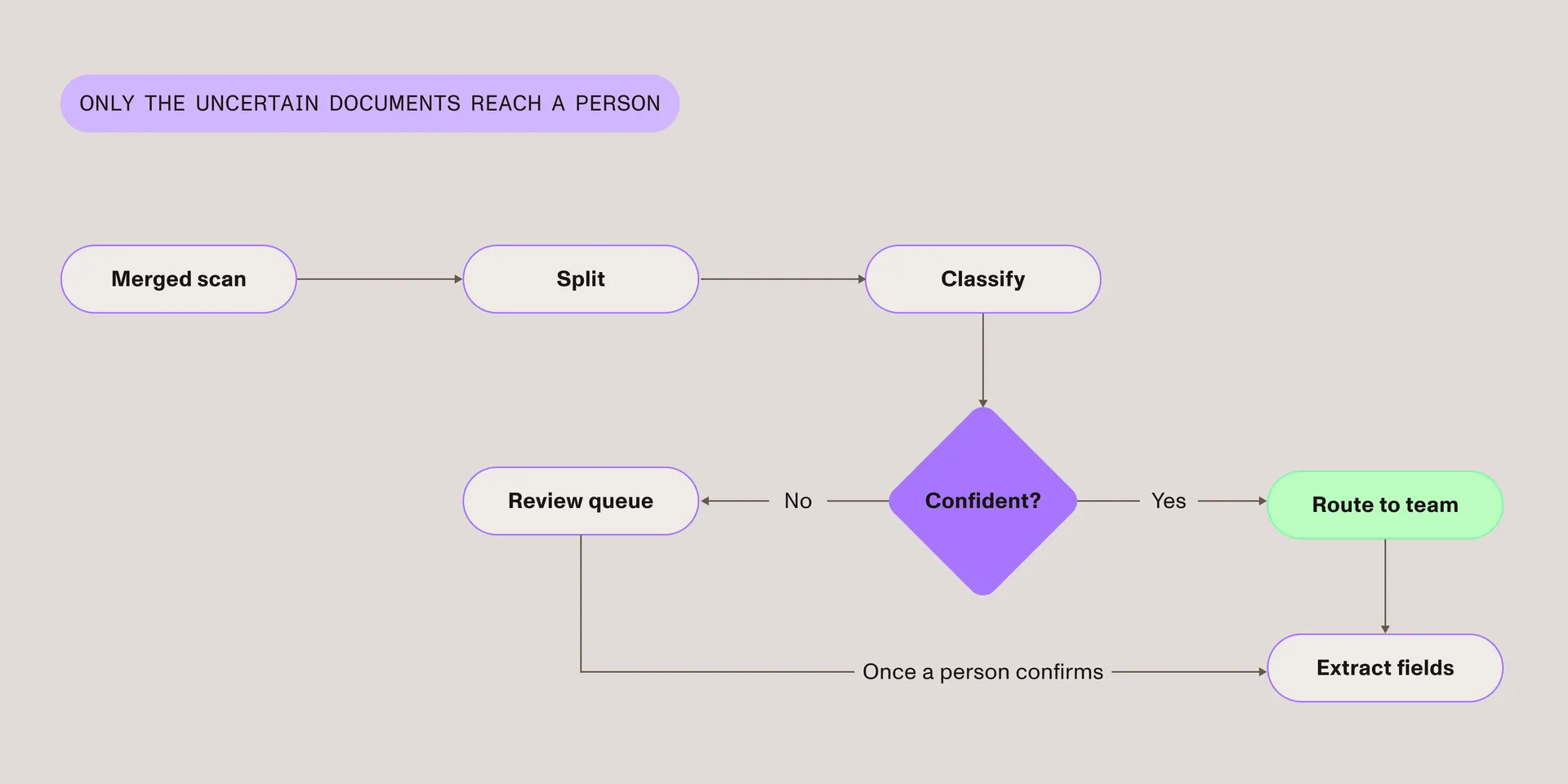
Clear cases go straight to a team, and a person only sees the documents the API wasn’t sure about.
- Split finds where each document starts and ends, and it returns the page ranges, separate PDFs, or both.
- Classify scores each document against labels you pass in, like “invoice,” “insurance claim,” or “contract.” There’s no model to train and no template to maintain.
- Routing is your own code. A score above your threshold goes to the matching queue; anything below goes to review.
- Extract then pulls the fields each team needs, with a confidence score and the page each value came from. The document decision model checks each value against the page before it’s returned.
Build a mailroom router in Python
The code makes two API calls and adds your own routing. It uses requests for the API and pypdf to cut each document out of the batch.
1. Split the batch into documents
The first call sends the batch to split, which returns one segment per document with its page range and a boundary confidence score:
import ioimport json
import requestsfrom pypdf import PdfReader, PdfWriter
API = "https://api.nutrient.io"HEADERS = {"Authorization": f"Bearer {API_KEY}"}BATCH = "morning-batch.pdf"
with open(BATCH, "rb") as f:    split = requests.post(        f"{API}/extraction/split",        headers=HEADERS,        files={"file": f},        data={"instructions": json.dumps({"options": {"output": "json"}})},    ).json()
# One segment per document found, in page order:# {"output": {"segments": [#   {"startPage": 1, "endPage": 3, "pageCount": 3, "boundaryConfidence": 1},#   {"startPage": 4, "endPage": 5, "pageCount": 2, "boundaryConfidence": 0.61}, ...]}}documents = split["output"]["segments"]
2. Classify each document with your own labels
Classify scores a document against the labels you send in the request. To add a document type later, add a label:
LABELS = [    {"label": "invoice", "description": "A supplier invoice or bill"},    {"label": "insurance claim", "description": "A claim form or claim packet"},    {"label": "contract", "description": "A signed agreement or amendment"},    {"label": "identity document", "description": "A passport, ID card, or driver's license"},    {"label": "other"},]
reader = PdfReader(BATCH)
def document_pdf(doc):    """Cut one document's pages out of the batch."""    writer = PdfWriter()    for page in range(doc["startPage"] - 1, doc["endPage"]):        writer.add_page(reader.pages[page])    buffer = io.BytesIO()    writer.write(buffer)    return buffer.getvalue()
for doc in documents:    result = requests.post(        f"{API}/extraction/classify",        headers=HEADERS,        files={"file": ("document.pdf", document_pdf(doc), "application/pdf")},        data={"instructions": json.dumps({"labels": LABELS})},    ).json()    top = result["output"]["classification"]   # The top-ranked label.    doc["label"], doc["label_score"] = top["label"], top["score"]
Split can also return the separate PDFs as a ZIP, if you’d rather not cut the pages yourself.
3. Route on the result
The routing step is plain code. A document goes to its team’s queue when both scores clear the threshold, and to review otherwise:
QUEUES = {    "invoice": "accounts-payable",    "insurance claim": "claims-intake",    "contract": "legal",    "identity document": "kyc",}THRESHOLD = 0.85   # A starting point; tune it on your own mail.
for doc in documents:    sure = doc["boundaryConfidence"] >= THRESHOLD and doc["label_score"] >= THRESHOLD    queue = QUEUES.get(doc["label"], "review") if sure else "review"    send_to(queue, doc)   # Your queue, DMS, or workflow tool.
From there, extract can pull the fields each team cares about (invoice total, policy number, contract date) for the documents that landed in its queue. If you already route documents by type, the post on routing documents with the classify API covers that part in more depth.
Leave the hard cases to people
Aim for a mailroom where people only handle the documents that need judgment. Pick a threshold, route everything above it automatically, and send the rest to a review queue. Include the page range and the top two labels with each item so the reviewer confirms a suggestion instead of starting from a blank screen.
Don’t guess the threshold. Run a week of real batches through the pipeline, compare the scores with what your reviewers decide, and move the threshold until the review queue holds the documents people actually change.
It’s also worth logging the reviewers’ corrections. They often point at a vague label. “Letter” gives the classifier little to go on; “proof of address” or “change of address request” gives it much more.
The scores tell you how sure the model is, not why. When a reviewer needs a written reason, such as why a page was flagged as a new document, send just those low-score cases to an LLM for an explanation. The clear cases stay fast and cheap, and only the hard ones pay for generated text.
Try it on your own mail
The quickest test is a real batch from your scanner. Run it through split and classify, look at where the scores land, and you’ll know within an afternoon how much of your daily mail could skip the sorting desk.
Classify costs a flat 1 credit per page and split costs 3 credits per page. New accounts get 5,000 free credits a month, no credit card needed.
Get your free API key
FAQ
A digital mailroom turns incoming paper into digital files. Mailroom automation goes further: It separates, classifies, and routes those files without someone sorting them by hand.
Yes. The split endpoint of Nutrient Data Extraction API finds where each document starts and ends in a merged PDF and returns the page ranges, the separate files, or both.
No. Classify scores each document against the labels you send with the request, so adding a document type means adding a label.
Classify returns a score with every label, and split returns one with every boundary. Send low scores to a review queue so a person confirms them.
They run on the Nutrient document decision model, which is trained for document tasks. It answers with a choice and a score instead of generated text, and it reads the page image as well as the text.
No. The document decision model runs on Nutrient’s own servers, so pages aren’t sent to an outside model provider.
No. Keep your capture step; the API works on the PDFs it produces.
No. Virtual mailbox services receive and scan your personal or business mail. This is an API for teams that already have documents coming in and need to sort them.