Introducing Accessibility Studio for PDF remediation

Table of contents
Headings, lists, tables, and reading order tagged through Nutrient Accessibility API — start free with $5 of usage every month.
- Nutrient Accessibility API is now available in Studio, alongside the other Nutrient APIs. Accessibility Studio is a browser-based workspace for validating, auto-tagging, and fixing tags and reading order in PDFs.
- Auto-tag untagged PDFs to a PDF/UA-1-compliant document straight away, or validate PDFs that already have tags and fix what fails. Then refine the tags in Studio.
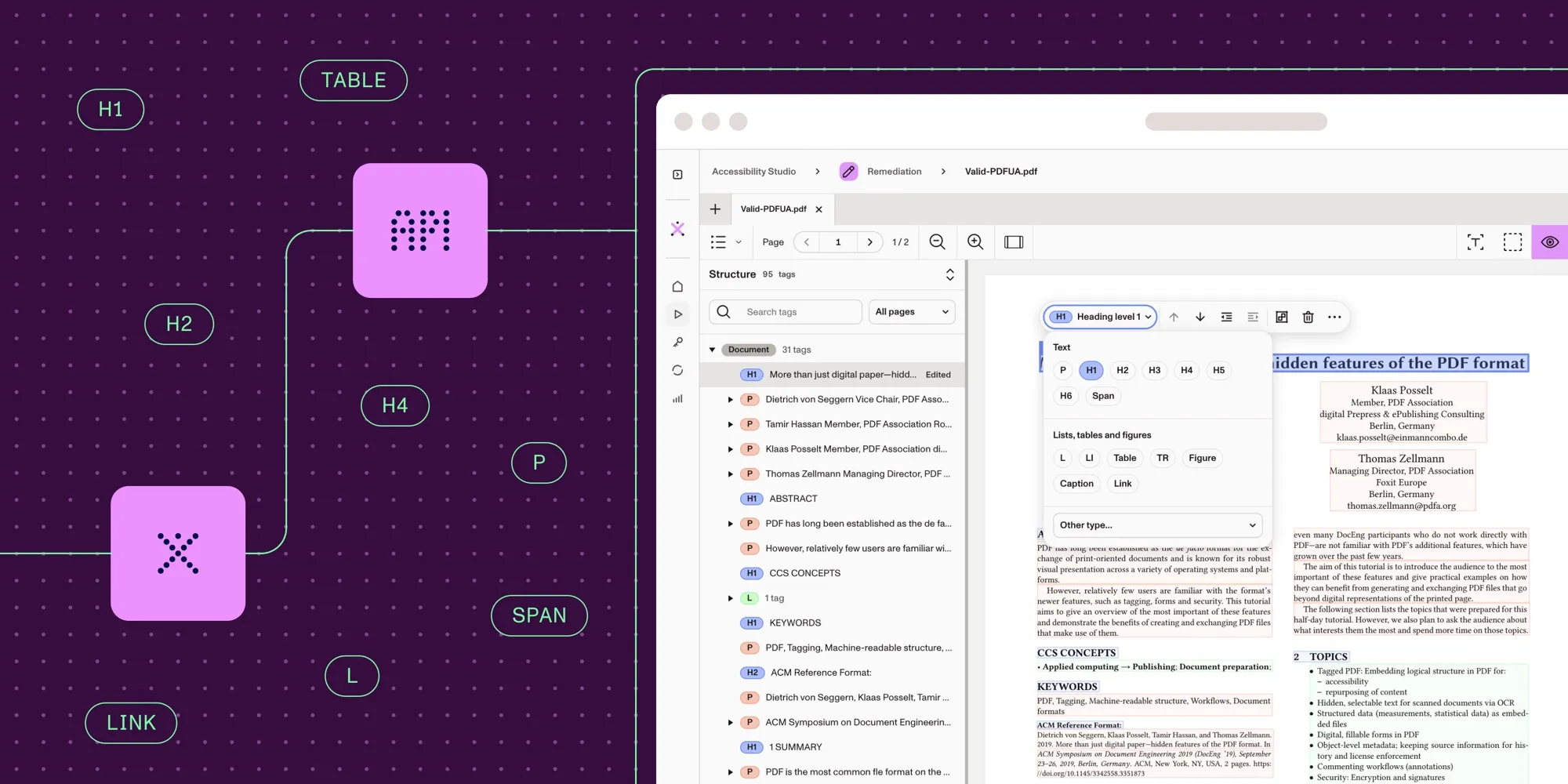
- Studio shows every tag as a box on the page and in a tag tree. Your team edits tag types, alternative text, and language; reorders the reading order; and applies one-click fixes.
- Developers run validation and auto-tagging through two API endpoints. Remediation and reading-order editing are in Studio.
- Start on the free plan with $5 of usage every month, no credit card required.
Many organizations hold thousands of PDFs that were never tagged for screen readers. Making them accessible manually takes time and specialized desktop tools. Automated tagging is faster, but checking and fixing the result often means a separate desktop tool.
Nutrient Accessibility API now covers the whole job — from auto-tagging to validation to fixes — and it’s available in Studio. It auto-tags PDFs to PDF/UA-1-compliant documents, validates PDFs that already have tags to show what fails, and gives your team a browser-based editor to fix or refine any tag.
What’s new: Nutrient Accessibility API in Studio
Studio brings Nutrient APIs into the browser. For accessibility, it’s a full production tool: Developers automate auto-tagging and validation through the API, and your team reviews and fixes documents in Studio, which adds remediation and reading-order editing that the API doesn’t have. The release adds three things:
- Accessibility Studio — The browser-based workspace for validating, auto-tagging, and fixing tags and reading order in PDFs.
- Validation in the API — A new endpoint checks a PDF against the PDF/UA-1 standard and returns a JSON report of every failing check.
- A guided workflow — Start with auto-tagging or validation, and each step points to the next.
Why use Accessibility Studio
Accessible PDFs used to mean a specialist, a desktop editor, and hours per document. Accessibility Studio moves that time to the parts that need a person.
- Know what fails before you publish — Teams fix problems before a document goes live, not after a complaint.
- Less hand-tagging — Auto-tagging does the structural work on every page, including headings, paragraphs, lists, tables, figures, form fields, and reading order, and is built to produce PDFs that conform to PDF/UA-1.
- Evidence for the compliance office — Every validation produces a report teams can download and keep, so accessibility work leaves a record.
- Fixes in the browser — Your team reviews and corrects tags in a browser-based editor, with no desktop software to install or license.
- One workflow for developers and accessibility teams — Developers send whole libraries through the API, and your team opens the documents that need attention in Studio.
- Safe to try — Auto-tagging works on a copy, so the original PDF is always kept.
How it works: From upload to a validated PDF
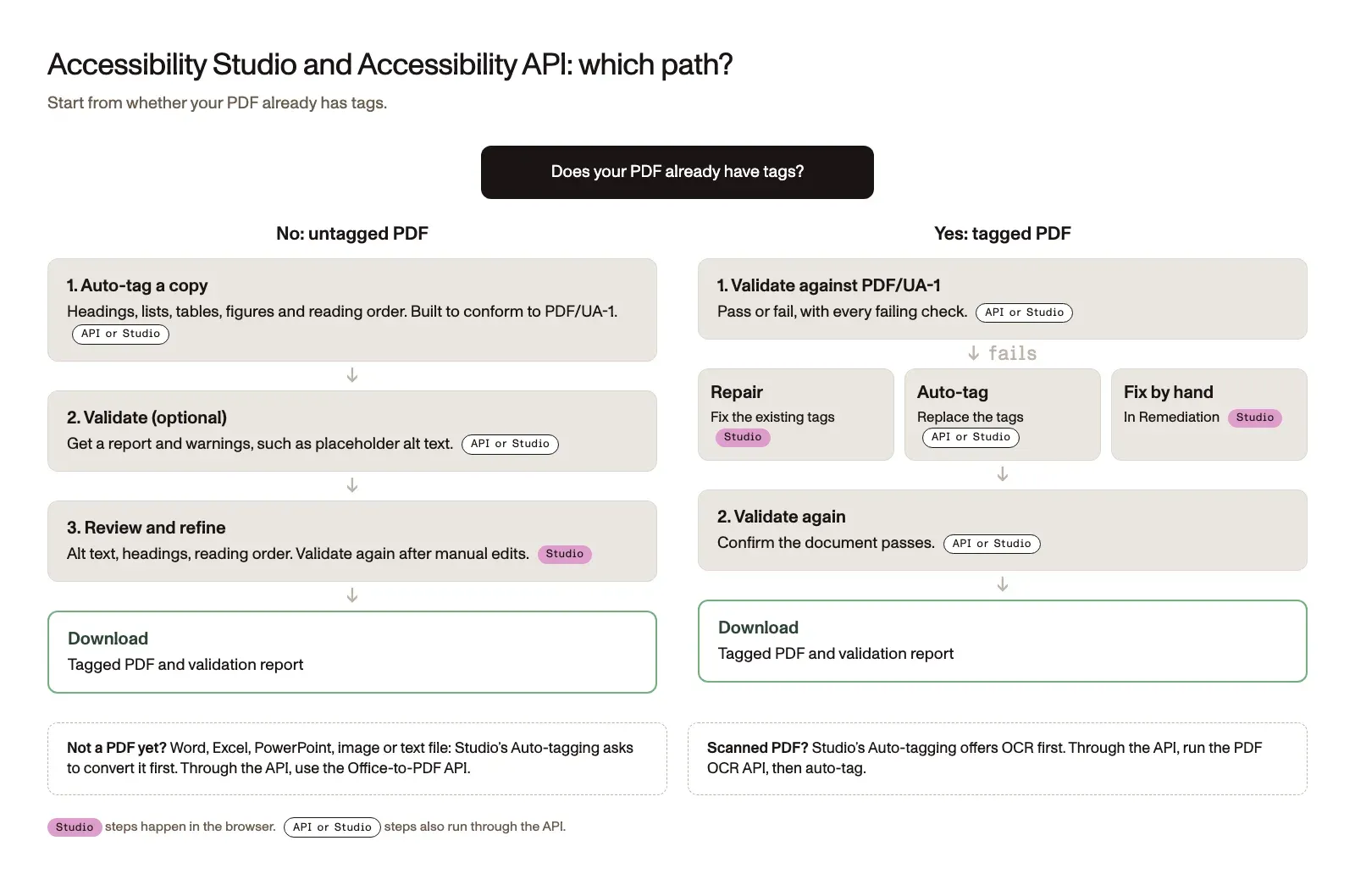
The steps below follow one PDF through Accessibility Studio. An untagged PDF goes from step 1 to step 3. A PDF that already has tags starts with validation in step 2.
1. Open Auto-tagging or Validation, and add a PDF
Start from the Studio sidebar: Use Auto-tagging for untagged PDFs and Validation for PDFs that already have tags. Then drop a PDF of up to 150 MB, or pick one of the sample files to see the workflow first. In Auto-tagging, if you drop a Word, Excel, PowerPoint, image, or text file, Studio asks whether you want to convert it to PDF first. Studio looks for existing tags in the document as it opens. If the PDF already contains tags, Studio says so, suggests validating it first, and reminds you that having tags doesn’t guarantee PDF/UA conformance.
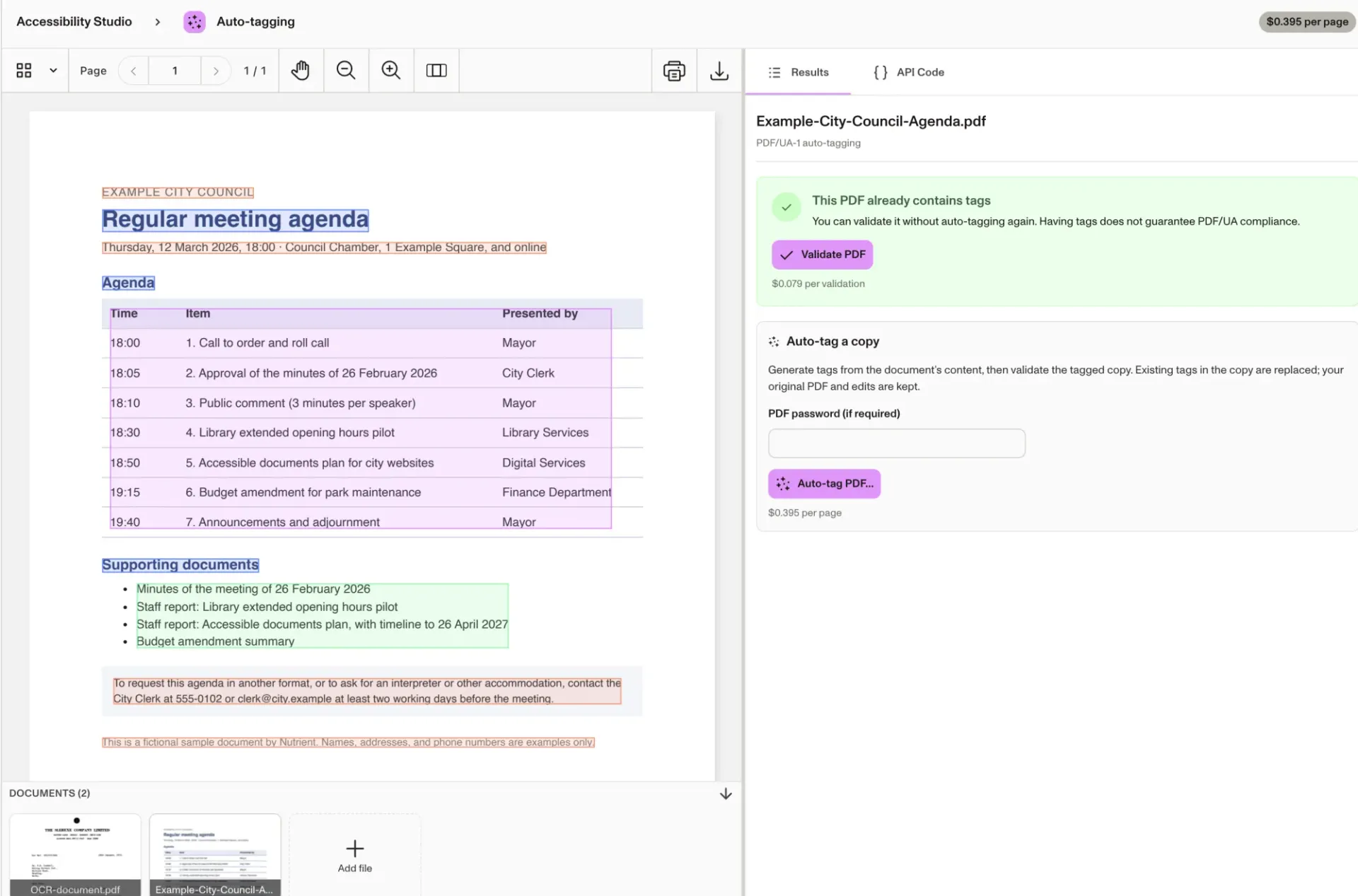
2. Validate against PDF/UA-1
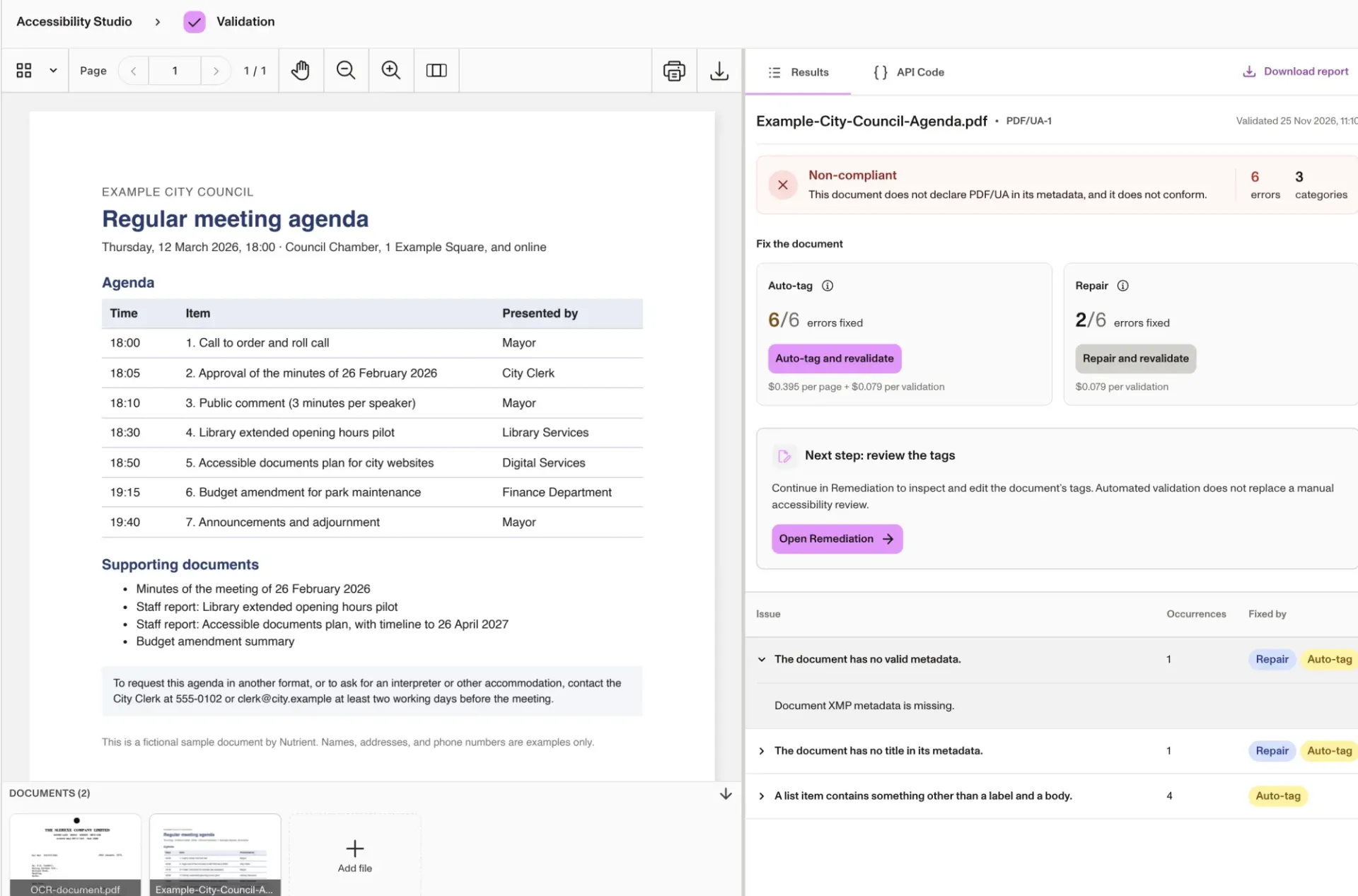
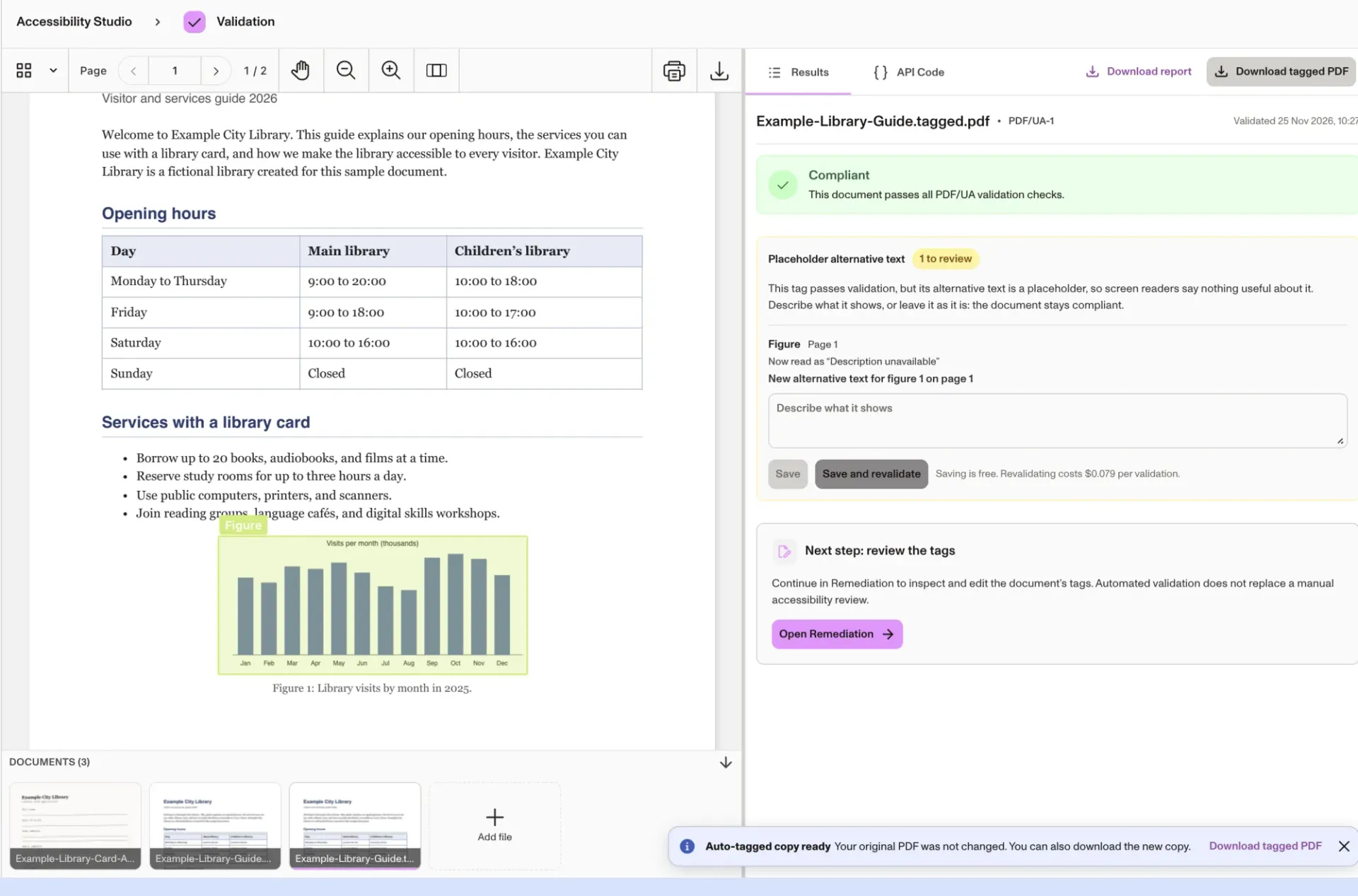
A PDF that already has tags starts here: One click validates it against PDF/UA-1. Studio shows whether the document passes or fails the PDF/UA-1 checks, with a timestamp and a report you can download. Validation in Studio also flags images whose alternative text is a placeholder, which can happen in auto-tagged documents.
If the PDF fails, Studio shows how many errors each fix clears. Repair fixes the existing tags, Auto-tag replaces them, and the Remediation view (step 4) lets your team fix them by hand.
3. Auto-tag a copy
Auto-tagging analyzes the layout and writes a new tag structure to a copy of the PDF. Before it runs, Studio confirms what happens: The copy’s tags are replaced, and the original PDF and any manual edits are kept.
When it finishes, tag boxes appear on the page, color-coded by type, so you can see what auto-tagging found at a glance. Headings, paragraphs, lists, and tables are tagged, and running headers, footers, and page numbers are marked as decoration, so screen readers skip them. The tagged copy sits next to the original in the document panel, ready to download or review. Since auto-tagging always generates a PDF/UA-1-conformant document, and to avoid additional charges, Studio doesn’t validate the copy automatically. Run validation yourself to get a report and warnings, such as placeholder alternative text on an image, and review the tags before publishing.
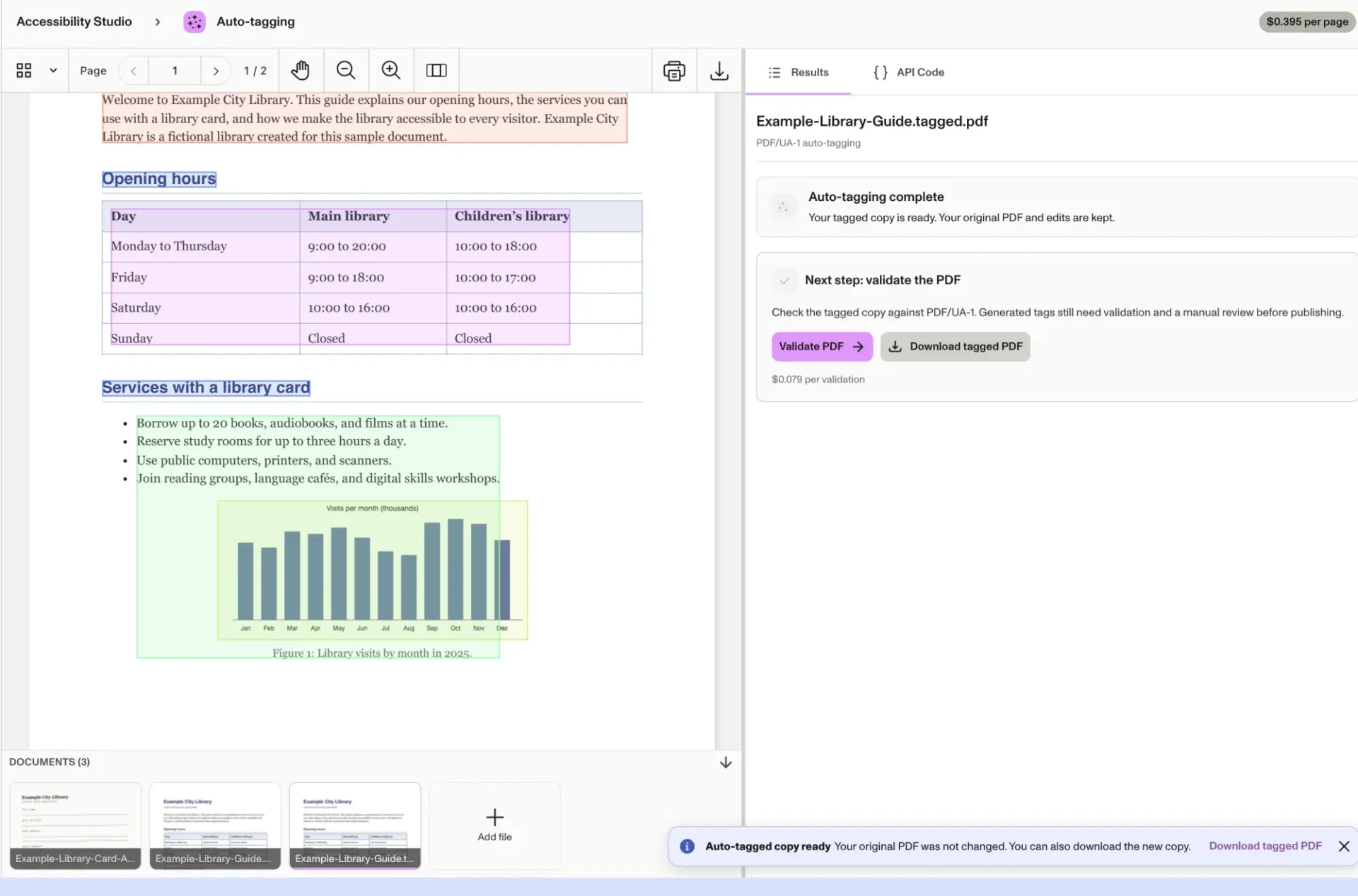
Automated checks can’t judge everything. For example, they can confirm that a figure has alternative text, and even detect a placeholder, but not that the text properly describes the figure. Studio says so on the screen, too: Automated validation doesn’t replace a manual accessibility review.
4. Fix or refine tags in Remediation
Use the Remediation view to fix a PDF that failed validation by hand or to refine an auto-tagged one by modifying alternative text, adjusting headings, or changing the reading order. Remediation shows the document’s full tag structure next to the page. Every tag appears twice: as a row in the tag tree and as a box on the page. Select either one, and the Properties panel shows a preview of the tag’s content and every property you can edit:
- Tag type — Change a paragraph to a heading, or a heading to the right level.
- Alternative text and actual text — Describe figures for screen reader users, and correct text that doesn’t read well aloud.
- Title and language — Label sections, and tag content in a language other than the rest of the document.
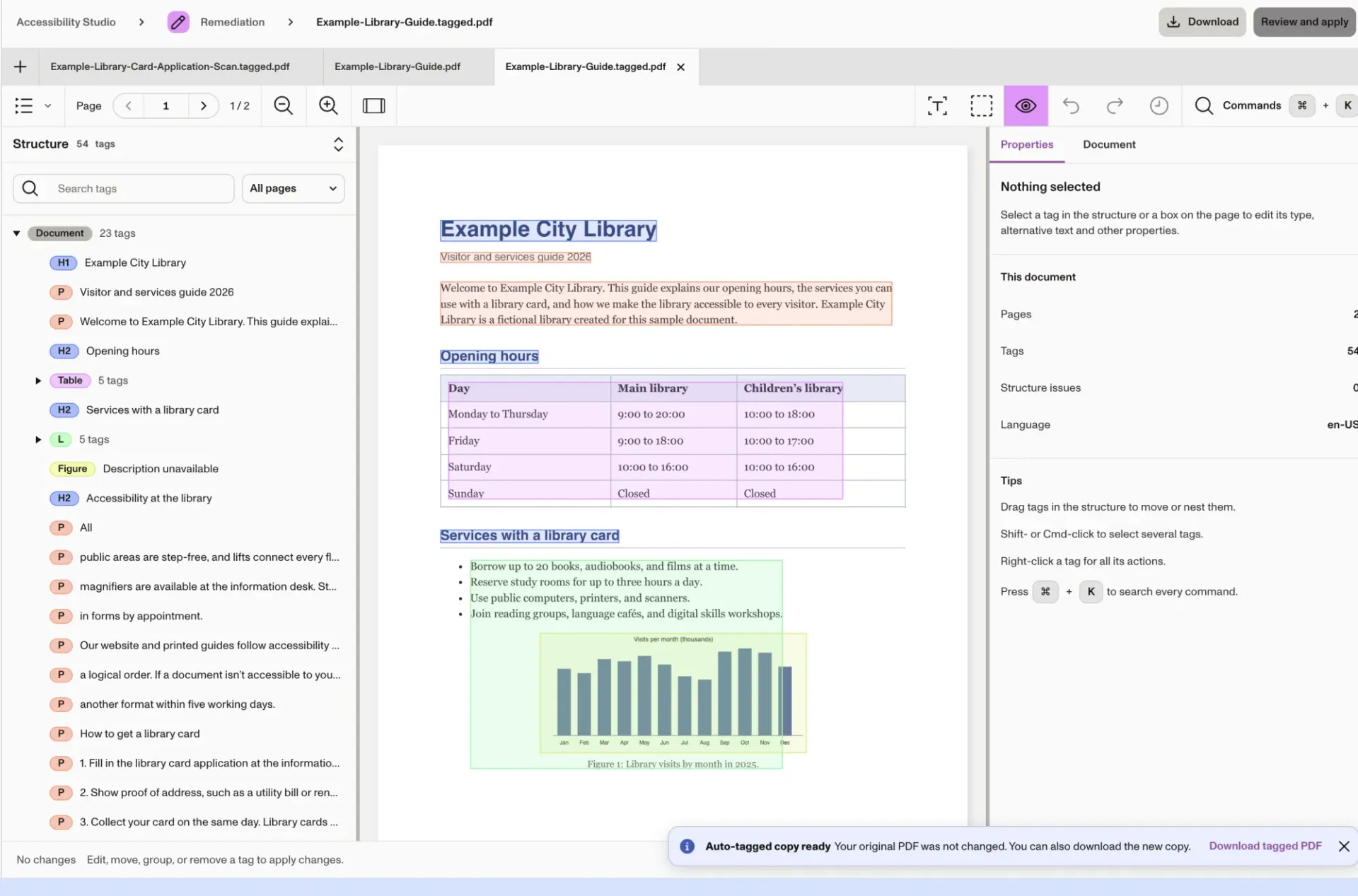
The toolbar and the command palette (Command-K) cover the larger changes. Your team can group tags into sections, lists, or tables; merge or nest tags; tag content directly on the page; or draw an area to select several tags at once. One click fixes clear common structure, table, list, heading, and form issues across the document.
Search finds tags by type or text, and a page filter narrows the tree to one page. Every change stays a draft until you review and apply it.
5. Fix the reading order
Screen readers follow the reading order, not the visual layout, so a two-column page or a sidebar can come out jumbled. The Reading order view numbers each block on the page and lists the same order beside it.
To fix it, drag a row to its new position, click a box on the page to set its position, or use the keyboard: Alt-Up Arrow and Alt-Down Arrow move a block, and Alt-Right Arrow opens a group to reorder what’s inside. Switch between Flow and Group by layout to see the order the way that suits the page.
6. Validate again and download
Manual edits can break conformance, because PDF/UA-1 checks the whole tag structure and hierarchy, not only whether tags exist. Changing the first heading from H1 to H3, for example, makes the document fail, so after manual edits, run validation again to confirm the document passes, and then download the tagged PDF and the validation report. The same steps work for the next document, or for the documents your API pipeline flags for review.
Built for developers
Developers run the same validation and auto-tagging through the API, so a team can auto-tag whole libraries and validate the results, or validate PDFs that already have tags and retag the ones that fail. Documents that need a person’s judgment go to your team in Studio. Create an API key in the dashboard(opens in a new tab) first. The API Code tab in Studio shows the API call for the current step.
# Optional: Convert a Word, Excel, or PowerPoint file to PDF first.curl -X POST "https://api.nutrient.io/build" \  -H "Authorization: Bearer YOUR_API_KEY" \  -F "document=@document.docx" \  -F 'instructions={"parts": [{"file": "document"}]}' \  --fail \  -o document.pdf
# PDFs that already have tags: Validate against PDF/UA-1.curl -X POST "https://api.nutrient.io/accessibility/validate_pdfua" \  -H "Authorization: Bearer YOUR_API_KEY" \  -F "file=@document.pdf" \  --fail \  -o validation-report.json
# Untagged PDFs, or to retag: Auto-tag.curl -X POST "https://api.nutrient.io/accessibility/autotag" \  -H "Authorization: Bearer YOUR_API_KEY" \  -F "file=@document.pdf" \  --fail \  -o tagged.pdf
Both endpoints accept PDF files up to 150 MB. For Word, Excel, or PowerPoint files, convert them first with the Office-to-PDF API, as in the optional first step above. It runs on the same base URL and the same account and plan. Validation returns HTTP 200 whether or not the PDF conforms. Check isValid in the report, and then read validationReport.failedChecks for each failing requirement and where it occurs. The Accessibility API guides cover both endpoints.
Who Accessibility Studio is for
Nutrient Accessibility API fits teams that have to make existing PDFs accessible. Developers handle the volume through the API, and accessibility specialists handle the complex documents in Studio, a browser-based alternative to desktop remediation tools:
- Public sector teams — State and local governments in the US face Americans with Disabilities Act (ADA) Title II deadlines(opens in a new tab) for Web Content Accessibility Guidelines (WCAG) 2.1 AA — 26 April 2027 for entities serving 50,000 or more people, and 26 April 2028 for smaller ones. Records, agendas, and forms make up much of the backlog.
- Education — Universities and education platforms publish course materials as PDFs, and many need generated tags reviewed and approved.
- Software vendors — Teams building remediation into their own product use the API for volume, and their accessibility staff review the exceptions in Studio.
- Organizations in the EU — The European Accessibility Act(opens in a new tab) has applied since 28 June 2025 to many consumer-facing products and services.
Pricing and availability
Nutrient Accessibility API is available today in Studio, priced in US dollars. Auto-tagging costs $0.395 per page, and validation costs $0.079 per validation. The free plan includes $5 of usage every month. Paid plans include more usage than they cost, which lowers the effective price by up to 20 percent: Starter costs $75 a month and includes $90 of usage. See Accessibility API pricing for every plan.
Try it
- Create a free account(opens in a new tab) and open Accessibility Studio from the dashboard. Upload a PDF, or start from a sample.
- Read the Accessibility API guides to run auto-tagging and validation from code.
- Learn the basics in our what is PDF/UA? and what is a tagged PDF? blogs.
- Plan a remediation project with PDF remediation: How to make inaccessible PDFs accessible, and compare validation options in PDF/UA validation.
FAQ
Accessibility Studio is the browser-based workspace for Nutrient Accessibility API. It validates PDFs against the PDF/UA-1 standard, auto-tags them, and lets your team fix the document’s tags and adjust the reading order.
Not by itself. Auto-tagging is built to produce PDFs that conform to PDF/UA-1, the technical standard for accessible PDFs, and 96.5 percent passed PDF/UA-1 validation in our March 2026 internal benchmark. Validate each file before publishing, and fix the ones that fail in Accessibility Studio. WCAG, ADA Title II, Section 508, and the European Accessibility Act are broader and depend on the content, such as whether alternative text describes an image, so review documents before publishing.
No. Accessibility Studio writes auto-tagging results to a copy, so the original PDF and any earlier edits are kept.
In the EU by default, with a US option. On plans where data retention is enabled, Nutrient retains the files you submit and the outputs it generates and uses them to operate and improve its services, including to train and evaluate its models. On plans where data retention isn’t enabled, your documents aren’t retained for these purposes. If your documents can’t be retained, choose a paid plan. The privacy guide has the details.
Yes. In Studio, auto-tagging detects a PDF without searchable text and offers to run optical character recognition (OCR) before auto-tagging. Through the API, run scanned PDFs through the PDF OCR API first so each page has a text layer, and then auto-tag the result. The OCR API is on the same Nutrient account and plan. Auto-tagging structures the text it finds on the page, so an image-only scan needs that text layer before screen readers can read it.
Auto-tagging and validation run through the API, with the /accessibility/autotag and /accessibility/validate_pdfua endpoints. Remediation and the reading-order editor are available in Studio only.
Validation checks PDFs against PDF/UA-1 (ISO 14289-1).