PDF remediation: How to make inaccessible PDFs accessible

Table of contents
PDF remediation is the process of fixing an existing PDF so assistive technologies can read it. It adds or corrects tags, reading order, image descriptions, table structure, form labels, and document metadata. Automated tagging handles structure at scale, while complex layouts and image descriptions still need human review. Validate the result against PDF/Universal Accessibility (PDF/UA) and test it with a screen reader before publishing.
PDF remediation means repairing a PDF that already exists so people using screen readers, keyboard navigation, and other assistive technologies can use it. Many PDFs look correct onscreen but have no underlying structure. A screen reader can’t tell a heading from body text, reads columns in the wrong order, or skips images entirely.
Remediation adds that missing structure. The goal is usually conformance with PDF/UA (ISO 14289), the standard for accessible PDF files. Many organizations also need the document to meet the Web Content Accessibility Guidelines (WCAG), which cover broader criteria such as color contrast.
What PDF remediation fixes
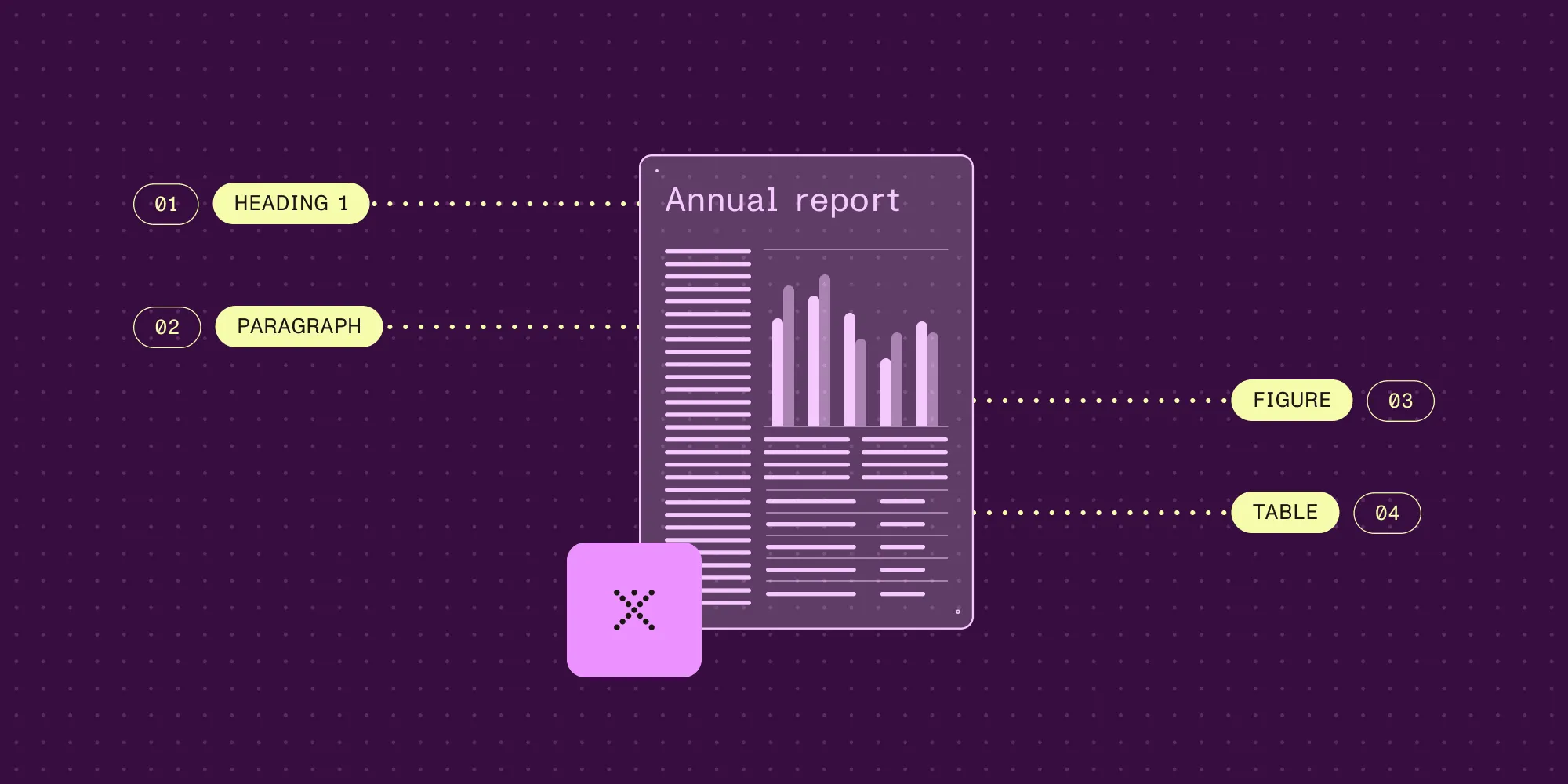
A remediated PDF needs the same structure a well-authored accessible document would have had from the start. Remediation typically covers the following.
| Area | What remediation adds or corrects |
|---|---|
| Tags | Headings, paragraphs, lists, tables, and figures marked with the correct semantic roles in the PDF structure tree. |
| Reading order | A tag sequence that follows how a person reads the page, including multicolumn layouts, sidebars, and captions. |
| Image descriptions | Alternative text for meaningful images and charts. Decorative content is marked as an artifact so assistive technology skips it. |
| Tables | Header cells and their relationships to data cells, so a table remains understandable when read cell by cell. |
| Forms | Labels for form fields and a keyboard focus order that follows the form’s intended sequence. |
| Title and language | A document title and primary language, plus language changes for passages in another language. |
| Scanned pages | Optical character recognition (OCR) to produce real text, which can then be structured and tagged. |
Most of these problems come from how the PDF was created. Exports that don’t preserve structure, scanned paper documents, and layout-heavy designs all produce PDFs that need remediation.
The PDF remediation process
Remediation follows the same sequence whether a person or a pipeline does the work.
- Check the file. Run a PDF accessibility checker to find missing tags, absent descriptions, and structural errors. Record what the report covers, because a checker only evaluates the rules it runs.
- Fix the source when possible. If the PDF was exported from a document or template, correct the source and reexport. Fixing the template prevents the same problem in every future file.
- Run OCR on scanned pages. Image-only pages need text before anything else can happen. Verify the recognized text, since OCR errors carry through to the tagged result.
- Add or correct tags. Tag headings, paragraphs, lists, tables, and figures with their semantic roles.
- Describe images. Write alternative text that conveys each image’s purpose. Charts often need a longer text explanation alongside the image.
- Correct reading order. Follow the tag sequence through the page and fix anything that reads out of order.
- Validate. Check the result against the required PDF/UA conformance level with an automated validator. The PDF/UA compliance guide lists common validation errors and how to fix them.
- Review manually. Test the document with a screen reader and keyboard. Confirm that headings support navigation, descriptions are useful, and forms can be completed.
Keep each remediated file with its validation report and review notes. When the document changes, repeat the affected checks.
Manual vs. automated remediation
Manual remediation means a specialist works through each file in a remediation tool. Automated remediation applies tagging and validation through software, often as part of a document pipeline. Most teams combine the two.
| Manual remediation | Automated remediation | |
|---|---|---|
| Speed | Slow; each file needs individual attention. | Fast; processes large volumes without per-file effort. |
| Consistency | Depends on the specialist and the time available. | Applies the same rules to every file. |
| Complex layouts | Handles unusual layouts and context-dependent decisions. | Can misread complex layouts, which then need review. |
| Image descriptions | Can judge what an image means in context. | Can generate draft descriptions, which still need review. |
| Best for | High-stakes documents and small, varied sets of files. | High-volume, repeatable document types such as reports and statements. |
To combine them, automate the structural work, validate every output, and route exceptions to a person. That keeps human effort focused on the files and decisions that need judgment.
What affects remediation cost and turnaround
Page count is only one factor in remediation effort. These factors have the biggest effect:
- Page count and volume — More pages mean more tagging and review, especially when files arrive continuously.
- Layout complexity — Multicolumn pages, sidebars, and design-heavy layouts take longer to put in the correct reading order.
- Tables and forms — Complex tables and interactive forms need careful structural work and testing.
- Images and charts — Every meaningful image needs a description, and charts often need more than a short label.
- Scanned content — Image-only pages need OCR and text verification before tagging.
- Review requirements — Legal and compliance-heavy documents need human review before publication, not only automated checks.
When many documents come from the same template, fixing the template reduces the work for every future file. New files from an accessible template then mainly need validation and review rather than repair.
Automate PDF remediation with Nutrient
When PDFs are generated continuously or arrive through uploads, remediating each file by hand doesn’t scale. Nutrient provides separate tools for each automated step in the process.
- Auto-tagging — The Nutrient Accessibility API auto-tags existing PDFs with semantic structure — including headings, paragraphs, lists, and tables — and improves reading order. The auto-tagging guide covers sending a file to the
/accessibility/autotagendpoint and receiving tagged output. - OCR — The Nutrient OCR API creates searchable PDFs from scanned and image-only documents before tagging.
- Image descriptions — Nutrient’s image description SDKs for Python and Java generate alternative text with Claude, OpenAI, or local vision models.
- Validation — Nutrient’s Python, Java, and .NET SDKs and Document Engine provide PDF/UA-1 validation, so a pipeline can check each output and route failures for repair.
- AI agents — The remediate-pdf skill enables AI agents to auto-tag existing PDFs with PDF/UA semantic structure through the Document Web Services (DWS) Accessibility API.
Nutrient’s introduction to PDF/UA and auto-tagging recommends a pipeline built around these steps:
- Run auto-tagging on incoming PDFs.
- Validate PDF/UA conformance.
- Apply targeted manual fixes for edge cases.
- Publish outputs and monitor quality over time.
Auto-tagging handles structural detection well. Alt text quality, semantics in complex layouts, and meaning that depends on visual context still need human review. Use automated tagging and human quality assurance (QA) together, and run PDF/UA validation and assistive-technology checks before publishing.
To plan a remediation project across a team, download the PDF accessibility checklist.
Automate PDF remediation with Nutrient
FAQ
PDF remediation is the process of fixing an existing PDF so assistive technologies can read it. It adds or corrects tags, reading order, image descriptions, table structure, form labels, and document metadata, usually with PDF/UA conformance as the target.
Cost depends on page volume; layout complexity; the number of tables, forms, and images; whether pages are scanned; and how much human review is required. Automating the structural work lowers the cost per file for high-volume, repeatable documents.
A simple, text-based document can be remediated quickly, while a long document with complex tables, forms, or charts takes much longer. Automated tagging processes large volumes quickly, but files that fail validation or need image descriptions still require review time.
Not completely. Automated tagging handles structure at scale, but image descriptions, complex layouts, and context-dependent meaning still need human review. Validate every output and route exceptions to a reviewer.
Creating an accessible PDF builds structure in from the start, usually by exporting a tagged PDF from a well-structured source. Remediation repairs a PDF that already exists without that structure. Fixing the source is often more efficient when the same template produces many files.