What is a tagged PDF? Tags, structure, and how to tag a PDF

Table of contents
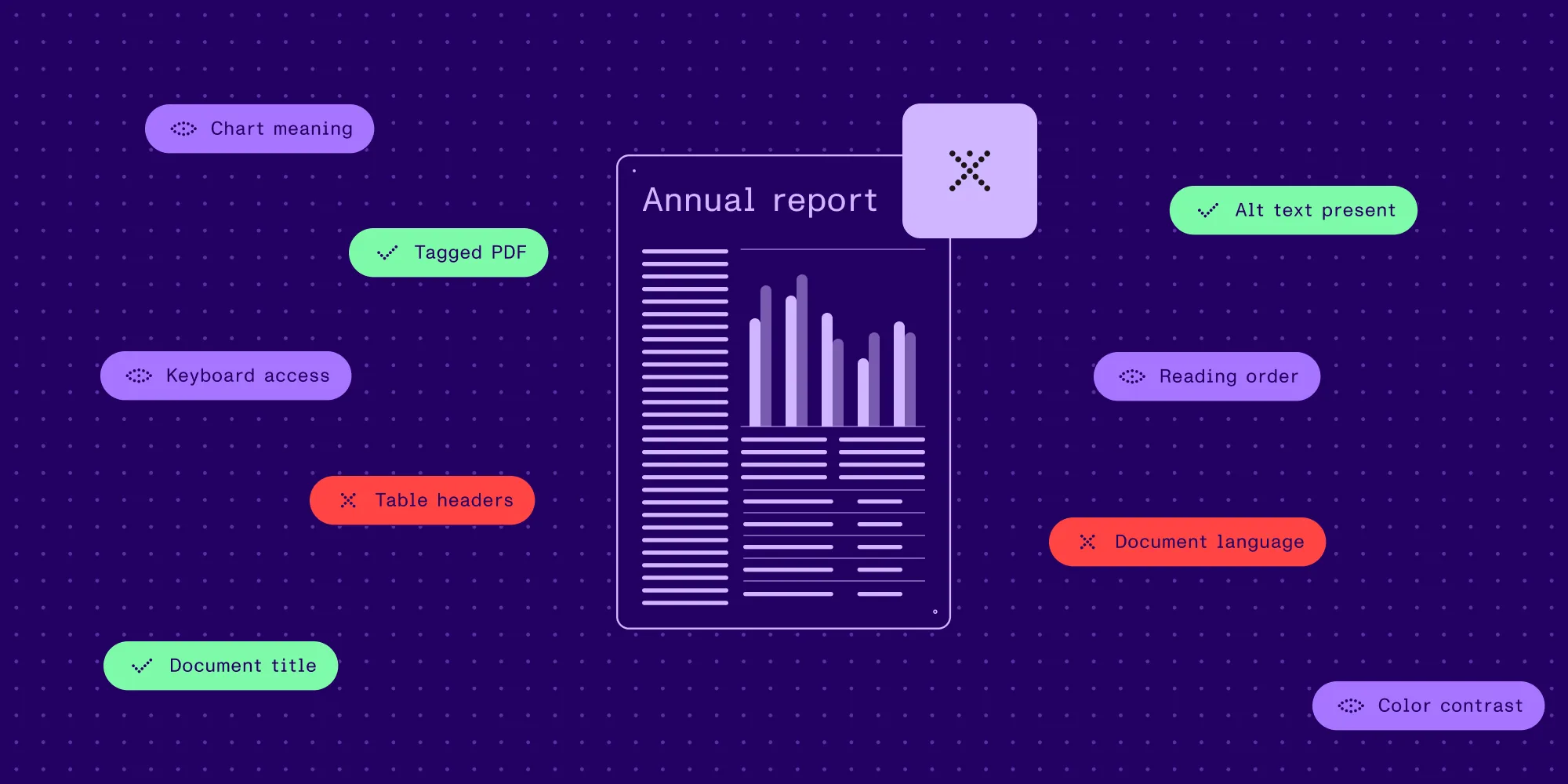
A tagged PDF contains a structure tree that labels each piece of content — headings, paragraphs, lists, tables, and figures — with a tag describing its role. Screen readers and other assistive technologies use those tags to read the document in a logical order. Tagging is required for PDF/Universal Accessibility (PDF/UA). PDFs can be tagged at export, auto-tagged after the fact, or generated with tags from code.
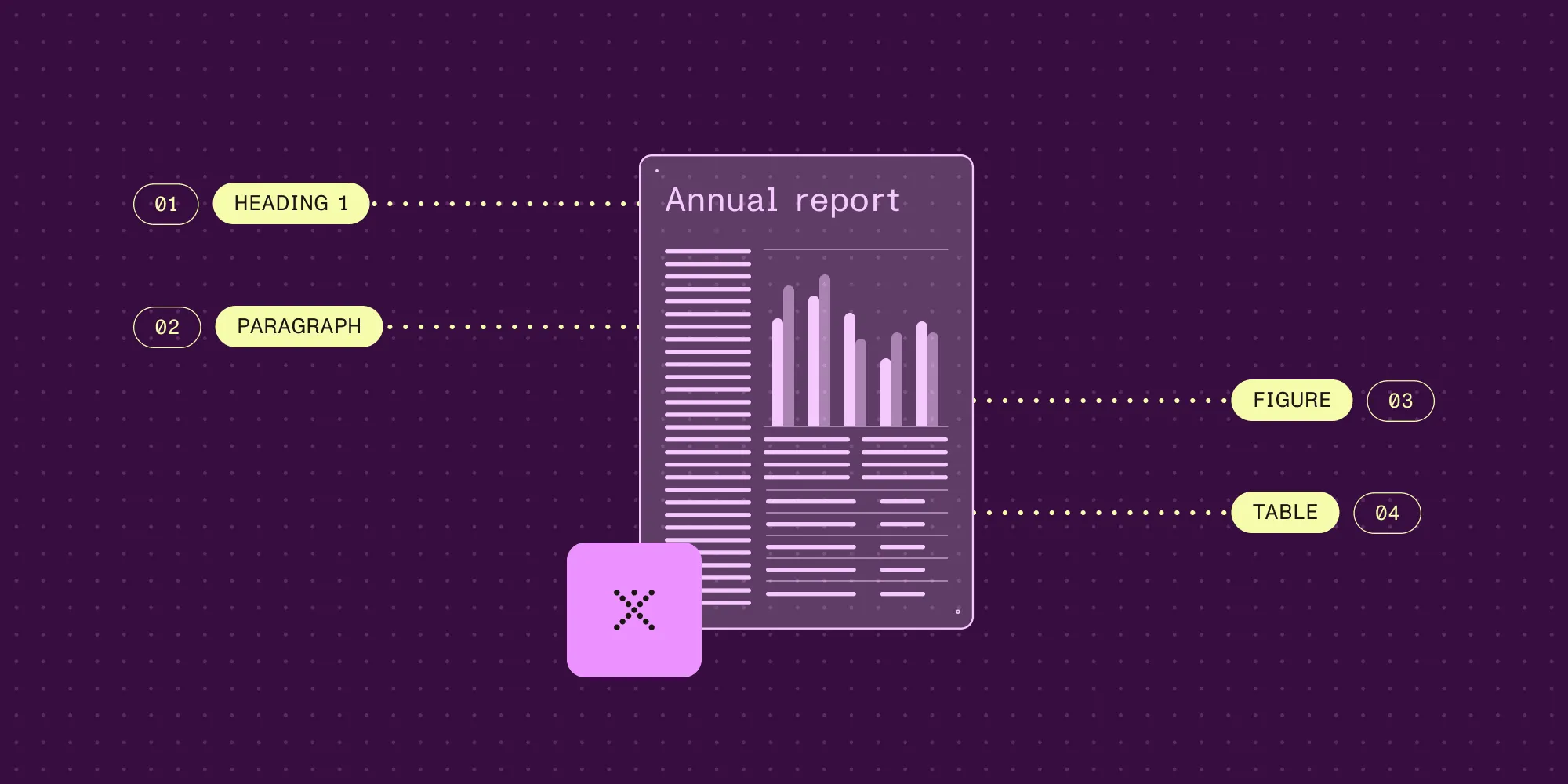
A tagged PDF is a PDF that includes a logical structure layer on top of its visual content. Each element on the page is labeled with a tag that states what it is: a heading, a paragraph, a list item, a table cell, or a figure. The tags sit in a structure tree, which also defines the order in which the content should be read.
An untagged PDF has none of that. To software, it’s a collection of text fragments and images positioned on a page, and a screen reader has to infer the structure from that layout. Correct tagging gives assistive technology explicit information about structure and reading order, which is why PDF/UA, the ISO standard for accessible PDFs, requires it.
Tagged vs. untagged PDF
The table describes a correctly tagged PDF. Tags can be missing or incorrect, even when a file is marked as tagged.
| Correctly tagged PDF | Untagged PDF | |
|---|---|---|
| Structure | A structure tree labels headings, paragraphs, lists, tables, and figures. | Content is positioned on the page with no semantic labels. |
| Reading order | Defined by the tag sequence, independent of page layout. | Inferred by the reading software, often incorrectly for columns. |
| Images | Meaningful images have text alternatives; decorative content is marked as artifacts. | No figure tags provide alternative text; decorative content may be announced. |
| Tables | Header and data cells are identified, so cells can be read in context. | A table is a grid of unrelated text fragments. |
| Navigation | Heading tags let readers move between sections. | Heading navigation through tags is unavailable; bookmarks and links may still help. |
| Accessibility targets | A prerequisite for PDF/UA conformance. | Can’t conform to PDF/UA. |
Two PDFs can look identical onscreen while one is tagged and the other isn’t. The difference only shows up when software tries to interpret the content.
Searchable PDF vs. tagged PDF
A searchable PDF contains text you can find or select. A tagged PDF also describes the text’s role and its place in the document’s reading order. Being able to search for a heading doesn’t mean a screen reader can recognize it as a heading.
For a scanned PDF, optical character recognition (OCR) turns images of words into text. OCR alone doesn’t establish the tag structure. Some tools combine recognition and tagging, but you still need to check both the recognized text and the tags, as W3C’s OCR guidance(opens in a new tab) explains.
Example of a tagged PDF structure
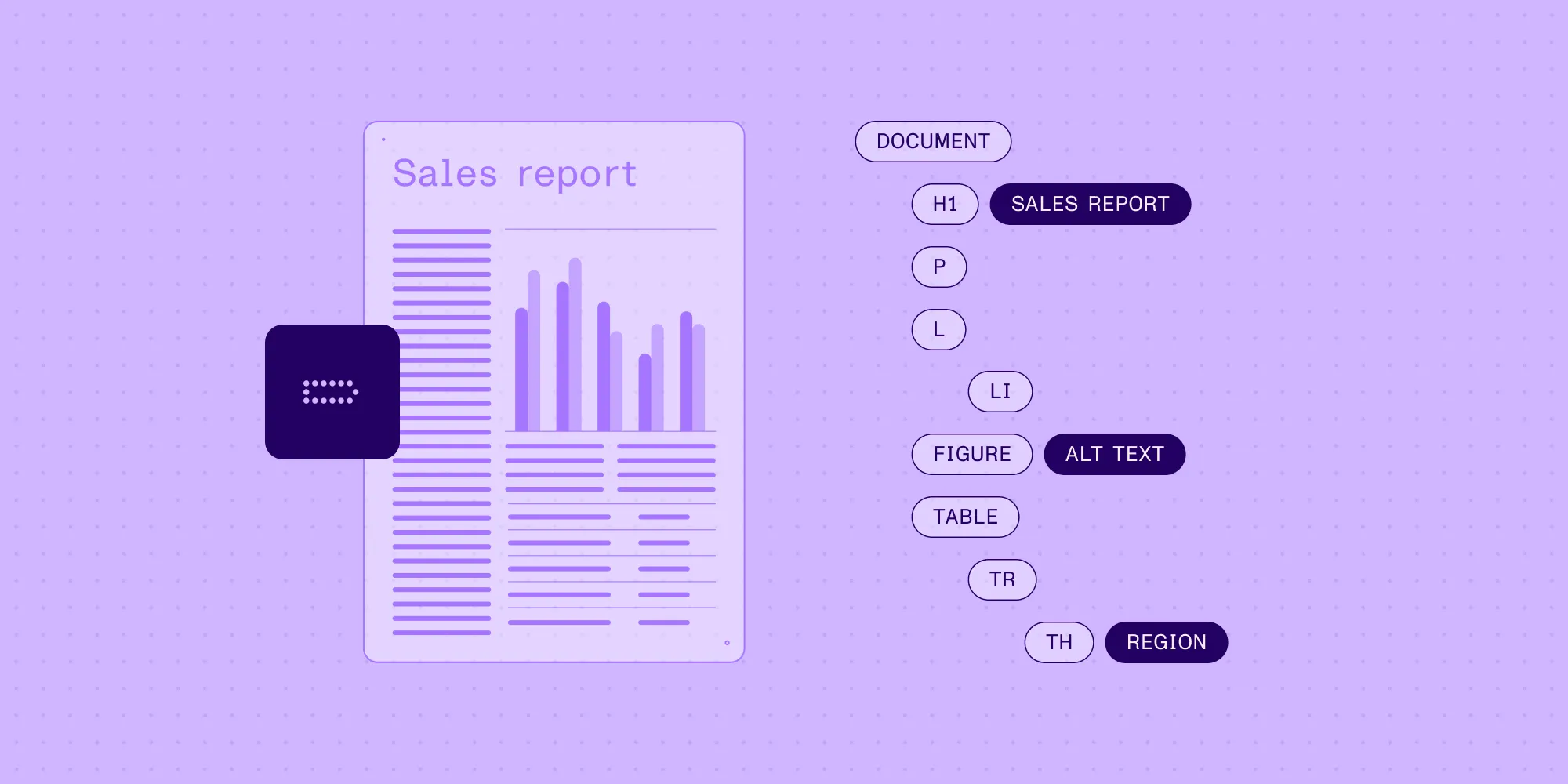
A tag tree mirrors the logical structure of the document, not its visual layout. A simple report with a heading, an introduction, a list, a table, and a chart might be tagged like this:
Document├── H1 "Quarterly report"├── P "Revenue grew across all regions."├── L│ ├── LI│ │ ├── Lbl "•"│ │ └── LBody "EMEA"│ └── LI│ ├── Lbl "•"│ └── LBody "AMER"├── Table│ ├── TR│ │ ├── TH "Region"│ │ └── TH "Revenue"│ └── TR│ ├── TD "EMEA"│ └── TD "$1.2M"└── Figure Alt: "Bar chart showing revenue growth in every region"A screen reader follows this tree from top to bottom. It announces the heading as a heading, the list as a list with two items, and the table with its column headers. The figure is read through its alternative text. Page numbers, running headers, and decorative lines are marked as artifacts outside the tree, so assistive technology skips them.
Common PDF tags and what they mean
PDF defines a set of standard structure types. These are the ones most documents use:
| Tag | Meaning | Notes |
|---|---|---|
Document | Top-level document element | Groups the document’s structure elements beneath StructTreeRoot. |
Sect, Part | Sections and larger divisions | Group related content. |
H1–H6 | Headings by level | Levels should reflect the document outline (W3C PDF9(opens in a new tab)). |
P | Paragraph | Body text. |
L, LI | List and list item | Lets readers move between lists and items (W3C PDF21(opens in a new tab)). |
Lbl, LBody | List label and body | Separates the bullet or number from the item’s content. |
Table, TR | Table and table row | Defines the table grid (W3C PDF6(opens in a new tab)). |
TH, TD | Header cell and data cell | Header cells give data cells their context. |
Figure | Image, chart, or illustration | Needs alternative text if it conveys meaning (W3C PDF1(opens in a new tab)). |
Link | Hyperlink | Associates link text with its destination. |
| Artifact marker | Decorative or repeated content | Page numbers and decorative lines are skipped (W3C PDF4(opens in a new tab)). |
Tags describe meaning, not appearance. A line of large, bold text should be tagged H2 only if it really is a section heading.
How to check whether a PDF is tagged
Use a PDF accessibility checker to inspect the file:
- Open the PDF in the checker and run its accessibility checks.
- Review the results for missing tags, untagged content, and structural errors.
- In a tool that exposes the tag tree, expand it and compare the tags with the page. Check that headings, lists, tables, and figures have appropriate roles and follow a logical reading order.
For developers inspecting the PDF directly, the document catalog contains a MarkInfo dictionary with Marked set to true and a StructTreeRoot entry for the structure tree. These entries identify declared tagging; their presence alone doesn’t establish that the content is correctly tagged.
A file can have a structure tree with the wrong tag types, a broken reading order, or figures without descriptions. Review those details even if the checker reports that tags exist.
For a concrete example, see the tagged PDF with a missing language setting. Its heading and paragraph tags were present, but veraPDF reported language failures for page text and metadata. Setting the document language resolved those automated failures without changing the tags. The downloadable PDFs and reports show why tagging and validation are separate checks; passing validation still leaves manual accessibility review.
How to tag a PDF
There are three common routes to a tagged PDF. The right one depends on whether the source document exists and how many files need processing.
Export a tagged PDF from the source
When a well-structured source document exists (one with real headings, lists, and tables rather than formatting that only looks like them), export a tagged PDF from the authoring application. This lets you correct structure in the source document and reuse those corrections in future exports.
For example, in Word for Microsoft 365 on Windows:
- Run Word’s Accessibility Checker and address the issues it identifies.
- Open File > Save As or Save a Copy. Choose Browse and select PDF as the file type.
- Open Options and select Document structure tags for accessibility.
- Select OK and save the PDF. Open the exported file in a PDF accessibility checker to review its tags.
These steps follow Microsoft’s accessible PDF export instructions(opens in a new tab), which also cover macOS and the web. Exporting with tags doesn’t replace checking the resulting PDF.
Auto-tag existing PDFs
For PDFs that already exist without tags, auto-tagging detects document elements and adds the structure tree. The Nutrient Accessibility API auto-tags PDFs with headings, paragraphs, lists, and tables, and improves reading order. The auto-tagging guide covers sending a file to the /accessibility/autotag endpoint and receiving tagged output.
Teams working in .NET can also auto-tag and convert PDFs to PDF/UA with the .NET SDK.
Review the tags that auto-tagging assigns. Alternative text quality, complex layouts, and meaning that depends on visual context still need human review, as Nutrient’s introduction to PDF/UA and auto-tagging explains.
Generate tagged PDFs from code
When an application creates PDFs, it can build the structure tree directly. With Nutrient .NET SDK, the process is:
- Set the document title and language with
SetTitleandSetLanguage. - Get the root tag with
GetTagRootID. - Create tags such as
SectandFigureunder the root withNewTag. - Add content inside each tag as marked content.
- Set alternative text for figures with
SetTagAlternateDescription.
The tagged PDF guide includes a complete C# and VB.NET example.
Whichever route is used, check the result with a validator and a screen reader before publishing. For files that need more than tags — OCR, image descriptions, or corrected reading order — see the PDF remediation guide.
Tag and validate PDFs with Nutrient
FAQ
A tagged PDF contains a structure tree that labels each piece of content with its role, such as a heading, paragraph, list, table, or figure. Assistive technologies use those tags to read the document in a logical order.
Open the PDF in an accessibility checker and run its checks. Review the results for missing tags and structural errors. Then inspect the tag tree in a tool that exposes it. Tags being present doesn’t mean they correctly describe the document.
A tagged PDF labels its content with semantic roles and defines a reading order. An untagged PDF only positions text and images on the page, so assistive technologies have to guess its structure.
No. Tags are a prerequisite, but an accessible PDF also needs correct tag types, a logical reading order, useful alternative text, and other PDF/UA requirements. Validate the file and review it manually to confirm.
Yes. Auto-tagging adds a structure tree to an existing PDF. Review the result, especially alternative text and complex layouts, before treating the file as accessible.