PDF accessibility checker: Tools and testing steps

Table of contents
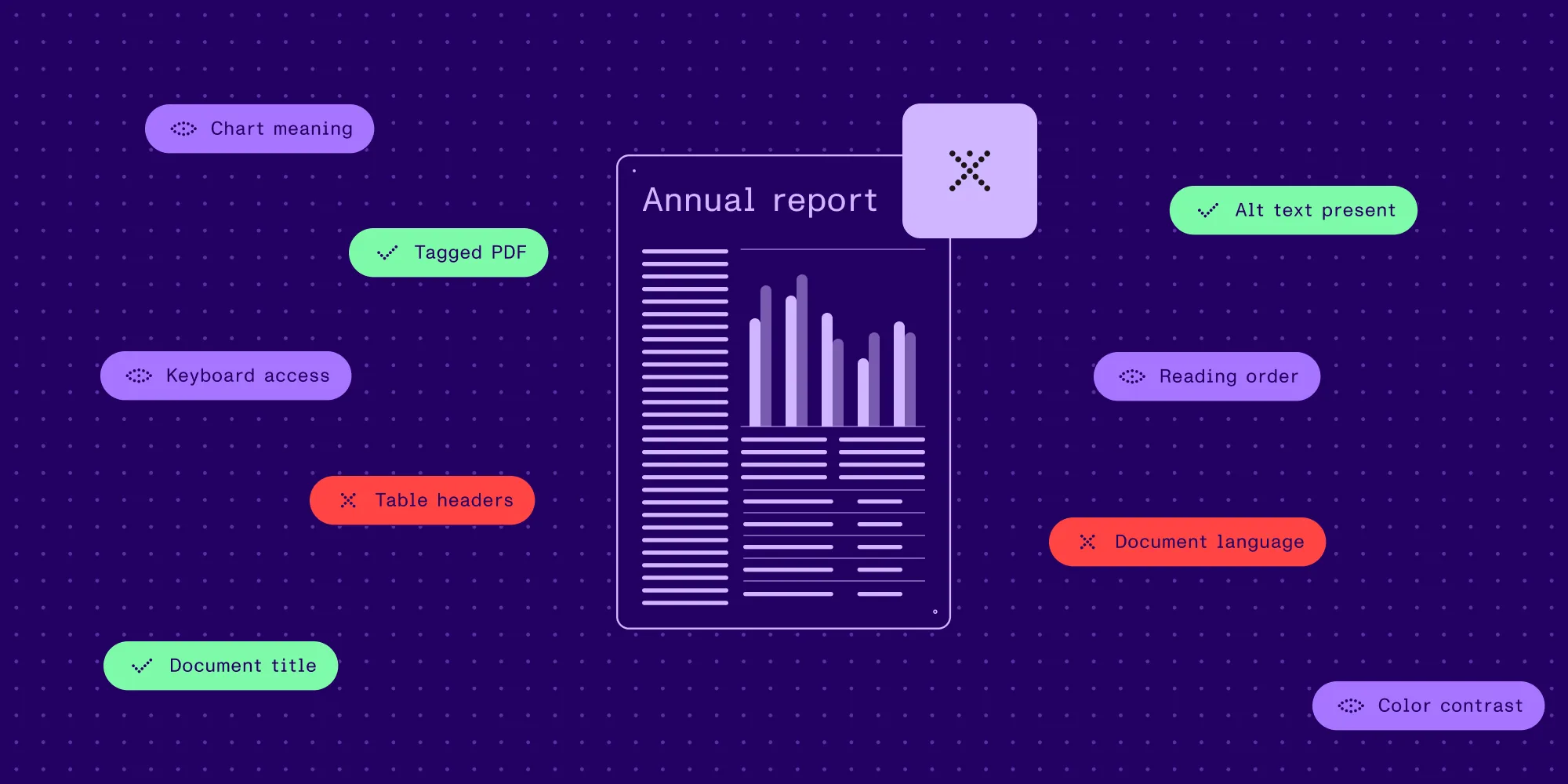
Use PDF Accessibility Checker (PAC) for free desktop checks on Windows, or veraPDF for automated standards validation. Nutrient SDKs and Document Engine let developers integrate PDF/Universal Accessibility (PDF/UA) validation into document workflows. Pair automated results with manual checks of reading order, image descriptions, and keyboard access before approving a file.
A PDF accessibility checker can flag missing tags, absent image descriptions, and other structural problems. A passing report doesn’t show whether a chart’s description explains its meaning or whether a reader can follow a two-column page.
This guide covers choosing a checker, reading its results, and deciding what to fix. For PDFs processed inside an application, Nutrient’s accessibility tools add tagging and validation to that workflow.
Choose the right PDF accessibility checker
The right checker depends on how the results will be used. Someone repairing a single report needs different tools from a developer checking every uploaded document.
| Tool | Best for | What to account for |
|---|---|---|
| PAC(opens in a new tab) | Running free desktop checks and inspecting a PDF’s structure. | The desktop app requires Windows. Its report and structure preview support a review; repairs happen in an authoring or remediation tool. |
| veraPDF(opens in a new tab) | Running PDF/UA validation as part of a repeatable process. | Use the Greenfield distribution for PDF/UA support. It checks machine-verifiable requirements, so plan a separate manual review. |
If PDFs arrive through uploads or are generated by an application, validation belongs in the processing pipeline rather than in a desktop tool. Automate tagging and validation with Nutrient covers that setup.
PAC includes checks related to PDF/UA and the Web Content Accessibility Guidelines (WCAG), plus a screen reader preview for inspecting structure. PAC 2026 also offers AI-assisted checks(opens in a new tab). Review those suggestions; don’t treat an AI result as approval of the document.
For automated standards testing, veraPDF supports PDF/UA-1 and PDF/UA-2. Its current installer(opens in a new tab) provides the Greenfield implementation, which supports both PDF/A and PDF/UA validation. Choose a stable release and select the validation profile required for the document.
For an online checker, also check where the file is processed, whether it’s retained, and which validation profile the tool runs. A browser upload interface alone doesn’t establish any of those details.
Know what the report covers
A checker evaluates a set of rules. Those rules might concern document structure, a particular PDF/UA version, or checks associated with WCAG. The tool’s name alone doesn’t indicate which rules ran.
Before testing, record the checker version, selected profile, and document revision. Keep the original PDF for comparison with the repaired output. When checking against a PDF/UA requirement, select that target explicitly where the tool allows it. Don’t assume a file with no conformance declaration will receive the intended check.
Read the scope of a passing result carefully. For example, an image can have alternative text that satisfies a presence check while saying only “image.” A person still needs to decide whether that description conveys the information a reader needs. The W3C guidance on PDF image alternatives(opens in a new tab) explains that distinction.
For what the standard requires and how automated validation, manual review, and delivery review fit together, see what PDF/UA means. For accessible viewing inside an application, see the PDF accessibility SDK guide.
Read each result status
Most checkers separate failed checks from checks that need a person or that didn’t run. A skipped check hasn’t passed. A check marked for manual review still needs someone to assess it.
When a tool proposes an automatic repair, review the change before accepting it, and run the check again afterward.
Save each repaired version with its report. That shows which file was tested, so a report can’t end up describing an earlier export.
Example: Fix a missing document language
This sample shows one metadata repair in a tagged PDF. It contains a heading and a paragraph in English. The original file has tags and a title, but no document language setting.
Download the original PDF and repaired PDF. Both were checked with veraPDF Greenfield 1.30.3 using its PDF/UA-1 profile on 8 October 2026.
| File | Failed rules | Failed checks | Report result |
|---|---|---|---|
| Original: Language missing | 2 | 4 | Failed the selected profile |
Repaired: Language set to en-US | 0 | 0 | Passed the selected profile |
The original XML report identifies two language rules under clause 7.2: test 34 for page text and test 33 for metadata. The text rule failed three checks; the metadata rule failed one. Four failed checks therefore didn’t mean four separate repairs were needed.
The repair set the document catalog’s /Lang entry to en-US, matching this sample’s intended language. It left the heading and paragraph tags, page content, and visual appearance unchanged. The second XML report records the result after that change.
To reproduce the checks, save both PDFs in one folder. From that folder, run verapdf --flavour ua1 --format xml missing-language.pdf. Then run verapdf --flavour ua1 --format xml language-set.pdf. See the veraPDF CLI documentation(opens in a new tab) for selecting a validation profile.
This is a synthetic test file with a deliberately missing setting, not output from Nutrient auto-tagging. Setting a language doesn’t repair missing tags, incorrect reading order, or weak image descriptions. The passing report covers automated checks only; this example hasn’t been tested with a screen reader. Complete the manual review before treating a document as ready for use.
Turn checker findings into fixes
Repair the source document when it’s available, especially if the same template produces many PDFs. Otherwise, remediate the PDF itself. The checklist below shows where to investigate; exact report labels vary by checker.
| Finding or review concern | What to inspect and fix |
|---|---|
| Missing or incorrect tags | Check whether headings, paragraphs, lists, and figures have the right structure. Export a tagged PDF from the source or add and review tags during remediation. |
| Incorrect reading order | Follow the tag sequence through columns, sidebars, and captions. Correct the sequence so the meaning survives when content is read linearly. |
| Missing or unhelpful image descriptions | Add text that conveys the image’s purpose. Review charts for information that a short label can’t express. Mark purely decorative content appropriately. |
| Table structure problems | Check header cells and their relationships to data cells. Pay particular attention to merged cells and tables that span pages. |
| Image-only pages | Run optical character recognition (OCR), inspect the recognized text, and then address document structure. Searchable text alone doesn’t complete remediation. |
| Missing language or title | Set an accurate document title and language. Check language changes within the content where needed. |
| Form navigation or label problems | Check that fields have meaningful labels and that keyboard focus follows the form’s intended sequence. |
For detailed repair examples, the W3C provides techniques for reading and tab order(opens in a new tab), table tagging(opens in a new tab), and OCR on scanned PDFs(opens in a new tab). For the specific checkpoint messages PDF/UA validators return and how to resolve each one, see common PDF/UA validation errors. Rerun the checker after repairs, including after reexporting from the source.
If dozens of generated files have the same missing table headers, fix the source template or generation process first. Manually repairing each exported file leaves the next batch with the same problem.
Complete the manual review
Use the automated report to organize the manual review. Test whether readers can find a section, understand its figures, and complete any form.
Test the document with a screen reader and keyboard in the reader application the audience uses. Check that headings provide useful navigation, paragraphs follow a sensible sequence, and links and fields are reachable. A structure preview can help locate problems, but it doesn’t replace testing the reading experience.
Review image descriptions against their context. For a sales chart, “bar chart” identifies the format without communicating the trend. Provide the relevant information in alternative text or an accompanying text explanation, depending on its complexity.
Check visual presentation too, including contrast and information conveyed only by color. The WCAG 2.2 requirements for documents cover these criteria in more detail. Record any unresolved issues and assign them to the person who can fix the source content or PDF structure.
Keep the review notes alongside the automated report. When the file changes, repeat the affected manual checks and rerun validation on the final version. To track these checks across a team, download the PDF accessibility checklist.
Automate tagging and validation with Nutrient
When PDFs arrive through uploads or are generated continuously, checking each file in a desktop application becomes difficult to manage. Nutrient provides separate tools for adding structure and validating output.
The Nutrient Accessibility API provides cloud auto-tagging and PDF/UA validation. Its auto-tagging guide covers sending a file and receiving tagged output. Review the resulting structure and semantic choices before approval.
For validation, Nutrient provides PDF/UA-1 workflows in its Python SDK, Java SDK, and .NET SDK. These produce validation results and reports that an application can use to route a file for repair. Document Engine’s PDF/UA validation support provides a server option for uploaded PDFs, remote files, or stored documents.
Build the workflow around the intended output:
- Preserve the input and identify files that need OCR.
- Run OCR when needed — for example, with the Nutrient OCR API — and verify the recognized text.
- Add or repair tags, using Nutrient auto-tagging where it fits the workflow.
- Validate the resulting PDF against the chosen PDF/UA-1 target.
- Route failures for repair and complete the manual accessibility review.
- Store the approved file together with its validation report and review notes.
Treat a processing error separately from a conformance failure. A service that couldn’t read a file hasn’t evaluated its accessibility. A successful auto-tagging request only confirms that the file was processed, not that it passed validation or manual review.
Start with representative documents from the workflow, such as a scanned letter, a report with tables, and a form. Use the findings to decide which repairs to automate and which need a reviewer. The PDF/UA validation overview links the integration options.
Build a PDF accessibility workflow with Nutrient
FAQ
Yes. PAC is a free desktop checker for Windows. veraPDF is an open source option for automated PDF/UA validation. Neither removes the need to review issues that require human judgment.
Yes. veraPDF runs on macOS, while PAC’s current desktop download requires Windows. veraPDF handles standards validation, so plan remediation and manual review as separate steps.
A passing report means the file passed the rules the tool evaluated. Review the profile and any skipped or manual checks. Reading order, useful image descriptions, and keyboard interaction still need assessment.
Checking identifies issues; remediation changes the file. A scan usually needs OCR to produce usable text, followed by text verification, tagging, and accessibility review.