What are PDF annotations? Types, examples, and how they work (2026)


Table of contents

PDF annotations are objects added to a PDF page — including highlights, comments, drawings, stamps, and interactive form fields — that don’t alter the underlying document content. The PDF specification defines two categories: markup annotations (highlights, ink, stamps) and non-markup annotations (interactive forms, multimedia). This article covers all annotation types defined by the specification; how annotations are stored in the PDF data model; and how Nutrient SDK provides APIs to create, read, update, and delete them across web, mobile, and desktop platforms.
What are PDF annotations and why do they matter?
PDF annotations are objects defined by the PDF specification that are added to a page to provide notes, highlights, drawings, or interactive elements without altering the underlying document content. In other words, an annotation is a layer of markup and comments that helps people review, clarify, or collaborate on a document more easily. With Nutrient’s SDKs, you can turn a static PDF into a workspace for feedback and collaboration.
They support a range of use cases:
- Education — Teachers and students highlight important information, add explanations, and provide feedback.
- Business — Teams collaborate on proposals, review reports, and track document changes.
- Research — Researchers mark findings and append context or insights.
- Personal use — Users annotate eBooks and articles to track ideas or emphasize content.
Key benefits
Some of the key benefits of annotations include:
- Improved communication — Clarify complex information and add helpful context.
- Increased productivity — Streamline reviews and avoid lengthy feedback loops.
- Enhanced collaboration — Enable multiple reviewers to share notes and markups.
- Better organization — Highlight key details and structure documents more clearly.
What began in the 1990s as a static format for preserving content fidelity has since evolved into a versatile canvas for real-time collaboration. PDF annotation tools that are built into popular software like Adobe Acrobat and ONLYOFFICE(opens in a new tab) now support a rich mix of markup and interactive features, making them indispensable in modern document workflows.
The following section covers the different annotation types.
PDF annotation types
The PDF specification defines two categories for annotations:
- Markup annotations — Primarily used to mark up the content of a PDF document.
- Non-markup annotations — Used for other purposes, including interactive forms and multimedia.
Text markup annotations
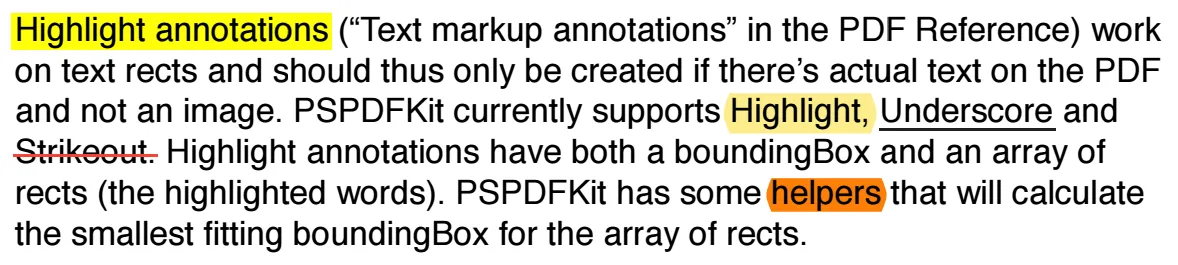
The simplest types of markup annotations are text markup annotations for marking up page text. These include text highlight, underline, or strikeout annotations.
Nutrient enhances these basic tools by allowing users to customize colors, adjust line thickness, and manage annotation styles through an intuitive interface.
Drawing annotations
Various drawing annotations can be applied on top of a PDF page, including:
- Square and circle annotations — For drawing squares/rectangles and circles/ellipses.
- Line annotations — For drawing straight lines.
- Polygon and polyline annotations — For drawing polygonal lines.
- Ink annotations — For freeform drawing and connecting points into Bézier curves.
All of these support the usual drawing properties such as color, line thickness, fill color (for filled shapes), or line styles (e.g. dotted, dashed).
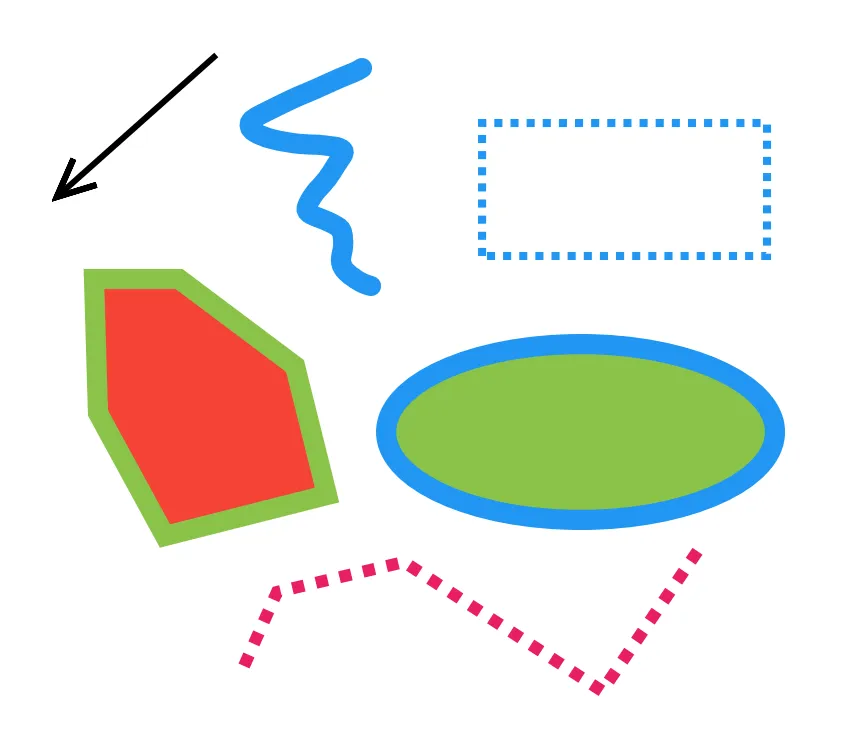
Nutrient’s annotation system supports creating and manipulating these shapes with customizable color, line styles, and fill options.
Stamp annotations
Stamp annotations can be used when simple shapes drawn with drawing annotations aren’t sufficient — for example, when you want to draw a complex raster or vector image.

Nutrient even supports enhanced stamps that can be saved in the browser’s local storage for repeated use, and that can be customized to include user-specific information like IDs or timestamps.
Text annotations
Two annotation types can be used to add notes to the page:
- Text annotations for adding sticky notes
- Free-text annotations for adding a floating text box

Nutrient’s annotation tools provide rich text formatting options, such as font selection, text rotation, and justification, allowing for greater flexibility and clarity in note-taking.
Multimedia annotations
Multimedia annotations let you add interactive elements like audio, video, and even 3D models to your PDF documents. These annotations support interactive content in educational and technical documents.
Widget annotations
Widget annotations are used to implement interactive forms within PDFs. Nutrient supports a variety of form elements, including buttons, checkboxes, and combo boxes, enabling the creation of fully interactive PDF forms that can be easily filled out and submitted.
Annotation types at a glance
| Icon | Annotation type | Description | Common use case |
|---|---|---|---|
| 🟨 | Highlight | Marks important text | Reviewing academic papers |
| 📝 | Sticky note | Adds floating comment bubble | Team feedback on reports |
| ✅ | Stamp | Visual status indicators (e.g. Approved) | Workflow approvals |
| ✏️ | Ink | Freehand drawing and sketching | Annotating blueprints or forms |
| 🔘 | Widget | Interactive form fields like checkboxes and buttons | Fillable forms in PDFs |
| 🎞️ | Multimedia | Embedded audio, video, or 3D content | Interactive technical documentation |
How to annotate a PDF
The steps are the same in most viewers, whether the goal is highlighting a contract clause or collecting review feedback:
- Open the PDF in a viewer that supports markup — a desktop reader, a browser-based viewer, or an app built with a PDF SDK.
- Select an annotation tool from the toolbar. Highlight and sticky note cover most review work; ink is for freehand markup; stamp is for status like Approved.
- Apply it to the page. Drag across text to highlight or underline, click to drop a note, or draw directly for ink and shapes.
- Add a comment. Most annotation types accept an associated note, which is what turns a highlight into reviewable feedback rather than a colored box.
- Adjust the appearance — color, opacity, border, font — so the markup is legible against the page and consistent across reviewers.
- Save the file. Annotations are written into the PDF itself, so the markup travels with the document. Exporting to Instant JSON or XFDF instead keeps the annotations separate from the original file, which is useful when several people review the same document.
How to annotate a PDF programmatically
Adding markup in code follows the same model, minus the toolbar. With a PDF annotation library, each annotation is an object created, updated, and deleted through an API — so a review workflow can highlight matched text automatically, stamp documents on approval, or import a reviewer’s markup from Instant JSON or XFDF. The annotation guides cover the API for each platform.
Choosing an annotation approach
| Need | Approach |
|---|---|
| One-off markup on a single document | Any desktop or browser PDF viewer |
| Review feedback across a team | A viewer with comments and reply threads |
| Markup inside your own application | An embedded PDF SDK with annotation APIs |
| Automated markup at volume | Annotation APIs driven by your backend |
The PDF annotation model
A PDF document is a collection of data objects organized into a tree structure. The document tree is formed from dictionaries of key-value pairs that can contain other dictionaries as values. An example of another PDF object is a content stream that contains lists of drawing operations or binary image data.
The top-level dictionary in a PDF document contains a list of pages in the document. Each page is represented by its own dictionary that contains separate entries for page content and for annotations associated with the page. Similarly, annotations are also represented by their own dictionaries. Each annotation dictionary contains at least two keys:
Rectspecifies the rectangle where the annotation is going to be positioned on the page. This rectangle is in the PDF page coordinate system, which has its origin in the bottom-left corner of the page, with the x-axis pointing to the right and the y-axis pointing up. Read more in our coordinate space guide.Subtypespecifies one of the supported annotation types.
The annotation type specifies which additional keys can be present in the annotation dictionary and which keys are required.
Below is an example of a page dictionary:
46 0 obj<< /Type /Page % Specifies that this dictionary defines a page. /Annots [207 0 R, 208 0 R, 209 0 R] % Contains a list of references to annotation objects on this page. /Contents 501 0 R % Reference to page content stream. /MediaBox [0, 0, 595, 842] % Page dimensions. % Other page properties.>>Here’s an example of a single annotation dictionary:
207 0 obj << /Type /Annot % Specifies that this dictionary defines an annotation. /Subtype /Highlight % Specifies annotation type. /Rect [52.9556, 728.343, 191.196, 743.218] % Annotation bounding box in page coordinates. /C [1.0, 1.0, 0.0] % Annotation color.>>You can find all the details about how annotations are stored inside PDF documents in section 8.4 of Adobe’s PDF specification(opens in a new tab).
Appearance streams
Annotations may contain properties that describe their appearance — such as annotation color or shape. However, these don’t guarantee that the annotation will be displayed the same way in different PDF viewers. To solve this problem, each annotation can define an appearance stream that should be used for rendering the annotation. An appearance stream is a set of drawing commands that tells a PDF viewer precisely how to render an annotation, independent of the visual properties defined in the annotation’s dictionary. The Nutrient SDK enables you to parse and create appearance streams.
Nutrient annotation model
The PDF annotation model is quite complex. The Nutrient SDK provides a PDF annotation library that exposes annotation dictionaries as regular objects in your programming language of choice. Each annotation dictionary describes a single annotation object on the page. It hides implementation details and complex interactions between various annotation properties, so you can create, read, update, and delete annotations without deep knowledge of the PDF file format.
Advanced features in Nutrient’s PDF annotation library
Nutrient’s PDF annotation library offers several advanced features that enhance the usability and flexibility of annotations:
- No zoom annotation — This feature ensures annotations maintain a consistent size, regardless of the zoom level of the PDF. This is particularly useful for viewing complex documents, such as architectural plans, where clarity is crucial.
- Enhanced stamps — Users can save stamps locally in their browser and customize them with specific user data, such as IDs or timestamps. This feature streamlines the process of adding frequently used stamps and ensures consistency across documents.
- Inspector tool — Nutrient’s context-sensitive Inspector tool enables users to fine-tune the appearance of annotations, including adjusting border colors, fill colors, opacity, and font settings. This level of control ensures annotations match a document’s visual style. Additionally, markup tools such as highlights, sticky notes, and freehand drawings are essential for adding comments and feedback directly to PDF documents. Our PDF markup tool provides all these capabilities in an easy-to-use interface.
Additional resources
- Annotation guides — Detailed guides on how to work with annotations in Nutrient SDKs.
- Instant JSON reference — Learn more about Nutrient’s serialization format for annotations and forms.
- Annotations demo — Try our annotation features with this live demo.
Nutrient’s PDF annotation library supports web, mobile, and desktop platforms.
Ready to add PDF annotation tools to your web or mobile app? Try Nutrient’s PDF SDK today with a free trial — no credit card required.
FAQ
PDF annotations are objects added to a PDF document to provide additional information or interactive elements without altering the original content. They include highlights, notes, shapes, and multimedia elements.
When printing a PDF, annotations are the annotation objects — such as highlights, sticky notes, stamps, and ink drawings — that appear overlaid on the page content. Most PDF viewers offer a print option to include or exclude annotations. When annotations are included, the viewer renders the annotation appearance streams on top of the page before sending the output to the printer. When excluded, only the base page content is printed.
Open the PDF in a viewer that supports markup, select an annotation tool (highlight, sticky note, ink, or stamp), apply it to the page, add a comment if the annotation supports one. Then save. The annotation is written into the PDF, so the markup travels with the file. See how to annotate a PDF above for the full steps.
To annotate a PDF programmatically, use the annotation editing APIs provided by Nutrient SDKs, or import annotations in Instant JSON or XFDF formats.
The PDF specification includes text markup annotations (highlights, underlines), drawing annotations (shapes, lines), stamp annotations, text annotations (sticky notes, text boxes), multimedia annotations (sound, video), and widget annotations (interactive forms).
Most PDF viewers conforming to the PDF specification can render all types of annotations. However, the editing capabilities might vary between viewers.
An appearance stream is a set of drawing commands that defines how an annotation should be rendered in a PDF viewer, ensuring consistent appearance across different viewers.
The no zoom annotation feature ensures annotations remain a consistent size, regardless of the document’s zoom level. This can be especially helpful in technical fields where precision is required.
Yes. With Nutrient, you can save custom stamps in the browser’s local storage for easy reuse. You can also customize these stamps to include user-specific information like IDs or timestamps.