Nutrient iOS SDK
Add OCR to your iOS app
- Extract text from scanned PDFs and image-based documents entirely on-device
- Unlock text selection, search, text markup annotations, and accessibility on previously inaccessible content
- 21 language packs — English, French, German, Spanish, and 17 more
- Works with PDF, PNG, JPEG, TIFF, DOC, DOCX, PPT, PPTX, XLS, and XLSX
Need pricing or implementation help? Talk to Sales.
OCR ON IOS
import PSPDFKitimport PSPDFKitOCR
let document: Document = Document(url: documentURL)
guard let configuration = Processor.Configuration(document: document) else { return}
// Perform OCR on all pages, detecting English text.let pages = IndexSet(0..<document.pageCount)configuration.performOCROnPages( at: pages, options: ProcessorOCROptions(language: .english))
let processor = Processor( configuration: configuration, securityOptions: nil)
// Run on a background thread.DispatchQueue.global(qos: .userInitiated).async { do { try processor.write(toFileURL: outputURL) } catch { print("OCR error: \(error)") }}#import <PSPDFKit/PSPDFKit.h>#import <PSPDFKitOCR/PSPDFKitOCR.h>
PSPDFDocument *document = [[PSPDFDocument alloc] initWithURL:documentURL];
PSPDFProcessorConfiguration *configuration = [[PSPDFProcessorConfiguration alloc] initWithDocument:document];
// Perform OCR on all pages, detecting English text.NSIndexSet *pages = [NSIndexSet indexSetWithIndexesInRange: NSMakeRange(0, document.pageCount - 1)];PSPDFProcessorOCROptions *options = [[PSPDFProcessorOCROptions alloc] initWithLanguage:PSPDFOCRLanguageEnglish];[configuration performOCROnPagesAtIndexes:pages options:options];
PSPDFProcessor *processor = [[PSPDFProcessor alloc] initWithConfiguration:configuration securityOptions:nil];
// Run on a background thread.dispatch_async( dispatch_get_global_queue( QOS_CLASS_USER_INITIATED, 0), ^{ NSError *error; [processor writeToFileURL:outputURL error:&error];}); Lufthansa
Disney
Autodesk
UBS
Dropbox
IBM
Lufthansa
Disney
Autodesk
UBS
Dropbox
IBM
USE CASES
OCR across the Apple ecosystem
iPad document scanning workflows
Professionals use iPads to photograph contracts, receipts, and reports. OCR turns those captures into searchable PDFs on-device — no upload step, no cloud dependency.
OCR on images and Office files
Process not just PDFs but also PNG, JPEG, TIFF, and Office documents (DOC, DOCX, PPT, PPTX, XLS, XLSX). Convert image captures to searchable PDFs in a single pipeline.
VoiceOver-ready documents
Image-based PDFs are invisible to VoiceOver. OCR adds a text layer so visually impaired users can navigate scanned content with full iOS accessibility support.
On-device text extraction for Core ML
Extract text from scanned documents. Then feed it into Core ML models, NLP pipelines, or backend APIs. OCR runs locally, so sensitive data never leaves the device.
OCR capabilities for iOS
Swift and Objective-C support
Configure OCR in a few lines of Swift or Objective-C. Dispatch processing to a background thread — the SDK writes a new PDF with an embedded text layer to your output path.
- Target specific pages or process the entire document
- Background processing that never blocks the UI
- Extract individual words and glyphs with position data after OCR
SwiftPM, CocoaPods, or manual setup
Choose the integration method that fits your project. Use Swift Package Manager or CocoaPods, or drag the framework into Xcode manually. Each option lets you include only the language bundles you need.
- CocoaPods subspecs for per-language control
- Swift Package Manager with manually added language bundles
- 21 languages — include only what you need
PDFs, images, and Office files
OCR processes PDFs, raster images (PNG, JPEG, TIFF), and Office documents (DOC, DOCX, PPT, PPTX, XLS, XLSX). Convert image captures to searchable PDFs, or add text layers to existing scanned files.
- Image-to-PDF conversion before OCR for photos and scans
- Office file support for DOC, PPT, and XLS variants
- Existing text streams remain untouched on mixed pages
APPLE ECOSYSTEM INTEGRATION
One OCR API across Apple platforms
Build a single OCR workflow that runs on iOS, iPadOS, Mac Catalyst, and visionOS. The same API and language bundles work everywhere — no platform-specific code branches.
Nutrient OCR vs. Apple Vision
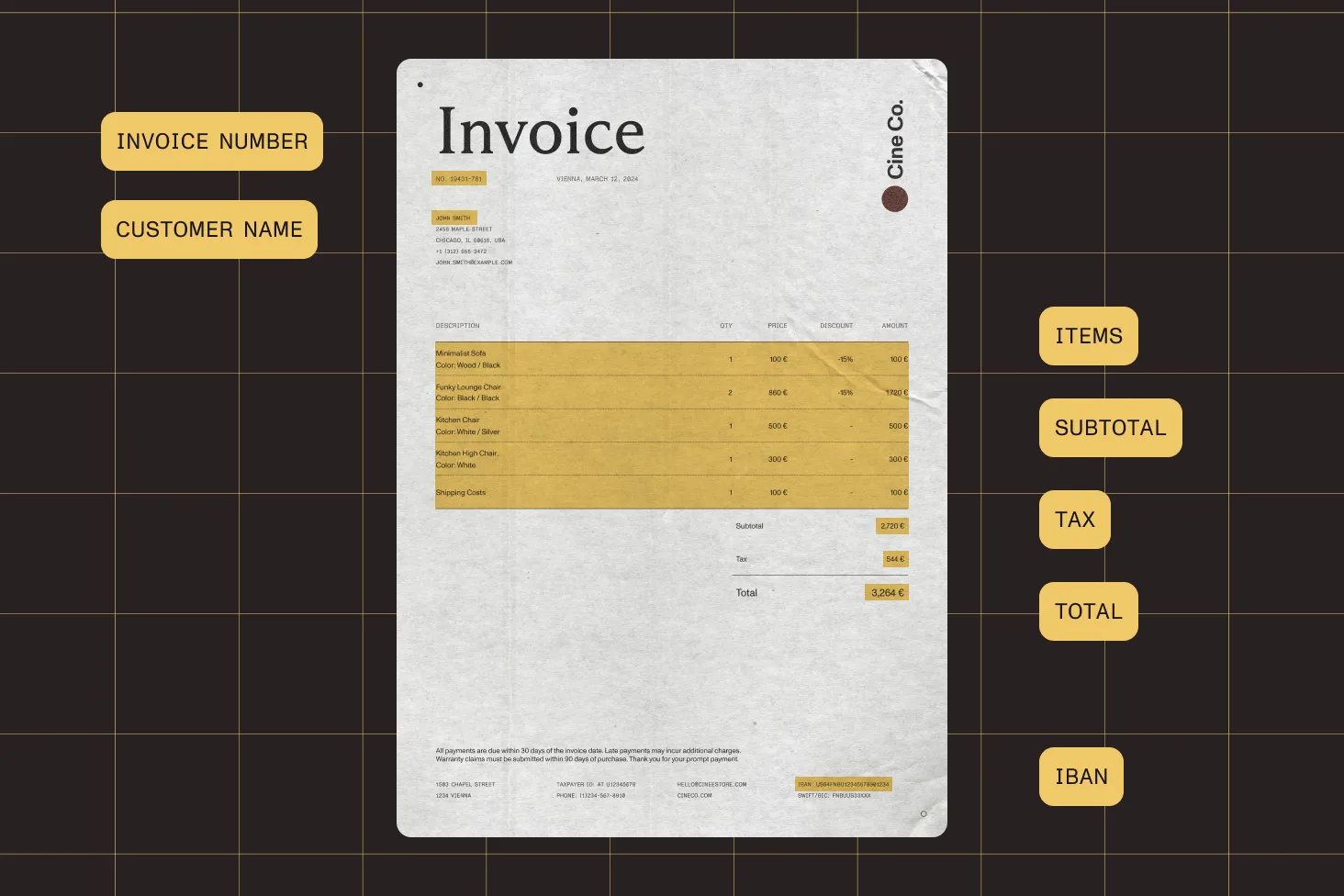
Apple Vision doesn’t generate searchable PDFs or analyze native PDF files for text recognition. Nutrient OCR produces a standard PDF with an embedded text layer — ready for search, annotation, and accessibility.
Word-level text extraction
After OCR, retrieve individual text blocks, words, or glyphs with their position coordinates. Feed structured text into Core ML models, NLP pipelines, or document analytics.
visionOS and Mac Catalyst support
OCR is compatible with visionOS and Mac Catalyst out of the box. Ship document scanning features on Vision Pro and Mac without a separate codebase.
Privacy by design
All processing runs on-device with no network calls. Language bundles ship inside your app binary. Sensitive documents never leave the user’s device — critical for healthcare, legal, and financial apps.
Frequently asked questions
How do I add OCR to an iOS app?
Add the Nutrient SDK and the OCR framework to your project via Swift Package Manager, CocoaPods, or manual integration. Include the language bundles you need, and then configure OCR on the pages you want to process and run it on a background thread. See the getting started guide for step-by-step setup.
How does Nutrient OCR compare to Apple Vision?
Apple Vision performs text recognition on images but doesn’t generate searchable PDFs or work directly with PDF files. Nutrient OCR processes PDFs natively, produces a standard PDF with an embedded text layer, and handles complex layouts, stylized fonts, and low-quality scans with multi-pass language model dictionaries.
What file formats can the iOS OCR SDK process?
It can process PDFs directly, plus images (PNG, JPEG, TIFF) and Office documents (DOC, DOCX, PPT, PPTX, XLS, XLSX). Images are first converted to PDF via the image-to-PDF API, and then OCR runs on the result — all within the same on-device pipeline.
Does OCR work on visionOS and Mac Catalyst?
Yes. The OCR framework is compatible with iOS, iPadOS, Mac Catalyst, and visionOS. The same API and language bundles work on all four platforms — no conditional code needed.
Can I extract individual words after OCR?
Yes. After processing, you can retrieve text blocks, individual words, and glyphs with their position coordinates. This is useful for feeding structured text into Core ML models, NLP pipelines, or document analytics.
How do I keep my app binary small with multiple languages?
Each language is a separate bundle. With CocoaPods, specify individual language subspecs instead of installing all 21 languages. With Swift Package Manager or manual integration, add only the bundle files for the languages you need to your project.
Can I OCR specific pages instead of the entire document?
Yes. You can pass specific page indexes, a range, or the full document. Partial processing saves time on large documents where only some pages are scanned images.
Does OCR preserve existing text on mixed-content pages?
Yes. The OCR engine detects regions that lack text streams and only embeds text for those areas. Existing digital text, form fields, and annotations are left untouched. This makes it safe to run OCR on documents with a mix of scanned and native pages.
FREE TRIAL
Ready to get started?
Add OCR to your iOS app in minutes — no payment information required.
Explore more
Also available for
More iOS SDK capabilities