Nutrient Java SDK
Need pricing or implementation help? Talk to Sales.
PDF ANNOTATIONS IN JAVA
Document document = Document.open("document.pdf");PdfEditor editor = PdfEditor.edit(document);PdfPage page = editor.getPage(0);
// Add a highlight annotation.PdfAnnotationCollection annotations = page.getAnnotationCollection();annotations.addHighlightAnnotation( 100, 700, 200, 15, "Author", "Important section");
editor.saveAs("annotated.pdf");editor.close();Document document = Document.open("document.pdf");PdfEditor editor = PdfEditor.edit(document);PdfPage page = editor.getPage(0);
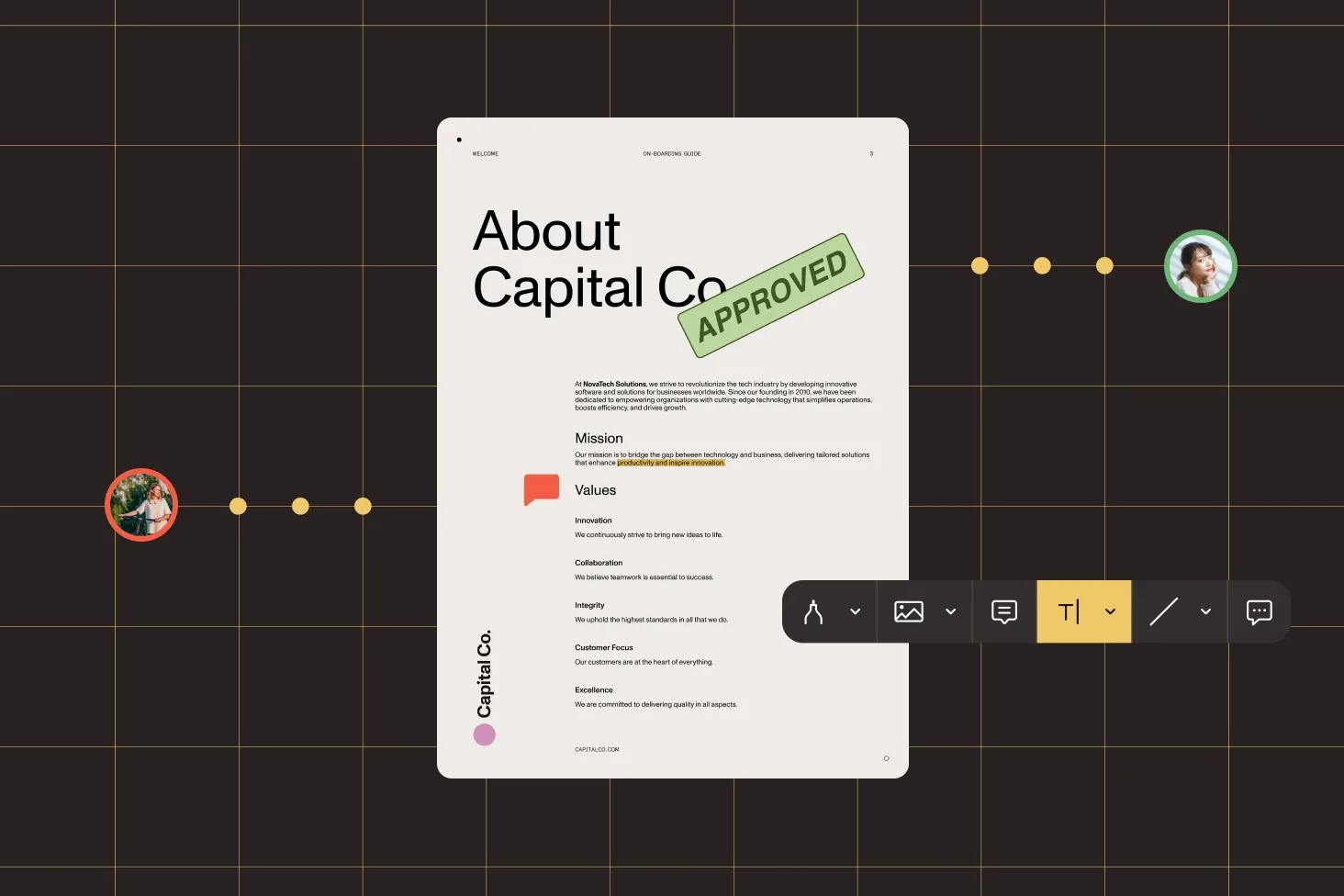
// Add a stamp annotation (e.g., Approved, Draft).PdfAnnotationCollection annotations = page.getAnnotationCollection();PdfStampAnnotation stamp = annotations.addStampAnnotation( 300, 700, 200, 60, "Author", "Approved");stamp.setStampStyle(PdfRubberStampIcon.Approved);stamp.setColor(Color.fromArgb(255, 0, 128, 0));
editor.saveAs("stamped.pdf");editor.close();Document document = Document.open("document.pdf");PdfEditor editor = PdfEditor.edit(document);PdfPage page = editor.getPage(0);
// Add a line annotation with arrow endings.PdfAnnotationCollection annotations = page.getAnnotationCollection();PdfLineAnnotation line = annotations.addLineAnnotation( 100, 500, 300, 500, "Author", "Review this");line.setStartLineCap(PdfLineEndingStyle.None);line.setEndLineCap(PdfLineEndingStyle.ClosedArrow);line.setColor(Color.fromArgb(255, 255, 0, 0));
editor.saveAs("annotated.pdf");editor.close();USE CASES
Add highlights, notes, and comments to PDFs as part of an automated review pipeline. The SDK creates annotations programmatically — no user interface required.
Apply Draft, Approved, Confidential, Final, or Not Approved stamps to documents in batch. Stamp annotations follow the PDF specification and render consistently in any viewer.
Use shapes (lines with arrows, circles, squares) and free text to call out sections of a document. Configurable colors, line widths, and line ending styles.
Add redaction annotations to flag content for permanent removal. Review the marks before applying — once redaction is committed, the underlying content is deleted from the PDF.
Highlight, underline, strikeout, and squiggly annotations for marking up text. Each supports custom ARGB colors with transparency control.
Apply predefined rubber stamp icons to PDFs — Draft, Approved, Not Approved, Confidential, and Final. Customize colors and positioning.
Lines with configurable arrow endings, circles, squares, free text placed directly on the page, and sticky note annotations with icon-based comments.
Add clickable links to external URLs or internal page destinations. Mark areas for redaction — reviewed separately, then permanently applied.
ADVANCED CAPABILITIES
The SDK provides fine-grained control over annotation properties — colors with ARGB transparency, line ending styles, coordinate positioning, and font configuration. All operations are programmatic and run server-side without any UI dependency.
Set annotation colors using ARGB values. Control the alpha channel for translucent highlights or fully opaque stamps — applied consistently across all annotation types.
Line annotations support 10+ ending styles per cap — arrows, diamonds, circles, squares, and more. Set start and end caps independently for callout lines and pointers.
Stamp annotations use the PDF specification’s rubber stamp icons: Draft, Approved, Not Approved, Confidential, and Final. Renderable in any compliant PDF viewer.
All annotation operations run headless — no GUI, no user interaction. Add, modify, and remove annotations in batch as part of automated Java workflows.
Open a document, create an editor, get the page, and access its annotation collection. Add annotations by type — each method takes coordinates, dimensions, author, and content as parameters. Save the result to a new file. See the annotations guide for complete Java examples.
Add a stamp annotation to a page’s annotation collection. Set the stamp style to one of the predefined types: Draft, Approved, Not Approved, Confidential, or Final. Customize the color and position on any page. Stamp annotations follow the PDF specification and render consistently across viewers. See the stamp annotations guide.
The SDK supports text markup (highlight, underline, strikeout, squiggly), stamps (Draft, Approved, Confidential, Final, Not Approved), shapes (line, circle, square), free text, sticky notes, links (external URLs and internal page navigation), and redaction annotations. See the annotations guide for the full list.
Create a highlight annotation on the page’s annotation collection. Then set its color using ARGB values — the alpha channel controls transparency. For example, a semi-transparent yellow highlight uses an alpha value less than 255. See the text markup guide.
Add a link annotation to the page. For external URLs, set the URI destination. For internal navigation, set a page destination with a specific page number and optional x,y coordinates. Link annotations support precise destination positioning within the target page. See the link annotations guide.
Add a free text annotation — unlike sticky notes, free text is rendered directly on the page and is always visible. Configure the font family, font size, text color, and background color. Useful for labels, watermarks, and visible comments. See the free text guide.
Yes. Access the page’s annotation collection, iterate through it to find the annotation you want to remove, and delete it by index. You can also iterate all pages and remove annotations in batch.
Add a redaction annotation to mark the area. The content isn’t removed until redaction is applied — this gives you a review step. Set the interior color to opaque black to visually obscure the content in the preview. See the redaction annotations guide.
FREE TRIAL
Add PDF annotations and stamps in Java in minutes — no payment information required.
Also available for
More Java SDK capabilities




