How to create a Salesforce quote template from opportunity data

Table of contents
A good quote should be easy to generate, easy to trust, and easy to send.
In practice, though, quote creation is often where sales teams fall back into manual work. Opportunity details are already in Salesforce. Pricing, ownership, customer context, and related quote data are all there. But when it’s time to create the actual document, many teams still copy data into a static file, rebuild quote tables by hand, and export the final version as a PDF only after several rounds of editing.
That’s exactly where a Salesforce quote template makes a difference.
Instead of treating quote creation as a separate process, teams can build a template around an Opportunity, pull in the right Opportunity and related record data, and generate a document that reflects the deal as it exists in Salesforce. With Nutrient Documents for Salesforce, that workflow can include reusable templates, merge fields, repeating sections for line items, conditional logic, optional data review, and final output in PDF or DOCX.

Why teams need a better Salesforce quote template
Most sales teams don’t struggle with quote creation because they lack data. They struggle because the data is disconnected from documents.
A sales representative shouldn’t have to open an Opportunity, check related quote data, copy pricing into a spreadsheet, paste it into a quote, and then fix the formatting before sending it to a customer. That process is slow, error-prone, and impossible to scale.
A Salesforce quote template solves that by turning the quote into a structured, repeatable workflow. Instead of rebuilding the same document every time, your team creates the framework once and lets Salesforce populate the deal-specific details. The result is faster document creation, more consistent output, and less manual cleanup before the quote goes out the door.
Step 1: Create or import your quote template
The first step is to create the template that will serve as the foundation for every quote.
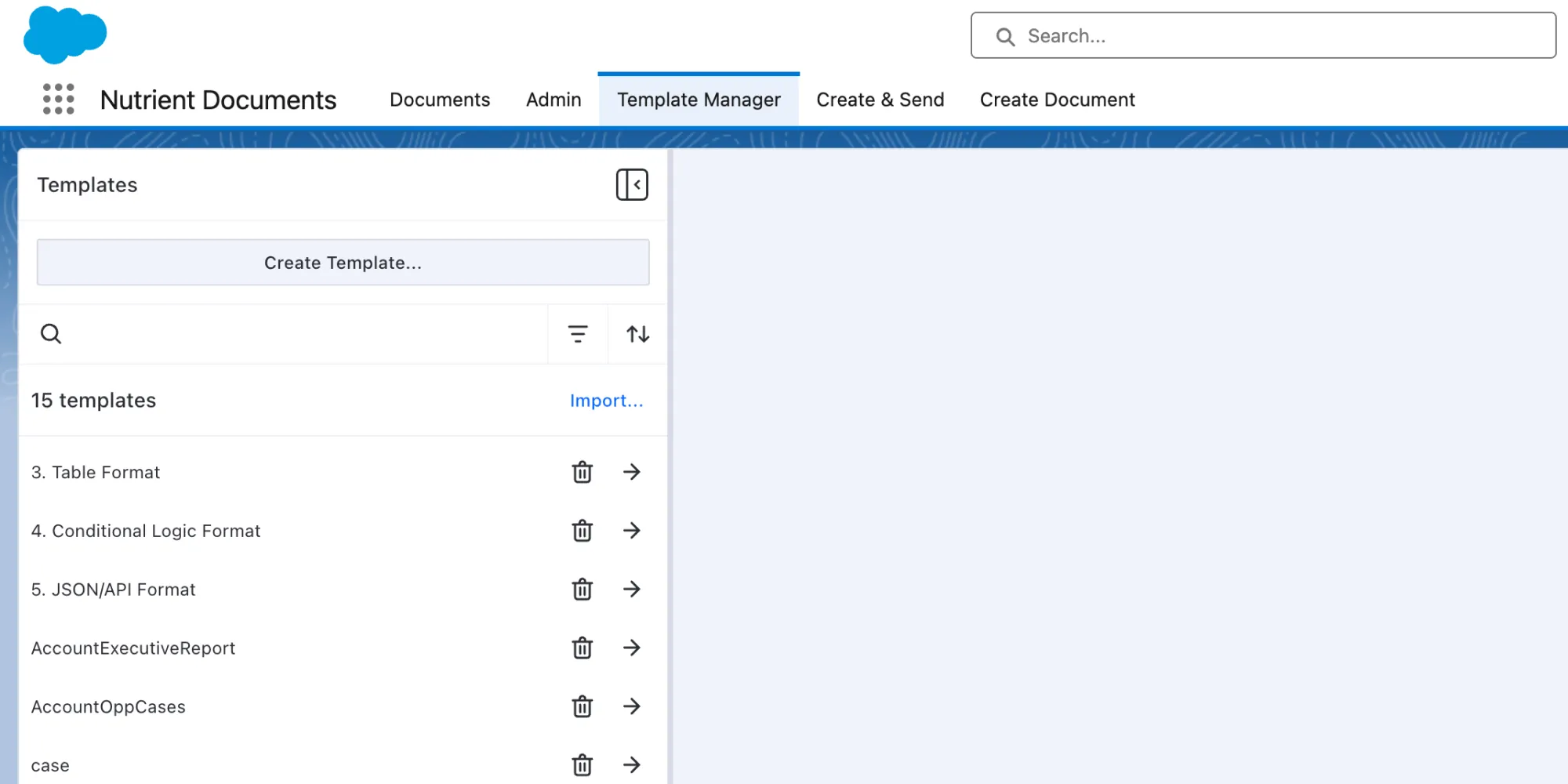
In Nutrient, templates are managed in the Template Manager inside the Nutrient Documents for Salesforce application, available from the App Launcher. From there, you can create a new template, use one your organization has already set up, or import an existing file if you want to reuse an approved quote layout.
Nutrient supports both editable and locked templates. Editable templates can be updated directly in Salesforce, while locked templates are imported DOCX files that stay unchanged. That gives you flexibility in how you manage quote documents. Locked templates are especially useful when you want to bring in templates that are created or maintained outside Salesforce, or when you need the final document to preserve the same high-fidelity layout as the original Word file.
This makes quote creation far more repeatable. Instead of building each quote from scratch, you can start from a reusable template and maintain it over time.
Step 2: Set the Opportunity as the root record
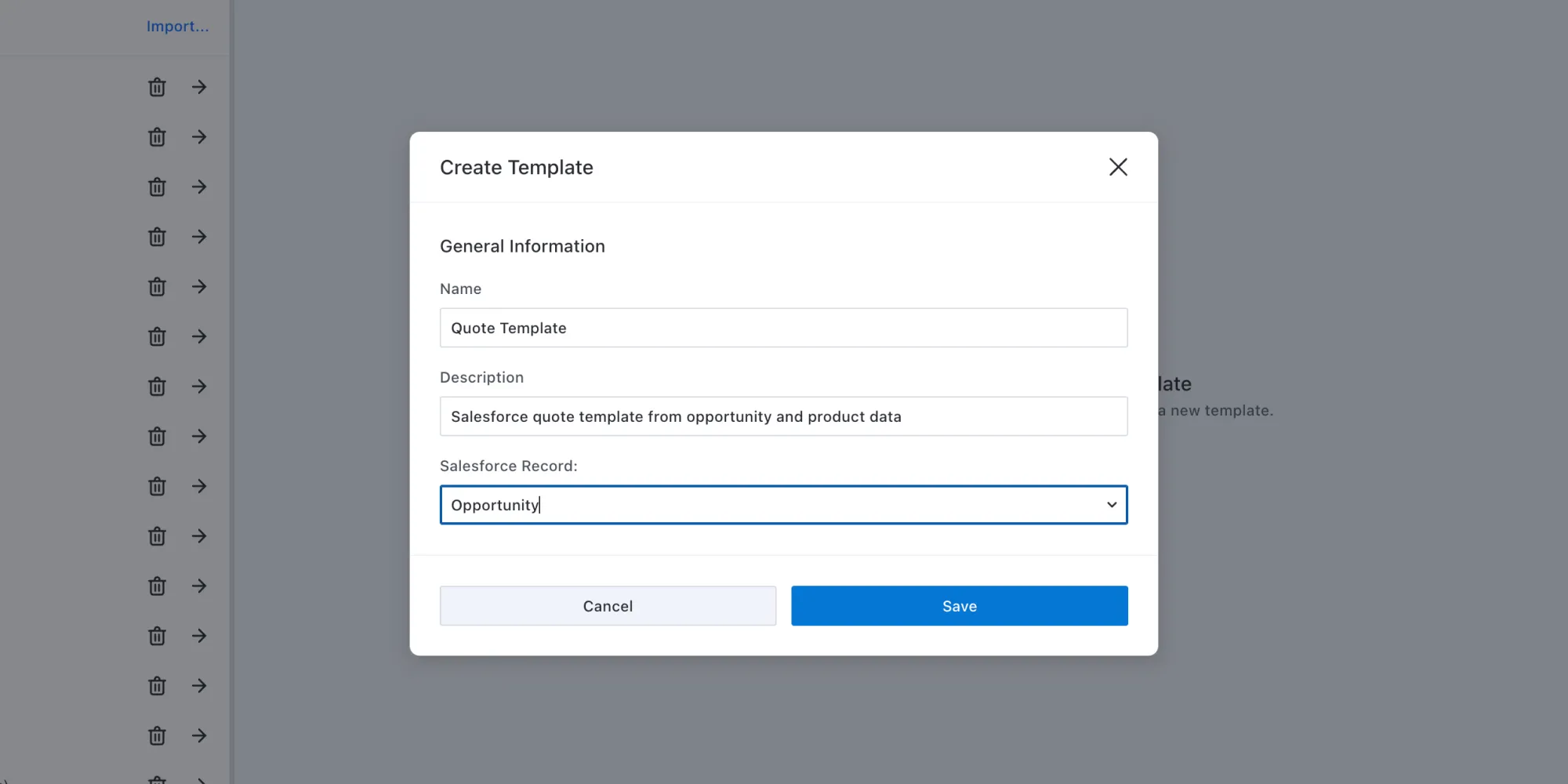
Once the template is in place, the next step is to associate it with the correct Salesforce record type.
For a quote workflow, this would usually be the Opportunity record. In Nutrient Documents for Salesforce, templates are configured for a specific root Salesforce record, which becomes the starting point for the data used to generate the document. Using the Opportunity as the foundation keeps the quote tied to the deal itself, making it easier to pull in customer information, deal details, dates, amounts, and related quote data.
This matters because the best quote workflows stay close to the record sales teams already use every day. Rather than treating the quote as a separate document exercise, it becomes a direct extension of the Opportunity.
Step 3: Add merge fields for the core quote details
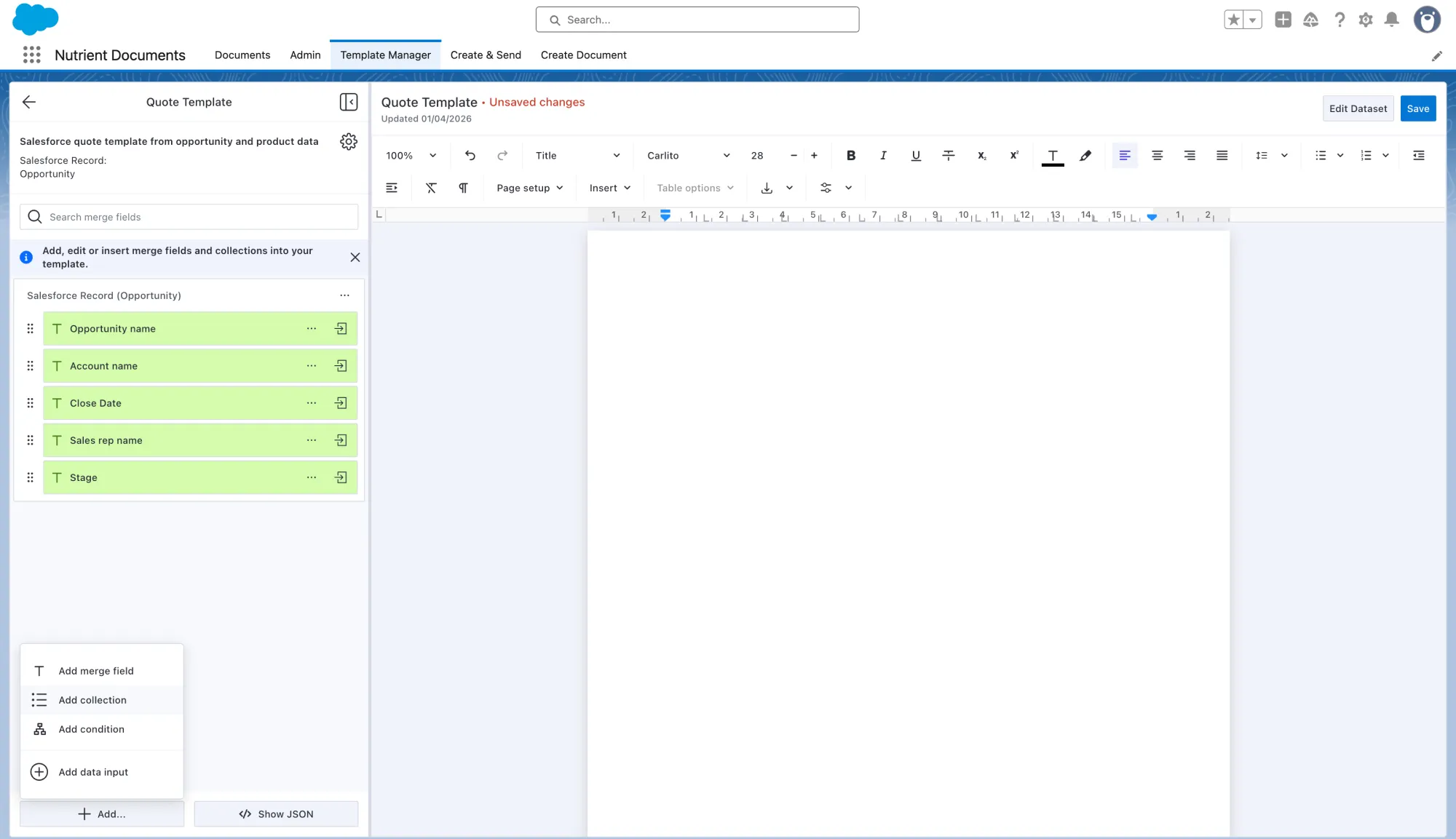
With the Opportunity set as the root record, you can start adding the merge fields that should appear in every quote by clicking the + Add… button at the bottom left of the sidebar.
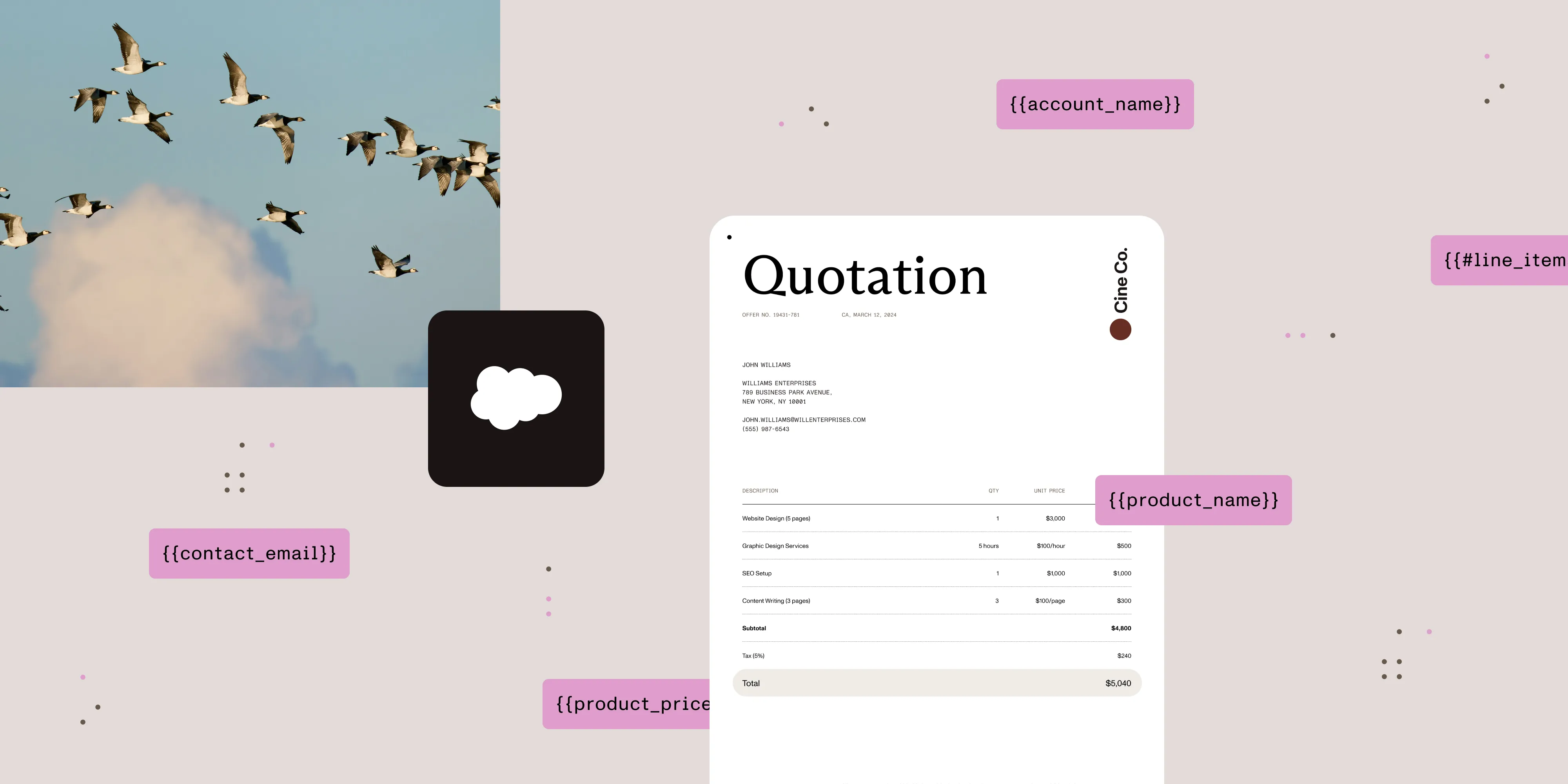
Merge fields enable the template to insert individual values directly into the document. That can include information such as the Opportunity name, account details, sales representative name, dates, totals, or other quote header information. Nutrient Documents for Salesforce also supports formatting values such as dates, numbers, percentages, and currency, along with default values for fields that may be empty at document creation time.
This is where the template starts to feel dynamic. Instead of editing the same details by hand for every quote, your team defines the placeholders once and lets Salesforce supply the values during generation.
Step 4: Add a collection for related quote data
A quote template becomes much more useful when it can handle related quote data automatically.
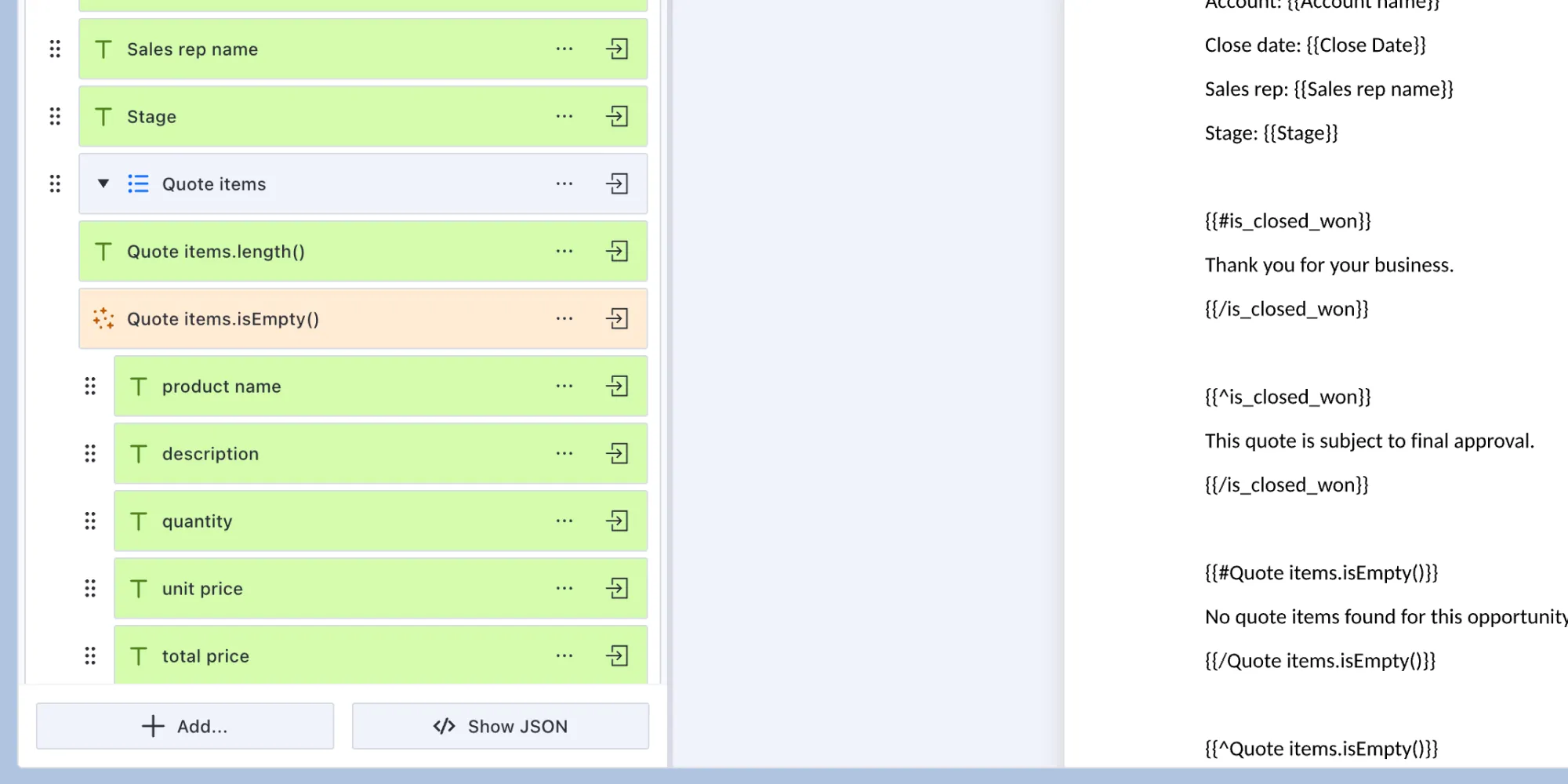
For this, you can add a collection that represents records related to the root record you want to repeat in the quote, such as line-item data connected to the Opportunity. Collections are designed for repeating content, which makes them ideal for quote tables, pricing sections, or any part of the document that needs to expand or shrink based on the deal.
Inside that collection, you can add the fields you want to show for each row, such as product name, description, quantity, unit price, total price, or other line-level values. Nutrient Documents for Salesforce also supports sorting and filtering collections, which helps shape how the final quote is presented.
This is the step that moves the quote from static to scalable. Instead of maintaining a fixed table and editing it manually, you create a structure that adjusts to the actual Opportunity data.
If the Opportunity doesn’t yet have any related line items, the generated quote can still run successfully while the table remains empty. In that case, the template may be correct, but the record doesn’t yet have the related data needed to populate the repeating rows.
Step 5: Add conditions for optional quote content
Not every quote needs the same sections. Some deals require discount language, some include services, and others may need optional clauses depending on the opportunity.
That’s where conditions come in. Nutrient Documents for Salesforce supports conditions that control whether content appears in a generated document based on the underlying Salesforce data. This makes it possible to build one flexible quote template instead of maintaining multiple versions for different sales scenarios.
Used well, conditions help keep the quote cleaner for the customer and easier to manage for your team. The document can adapt to the deal without creating extra template sprawl behind the scenes.
For example, you might create a condition based on Opportunity Stage to show approval language only for certain deals. You can also use conditions to handle cases where related quote data is missing, such as hiding an empty table or showing fallback text instead.
Conditions become even more useful when you need more advanced document logic. Instead of relying on a single check, you can combine conditions to account for multiple factors at once — for example, showing a section only when a deal is in a certain stage, includes a discount, and contains a specific product set. That makes it easier to keep complex generation logic inside one reusable template while still keeping the document flow understandable and maintainable.
Step 6: Add the template selection widget to the Opportunity record page
Once the template is ready, you need to make it available where users will actually generate documents.
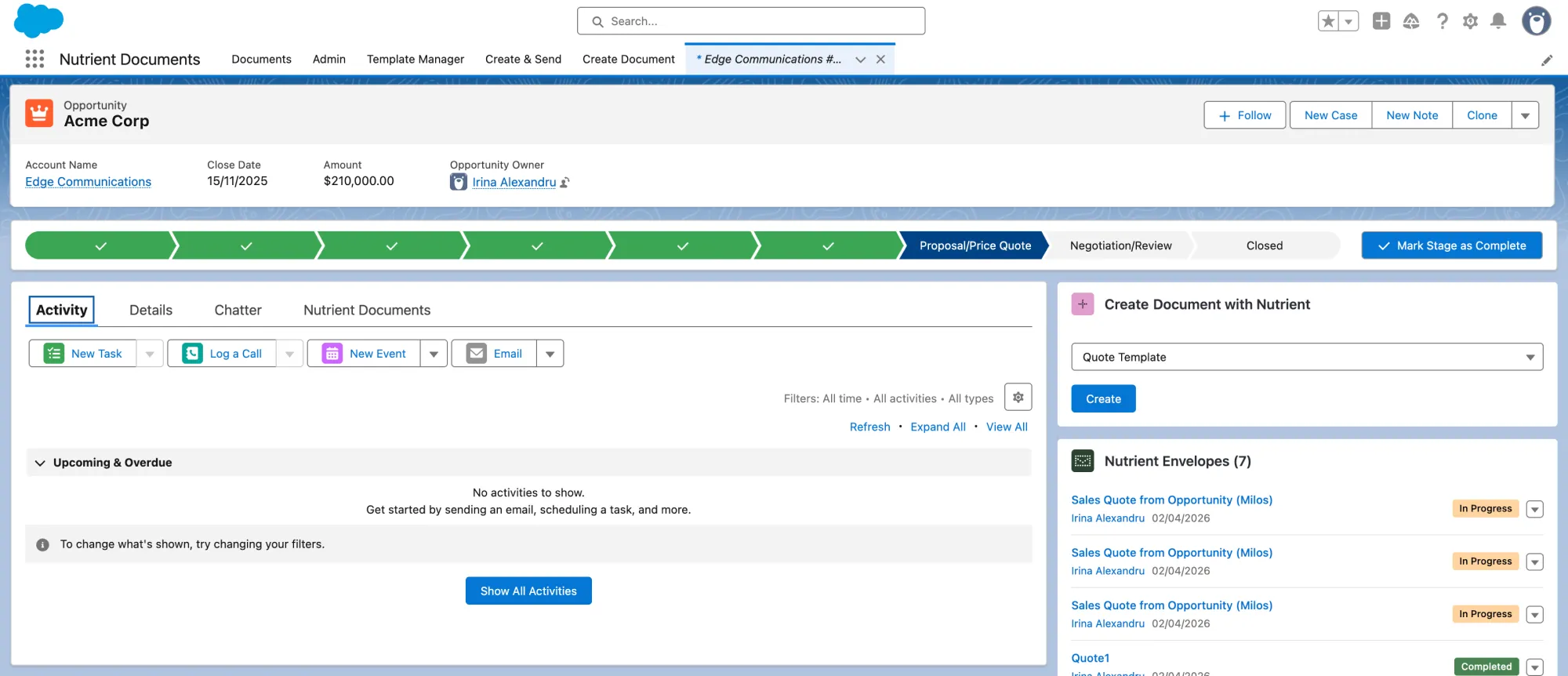
In Lightning App Builder, add the Nutrient document-generation component to the Opportunity record page. This enables users to choose the template and start the document creation process directly from the record.
This is an important part of making the workflow usable. The easier it is for sales teams to generate a quote from the Opportunity itself, the more likely the process is to be adopted consistently.
If the component appears in the App Builder but not on the live record page, the issue is usually page activation or assignment. If the component is visible but the template dropdown is empty, the issue is more likely related to template availability or recognition.
Step 7: Generate the quote from the Opportunity
With the template in place and the widget available on the record page, you can generate the quote directly from the Opportunity.
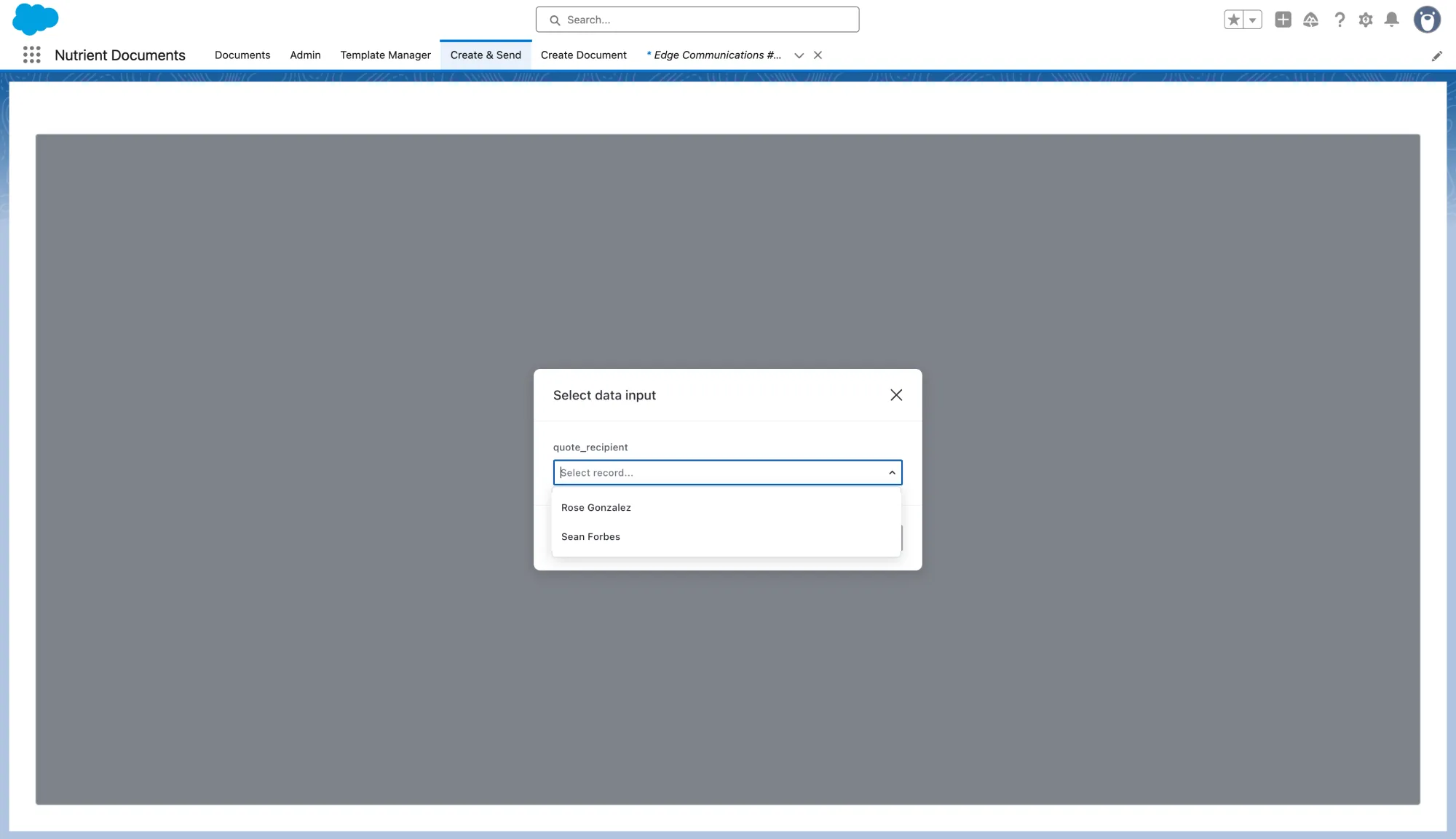
If the template uses dynamic inputs, you can choose the right records at runtime before the document is generated. That’s useful when the quote should reflect a deal-specific choice. For example, a sales representative might select the recipient from the account’s contact list rather than relying on a single preconfigured contact in the template. It’s a simple way to make the quote more flexible without making the template more difficult to manage.
Nutrient then prepares the data and generates the document. If data review is enabled, you can preview the resolved values and make changes before finalizing the quote, which helps you catch issues before the file is shared.
This gives you the best of both worlds: automation from live Salesforce data, with enough control to review the output before sending.
Step 8: Review, edit, and export the final document
After the quote is generated, users can preview the result and, if the template is editable, make final adjustments in the document editor. When the document is ready, it can be downloaded or saved back to the root Salesforce record, with output available as PDF or DOCX.
This is where Salesforce PDF generation becomes especially valuable. Once your quote is built from live Opportunity and related quote data, the final step is turning it into a polished customer-facing document that’s ready to share.
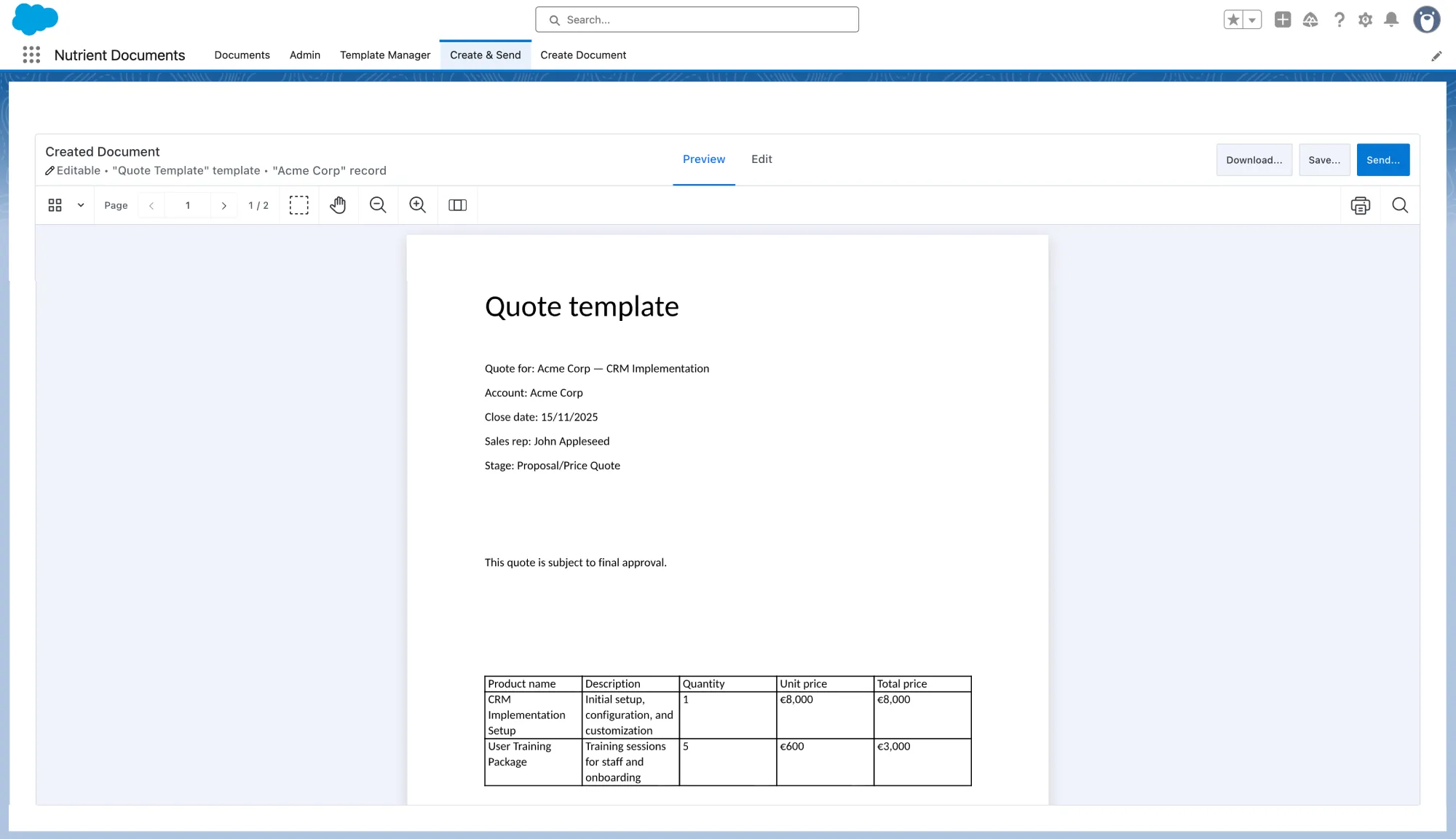
Before rolling the template out to sales users, validate it with a real Opportunity that includes the related quote data your template expects. Otherwise, the document may generate successfully while still showing missing business data or an empty quote table.
FAQ
A Salesforce quote template is a reusable document structure that pulls in Opportunity and related record data to generate quotes automatically. Instead of building each quote from scratch, teams define merge fields, line item collections, and conditional sections once and then generate consistent documents directly from the Opportunity.
To generate a quote PDF from Salesforce, you need a template configured for the Opportunity record type and the Nutrient document generation widget added to the record page. Once in place, users can select the template from the Opportunity, review the resolved data, and export the final document as a PDF or DOCX. Learn more about Salesforce PDF generation.
Merge fields pull individual values from Salesforce records directly into the document at generation time. In a quote template, that can include Opportunity name, account details, owner, dates, totals, or any other field available on the root record. Nutrient Documents for Salesforce also supports value formatting for dates, numbers, currency, and percentages, along with default values for fields that may be empty.
Yes. Repeating line items are added using collections, which are designed to expand or contract based on the related records tied to the Opportunity. Inside the collection, you can include fields such as product name, quantity, unit price, and total, and Nutrient Documents for Salesforce will repeat the section for each related record found at generation time.
Conditions let you show or hide sections of the document based on Salesforce data. For example, you can display discount language only when a deal meets a certain stage or hide a table entirely when no related line items are present. Conditions can also be combined to handle more complex scenarios, which helps teams maintain one flexible template instead of multiple versions for different deal types.
Yes. Nutrient Documents for Salesforce supports both PDF and DOCX output when generating documents from a Salesforce template. Teams can choose the format that fits their workflow — PDF for customer-facing quotes that should stay fixed, or DOCX for documents that may need further editing after generation.
Final thoughts
A strong Salesforce quote template isn’t just a faster way to create documents; it’s a better way to connect your quote workflow to the Opportunity and product data already living in Salesforce.
When teams can generate quotes from live deal data, use dynamic sections for line items, apply logic where needed, and support Salesforce PDF generation in the same workflow, quoting becomes more consistent and far less manual.
Just as important, it becomes easier to maintain. And that matters, because quote workflows never stay still for long. Products change. Pricing changes. Packaging changes. Approval language changes. A reusable template makes it much easier to keep up. Instead of rebuilding documents every time the business evolves, teams can update the template, adjust the logic, and keep moving.
That’s the real value: fewer copy-paste steps, fewer formatting issues, and a smoother path from Opportunity to customer-ready quote — not just today, but as your sales process changes over time.