



New zip folder functionality streamlines file management in Document Automation Server

Table of contents

Managing large volumes of processed documents can quickly consume valuable storage space. Whether you’re archiving completed workflows, distributing processed files, or simply keeping your file system organized, compression is essential — but manually zipping folders after automation jobs defeats the purpose of automation.
That’s why we’re excited to introduce the new Zip Folders step in Document Automation Server (DAS) v6.0.2509.24. This highly requested feature lets you compress files automatically as part of your document processing workflows, complete with detailed reporting on space savings.
What is the Zip Folders step?
The Zip Folders step is a new processing option in DAS that automatically compresses files and folders after (or during) your document automation workflows. This step — located in Designer > Advanced — integrates seamlessly into your existing jobs, letting you process documents and compress the results in a single, streamlined operation.
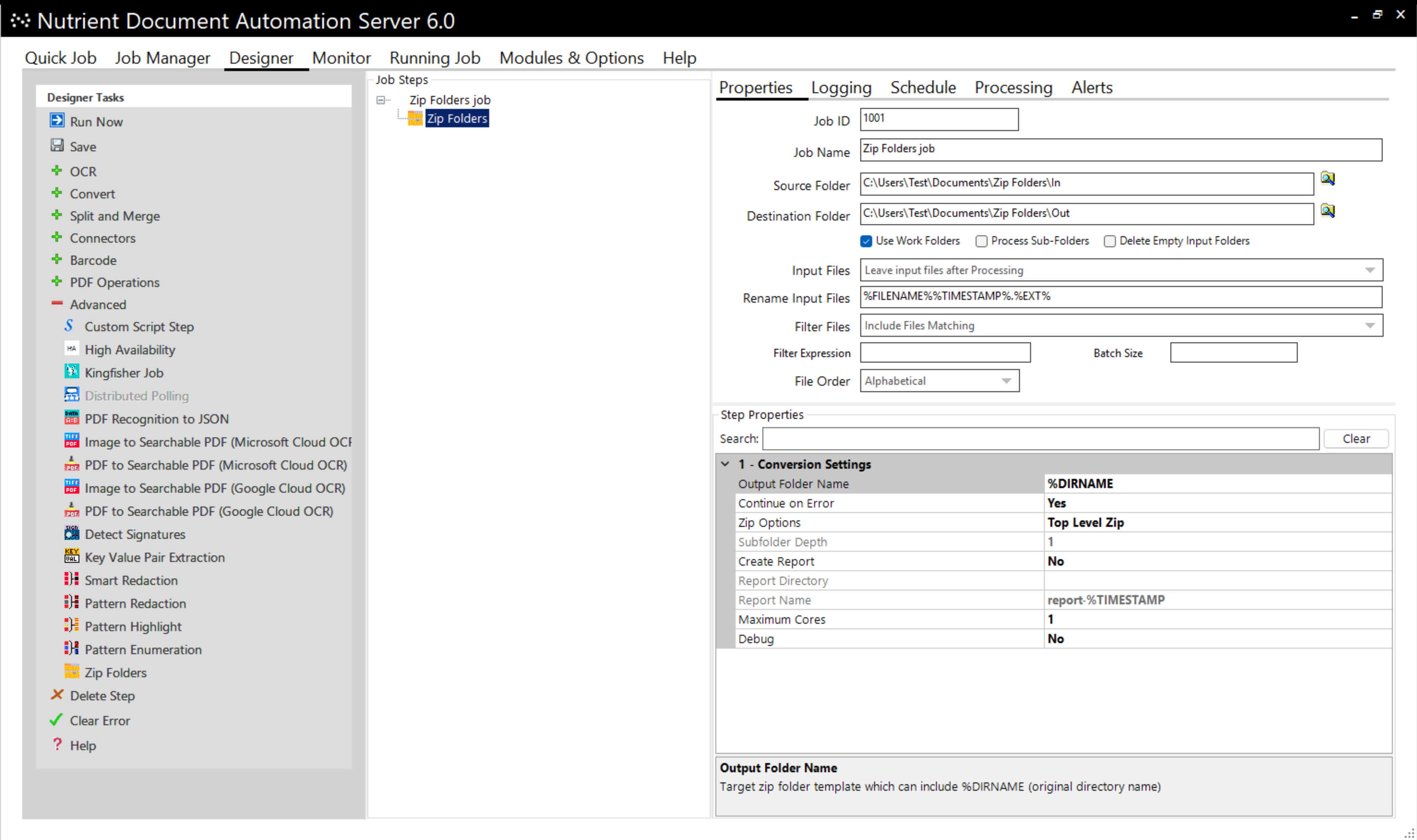
You can use it in two ways:
- As part of a workflow — Process your documents (convert, OCR, split, merge, etc.), and then automatically zip the results.
- As a standalone step — Point it at any directory of files that need compression to free up storage space.
New to Document Automation Server? DAS is Nutrient’s powerful document processing platform that automates complex document workflows at scale. Learn more about DAS.
Three compression modes for different needs
The Zip Folders step offers three distinct compression modes to match your specific workflow requirements.
1. Zip Top Level
This creates a single zip file containing all files and folders from the input directory. It’s ideal when you want to archive an entire workflow’s output as one compressed package.
Use case: You’ve processed 500 invoices through OCR and data extraction. Use this mode to create a single processed-invoices.zip file containing all results.
2. Zip Recursive
This mode zips each individual folder and subfolder’s contents into separate zip files. All output zip files are created in the top level of the output folder, giving you granular control over your compressed files.
Use case: You have a folder structure organized by department, and you want each department’s processed documents compressed separately while keeping them all in one output location.
3. Zip Recursive With Limit
This mode is similar to Zip Recursive, but it lets you specify a maximum depth. This zips folders and subfolders only up to your specified level. At the limit level, all folders are compressed with their entire contents (including any deeper subfolders).
Use case: You have a deeply nested folder structure (/year/quarter/month/department/files), but you only want to create zip files at the quarter level, keeping all months and departments compressed within each quarter’s zip file.
Customizable output and reporting
Output folder naming
By default, the output uses the %DIRNAME template, naming each zip file after its source folder. You can customize this with three available templates:
- %DIRNAME — Input folder name
- %DATESTAMP — Date the zip was created
- %TIMESTAMP — Exact time the zip was created
Example: processed-%DIRNAME-%DATESTAMP.zip creates files like processed-invoices-2025-12-16.zip
Automatic compression reports
One of the most requested features was visibility into storage savings. The Zip Folders step can generate a detailed CSV report showing exactly how much space you’re saving with each file compression.
The report includes:
- Zip folder path
- Filename
- Input size (uncompressed)
- Compressed size
- Compression ratio (percentage)
You can specify a custom location for the report or let DAS create it automatically in the output folder as report-%TIMESTAMP.csv.
Example use case: Your compliance team needs to archive 10 years of processed contracts. The CSV report shows you’ve compressed 2.3 TB down to 487 GB — a 79 percent space saving — helping you justify storage costs and plan capacity.
Pro tip: Use the compression report to identify files that compress poorly (low compression ratios). These might already be compressed formats (like PDFs with JPEG images) or could benefit from different processing settings.
Get started with the Zip Folders step
Ready to start saving storage space and streamlining your document workflows?
- Upgrade to DAS v6.0.2509.24 or later — The Zip Folders step is available in this version and all newer releases.
- Add the step to your job — Find it in the Advanced section of the DAS designer.
- Configure your compression mode — Choose top level, recursive, or recursive with limit based on your needs.
- Enable reporting (optional) — Generate CSV reports to track your space savings.
Need help getting started? Check out our DAS documentation or contact our Support team for guidance.
Why automation matters
Before the Zip Folders step, many DAS users had to manually compress processed files or build custom scripts to handle compression after automation jobs completed. This introduced delays, required additional infrastructure, and created opportunities for errors.
Now, compression is just another step in your workflow — automated, reliable, and fully integrated with DAS’s powerful document processing capabilities.
We listen to our customers
The Zip Folders step was built in direct response to customer feedback. Your input helps us prioritize features that solve real workflow challenges.
Have ideas for other DAS features? Share your feedback with us — we’re always listening.
Ready to streamline your document workflows? Contact Sales or check out our free trial to start using the new Zip Folders step today.