



DocuVieware: Support’s most frequently asked setup questions

Table of contents
Whether it’s setting up trial mode, tracking down missing files, or understanding how licensing works, a few themes repeatedly come up when customers start working with DocuVieware. This post covers the most common setup questions we see — so if you’re just getting started, it should save you some time and help you get up and running smoothly.
A quick note on DocuVieware
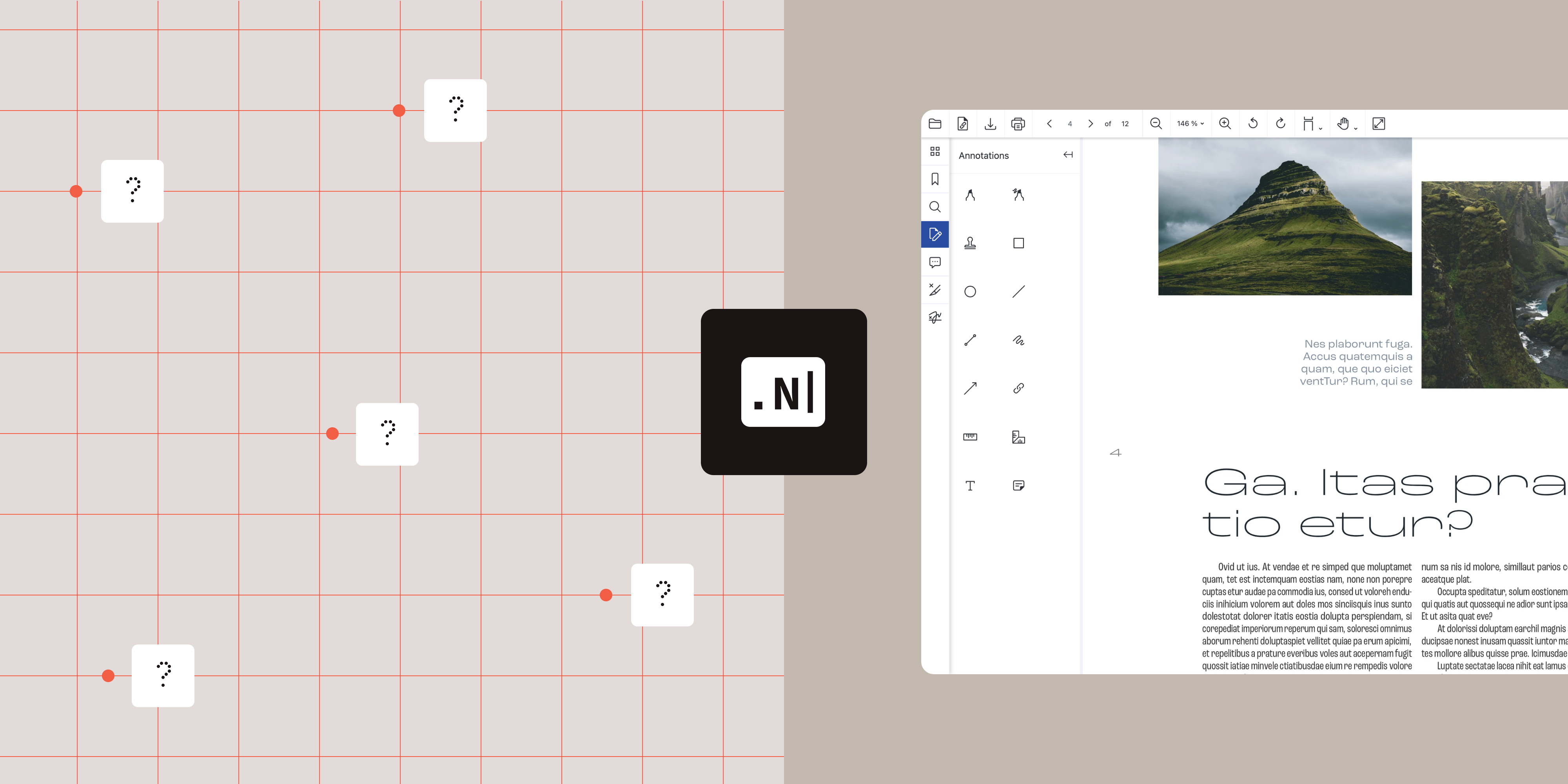
DocuVieware is a browser-based .NET SDK designed to make document viewing and processing easy to integrate into your applications. It works both standalone and alongside Nutrient .NET SDK (formerly GdPicture), so you can take advantage of advanced features like document manipulation, annotations, and more — all within a browser. Whether you’re building a lightweight viewer or a full document management solution, DocuVieware helps you deliver fast, responsive, and secure document workflows with minimal setup.
Over the years, the product has evolved significantly, and during integration, customers frequently ask about licensing, file handling, and feature tracking. This post will walk you through the answers.
How do I set up DocuVieware in my project?
You can easily set up DocuVieware using NuGet packages. There are two main options depending on your target framework:
- DocuVieware — For .NET Framework 4.6.2 and later, or .NET Core 3.1
- DocuVieware.API — For .NET 6 and newer
Make sure to choose the package that matches your project’s framework to ensure compatibility and take advantage of the latest features and fixes.
How do I activate trial mode in DocuVieware?
While setting up DocuVieware, one of the first questions we see is “Where do I get a trial key?” The good news is that you don’t need one!
To run DocuVieware in trial mode, pass an empty string ("") to the RegisterKEY method. That’s all you need to get started with testing. Trial mode gives you access to all features, making it easy to explore the SDK without restrictions. Call this code snippet once at application startup:
DocuViewareLicensing.RegisterKEY("");Just make sure you’re using version 14.2.94 or later, since this simplified trial activation was introduced in that release. If you’re on an older version, you’ll need to upgrade to use this approach.
Can I track which features are being used in my application?
We often get questions about licensing issues, unexpected popup messages, or confusion around which features are being used in a project. A great first step is to enable feature tracking, which shows you exactly which licensed features your app uses.
If you’re using version 14.2.69 or newer, you can call:
LicenseManager.TraceFeatures("list-of-features.log");This will generate a log file showing exactly which SDK features your application uses during a test run.
Make sure you call RegisterKEY("") exactly once, at application startup. If it’s missed or called multiple times, it can cause issues with feature logging and licensing behavior.
Once DocuVieware is integrated and the key registration is in place, run your app through all relevant use cases and document types you expect to support. This will help capture all relevant feature usage — and the feature log will grow as different parts of the SDK are accessed. After you’ve completed your test runs, you can send the generated log file to our Support team. We’ll review it to identify which SDK components were used and ensure you’re covered with the right license.
Where are the sample projects and DLLs?
This question comes up frequently, especially from customers who’ve worked with DocuVieware for a while and are accustomed to finding sample projects and DLLs bundled with the installer. To keep the installation package lighter and more streamlined, we no longer include source code samples or project reference DLLs directly in the installer.
But don’t worry — they’re still available!
- You can find all the sample projects on GitHub(opens in a new tab).
- If you’re looking for the DocuVieware DLLs, the official NuGet package(opens in a new tab) is the best source.
This keeps the installer lightweight while still giving you easy access to everything you need.
What about DocuVieware.js and DocuVieware.css?
Another common question from both new users and developers upgrading from earlier versions is “I can’t find the DocuVieware.js or DocuVieware.css files — are they missing?” As of DocuVieware version 3.2, you no longer need to manually include these files in your project. They’re automatically retrieved at runtime, simplifying the setup and upgrade process.
If you’re still experiencing issues with missing assets, ensure you’re using the latest SDK version. If problems persist, share more details about your implementation and contact support — we’re here to help!
We hope this post has helped answer your top questions about getting started with DocuVieware. If you run into any other issues or have any questions during setup, please don’t hesitate to reach out to our Support team(opens in a new tab). And don’t forget to explore the sample projects on GitHub(opens in a new tab) for more hands-on examples.
Thanks for reading — happy coding!