Python OCR with pytesseract: Extract text from images using Tesseract (2026)

Table of contents
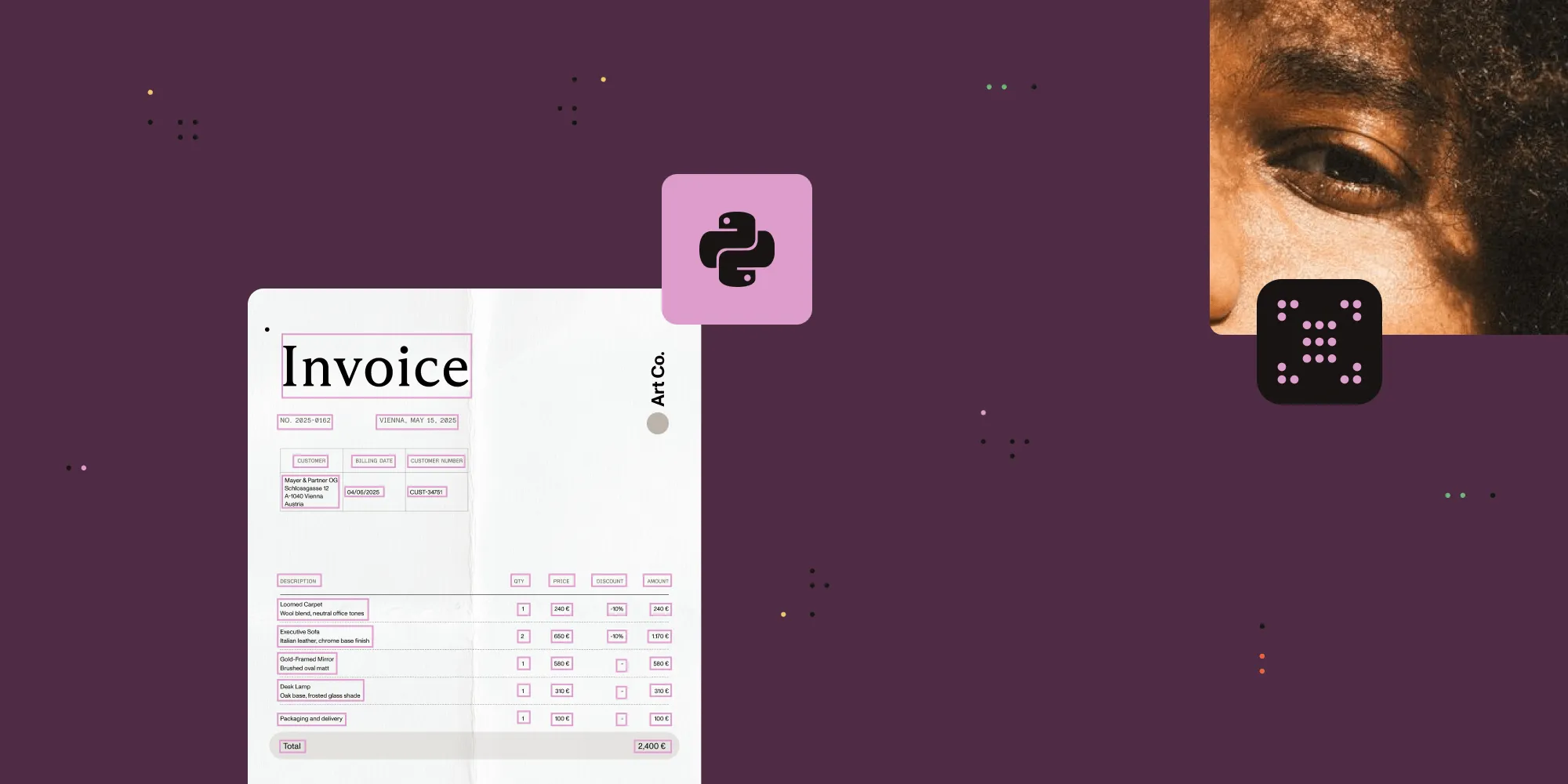
Structured output with per-field confidence scores through the Nutrient Data Extraction API.
Install pytesseract and the Tesseract engine, and then call pytesseract.image_to_string(image) to extract text from an image. Test preprocessing and the --psm mode against representative images. image_to_string() returns text, while pytesseract also supports searchable PDF, HOCR, TSV, and bounding-box output. For a managed document workflow: The Nutrient OCR API returns a searchable PDF and handles batching and merging in one call, and the Nutrient Data Extraction API returns structured data — tables, key-value pairs, and Markdown for LLM and agent pipelines — instead of a text blob. Both have a free tier: 50 credits/month for OCR, 5,000 for Data Extraction.
To use Tesseract OCR in Python, install the pytesseract wrapper library and Tesseract engine. Then call pytesseract.image_to_string(image) to extract text from any image. The function returns recognized text as a string — no cloud services or API keys are required for basic usage.
Key capabilities of pytesseract
- Text extraction — Extract text from JPG, PNG, TIFF, and other image formats
- 100+ languages — Support for English, French, German, Chinese, Arabic, and more
- Configurable — Control page segmentation, language, and character allowlists
- Free and open source — Apache 2.0 license with active community support
- Cross-platform — Works on Windows, macOS, and Linux
Python developers use Tesseract OCR with the pytesseract(opens in a new tab) wrapper to extract text from images and scanned documents.
Which approach fits the job
The right tool depends on the output required, not on the size of the project:
| Requirement | Use |
|---|---|
| Raw text out of a single image, run locally | pytesseract — covered step by step below |
| Full control over the engine, at no licensing cost | pytesseract |
| A searchable PDF with an embedded text layer | pytesseract’s image_to_pdf_or_hocr() locally, or Nutrient OCR API as a managed service |
| Batches of scanned pages merged into one document | Nutrient OCR API — one call handles OCR, merge, and PDF |
| Structured data — tables, key-value pairs, invoice fields | Nutrient Data Extraction API — returns structure, not a blob |
| Document structure for an LLM, agent, or RAG pipeline | Nutrient Data Extraction API — structured output with source metadata |
For command-line and batch PDF workflows, see PDF OCR on the Linux command line.
Tesseract recognizes text from pixels. The output depends on the method: image_to_string() returns text, image_to_data() adds word boxes and confidence, and image_to_pdf_or_hocr() can produce a searchable PDF. Extracting schema-based business fields is a separate task.
Which layer is needed depends on the destination:
- A document a person will read or search — The Nutrient OCR API embeds a text layer into the PDF so it can be searched, selected, and copied. The comparison further down breaks it down line by line.
- Data a system will consume — The Nutrient Data Extraction API returns document structure: tables as tables, key-value pairs as fields, and Markdown suited to LLM and agent pipelines. Reconstructing that from a Tesseract string means writing layout heuristics, and those are the first things to break on a document that changes shape.
Both have a free tier — 50 credits per month for the OCR API, and 5,000 for the Data Extraction API.
What OCR does
OCR extracts text from images and scanned documents. Common uses include:
- Digitizing paper documents for search and archival
- Automating data entry from forms and invoices
- Making scanned PDFs searchable and copyable
- Indexing document content for retrieval
For advanced configuration — PSM and OEM modes, character allowlists, and performance tuning — see the Tesseract configuration and tuning guide.
Tesseract OCR
Tesseract OCR(opens in a new tab) is an open source OCR engine originally developed by Hewlett-Packard (1985–2006) and now maintained by Google. It uses neural networks and traditional image processing to recognize text. Tesseract ships trained models for 100+ languages(opens in a new tab) (101 at the 4.0 release, and more since), and it works with Python, Java, and C++. It’s released under the Apache 2.0 license.
Use Tesseract 5.x for best results. Tesseract 4.0 introduced a long short-term memory (LSTM) neural network engine(opens in a new tab) that significantly improved accuracy over the legacy character-pattern engine, and version 5.x builds on it. Check your version with tesseract --version.
Pros and cons
Pros
- Free and open source
- 100+ languages supported
- Handles various fonts and text styles
- Active community, regular updates
Cons
- Setup can be tricky on some systems
- Accuracy drops with poor image quality or complex layouts
- Built-in Leptonica preprocessing may need additional tuning or image cleanup for difficult inputs
- Training required for nonstandard fonts
pytesseract vs. Nutrient OCR API
Use pytesseract when you want local control over text or searchable PDF output. Evaluate the Nutrient OCR API when you want hosted OCR and document operations in one workflow. Test recognition quality with your own files.
| Feature | pytesseract (Tesseract) | Nutrient OCR API |
|---|---|---|
| Output format | Text, searchable PDF, HOCR, TSV, and boxes | Searchable PDF with text layer |
| Installation | Local engine + Python wrapper | No installation (cloud API) |
| Preprocessing | Built-in plus optional application preprocessing | Automatic |
| Languages | 100+ (install language packs) | 80+ built in, no packs to install |
| Batch processing | Write your own code | Single API call |
| PDF support | Requires pdf2image conversion | Native PDF input/output |
| Cost | Free (open source) | 50 free credits/month, then paid |
| Best for | Local text extraction, prototypes | Production searchable PDFs |
The Nutrient OCR API walkthrough later in this guide covers the request format and a multipage example. The rest of this section stays on Tesseract.
Prerequisites
You need:
- Python 3.x
- Tesseract OCR
- pytesseract(opens in a new tab)
- Pillow (Python Imaging Library)(opens in a new tab)
pytesseract wraps the Tesseract OCR engine and provides a Python interface for text recognition.
Installing Tesseract OCR
Install Tesseract for your operating system:
- Windows — Download the installer from the official GitHub repository(opens in a new tab) and run it.
- macOS — Use Homebrew by running
brew install tesseract. - Linux (Debian/Ubuntu) — Run
sudo apt install tesseract-ocr.
For other operating systems, see the installation guide(opens in a new tab).
Setting up your Python OCR environment
- Create a file called
ocr.py. - Download the sample image used in this tutorial and save it in the same directory as the Python file.
- Install the required Python libraries using
pip:
pip install pytesseract pillowVerify the installation:
tesseract --versionIf you encounter import issues, see troubleshooting pytesseract imports.
How to extract text from an image in Python with pytesseract
To extract text from an image, open it with Pillow and pass it to pytesseract.image_to_string(), which returns the recognized text as a string. The full process is three steps: Import the libraries, load the image, and call image_to_string().
Import the libraries and load your image:
import pytesseractfrom PIL import Image
image_path = "path/to/your/image.jpg"image = Image.open(image_path)
Extracting text from the image
To extract text from the image, use the image_to_string() function from the pytesseract library:
extracted_text = pytesseract.image_to_string(image)print(extracted_text)The image_to_string() function takes an image as input and returns the recognized text as a string.
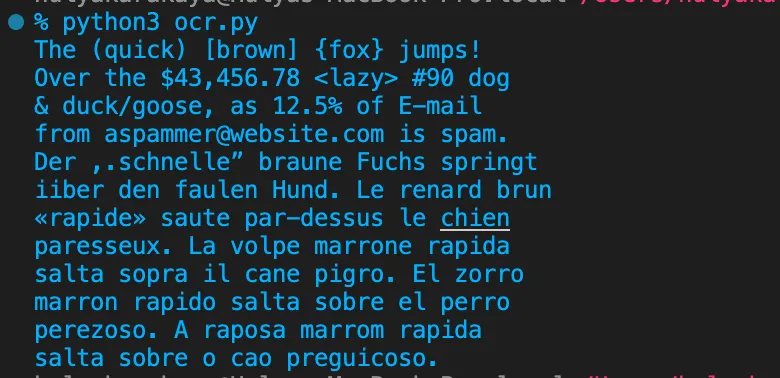
Run the Python script to see the extracted text from the sample image:
python3 ocr.pyThe image below shows the output.
Saving extracted text to a file
If you want to save the extracted text to a file, use Python’s built-in file I/O functions:
with open("output.txt", "w") as output_file: output_file.write(extracted_text)Advanced Python OCR techniques
pytesseract supports several configuration options for the OCR engine.
Configuring the OCR engine
Pass a configuration string to image_to_string() with space-separated key-value pairs. This example sets English as the language and treats the image as a single text block:
config = '--psm 6 -l eng'text = pytesseract.image_to_string(image, config=config)PSM reference
The --psm (page segmentation mode) option controls how Tesseract analyzes page layout. Choose the mode that matches your document structure:
| PSM | Mode | Best for |
|---|---|---|
| 0 | Orientation and script detection only | Detecting page rotation |
| 1 | Automatic with OSD | General documents with mixed content |
| 3 | Fully automatic (default) | Standard documents |
| 4 | Single column of variable sizes | Articles, single-column pages |
| 6 | Single uniform block of text | Paragraphs, text blocks |
| 7 | Single text line | One-line captions, headers |
| 8 | Single word | Individual words, labels |
| 9 | Single word in a circle | Circular text like stamps |
| 10 | Single character | Individual digits or letters |
| 11 | Sparse text | Text scattered across image |
| 12 | Sparse text with OSD | Scattered text with rotation |
| 13 | Raw line | Treat as single line, no preprocessing |
For nonstandard installation paths, set the Tesseract executable location:
pytesseract.pytesseract.tesseract_cmd = '/path/to/tesseract'Handling multiple languages
Tesseract supports 100+ languages. Use a plus sign to combine languages:
config = '-l eng+fra'text = pytesseract.image_to_string(image, config=config)For multilingual document parsing with the Data Extraction API, see the multilingual extraction guide.
How to improve Tesseract OCR accuracy
Improve Tesseract OCR accuracy by preprocessing the image before recognition — convert it to grayscale, upscale it, and apply thresholding — and by setting the --psm mode that matches the document layout. Clean, high-contrast input is the single biggest factor in recognition quality.
Converting images to grayscale
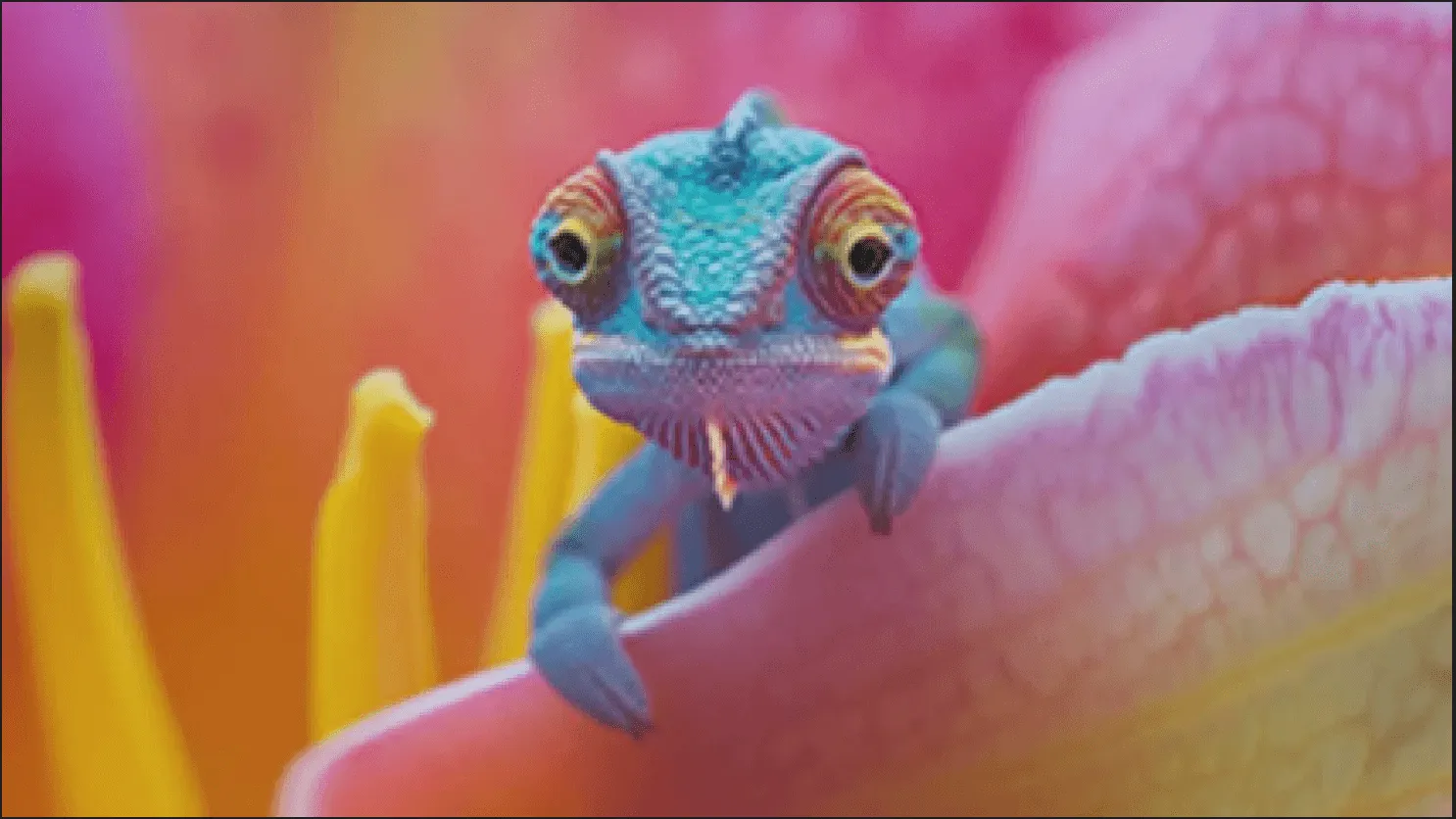
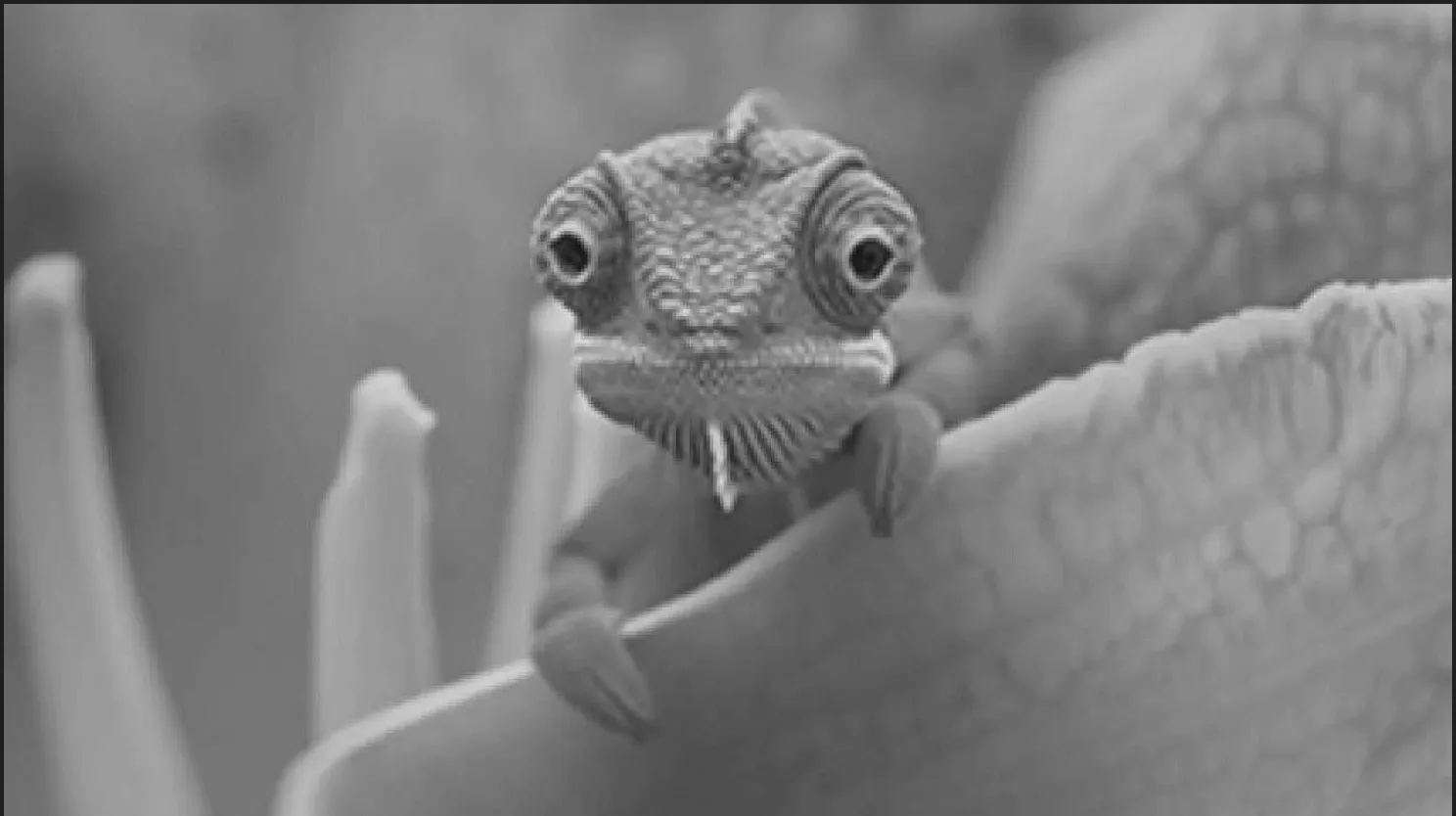
Converting to grayscale removes color channels before further preprocessing. Compare the result with the original image; grayscale conversion alone doesn’t guarantee better contrast:
from PIL import Image, ImageOps
# Open an image.image = Image.open("path_to_your_image.jpg")
# Convert image to grayscale.gray_image = ImageOps.grayscale(image)
# Save or display the grayscale image.gray_image.show()gray_image.save("path_to_save_grayscale_image.jpg")| Original image | Grayscale image |
|---|---|
 |  |
Resizing the image for better accuracy
Upscaling can help recognition of small text, although it can’t recover detail missing from the original:
# Resize the image.scale_factor = 2resized_image = gray_image.resize( (gray_image.width * scale_factor, gray_image.height * scale_factor), resample=Image.LANCZOS)This doubles the image dimensions using Lanczos resampling, which preserves sharpness during upscaling.
Applying a global threshold
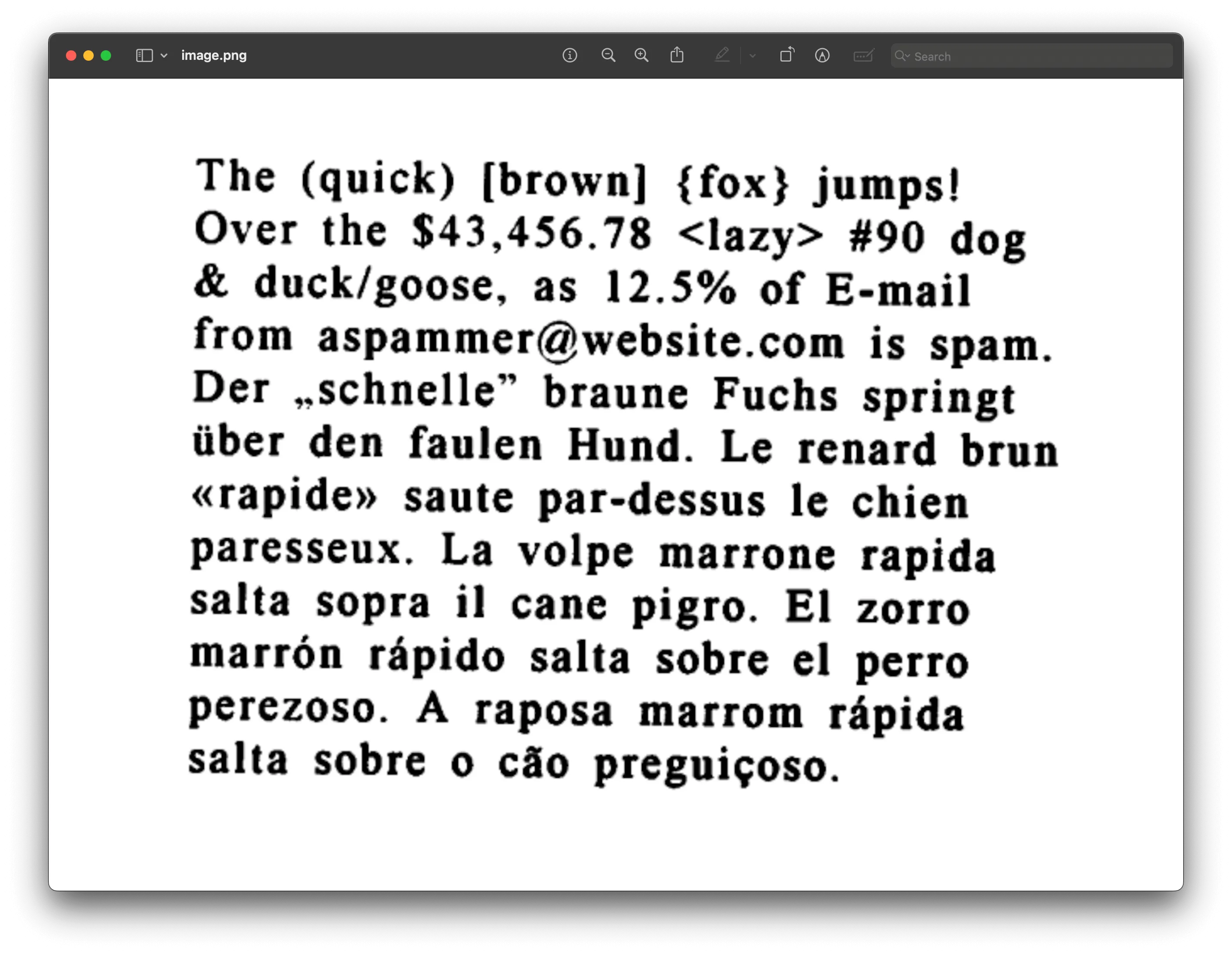
A global threshold converts grayscale pixels to black or white using one cutoff. The example uses 150 as a starting value; tune it for your images. Uneven lighting may need adaptive thresholding instead.
from PIL import Image, ImageOps
# Load the image.image = Image.open('image.png')
# Convert the image to grayscale.gray_image = ImageOps.grayscale(image)
# Resize the image to enhance details.scale_factor = 2resized_image = gray_image.resize(    (gray_image.width * scale_factor, gray_image.height * scale_factor),    resample=Image.LANCZOS)
# Apply a fixed threshold; tune this value for your images.thresholded_image = resized_image.point(lambda pixel: 255 if pixel > 150 else 0)
# Save or display the processed image.thresholded_image.show() # This will display the image.# thresholded_image.save('path_to_save_image') # This will save the image.| Original image | Thresholding illustration |
|---|---|
 | 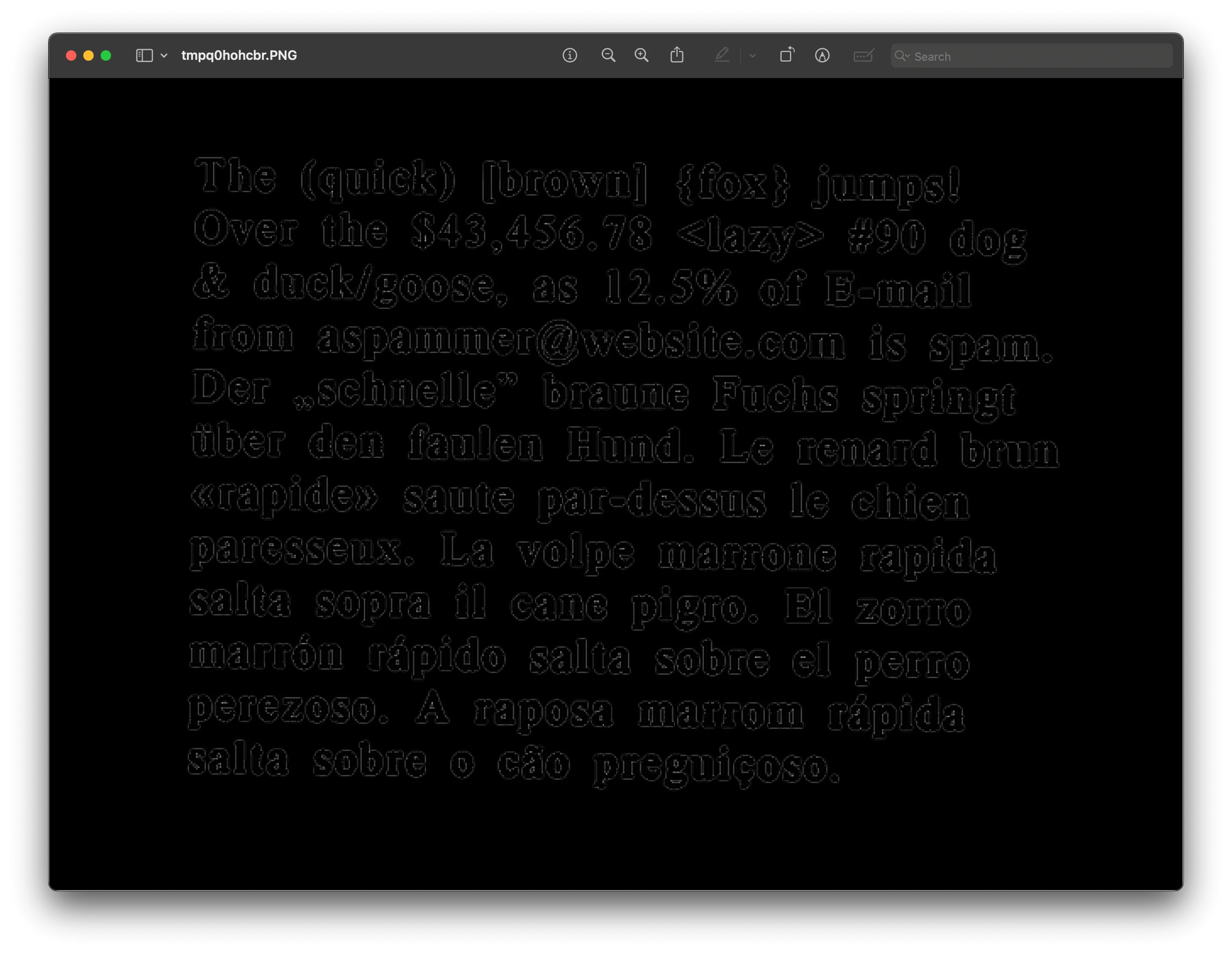 |
Pass the preprocessed image to the OCR engine:
# Extract text from the preprocessed image.improved_text = pytesseract.image_to_string(thresholded_image)print(improved_text)Complete OCR script
Here’s the complete preprocessing and OCR example:
from PIL import Image, ImageOpsimport pytesseract
# Define the path to your image.image_path = 'image.png'
# Open the image.image = Image.open(image_path)
# Convert image to grayscale.gray_image = ImageOps.grayscale(image)
# Resize the image to enhance details.scale_factor = 2resized_image = gray_image.resize(    (gray_image.width * scale_factor, gray_image.height * scale_factor),    resample=Image.LANCZOS)
# Apply a fixed threshold; tune this value for your images.thresholded_image = resized_image.point(lambda pixel: 255 if pixel > 150 else 0)
# Extract text from the preprocessed image.improved_text = pytesseract.image_to_string(thresholded_image)
# Print the extracted text.print(improved_text)
# Optional: Save the preprocessed image for review.thresholded_image.save('preprocessed_image.jpg')
Recognizing digits only
To extract only digits, use --psm 6 and filter with regular expressions:
import pytesseractfrom PIL import Image, ImageOpsimport re
image_path = "image.png"image = Image.open(image_path)
config = '--psm 6'text = pytesseract.image_to_string(image, config=config)digits = re.findall(r'\d+', text)print(digits)
The re.findall() method extracts all digit sequences from the OCR output.
Character restrictions
Restrict OCR to specific characters using tessedit_char_whitelist:
# Only recognize uppercase letters and numbers.config = '--psm 6 -c tessedit_char_whitelist=ABCDEFGHIJKLMNOPQRSTUVWXYZ0123456789'text = pytesseract.image_to_string(image, config=config)To preserve spaces between words when using an allowlist, add preserve_interword_spaces=1:
config = '--psm 6 -c preserve_interword_spaces=1 -c tessedit_char_whitelist=ABCDEFGHIJKLMNOPQRSTUVWXYZ0123456789'Use tessedit_char_blacklist to exclude specific characters instead.
Getting bounding boxes
Extract character positions with image_to_boxes:
import pytesseractfrom PIL import Image
image = Image.open('image.png')boxes = pytesseract.image_to_boxes(image)h = image.height
for box in boxes.splitlines():    b = box.split()    char, x1, y1, x2, y2 = b[0], int(b[1]), int(b[2]), int(b[3]), int(b[4])    # Note: y-coordinates are from image bottom, convert to top-origin    print(f"Character '{char}' at ({x1}, {h - y2}) to ({x2}, {h - y1})")
For word-level bounding boxes with confidence scores, use image_to_data (requires pip install pandas):
import pytesseractfrom PIL import Image
image = Image.open('image.png')data = pytesseract.image_to_data(image, output_type=pytesseract.Output.DATAFRAME)
# Filter: conf > 0 removes non-text rows, conf > 60 keeps high-confidence wordswords = data[(data['conf'] > 60) & (data['text'].str.strip() != '')]for _, row in words.iterrows():    print(f"'{row['text']}' (conf: {row['conf']}) at ({row['left']}, {row['top']})")
Orientation and script detection
Detect the page rotation and script type with image_to_osd, which performs orientation and script detection (OSD):
import pytesseractfrom PIL import Image
image = Image.open('rotated_image.png')osd = pytesseract.image_to_osd(image)print(osd)
# Output includes:# - Page orientation (0, 90, 180, 270 degrees)# - Script type (Latin, Cyrillic, Arabic, etc.)# - Confidence scores
This helps preprocess images that need rotation correction before OCR.
Training Tesseract with custom data
Training Tesseract improves accuracy for specific fonts, languages, or layouts not well-represented in the default model. The neural network engine learns from structured training data.
You need a dataset of images with corresponding text files containing the expected output. Tesseract provides tesstrain and text2image tools for generating and labeling training data.
Training time and accuracy gains depend on the dataset and hardware. Evaluate a held-out set before adopting a custom model.
Best practices
- Preprocess images — Grayscale, resize, threshold. Clean images produce better results.
- Set the right PSM — Page segmentation mode (
--psm) affects how Tesseract interprets layout. Try different values for your document type. - Specify the language — Use the
-lflag to set the recognition language (e.g.-l engfor English). Combine multiple languages with+(e.g.-l eng+frafor English and French). - Use
tessdata_fastfor production — Thetessdata_fastmodels are smaller and faster than default models, with minimal accuracy loss. Download from thetessdata_fastrepository(opens in a new tab). - Filter by confidence — Use
image_to_dataand filter results by confidence score (greater than 60 percent) to reduce errors. - Train for custom fonts — Non-standard fonts need custom training data.
- Test on representative samples — Accuracy varies by document type. Test before deploying.
For more tips, including parallel processing and batch optimization, see the Tesseract configuration and tuning guide.
Why pytesseract fails to recognize or import text
When pytesseract fails to import, the cause is usually installation, environment configuration, or system paths. When it imports correctly but returns poor or empty text, the cause is image quality or the wrong --psm mode — see how to improve OCR accuracy. This section covers the import and environment issues.
Common causes of pytesseract import errors
Incorrect installation
- Ensure pytesseract is installed in the correct Python environment.
- Verify installation by running:
Terminal window pip show pytesseractIf it’s not installed, install it using:
Terminal window pip install pytesseractMultiple Python versions
If you have multiple versions of Python installed, ensure
pytesseractis installed in the environment corresponding to the Python version you’re using.- Check your Python version with:
Terminal window python3 --version- Use the correct pip version:
Terminal window python3 -m pip install pytesseractEnvironment issues
- If you’re using virtual environments, activate the correct environment before installing or running your script.
- Check if the environment is activated:
Terminal window source your_env_name/bin/activateInstall
pytesseractwithin the activated environment.System path issues
- Ensure the Python and pip paths are correctly set in your system environment variables.
- Check your current Python path:
Terminal window which python3
Additional tips
- Reinstall
pytesseract— If problems persist, try uninstalling and reinstallingpytesseract:
pip uninstall pytesseractpip install pytesseract- Check the Tesseract installation — Verify with:
tesseract --version- Upgrade pip — Upgrading pip can resolve issues:
python3 -m pip install --upgrade pipInstall packages on managed environments — Use a virtual environment and install the libraries with the interpreter that runs your script:
Terminal window python3 -m venv .venvsource .venv/bin/activatepython -m pip install pytesseract Pillow
Check PEP 668(opens in a new tab) for details.
Limitations of Tesseract
- Accuracy varies with image quality, language, and document complexity. Output may contain errors or miss text.
- Non-standard fonts and handwriting require custom training data.
- Complex layouts, graphics, and tables reduce accuracy.
- Not all languages and scripts are supported.
- Built-in preprocessing may be insufficient for difficult inputs. Test additional resizing, skew correction, and noise removal where needed.
Application work can include preprocessing choices, layout interpretation, confidence filtering, and combining document operations. Tesseract already supports searchable PDF output. Nutrient offers a managed workflow through the OCR API and schema-based fields or document structure through the Data Extraction API.
The structural limitation matters most on documents with structured layout, like tables. Tesseract flattens a table into lines of text, so column relationships have to be inferred afterward from coordinates. The Data Extraction API returns the table as a table, along with key-value pairs and Markdown — structured output with source metadata suited to systems, agents, and human review.
If the source documents are digital PDFs that already contain a text layer, OCR isn’t needed at all — see extracting text from PDFs in Python.
Nutrient API for OCR
Both Tesseract and Nutrient’s OCR API can create searchable PDFs. Nutrient provides hosted PDF input, OCR, and document operations without a local OCR engine.
When to use Nutrient instead of Tesseract:
- You want searchable PDF output through a managed API
- Batches of scanned documents need processing
- Multiple scanned pages should merge into one PDF
- More than 80 languages are needed without installing language packs
- You prefer provider-managed OCR infrastructure and will validate results on your documents
The API is SOC 2 Type 2 audited and offers 50 free credits/month to start. Review the Processor data-handling documentation for retention and deletion conditions.
Requirements
You need:
- A Nutrient API key (sign up for a free account(opens in a new tab), and then find your key in Dashboard > API keys(opens in a new tab))
- Python 3.x
- pip(opens in a new tab)
- The Requests library(opens in a new tab)
Install the requests library:
python3 -m pip install requestsUsing the OCR API
The following steps walk through sending a scanned image to the Nutrient OCR API and saving the searchable PDF output.
1. Import required modules
Import the requests and json libraries used to build and send the request:
import requestsimport json2. Define the OCR instructions
Build the instructions payload, referencing the uploaded file and specifying the OCR action:
data = { 'instructions': json.dumps({ 'parts': [ { 'file': 'scanned' } ], 'actions': [ { 'type': 'ocr', 'language': 'english' } ] })}"file": "scanned"references the uploaded file"type": "ocr"applies OCR"language": "english"sets the OCR language
3. Send the OCR request to the Nutrient API
Make a POST request to the https://api.nutrient.io/build endpoint:
response = requests.request( 'POST', 'https://api.nutrient.io/build', headers = { 'Authorization': 'Bearer your_api_key_here' }, files = { 'scanned': open('image.png', 'rb') }, data = { 'instructions': json.dumps({ 'parts': [ { 'file': 'scanned' } ], 'actions': [ { 'type': 'ocr', 'language': 'english' } ] }) }, stream = True)Replace 'your_api_key_here' with your actual API key. The request sends the file with OCR instructions. Streaming the response avoids loading the full PDF into memory.
You can use the sample OCR document(opens in a new tab) to test the API.
4. Save the OCR result to a file
Write the result to disk if successful:
if response.ok: with open('result.pdf', 'wb') as fd: for chunk in response.iter_content(chunk_size=8096): fd.write(chunk)else: print(response.text) exit()This streams the OCR output into result.pdf and prints error messages if the request fails.
Advanced OCR with Python: Merge multiple scanned pages into a searchable PDF using Nutrient API
The Nutrient OCR API can merge uploaded scans and apply OCR in one request. Local Tesseract workflows also support multipage inputs; choose based on your input format, surrounding document operations, and deployment requirements.
Example: Merge four scanned images with OCR enabled
This example uploads four scanned images and merges them into one searchable PDF with OCR applied:
import requestsimport json
response = requests.request(  'POST',  'https://api.nutrient.io/build',  headers={    'Authorization': 'Bearer your_api_key_here'  },  files={    'page1': open('page1.jpg', 'rb'),    'page2': open('page2.jpg', 'rb'),    'page3': open('page3.jpg', 'rb'),    'page4': open('page4.jpg', 'rb')  },  data={    'instructions': json.dumps({      'parts': [        { 'file': 'page1' },        { 'file': 'page2' },        { 'file': 'page3' },        { 'file': 'page4' }      ],      'actions': [        {          'type': 'ocr',          'language': 'english'        }      ]    })  },  stream=True)
if response.ok:  with open('merged_scanned.pdf', 'wb') as fd:    for chunk in response.iter_content(chunk_size=8096):      fd.write(chunk)else:  print(response.text)  exit()
When to use this instead of pytesseract
pytesseract: Extract text from individual images, handle preprocessing yourself, write code to merge results.
Nutrient API: Upload images, get a searchable PDF back. One API call handles OCR, merging, and PDF creation.
Conclusion
Tesseract with pytesseract supports local text extraction and searchable PDF output. Test preprocessing and segmentation settings on representative images. For hosted OCR with PDF input and document operations, evaluate the Nutrient OCR API.
If you’re building a document scanner or need to automate OCR workflows at scale, explore our related guides. You can also generate PDFs in Python for downstream document processing.
FAQ
Tesseract OCR is an open source engine for recognizing text from images and scanned documents. Developed by Hewlett-Packard and now sponsored by Google, it supports more than 100 languages and various text styles.
To install Tesseract OCR, download the installer from GitHub for Windows(opens in a new tab), use brew install tesseract on macOS, or run sudo apt install tesseract-ocr on Debian/Ubuntu.
Install pytesseract using pip: pip install pytesseract. You also need Tesseract OCR installed on your system. On Windows, download from GitHub. On macOS, use brew install tesseract. On Linux, use sudo apt install tesseract-ocr.
Tesseract is the OCR engine (written in C++) that performs text recognition. pytesseract is a Python wrapper library that provides a simple interface to use Tesseract from Python code. You need both: Tesseract for the OCR functionality and pytesseract for the Python API.
Common causes include poor image quality, incorrect PSM mode, or missing preprocessing. Try converting to grayscale, increasing image resolution, applying thresholding, and using the correct --psm value for your document type. Also verify Tesseract is properly installed with tesseract --version.
pytesseract doesn’t directly support PDFs. First convert PDF pages to images using the pdf2image library: from pdf2image import convert_from_path; images = convert_from_path('file.pdf'). Then run pytesseract.image_to_string() on each image. For native PDF OCR, use Nutrient’s OCR API instead.
Test grayscale conversion, resizing, and thresholding on your images. The example above uses a tunable global threshold; uneven lighting may need an adaptive method.
Yes. Tesseract supports multiple languages. Use a plus sign (+) in the configuration string, like -l eng+fra for English and French.
Tesseract’s accuracy varies with image quality, fonts, language, and layout. It includes preprocessing and can produce searchable PDFs, but schema-based field extraction and workflow integration require additional work. The Nutrient OCR API offers hosted OCR and document operations; the Data Extraction API covers structured parsing and fields.
Upload scanned images or PDFs and get searchable PDFs back. The API supports more than 80 languages, preserves layout, and handles multipage documents. It’s SOC 2 Type 2 audited, with 50 free credits/month.
Install the requests library and send a POST request to https://api.nutrient.io/build with your API key and document. The response is the searchable PDF.
Yes. You can merge multiple images into a single searchable PDF. Adjust the file handling and instructions in your API request to include all pages.
pytesseract is a Python wrapper for the open source Tesseract OCR engine. It enables developers to extract text from images using a simple Python API.
Install the pytesseract and Pillow libraries, open the image using PIL.Image.open(), and pass it to pytesseract.image_to_string() to extract text.
TesseractNotFoundError in Python?This error means Python can’t find the Tesseract executable. Either add Tesseract to your system PATH, or set the path explicitly in Python: pytesseract.pytesseract.tesseract_cmd = r'C:\Program Files\Tesseract-OCR\tesseract.exe' (Windows) or pytesseract.pytesseract.tesseract_cmd = '/usr/local/bin/tesseract' (macOS/Linux).
Use the --psm 6 mode with a digits-only allowlist: config = '--psm 6 -c tessedit_char_whitelist=0123456789' and pass it to pytesseract.image_to_string(image, config=config). Alternatively, extract all text and filter with regex: re.findall(r'\d+', text).
Yes. Both Tesseract OCR and pytesseract are free and open source under the Apache 2.0 license, and they can be used in commercial projects without licensing fees. Accuracy, preprocessing, and PDF output remain the application’s responsibility, which is where the engineering cost sits. The Nutrient OCR API covers that work as a service and includes 50 free credits per month.