AI-assisted manual testing: Handling Safari’s PDF rendering and UI quirks

Table of contents
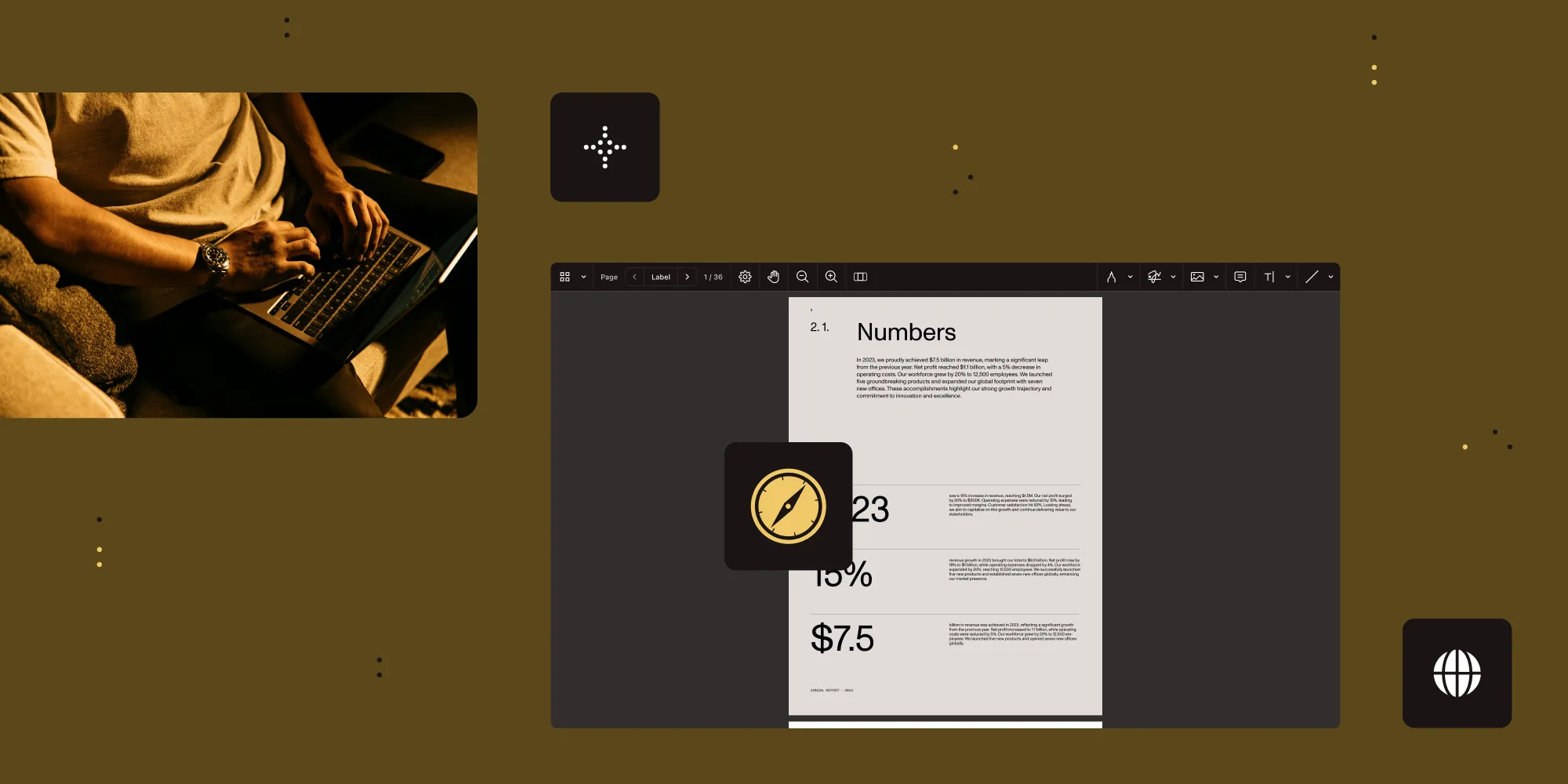
After 11 years of breaking software for a living as a QA engineer — 7 of those at Nutrient — I’ve learned that the hardest bugs to find aren’t in the code. They’re in the tiny interactions users don’t think twice about: a toolbar button that feels sluggish, an annotation that shifts a few pixels when you rotate the page, or text formatting that works everywhere except Safari.
This is Human Acceptance Testing (HAT). It’s the unglamorous work of clicking through interfaces, hunting for edge cases, and documenting every weird behavior so engineers can reproduce it. And honestly? Most of it is tedious.
That’s why I’m cautiously optimistic about AI in testing. Not because it’ll replace human testers — it won’t — but because it might handle the boring parts and let me focus on what actually requires judgment — especially for Safari testing, where browser quirks make everything harder.
What is manual user interface (UI) testing?
Human Acceptance Testing (HAT) is what I do when automated tests aren’t enough. Unit tests verify that individual functions work. End-to-end tests validate core user workflows like document annotation. But HAT goes deeper — verifying that toolbar interactions feel snappy, that edge cases work across browsers, and that complex workflows make sense in ways that scripted automation can’t catch.
For Nutrient Web SDK, this means testing a PDF viewer with:
- Dynamic toolbar systems with customizable button layouts and responsive breakpoints
- Complex annotation tools supporting multiple formats, including rich text, freeform drawing, and callouts
- Document manipulation features like page rotation, zooming, and navigation
- Form handling capabilities for interactive PDF forms
- Real-time collaboration features with live annotation updates
- Cross-browser compatibility, ensuring consistent behavior across different rendering engines
The Nutrient Web Demo catalog showcases more than 70 different examples of these capabilities, each representing potential testing scenarios that require human validation.
Why Safari makes PDF SDK testing especially difficult
Safari isn’t just another browser to test — it’s where the weirdest bugs hide. Between WebKit’s unique quirks, the time it takes to properly document issues, and the exploratory testing needed to find edge cases, Safari testing demands more effort than any other browser. Here’s what makes it so challenging.
Safari’s unique browser quirks
Safari is where I find the weirdest bugs. WebKit handles PDF rendering, CSS layouts, and JavaScript differently than Chrome or Firefox, which means things that work everywhere else can break in subtle ways on Safari. Two scenarios that consistently cause problems:
Rich text annotation creation — Here’s a typical Safari nightmare: A user creates a callout annotation, types some text, applies bold formatting, and then tries to change the font color. In Chrome? Works fine. In Safari? The bold formatting might randomly vanish when you apply the color. Or the color picker UI might break with certain fonts. Documenting these interactions requires screenshots at each step, noting which fonts trigger issues, and testing formatting combinations — just to prove it’s not user error. The root cause seems to be Safari’s contentEditable implementation conflicting with our text formatting toolbar, but pinning down exactly which interaction breaks what is challenging.
Page rotations with annotations — When you rotate a page that has annotations on it, those annotations need to stay in the right place. Simple, right? Not in Safari. Rotate a page 90 degrees, and sometimes annotations shift a few pixels off-center. Rotate it back, and they don’t return to their original position. In worst cases, rotating a page with multiple callout annotations can cause one to disappear entirely until you zoom in and out. Safari’s coordinate system transformations don’t play nicely with our annotation positioning logic, and reproducing these bugs requires specific sequences of rotations, zoom levels, and annotation types.
The time-consuming reality of manual testing
Beyond the technical bugs, the process of manual testing has its own frustrations:
Defining acceptable responsiveness — When I test toolbar interactions, anything under 100 ms feels instant. Between 100–300 ms, and users start noticing the lag. Above 500 ms, I’m filing a performance bug. But here’s the problem: Safari’s performance varies wildly based on document size. A 10-page PDF? Snappy. A 200-page technical manual with embedded images? Suddenly every click feels sluggish. Without baseline measurements, I’m left making subjective calls about whether a delay is “Safari being Safari” or an actual regression worth reporting.
Jira work item creation and communication — Complex bugs require exhaustive documentation. An annotation positioning issue might need 8–10 screenshots showing the problem from different angles, a detailed step-by-step reproduction guide, and maybe some screen recordings. Capturing all the context an engineer needs — browser version, document characteristics, exact sequence of interactions, what I expected versus what happened — can easily take 30–60 minutes for a single bug. And if I miss a critical detail? The ticket comes back with “unable to reproduce” and I have to start over.
Long-lived bug documentation — Some bugs stick around for months across multiple releases. When I discover what looks like a new issue, I have to figure out if it’s actually new or related to one of the dozen known Safari quirks we’re already tracking. This means digging through old tickets, reading engineer comments, and checking if my reproduction steps match previous reports. In the past, I’ve spent 20–30 minutes investigating an issue only to realize it’s a variant of something we documented sprints ago. That was time I could’ve spent finding new problems.
Why exploratory testing still matters
Despite these frustrations, exploratory testing is still my favorite part of the job. Scripted tests follow predetermined paths: “Click button A, verify result B.” Exploratory testing is different — I poke around, try weird combinations, and see what breaks.
Rich text bugs often emerge by accident. I’ll be testing callout positioning and decide to mess with text formatting while I’m at it. Bold text, change the color, add a shadow effect — stuff users actually do but that’s not in my test script. That’s when unexpected behavior shows up — formatting vanishes, and the UI breaks in subtle ways. Would a scripted test have caught that specific sequence? Probably not.
It’s the same with the page rotation issues. I was playing with the Document Editor tool, rotating pages back and forth to see how annotations behaved. Most rotations work fine, but certain combinations — multiple annotations on one page, specific zoom levels, rotating back and forth multiple times — can cause annotations to shift or disappear. Those specific sequences aren’t something anyone planned to test. It’s the kind of edge case you only find when you’re actively trying to break things.
This is where AI gets tricky. AI can follow patterns and spot anomalies, but can it develop that “let me try this weird thing” instinct that finds these bugs? I’m skeptical.
But skepticism about AI replacing human intuition doesn’t mean AI is useless. While it won’t replicate the creative chaos of exploratory testing, it could handle the repetitive, time-consuming parts that don’t require judgment.
Where AI could actually help
So here’s where I think AI could make my job less painful. Not in revolutionizing testing — I’ve heard that pitch before with every new tool. But rather in a way that actually helps with the grunt work.
Tracking performance baselines automatically
Right now, I’m guessing whether a toolbar interaction feels slow. “Is this 300 ms or 500 ms? Is this slower than last sprint?” AI could track this for me by recording my testing sessions, measuring every interaction, and building baselines for different document sizes and browsers. When performance regresses, it flags it. I don’t need AI to make subjective judgments — I need it to give me objective data so I can make better judgments.
Autogenerating bug ticket drafts
I’d love this: I’m testing, I find a bug, I click “record issue.” AI watches my screen, captures the reproduction steps, grabs relevant screenshots, and notes the browser version and document characteristics. Then it generates a draft Jira issue with all that context. I still review it and fill in the details AI missed — like what I expected to happen versus what actually happened — but the tedious documentation work is mostly done. A ticket that might take 45 minutes could become 15.
Flagging duplicate bugs
When I file a new bug, AI could scan existing issues and say “Hey, this looks similar to JIRA-12345 from two months ago.” It won’t be a perfect match — AI isn’t good enough for that — but it could be close enough that I know to check before filing. This could save the 20–30 minutes I sometimes spend investigating an issue only to discover it’s already documented.
Suggesting untested combinations
Here’s where AI might help with exploratory testing: It could track what I’ve tested and suggest combinations I haven’t tried — for example, “You’ve tested bold+italic and bold+color, but never bold+italic+color.” Or “You rotated pages clockwise, but not counterclockwise.” These are obvious gaps once you see them, but they’re easy to miss in the moment. AI doesn’t need to be creative — it just needs to notice the patterns I don’t catch.
Learning Safari’s quirks
For Safari specifically, AI could learn which types of interactions tend to break. After watching me file multiple tickets about contentEditable issues over time, it might suggest “test text formatting more thoroughly in this example” when it sees contentEditable elements in a new feature.
Putting AI testing into practice: Real SDK examples
As mentioned earlier, the Nutrient Web Demo catalog has more than 70 examples of SDK features, and each one is a potential testing scenario. If I were building AI tools for testing, here’s how I’d approach it:
Start with the annotation examples — These break most often in Safari. AI could watch me test rich text formatting in the Freeform Text Annotations example, note every combination I try (bold, italic, color, font changes), and track which combinations cause issues. After enough examples, it should learn which interactions are risky and suggest testing those first in new features.
Track what breaks during rotations — The Document Editor example lets you rotate pages. AI could record every rotation test I do — which annotation types are present, zoom level, rotation direction — and correlate that with bug reports. After a few sprints, it should learn that “annotations on rotated pages in Safari” is a high-risk area worth extra testing.
Compare across browsers automatically — AI could take screenshots of the same interaction in Chrome, Firefox, and Safari, and then flag visual differences. This wouldn’t be to replace my judgment — sometimes Safari looks different but works fine — but to point out something like “this rendering looks unusual, so you should check it out.”
The key is starting small. Pick one example, one type of bug, and see if AI can actually reduce the grunt work. Then expand from there.
The real benefits of AI-assisted testing
If AI can deliver on even half of what I’ve described, here’s what changes for me.
More time for actual testing
If documentation time drops from 45 minutes to 15, and duplicate checking goes from 20 minutes to seconds, that time adds up. More testing, less administrative work.
Fewer subjective judgment calls
“Is this slow?” becomes “This is 450 ms, which is 200 ms slower than baseline.” I still decide if it’s a bug worth filing, but now I have data to back up my decision instead of a gut feeling.
Less chance of missing things
AI tracking my test coverage means I’m less likely to forget testing an edge case. I still drive the exploration, but AI fills in the gaps.
Better bug reports
Autogenerated drafts mean fewer “unable to reproduce” responses from engineers. Context is captured automatically, consistently, and completely.
Easier onboarding
New testers could lean on AI to learn which areas are historically buggy and which browser combinations are risky. That means institutional knowledge no longer exists just in my head.
What testing teams actually need from AI
I’m not holding my breath for some magical AI that replaces testers. That’s not the point, and frankly, it’s not realistic. The value of AI in testing isn’t in replicating human judgment — it’s in amplifying it by removing the administrative overhead that keeps testers from doing what they do best.
If you’re building AI for testing, here’s my advice: Start with one unglamorous problem and solve it completely. Don’t build a platform that does 10 things poorly. Build a tool that autogenerates bug reports so well that testers trust it enough to stop doing it manually. Or build duplicate detection that’s accurate enough that it becomes part of the workflow. Solve the boring stuff first, and solve it thoroughly.
For testing teams dealing with browser-specific bugs — especially Safari — the work starts now, not when AI tools arrive. Document your pain points systematically: What takes up your time? What feels like grunt work that a computer should handle? Which bug patterns repeat most often? That documentation becomes the training data for whatever AI tools you build or adopt.
And if you’re testing web-based PDF viewers or similar complex UIs, you already know the challenge: There are endless combinations of interactions to test, and browsers like Safari will surprise you in new and creative ways. AI won’t solve that complexity, but it might make it more manageable.
In the meantime, I’ll keep clicking through interfaces, hunting for edge cases, and writing detailed Jira issues. Someone has to do it.
Curious about the complexity that makes manual testing so challenging? Try Nutrient Web SDK and explore the demo catalog, full of more than 70 examples of the features I test every day. Fair warning: If you test it in Safari, you’ll probably find bugs I haven’t documented yet.