How to open and view a PDF in React Native

Table of contents
This tutorial compares two approaches for opening PDFs in React Native: react-native-pdf (free, open source) provides basic viewing with scrolling, while Nutrient React Native SDK (commercial) adds annotations, form filling, and document outline support. Use react-native-pdf for simple viewing, and Nutrient when you need full document interaction.
React Native lets you create mobile apps in JavaScript using the same user interface (UI) building blocks as regular iOS and Android apps. In this post, you’ll use React Native to build an app that opens a PDF with the press of a button.
In the first part of this tutorial, you’ll use wonday(opens in a new tab)’s react-native-pdf library to open a PDF in an app. In the second part, you’ll learn how to view PDFs using the Nutrient React Native PDF library. You’ll also learn about Expo compatibility, New Architecture support, and common troubleshooting issues.
Prerequisites
Before you start, make sure you have the following installed:
- Node.js(opens in a new tab) (LTS version recommended)
- Yarn(opens in a new tab) or npm
- Watchman(opens in a new tab) (macOS only)
- Android Studio(opens in a new tab) for Android development
- Xcode for iOS development (macOS only)
- A physical device or emulator/simulator for testing
Introduction to React Native PDF viewer
React Native doesn’t include built-in PDF support, so you’ll need a third-party library to display PDF files in your app. The two main options are:
- react-native-pdf(opens in a new tab) — An open source library with hundreds of thousands of weekly npm downloads. It handles basic PDF rendering with scroll and zoom support, but lacks annotations, form filling, and digital signatures.
- Nutrient React Native PDF library — A commercial SDK that provides a full-featured PDF viewer with annotations, form filling, digital signatures, document editing, and real-time collaboration out of the box.
This tutorial walks through both approaches.
Choosing a React Native PDF library
When picking a React Native PDF library, consider these factors:
- New Architecture support — React Native 0.76+ enables the New Architecture (Fabric) by default. Libraries without Fabric support will show blank views or build errors on modern React Native versions.
- Expo compatibility — If you use Expo, note that native PDF libraries don’t work in Expo Go. You’ll need a development build(opens in a new tab) with configuration plugins.
- Feature scope — Basic viewers handle rendering and scrolling. For annotations, form filling, digital signatures, or document editing, you’ll need a more complete SDK.
- Maintenance and support — Open source PDF libraries for React Native tend to have slow release cycles. Check the GitHub issue count and last release date before committing.
- Platform parity — Make sure the library works consistently on both iOS and Android, especially for features like text selection and link handling.
| Feature | react-native-pdf | Nutrient React Native SDK |
|---|---|---|
| PDF rendering | Yes | Yes |
| Zoom and scroll | Yes | Yes |
| Annotations | No | Yes |
| Form filling | No | Yes |
| Digital signatures | No | Yes |
| Document editing | No | Yes |
| New Architecture (Fabric) | Partial (iOS issues) | Yes |
| Expo Dev Client support | Via configuration plugins | Yes |
| Maintenance | Community (slow) | Commercial (active) |
| License | MIT | Commercial |
Opening a PDF in React Native with react-native-pdf
Below are the steps for how to open a PDF in React Native with react-native-pdf(opens in a new tab).
Step 1 — Installing the prerequisites
You’ll use yarn to install packages. If you haven’t yet installed it, follow the Yarn installation guide(opens in a new tab) to set it up on your system.
To create React Native apps from the command line, you also need to install Node.js(opens in a new tab) and Watchman(opens in a new tab) using Homebrew(opens in a new tab):
brew install nodebrew install watchmanThen download and install Android Studio(opens in a new tab) and configure it following instructions from the official React Native guide(opens in a new tab).
Windows users
To manage Node.js versions, you can install Chocolatey(opens in a new tab), a popular package manager for Windows. It’s recommended to use a long-term support (LTS) version of Node. If you want to be able to switch between different versions, you might want to install Node via nvm-windows(opens in a new tab), a Node version manager for Windows.
React Native also requires the Java Development Kit (JDK), which can be installed using Chocolatey as well. To do this, open an administrator command prompt by right-clicking Command Prompt and selecting Run as Administrator. Then, run the following command:
choco install -y nodejs-lts openjdk11If you’re using the latest version of the JDK, you’ll need to change the Gradle version of your project so it can recognize the JDK. You can do that by going to
{project root folder}/android/gradle/wrapper/gradle-wrapper.propertiesand changing thedistributionUrlvalue to upgrade the Gradle version.
Step 2 — Creating a new React Native app
Create a new React Native app from the command line. This example uses the name OpeningaPDF for the app:
npx @react-native-community/cli init OpeningaPDF
npxis the npm package runner. You can read more about it in the npx documentation(opens in a new tab).
For the rest of the tutorial, you’ll work in OpeningaPDF:
cd OpeningaPDFStep 3 — Installing dependencies
You’ll use react-navigation(opens in a new tab) components so that you can switch from one view to another in your app:
yarn add @react-navigation/native @react-navigation/native-stack react-native-screens react-native-safe-area-contextNext, add react-native-pdf(opens in a new tab) and its required dependency, react-native-blob-util:
yarn add react-native-pdf react-native-blob-utilStep 4 — Downloading a PDF document
You can download a sample PDF document:
curl https://www.nutrient.io/downloads/pspdfkit-react-native-quickstart-guide.pdf -o Document.pdfDon’t forget to move the document to the required folder after downloading it.
For iOS
Move or copy the document to ios/Document.pdf. Open the iOS project ios/OpeningaPDF.xcworkspace in Xcode and add the document to root of the OpeningaPDF project:
cp Document.pdf iosFor Android
Move or copy the document to android/app/src/main/assets/Document.pdf:
cp Document.pdf android/app/src/main/assetsStep 5 — Writing the app
Now you can start implementing your app. First, import all the required packages and initialize your navigation stack in App.js:
import React from 'react';import Pdf from 'react-native-pdf';import {  Dimensions,  StyleSheet,  View,  Button,  Platform,} from 'react-native';import { NavigationContainer } from '@react-navigation/native';import { createNativeStackNavigator } from '@react-navigation/native-stack';
const DOCUMENT =  Platform.OS === 'ios'    ? require('./Document.pdf')    : 'file:///android_asset/Document.pdf';
const PdfScreen = () => {  return <Pdf source={DOCUMENT} style={styles.pdf} />;};
const HomeScreen = ({ navigation }) => {  return (    <View style={styles.container}>      <Button        onPress={() => navigation.navigate('Pdf')}        title="Open PDF"      />    </View>  );};
const Stack = createNativeStackNavigator();
const App = () => {  return (    <NavigationContainer>      <Stack.Navigator>        <Stack.Screen          name="Home"          component={HomeScreen}          options={{ title: 'Home' }}        />        <Stack.Screen          name="Pdf"          component={PdfScreen}          options={{ title: 'PDF' }}        />      </Stack.Navigator>    </NavigationContainer>  );};
export default App;
const styles = StyleSheet.create({  container: {    flex: 1,    justifyContent: 'center',    alignItems: 'center',  },  pdf: {    flex: 1,    width: Dimensions.get('window').width,  },});
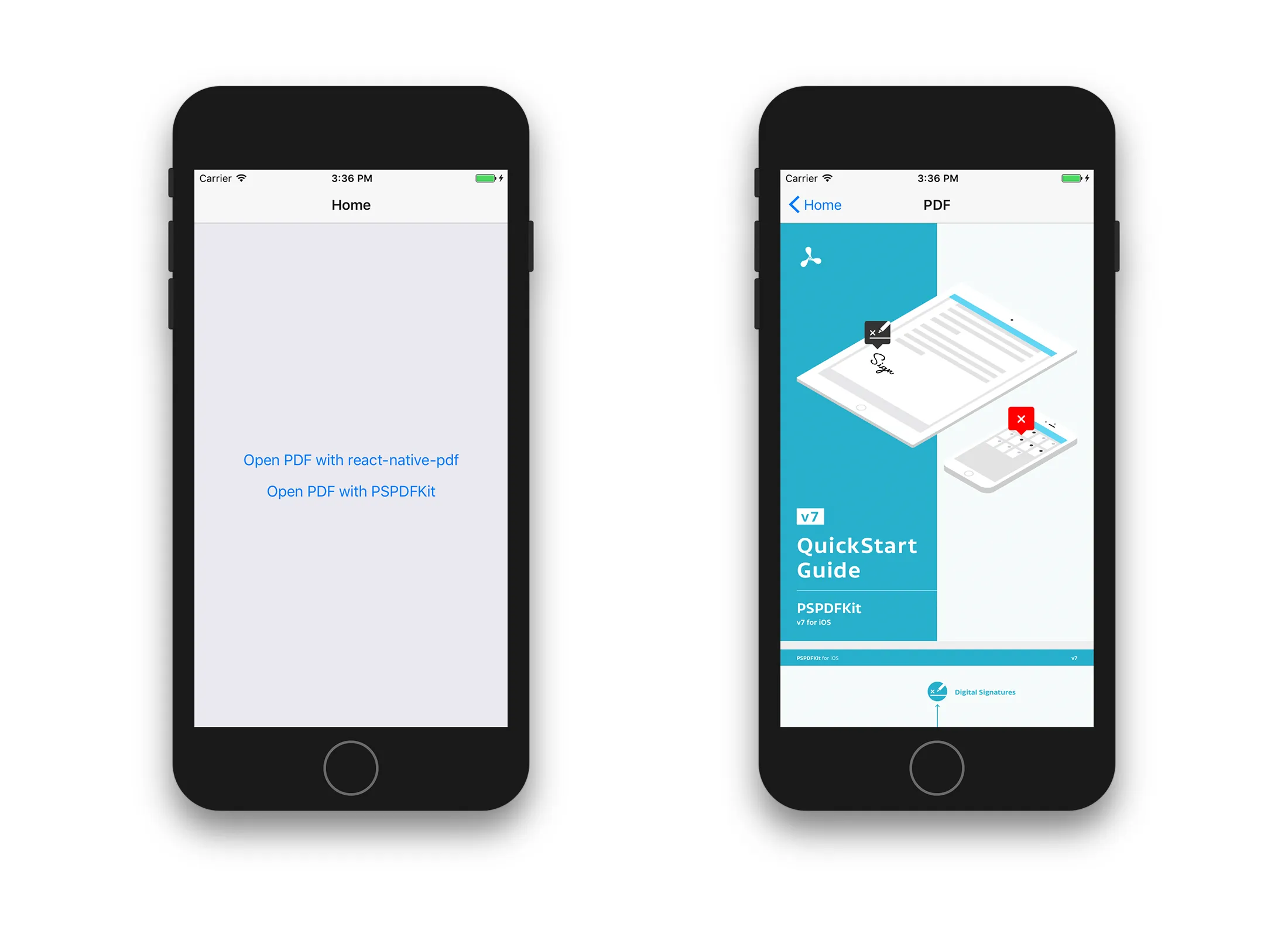
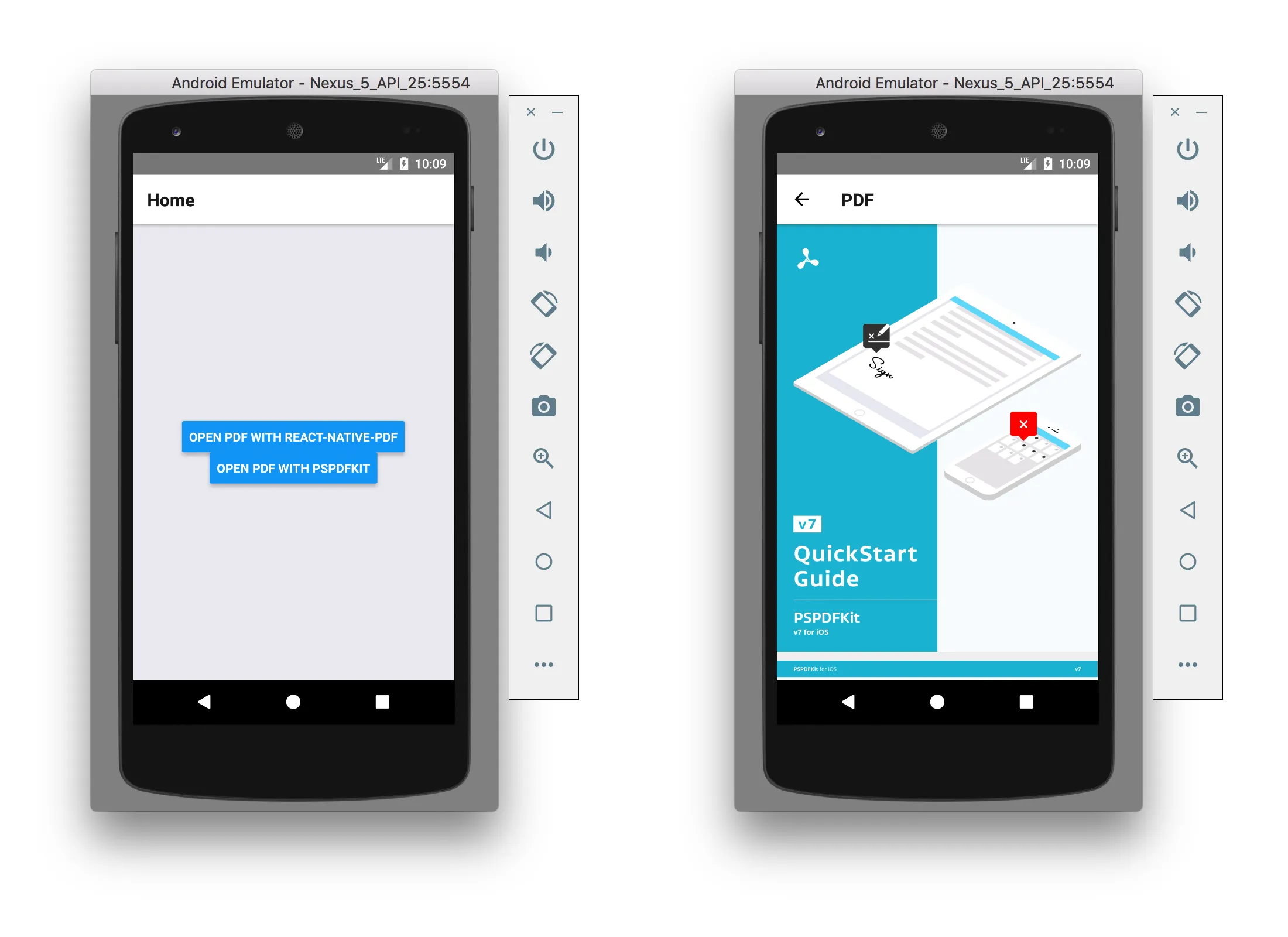
HomeScreen contains an Open PDF button that navigates to PdfScreen, which renders the PDF using the Pdf component from react-native-pdf. The App component sets up the navigation stack, and the styles center the button and allow the PDF to fill the screen.
The image below shows how it looks on iOS.
The image below shows how it looks on Android.
You can find the complete content of App.js on GitHub(opens in a new tab).
Now, you can tap a button and scroll through a PDF document. However, you can’t do anything else; there’s no zooming, and there are no annotations. You only have the scrolling view mode.
But that’s where Nutrient comes in: It includes all of these features — and more — without you having to configure anything.
Opening a PDF with Nutrient React Native PDF library
To start, follow the integration guide for iOS and Android.
Then, update HomeScreen to add a second button that opens a PDF with Nutrient:
import { NativeModules } from 'react-native';
const { Nutrient } = NativeModules;
Nutrient.setLicenseKey(null); // Or your valid license keys using `setLicenseKeys`.
const NUTRIENT_DOCUMENT =  Platform.OS === 'ios'    ? 'Document.pdf'    : 'file:///android_asset/Document.pdf';
const HomeScreen = ({ navigation }) => {  const openWithNutrient = () => {    Nutrient.present(NUTRIENT_DOCUMENT, {      pageTransition: 'scrollContinuous',      scrollDirection: 'vertical',    });  };
  return (    <View style={styles.container}>      <Button        onPress={() => navigation.navigate('Pdf')}        title="Open PDF with react-native-pdf"      />      <Button        onPress={openWithNutrient}        title="Open PDF with Nutrient"      />    </View>  );};
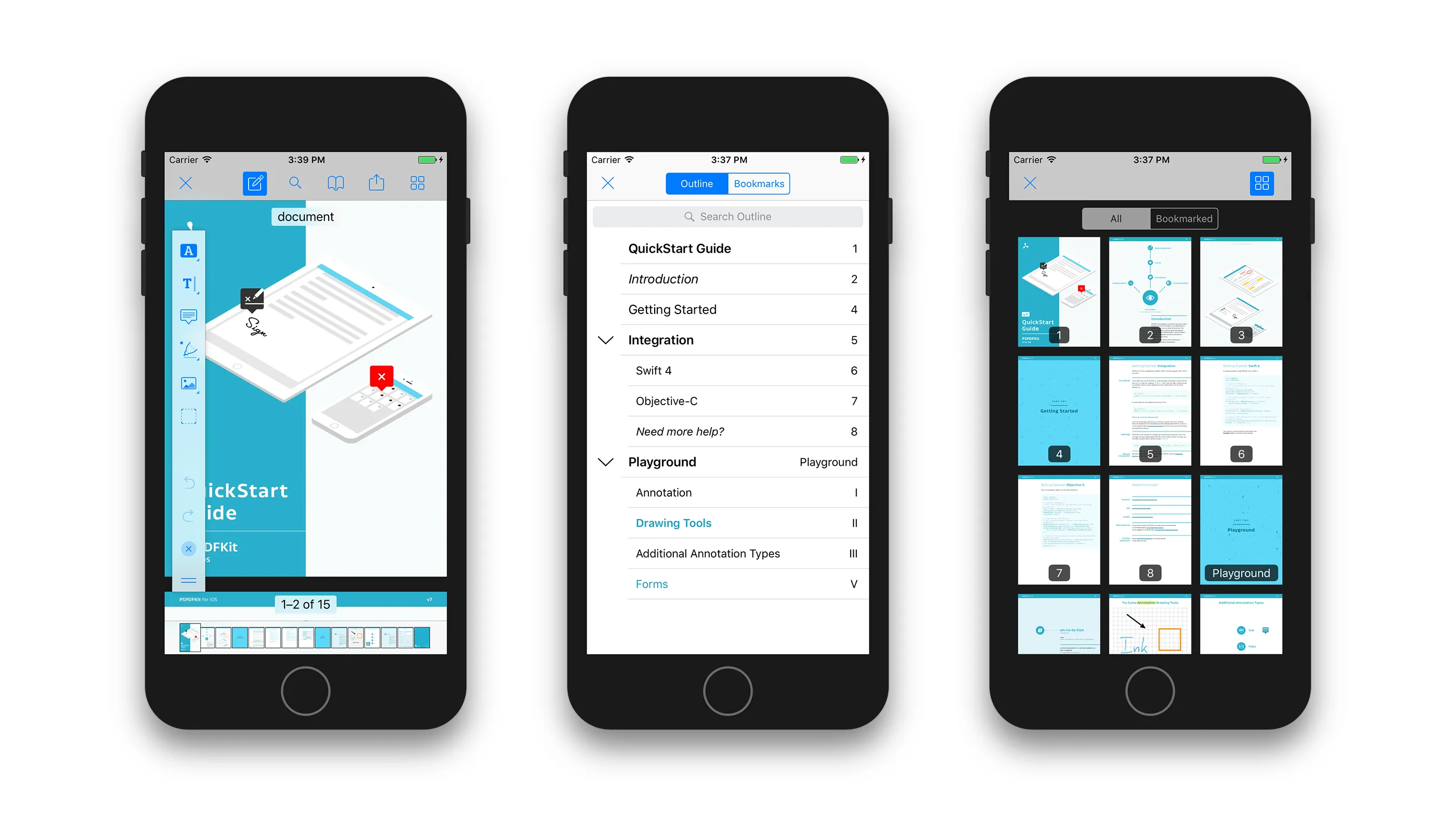
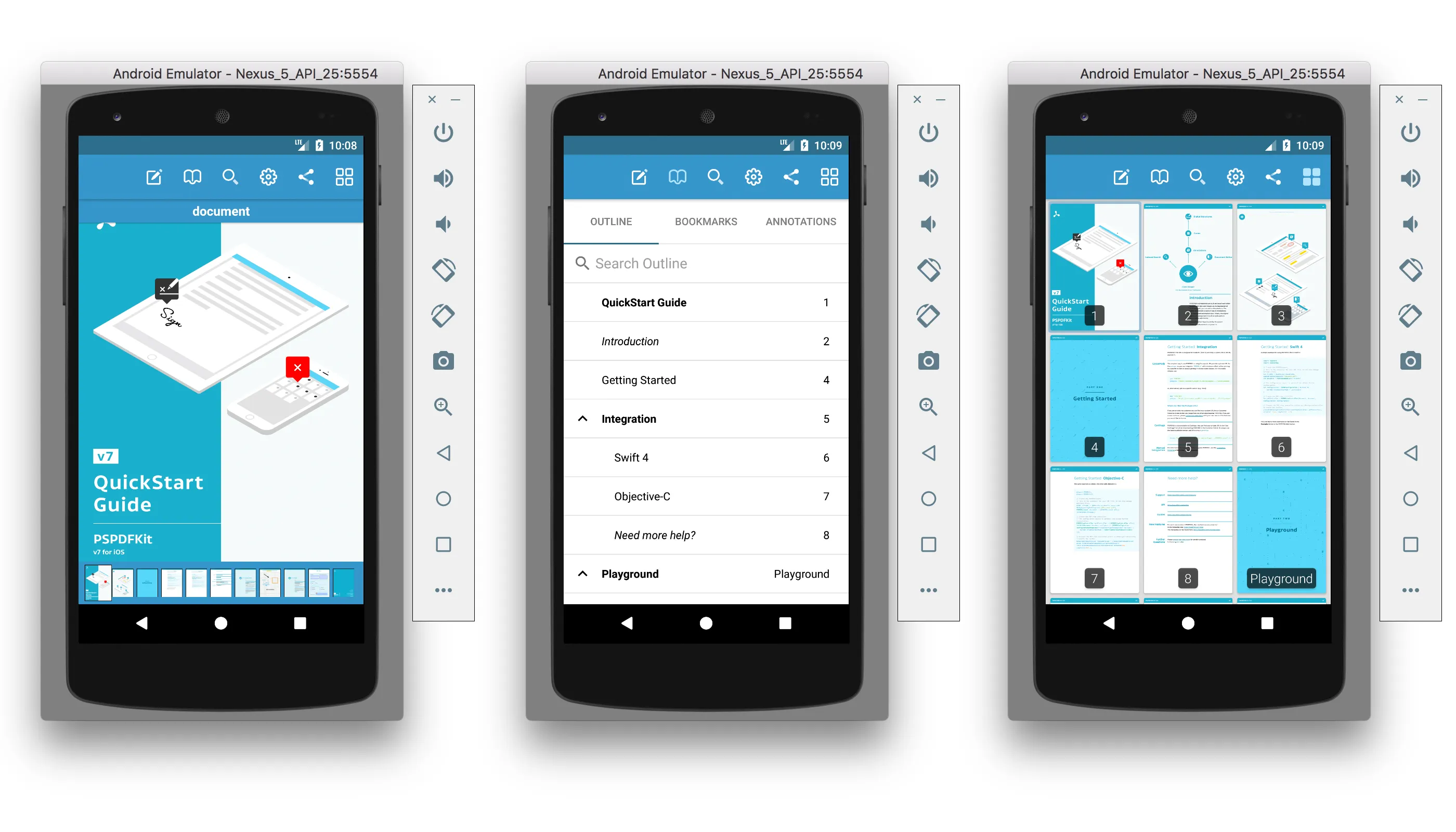
With Nutrient.present(), you get a full-featured PDF viewer that supports zooming, annotations, form filling, document outline navigation, text search, and bookmarks. You can customize the viewer by passing configuration options as the second argument.
Here’s the Nutrient-powered viewer on iOS.
Here’s the same viewer on Android.
You can find the source code for the entire project on GitHub(opens in a new tab).
React Native New Architecture compatibility
Since React Native 0.76 (released in late 2024), the New Architecture(opens in a new tab) (Fabric renderer and TurboModules) is enabled by default. This affects PDF libraries:
react-native-pdf has partial New Architecture support. Several open issues (#942(opens in a new tab), #663(opens in a new tab)) report that the library renders blank views on iOS when the New Architecture is enabled. Android support is more stable, but some developers still encounter build errors. Community workarounds exist, but they require manual patching.
Nutrient React Native SDK fully supports the New Architecture starting with SDK version 4.x. If your project uses React Native 0.77 or later, Nutrient works without any additional configuration on both iOS and Android.
Since the New Architecture is now the default, picking a PDF library with full Fabric support saves you from debugging blank screens and build failures.
Using a React Native PDF viewer with Expo
Expo(opens in a new tab) is a popular framework for building React Native apps. If you use Expo, here’s what you need to know about PDF libraries:
- Expo Go doesn’t support native PDF modules. Both react-native-pdf and Nutrient require native code, so they won’t work in the Expo Go app.
- Use a development build instead. Create a development build(opens in a new tab) with
npx expo prebuildto include native modules. - For react-native-pdf, you’ll also need to install the config plugins
@config-plugins/react-native-pdfand@config-plugins/react-native-blob-util. - Nutrient provides its own Expo config plugin. See the Nutrient Expo guide for setup instructions.
Troubleshooting common React Native PDF issues
These are the most common issues when working with React Native PDF viewers, based on reports from the react-native-pdf GitHub issue tracker(opens in a new tab):
- Blank PDF view on iOS with New Architecture — If you’re using React Native 0.76+ with the New Architecture enabled, react-native-pdf may render a blank white view on iOS. This is a known issue(opens in a new tab). A workaround involves adding a
codegenConfigsection to the library’spackage.json, but the fix isn’t officially released. Nutrient’s SDK doesn’t have this issue. - Android 16 KB page size crash — On devices running Android 15+ with 16 KB page alignment,
libpdfiumandroid.somay fail to load with react-native-pdf. Check the GitHub issues(opens in a new tab) for the latest status on this. - SSL certificate errors on Android — When loading PDFs from HTTPS URLs, react-native-pdf may fail with certificate validation errors. Setting
trustAllCertstotrueis a workaround, but it disables certificate pinning, which is a security risk. - PDF not rendering after Expo SDK upgrade — Upgrading Expo SDK versions can break react-native-pdf. Make sure to rebuild your development client after any Expo SDK upgrade and verify that the configuration plugins are compatible.
- iOS build error:
yoga/style/Style.hnot found — This build error occurs when the New Architecture is enabled. It’s related to a missing Yoga header in the react-native-pdf native module. Check the library’s open issues(opens in a new tab) for patches. - File path issues across platforms — iOS and Android handle file paths differently. On iOS, use
require('./Document.pdf')for react-native-pdf, or a plain string path like'Document.pdf'for Nutrient. On Android, use'file:///android_asset/Document.pdf'for both libraries.
Conclusion
Adding basic PDF viewing to a React Native app with react-native-pdf(opens in a new tab) is simple enough, but the library has clear limitations — no annotations, no form filling, no digital signatures, and ongoing compatibility issues with the React Native New Architecture.
If your project needs more than a read-only PDF viewer, the Nutrient React Native PDF SDK covers annotations, form filling, digital signatures, document editing, and the latest React Native versions on both iOS and Android.
Try the Nutrient React Native SDK with a free trial, check out our demos, or reach out to Support if you have questions.
FAQ
You can open a PDF in React Native by installing a PDF library like react-native-pdf (open source) or Nutrient React Native SDK (commercial). After installing the library, add a PDF document to your project, create a component that renders the PDF viewer, and configure platform-specific settings for iOS and Android. See the step-by-step tutorial above for complete instructions.
It depends on what you need. For basic PDF viewing (scroll and zoom), react-native-pdf is free and widely used, with hundreds of thousands of weekly npm downloads. If you need annotations, form filling, digital signatures, document editing, or real-time collaboration, the Nutrient React Native SDK includes all of these with full New Architecture support.
react-native-pdf doesn’t work with Expo Go because it requires native code. To use it with Expo, you need to create a development build(opens in a new tab) and install the configuration plugins @config-plugins/react-native-pdf and @config-plugins/react-native-blob-util. Nutrient also provides an Expo configuration plugin for its React Native SDK.
react-native-pdf has partial New Architecture (Fabric) support. As of 2026, there are open issues with blank PDF views on iOS when the New Architecture is enabled (which is the default since React Native 0.76). Android support is more stable. Refer to the library’s GitHub issues(opens in a new tab) for the latest status and community workarounds.
The open source react-native-pdf library doesn’t support annotations. To add annotation capabilities like highlighting, drawing, text notes, and stamps to your React Native app, use a commercial SDK like Nutrient, which provides a full annotation toolkit with more than 15 annotation types.
Yes, but not with react-native-pdf, which only supports viewing. Nutrient React Native SDK supports interactive PDF form filling, including text fields, checkboxes, radio buttons, dropdowns, and signature fields. Form data can be read and written programmatically.
For large PDFs, enable caching to avoid redownloading the file on every render. With react-native-pdf, set the cache prop to true. Nutrient handles caching automatically. For very large documents (hundreds of pages), both libraries render pages on demand rather than loading the entire document into memory.