Using Document Converter Services with Python
Document Converter Services (DCS) is a highly versatile system that can be integrated with various environments. Python, a widely adopted programming language, is often used both independently and within Jupyter Notebooks to interact with DCS.
Setting up
The Python examples mentioned in this guide uses the Zeep library, which simplifies working with WSDL in Python. For more information, refer to the Zeep documentation(opens in a new tab).
Accessing the WSDL
There is no straightforward method for consuming the published Nutrient Web Services Description Language (WSDL) for DCS.
To begin, open a PowerShell terminal (Tools > Command Line > PowerShell).
Although instructions typically reference python, it currently works when using py.exe:
py.exe -mzeep http://localhost:41734/Muhimbi.DocumentConverter.WebService/?WSDLNote the namespace prefixes in the WSDL. These are necessary when working with factory objects, as demonstrated in the data structures section further down in this guide.
Retrieving configuration details
The example below demonstrates how to call the web service to retrieve configuration details:
# Import the zeep library to access WSDLimport zeep
print("Test WSDL")
#Service URLservice_url = "http://localhost:41734/Muhimbi.DocumentConverter.WebService/"# WSDL URLwsdl_url = service_url+"?WSDL"
# Create the header structureheader = zeep.xsd.Element(    "Header",    zeep.xsd.ComplexType(        [            zeep.xsd.Element(                "{http://www.w3.org/2005/08/addressing}Action", zeep.xsd.String()            ),            zeep.xsd.Element(                "{http://www.w3.org/2005/08/addressing}To", zeep.xsd.String()            ),        ]    ),)
# Create a header objectheader_value = header(Action=service_url,To=service_url)#create client object using the headerclient = zeep.Client(wsdl=wsdl_url)
# Get the configuration information from the serverresult = client.service.GetConfiguration()
# Print the returned dataprint(result)print("Done")
Data structures
DCS operations often require complex parameters. You can construct these parameters using the client.type_factory method, along with the appropriate WSDL prefix:
# Create clientclient = zeep.Client(wsdl=wsdl_url)# Create a factory type to construct objects with the suffix ns2 (see the WSDL)factory = client.type_factory("ns2")# Create a DiagnosticRequestItem with the property ConverterName set to a converter typerequest_item = factory.DiagnosticRequestItem(ConverterName = "WordProcessing")Retrieving diagnostic status
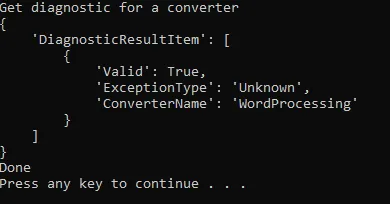
The following example retrieves the diagnostic status for the WordProcessing converter:
import zeepfrom array import arrayprint("Get diagnostic for a converter")#Service URLservice_url = "http://localhost:41734/Muhimbi.DocumentConverter.WebService/"# WSDL URLwsdl_url = service_url+"?WSDL"
# Construct the headerheader = zeep.xsd.Element(    "Header",    zeep.xsd.ComplexType(        [            zeep.xsd.Element(                "{http://www.w3.org/2005/08/addressing}Action", zeep.xsd.String()            ),            zeep.xsd.Element(                "{http://www.w3.org/2005/08/addressing}To", zeep.xsd.String()            ),        ]    ),)# Create a heading objectheader_value = header(Action=service_url,To=service_url)# Create clientclient = zeep.Client(wsdl=wsdl_url)# Create a factory type to construct objects with the suffix ns2 (see the WSDL)factory = client.type_factory("ns2")# Create a DiagnosticRequestItem with the property ConverterName set to a converter typerequest_item = factory.DiagnosticRequestItem(ConverterName = "WordProcessing")# Create an array of DiagnosticRequestItem objects (in this case just one)request_items = factory.ArrayOfDiagnosticRequestItem(request_item)# Call the DCS GetDiagnostics operation with the selected conversion typeresult = client.service.GetDiagnostics(request_items)
print(result)print("Done")Output:
Extracting key-value pairs from a PDF
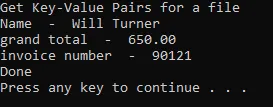
To extract key-value pairs from a PDF, start by identifying the. ExtractKeyValuePairs web service method name. You can locate it in the WSDL file:
ns1:ExtractKeyValuePairs(sourceFile: xsd:base64Binary, openOptions: ns2:OpenOptions, extractKeyValuePairsSettings: ns2:KVPSettings)This method uses the ns1 prefix and takes the following three parameters:
sourceFile—xsd:base64BinaryopenOptions—ns2:OpenOptionsextractKeyValuePairsSettings—ns2:KVPSettings
Important things to note
- The
sourceFileparameter expects a W3 XML schema Base64-encoded binary representation of the document. The subsequent parameters,openOptionsandextractKeyValuePairsSettings, are custom Nutrient (formerly Muhimbi) types. Instantiation of these types necessitates a factory generated using thens2prefix, as defined within the WSDL document. Examination of the WSDL will reveal the constituent properties of these Nutrient types. - The
openOptionstype presents a straightforward structure, requiring minimal configuration through its fundamental properties: file name and extension. - Conversely, the
KVPSettingstype encompasses several complex properties; however, theKVPFormatproperty is the sole mandatory attribute for this operation. - Due to the
ns3prefix associated with theKVPFormattype, a distinct factory instance, specific to this namespace, will be required for its creation.
factory2 = client.type_factory("ns3")KVPOutputFormat = factory2.KVPOutputFormat(1)Sample code:
import zeepimport base64import lxml.etree as etree
print("Get Key-Value Pairs for a file")#Service URLservice_url = "http://localhost:41734/Muhimbi.DocumentConverter.WebService/"# WSDL URLwsdl_url = service_url+"?WSDL"
# Construct the headerheader = zeep.xsd.Element(    "Header",    zeep.xsd.ComplexType(        [            zeep.xsd.Element(                "{http://www.w3.org/2005/08/addressing}Action", zeep.xsd.String()            ),            zeep.xsd.Element(                "{http://www.w3.org/2005/08/addressing}To", zeep.xsd.String()            ),        ]    ),)# Create a heading objectheader_value = header(Action=service_url,To=service_url)# Create clientclient = zeep.Client(wsdl=wsdl_url)# Create a factory type to construct objects with the suffix ns2 (see the WSDL)factory = client.type_factory("ns2")# Create a factory type to construct objects with the suffix ns3 (see the WSDL)factory2 = client.type_factory("ns3")
# Create the OpenOptions object with the minimum settingsopen_options = factory.OpenOptions(OriginalFileName = "Three-in-one invoice.pdf", FileExtension = "pdf")
# Create the KVP Output Format objectKVPOutputFormat = factory2.KVPOutputFormat("XML")# Create the expected keys stringexpectedKeys = "[{\"expectedKey\":\"Name\",\"synonyms\":[\"name\"]},{\"expectedKey\":\"grand total\",\"synonyms\":[\"total\"]},{\"expectedKey\":\"invoice number\",\"synonyms\":[\"invoice no\"]}]"# Create the KVP Settings objectKVPSettings = factory.KVPSettings(OCRLanguage = "eng", KVPFormat = KVPOutputFormat, DPI = 300, ExpectedKeys = expectedKeys)
# Load the source file as a Base64 stringwith open("Three-in-one invoice.pdf", "rb") as image_file:    encoded_string = base64.b64encode(image_file.read()).decode('utf-8')
# Call the ExtractKeyValuePairs method of the service with the required parametersresult = client.service.ExtractKeyValuePairs(encoded_string, open_options, KVPSettings)
# Load the result XML into an lxml etree objecttree = etree.fromstring(result)
# Find all the KVPData elementskvpData = tree.xpath('/ArrayOfKVPData/KVPData')# For each KVPData elementfor x in kvpData:    # Get the key and value elements' text    key = x.xpath('Key')[0].text    value = x.xpath('Value')[0].text    # Print the key and value    print(key, ' - ', value)
print("Done")Output:
References
- Create a Python project in Visual Studio(opens in a new tab)
- Install Python packages in Visual Studio(opens in a new tab)
- Zeep in-depth documentation(opens in a new tab)
- Zeep data structures documentation(opens in a new tab)