Redact PDFs using AI-powered detection
Nutrient Document Converter includes an AI-powered redaction action that automatically detects and redacts sensitive information from PDF documents. Using advanced machine learning models, this action can identify personally identifiable information (PII), financial data, and other sensitive content without requiring you to define specific patterns.
This guide explains how to implement AI-powered redaction in your Power Automate flows. The AI models are pretrained to recognize common sensitive data types, making it straightforward to protect documents while maintaining compliance with privacy regulations.
For precise control over what gets redacted using custom patterns or regular expressions, refer to the pattern-based redaction guide.
At a high level, your flow will look similar to what’s shown below.
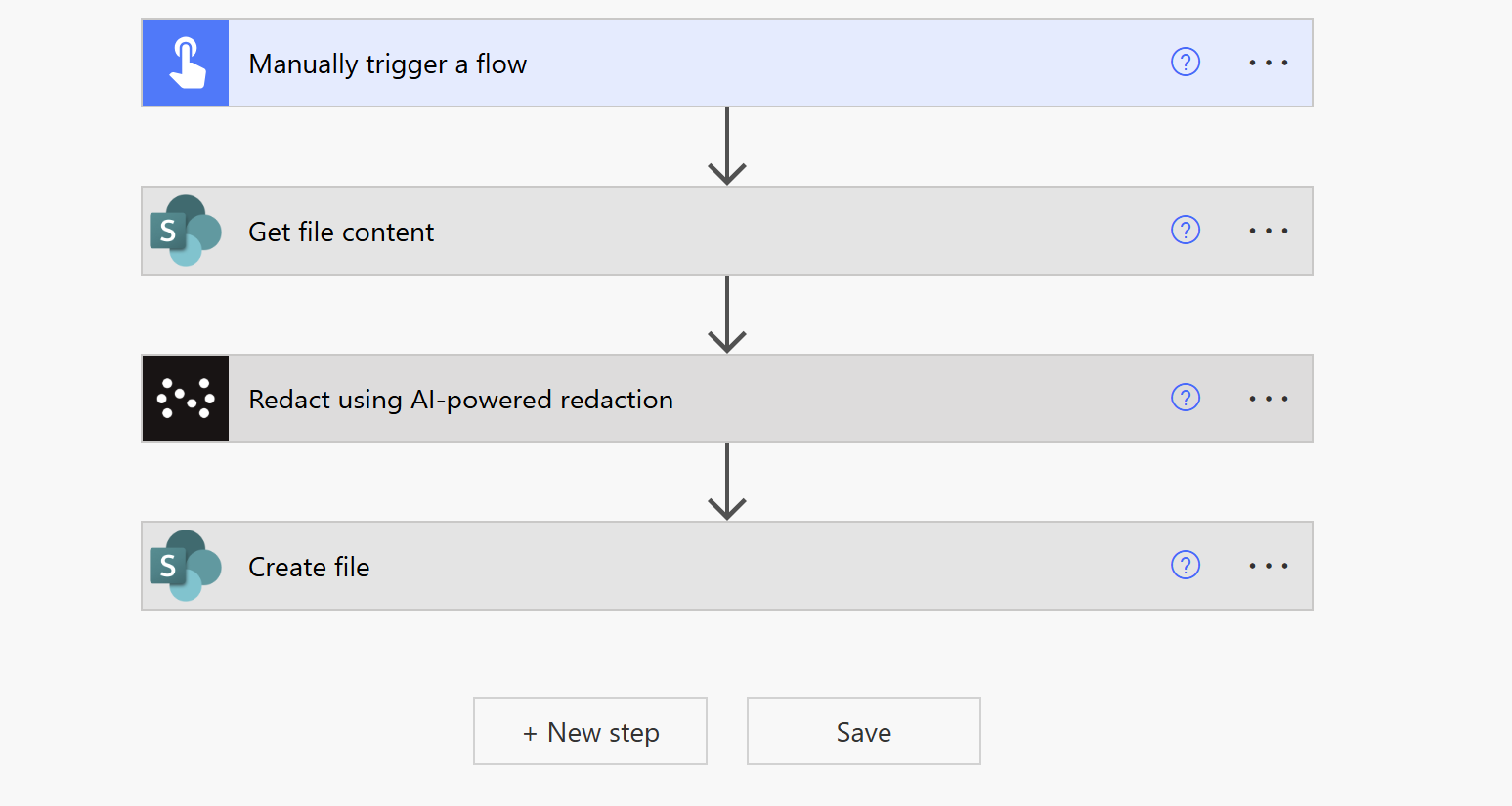
What can AI-powered redaction detect?
The AI redaction models can automatically identify and redact the following sensitive information types:
- Credit card numbers
- Dates
- Email addresses
- International phone numbers
- IPv4 addresses
- IPv6 addresses
- MAC addresses
- North American phone numbers
- Social Security numbers (SSN)
- Time values
- URLs
- US zip codes
- Vehicle identification numbers (VINs)
To begin, follow the steps below.
Creating a flow in Power Automate
Create a manual trigger instant flow and add the Get file content step.
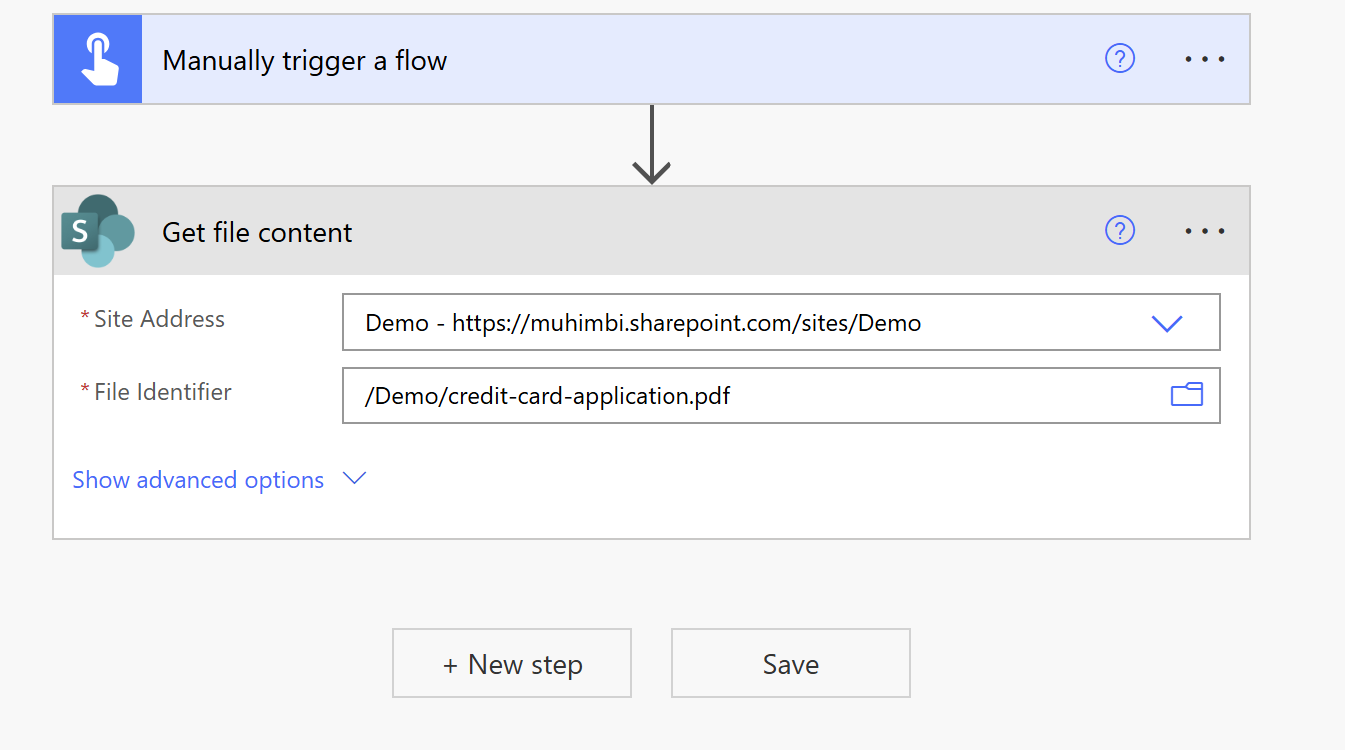
In the action, specify the path to the SharePoint Online site and relative URL of file. This action retrieves the PDF file content so it can be processed by the AI redaction action.
Applying AI-powered redaction
Add the Nutrient Redact using AI-powered redaction action to Power Automate and configure it as shown in the details below.
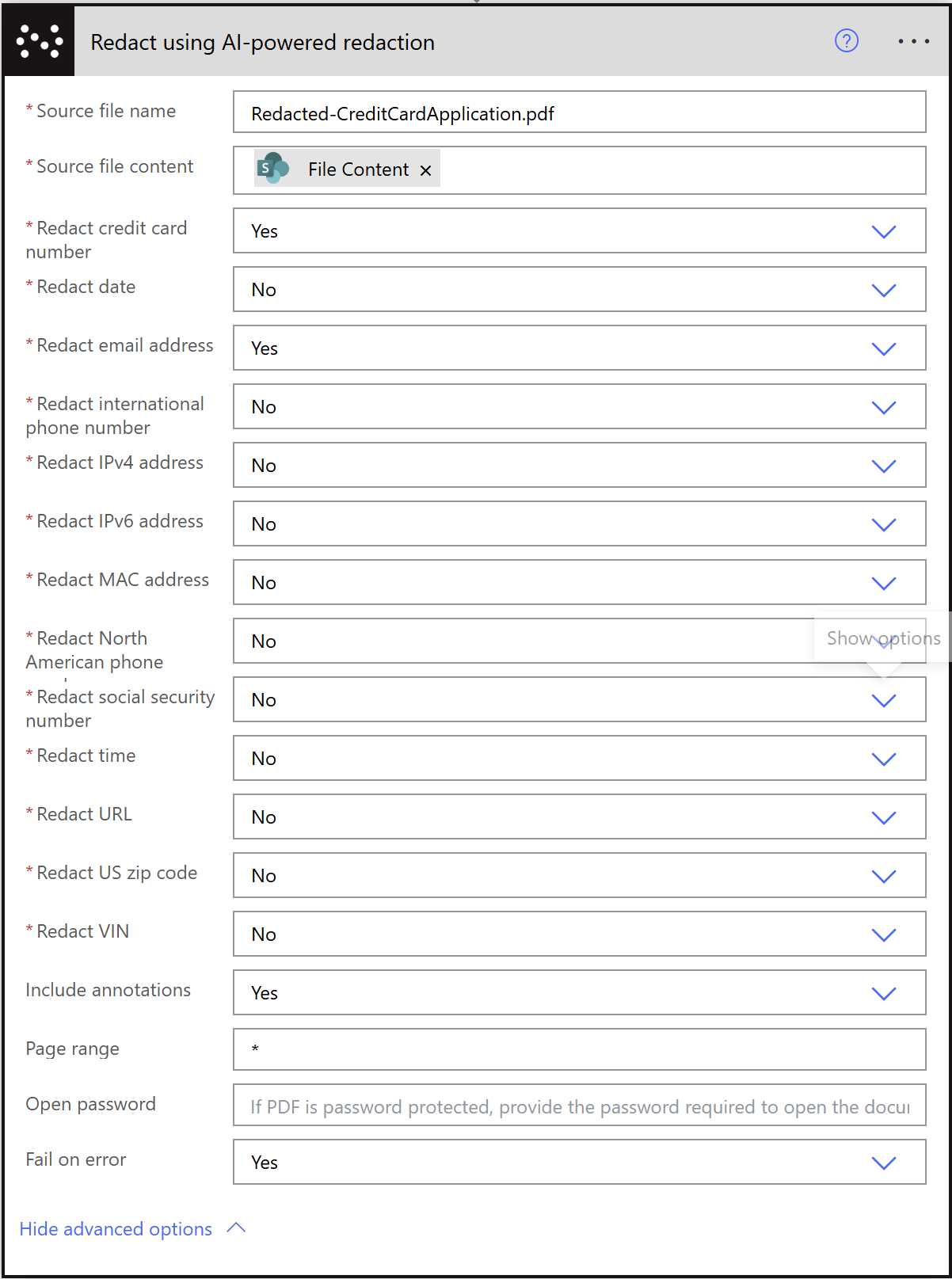
Required fields
Below are the required fields to configure the action:
- Source file name — Include the file name with its extension.
- Source file content — Enter File Content, which is the output of the Get file content action.
- Entity types to detect — Select which types of sensitive information to redact. You can choose multiple detection types from the list below. For each type, choose Yes or No from the dropdown to enable or disable that entity for redaction:
- Redact credit card number
- Redact date
- Redact email address
- Redact international phone number
- Redact IPv4 address
- Redact IPv6 address
- Redact MAC address
- Redact North American phone number
- Redact social security number
- Redact time
- Redact URL
- Redact US zip code
- Redact VIN
Additional settings
If needed, you can also configure the following additional settings:
- Include annotations — Specify whether to include existing annotations in the redacted output. When enabled, annotations from the source PDF will be preserved in the redacted document.
- Page range — Define specific pages to apply redaction to. Use
*to process all pages, or specify a range (for example, 1–5, 8, 10–12) to redact only selected pages. This is useful for processing large documents where only certain sections contain sensitive information. - Open password — Enter the password if the source PDF is password protected. This enables the action to open and process encrypted PDFs. Note that the redacted output PDF won’t be password protected, so you may need to apply encryption separately if required.
- Fail on error — Determine how the action should handle errors during redaction. When this is enabled, the flow will stop and report an error if redaction fails. When this is disabled, the flow will continue even if redaction encounters issues, enabling you to implement custom error handling logic.
Saving the redacted PDF
Add the Create file SharePoint action to store the redacted PDF document in the library.
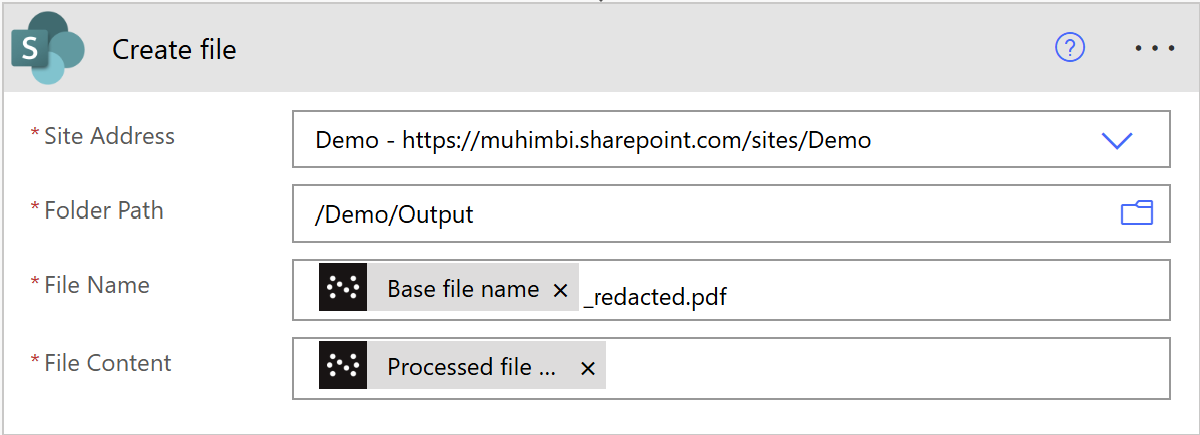
Configure the action:
- Site address — Select the destination SharePoint site.
- Folder path — Specify where to save the redacted PDF — for example,
/Shared Documents/Redacted - File name — Use dynamic content to create the file name. For example:This uses the Base file name output from the AI redaction action and addsBase file name_redacted.pdf
_redactedsuffix. - File content — Enter Processed file content, which is the output variable of the Redact PDF with AI action.
Successful flow completion
Once you’ve configured all the steps, your completed flow will look as follows.
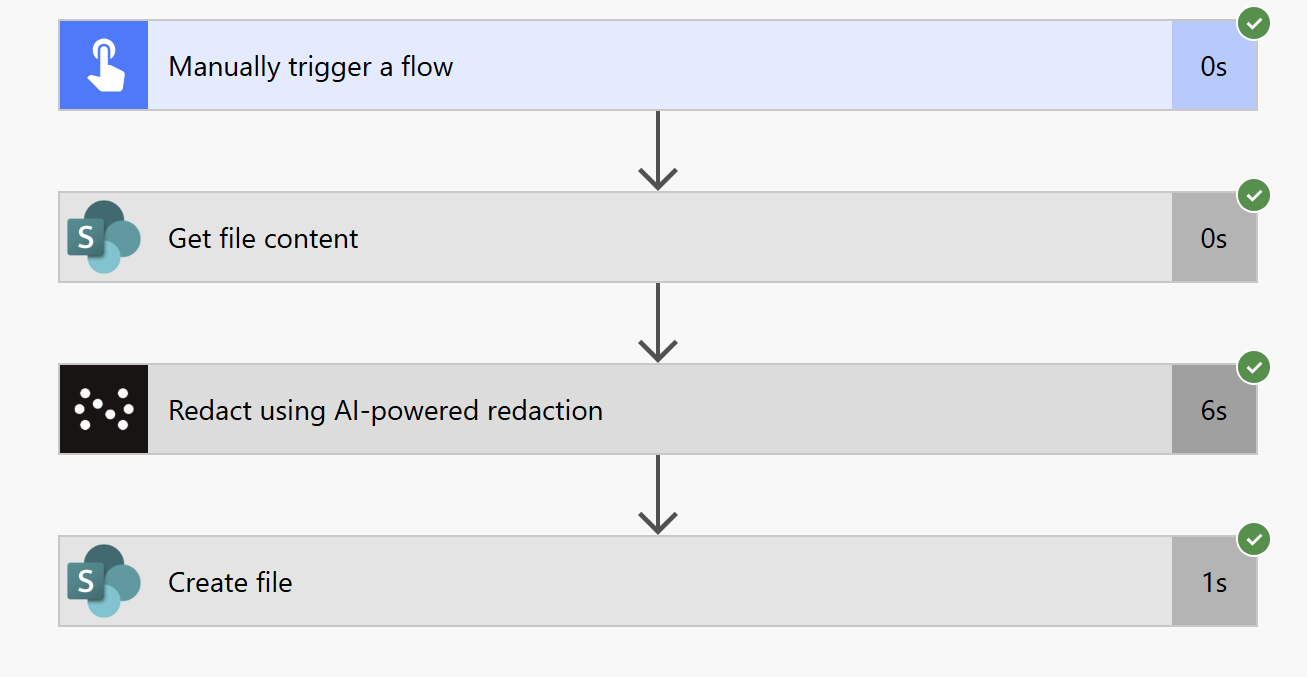
The flow will execute each action in sequence, processing your PDF through AI-powered redaction and saving the result to your specified location.
Viewing the redacted output
After the flow completes successfully, you can view the redacted PDF in your SharePoint document library. The sensitive information will be permanently removed from the document.
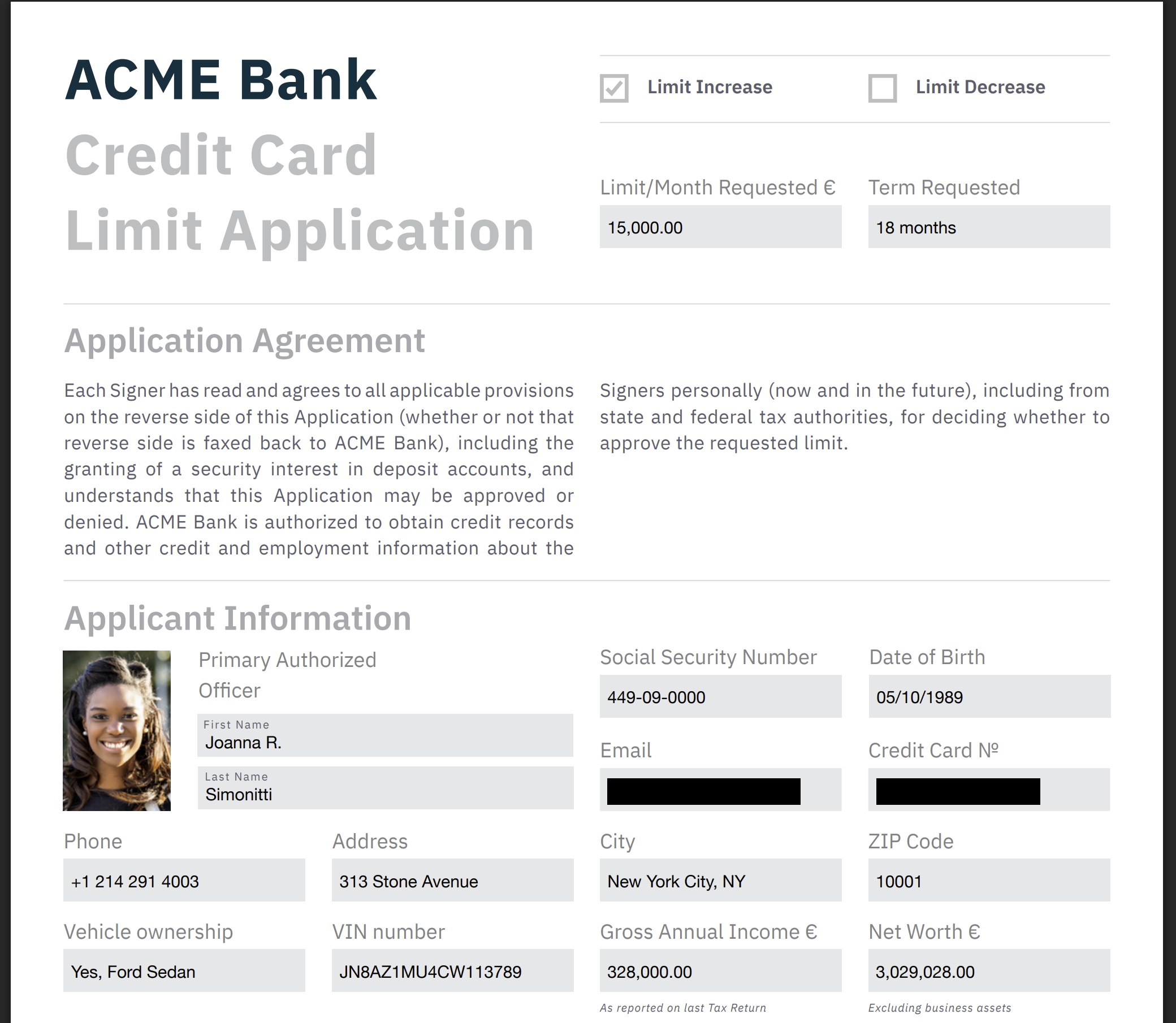
The redacted areas appear as black boxes, ensuring sensitive information such as credit card numbers, SSNs, email addresses, and other PII is completely obscured and cannot be recovered.