Optical mark recognition SDK
Extract marked fields from scanned forms, surveys, and tests in C#. The SDK detects filled bubbles, checkboxes, and ovals, and it uses an anchoring system to handle scan-to-scan alignment differences automatically.
What do you want to extract?
Multiple choice answers
Read filled bubbles on exams, quizzes, and assessments. Detect squares, circles, and ovals with or without characters inside.
Survey responses
Process questionnaires, feedback forms, and satisfaction surveys. The SDK tells you which fields are marked and which are not.
Attendance and registration
Capture check-in sheets, roll calls, and registration forms. Batch-process stacks of scanned pages in a loop.
Compliance checklists
Digitize inspection checklists and audit forms. Extract pass/fail marks from fields of any supported shape.
How we help
TEMPLATE SETUP
Define where marks are on a form
Create an OMR template by specifying an anchor (a logo or rectangle that appears on every form) and the rectangles surrounding each mark field. The anchor is used to measure scan-to-scan alignment differences, so the SDK knows where to look on each filled form.
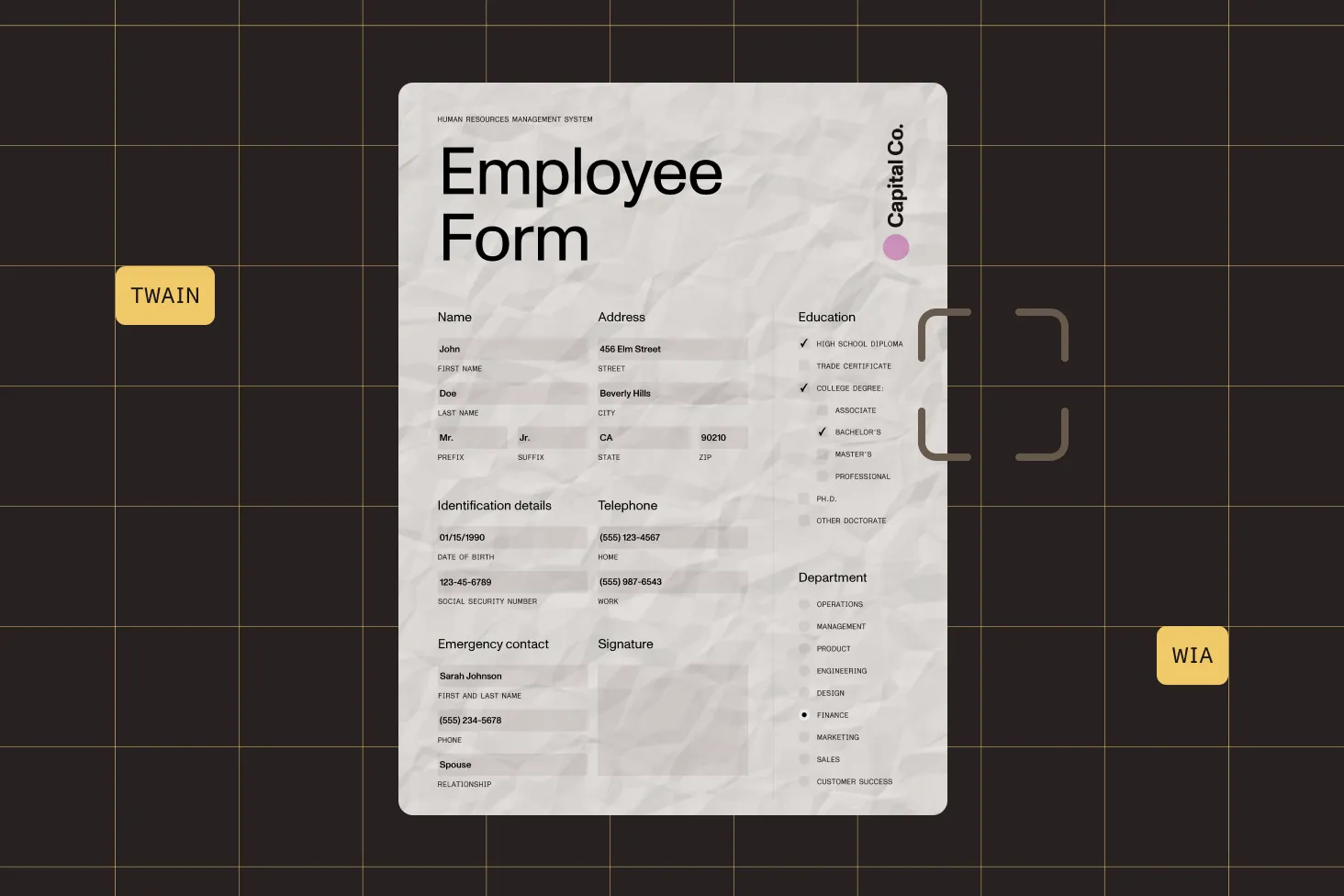
Anchor-based alignment
Choose a logo, rectangle, or solid object as the anchor. The SDK finds it on each scan and calculates the X/Y offset to correct for scanner placement differences.
Rectangle-based field definition
Define OMR fields as rectangles on the template. The SDK applies the measured offset to locate the same fields on every filled form.
Interactive or programmatic setup
Capture anchor and field coordinates interactively using the built-in viewer control, or specify them in code with exact pixel values.
Built-in scanner support
Scan templates and forms directly from your application using the built-in TWAIN and WIA driver support.
MARK EXTRACTION
Detect which fields are filled
For each scanned form, the SDK locates the anchor, measures the alignment offset, adjusts all field positions, and runs mark detection. Results come back as a simple integer array — 1 for filled, 0 for empty.

Multiple shape support
Detect square, circular, and oval marks. Each shape category has its own detection function optimized for that geometry.
Characters inside marks
Handle marks that contain letters or numbers (A, B, C, D). The detection functions accept a parameter to account for character content.
Configurable sensitivity
Control how much fill a field needs to count as marked. The SDK also returns a confidence value for each result.
Speed vs. accuracy modes
Choose between speed-optimized and accuracy-optimized anchor search. Trade search area size for processing time based on your needs.
DEPLOYMENT
Run OMR where your application runs
Nutrient’s OMR engine is part of the .NET SDK. Deploy it in desktop applications, Windows services, or server-side .NET processes — anywhere the .NET runtime is available.
Desktop applications
Build interactive OMR tools with the built-in viewer control for WinForms or WPF. Let operators define templates visually and review results in the same application.
Server-side batch processing
Process stacks of scanned forms in a background service or scheduled job. Loop through forms, extract marks, and write results to a database or CSV — no UI required.
Supported on your platform
Lufthansa
Disney
Autodesk
UBS
Dropbox
IBM
Lufthansa
Disney
Autodesk
UBS
Dropbox
IBM
Related components
Frequently asked questions
What is OMR and how does the SDK handle it?
Optical mark recognition (OMR) is the process of detecting filled fields on scanned documents — bubbles on exams, checkboxes on surveys, and ovals on registration forms. The SDK works by comparing a template (the blank form with field positions defined) against scanned filled forms. It uses an anchor to correct for alignment differences between scans. See the introduction to OMR for the full explanation.
How do I create an OMR template in C#?
Scan or load the blank form, define an anchor rectangle (a logo or solid object that appears on every copy), and specify the rectangles surrounding each mark field. You can capture coordinates interactively using the built-in viewer control, or set them in code. See the template guide for step-by-step instructions.
What mark shapes does the OMR SDK detect?
The SDK detects square, circular, and oval marks. Square and circular fields use the same detection function, while ovals have a separate one optimized for their geometry. Both functions support marks with or without characters (like A, B, C, D) inside them.
How does anchoring correct for scanning misalignment?
The anchor is a recognizable object (logo, rectangle, or solid shape) on the template. When processing a filled form, the SDK searches for the anchor, compares its position to the template position, and calculates the X/Y translation. That offset is applied to every field rectangle so the detection algorithm reads the correct locations regardless of how the paper was placed in the scanner.
Can I control sensitivity for borderline marks?
Yes. The detection functions accept a sensitivity parameter that controls how much fill a field needs to count as marked. The SDK also returns a confidence array alongside the results, so you can flag uncertain detections for manual review.
What scanning resolution should I use for OMR?
A resolution of 200 to 300 dots per inch (DPI) is recommended. Below 150 DPI, the image quality may not contain enough pixel data for accurate detection, especially for small fields. Higher DPI improves accuracy but increases file size and processing time.
Can I process a batch of scanned forms automatically?
Yes. The SDK is a standard .NET library — loop through your scanned images, run the anchor search and mark detection on each one, and collect the results. There are no UI dependencies for processing, so you can run it in a background service, console application, or scheduled task.
Which platforms support OMR?
OMR is available in Nutrient .NET SDK. It runs on any platform that supports the .NET runtime — Windows desktop applications (WinForms, WPF), Windows services, ASP.NET, and .NET console applications.
FREE TRIAL
Ready to get started?
Start extracting marks from scanned forms in C# in minutes — no payment information required.
Optical mark recognition SDK
What is an OMR SDK?
- Detects square, circular, and oval marks on scanned forms.
- Anchor system corrects for scanner placement differences automatically.
- Returns a simple integer array — 1 for filled, 0 for empty.
- Configurable sensitivity with per-field confidence scores.
How do I choose an OMR SDK?
When selecting an OMR SDK, consider the shape types it supports, how it handles scan alignment, and whether it fits your deployment model.
- Shape support — Look for detection of squares, circles, and ovals, with support for characters inside marks.
- Alignment handling — An anchor-based system that automatically corrects for scanning misalignment is essential for reliable results at scale.
- Sensitivity control — Configurable fill thresholds and confidence scores let you tune detection for your specific form design.
- Scanner integration — Built-in TWAIN or WIA support lets your application capture forms directly from an OMR scanner, simplifying the scanning step.
What’s the difference between OMR and OCR?
OMR detects whether specific fields are marked — it answers “Is this bubble filled?” OCR recognizes text characters in an image — it answers “What does this text say?” They solve different problems but are often used together. Nutrient .NET SDK includes both OMR and OCR engines.
What are the benefits of Nutrient’s OMR SDK?
Nutrient’s OMR engine is part of a broader document processing SDK, so you get OMR alongside OCR, barcode reading, scanning, and image processing in a single library.
- Anchor-based alignment — Automatically corrects for scanning misalignment without manual calibration.
- Multiple shape detection — Supports squares, circles, and ovals, with or without characters.
- Built-in scanner support — TWAIN and WIA drivers let you scan directly from your application.
- Part of a complete SDK — Combine OMR with OCR, barcode reading, and PDF processing in the same project.
What causes inaccurate OMR results?
Three common issues affect OMR accuracy: low scan resolution (below 150 DPI), mark fields that are too small (leaving too few pixels for the algorithm), and scan-to-scan alignment differences. The first two are addressed in form design — scan at 200 to 300 DPI and make fields large enough. The third is handled by the SDK’s anchoring engine.