How to make PDFs fillable

Table of contents
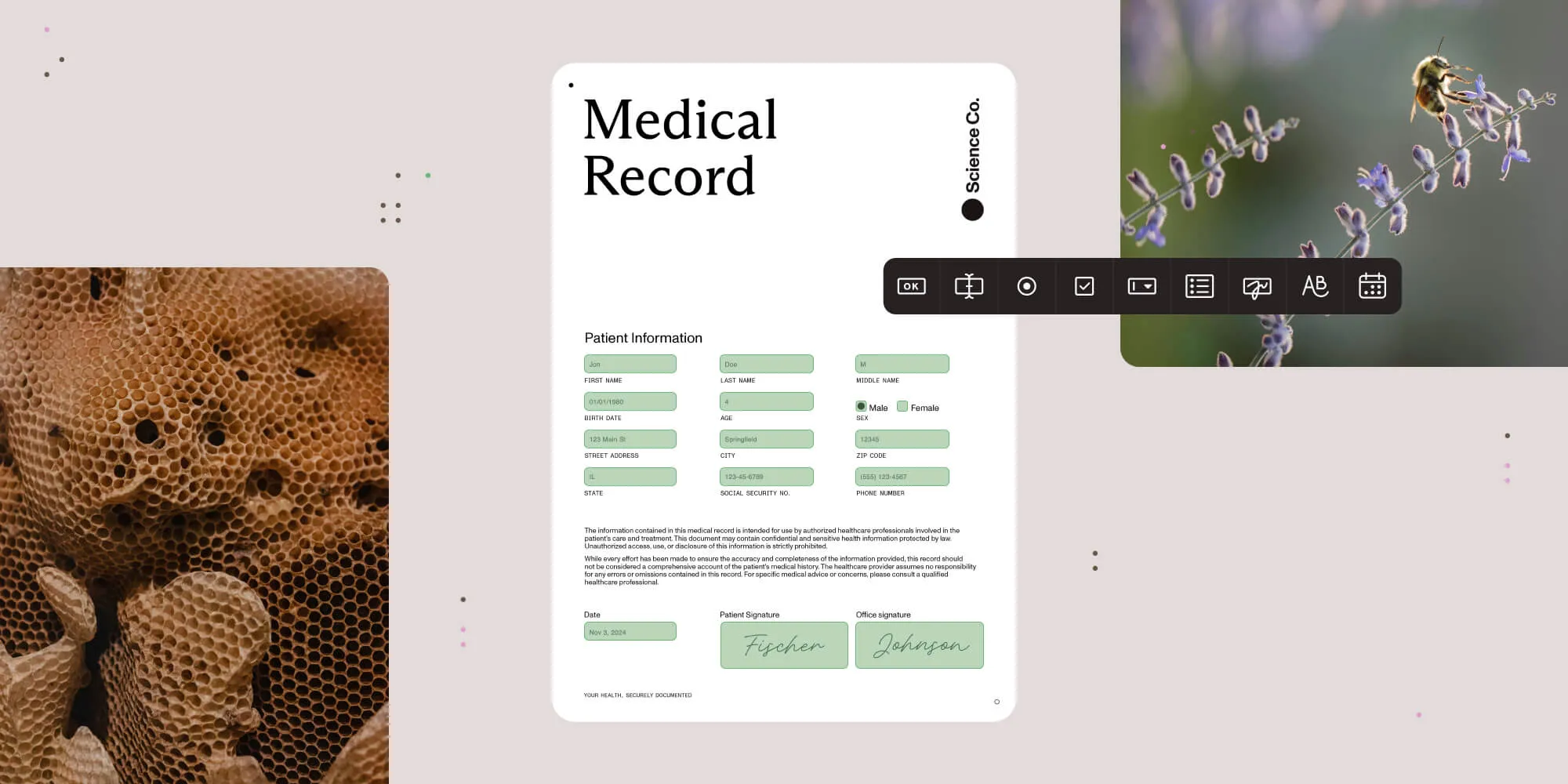
Fillable PDFs reduce data entry errors, speed up document processing, and support remote collaboration. If you’re creating forms, contracts, or surveys, choosing the right PDF form builder saves significant development time.
This guide covers three approaches to creating fillable PDFs: PDF.js for viewing and filling existing forms, pdf-lib for programmatic PDF manipulation, and Nutrient Web SDK for complete form solutions with built-in UI, validation, and eSignatures.
1. How to make PDFs fillable using open source libraries
To make PDFs fillable, you need software capable of defining interactive fields within a document. Several open source libraries can handle this task, each with different capabilities and limitations.
PDF.js
PDF.js(opens in a new tab) is a popular library developed by Mozilla for rendering PDF documents in web browsers. It natively supports displaying and filling existing PDF forms. If your PDF already has form fields, PDF.js will render them and allow users to fill them out directly in the browser.
However, PDF.js cannot programmatically create new form fields on a PDF that doesn’t already have them. While you could manually overlay HTML input fields on the canvas, this approach is complex and the data entered doesn’t actually become part of the PDF — it’s just floating on top of the rendered image.
PDF.js works well for displaying and filling existing PDF forms. However, creating new form fields requires extensive custom JavaScript, CSS positioning, and event handling. The user experience with custom overlays often feels disconnected from the PDF itself.
pdf-lib
pdf-lib(opens in a new tab) is a versatile library for creating and modifying PDF documents, and it works seamlessly in both Node.js and browser environments.
Step 1 — Installing pdf-lib
If you’re using Node.js, install pdf-lib via npm:
npm install pdf-libStep 2 — Listing available form fields
First, find out what fields exist in your PDF. Save this file with an .mjs extension (e.g. listFields.mjs):
import { PDFDocument } from "pdf-lib";import fs from "fs";
async function listFields() {  const existingPdfBytes = fs.readFileSync("sample_pdf.pdf");  const pdfDoc = await PDFDocument.load(existingPdfBytes);  const form = pdfDoc.getForm();  const fields = form.getFields();
  console.log("Available form fields:");  fields.forEach((field) => {    const name = field.getName();    const type = field.constructor.name;    console.log(`- ${name} (${type})`);  });}
listFields();
Run with: node listFields.mjs
Step 3 — Filling form fields
Once you know the field names, use the appropriate method based on the field type:
import { PDFDocument } from "pdf-lib";import fs from "fs";
async function fillPdf() {  const existingPdfBytes = fs.readFileSync("sample_pdf.pdf");  const pdfDoc = await PDFDocument.load(existingPdfBytes);  const form = pdfDoc.getForm();
  // For `PDFTextField` — use the exact field name from Step 2.  const textField = form.getTextField("TEXT_FIELD_NAME");  textField.setText("Your value here");
  // For `PDFCheckBox`.  const checkbox = form.getCheckBox("CHECKBOX_FIELD_NAME");  checkbox.check(); // Or `checkbox.uncheck()`.
  // For `PDFRadioGroup`.  const radioGroup = form.getRadioGroup("RADIO_FIELD_NAME");  radioGroup.select("option1"); // Select one of the radio options.
  // For `PDFDropdown`.  const dropdown = form.getDropdown("DROPDOWN_FIELD_NAME");  dropdown.select("optionValue");
  const pdfBytes = await pdfDoc.save();  fs.writeFileSync("filled.pdf", pdfBytes);}
fillPdf();
Run with: node fillPdf.mjs
Use only the methods that match your PDF’s field types. PDFButton fields are typically for actions, not data entry.
pdf-lib works for developers comfortable writing custom code, but you’ll need to build field focus management, error handling, validation, and data extraction yourself. There are no built-in user interface (UI) components.
2. How to make PDFs fillable with advanced features using Nutrient
Nutrient Web SDK provides a JavaScript library for generating, customizing, and managing PDF forms programmatically. This section covers how to create various form fields and customize them.
Explore the Nutrient demoPrerequisites
You need a valid Nutrient license with Form Creator support (version 2019.5 or newer) for creating form fields. For adding form fields using the UI, you’ll need version 2022.3 or later.
Step 1 — Installation
Choose either CDN or npm installation.
Option A: CDN (quickest)
<!DOCTYPE html><html> <head> <title>Nutrient Web SDK</title> </head> <body> <script src="https://cdn.cloud.nutrient.io/pspdfkit-web@1.20.0/nutrient-viewer.js"></script> <div id="pdf-viewer" style="width: 100%; height: 100vh;"></div> <script src="index.js"></script> </body></html>Option B: npm package
npm install @nutrient-sdk/viewerStep 2 — Loading Nutrient
Initialize Nutrient Web SDK and load a PDF:
const container = document.getElementById("pdf-viewer");
// For CDN installation.const { NutrientViewer } = window;
// For npm installation, import at the top of your file:// import NutrientViewer from "@nutrient-sdk/viewer";
if (container && NutrientViewer) {  NutrientViewer.load({    container,    document: "document.pdf",  })    .then((instance) => {      console.log("Nutrient loaded", instance);    })    .catch((error) => {      console.error(error.message);    });}
Step 3 — Creating a text form field
Use NutrientViewer.Annotations.WidgetAnnotation for the widget and NutrientViewer.FormFields.TextFormField for the form field:
const widget = new NutrientViewer.Annotations.WidgetAnnotation({  id: NutrientViewer.generateInstantId(),  pageIndex: 0,  formFieldName: "MyFormField",  boundingBox: new NutrientViewer.Geometry.Rect({    left: 100,    top: 75,    width: 200,    height: 80,  }),});
const textFormField = new NutrientViewer.FormFields.TextFormField({  name: "MyFormField",  annotationIds: new NutrientViewer.Immutable.List([widget.id]),  value: "Text shown in the form field",});
instance.create([widget, textFormField]);
Step 4 — Creating radio buttons
Create multiple widgets with the same form field name:
const radioWidget1 = new NutrientViewer.Annotations.WidgetAnnotation({  id: NutrientViewer.generateInstantId(),  pageIndex: 0,  formFieldName: "MyRadioField",  boundingBox: new NutrientViewer.Geometry.Rect({    left: 100,    top: 170,    width: 20,    height: 20,  }),});
const radioWidget2 = new NutrientViewer.Annotations.WidgetAnnotation({  id: NutrientViewer.generateInstantId(),  pageIndex: 0,  formFieldName: "MyRadioField",  boundingBox: new NutrientViewer.Geometry.Rect({    left: 130,    top: 170,    width: 20,    height: 20,  }),});
const radioFormField = new NutrientViewer.FormFields.RadioButtonFormField({  name: "MyRadioField",  annotationIds: new NutrientViewer.Immutable.List([    radioWidget1.id,    radioWidget2.id,  ]),  options: new NutrientViewer.Immutable.List([    new NutrientViewer.FormOption({      label: "Option 1",      value: "1",    }),    new NutrientViewer.FormOption({      label: "Option 2",      value: "2",    }),  ]),  defaultValue: "1",});
instance.create([radioWidget1, radioWidget2, radioFormField]);
Step 5 — Enable form design mode
Allow users to adjust the placement of form elements:
instance.setViewState((viewState) => viewState.set("formDesignMode", true));Here’s the full code combining all steps:
const container = document.getElementById("pdf-viewer");86 collapsed lines
const { NutrientViewer } = window; // For CDN installation
if (container && NutrientViewer) { NutrientViewer.load({ container, document: "document.pdf", }) .then((instance) => { console.log("Nutrient loaded", instance);
// Create a text form field. const widget = new NutrientViewer.Annotations.WidgetAnnotation({ id: NutrientViewer.generateInstantId(), pageIndex: 0, formFieldName: "MyFormField", boundingBox: new NutrientViewer.Geometry.Rect({ left: 100, top: 75, width: 200, height: 80, }), });
const textFormField = new NutrientViewer.FormFields.TextFormField({ name: "MyFormField", annotationIds: new NutrientViewer.Immutable.List([widget.id]), value: "Text shown in the form field", });
instance.create([widget, textFormField]);
// Create radio button form field with two options. const radioWidget1 = new NutrientViewer.Annotations.WidgetAnnotation({ id: NutrientViewer.generateInstantId(), pageIndex: 0, formFieldName: "MyRadioField", boundingBox: new NutrientViewer.Geometry.Rect({ left: 100, top: 170, width: 20, height: 20, }), });
const radioWidget2 = new NutrientViewer.Annotations.WidgetAnnotation({ id: NutrientViewer.generateInstantId(), pageIndex: 0, formFieldName: "MyRadioField", boundingBox: new NutrientViewer.Geometry.Rect({ left: 130, top: 170, width: 20, height: 20, }), });
const radioFormField = new NutrientViewer.FormFields.RadioButtonFormField( { name: "MyRadioField", annotationIds: new NutrientViewer.Immutable.List([ radioWidget1.id, radioWidget2.id, ]), options: new NutrientViewer.Immutable.List([ new NutrientViewer.FormOption({ label: "Option 1", value: "1", }), new NutrientViewer.FormOption({ label: "Option 2", value: "2", }), ]), defaultValue: "1", }, );
instance.create([radioWidget1, radioWidget2, radioFormField]);
// Enable form design mode. instance.setViewState((viewState) => viewState.set("formDesignMode", true), ); }) .catch((error) => { console.error("Error loading Nutrient:", error.message); });}Comparison of fillable PDF creation tools
| Feature | PDF.js | pdf-lib | Nutrient Web SDK |
|---|---|---|---|
| Fill existing forms | ✓ | ✓ | ✓ |
| Create new form fields | Manual overlay only | ✓ | ✓ |
| Built-in UI | ✗ | ✗ | ✓ |
| Form validation | Custom | Custom | Built-in |
| eSignatures | ✗ | ✗ | ✓ |
| Data extraction | Custom | Custom | Built-in |
| Mobile support | Basic | Basic | Optimized |
| Best for | Viewing existing forms | Programmatic manipulation | Production applications |
Best practices to make PDFs fillable
- Use a clear and consistent layout — Organized layouts make forms easy to read and navigate.
- Use clear and concise language — Form labels and instructions should be straightforward.
- Use headings and subheadings — Organize forms with headings for easy scanning.
- Use bullet points and numbered lists — These elements improve readability.
- Ensure form fields are large enough — Fields should be sized appropriately for comfortable data entry.
- Clearly label the submit button — Make submission buttons easy to find with clear labels.
- Test your form — Verify forms work correctly and users can complete and submit them.
Conclusion
Free libraries like PDF.js and pdf-lib work well for simple use cases and prototypes. For production applications requiring form creation, validation, eSignatures, and a complete user interface, Nutrient Web SDK provides these capabilities out of the box.
Try Nutrient’s demo to explore the available features, or contact our Sales team to discuss your specific requirements.
Related reading
- Create and fill PDF forms programmatically in JavaScript — A deeper code walkthrough of JavaScript form fields
- Create a PDF form with a signature — Add signature fields to a fillable form
- The complete guide to digital signatures — eSignature and digital signature options for forms
FAQ
Fillable PDFs are documents that allow users to enter information directly into designated fields, making data entry easier and more efficient.
Fillable PDFs enable easy data capture and sharing, reducing the challenges of paper-based forms.
You can create fillable PDFs using various tools, including open source libraries like pdf-lib, or commercial solutions like Nutrient (formerly PSPDFKit).
Yes. You can create fillable PDFs using JavaScript libraries such as pdf-lib and Nutrient, which provide functionality for adding interactive form fields.
Some libraries may have limitations in terms of features or ease of use, requiring custom coding for field management or a deeper understanding of PDF structures for advanced functionalities.