




WeasyPrint HTML to PDF in Python: Tutorial with page breaks, headers, and Django (2026)

Table of contents
This guide covers two ways to convert HTML to PDF in Python: WeasyPrint, an open source library for small to mid-sized projects, and the Nutrient PDF generator API, a cloud-based solution for high-volume PDF generation.
If you’ve built invoice downloads, analytics exports, or HR document generation in Python, you’ve probably hit the point where your PDF library starts producing broken layouts or choking on volume.
Why convert HTML to PDF?
HTML works on the web, but some outputs — invoices, analytics exports, archived records — need a fixed-layout format. Converting HTML to PDF preserves your content’s structure and styling in a format that prints and shares consistently across devices.
Method 1: Using WeasyPrint
WeasyPrint(opens in a new tab) is an open source Python library for converting HTML and CSS to PDF. The latest release (February 2026) requires Python 3.10 or higher. It supports modern CSS features, including flexbox, grid, and CSS paged media — making it a solid choice for reports, invoices, and printable documents generated from web content.
Installation
Before you start, ensure you’re working in a virtual environment to avoid conflicts with system Python packages.
Set up a virtual environment:
Terminal window python3 -m venv venvsource venv/bin/activateInstall WeasyPrint:
Terminal window python3 -m pip install weasyprint
You can also install with poetry or conda:
poetry add weasyprint # Poetryconda install -c conda-forge weasyprint # CondaFor more detailed installation instructions, refer to the WeasyPrint documentation(opens in a new tab).
Quick convert from the command line
WeasyPrint installs a CLI tool. If you don’t need Python code, you can convert HTML to PDF directly from your terminal:
weasyprint input.html output.pdfThis also works with URLs:
weasyprint https://example.com page.pdfBasic example: Generating a PDF from HTML
from weasyprint import HTML
html_content = """<!DOCTYPE html><html><head>    <title>Sample Report</title>    <style>        body { font-family: Arial, sans-serif; }        h1 { color: #333; }    </style></head><body>    <h1>Monthly Sales Report</h1>    <p>This is a sample PDF report generated from HTML using WeasyPrint.</p></body></html>"""
HTML(string=html_content).write_pdf("report.pdf")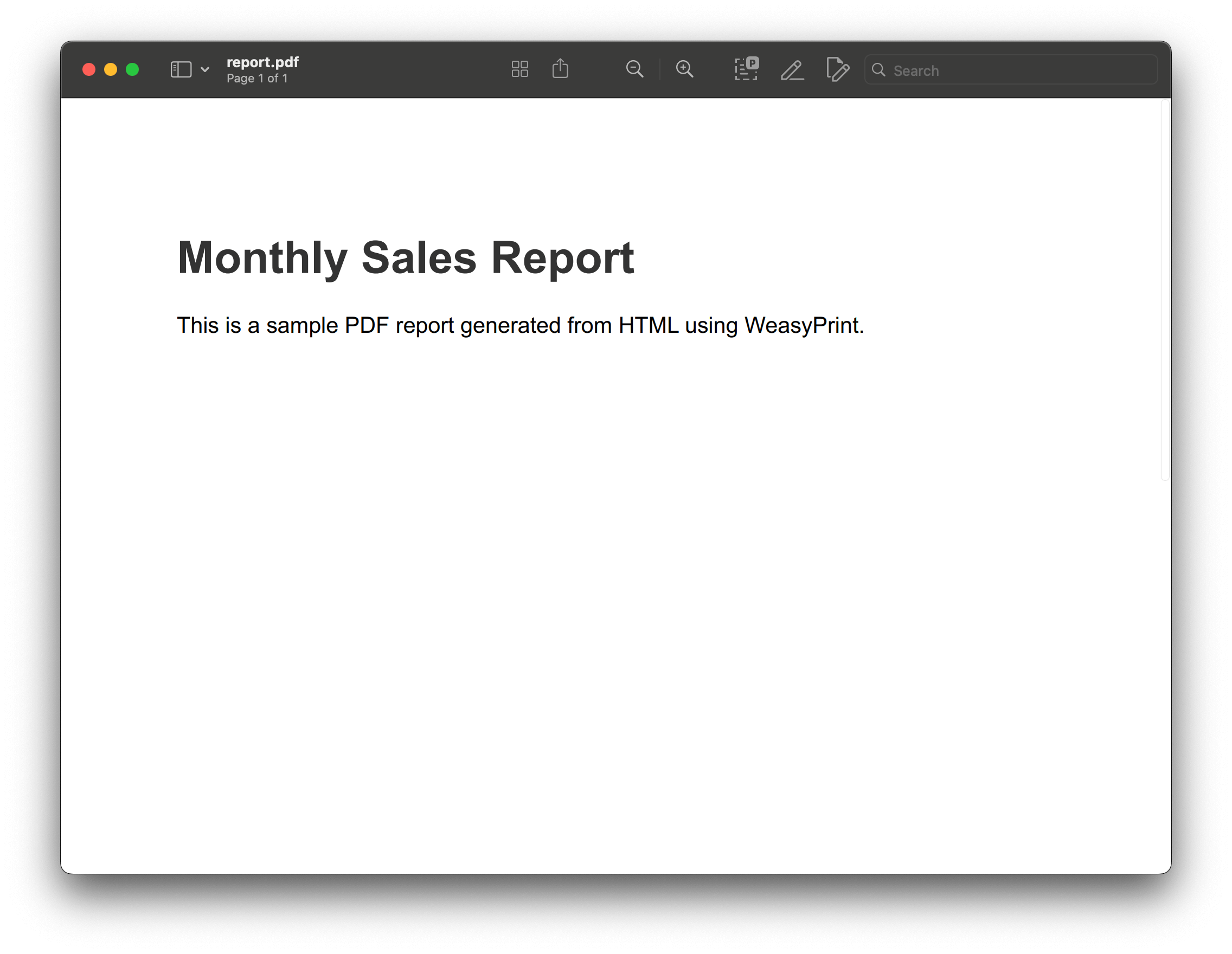
Page layout, headers, and footers with @page
For multipage documents, CSS @page rules control margins, page size, and running headers/footers. WeasyPrint supports the CSS Paged Media specification, which lets you define printed page layout directly in your stylesheet:
from weasyprint import HTML, CSS
html_content = """<!DOCTYPE html><html><head>    <title>Sales Report</title></head><body>    <h1>Q1 Sales Report</h1>    <p>Page content goes here...</p></body></html>"""
css = CSS(string="""    @page {        size: A4;        margin: 2cm;
        @top-center {            content: "Q1 Sales Report";            font-size: 10pt;            color: #666;        }
        @bottom-right {            content: "Page " counter(page) " of " counter(pages);            font-size: 9pt;        }    }""")
HTML(string=html_content).write_pdf("report.pdf", stylesheets=[css])
Running headers with images
Text-based @page headers work for simple cases, but if you need a logo or HTML element on every page, use CSS position: running(). This pulls an element out of the document flow and places it into a page margin box:
from weasyprint import HTML
html_content = """<!DOCTYPE html><html><head>    <style>        .header {            position: running(pageHeader);        }
        @page {            margin: 2.5cm 2cm 2cm 2cm;
            @top-left {                content: element(pageHeader);            }
            @bottom-center {                content: "Page " counter(page);                font-size: 9pt;            }        }    </style></head><body>    <div class="header">        <img src="logo.png" style="height: 30px;" />        <span>Acme Corp</span>    </div>    <h1>Annual Report</h1>    <p>Report content...</p></body></html>"""
# base_url tells WeasyPrint where to resolve relative asset paths# (such as logo.png). Without it, the image would be skipped.HTML(string=html_content, base_url=".").write_pdf("report.pdf")
The running() function removes the .header element from the normal flow, and element(pageHeader) renders it in the @top-left margin box on every page. The base_url argument is required whenever your HTML references relative assets — pass the directory that contains the assets (or an absolute file path or URL) so WeasyPrint can fetch them.
Page breaks
Use the break-before CSS property to force a new page at section boundaries:
html_content = """<!DOCTYPE html><html><head>    <style>        .section { break-before: page; }    </style></head><body>    <h1>Section 1</h1>    <p>First section content.</p>
    <div class="section">        <h1>Section 2</h1>        <p>This starts on a new page.</p>    </div></body></html>"""
HTML(string=html_content).write_pdf("report.pdf")
Tables that span multiple pages
For long data tables, use thead with display: table-header-group to repeat column headers on every page:
html_content = """<!DOCTYPE html><html><head>    <style>        thead { display: table-header-group; }        tfoot { display: table-footer-group; }        tr { break-inside: avoid; }    </style></head><body>    <table>        <thead>            <tr><th>Date</th><th>Description</th><th>Amount</th></tr>        </thead>        <tbody>            <tr><td>2026-01-15</td><td>Invoice #1042</td><td>$1,200</td></tr>            <tr><td>2026-01-22</td><td>Invoice #1043</td><td>$850</td></tr>            <!-- More rows... -->        </tbody>    </table></body></html>"""
HTML(string=html_content).write_pdf("ledger.pdf")
The break-inside: avoid on tr prevents rows from splitting across pages.
Using WeasyPrint in Django
To generate a PDF response directly from a Django view:
from django.http import HttpResponsefrom weasyprint import HTML
def generate_report(request):    html_content = """    <!DOCTYPE html>    <html>    <body>        <h1>Report</h1>        <p>Generated from a Django view.</p>    </body>    </html>    """
    pdf = HTML(string=html_content).write_pdf()
    response = HttpResponse(pdf, content_type="application/pdf")    response["Content-Disposition"] = 'attachment; filename="report.pdf"'    return response
The example above uses a static HTML string. To inject dynamic data, render a Django template to a string first with render_to_string. Then pass the result to HTML(string=...):
from django.http import HttpResponsefrom django.template.loader import render_to_stringfrom django.utils import timezonefrom weasyprint import HTML
def generate_report(request):    context = {"timestamp": timezone.now()}    html_content = render_to_string("reports/report.html", context)
    pdf = HTML(string=html_content).write_pdf()
    response = HttpResponse(pdf, content_type="application/pdf")    response["Content-Disposition"] = 'attachment; filename="report.pdf"'    return response
Using WeasyPrint with Jinja2 templates
Outside Django, Jinja2 is the standard Python templating engine. Keep your HTML template in a separate file (e.g. templates/invoice.html) and load it through Jinja2’s FileSystemLoader — this also gives you autoescaping by default and matches how most production codebases organize templates:
from jinja2 import Environment, FileSystemLoader, select_autoescapefrom weasyprint import HTML
env = Environment(    loader=FileSystemLoader("templates/"),    autoescape=select_autoescape(["html"]),)template = env.get_template("invoice.html")
items = [    {"name": "Consulting", "amount": "1,200"},    {"name": "Support", "amount": "850"},]
html_content = template.render(    invoice_number="1042",    customer_name="Acme Corp",    items=items,    total="2,050",)
HTML(string=html_content).write_pdf("invoice.pdf")
Your templates/invoice.html uses standard Jinja2 syntax — {{ variable }} for values and {% for item in items %} … {% endfor %} to loop over the list. With autoescape enabled, any user-supplied values are HTML-escaped automatically.
Install Jinja2 with pip install Jinja2. For Flask projects, Flask-WeasyPrint(opens in a new tab) wraps both libraries with route-aware URL handling.
WeasyPrint limitations
WeasyPrint works well for reports and structured documents, but it has known constraints:
- No JavaScript execution — Dynamic content rendered by JavaScript won’t appear in the PDF, since HTML must be fully rendered before conversion.
- Limited CSS support — Some advanced CSS features (complex animations, CSS variables in older versions, certain
position: fixedbehaviors) may render differently than they would in a browser. - Performance at scale — Processing slows noticeably above ~50 concurrent renders, and WeasyPrint isn’t designed for high-throughput production pipelines.
- System dependencies — WeasyPrint requires Pango and HarfBuzz as native libraries (pip wheels bundle most dependencies since v53, but Docker and serverless environments may need manual setup).
Method 2: Generating PDFs at scale with Nutrient API
Basic HTML-to-PDF conversion breaks down in several common scenarios:
- You’re handling dozens of templates across the same product.
- You need consistent branding across thousands of documents.
- You’re injecting dynamic data into structured layouts.
- You need multipage reports with headers, footers, and embedded fonts that render reliably.
The Nutrient PDF generator API handles these cases. Instead of combining libraries and working around layout issues, you send structured instructions and assets to a single API endpoint and get styled PDFs back.
What it solves
You send HTML, CSS, fonts, and images to the API. It sends back a PDF. Here’s what the API handles for you:
- It renders multipage layouts with headers, footers, and page breaks.
- Fonts and images embed correctly every time.
- Reusable HTML and CSS templates work for receipts, reports, and onboarding documents.
- The same endpoint scales from one to 10,000 PDFs per day.
- There’s no environment setup to manage and no OS-specific rendering differences to debug.
The free plan includes 200 credits per month. Different operations consume different amounts of credits, so the number of PDFs you can generate varies. To get your API key, sign up for a free account(opens in a new tab).
Requirements
To get started, you’ll need a Nutrient API key, Python(opens in a new tab), pip(opens in a new tab), and the Requests library(opens in a new tab).
To access your Nutrient API key, sign up for a free account(opens in a new tab). Once you’ve signed up, you can find your API key in the Dashboard > API keys section(opens in a new tab).
Install the Requests(opens in a new tab) HTTP library:
python -m pip install requestsHow it works
Use your preferred HTTP client to send your index.html, CSS, fonts, and images to our /build endpoint, along with rendering instructions.
In Python, that looks like this:
import requestsimport json
response = requests.request(  'POST',  'https://api.nutrient.io/build',  headers = {    'Authorization': 'Bearer your_api_key_here' # Replace with your actual API key.  },  files = {    'index.html': open('index.html', 'rb')  },  data = {    'instructions': json.dumps({      'parts': [        {          'html': 'index.html'        }      ]    })  },  stream = True)
if response.ok:  with open('result.pdf', 'wb') as fd:    for chunk in response.iter_content(chunk_size=8096):      fd.write(chunk)else:  print(response.text)  exit()
You get the same output on every machine, with no local rendering engine to maintain and no font issues to debug.
Use our templates or bring your own
We provide ready-made templates — multipage HTML and CSS files with headers, page numbers, font embedding, and logos. Use them as-is or customize them to match your branding.
Try it free
The free plan includes 200 credits per month, which covers dozens of PDF renders depending on document complexity. Sign up(opens in a new tab), get your API key from the dashboard, and start converting.
WeasyPrint vs. Nutrient API: Choosing the right Python PDF generator
| WeasyPrint | Nutrient API | |
|---|---|---|
| Rendering | Good CSS3 support. May need workarounds for complex layouts | Consistent multipage output with embedded fonts, page breaks, and dynamic assets |
| Best for | Internal reports, simple exports, local prototyping | Automated document generation: receipts, invoices, HR files, statements |
| Scale | Fine for a few documents at a time. Slows under load | Thousands of PDFs per day without local processing |
| Integration | Python-only, runs locally. Needs environment setup | Language-agnostic HTTP API. Works in serverless, CI, and any environment that can make a POST request |
| Cost | Free, open source (BSD license) | Free tier (200 credits/month), paid plans for higher volume |
Conclusion
WeasyPrint is a solid open source option for basic HTML-to-PDF needs in Python. If you’re generating a few reports a day from static templates, it gets the job done.
When documents grow complex — multipage layouts, embedded fonts, logos, dynamic sections — or volume increases to thousands per week, the limitations show. Nutrient handles rendering, styling, and volume without local setup, and it fits into existing product and automation pipelines.
If you’re ready to take your PDF generation to the next level, try the Nutrient PDF generator API today. Sign up for a free account(opens in a new tab), grab your API key, and start converting HTML to PDF with ease.
Are you evaluating other options? Our Python PDF library comparison benchmarks seven tools — including WeasyPrint and Nutrient — for generation, extraction, OCR, and more.
FAQ
WeasyPrint is an open source Python library that converts HTML and CSS to PDF. It supports modern CSS (flexbox, grid, paged media) and runs locally — no external service needed. Install with pip install weasyprint.
Nutrient API supports PDF generation, annotations, form filling, digital signatures, and optical character recognition (OCR). It’s designed for high-volume processing and advanced PDF manipulation.
Yes, WeasyPrint integrates into existing Python projects. Install it via pip and use it in your code to convert HTML to PDF.
Nutrient API offers a free tier with 200 credits per month. For higher usage or additional features, you’ll need to subscribe to a paid plan.
Download the provided HTML and CSS templates, edit them in any code editor, and send the modified files to the API. You control the markup, fonts, images, and layout — Nutrient renders it.