Populate all signature fields in documents

Table of contents

- Automatically populate all signature form fields when a user signs once
- Use widget annotations to locate signature placement positions
- Handle both ink and image signature types
The Electronic Signatures component in Nutrient Web SDK lets users add visual signatures to documents by drawing, uploading an image, or typing text.
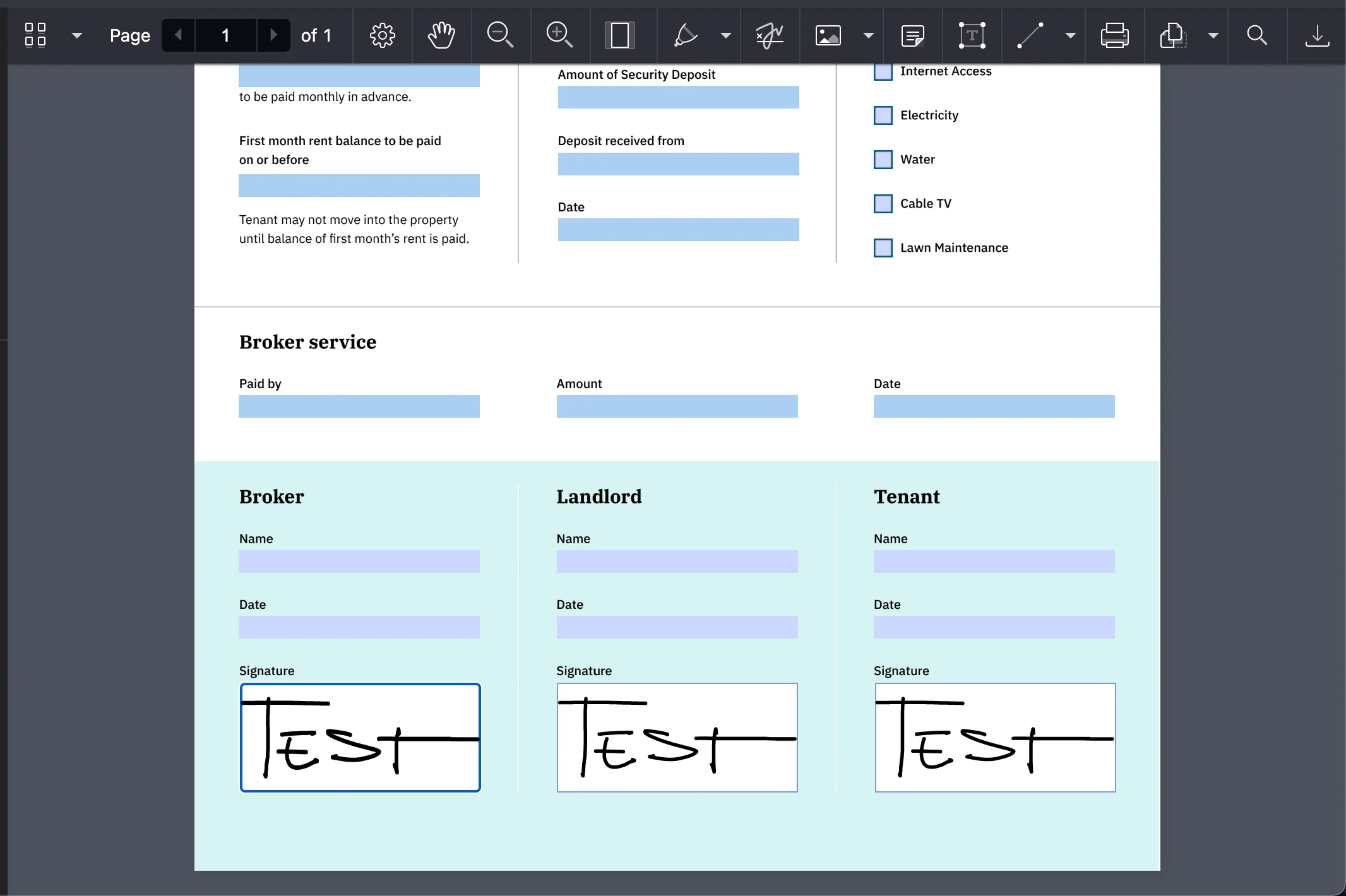
This tutorial shows how to use Nutrient APIs to populate all signature form fields in a document when a user creates a single signature — useful for contracts and forms requiring multiple signatures.
Overview
Here’s a quick overview of what you need to do to achieve this functionality:
- Obtain a
Listof the widget annotations associated with signature form fields in the document. This step is needed to know where on the document the duplicated signatures should be placed. - Duplicate the signatures logic.
If you want to go straight to the code, click here.
Obtaining the list
To obtain a List of the widget annotations associated with signature form fields in the document, you first need to get all the form fields using our getFormFields() API. Then, filter them by type:
const formFields = await instance.getFormFields();const signatureForms = formFields.filter( (formField) => formField instanceof NutrientViewer.FormFields.SignatureFormField,);Next, gather all the widget annotations associated with the form fields above. To do this, you need to iterate over all the document pages using the instance.totalPageCount member:
const widgetAnnotations = ( await Promise.all( Array.from({ length: instance.totalPageCount, }).map(async (_, pageIndex) => (await instance.getAnnotations(pageIndex)).filter( (it) => it instanceof NutrientViewer.Annotations.WidgetAnnotation, ), ), )).flatMap((pageAnnotations) => pageAnnotations.toArray());Now, filter the widget annotations above found on the page to get the widget annotations associated with the signature form fields:
const signatureFieldsName = signatureForms.map((field) => field.name).toArray();
const signatureWidgets = widgetAnnotations.filter((annotation) =>  signatureFieldsName.includes(annotation.formFieldName),);
Duplicating the logic
The next step is to add an event listener for the annotation.create event. This will let you know when a user creates a signature:
instance.addEventListener('annotations.create', (annotations) => { console.log(annotations);});Electronic Signatures creates signature annotations as instances of NutrientViewer.Annotations.InkAnnotation or NutrientViewer.Annotations.ImageAnnotation. In the event listener, check if the annotation the user is creating is a signature — whenever an annotation is a signature, its isSignature flag is set to true:
instance.addEventListener("annotations.create", (annotations) => { - console.log(annotations) + const signature = annotations.first() && annotations.first().isSignature; + console.log(signature);});Duplicating an image annotation is easier than duplicating an ink annotation, so start with that. Set the pageIndex to widget.pageIndex, and set the bounding boxes to widget.boundingBox. This will work as long as the widgets on the documents share the same aspect ratio; in other words, if the signature width and height are the same as the widget’s, it can use the same bounding box:
if (signature instanceof NutrientViewer.Annotations.ImageAnnotation) {  const duplicatedSignatures = signatureWidgets.map(widget => signature.set("id", null)    .set("pageIndex", widget.pageIndex)    .set('boundingBox', widget.boundingBox)
  instance.create(duplicatedSignatures);}
If, for example, the widget’s height is greater, the signature bounding box would be the following:
signature.set('boundingBox', widget.boundingBox.set('top', widget.boundingBox.top + (widget.boundingBox.height - signature.boundingBox.height) / 2));Now, look at duplicating an InkAnnotation. One thing to keep in mind is that you not only need to set the bounding box and the page index, but you also need to set the coordinates of the lines. Since an ink annotation could contain multiple segments, you need to change each segment. Read more about the structure of ink annotations.
For the lines, create an offsetTranslation function to “move” them to a different position on the document:
function offsetTranslation(widget, signature) { return new NutrientViewer.Geometry.Point({ x: widget.boundingBox.left - signature.boundingBox.left + (widget.boundingBox.width - signature.boundingBox.width) / 2, y: widget.boundingBox.top - signature.boundingBox.top + (widget.boundingBox.height - signature.boundingBox.height) / 2, });}So, duplicating the ink signatures looks like this:
if (signature instanceof NutrientViewer.Annotations.InkAnnotation) {  const duplicatedSignatures = signatureWidgets.map((widget) =>    signature      .set('id', null)      .set('pageIndex', widget.pageIndex)      .set('boundingBox', widget.boundingBox)      .set(        'lines',        signature.lines.map((line) => {          return line.map((point) =>            point.translate(offsetTranslation(widget, signature)),          );        }),      ),  );
  instance.create(duplicatedSignatures);}
The full code
const formFields = await instance.getFormFields()
// Filter form fields by type.const signatureForms = formFields.filter(formField => (  formField instanceof NutrientViewer.FormFields.SignatureFormField));
// Find all widget annotations on the document.const widgetAnnotations = (await Promise.all(  Array.from({ length: instance.totalPageCount }).map(async (_, pageIndex) =>    (await instance.getAnnotations(pageIndex)).filter(it => it instanceof NutrientViewer.Annotations.WidgetAnnotation)  ))).flatMap(pageAnnotations => pageAnnotations.toArray())
// Find the widget annotations associated with signature forms.const signatureFieldsName = signatureForms.map(field => field.name).toArray()const signatureWidgets = widgetAnnotations.filter(  (annotation) => signatureFieldsName.includes(annotation.formFieldName));
// Add the event listener.instance.addEventListener("annotations.create", (annotations) => {  // Check if the annotation is a signature.  const signature = annotations.first().isSignature && annotations.first();
  if (signature instanceof NutrientViewer.Annotations.InkAnnotation) {    const duplicatedSignatures = signatureWidgets.map(widget => signature.set("id", null)      .set("pageIndex", widget.pageIndex)      .set('boundingBox', widget.boundingBox)      .set("lines",signature .lines.map((line) => {        return line.map((point) => point.translate(offsetTranslation(widget, signature)));      }))    )
    instance.create(duplicatedSignatures);  }
  if (signature instanceof NutrientViewer.Annotations.ImageAnnotation) {    const duplicatedSignatures = signatureWidgets.map(widget => signature.set("id", null)      .set("pageIndex", widget.pageIndex)      .set('boundingBox', widget.boundingBox))
    instance.create(duplicatedSignatures);  }})
// "Move" `inkSignature.lines` to a different position on the document.function offsetTranslation(widget, signature){  return new NutrientViewer.Geometry.Point({  x:    widget.boundingBox.left -    signature.boundingBox.left +    (widget.boundingBox.width - signature.boundingBox.width) / 2,  y:    widget.boundingBox.top -    signature.boundingBox.top +    (widget.boundingBox.height - signature.boundingBox.height) / 2,})}
Conclusion
This tutorial demonstrated how to populate all signature form fields in a document when a user creates a single signature. The approach uses widget annotations to locate signature placement positions and handles both ink and image signature types.
For more examples, check out the web demo or explore the JavaScript PDF library.
FAQ
Use instance.getFormFields() to get all form fields. Then filter by type using instanceof NutrientViewer.FormFields.SignatureFormField. This returns only the signature form fields in your document.
Ink signatures are drawn by the user and stored as InkAnnotation objects with line coordinates. Image signatures are uploaded PNG or JPG files stored as ImageAnnotation objects. Both have the isSignature flag set to true.
Listen for the annotations.create event, check if the annotation’s isSignature flag is true, and create copies with updated pageIndex and boundingBox properties matching each target widget annotation.
Ink signatures contain line coordinate data that must be translated to the new position. Use the translate() method on each point to offset the lines relative to the target widget’s bounding box.
Yes. The code iterates through all pages using instance.totalPageCount to find widget annotations. Each duplicated signature is placed on the correct page using the widget’s pageIndex property.