What is document classification? From keyword rules to zero-shot models

Table of contents
Structured output with per-field confidence scores through the Nutrient Data Extraction API.
Anyone who has watched a shared accounts payable inbox has seen the problem. Invoices land next to purchase orders, receipts, remittance advice, a W-9, and a vendor’s holiday card. Before anyone can key in a total, someone has to work out what each file is.
That sorting step is document classification, which is the task of assigning a document — or a page of one — to a category such as invoice, contract, insurance claim, or correspondence. In an automated pipeline, it usually runs first, because the label decides which fields get extracted, which queue the file goes to, and whether a person needs to look at it.
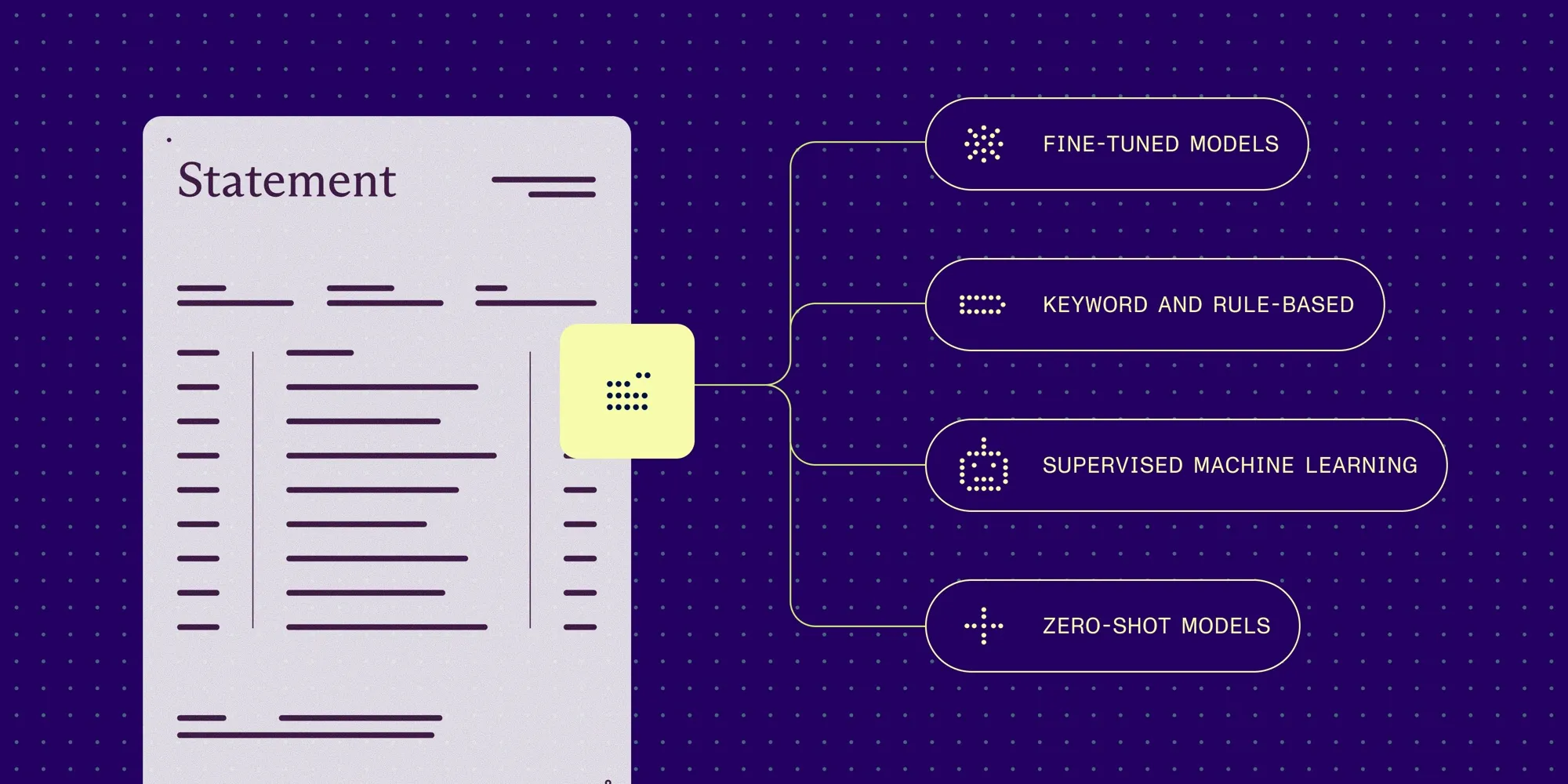
In short: Classification answers “What is this document?” There are four main ways to do it, each trading setup effort against flexibility: keyword rules, supervised machine learning, zero-shot models, and fine-tuned models. Whichever you pick, you want a confidence score per label, an “other” category, and a review path for borderline cases.
Taxonomies, text classification, and extraction
Every classifier works from a taxonomy, which is the list of categories the business defines. An accounts payable team might use “invoice,” “purchase order,” and “receipt,” while an insurer’s intake desk might use “claim form,” “police report,” and “repair estimate.”
The term gets used in two slightly different ways. In natural language processing, document classification(opens in a new tab) usually means text classification, where only the words matter. In document processing, the page itself matters too, including where the text sits, along with any logos, tables, or stamps. Two invoice templates can share almost every word and still look nothing alike, and a photo of a dented bumper has no words at all.
It also helps to keep classification and extraction apart. Classification tells you what a document is, while extraction pulls specific values out of it, like an invoice number or a due date. You almost always need the first answer before you can do the second.
Types of document classification
Classifiers differ along a few lines, and you should decide where your documents fall on each before you choose a technique:
- Text, visual, or multimodal. Does the classifier read the words, look at the page, or both? Scans and photos need the visual side.
- Single-label or multi-label. Does each document get one category, or can a paid invoice be both “invoice” and “receipt”?
- File, page, or segment. A 40-page scanned packet from a mailroom might hold six different documents, so labeling the whole file as one type would be wrong.
How document classification works
Most automated pipelines follow the same four steps:
- Intake. Files arrive from email, upload forms, scanners, or storage buckets.
- Text and layout. Optical character recognition (OCR) turns scans into text, and the page layout is captured alongside it.
- Classification. A classifier assigns a label, ideally with a confidence score.
- Routing. The label decides what happens next: an extraction schema, a team queue, a retention rule, or a person.
Document classification techniques
| Technique | How it works | Training data | Adding a category | Best fit |
|---|---|---|---|---|
| Keyword and rule-based | Keywords, regular expressions, barcodes, file names, fixed zones | None | Write a rule | Stable layouts with reliable markers |
| Supervised machine learning | Learns categories from labeled examples | Typically hundreds per class | Label data, retrain | High-volume, stable categories |
| Zero-shot models | Scores a document against label names and descriptions | None | Add a label | Changing taxonomies, rare document types |
| Fine-tuned models | A pretrained model trained further on your documents | A labeled set per class | Label data, retrain | Fixed taxonomies needing full model control |
Keyword and rule-based classification
This is the oldest approach, and it still works when layouts are stable. If a page says “INVOICE” at the top and has a line starting with “Total due,” it’s probably an invoice. A barcode on a cover sheet can name the document type outright, and so can a file name like 1003_application.pdf.
Rules are cheap, and you can always see why a document got its label. The trouble starts when a vendor redesigns its template or someone adds a new category. Rules also need text, so scans have to go through OCR first. Many teams keep a small set of high-precision rules as a first pass and send everything else to a model.
Machine learning for document classification
Supervised machine learning learns the categories from examples instead of rules. Classic models such as logistic regression or support vector machines train on word frequencies, while image models learn from what the page looks like, often on public datasets like RVL-CDIP(opens in a new tab). Layout-aware models combine text, position, and image.
These models cope with varied wording far better than rules do, but they need labeled data. Someone has to collect and tag examples for every class, and each new category means another round of labeling and retraining.
Zero-shot classification
A zero-shot classifier sorts documents into categories it never saw in training. You give it the label names, ideally with a short description of each, and it decides which one fits. To add a category, you add a label.
Zero-shot classifiers come in two forms. A generative large language model (LLM) reads the document and a prompt and writes back an answer. That’s flexible, but you end up maintaining the prompt, the model version, and the output parser. A scoring model instead returns a confidence score for each label rather than generated text. The Nutrient document decision model works this way, reading the page image and the text together.
Zero-shot classification is a good fit when your taxonomy keeps changing, when you have only a few examples, or when you need a working classifier this week. One tip is to spend time on the label descriptions. “A bill from a supplier requesting payment” separates invoices from receipts far better than the word “invoice” alone.
Fine-tuned models
Fine-tuning starts from a pretrained model — often a layout-aware one such as LayoutLM(opens in a new tab) — and keeps training it on your own labeled documents. On a fixed set of categories, accuracy can be high, and you control the model version and where it runs. You also own everything around it: the labeled data, OCR, the inference servers, and a retraining cycle every time the taxonomy changes.
Classify a document with an API
Here’s what zero-shot classification looks like in practice, using the classify endpoint of the Nutrient document classification API. You send labels and get a ranked list back, with no training step, because the labels and their descriptions travel with the request.
import jsonimport os
import requests
API_KEY = os.environ["NUTRIENT_API_KEY"]
labels = [    {"label": "invoice", "description": "A bill from a supplier requesting payment."},    {"label": "purchase order", "description": "An order a buyer sends to a supplier."},    {"label": "receipt", "description": "Proof that a payment was made."},    {"label": "other", "description": "Anything that isn't an invoice, purchase order, or receipt."},]
with open("document.pdf", "rb") as file:    response = requests.post(        "https://api.nutrient.io/extraction/classify",        headers={"Authorization": f"Bearer {API_KEY}"},        files={"file": file},        data={"instructions": json.dumps({"labels": labels})},    )
result = response.json()if result["status"] != 200:    raise RuntimeError(result["errorMessage"])
print(json.dumps(result["output"]["classification"], indent=2))
The response includes the top label and its score, plus every label ranked from highest to lowest. You can use topK to cap the list.
{ "label": "invoice", "score": 0.92, "predictions": [ { "label": "invoice", "score": 0.92 }, { "label": "receipt", "score": 0.31 }, { "label": "purchase order", "score": 0.12 }, { "label": "other", "score": 0.04 } ]}Each score is a separate confidence between 0 and 1, so the scores don’t add up to 1. That helps when an invoice stamped “PAID” scores high on both invoice and receipt, because you see both instead of the classifier quietly picking one.
A basic router needs two checks. A minimum score catches documents that match nothing, and a minimum gap between the top two labels sends borderline cases to a person:
def route(classification, routes, min_score=0.5, min_gap=0.15):    predictions = classification["predictions"]    top = predictions[0]    runner_up = predictions[1]["score"] if len(predictions) > 1 else 0.0
    if top["score"] < min_score or top["score"] - runner_up < min_gap:        return "queue:manual-review"
    return routes.get(top["label"], "queue:manual-review")
Treat those thresholds as starting points, and tune them on a sample of your own documents.
Classify accepts PDF, PNG, JPEG, and TIFF files and reads both the text and the page image, so scans and phone photos work too. It costs a flat $0.001 per page.
On the public document classification leaderboard, the model scores 0.950 F1 with labels supplied at run time, where OpenAI’s Decision API scores 0.896. If you’d rather try labels before writing code, you can test them in Studio(opens in a new tab) and call them by reference later. New accounts get $5 of free usage a month without a credit card.
For a complete router with insurance, legal intake, and HR onboarding examples, see how to route documents automatically with the classify API. If your scans arrive as one PDF holding several documents, split the file first. The mailroom automation post shows split and classify working together.
How to evaluate a document classifier
Many classifiers perform well in a demo, but the real test is a few hundred documents your team has already sorted by hand. Run a classifier on them, and three things decide whether it’s ready: accuracy per category, an “other” label, and a review policy.
Start with accuracy per category, not just overall. A classifier can hit 95 percent and still miss most of a rare category that matters to the business. Precision and recall per class will show it. Then look at a confusion matrix, because most errors happen between near neighbors, like invoices and receipts or a claim form and its continuation page.
Next, make sure there’s an “other” label. Real inboxes are full of documents that fit no category, and without somewhere to put them, the classifier will force them into the wrong one.
Finally, decide your review policy up front by choosing which scores go straight through and which go to a person. Then measure how many documents go to review, since that number decides whether the project actually saves anyone time.
If you’re comparing vendors, our roundup of document classification software covers the main options.
FAQ
Document classification is the task of assigning a document, or a page of one, to a category such as invoice, contract, or insurance claim. The label usually decides what happens next: which fields to extract, which system receives the file, and whether a person reviews it.
Text classification uses only the words. Document classification in a processing pipeline can also use layout and appearance, such as logos, tables, stamps, and photos. That matters for scans and for documents with similar wording but different layouts.
The four main techniques are keyword and rule-based classification, supervised machine learning, zero-shot classification, and fine-tuned models. Rules need no training data but break when layouts change. Machine learning and fine-tuned models need labeled examples for every category. Zero-shot models classify against label names and descriptions supplied at run time.
Use a zero-shot classifier. Because it compares each document with label names and descriptions supplied at run time, adding a document type means adding a label to the request. Nutrient’s classify endpoint works this way.
Classification decides what a document is. Extraction pulls specific values out of it, such as an invoice number or a total. Most pipelines classify first, because the document type decides which fields to extract.