How to build a real-time collaborative React PDF editor

Table of contents
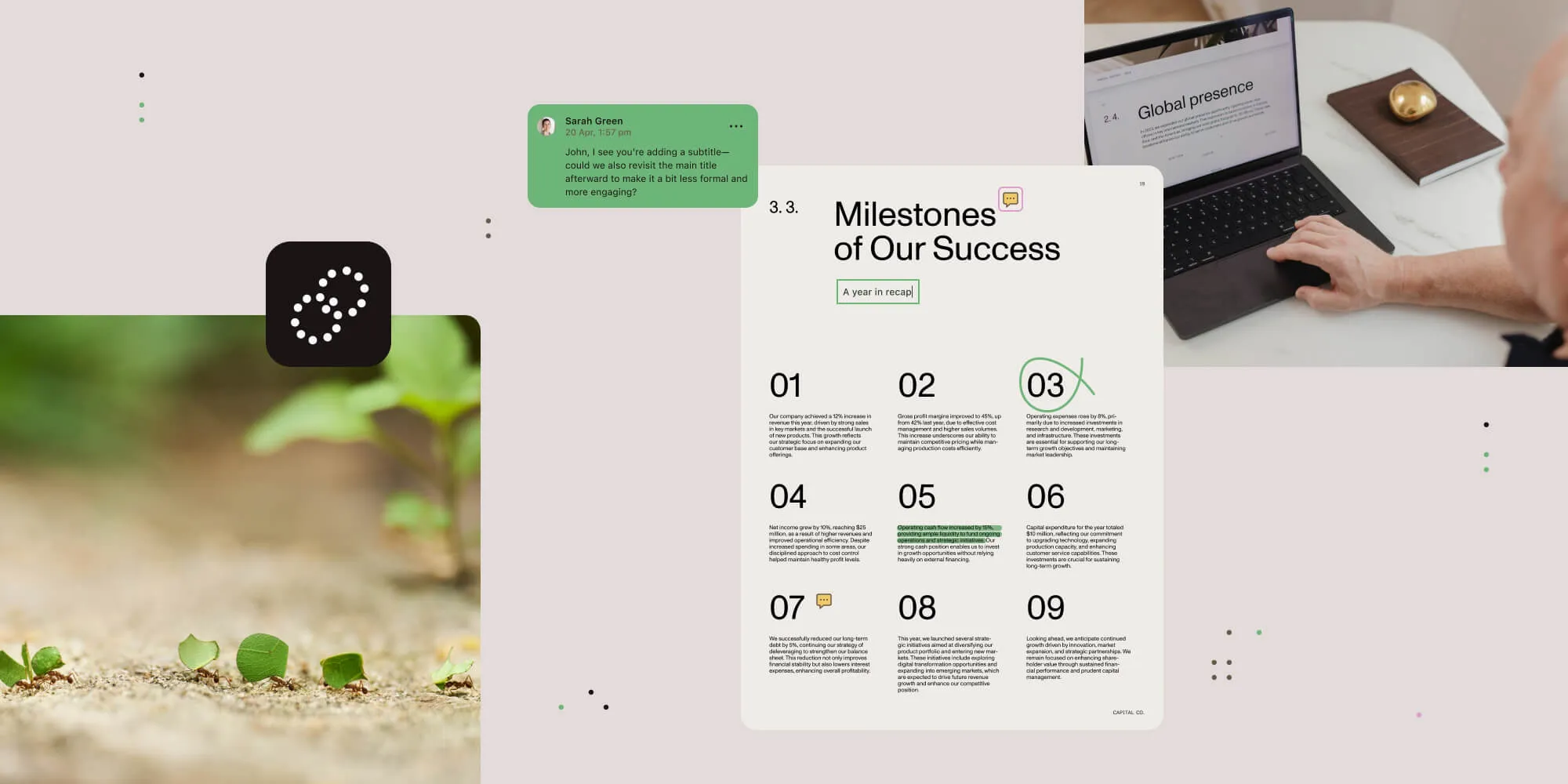
To build a real-time collaborative PDF editor in React, use Nutrient Web SDK for the in-browser editing interface and Document Engine as the server-backed document store. Enable Instant synchronization when loading the document, and issue a short-lived JSON Web Token (JWT) from your own authenticated backend. The token identifies the document and user, grants base document access, and can restrict who may view, edit, delete, fill, or reply to collaborative content.
This guide focuses on the implementation path developers usually need when building document review, contract markup, case management, or approval software: Multiple authenticated users open the same PDF in a React application, add annotations or comments, fill forms, and see shared changes without downloading and reuploading files.
Nutrient calls this capability Instant synchronization. It’s available when Nutrient Web SDK runs with Document Engine. Standalone browser mode is useful for local viewing and editing, but it doesn’t provide the central server required for live multiuser synchronization.
What you’ll build
The finished React integration has four parts:
- React application — Mounts the document editor and manages the viewer lifecycle.
- Nutrient Web SDK — Renders the PDF and provides annotations, comments, forms, signatures, and other licensed editing tools.
- Document Engine — Stores the document and shared state, and synchronizes changes between connected clients.
- Your application backend — Authenticates each user, authorizes access to the requested document, and signs a short-lived client JWT.
The browser should never hold your Document Engine API token or JWT private key. It receives only a scoped client token after your backend has confirmed that the signed-in user may access the document.
How real-time PDF collaboration works
When two users load the same Document Engine document ID with Instant enabled, the SDK maintains a connection to Document Engine. Changes are persisted centrally and delivered to other connected clients. Nutrient handles synchronization, version tracking, diffing, merging, and conflict resolution for the collaborative document state.
Instant is designed for shared PDF review content such as annotations, comments, and form values. Nutrient Web SDK also offers licensed PDF content and page editing features, but you should evaluate which operations belong in your concurrent workflow and define product-level rules for potentially disruptive actions such as deleting pages.
For separate reviewer workspaces, use Instant layers. For multiple users working in the same layer with different rights, use Collaboration Permissions.
Prerequisites
Before starting, you’ll need:
- A React application. This tutorial uses a Vite-based project.
- A running Document Engine instance with a PDF uploaded and a known document ID.
- Instant enabled in your Nutrient license. Trial licenses include the features needed to evaluate the workflow.
- Document Engine configured with a public key for verifying JWTs.
- A backend that can authenticate users and sign JWTs with the corresponding private key.
If you’re starting from an empty project, create the React application and install the current Web SDK package:
npm create vite@latest collaborative-pdf-editor -- --template react-tscd collaborative-pdf-editornpm installnpm install @nutrient-sdk/viewerThe legacy pspdfkit npm package is deprecated. New integrations should use @nutrient-sdk/viewer and the NutrientViewer API name.
Step 1: Create a secure document-session endpoint
Your React application needs a JWT to connect to a specific document. Generate that token on your backend — never in React — after checking both the user’s identity and their access to the requested document.
The example below uses Node.js and jsonwebtoken. Adapt the request and response objects to your server framework.
import fs from "node:fs";import jwt from "jsonwebtoken";
const privateKey = fs.readFileSync("./jwtRS256.key");
function getDocumentEnginePublicUrl() {  const value = process.env.DOCUMENT_ENGINE_PUBLIC_URL;
  if (!value) {    throw new Error("DOCUMENT_ENGINE_PUBLIC_URL isn't configured");  }
  const url = new URL(value);
  if (!["http:", "https:"].includes(url.protocol) || url.search || url.hash) {    throw new Error("DOCUMENT_ENGINE_PUBLIC_URL must be an HTTP(S) base URL");  }
  if (!url.pathname.endsWith("/")) {    url.pathname += "/";  }
  return url.toString();}
const serverUrl = getDocumentEnginePublicUrl();
export async function createDocumentSession(request, response) {  const user = request.user;  const documentId = request.query.documentId;
  if (!user) {    return response.status(403).json({ error: "Forbidden" });  }
  const access = await getDocumentAccess(user.id, documentId);
  if (!access) {    return response.status(403).json({ error: "Forbidden" });  }
  const permissions = ["read-document"];
  if (access.canWrite) permissions.push("write");  if (access.canDownload) permissions.push("download");
  const token = jwt.sign(    {      document_id: documentId,      permissions,      user_id: String(user.id),      collaboration_permissions: access.collaborationPermissions,    },    {      key: privateKey,      passphrase: process.env.DOCUMENT_ENGINE_JWT_PASSPHRASE,    },    {      algorithm: "RS256",      expiresIn: "15m",    },  );
  return response.json({    jwt: token,    serverUrl,  });}
In this example, getDocumentAccess is your application’s authorization layer. It returns null for denied requests. For authorized requests, it returns role-derived canWrite, canDownload, and collaborationPermissions values.
The important claims are:
document_id— The Document Engine document the user may open.permissions— Base capabilities.read-documentis required to load the PDF.writeenables server-backed writes and can expose licensed document and content editing actions, not only annotation changes. Add it only after authorizing that breadth. Adddownloadonly when the user should be able to download or print.user_id— Attributes created content to the authenticated user and enables permissions with theselfscope.collaboration_permissions— Fine-grained rules for annotations, comments, and form fields.
The fine-grained actions that Collaboration Permissions govern are deny-by-default. An empty collaboration_permissions array denies those view, edit, delete, comment, and form field actions. It doesn’t prevent creating annotations when the token still includes the base write permission. Omit write when the role must be fully read-only. If your license doesn’t include Comments and Replies, omit comment-specific permissions and the UI from your implementation.
For production, keep tokens short-lived, validate documentId rather than trusting arbitrary client input, and rotate signing keys using your organization’s secret-management process. See the full JWT generation guide and client authentication guide for key and renewal requirements.
Step 2: Load the collaborative PDF editor in React
Create src/CollaborativePdfEditor.tsx. The component fetches a scoped session from your backend, loads the server-backed document with instant: true, and unloads the viewer when React removes the component.
import NutrientViewer from "@nutrient-sdk/viewer";import { useEffect, useRef } from "react";
type CollaborativePdfEditorProps = {  documentId: string;};
type DocumentSession = {  jwt: string;  serverUrl: string;};
async function requestDocumentSession(  documentId: string,): Promise<DocumentSession> {  const response = await fetch(    `/api/document-session?documentId=${encodeURIComponent(documentId)}`,    { credentials: "include" },  );
  if (!response.ok) {    throw new Error("Unable to create a document session");  }
  return (await response.json()) as DocumentSession;}
export function CollaborativePdfEditor({  documentId,}: CollaborativePdfEditorProps) {  const containerRef = useRef<HTMLDivElement>(null);
  useEffect(() => {    const container = containerRef.current;    let cancelled = false;    let instance: Awaited<ReturnType<typeof NutrientViewer.load>> | undefined;
    if (!container) return;
    async function loadEditor(editorContainer: HTMLDivElement) {      const { jwt, serverUrl } = await requestDocumentSession(documentId);
      if (cancelled) return;
      NutrientViewer.unload(editorContainer);
      instance = await NutrientViewer.load({        container: editorContainer,        serverUrl,        documentId,        authPayload: { jwt },        instant: true,        useCDN: true,        onAuthFailed: async () => {          const { jwt: refreshedJwt } =            await requestDocumentSession(documentId);
          if (cancelled) return;          if (!instance) throw new Error("The viewer instance isn't available");
          instance.setSession(refreshedJwt);        },      });    }
    loadEditor(container).catch((error) => {      if (!cancelled) {        console.error("Failed to load the collaborative PDF editor", error);      }    });
    return () => {      cancelled = true;      NutrientViewer.unload(container);    };  }, [documentId]);
  return <div ref={containerRef} style={{ height: "100vh" }} />;}
Then render the component with a document ID your application has already authorized:
import { CollaborativePdfEditor } from "./CollaborativePdfEditor";
export default function App() {  return <CollaborativePdfEditor documentId="contract-2026-1042" />;}
In this configuration:
serverUrlpoints to your Document Engine deployment.documentIdselects the shared server-backed document.authPayload.jwtauthenticates and authorizes the current client.instant: trueenables real-time synchronization.useCDN: trueloads the Web SDK runtime assets from Nutrient’s content delivery network (CDN). To self-host them, replace this option withbaseUrlpointing to the copied SDK asset directory.
Open the same document as two different authenticated users to test the collaboration path. Add a highlight, note, or comment in one browser and confirm that the second client receives the change.
Step 3: Design permissions around roles
Avoid giving every collaborator unrestricted access. Translate your application roles into token claims on the backend.
For example:
- Reviewer — View all annotations, create new annotations through the base
writepermission, and edit or delete only their own. - Approver — View all content, reply to comment threads, and fill approved form fields.
- Document owner — Edit or delete all annotations and manage document-level actions.
- External participant — View only content assigned to a specific group.
Permission strings use the <content-type>:<action>:<scope> format. Supported content types include annotations, comments, and form fields. Scopes can target all content, the current user’s content, a specific creator, or a group.
Use default_group in the JWT when new collaborative content should automatically belong to a team, department, or review stage. The Collaboration Permissions guide contains the complete action and scope matrix.
Step 4: Handle long-running sessions
A collaborative editor may stay open longer than the JWT lifetime. Don’t solve this by issuing day-long browser tokens. Instead, refresh the session from your backend and replace it at runtime.
The component above handles an authentication failure by requesting a new 15-minute session from the backend and passing its JWT to instance.setSession(newJwt). The session endpoint repeats the document and role authorization check before signing each replacement token.
Also define what the UI should do when connectivity changes. Instant persists shared state through Document Engine, but your product should still communicate connection failures, prevent users from assuming an unsaved action succeeded, and test reconnect behavior under realistic network conditions.
Step 5: Add a collaboration-aware product UI
The SDK exposes the currently connected Instant clients through instance.connectedClients, and it emits instant.connectedClients.change when clients connect or disconnect. You can use this to show an active-user count or presence indicator without building a separate presence channel.
You can also subscribe to SDK events such as annotation changes to update surrounding React UI, audit panels, or workflow status. Keep Document Engine as the source of truth for document state instead of maintaining a second, competing annotation model in React state.
Production checklist
Before releasing your collaborative React PDF editor, verify the following:
- Authorization — Every token request checks the authenticated user against the requested document.
- Least privilege — JWT claims match the user’s role, and download access isn’t granted by default.
- Token lifecycle — Tokens expire quickly and can be renewed without reloading the editor.
- Deployment — Document Engine is reachable from the browser over HTTPS and configured with the correct JWT public key.
- Document boundaries — Users can’t substitute another document ID to gain access.
- Collaboration behavior — Multiple browsers, reconnects, simultaneous edits, and permission failures are tested.
- Destructive operations — Page deletion, redaction, signatures, and content editing follow explicit workflow rules.
- Observability — Authentication failures and Document Engine errors are logged without exposing JWTs or document data.
When to use standalone mode instead
Use standalone Web SDK when one user edits a local or app-provided document and you plan to persist changes yourself. It can import and export annotation state using Instant JSON, but Instant JSON isn’t a substitute for the server-backed coordination required by concurrent multiuser editing.
Choose Web SDK with Document Engine and Instant when users need a shared, durable document state across browsers, devices, sessions, or native applications.
Conclusion
A production-ready collaborative PDF editor is an authorization and state-management problem as much as it is a viewer integration. React owns the application shell, Nutrient Web SDK provides the document UI, Document Engine stores and synchronizes shared changes, and your backend decides who may do what.
Start with the Instant synchronization guide, test the PDF collaboration sample, and review the React Web SDK setup. When you’re ready to evaluate the complete server-backed workflow, start a free trial or contact Sales to discuss collaboration, deployment, and licensing requirements.
Start building with Nutrient