How to duplicate a PDF page using Java

Table of contents
Duplicate PDF pages using our duplicate PDF page Java API. Create a free account, get API credentials, and implement page duplication using OkHttp and JSON libraries. Combine with 30+ other API tools for watermarking, merging, and flattening.
Duplicate specific PDF pages using our duplicate PDF page Java API. Start with 50 free credits — no payment required. Different operations consume different credit amounts, so the number of PDF documents you can generate will vary. Create a free account(opens in a new tab) to get your API key.
Why duplicate PDF pages?
Duplicating PDF pages serves document workflows that need to process the same content differently. Common use cases include:
- Multi-recipient workflows — Apply different watermarks or annotations to the same page for different recipients, e.g. watermarked versions for clients and clean versions for internal use.
- Backup and versioning — Create page-level backups before performing destructive operations like flattening or redaction, preserving the original state.
- Template-based generation — Build complex documents by duplicating template pages and customizing each copy with recipient-specific data.
- Testing and validation — Duplicate pages to test different processing operations (compression, OCR, conversion) while keeping the original intact.
- Workflow automation — Process batches of pages programmatically as part of your backend infrastructure, duplicating pages at specific positions for assembly workflows.
The duplicate PDF page API automates this process in your workflow.
Nutrient DWS Processor API
Duplicating a PDF page is just one of our 30+ PDF API tools. You can combine our duplication tool with other tools to create complex document processing workflows, such as:
- Converting MS Office files and images into PDFs and then duplicating specific pages
- Merging several PDFs into one and then duplicating a specific page
- Watermarking, splitting, or flattening PDFs and duplicating pages before or after
Once you create your account, you can access all our PDF API tools.
Step 1 — Creating a free account on Nutrient
Go to our website(opens in a new tab) to create your free account.
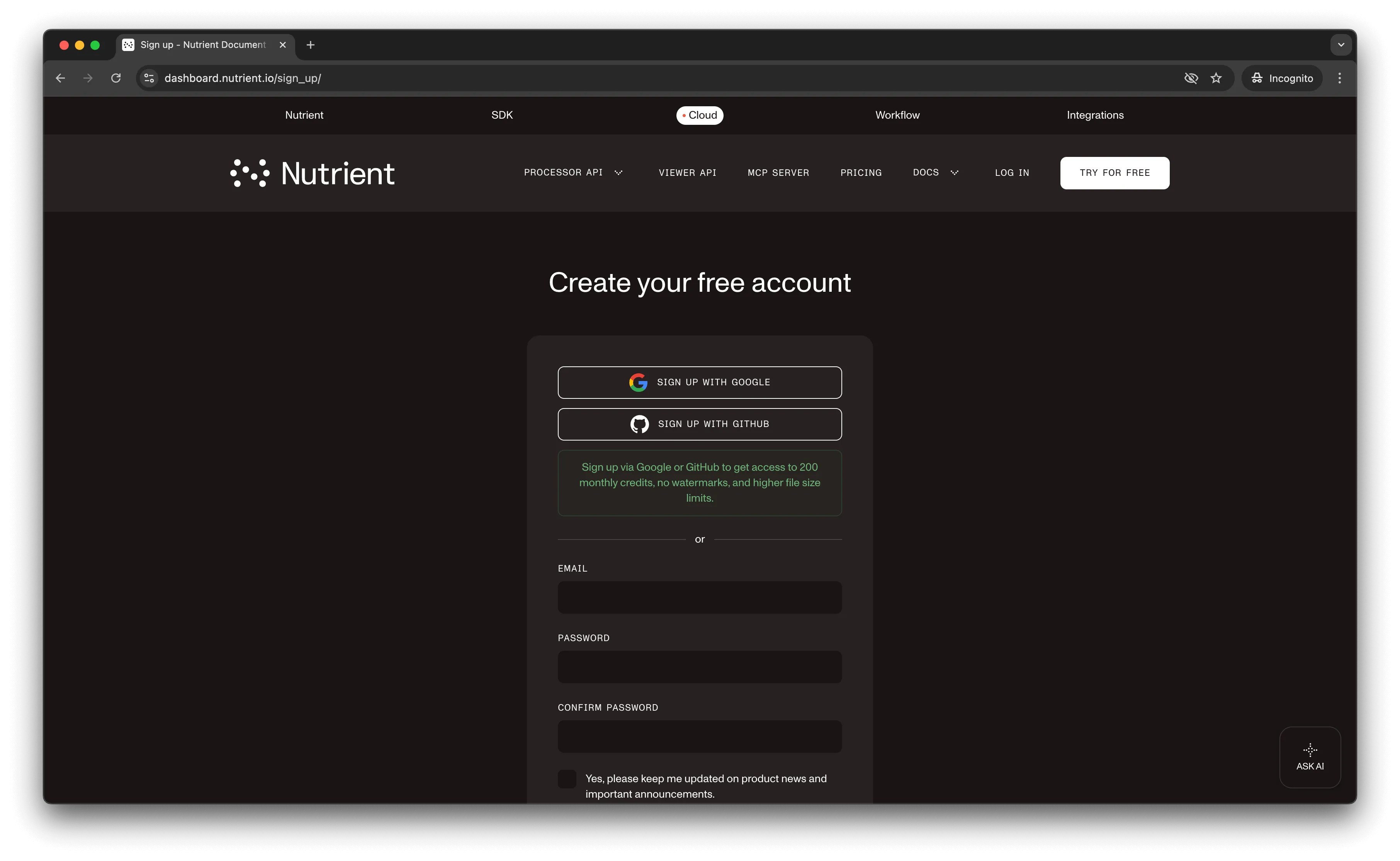
After creating your account, you’ll see your plan overview.
You start with 50 credits and can access all PDF API tools.
Step 2 — Obtaining the API key
After verifying your email, get your API key from the dashboard. Click API keys in the left menu to see your keys.
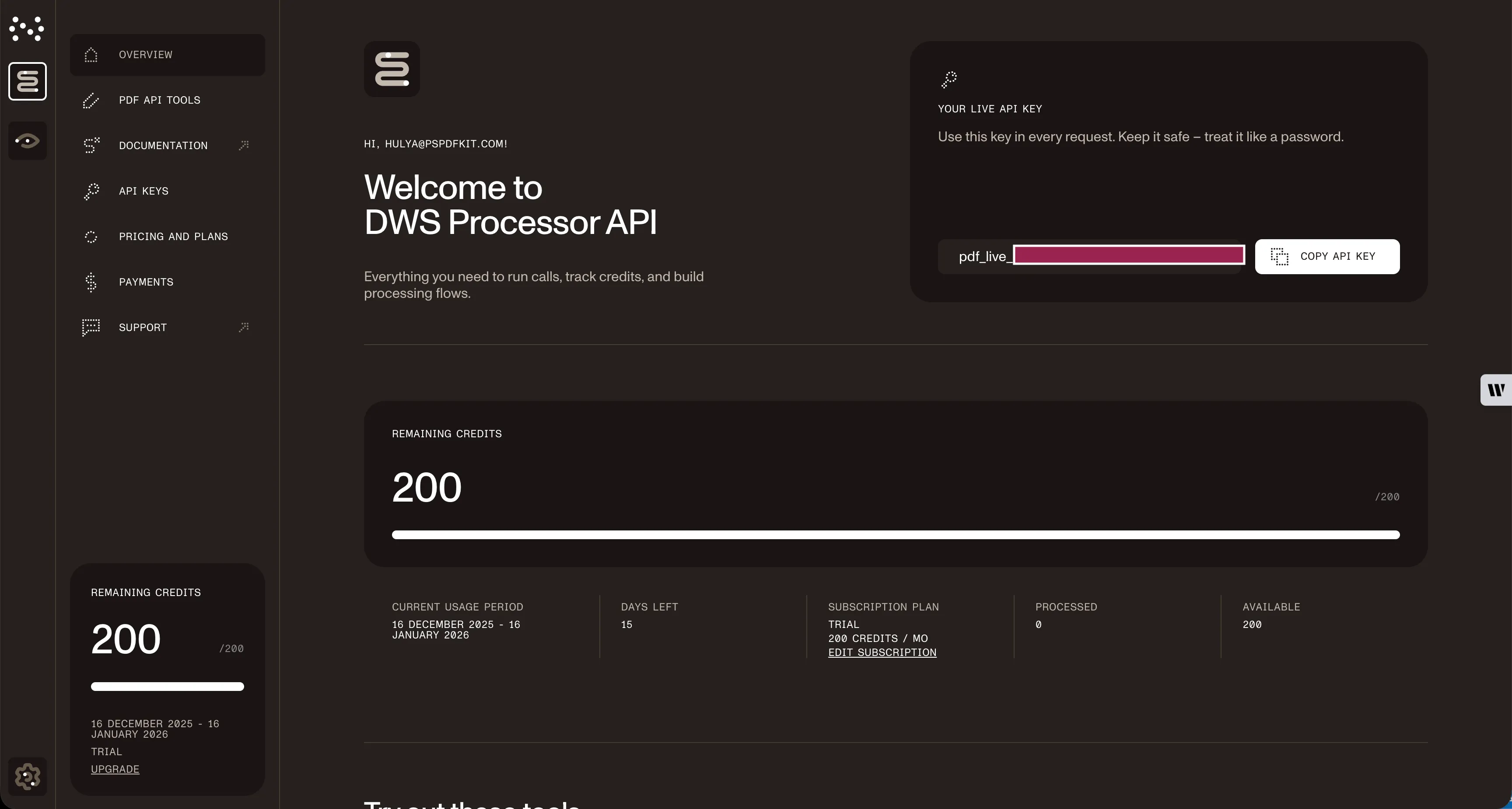
Copy the Live API key — you’ll need it for the duplicate PDF page Java API.
Step 3 — Setting up folders and files
This tutorial uses IntelliJ IDEA. Create a new project called duplicate_pdf. Select Java as the language, Gradle as the build system, and Groovy as the Gradle DSL.
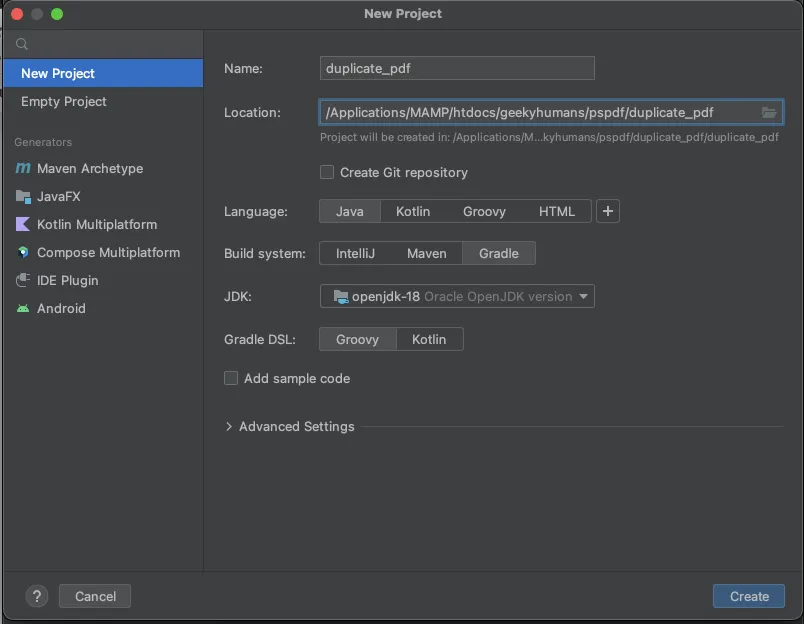
Create the following directory structure in your project. Right-click your project’s name and select New > Directory. Create the full package path src/main/java/com/example/pspdfkit to match the package declaration in the Java code.
Create a class file called Processor.java inside the src/main/java/com/example/pspdfkit folder. Also create two folders called input_documents and processed_documents in the root folder.
Put your PDF file in the input_documents folder.
Your folder structure:
duplicate_pdf├── build.gradle├── settings.gradle├── input_documents| └── document.pdf├── processed_documents├── src| └── main| └── java| └── com| └── example| └── pspdfkit| └── Processor.javaThe file path must match the package com.example.pspdfkit; declaration in the Java code. If you place Processor.java directly in src/main/java/, you’ll get a compilation error.
Step 4 — Configuring Gradle
First, create a settings.gradle file in your project root with the project name:
rootProject.name = 'duplicate_pdf'Next, open the build.gradle file and replace its contents with the following complete configuration:
plugins {    id 'java'    id 'application'}
group = 'com.example'version = '1.0-SNAPSHOT'
repositories {    mavenCentral()}
dependencies {    implementation 'com.squareup.okhttp3:okhttp:4.12.0'    implementation 'org.json:json:20231013'}
application {    mainClass = 'com.example.pspdfkit.Processor'}
java {    sourceCompatibility = JavaVersion.VERSION_11    targetCompatibility = JavaVersion.VERSION_11}
This configuration:
- Applies the
javaandapplicationplugins - Sets the main class to match our package structure
- Adds OkHttp for API requests and JSON for parsing payloads
- Configures Java 11 compatibility (works with Java 11+)
After adding the build.gradle file, click the Reload Gradle Project button (elephant icon) in IntelliJ IDEA to sync dependencies.
Step 5 — Writing the code
Open Processor.java (in src/main/java/com/example/pspdfkit/) and paste this code:
package com.example.pspdfkit;
import java.io.File;import java.io.IOException;import java.nio.file.FileSystems;import java.nio.file.Files;import java.nio.file.StandardCopyOption;
import org.json.JSONArray;import org.json.JSONObject;
import okhttp3.MediaType;import okhttp3.MultipartBody;import okhttp3.OkHttpClient;import okhttp3.Request;import okhttp3.RequestBody;import okhttp3.Response;
public final class Processor {  public static void main(final String[] args) throws IOException {    final RequestBody body = new MultipartBody.Builder()      .setType(MultipartBody.FORM)      .addFormDataPart(        "document",        "document.pdf",        RequestBody.create(          MediaType.parse("application/pdf"),          new File("input_documents/document.pdf")        )      )      .addFormDataPart(        "instructions",        new JSONObject()          .put("parts", new JSONArray()            .put(new JSONObject()              .put("file", "document")              .put("pages", new JSONObject()                .put("start", 0)                .put("end", 0)              )            )            .put(new JSONObject()              .put("file", "document")            )            .put(new JSONObject()              .put("file", "document")              .put("pages", new JSONObject()                .put("start", -1)                .put("end", -1)              )            )          ).toString()      )      .build();
    final Request request = new Request.Builder()      .url("https://api.nutrient.io/build")      .method("POST", body)      .addHeader("Authorization", "Bearer YOUR API KEY HERE")      .build();
    final OkHttpClient client = new OkHttpClient()      .newBuilder()      .build();
    final Response response = client.newCall(request).execute();
    if (response.isSuccessful()) {      Files.copy(        response.body().byteStream(),        FileSystems.getDefault().getPath("processed_documents/result.pdf"),        StandardCopyOption.REPLACE_EXISTING      );    } else {      // Handle the error.      throw new IOException(response.body().string());    }  }}
Make sure to replace YOUR API KEY HERE with your API key.
Code explanation
The code imports required packages and creates a processor class. The main function creates a request body containing instructions to duplicate the first and last PDF pages.
The code calls the API using OkHttpClient and checks the response status. If successful, it saves result.pdf to the processed_documents folder.
Output
Run the application using Gradle from the terminal:
./gradlew runOr in IntelliJ IDEA, open the Gradle panel on the right, expand Tasks > application, and double-click run.
After execution, the new PDF with duplicated pages appears in the processed_documents folder.
Additional resources
Explore more ways to work with Nutrient API:
- Postman collection — Test API endpoints directly in Postman
- Zapier integration — Automate document workflows without code
- MCP Server — PDF automation for LLM applications
- JavaScript client — Official JavaScript/TypeScript library
Conclusion
You can now duplicate PDF pages in Java using our duplicate PDF page API.
Integrate these functions into your existing applications. The same API token works for other operations like merging documents, adding watermarks, and more. Sign up(opens in a new tab) for a free trial.
FAQ
The API uses zero-based indexing, where page 0 is the first page. You can use negative indexing: -1 refers to the last page, -2 to the second-to-last page. The code example duplicates the first page (index 0) and last page (index -1).
Yes. Upload multiple files with different names (like ‘document1’, ‘document2’) and reference them in the parts array. Each part can specify which source document and which pages to include, allowing complex multidocument assembly workflows.
Each duplication operation consumes 1 credit, regardless of the number of pages duplicated or file size. The free account includes 50 credits, enabling you to process up to 50 PDF duplication requests.
Yes. Nutrient DWS Processor API supports chaining multiple operations in a single request. Use the actions array to duplicate pages, and then apply operations like watermarking, flattening, or OCR to the resulting document.
Use the pages object with start and end properties in the JSONObject. For example, .put("start", 0).put("end", 2) duplicates pages 0, 1, and 2. Omit the pages object to include all pages from the source document.
This code works with Java 11 and higher. It requires the OkHttp and JSON libraries, which are added as Gradle dependencies. The tutorial uses Java 18, but any version from Java 11 onward will work.
Yes, you can use Maven instead of Gradle. Add the OkHttp and JSON dependencies to your pom.xml file with the appropriate Maven dependency syntax. The rest of the code remains the same.