How to programmatically create and fill PDF forms in Angular

Table of contents
- Use the pdf-lib library for programmatic PDF form work in Angular — both creating new forms and filling existing ones
- Create text fields with
createTextField()and fill them withsetText() - Fill an existing PDF form by loading it with
PDFDocument.load()and then setting text fields, checkboxes, dropdowns, and radio groups by field name - Remove interactive form fields with
form.flatten() - Save and download PDFs using Blob and
URL.createObjectURL() - Consider Nutrient Web SDK for advanced features like UI form filling and real-time updates
Angular applications can create and fill PDF forms programmatically using libraries like pdf-lib(opens in a new tab). This tutorial covers both directions: building a new PDF form from scratch and filling it, and filling an existing PDF form — text fields, checkboxes, dropdowns, and radio groups — and flattening the result so values can no longer be changed through the original form fields. (For generating non-form PDFs such as reports or invoices in Angular, the generating PDFs in Angular tutorial is the dedicated guide.)
Prerequisites
- Angular installed on the development environment — the steps work on Angular 16 and later, including the current Angular 22
- Basic understanding of Angular concepts
Step 1 — Setting up the Angular project
- To begin, you need to set up an Angular project. If you haven’t installed the Angular CLI, you can do so by running the following command:
npm install -g @angular/cliBefore running the command, ensure you have Node.js and Node Package Manager (npm) installed on your machine. You can download and install them from the official Node.js(opens in a new tab) website.
- Once the Angular CLI is installed, create a new Angular project using the following command:
ng new pdf-forms-angular --file-name-style-guide=2016The project command uses the 2016 file name style so the generated root files match app.component.ts and app.component.html in this tutorial. Choose client-side rendering for this browser example.
This will create a new directory named pdf-forms-angular with the basic structure and files for an Angular application.
- Navigate to the project directory:
cd pdf-forms-angularStep 2 — Setting up the Angular component
- To get started, install pdf-lib by running the following command in your Angular project directory:
npm install pdf-lib- Then, create an Angular component to handle the form. For example, create a component called
FillFormComponent:
ng generate component fill-form --type=componentThe component command uses the component type suffix so the files are named fill-form.component.ts and fill-form.component.html in the fill-form directory.
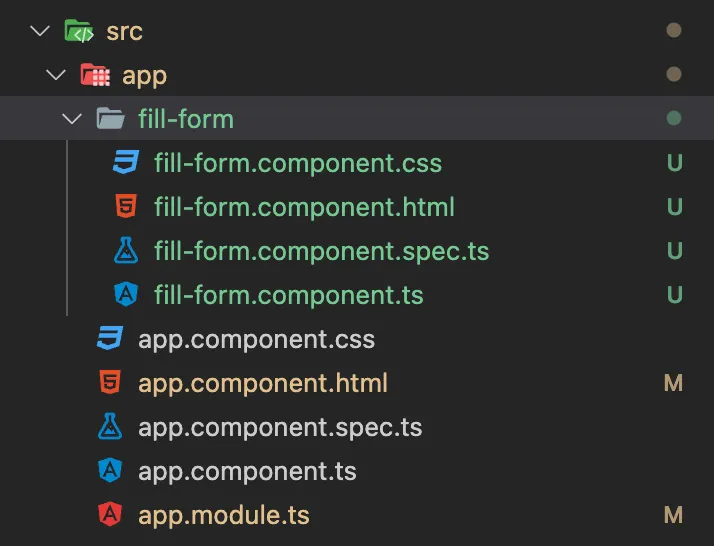
- Next, open the
fill-form.component.tsfile and import the required modules, including thePDFDocumentclass from the pdf-lib library:
import { Component, OnInit } from '@angular/core';import { PDFDocument } from 'pdf-lib';
@Component({  selector: 'app-fill-form',  templateUrl: './fill-form.component.html',  styleUrls: ['./fill-form.component.css'],})export class FillFormComponent implements OnInit {  constructor() {}
  ngOnInit(): void {    this.generateAndFillPDF();  }
  async generateAndFillPDF(): Promise<void> {    // Implementation goes here.  }}
Step 3 — Generating the PDF form
Inside the generateAndFillPDF() method, start by creating a new PDF document using pdf-lib’s PDFDocument.create(). Add a page to the document and retrieve the form object using pdfDoc.getForm().
Now, you can create a new PDF document and add form elements to it. For example, to add a text field, you can use the createTextField() method:
async generateAndFillPDF(): Promise<void> {  const pdfDoc = await PDFDocument.create();  const page = pdfDoc.addPage();  const form = pdfDoc.getForm();
  // Implementation continues...}
Step 4 — Creating and filling form fields
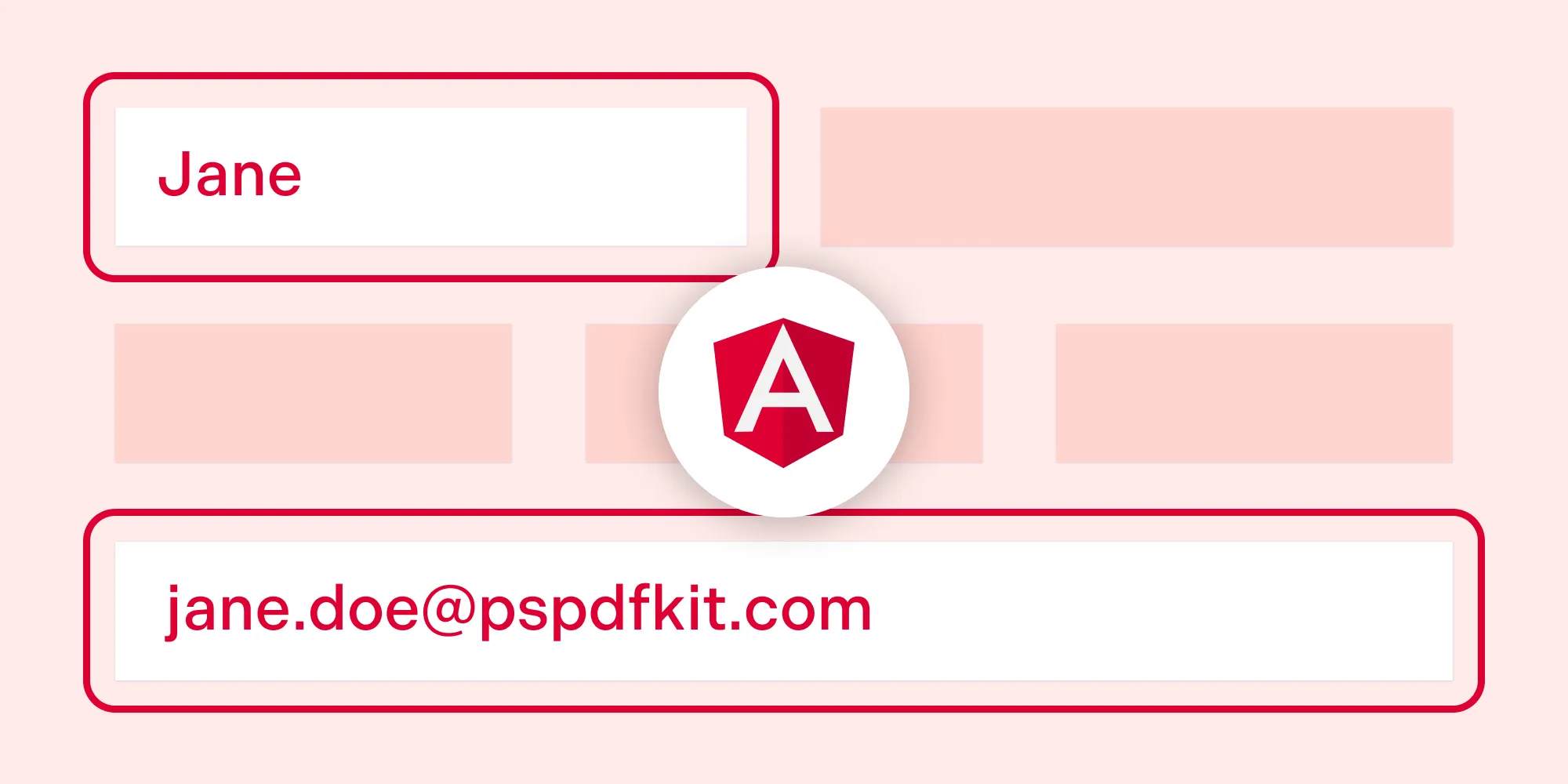
Next, create the form fields you want to include in the PDF form. In this example, you’ll create two text fields: one for the name, and one for the email address.
Use the createTextField() method on the form object to create each field and provide a unique name for identification. To fill the form programmatically, you can use the same setText() method to set values for the form fields:
async generateAndFillPDF(): Promise<void> {  // ...
  const nameField = form.createTextField('name');  nameField.setText('John Doe');  nameField.addToPage(page, { x: 50, y: 100, width: 200, height: 20 });
  const emailField = form.createTextField('email');  emailField.setText('test@gmail.com');  emailField.addToPage(page, { x: 50, y: 50, width: 200, height: 20 });
  // ...}
Step 5 — Saving and downloading the PDF form
Once you’ve created and filled the PDF form, you can save it and offer it for download to the user. To save the PDF document, use the save() method provided by pdf-lib:
async generateAndFillPDF(): Promise<void> {  // ...
  const pdfBytes = await pdfDoc.save();
  const blob = new Blob([pdfBytes], { type: 'application/pdf' });  const url = URL.createObjectURL(blob);
  // Use the URL to download or display the PDF form.  window.open(url);}
This will return the PDF bytes as an array. Create a Blob object from the bytes, and generate a URL using URL.createObjectURL(). Finally, use window.open(url) to open the filled PDF form for download or display.
Step 6 — Adding a fill button to trigger form filling
Add a button or trigger in your fill-form.component.html file that calls the generateAndFillPDF method when clicked:
<h1>Fill PDF Form</h1><button (click)="generateAndFillPDF()">Fill Form</button>By following these steps, you can programmatically create and fill PDF forms with data in your Angular application.
Here’s the full code for the fill-form.component.ts file:
import { Component, OnInit } from '@angular/core';import { PDFDocument } from 'pdf-lib';
@Component({  selector: 'app-fill-form',  templateUrl: './fill-form.component.html',  styleUrls: ['./fill-form.component.css'],})export class FillFormComponent implements OnInit {  constructor() {}
  ngOnInit(): void {    this.generateAndFillPDF();  }
  async generateAndFillPDF(): Promise<void> {    const pdfDoc = await PDFDocument.create();    const page = pdfDoc.addPage();    const form = pdfDoc.getForm();
    const nameField = form.createTextField('name');    nameField.setText('John Doe');    nameField.addToPage(page, {      x: 50,      y: 100,      width: 200,      height: 20,    });
    const emailField = form.createTextField('email');    emailField.setText('test@gmail.com');    emailField.addToPage(page, {      x: 50,      y: 50,      width: 200,      height: 20,    });
    const pdfBytes = await pdfDoc.save();
    const blob = new Blob([pdfBytes], { type: 'application/pdf' });    const url = URL.createObjectURL(blob);
    // Use the URL to download or display the PDF form.    window.open(url);  }}
Step 7 — Updating the app component template
To use the FillFormComponent in your Angular application, replace the placeholder content in the app.component.html file with the following code:
<div> <app-fill-form></app-fill-form></div>This will render the FillFormComponent and trigger the generation and filling of the PDF form when the component is initialized.
On Angular 17 and later, ng generate component produces a standalone component by default. Before using <app-fill-form> in the app template, add FillFormComponent to the imports array of the @Component decorator in app.component.ts. On NgModule-based projects, declare it in the module instead.
Step 8 — Running the application
Now, you’re ready to run the Angular application. Use the following command:
ng serveThis command will compile the application and start a development server. Open your web browser and navigate to http://localhost:4200 to see the application in action.
Filling an existing PDF form in Angular
The steps above create a form from scratch, but the more common production task is filling a PDF form that already exists — an application form, a contract template, a government form. pdf-lib handles this with PDFDocument.load() plus per-type field getters. Each getter takes the field’s name as defined inside the PDF, and each field type has its own setter:
async fillExistingForm(): Promise<void> {  // Fetch a fillable PDF (e.g. from the app's assets or an API).  const formPdfBytes = await fetch('/assets/application-form.pdf').then(    (res) => res.arrayBuffer(),  );
  // Load the document and get its form.  const pdfDoc = await PDFDocument.load(formPdfBytes);  const form = pdfDoc.getForm();
  // Fill each field by its name, using the setter for its type.  form.getTextField('name').setText('John Doe');  form.getCheckBox('subscribe').check();  form.getDropdown('country').select('Austria');  form.getRadioGroup('plan').select('annual');
  // Save and open the filled PDF.  const pdfBytes = await pdfDoc.save();  const blob = new Blob([pdfBytes], { type: 'application/pdf' });  window.open(URL.createObjectURL(blob));}
Two details to watch:
- Field names must match exactly. The names passed to
getTextField(),getCheckBox(),getDropdown(), andgetRadioGroup()are the names stored inside the PDF’s form definition. A mismatched name throws at runtime. The field names can be inspected in any PDF editor that shows form properties. - Each field type has its own getter. Calling
getTextField()on a checkbox throws — pdf-lib enforces the field types. Checkboxes usecheck()/uncheck(), dropdowns and option lists useselect(), and radio groups useselect()with the option name.
Flattening a filled form
Flattening converts filled form fields into regular page content, so the values can no longer be changed through interactive fields. Flattening doesn’t prevent a PDF content editor from changing the page:
// After filling the fields:form.flatten();
const pdfBytes = await pdfDoc.save();
Once flattened, the document has no interactive form fields left; validators and viewers treat the values as static text.
Drawbacks of pdf-lib
The pdf-lib library has some limitations worth noting:
- No built-in form viewer — pdf-lib provides programmatic form APIs. You can collect input with Angular controls and pass it to these APIs, but you need a separate PDF viewer for direct interaction with fields on the page.
- Application-managed updates — Your application must connect input changes to pdf-lib, save the PDF, and refresh any preview. pdf-lib doesn’t provide a built-in live viewer or collaboration service.
Form filling with Nutrient
Nutrient supports form filling through both UI components and API methods.
- User interface form filling — Nutrient’s prebuilt UI components enable users to effortlessly navigate and interact with PDF forms. They can fill in text fields, select options from dropdown menus, and interact with checkboxes and radio buttons. See it in action by exploring the demo.
Programmatic form filling — Nutrient Web SDK offers versatile options for programmatic form filling:
- Document Engine — Persist, restore, and synchronize form field values across devices with the required server configuration and application integration.
- XFDF — Exchange form field data with other PDF readers and editors.
- Instant JSON — Export and import changes made to form fields.
- Manual API — Complete control over extracting, saving, and manipulating form field values.
In addition, Nutrient also provides an option for creating PDF forms:
- PDF Form Creator — Simplify PDF form creation with a point-and-click UI. You can create PDF forms from scratch using an intuitive UI or via the API. Convert static forms into fillable forms, or modify existing forms by letting your users create, edit, and remove form fields in a PDF.
These options support custom workflows and data interoperability with other PDF tools.
Conclusion
You now have a working Angular implementation for programmatic PDF form generation using pdf-lib. For production applications requiring user interaction or real-time updates, consider Nutrient Web SDK. You can also launch our demo to see form filling in action.
FAQ
Popular options include pdf-lib for basic programmatic form filling and Nutrient for a more comprehensive set of features.
You can use pdf-lib to create and customize form fields like text fields by setting properties and adding them to pages programmatically.
Load the PDF with PDFDocument.load(), get its form with getForm(), and set each field by name: getTextField().setText() for text, getCheckBox().check() for checkboxes, and getDropdown().select() or getRadioGroup().select() for choices. Then save the document.
Call form.flatten() after filling the fields and before saving. Flattening converts the field values into static page content, so the values can no longer be changed through the original fields. It doesn’t make the page content tamper-proof.
Yes. pdf-lib is focused on programmatic form handling and lacks a built-in UI for direct interaction with form fields.
Nutrient provides UI components, real-time updates, and data export options like XFDF, which are beneficial for both users and developers.
Yes. Nutrient enables you to create, edit, and manage PDF forms with both a UI-based creator and an API.