ng2-pdf-viewer tutorial: View PDFs in Angular (2026)

Table of contents
Use ng2-pdf-viewer to render PDF pages in Angular and build your own navigation controls. This tutorial uses a standalone Angular application, a locally served PDF.js worker, and signals for the page counter and error state. It also shows how to add Nutrient Web SDK when you need a prebuilt UI with annotation, editing, and form tools.
The ng2-pdf-viewer(opens in a new tab) component renders existing PDFs using PDF.js. You can display one page at a time; select text; and control page size, zoom, and rotation through component inputs.
It provides a rendering component rather than a complete toolbar. In this tutorial, you’ll build previous and next buttons for a document viewer, such as a report preview in an Angular dashboard.
Prerequisites
Use Node.js 24.15 or a later compatible 24.x release, npm, and a modern browser. The example targets Angular CLI 22.1.6 and ng2-pdf-viewer 10.4.0. Check the Angular compatibility table(opens in a new tab) if you use another Node.js or Angular release.
This tutorial uses the current standalone structure: src/app/app.ts, app.html, and app.css. Older projects may use app.component.ts and an AppModule; adapt the imports to your existing project rather than creating a second root component.
Create a standalone Angular app
Create a browser-rendered application with CSS and no routing:
npx @angular/cli@22.1.6 new angular-viewer --standalone --routing=false --style=css --ssr=false --skip-tests --defaults --package-manager=npmcd angular-viewernpm install --save-exact ng2-pdf-viewer@10.4.0The example leaves server-side rendering (SSR) disabled because the viewer accesses browser APIs. An existing SSR application needs a browser-only loading boundary.
Add a PDF and a local worker
Place your PDF at public/document.pdf. You can use our sample PDF. The CLI copies files in public into the served application, so the document URL is /document.pdf.
By default, ng2-pdf-viewer loads a worker from a content delivery network (CDN). To serve a matching worker locally, create scripts/copy-pdf-assets.cjs:
const fs = require('node:fs');const path = require('node:path');
const viewerDirectory = path.dirname(require.resolve('ng2-pdf-viewer'));const pdfjsDirectory = path.dirname(  require.resolve('pdfjs-dist/package.json', {    paths: [viewerDirectory],  }),);
fs.mkdirSync('public/pdfjs', { recursive: true });fs.copyFileSync(  path.join(pdfjsDirectory, 'legacy/build/pdf.worker.min.mjs'),  'public/pdfjs/pdf.worker.min.mjs',);for (const directory of ['cmaps', 'standard_fonts']) {  fs.cpSync(    path.join(pdfjsDirectory, directory),    path.join('public/pdfjs', directory),    { recursive: true },  );}
Run the script before starting the app, and rerun it after dependency upgrades:
node scripts/copy-pdf-assets.cjsThe script resolves PDF.js from the viewer’s dependencies. This avoids copying a worker from an unrelated PDF.js version in an existing application.
Configure the Angular component
Replace src/app/app.ts with the following component. It imports PdfViewerModule directly into the standalone component and sets the worker URL before the viewer is created:
import { Component, signal } from '@angular/core';import { PdfViewerModule } from 'ng2-pdf-viewer';import type { PDFDocumentProxy } from 'pdfjs-dist';
(window as Window & { pdfWorkerSrc?: string }).pdfWorkerSrc =  '/pdfjs/pdf.worker.min.mjs';
@Component({  selector: 'app-root',  standalone: true,  imports: [PdfViewerModule],  templateUrl: './app.html',  styleUrl: './app.css',})export class App {  readonly src = {    url: '/document.pdf',    standardFontDataUrl: '/pdfjs/standard_fonts/',  };  readonly page = signal(1);  readonly totalPages = signal(0);  readonly error = signal('');
  afterLoadComplete(pdf: PDFDocumentProxy): void {    this.totalPages.set(pdf.numPages);    this.page.set(1);    this.error.set('');  }
  onError(error: unknown): void {    this.totalPages.set(0);    this.error.set(      error instanceof Error ? error.message : 'Could not load the PDF.',    );  }
  previousPage(): void {    this.page.update((page) => Math.max(1, page - 1));  }
  nextPage(): void {    if (this.totalPages()) {      this.page.update((page) => Math.min(this.totalPages(), page + 1));    }  }}
The after-load-complete event supplies a PDF document proxy. Its numPages property provides the page count. Signals notify Angular when loading finishes or an error occurs, including in the default zoneless application.
Display one page at a time
Replace src/app/app.html with the template below:
<main>  <h1>Angular PDF viewer</h1>  <nav aria-label="PDF page navigation">    <button      type="button"      (click)="previousPage()"      [disabled]="!totalPages() || page() <= 1"    >      Previous    </button>    <button      type="button"      (click)="nextPage()"      [disabled]="!totalPages() || page() >= totalPages()"    >      Next    </button>    @if (totalPages()) {      <p aria-live="polite">Page {{ page() }} of {{ totalPages() }}</p>    }  </nav>
  @if (error()) {    <p role="alert">{{ error() }}</p>  } @else if (!totalPages()) {    <p role="status">Loading PDF…</p>  }
  <pdf-viewer    [src]="src"    [page]="page()"    [show-all]="false"    [original-size]="false"    [fit-to-page]="true"    [autoresize]="true"    [render-text]="true"    [c-maps-url]="'/pdfjs/cmaps/'"    (after-load-complete)="afterLoadComplete($event)"    (error)="onError($event)"    class="pdf-viewer"  ></pdf-viewer></main>
The [show-all]="false" binding makes [page] select the displayed page. With show-all enabled, the component displays the whole document instead. The component options reference(opens in a new tab) describes the other inputs and events.
Add the following styles to src/app/app.css so the viewer has a visible size:
main {  max-width: 960px;  margin: 0 auto;  padding: 16px;}
nav {  display: flex;  flex-wrap: wrap;  gap: 12px;  align-items: center;  margin-bottom: 16px;}
.pdf-viewer {  display: block;  width: 100%;  height: 75vh;}
Run and test the viewer
Start the application and open http://localhost:4200:
npm startUse a multipage PDF to check the counter and both navigation buttons. Resize the browser to confirm that the page fits the viewer. Temporarily rename public/document.pdf and reload to check the error message. Restore the file afterward.
Build the production application as well:
npm run buildThe default CLI build may report that the initial bundle exceeds its 500 kB warning budget. Review the viewer’s loading strategy and your application’s performance requirements before changing that budget.
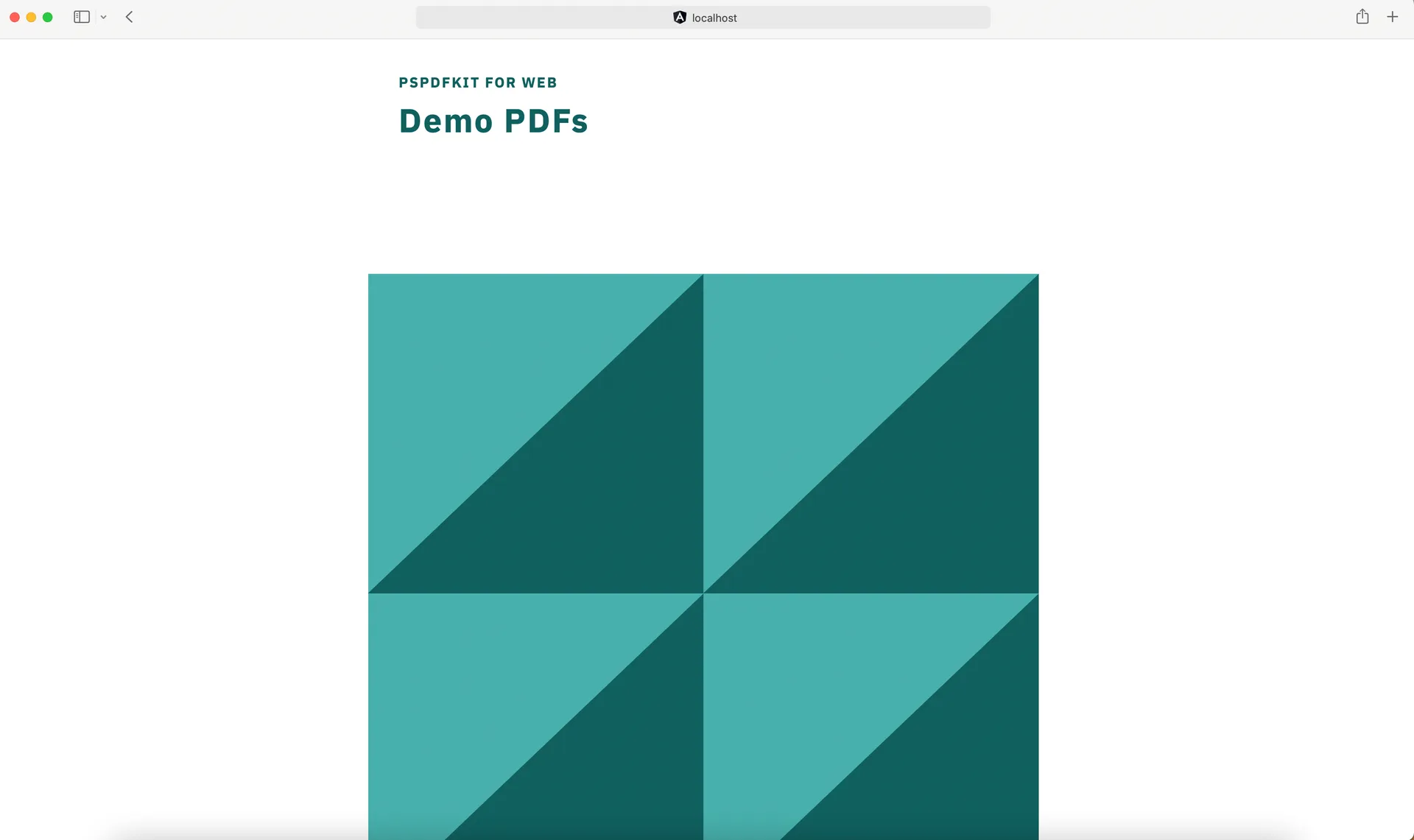
The existing screenshot illustrates PDF rendering; the current example uses the standalone component and controls shown above.
Troubleshooting ng2-pdf-viewer
| Problem | What to check |
|---|---|
pdf-viewer is an unknown element | Add PdfViewerModule to the standalone component’s imports, or to the relevant NgModule in an older app. |
| The PDF is blank | Give the viewer a width and height. Check the document request and the error event. |
| A PDF returns 404 | Use public/document.pdf with URL /document.pdf in this CLI setup. Older src/assets layouts need a matching angular.json asset entry. |
| The worker fails to load | Verify /pdfjs/pdf.worker.min.mjs returns JavaScript, and set pdfWorkerSrc before the component renders. |
| Worker and API versions differ | Copy the worker from the PDF.js dependency used by ng2-pdf-viewer and clear stale deployed assets. |
| All pages appear despite navigation buttons | Set [show-all]="false" and bind [page] to the current page. |
| A remote PDF fails | Check authentication and cross-origin resource sharing (CORS) on the document server. |
| The app fails during SSR | Keep this browser-dependent component out of server evaluation. This tutorial creates an app with SSR disabled. |
For large documents, start by displaying one page at a time and measure performance with the files and devices you support. Review document caching and HTTP range requests on the server; a rendering library alone doesn’t determine load time.
Add Nutrient Web SDK to Angular
Nutrient Web SDK provides a prebuilt UI for annotations, document editing, signatures, and form filling. It’s an option when your application needs those workflows and you prefer to integrate existing tools.
The following example uses the same browser-rendered Angular app. Install the SDK:
npm install --save-exact @nutrient-sdk/viewer@1.21.0Download the matching runtime assets archive(opens in a new tab) and extract its contents into public. You should have public/nutrient-viewer-lib/, alongside public/document.pdf. Follow the self-hosting guide when preparing deployment.
Create the Nutrient viewer component
Create src/app/nutrient-viewer.ts with the following code. It waits for the view container to exist and cancels pending loading when the component is destroyed:
import {  AfterViewInit,  Component,  ElementRef,  OnDestroy,  ViewChild,  signal,} from '@angular/core';
@Component({  selector: 'app-nutrient-viewer',  standalone: true,  template: `    @if (error()) {      <p role="alert">{{ error() }}</p>    }    <div #container style="width: 100%; height: 85vh"></div>  `,})export class NutrientViewerComponent implements AfterViewInit, OnDestroy {  @ViewChild('container', { static: true })  container!: ElementRef<HTMLDivElement>;
  readonly error = signal('');  private readonly controller = new AbortController();  private viewer?: typeof import('@nutrient-sdk/viewer').default;
  ngAfterViewInit(): void {    this.openPDF().catch((error: unknown) => {      if (!this.controller.signal.aborted) {        this.error.set(          error instanceof Error ? error.message : 'Could not open the PDF.',        );      }    });  }
  private async openPDF(): Promise<void> {    this.viewer = (await import('@nutrient-sdk/viewer')).default;    if (this.controller.signal.aborted) return;
    const response = await fetch('/document.pdf', {      signal: this.controller.signal,    });    if (!response.ok) {      throw new Error('PDF download failed: ' + response.status);    }    const document = await response.arrayBuffer();    if (this.controller.signal.aborted) return;
    await this.viewer.load({      container: this.container.nativeElement,      document,      baseUrl: window.location.origin + '/',      signal: this.controller.signal,      // Add your production license key here when deploying.    });  }
  ngOnDestroy(): void {    this.controller.abort();    this.viewer?.unload(this.container.nativeElement);  }}
Display the Nutrient component
Replace src/app/app.ts with the following root component:
import { Component } from '@angular/core';import { NutrientViewerComponent } from './nutrient-viewer';
@Component({  selector: 'app-root',  standalone: true,  imports: [NutrientViewerComponent],  template: '<app-nutrient-viewer />',})export class App {}
Run npm start and check the viewer. Also test its production build and navigation away from the component in your application. The fetch example loads the complete PDF into memory; evaluate URL-based loading for larger files.
A production deployment requires an appropriate license. Refer to the Angular integration guide for other installation options and the trial page to evaluate licensed features.
Add document tools
Use the platform guides to configure the capabilities your workflow needs:
- Adding annotations
- Editing documents
- Filling PDF forms
- Adding signatures
- Redacting content
- Customizing the UI
You can also try the demo with your own PDFs. Capabilities and supported file types depend on the licensed components.
Choose an Angular PDF viewer
Use ng2-pdf-viewer when you want a rendering component and control over your own UI. Evaluate Nutrient Web SDK when you need prebuilt document tools and commercial support.
For another open source viewer with a toolbar, see the ngx-extended-pdf-viewer tutorial. For creating documents, see how to generate PDFs using Angular.
FAQ
ng2-pdf-viewer in a standalone Angular component?Install ng2-pdf-viewer, add PdfViewerModule to the component’s imports, and use pdf-viewer in its template. Bind src to a PDF URL and give the viewer a width and height.
app.module.ts in my Angular project?Current Angular CLI projects use standalone components by default. Import PdfViewerModule into the component that renders the PDF instead of looking for an AppModule.
Handle after-load-complete and read numPages from the emitted PDF document proxy. The example stores that count in a signal for the template.
ng2-pdf-viewer include a toolbar?It provides rendering inputs and events, but you build the surrounding controls. This tutorial adds previous and next buttons; you can add zoom or rotation controls using the documented inputs.
Yes. Copy the matching worker into your public assets and set window.pdfWorkerSrc before the viewer component renders. Don’t substitute a worker from an unrelated PDF.js version.
Nutrient provides a configurable UI with annotation, editing, signature, and form tools. Choose the licensed components needed for your document workflow.