



HTML in PDF format: How to convert HTML to PDF (4 methods)

Table of contents
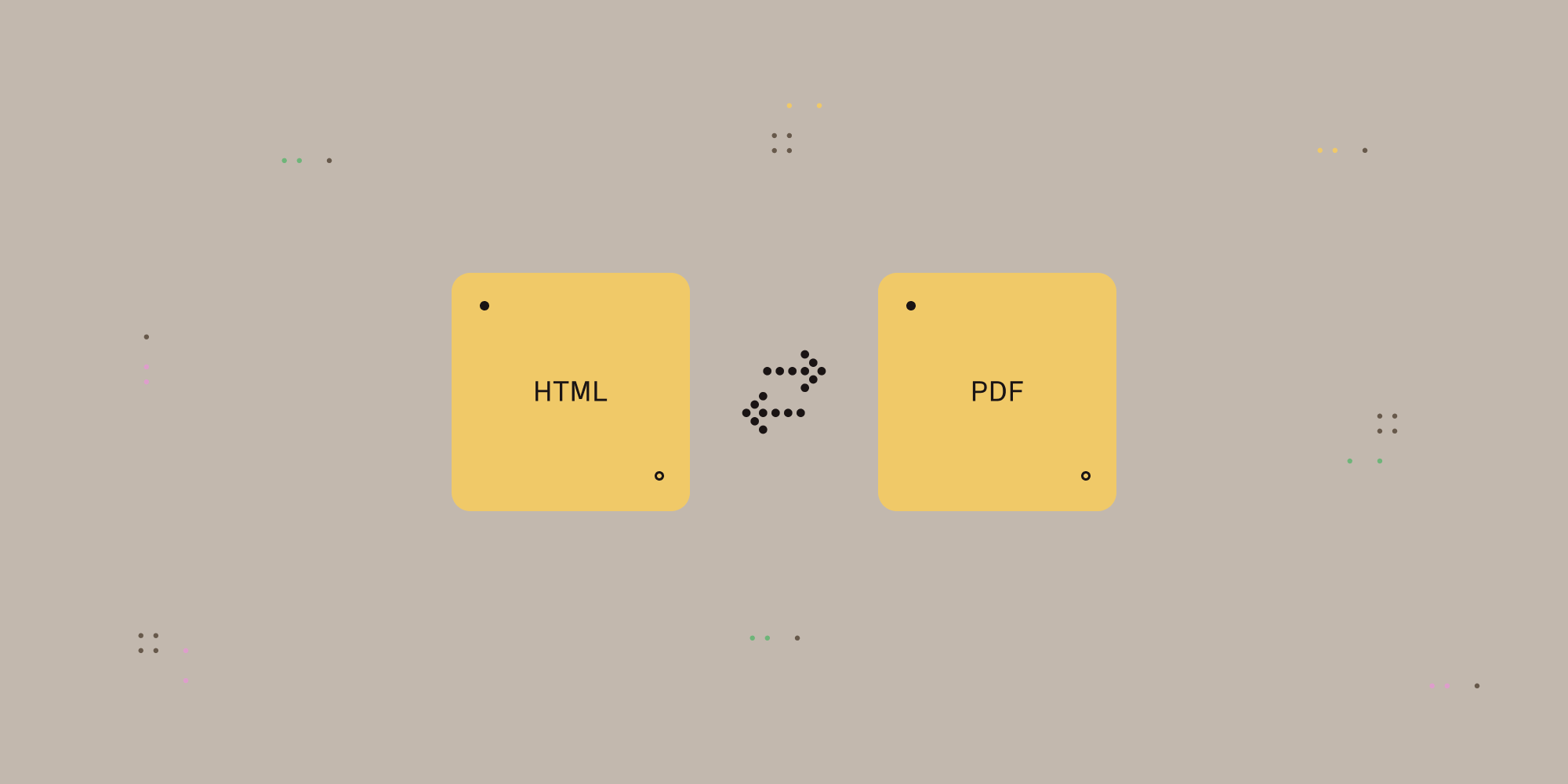
Four ways to convert HTML to PDF format:
- Browser print — Press Control-P (Command-P on Mac) and select Save as PDF. This method is free and works offline.
- Online converters — Upload an HTML file or paste a URL to get a PDF back. Best for quick one-off conversions.
- JavaScript libraries — Libraries like html2pdf.js, jsPDF, and Puppeteer let you build PDF export directly into your applications.
- Professional SDKs — Nutrient Document Engine provides full CSS support, automatic form conversion, and enterprise-scale performance.
Converting HTML to PDF format is one of the most common document tasks. A PDF gives you a portable, printable document that looks the same on any device. This is useful for archiving webpages, sharing reports offline, or generating invoices from web applications.
This guide covers four methods, from quick browser options to developer-focused solutions for automated workflows.
Method 1: Use your browser (print to PDF)
Your browser’s built-in print function converts any webpage or local HTML file to PDF.
Chrome
- Open the HTML file or webpage in Chrome
- Press Control-P (Windows) or Command-P (Mac)
- Change Destination to Save as PDF
- Adjust settings (margins, scale, and background graphics)
- Click Save and choose a location
Firefox
- Open the HTML file or webpage in Firefox
- Press Control-P (Windows) or Command-P (Mac)
- Select Microsoft Print to PDF or Save to PDF
- Adjust layout options as needed
- Click Save
Safari
- Open the HTML file or webpage in Safari
- Go to File > Export as PDF, or press Command-P
- Click the PDF dropdown in the bottom-left corner
- Select Save as PDF
- Choose a location and click Save
Edge
- Open the HTML file or webpage in Edge
- Press Control-P (Windows)
- Change Printer to Microsoft Print to PDF or Save as PDF
- Adjust settings and click Save
Tips for better output
- Enable Background graphics to include colors and images
- Set Margins to None or Minimum for more content per page
- Use Scale to fit wide content on the page
- Remove Headers and footers for cleaner output
| Pros | Cons |
|---|---|
| Free, no software needed | Limited control over output |
| Works offline | May break complex layouts |
| Available in all browsers | Manual process for each page |
Method 2: Free online HTML-to-PDF converters
Online converters handle quick conversions without installing software. Upload an HTML file or enter a URL, and the service returns a PDF.
Popular free converters
| Tool | Maximum file size | Watermark | Batch convert |
|---|---|---|---|
| pdfcrowd | 2 MB | No (free tier) | No |
| sejda | 50 MB | No | Yes (3 files) |
| ilovepdf | 25 MB | No | Yes |
| html2pdf.com | 15 MB | No | No |
| cloudconvert | 1 GB | No | Yes |
When to use online converters
Online converters make sense when you need a quick PDF and don’t want to install anything. They’re useful for one-off conversions of public webpages or simple HTML files where exact formatting isn’t critical.
Avoid them for anything automated or sensitive, or where you need consistent results across multiple conversions.
Limitations to consider
- Privacy — Your HTML content is uploaded to third-party servers, which may not be suitable for confidential documents.
- File size limits — Free tiers restrict upload sizes, typically ranging from 2 MB to 50 MB.
- Internet required — These tools require an active internet connection and cannot work offline.
- Inconsistent rendering — CSS support varies significantly between tools, so complex layouts may not convert accurately.
For sensitive documents, avoid online converters. Use browser print or local tools instead.
Method 3: JavaScript libraries (for developers)
Several JavaScript libraries can add PDF export to your applications. These run either client-side (in the browser) or server-side (on your backend).
Client-side: html2pdf.js
html2pdf.js combines html2canvas and jsPDF to convert HTML elements to PDF directly in the browser:
// Include via CDN.// <script src="https://cdnjs.cloudflare.com/ajax/libs/html2pdf.js/0.10.1/html2pdf.bundle.min.js"></script>
const element = document.getElementById('content');html2pdf().from(element).save('document.pdf');
This works for simple documents but produces image-based PDFs with limited CSS support.
Client-side: jsPDF
jsPDF creates PDFs programmatically from JavaScript objects rather than HTML:
// Include via CDN.// <script src="https://cdnjs.cloudflare.com/ajax/libs/jspdf/3.0.3/jspdf.umd.min.js"></script>
const doc = new jsPDF();doc.text('Hello World', 10, 10);doc.save('document.pdf');
Best for structured documents like invoices where you control the exact layout.
Server-side: Puppeteer and Playwright
Puppeteer and Playwright control headless browsers to render pages with full CSS support:
const { chromium } = require('playwright');
(async () => {  const browser = await chromium.launch();  const page = await browser.newPage();  await page.setContent('<h1>Invoice</h1><p>Details here...</p>');  await page.pdf({ path: 'invoice.pdf', format: 'A4' });  await browser.close();})();
These produce high-fidelity PDFs but require server infrastructure.
When to use JavaScript libraries
- Building apps with PDF export features
- Automated report generation
- Custom PDF workflows in your codebase
For a detailed comparison of JavaScript libraries, refer to our blog post on how to convert HTML to PDF with JavaScript.
Method 4: Professional SDKs (for production apps)
Free tools and open source libraries work for prototypes and internal tools. But when HTML-to-PDF conversion becomes part of your product — such as generating customer invoices, compliance reports, or contracts — you need reliability, consistent output, and support.
Why use a professional SDK?
Open source libraries render CSS inconsistently, produce flat PDFs without fillable form fields, and crash on large documents. They also lack enterprise security features and dedicated support. Professional SDKs solve these problems for production applications.
Nutrient solutions
Nutrient offers several options for HTML-to-PDF conversion: Document Engine for server-side processing, native SDKs for mobile and desktop platforms, a cloud API for zero-infrastructure setups, and no-code integrations for automated workflows.
Document Engine
Document Engine is a server-side toolkit that powers document processing, rendering, and automation behind the scenes of web, mobile, and desktop apps. It handles more than just HTML-to-PDF conversion: You can use it for document viewing, generation, conversion, OCR, redaction, and real-time collaboration at scale.
Document Engine uses a Chromium-based rendering engine, so modern CSS (flexbox, grid, custom fonts, and print stylesheets) works out of the box. We recommend previewing your HTML in Chrome before conversion, though minor differences may occur. HTML form elements (<input>, <select>, <textarea>) automatically become fillable PDF form fields.
You can run document workflows entirely on the backend, or pair Document Engine with a frontend SDK. The backend handles large files and high-volume document batches that would overwhelm browser-based solutions. Features like form filling, annotation, and signing work through frontend and backend syncing, so users interact with documents in the browser while the server handles processing.
Document Engine integrates with .NET, Node.js, Java, iOS, Android, React Native, and Flutter.
curl -X POST http://localhost:5000/api/build \ -H "Authorization: Token token=<API token>" \ -F page.html=@/path/to/page.html \ -F instructions='{ "parts": [{ "html": "page.html" }] }' \ -o result.pdfThree deployment options:
| Option | You manage | Nutrient manages | Good for |
|---|---|---|---|
| Self-hosted | Everything | Nothing | Full control, air-gapped environments |
| Cloud API | Nothing | Everything | Quick start, pay-per-document |
| Managed | Nothing | Dedicated instance for you | Compliance needs without ops work |
Self-hosted means you run the Docker container on your own servers. You control the infrastructure, updates, and scaling. This option works for air-gapped environments or when regulations require data to stay on-premises.
Nutrient Processor API is the fastest way to get started. You send HTTP requests to Nutrient’s servers and receive PDFs back. No infrastructure to manage, and you pay based on credits consumed. The API supports multiple languages, including JavaScript, Python, Java, C#, and PHP:
const axios = require('axios')const FormData = require('form-data')const fs = require('fs')
const formData = new FormData()formData.append('html', fs.createReadStream('index.html'));
(async () => {  try {    const response = await axios.post('https://api.nutrient.io/processor/generate_pdf', formData, {      headers: formData.getHeaders({        'Authorization': 'Bearer your_api_key_here'      }),      responseType: "stream"    })
    response.data.pipe(fs.createWriteStream("result.pdf"))  } catch (e) {    const errorString = await streamToString(e.response.data)    console.log(errorString)  }})()
function streamToString(stream) {  const chunks = []  return new Promise((resolve, reject) => {    stream.on("data", (chunk) => chunks.push(Buffer.from(chunk)))    stream.on("error", (err) => reject(err))    stream.on("end", () => resolve(Buffer.concat(chunks).toString("utf8")))  })}
Managed gives you a dedicated Document Engine instance that Nutrient operates on your behalf. You get the isolation of self-hosting without the operational overhead. This option fits organizations that need compliance guarantees but don’t want to manage infrastructure.
.NET SDK
The .NET SDK brings HTML-to-PDF conversion to .NET applications. It uses Chrome-based rendering for consistent output.
The SDK integrates with C# and other .NET languages. You pass an HTML string or file path to the conversion method, and it returns a PDF document. Since it runs locally, your HTML content never leaves your servers.
Android and iOS SDKs
Our Android SDK and iOS SDK generate PDFs directly on mobile devices. Android uses the system WebView for rendering, while iOS uses WebKit. Both produce PDFs without requiring a network connection or external server.
On-device conversion keeps sensitive data on the device instead of sending it to a server. You can convert HTML strings or local HTML files (including file and content URIs on Android).
React Native and Flutter SDKs
Our React Native SDK and Flutter SDK provide HTML-to-PDF conversion for cross-platform mobile development. Both SDKs use native implementations under the hood (WebView on Android, WebKit on iOS), so you write one codebase that works on both platforms.
In Flutter, the generatePdfFromHtmlString and generatePdfFromHtmlUri methods return a path to the generated PDF file. The React Native SDK offers similar PDF generation capabilities.
Beyond conversion, Nutrient’s mobile SDKs include viewing, annotation, form filling, and digital signature features.
Zapier and Power Automate
Zapier integration and Power Automate connectors bring HTML-to-PDF conversion to no-code workflows. You can trigger PDF generation from events in other apps without writing any code.
These integrations let you automate HTML-to-PDF generation as part of larger workflows — for example, generating documents from templates or form submissions. The PDF generation happens on Nutrient’s servers, and you receive the finished document in your workflow.
What you can build with Nutrient
Invoices — Generate branded invoices from HTML templates with dynamic data, watermarks, and automatic delivery to customers.
Compliance reports — Add digital signatures, encryption, and tamper-evident seals for SOC 2, HIPAA, or financial audits.
Contracts — Convert HTML contracts to PDF with fillable signature fields.
Customer exports — Let users download reports, statements, or receipts as PDFs from your web app.
Document pipelines — Chain HTML conversion with OCR, redaction, and merging in a single API call.
Start a free trial to test full CSS support, form conversion, and high-volume processing. No watermarks or credit card required.
HTML-to-PDF conversion methods compared
| Method | Best for | Cost | CSS support | Form fields |
|---|---|---|---|---|
| Browser print | Quick one-off saves | Free | Basic | No |
| Online tools | Non-sensitive documents | Free | Limited | No |
| Open source libraries | Prototypes, internal tools | Free | Varies | No |
| Nutrient | Production apps, automated workflows | Paid | Full | Yes |
Common issues when converting HTML to PDF
| Issue | Cause | Solution |
|---|---|---|
| Formatting breaks | CSS not supported | Use browser print or SDK with full CSS |
| Images not appearing | Relative paths | Use absolute URLs or Base64 encoding |
| CSS not rendering | Modern CSS unsupported | Avoid flexbox/grid with basic tools |
| Large file sizes | Uncompressed images | Optimize images before conversion |
| Page breaks wrong | No CSS page rules | Add page-break-before CSS rules |
FAQ
Open the HTML file in any browser, press Control-P (Windows) or Command-P (Mac), select Save as PDF as the destination, and click Save. This works in Chrome, Firefox, Safari, and Edge. For better results, enable Background graphics in the print settings to preserve colors and images.
HTML and PDF are different file formats, so you cannot open an HTML file directly as a PDF. First, convert the HTML to PDF using one of these methods: browser print (Control-P), an online converter, or a PDF generation tool. Once converted, open the resulting PDF file in any PDF reader.
Yes. Use your browser’s print to PDF feature (Control-P or Command-P), or open source libraries like html2pdf.js for basic use cases. Nutrient’s Cloud API offers 200 free credits monthly for testing.
Use a Chromium-based tool. Browser print may break flexbox or grid layouts. Nutrient Document Engine and the Cloud API support modern CSS, including flexbox, grid, custom fonts, and print stylesheets.
Client-side: html2pdf.js or jsPDF for simple documents. Server-side: Puppeteer, Playwright, or Nutrient’s Cloud API. See our JavaScript guide for code examples.
Most converters produce flat PDFs. Nutrient automatically converts HTML form elements into interactive, fillable PDF form fields.
On iOS and Android, you can use the browser’s share or print function for basic conversions. For in-app PDF generation, Nutrient provides native SDKs for iOS, Android, React Native, and Flutter. These SDKs generate PDFs on-device without requiring a server connection.
Conclusion
For one-off conversions, your browser’s print function works. For production applications that need consistent output and automated workflows, Nutrient provides self-hosted, cloud, and SDK options with Chromium-based rendering and enterprise security.
Start your free trial to test HTML-to-PDF conversion with no watermarks.