How to build an AI legal assistant in an hour with Nutrient Document Authoring

Table of contents

In about an hour, you can build an AI assistant that edits a real contract with Nutrient Document Authoring. What makes it usable for legal work is how those edits are made:
- Targeted edits. The model works through document tools that change specific text, so it edits the clause you asked about and leaves the rest of the contract alone, instead of regenerating the whole document from a prompt and hoping the wording and formatting survive.
- Tracked changes you can review anywhere. Every AI edit is a real tracked change. Counsel accepts or rejects each one, and since it’s a standard DOCX revision, the same review works after you export to Word.
- Each edit comes with a reason. The assistant attaches a comment to every change saying what it did and why. The comment is saved in the document itself, so the reasoning is still there when someone reopens the file next week.
Explore Nutrient Document Authoring
Most “AI for contracts” demos drop a chat box next to a PDF and call it done. That’s fine until a lawyer asks the obvious question: What exactly did it change, and can I see it before it’s final? This tutorial builds the version that answers those questions. The assistant reads a non-disclosure agreement (NDA), suggests edits as tracked changes, and writes a short comment explaining each edit.
We use Nutrient Document Authoring, which gives you a DOCX-capable editor in the browser, plus @nutrient-sdk/document-authoring-ai(opens in a new tab), which exposes the document to a model as a set of tools. The model loop runs through the Vercel AI SDK(opens in a new tab).
Think of this as an AI document assistant you own. It brings the in-document AI editing people expect from an Office suite, without the lock-in: It isn’t tied to Microsoft Office, and it isn’t tied to one AI vendor. Point it at any model the Vercel AI SDK supports, including a private or self-hosted one, so sensitive contract text can stay inside your own infrastructure. The files stay standard DOCX that open in Word.
What you’ll build
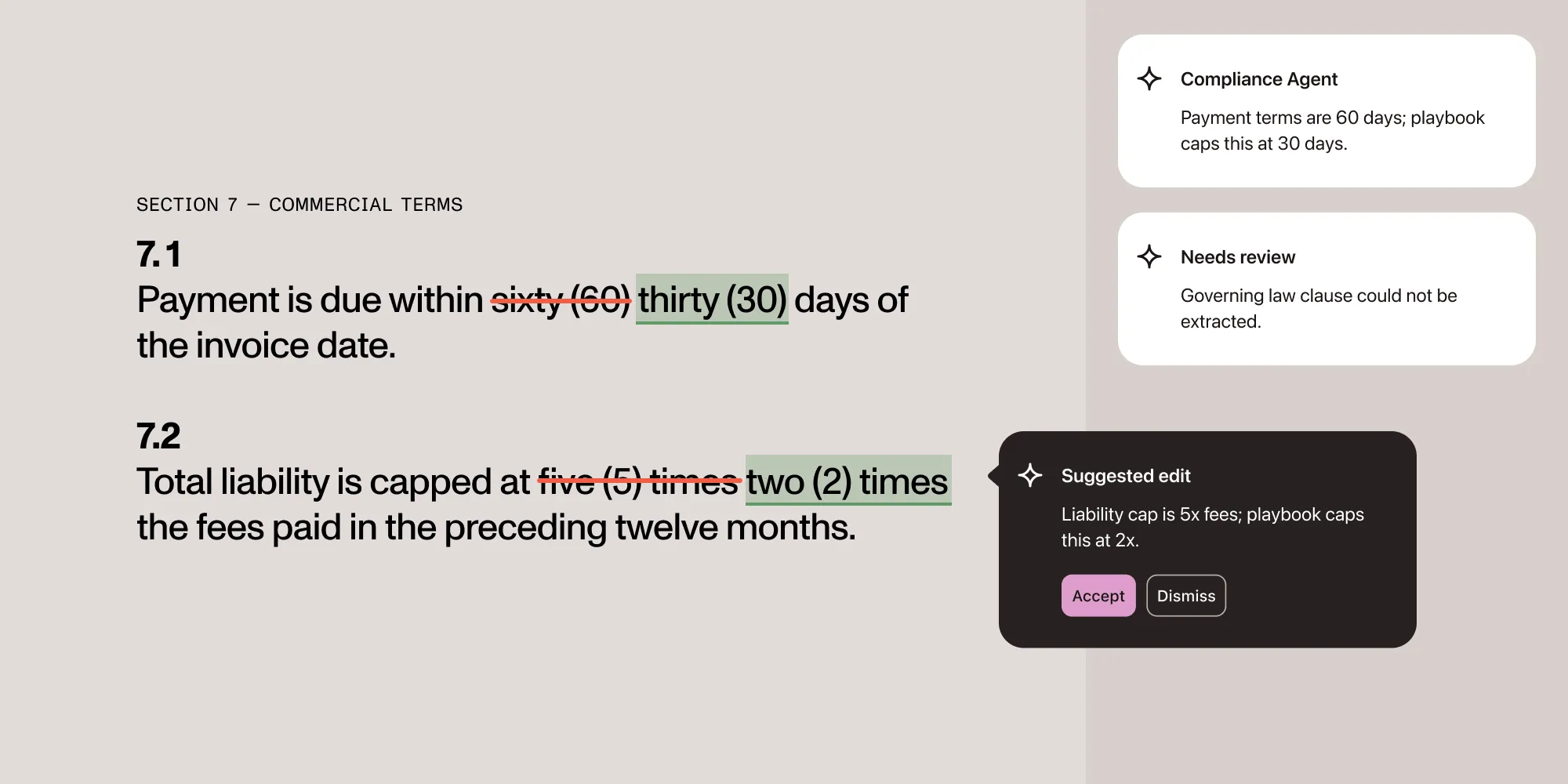
The app has two panes: a chat panel on the left, the contract on the right. Ask a question, and the assistant reads the document to answer it. Ask for a change, and it proposes a tracked edit with a comment, like the Effective Date edit in the header image above.
Before you start
You’ll need:
- A Next.js app (
npx create-next-app@latest, App Router, TypeScript). - An OpenAI API key in
.env.localasOPENAI_API_KEY. - A contract to work on. We use the Common Paper Mutual NDA(opens in a new tab) DOCX (released under CC BY 4.0). Download it, rename it to
sample.docx, and drop it inpublic/. Any DOCX works.
1. Install
npm install @nutrient-sdk/document-authoring @nutrient-sdk/document-authoring-ai \ ai@^6 @ai-sdk/openai@^3 @ai-sdk/react@^3@nutrient-sdk/document-authoring is the editor itself. @nutrient-sdk/document-authoring-ai is the AI layer, and you use it in two places: on the server, to tell the model which document tools exist; and in the browser, to run the tool calls the model makes. It’s all one package. The browser code is imported from @nutrient-sdk/document-authoring-ai/editor.
The remaining packages are the Vercel AI SDK(opens in a new tab): ai plus @ai-sdk/openai for the model, and @ai-sdk/react for the chat hook. The major versions shown above keep the examples on the AI SDK 6 API. It runs the model loop and connects the model’s tool calls to your browser code.
2. Configure Next.js for the editor
Document Authoring serves its engine from Nutrient’s content delivery network (CDN) and loads it in the browser at runtime, so you point webpack at that CDN build instead of bundling it:
import type { NextConfig } from "next";
const nextConfig: NextConfig = {  webpack(config, { isServer }) {    if (!isServer) {      config.externals.push({        "@nutrient-sdk/document-authoring":          "script DocAuth@https://document-authoring.cdn.nutrient.io/releases/document-authoring-1.22.2-umd.js",      });      config.output.environment = {        ...config.output.environment,        asyncFunction: true,      };    }    return config;  },};
export default nextConfig;
Run the dev and build scripts with the --webpack flag so this configuration applies:
{ "scripts": { "dev": "next dev --webpack", "build": "next build --webpack" }}3. The server route
The route tells the model which document tools it can call and streams its responses back. The tools don’t run on the server; the browser runs them in the next step. The reviewComments: "create" option is what turns on the explanatory comments: It requires the model to attach a short note to every edit it makes. In the next step, the browser turns each of those notes into a comment in the document.
import { openai } from "@ai-sdk/openai";import { convertToModelMessages, stepCountIs, streamText } from "ai";import {  getAiPromptGuide,  getAiToolDefinitions,} from "@nutrient-sdk/document-authoring-ai";import { toVercelAiTools } from "@nutrient-sdk/document-authoring-ai/vercel";
const tools = toVercelAiTools(getAiToolDefinitions({ reviewComments: "create" }));const system = `${getAiPromptGuide()}
Include a short reviewComment on every write tool call that explains the change for the reviewer.`;
export async function POST(req: Request) {  const body = await req.json();
  const result = streamText({    model: openai("gpt-5.4-mini"),    system,    messages: await convertToModelMessages(body.messages),    stopWhen: stepCountIs(20),    tools,  });
  return result.toUIMessageStreamResponse();}
Any model the Vercel AI SDK supports works here. We use gpt-5.4-mini.
4. The assistant component
This is where the document lives and where tool calls execute. Two parts matter.
First, the editor lifecycle: Create the system, import the NDA, set the editor to Review mode so writes become tracked changes, set an author (it shows on the changes and comments), and bind the toolkit.
Second, onToolCall: Every tool the model calls arrives here. Read tools run as-is. Write tools run with writeMode: "track_changes" and reviewComments: "create", which is what turns an edit into a tracked change plus a comment thread.
"use client";
import { useChat } from "@ai-sdk/react";import {  DefaultChatTransport,  lastAssistantMessageIsCompleteWithToolCalls,} from "ai";import { useEffect, useRef, useState } from "react";import { isAiWriteToolName } from "@nutrient-sdk/document-authoring-ai";import {  getAiToolkit,  type AiToolkit,} from "@nutrient-sdk/document-authoring-ai/editor";import {  createDocAuthSystem,  type DocAuthEditor,  type DocAuthSystem,} from "@nutrient-sdk/document-authoring";
export function LegalAssistant() {  const hostRef = useRef<HTMLDivElement | null>(null);  const editorRef = useRef<DocAuthEditor | null>(null);  const toolkitRef = useRef<AiToolkit | null>(null);  const [ready, setReady] = useState(false);  const [input, setInput] = useState("");
  // Create the editor once, load the NDA, and bind the AI toolkit to it.  useEffect(() => {    let system: DocAuthSystem | null = null;    let editor: DocAuthEditor | null = null;    let toolkit: AiToolkit | null = null;    let disposed = false;
    const init = async () => {      const host = hostRef.current;      if (!host) return;
      system = await createDocAuthSystem();      const document = await system.import(fetch("/sample.docx"), {        fileName: "sample.docx",      });      editor = await system.createEditor(host, { document });      editor.setEditorMode("review"); // edits arrive as tracked changes      editor.setAuthor("AI Assistant"); // author shown on changes and comments      toolkit = getAiToolkit(editor);
      if (disposed) {        toolkit.dispose();        editor.destroy();        system.destroy();        return;      }      editorRef.current = editor;      toolkitRef.current = toolkit;      setReady(true);    };
    void init();
    return () => {      disposed = true;      toolkit?.dispose();      editor?.destroy();      system?.destroy();      editorRef.current = null;      toolkitRef.current = null;    };  }, []);
  const { messages, sendMessage, addToolOutput, status } = useChat({    transport: new DefaultChatTransport({ api: "/api/chat" }),    sendAutomaticallyWhen: lastAssistantMessageIsCompleteWithToolCalls,    async onToolCall({ toolCall }) {      const editor = editorRef.current;      const toolkit = toolkitRef.current;      if (!editor || !toolkit) {        addToolOutput({          tool: toolCall.toolName,          toolCallId: toolCall.toolCallId,          state: "output-error",          errorText: "The editor is still loading. Try again in a moment.",        });        return;      }
      const isWriteTool = isAiWriteToolName(toolCall.toolName);      try {        const executed = await toolkit.executeTool(          {            id: toolCall.toolCallId,            name: toolCall.toolName,            args: toolCall.input,          },          isWriteTool            ? { writeMode: "track_changes", reviewComments: "create" }            : undefined,        );        addToolOutput({          tool: toolCall.toolName,          toolCallId: toolCall.toolCallId,          output: executed,        });      } catch (error) {        addToolOutput({          tool: toolCall.toolName,          toolCallId: toolCall.toolCallId,          state: "output-error",          errorText: error instanceof Error ? error.message : "Tool failed.",        });      }    },  });
  const busy = status === "submitted" || status === "streaming";
  const handleSubmit = (event: React.FormEvent) => {    event.preventDefault();    if (!input.trim() || busy || !ready) return;    sendMessage({ text: input });    setInput("");  };
  return (    <main className="layout">      <section className="chat">        <div className="feed">          {messages.map((message) =>            message.parts.map((part, index) => {              const key = `${message.id}-${index}`;              if (part.type === "text" && part.text) {                return (                  <p key={key} className={`bubble ${message.role}`}>                    <strong>                      {message.role === "user" ? "You" : "Assistant"}:                    </strong>{" "}                    {part.text}                  </p>                );              }              if (part.type.startsWith("tool-") && "state" in part) {                const failed = part.state === "output-error";                const done = part.state === "output-available";                return (                  <p key={key} className={`bubble tool ${failed ? "failed" : ""}`}>                    {failed ? "⚠ " : done ? "✓ " : "… "}                    {part.type.slice("tool-".length)}                    {failed && part.errorText ? ` — ${part.errorText}` : ""}                  </p>                );              }              return null;            }),          )}        </div>        <form onSubmit={handleSubmit}>          <textarea            value={input}            onChange={(event) => setInput(event.target.value)}            placeholder="Ask about the NDA, or request an edit..."            rows={3}            disabled={!ready || busy}          />          <button type="submit" disabled={!ready || busy}>            {busy ? "Working..." : "Send"}          </button>        </form>      </section>      <div ref={hostRef} className="editor" />    </main>  );}
isAiWriteToolName tells you whether a tool call mutates the document. That’s the one decision your app makes: Read tools always run; write tools run as tracked changes here because the editor is in Review mode.
5. Wire it together
Add a page to render the component, a root layout, and the styles. The editor fills its container, so the layout gives it a full-height column.
import { LegalAssistant } from "../components/legal-assistant";
export default function Page() { return <LegalAssistant />;}import type { Metadata } from "next";import "./globals.css";
export const metadata: Metadata = { title: "AI Legal Assistant", description: "An AI assistant that reviews and edits an NDA in the browser.",};
export default function RootLayout({ children,}: Readonly<{ children: React.ReactNode }>) { return ( <html lang="en"> <body>{children}</body> </html> );}* { box-sizing: border-box;}
html,body { margin: 0; height: 100%; font-family: system-ui, sans-serif;}
.layout { display: grid; grid-template-columns: 360px 1fr; grid-template-rows: minmax(0, 1fr); height: 100vh; min-height: 0; overflow: hidden;}
.chat { display: flex; flex-direction: column; border-right: 1px solid #e2e2e2; min-height: 0; overflow: hidden;}
.feed { flex: 1; overflow-y: auto; padding: 16px;}
.bubble { margin: 0 0 12px; padding: 8px 12px; border-radius: 8px; background: #f4f4f5; white-space: pre-wrap;}
.bubble.user { background: #e7f0ff;}
.bubble.tool { font-family: ui-monospace, monospace; font-size: 13px; color: #555;}
.bubble.tool.failed { color: #b42318; background: #fef3f2;}
form { display: flex; gap: 8px; padding: 12px; border-top: 1px solid #e2e2e2;}
textarea { flex: 1; resize: none; padding: 8px; border: 1px solid #ccc; border-radius: 6px; font: inherit;}
button { padding: 8px 16px; border: 0; border-radius: 6px; background: #111; color: #fff; cursor: pointer;}
button:disabled { opacity: 0.5; cursor: default;}
.editor { position: relative; width: 100%; height: 100%; min-height: 0; overflow: hidden; background: #eef2f7;}6. Run it
npm run devOpen the app and wait for the NDA to load. Try:
Set the Cover Page effective date to 25 June 2026.
The assistant reads the document to find the right field and then proposes the edit. In the editor, you’ll see the old placeholder struck through, the new date inserted, and a comment from AI Assistant explaining the change. Accept or reject it like any tracked change.
Here are a few more prompts worth trying:
- List every bracketed blank that must be filled in before this NDA can be signed.
- Change the Term of Confidentiality to three years from the date of last disclosure.
- Who is allowed to receive Confidential Information under the Standard Terms?
Tracked changes and comments for a legal team
For a legal team, “the AI edited the contract” is a liability unless someone can see and approve each change before it’s final. That’s why the assistant runs in Review mode.
Every edit it makes shows up as a tracked change — the same as if a colleague had suggested it. A reviewer reads each one in context and accepts or rejects it, and nothing is final until a person says so. Each change also carries the assistant’s comment explaining what it did and why.
Together, the tracked changes and comments leave an audit trail(opens in a new tab) of what the AI proposed and the reasoning behind it. That record stays in the file and opens in Microsoft Word, which is what a legal team reaches for during a compliance review or a dispute, instead of reconstructing the history from email and memory.
Your app, not the model, decides how edits land: applied directly, or held for review as tracked changes. The review and approval guide covers the Edit, Review, and View modes in full.
FAQ
Yes. When you export the document to DOCX, the AI’s tracked changes and comments are written as standard Word revisions and comments. A reviewer can open the file in Word and accept, reject, or reply to them like any other markup.
In Review mode, they become tracked changes a person accepts or rejects. In Edit mode, they apply directly. The editor mode is set by your code in editor.setEditorMode, not by the model.
It’s a normal document comment, the same kind a person would leave on a clause. It holds the model’s explanation for the edit, and because it lives in the document, the reasoning stays attached to the change.
Yes. The assistant isn’t tied to OpenAI. The Vercel AI SDK works with any provider, including a private or self-hosted model, so sensitive contract text can stay inside your own infrastructure. Swap the provider in the server route; the rest of the code stays the same.
No — you don’t need one just to try it. Without a key, Document Authoring runs in evaluation mode: You can import and export DOCX, tracked changes and comments included, but documents carry an “Evaluation Copy” watermark and evaluation is time-limited. DOCX support is a licensed capability, so for production, you add a license key to createDocAuthSystem to remove the watermark. Contact Sales for a key.
Where to go next
Where you take it next depends on the job. To control what the model can change, limit which tools it can call so it only edits the clauses you allow. When the task is fixed rather than open-ended — like proofreading or translating a contract — a structured workflow is a better fit than the chat loop. And to ship this for real, point the editor at your own templates and wire it to your authentication. The guides below cover each scenario.
- Quick start: Document Authoring AI — The smallest agentic loop, start to finish.
- Agentic tools — The full tool reference and element ID rules.
- Vercel AI SDK integration — The chat loop and edge cases.
- Document Authoring AI example on GitHub(opens in a new tab) — The full app this tutorial is based on, with proofreading, translation, and a template builder.
- How to build an AI agent for contract redlining against a compliance playbook — The fixed-rule-set version of this pipeline: a compliance playbook triages a batch of contracts and redlines only the ones that fail.
Get started with Nutrient Document Authoring