Introducing Document Authoring AI: Structured LLM editing for embedded document editors

Table of contents
- Document Authoring AI is the new AI editing capability in Nutrient Document Authoring SDK. Same SDK, same license, opt-in package.
- It closes the gap between a large language model (LLM), which works with text, and a document editor, which works with typed, identified elements. Most teams currently bridge that gap themselves — as a one-off — for their own use case.
- Two integration paths: agentic tools for open-ended editing through chat, and workflows for bounded one-shot tasks like proofreading or translation. Workflows ship faster if you’re picking one.
- The model never edits the document directly. Every AI write runs through the editor’s transaction API and lands in the standard tracked-changes UI a human already knows how to use. The AI can attach a comment to each edit explaining why.
- Framework-neutral. Adapters for Vercel AI SDK(opens in a new tab) and LangChain(opens in a new tab) ship in the package; a JSON export covers Python, Go, Ruby, and any other non-TypeScript backend. You choose the model and hold the keys.
The hard part of adding AI editing to a document editor isn’t the LLM. It’s everything between the LLM and the document.
This is the post about that gap and the new AI capability in Nutrient Document Authoring SDK that closes it. Document Authoring AI is the integration layer between large language models and the Nutrient Document Authoring SDK editor: structured read tools, validated writes, and tracked-changes review in one library. It ships now, with the SDK, under the same license.
If you’ve embedded a document editor in a SaaS product and your roadmap now says “add AI editing,” this post is for you.
What’s actually hard about AI document editing
LLMs work with text. Document editors work with structured elements — typed paragraphs, headings, tables, lists — each with an identity, a position, and relationships to the elements around them. When you ask an LLM to “shorten the launch summary paragraph,” the model doesn’t know which paragraph that is, can’t reference it by ID, and can’t write back to a specific element. It can only return more text.
Bridging that gap is where the engineering work lives. To get from “make the risk level bold” to a real document edit, your code has to:
- Give the LLM a structured view of the document so it can locate the right element.
- Translate the LLM’s response into a typed edit operation against the editor’s API.
- Validate that operation before it touches the document, so a confused model can’t produce malformed state.
- Surface every change to a human reviewer before it sticks.
Most teams that ship AI editing inside a document editor build all of that themselves — as a one-off — for their specific use case. The result is usually fragile in predictable ways: Prompt engineering keeps the model close to a happy path, the diff UI is rough, and the validation layer is a fence around a known set of edits rather than the editor’s actual transaction API.
Document Authoring AI is the version of that work done as a maintained part of the SDK, designed to hold up at production volume.
What ships in the box
Three things ship, all opt-in by installing @nutrient-sdk/document-authoring-ai on top of an existing Document Authoring editor:
- Structured document tools the model can call to read and edit the document by ID rather than by text position.
- A validation boundary that runs every write through the same transaction API your application code uses. Edits that would break document structure are rejected before they apply.
- A review surface built on the editor’s existing tracked-changes UI. AI edits land as tracked changes a reviewer accepts or rejects, with an optional comment from the AI explaining why it made each edit.
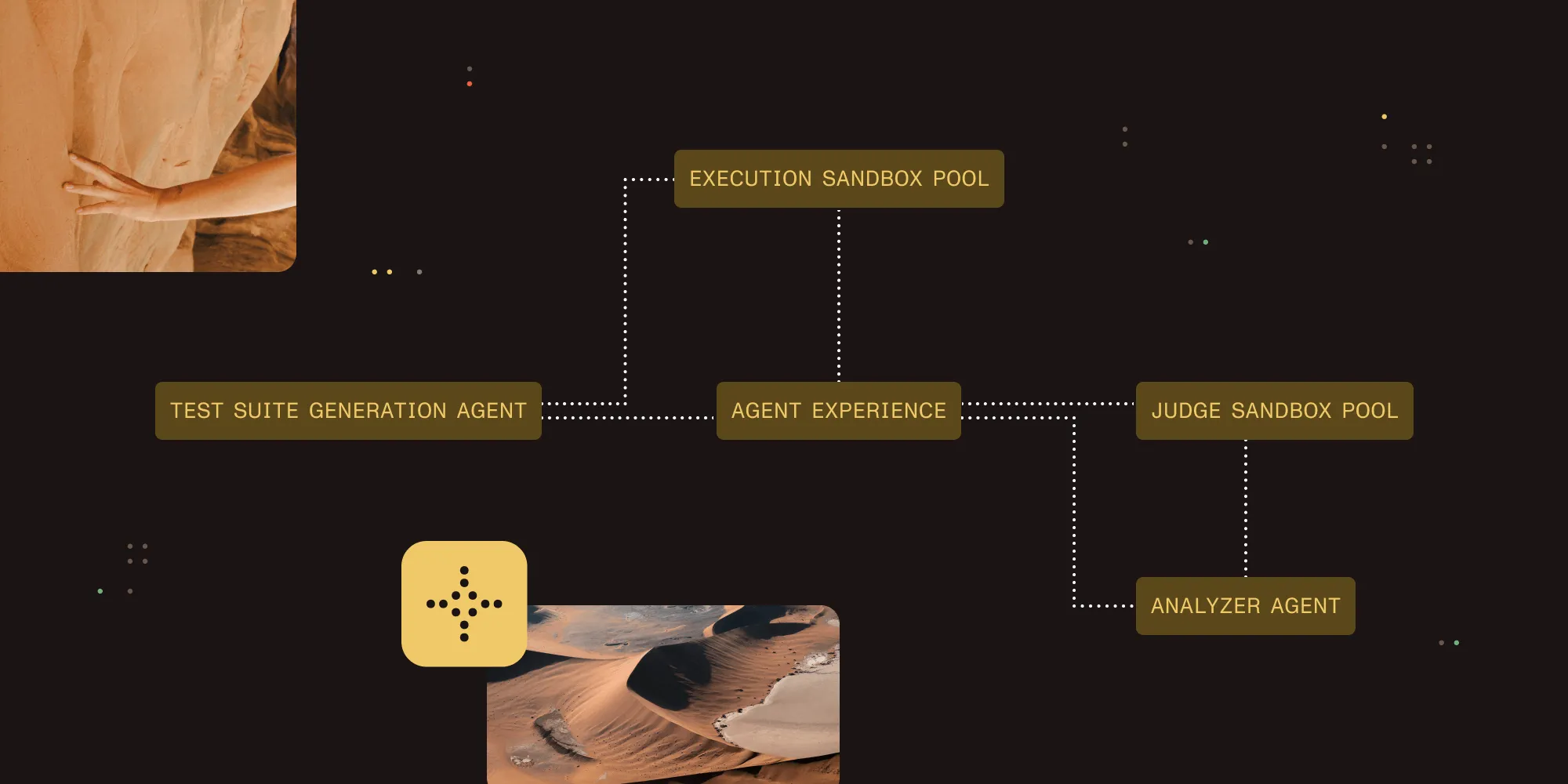
The execution split is the same in every integration: Your server talks to the model, your browser talks to the document. The toolkit gives you framework-neutral tool definitions on the server side and an editor-bound execution boundary on the browser side. The model never gets to mutate the document directly — it can ask for an edit, and the browser decides whether to honor the request based on the current editor mode and your app’s policy.
Two integration paths: Agentic tools and workflows
Document Authoring AI gives you two integration paths. They share the same execution model and the same review surface; the difference is who’s driving the task.
Agentic tools, for open-ended editing
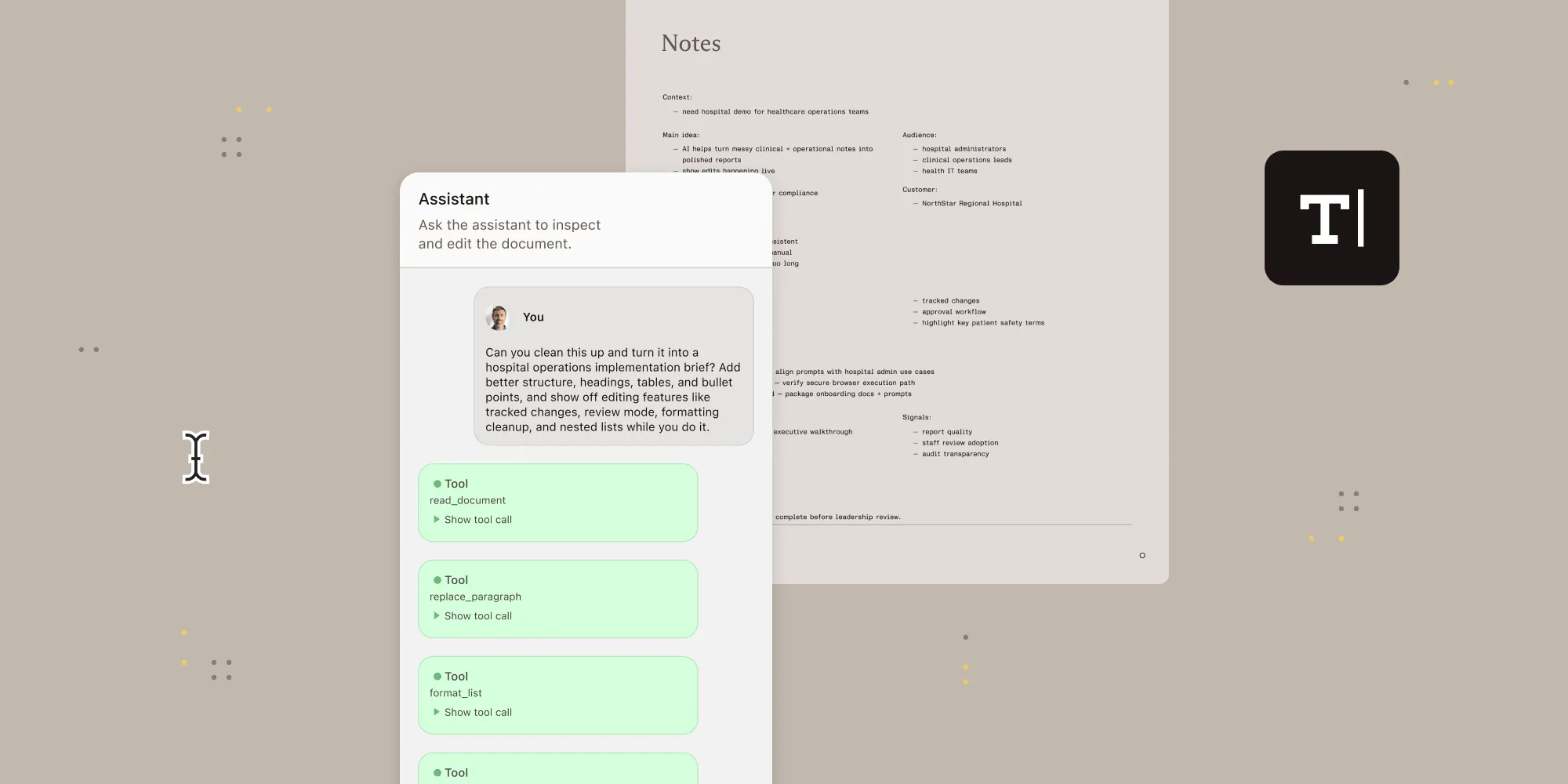
This is the chat-style path. The user types something like “find the launch summary and make it shorter” or “add a table with the next three milestones.” The model picks a tool, the editor runs it, the result goes back into the conversation, and the loop continues until the model is done.
On the server, you expose the toolkit’s tool definitions through your AI framework. The browser receives each tool call, validates it against the toolkit’s schema, applies your editor mode policy, and runs the operation against the live editor.
The read tools — read_document, search_elements, read_element — let the model navigate the document by structure rather than character offset. The write tools — add_paragraphs, replace_paragraph, replace_text, add_table, replace_table, delete_block, format_text, format_list — target elements by ID. Every write tool call also accepts an optional reviewComment string that the browser surfaces as a threaded comment anchored to the changed text.
The agentic tools guide has the full details.
Workflows, for bounded tasks
If your app already knows the task — proofread the document, translate it into Spanish, run it against your house style guide — workflows are the lower-effort path. There’s no chat loop. You read the document, send the snapshot to the model with a structured-output schema, get back a validated set of edits, and apply them in one batch.
Two workflows ship built in:
- Proofreading fixes spelling, grammar, punctuation, capitalization, and duplicated words. It deliberately won’t rewrite for style, shorten the document, or touch formatting. Keeping the diff predictable is what makes it safe to apply as tracked changes.
- Translation runs between English, German, French, and Spanish. Document structure, paragraph order, tables, names, numbers, dates, and formatting intent stay intact. Only the text changes.
Custom workflows use the same shape: Define a system prompt, define a default task, and the editor handles the read, validation, and apply steps. The workflows guide has the full API.
If you’re picking one path to start with, workflows ship faster. They have fewer moving parts and no tool loop to manage. Both paths can live in the same app once you’ve got one running.
Review without building a diff UI
Every AI write follows the editor’s current mode:
- Edit mode — Writes apply immediately.
- Review mode — Writes land as tracked changes a reviewer accepts or rejects in the standard tracked-changes UI.
- View mode — Writes are blocked. The model gets back a tool error and can prompt the user to switch modes.
This matters because building a custom AI diff surface is the kind of scoping item that doesn’t show up until late in the project, and once it does, it stays in the maintenance budget forever. Document Authoring AI plugs the AI into the same review surface your human collaborators already use, so the answer to “where can my users see what the AI did” is: in the place they already look.
The reasoning-comments feature is the part most worth flagging. When you enable comment creation, the toolkit attaches the model’s reviewComment text as a threaded comment anchored to the changed paragraph or table. In Review mode, the comment explains a proposed change; in Edit mode, it explains an applied one. Either way, the audit trail isn’t just “this changed” — it’s “this changed, because of this.”
For workflows that need the AI’s reasoning surfaced — legal, clinical, regulated content — that’s the difference between a usable record and a defensible one.
The review and approval guide has the full mode and review policy.
Bring your own model: Framework adapters and backend options
Document Authoring AI has no opinion about your model provider. You pick the LLM, you hold the API keys, you write the prompts. The toolkit owns the document interface and stays out of everything else.
Three integration surfaces ship today:
- Vercel AI SDK —
toVercelAiTools()converts the toolkit’s tool definitions into a Vercel AI SDK toolset you pass tostreamText. For workflows,toVercelAiWorkflowOutputSchema()returns a schema you pass throughOutput.object(). - LangChain —
toLangChainTools()returns LangChain-shape tool definitions you bind withmodel.bindTools(). Workflows usemodel.withStructuredOutput(). - Non-TypeScript backends —
npx --package @nutrient-sdk/document-authoring-ai document-authoring-ai-exportwrites the prompt guide, tool definitions, input/output schemas, and capability metadata to a JSON file any backend can read — Python, Go, Ruby, LangGraph, or anything else that speaks JSON. The backend orchestrates the model; the browser session that owns the live editor still owns document execution.
There is no MCP server, no REST execution endpoint, no managed agent service. The browser is the document execution layer. Everything else is your stack.
What’s actually new here, in one paragraph
Embedded AI in document editors isn’t new. What’s specific to this release is the combination of structured tools, schema-validated execution, and tracked-changes review, in a framework-neutral library that ships with the SDK. The AI sees structure rather than text. The editor’s transaction API enforces validity rather than the model’s prompt. The review surface is the standard tracked-changes UI rather than a custom diff. Each of those is a build vs. buy decision most teams make on their own; the value of having them in one library is the time you don’t spend reconciling them later.
Try it
- Start with workflows if you want to ship one bounded AI task fast.
- Move to agentic tools when you need open-ended editing.
- For non-TypeScript backends, the JSON export path is the entry point.
Or open the AI editor demo(opens in a new tab) and try a prompt. The full feature surface is in the AI toolkit guides.
FAQ
Agentic tools are for open-ended editing where the user describes what they want in plain language (“shorten the launch summary”) and the model picks tools, applies them, and iterates until the task is done. Workflows are for bounded tasks the app already knows about — proofread the document, translate it, run a custom house style check. Workflows skip the chat loop entirely: The model returns a structured set of edits and the editor applies them in one batch. Both paths share the same execution model and the same tracked-changes review surface. Workflows ship faster if you’re picking one to start with.
Two reasons. First, the tracked-changes UI is something your users already know — they don’t have to learn a new review surface for AI-generated changes. Second, building a custom AI diff surface is the kind of scoping item that doesn’t show up until late in a project and stays in the maintenance budget forever. Document Authoring AI uses the editor’s existing tracked-changes UI, so the answer to “where can my users see what the AI did” is: in the place they already look. AI changes can also carry a threaded comment explaining the model’s reasoning, anchored to the changed text in the same comment view a human reviewer would use.
Same pattern, different scope. Claude for Word(opens in a new tab) — Anthropic’s Word add-in, released in public beta in April 2026 — popularized the model of AI edits landing as tracked changes in Word’s native review pane: the original text visible as a deletion, the new text as an insertion, with the AI able to reply to comment threads explaining what changed. That pattern is the right one. The constraint is scope: Claude for Word only works inside Microsoft Word, only with Anthropic’s Claude models, only for users already in the Microsoft ecosystem. Document Authoring AI delivers the same review model inside your own embedded editor, with the model you choose, for your users.
Yes. The toolkit exposes a JSON export — run npx --package @nutrient-sdk/document-authoring-ai document-authoring-ai-export — that writes tool definitions, input/output schemas, the prompt guide, and capability metadata to a backend-agnostic JSON file. Your server-side orchestration (Python, Go, Ruby, LangGraph — anything that speaks JSON) talks to the model; the browser session that owns the live editor still owns document execution. The execution split — server talks to the model, browser talks to the document — is the same, regardless of backend language.
Yes. Proofreading and translation are built in, and a third workflow — Template Builder — ships as a worked example showing how to build a custom workflow as a single function call. Custom workflows use the same shape: Define a system prompt, define a default task, and the editor handles the read, validation, and apply steps. Common uses include compliance checks, contract placeholder filling, and house style enforcement.