How to build a React Native image viewer

Table of contents
Build an image viewer in React Native using Nutrient’s SDK by installing @nutrient-sdk/react-native, configuring your iOS and Android projects, and rendering images with the NutrientView component. The SDK supports PNG, JPEG, and TIFF formats, plus 17 annotation types for marking up images. Skip to the code example.
React Native is a mobile framework that can be used in both iOS and Android projects, and it’s based on the popular JavaScript library React.js.
The main advantage of React Native is that it lets you create apps that are native to a platform without a compromise on performance.
Nutrient React Native SDK
Nutrient offers a commercial React Native library for viewing, generating, annotating, and editing PDFs and images. You can use it to quickly add PDF functionality to your React Native applications.
The SDK provides a responsive, customizable viewer that works seamlessly across iOS and Android platforms. It supports multiple image formats, including PNG, JPEG, and TIFF, enabling you to build a unified document and image viewing experience.
It offers a variety of additional features and capabilities, including:
- 17 annotation types — including highlights, ink drawings, text annotations, shapes, stamps, and notes — that you can create, edit, and remove programmatically or through the built-in UI.
- Annotation import/export in XFDF and Instant JSON formats for preserving markups across sessions.
- PDF editing to merge, split, rotate, and crop documents.
- PDF forms to create, fill, and capture PDF form data.
- Digital signatures to validate the authenticity and integrity of a PDF.
- Customizable UI with options for page transitions, scroll direction, thumbnail bars, and more.
- Multiple file type support — from image files (JPG, PNG, TIFF) to PDF documents.
Requirements
- A React Native development environment(opens in a new tab) for running React Native projects using the React Native command-line interface (CLI) — not the Expo CLI — and configured for the platforms you want to build (Android, iOS, or both).
Installing the Nutrient React Native SDK
Create a fresh React Native project:
Terminal window npx @react-native-community/cli init NutrientImageViewerChange to the project directory:
Terminal window cd NutrientImageViewerAdd the Nutrient plugin:
yarn add @nutrient-sdk/react-nativeInstall the dependency:
yarn installIn your
android/settings.gradlefile, add the Nutrient Maven repository to download the Nutrient library:pluginManagement { includeBuild("../node_modules/@react-native/gradle-plugin") }plugins { id("com.facebook.react.settings") }extensions.configure(com.facebook.react.ReactSettingsExtension){ ex -> ex.autolinkLibrariesFromCommand() }dependencyResolutionManagement {repositoriesMode.set(RepositoriesMode.PREFER_SETTINGS)repositories {google()mavenCentral()maven { url 'https://my.nutrient.io/maven/' }}}rootProject.name = 'NutrientImageViewer'include ':app'includeBuild('../node_modules/@react-native/gradle-plugin')Change the platform to iOS 16, and add the Nutrient Podspec in your
ios/Podfilefile:require_relative '../node_modules/react-native/scripts/react_native_pods'require_relative '../node_modules/@react-native-community/cli-platform-ios/native_modules'platform :ios, min_ios_version_supportedplatform :ios, '16.0'prepare_react_native_project!...target 'NutrientImageViewerTests' doinherit! :complete# Pods for testingendpost_install do |installer|react_native_post_install(installer,# Set `mac_catalyst_enabled` to `true` to apply patches# necessary for Mac Catalyst builds.:mac_catalyst_enabled => false)endendWhile in the
iosdirectory of your project, install the CocoaPods dependencies:pod installOpen your project’s workspace in Xcode, and set the deployment target to 16.0 or higher.
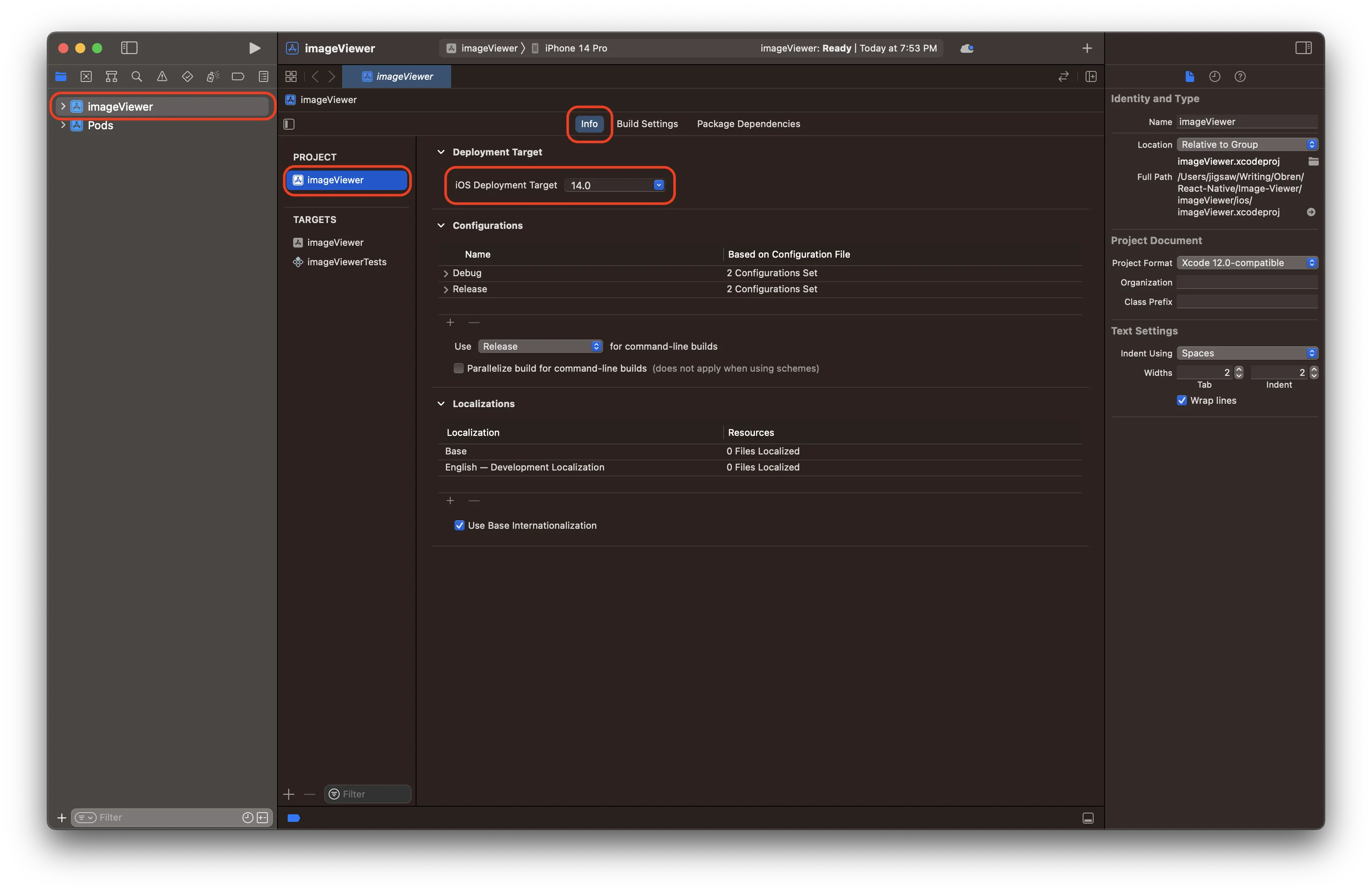
In the project’s
Info.plist, changeView controller-based status bar appearancetoYES.
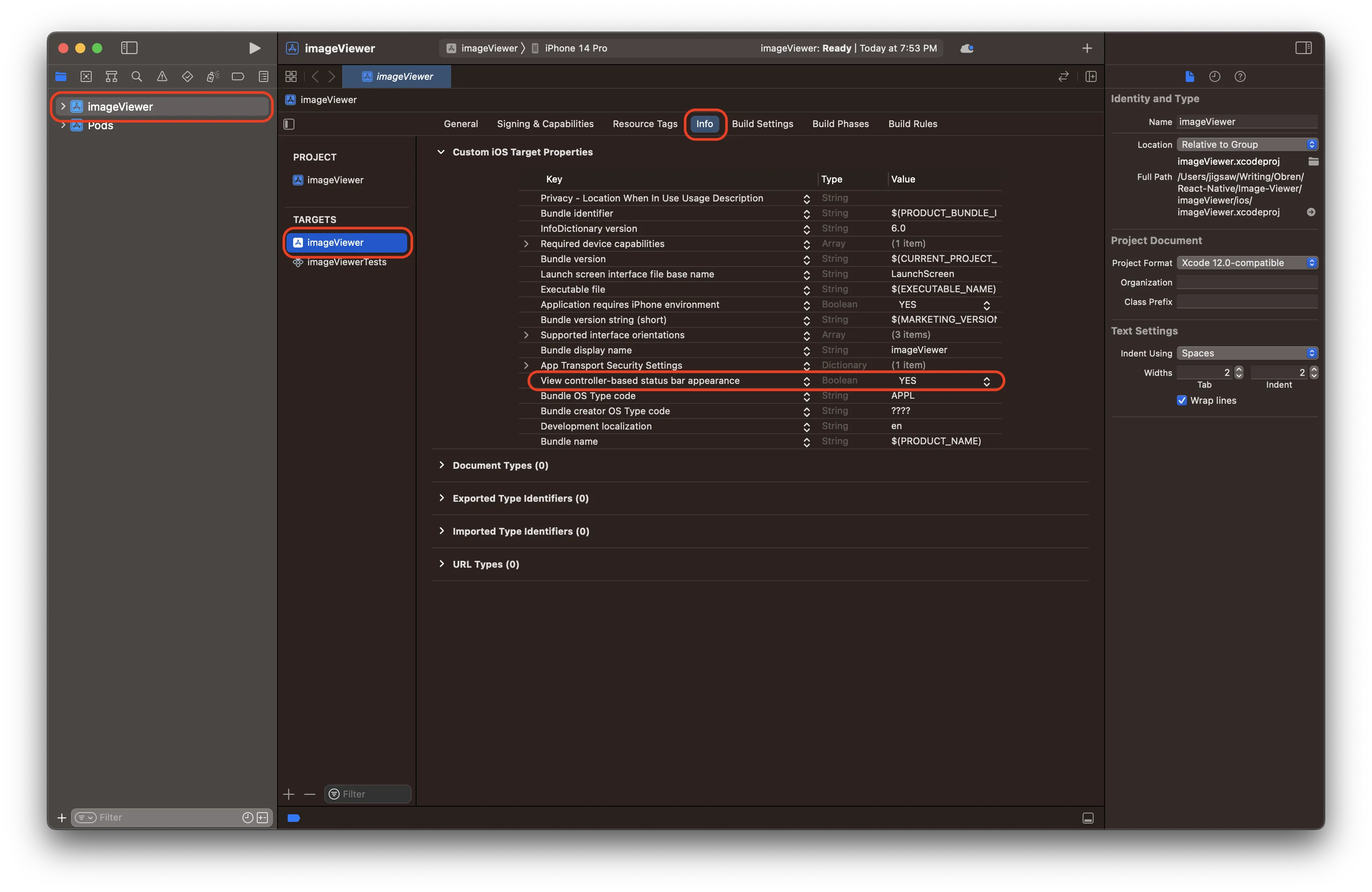
Displaying an image in React Native
Add the image file you want to display to the Xcode project.
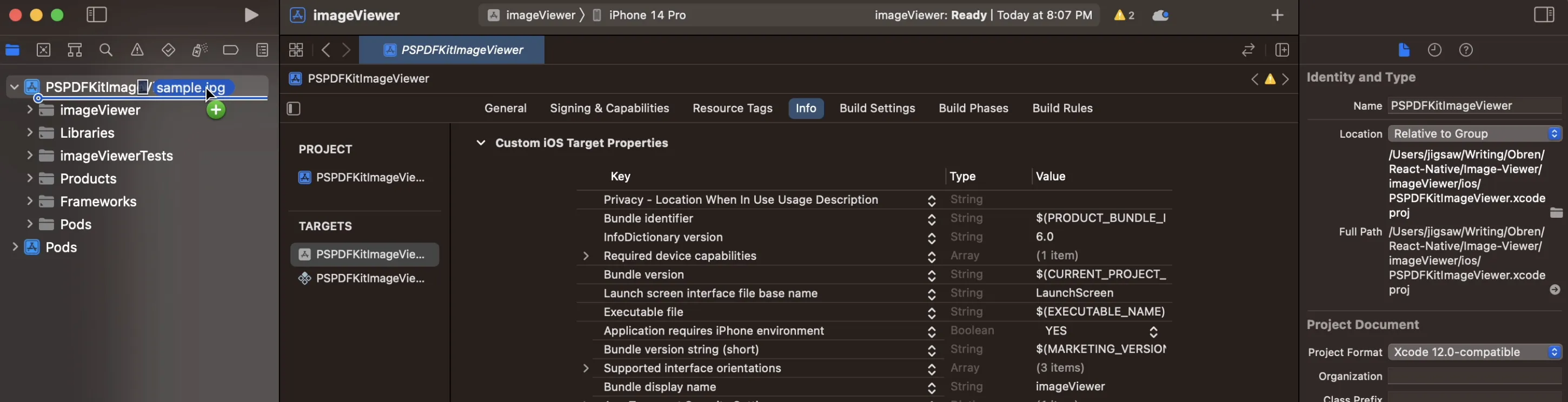
Copy the image file you want to display to the
android/app/src/main/assetsfolder.The following example shows how to open an image using Nutrient’s React Native PDF library. For a working example, replace the contents of your
App.tsxfile with the following:import React, { useRef } from 'react';import { Platform, NativeModules } from 'react-native';import NutrientView from '@nutrient-sdk/react-native';const Nutrient = NativeModules.Nutrient;Nutrient.setLicenseKey(null);const DOCUMENT =Platform.OS === 'ios'? '[YOUR-IMAGE].jpg': 'file:///android_asset/[YOUR-IMAGE].jpg';export default function NutrientImageViewer() {const pdfRef = useRef<NutrientView>(null);return (<NutrientViewdocument={DOCUMENT}configuration={{showThumbnailBar: 'scrollable',pageTransition: 'scrollContinuous',scrollDirection: 'vertical',}}ref={pdfRef}fragmentTag="PDF1"style={{ flex: 1 }}/>);}Replace
[YOUR-IMAGE]with the actual name of your image file.The
configurationprop lets you customize the viewer behavior. In this example:showThumbnailBar: 'scrollable'— Displays a scrollable thumbnail bar for navigating between pages or images.pageTransition: 'scrollContinuous'— Enables smooth continuous scrolling between pages.scrollDirection: 'vertical'— Sets the scroll direction to vertical.
You can explore more configuration options such as
pageModefor single or double page layouts,invertColorsfor dark mode, andautosaveEnabledfor automatic document saving.You can now launch the application by running the following.
Android:
Terminal window npx react-native run-android
iOS:
Terminal window npx react-native run-ios
Annotating images
One of the advantages of using Nutrient for image viewing is that you can annotate images just like you would PDFs. The SDK supports 17 annotation types on images, including:
- Ink annotations — Draw freehand on images for markup or signatures.
- Text annotations — Add text comments or labels directly on the image.
- Shape annotations — Draw rectangles, circles, lines, and polygons to highlight areas.
- Note annotations — Attach sticky notes with comments to specific locations.
- Stamp annotations — Add predefined or custom stamps like “Approved” or “Draft.”
To enable annotations, add the enableAnnotationEditing configuration option:
<NutrientView document={DOCUMENT} configuration={{ showThumbnailBar: 'scrollable', pageTransition: 'scrollContinuous', scrollDirection: 'vertical', enableAnnotationEditing: true, }} ref={pdfRef} fragmentTag="PDF1" style={{ flex: 1 }}/>You can also export and import annotations in XFDF or Instant JSON format, making it possible to save user markups and restore them later.
FAQ
The SDK supports PNG, JPEG/JPG, and TIFF/TIF image formats. You can load these images the same way you would load PDF documents using the NutrientView component.
No, the Nutrient React Native SDK requires the React Native CLI and doesn’t support Expo. This is because the SDK uses native modules that need to be linked to your iOS and Android projects.
You can use the SDK without a license for evaluation purposes. Without a license, a watermark will appear on rendered documents. For production use, you’ll need a commercial license. Start a free trial to get a license key.
Yes. The SDK supports 17 annotation types on images, including ink drawings, text, shapes, notes, and stamps. You can create, edit, and remove annotations programmatically or through the built-in UI.
You can export annotations in XFDF or Instant JSON format using the SDK’s export methods. These can be saved to your backend and later imported to restore the user’s annotations.
The SDK requires iOS 16.0 or higher. Make sure to set the deployment target in both your Podfile and Xcode project settings.
Conclusion
In this post, you learned how to build an image viewer in React Native using Nutrient. In case of any issues, don’t hesitate to reach out to our Support team for help.
Nutrient React Native SDK is an SDK for viewing, annotating, and editing PDFs. It offers developers the ability to quickly add PDF functionality to any React Native application. Try it for free, or visit our demo to see it in action.