How to extract text from a PDF in JavaScript: PDF.js and Nutrient (2026)


Table of contents
Structured output with per-field confidence scores through the Nutrient Data Extraction API.
This tutorial demonstrates two approaches for extracting text from PDFs using JavaScript: PDF.js (open source) and Nutrient SDK (commercial). With PDF.js, you’ll implement text extraction using getTextContent() and promises to process multiple pages. While PDF.js works well for basic extraction, Nutrient offers better handling of complex layouts, a simpler API with textLinesForPageIndex(), and additional features like annotations and multi-format support. You’ll also find guidance on OCR for scanned documents and server-side extraction with Node.js.
To extract text from a PDF using JavaScript, you have two main approaches:
- PDF.js (open source) — Use
getDocument()to load the PDF, iterate through pages, and callgetTextContent()on each page to retrieve text as a string. - Nutrient SDK (commercial) — Load the PDF with
NutrientViewer.load(). Then calltextLinesForPageIndex()for a simpler, layout-aware extraction with support for complex documents.
This post covers both approaches with complete code examples. It focuses on extracting text that’s already selectable in a PDF viewer. For image-based PDFs (scanned documents), you’ll need an OCR solution — see the FAQ below.
Requirements for extracting text from a PDF in JavaScript
PDF.js(opens in a new tab) is the only dependency. It handles PDF loading and text extraction.
You can either download the library or use this CDN link:
<script type="module"> import * as pdfjsLib from 'https://mozilla.github.io/pdf.js/build/pdf.mjs';</script>PDF.js uses web workers for PDF processing so the main thread stays unblocked. Assign the worker URL to pdfjsLib.GlobalWorkerOptions.workerSrc:
pdfjsLib.GlobalWorkerOptions.workerSrc = 'https://mozilla.github.io/pdf.js/build/pdf.worker.mjs';Move the code into an index.html file and add the HTML tags:
<!DOCTYPE html><html>  <head></head>
  <body>    <!-- Load the pdf.js library as a module -->    <script type="module">      import * as pdfjsLib from 'https://mozilla.github.io/pdf.js/build/pdf.mjs';
      pdfjsLib.GlobalWorkerOptions.workerSrc =        'https://mozilla.github.io/pdf.js/build/pdf.worker.mjs';    </script>  </body></html>
Loading the PDF file
With the imports in place, create an extractText function that loads a PDF and returns its text:
function extractText(pdfUrl) {  var pdf = pdfjsLib.getDocument(pdfUrl);
  return pdf.promise.then(function (pdf) {    var maxPages = pdf.numPages;    console.log(maxPages);  });}
// Example PDF file.const url =  'https://raw.githubusercontent.com/mozilla/pdf.js/ba2edeae/web/compressed.tracemonkey-pldi-09.pdf';
extractText(url).then(  function (text) {    console.log('parse ' + text);  },  function (reason) {    console.error(reason);  },);
PDF.js relies on promises — you can see the first example in extractText. So far it only prints the total page count. The sample PDF is a research paper provided by Mozilla.
Extracting text from a PDF file using PDF.js
Now update extractText to perform the actual extraction using getTextContent(opens in a new tab):
function extractText(pdfUrl) {  var pdf = pdfjsLib.getDocument(pdfUrl);  return pdf.promise.then(function (pdf) {    var totalPageCount = pdf.numPages;    var countPromises = [];    for (      var currentPage = 1;      currentPage <= totalPageCount;      currentPage++    ) {      var page = pdf.getPage(currentPage);      countPromises.push(        page.then(function (page) {          var textContent = page.getTextContent();          return textContent.then(function (text) {            return text.items              .map(function (s) {                return s.str;              })              .join('');          });        }),      );    }
    return Promise.all(countPromises).then(function (texts) {      return texts.join('');    });  });}
The code iterates through each page and calls getTextContent to extract its text. Each call returns a promise, which gets pushed to the countPromises array so all pages resolve before extractText returns.
The getTextContent promise resolves to an object with an items array, where each element has an str attribute. The screenshot below shows this in developer tools.
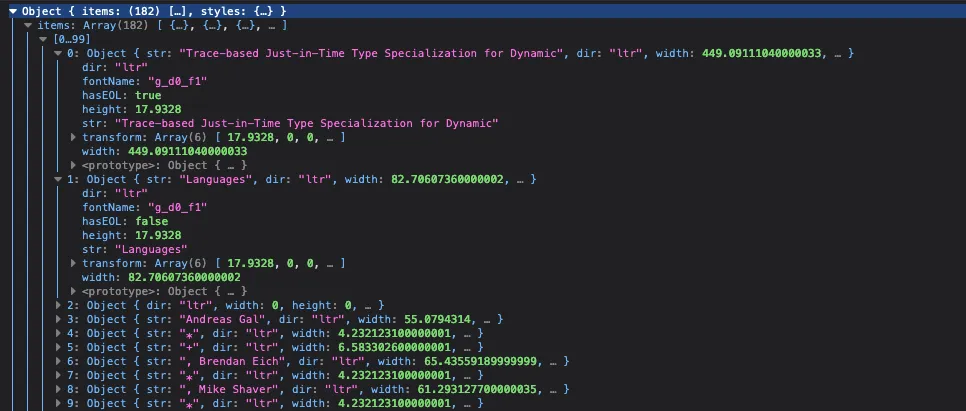
When each page’s promise resolves, the str attributes are merged into one string per page. Then Promise.all joins the per-page strings into the final output:
Promise.all(countPromises).then(function (texts) { return texts.join('');});Complete code
Here’s the complete code:
<!DOCTYPE html><html>  <head></head>
  <body>    <!-- Load the pdf.js library as a module -->    <script type="module">      import * as pdfjsLib from 'https://mozilla.github.io/pdf.js/build/pdf.mjs';
      pdfjsLib.GlobalWorkerOptions.workerSrc =        'https://mozilla.github.io/pdf.js/build/pdf.worker.mjs';
      function extractText(pdfUrl) {        var pdf = pdfjsLib.getDocument(pdfUrl);        return pdf.promise.then(function (pdf) {          var totalPageCount = pdf.numPages;          var countPromises = [];          for (            var currentPage = 1;            currentPage <= totalPageCount;            currentPage++          ) {            var page = pdf.getPage(currentPage);            countPromises.push(              page.then(function (page) {                var textContent = page.getTextContent();                return textContent.then(function (text) {                  return text.items                    .map(function (s) {                      return s.str;                    })                    .join('');                });              }),            );          }
          return Promise.all(countPromises).then(function (texts) {            return texts.join('');          });        });      }
      const url =        'https://raw.githubusercontent.com/mozilla/pdf.js/ba2edeae/web/compressed.tracemonkey-pldi-09.pdf';
      extractText(url).then(        function (text) {          console.log('parse ' + text);        },        function (reason) {          console.error(reason);        },      );    </script>  </body></html>
Save this code in an HTML file and open it in the browser. If it runs successfully, you’ll see something like this in the console.

PDF.js vs. Nutrient for text extraction
Both libraries extract text from PDFs, but they differ in how they handle layout, what they return, and what else they can do.
| Feature | PDF.js | Nutrient |
|---|---|---|
| API | getTextContent() — Returns an items array of positioned glyph strings | textLinesForPageIndex() — Returns TextLine objects with contents, boundingBox, and page metadata |
| Layout handling | Basic — You reconstruct reading order from glyph positions yourself | Layout-aware — The SDK groups glyphs into lines and blocks heuristically |
| Multipage | Loop through pages and collect promises manually | Call textLinesForPageIndex() per page; same pattern, less boilerplate |
| OCR (scanned PDFs) | Not supported — Image-based pages return no text | Built-in OCR support for scanned documents |
| Output formats | Text only | Text, plus bounding boxes for each line (useful for highlighting or redaction) |
| Additional capabilities | Viewing, search, rotation, printing | Annotations, form filling, digital signatures, redaction, MS Office support, real-time collaboration |
| License | Apache 2.0 (free) | Commercial (free trial) |
PDF.js is a solid choice when you need basic text extraction from well-structured PDFs and don’t want a commercial dependency. Nutrient is worth evaluating when you need reliable results from complex layouts, OCR for scanned documents, or additional document capabilities beyond extraction. See our JavaScript PDF viewer page for the full feature list.
Adding Nutrient to your project
The fastest way to add Nutrient to a project is to load the SDK from the CDN — no installation or asset copying required.
- Add the PDF document you want to display to your project’s directory. You can use our demo document as an example.
- Add an empty
<div>element with a defined height to where Nutrient will be mounted, and include the CDN script tag:
<script src="https://cdn.cloud.nutrient.io/pspdfkit-web@1.19.0/nutrient-viewer.js"></script><div id="nutrient" style="height: 100vh"></div>If you prefer to install the SDK locally via npm, see the getting started guide.
Extracting text from a PDF using Nutrient
PDF text is stored as absolutely positioned glyphs, not readable strings. Nutrient groups these glyphs into words and lines heuristically, so you get structured text without manual parsing.
- Load the PDF file
Use NutrientViewer.load() to load the PDF and render it in a container:
const { NutrientViewer } = window;
const instance = await NutrientViewer.load({  container: ‘#nutrient’,  document: ‘document.pdf’,  useCDN: true,});
useCDN: true tells the SDK to load its runtime assets (WASM binary, workers) from Nutrient’s CDN.
- Extract text from a specific page
textLinesForPageIndex returns a list of TextLine objects for a given page index. Each object has a contents property with the line’s text:
const pageIdx = 0;const textLines = await instance.textLinesForPageIndex(pageIdx);Page indices are zero-based, so 0 is the first page. Each TextLine has contents, id, pageIndex, and boundingBox properties.
- Process the extracted text
From here you can concatenate lines into a single string, split into sentences, or feed the text to an NLP pipeline:
const text = textLines.map((line) => line.contents).join(‘\n’);console.log(text);Here’s the full code example:
<!DOCTYPE html><html>  <head>    <title>My App</title>  </head>  <body>    <!-- Element where Nutrient will be mounted. -->    <div id="nutrient" style="height: 100vh"></div>
    <script src="https://cdn.cloud.nutrient.io/pspdfkit-web@1.19.0/nutrient-viewer.js"></script>    <script>      const { NutrientViewer } = window;
      async function extractText() {        try {          const instance = await NutrientViewer.load({            container: '#nutrient',            document: 'document.pdf',            useCDN: true,          });          console.log('Nutrient loaded', instance);
          const pageIdx = 0;          const textLines =            await instance.textLinesForPageIndex(pageIdx);          const text = textLines            .map((line) => line.contents)            .join('\n');          console.log(text);        } catch (error) {          console.error(error.message);        }      }
      extractText();    </script>  </body></html>
Serving your website
The Nutrient CDN script and web workers require an HTTP server — opening the HTML file directly (file://) won’t work. Any static server will do:
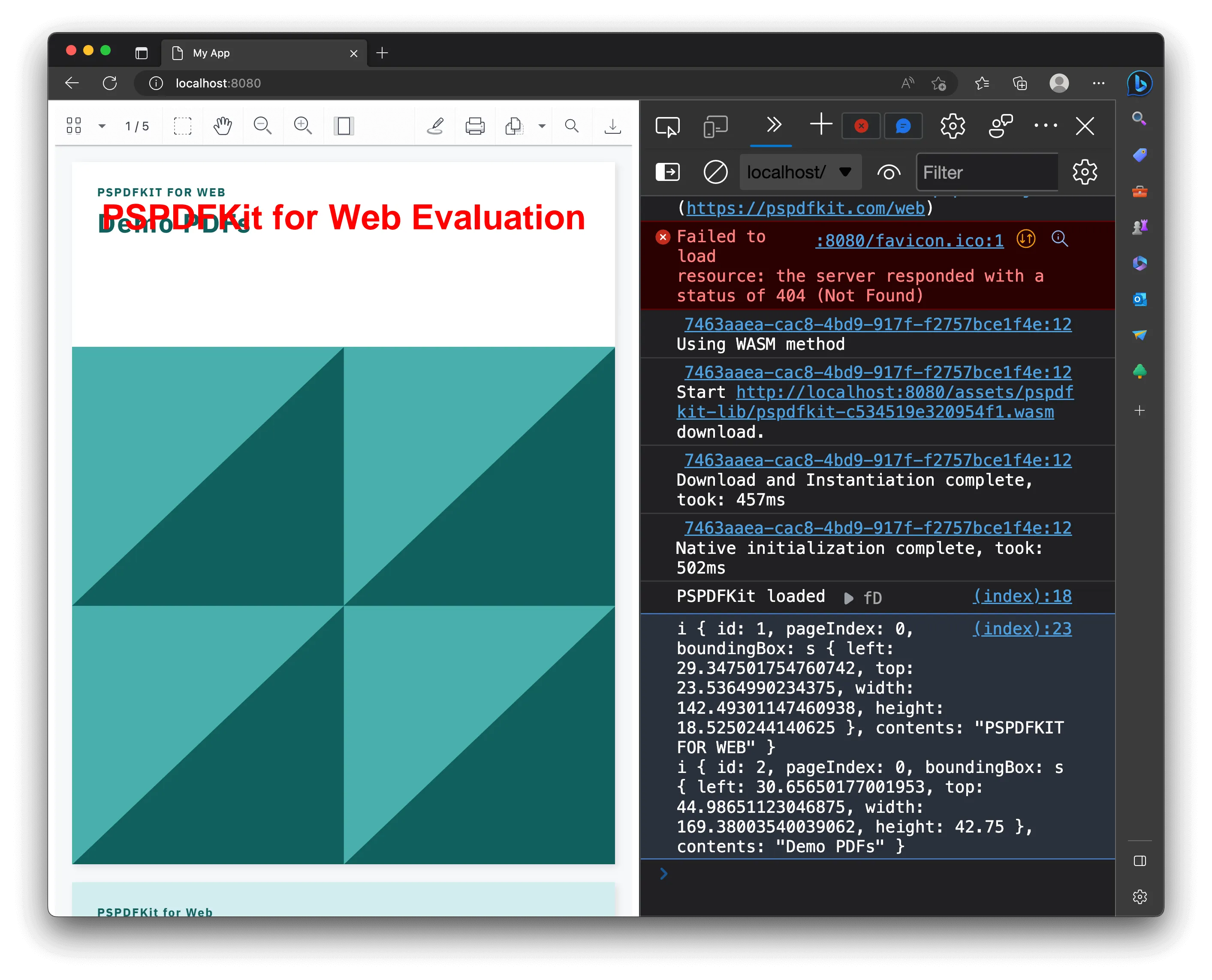
npx serve -l 8080 .Navigate to http://localhost:8080 to view the website. It’ll look like the image below.
Conclusion: Choosing the right approach for PDF text extraction
PDF.js gives you a free, browser-based starting point for text extraction, and it works well for straightforward documents. When you need reliable results from complex layouts, multi-format support, or server-side extraction, Nutrient’s textLinesForPageIndex method and the /pages/:page_index/text server endpoint handle those cases with less effort.
FAQ
The easiest way to extract text from a PDF using JavaScript is by using libraries like PDF.js or Nutrient. These libraries provide APIs to parse and extract text content from PDF files programmatically. Once extracted, you can leverage features like PDF text comparison to identify differences between document versions.
To set up PDF.js, you need to include the library in your project, either by downloading it or using a CDN link. Then, set workerSrc to the correct path for the PDF.js worker script. This setup is essential for handling PDF files without blocking the main thread.
You can extract text from all pages or specific pages of a PDF. By iterating through each page using the PDF.js API and calling the getTextContent method, you can retrieve the text from selected pages.
Common challenges include handling complex document layouts, non-standard fonts, and PDFs that contain images instead of selectable text. These factors can affect the accuracy of text extraction.
While PDF.js is a cost-effective solution for basic PDF viewing and text extraction, Nutrient offers additional features like a prebuilt UI, annotations, and support for various document formats. It also provides dedicated support and scalable solutions, which can be beneficial for complex use cases.
PDF.js is an open source library that provides basic PDF text extraction capabilities. In contrast, Nutrient is a commercial library that offers a more comprehensive suite of features, including text extraction, annotations, and form filling. It also provides better support for complex layouts and additional document types.
In Node.js, you can use Nutrient’s Document Engine or Processor API to extract text server-side without a browser. Alternatively, pdfjs-dist — the npm package version of PDF.js — works in Node.js environments. Install it with npm install pdfjs-dist. Then use the same getDocument() and getTextContent() API as the browser version. For production server-side use, Nutrient’s API is more reliable for complex layouts and multi-format documents.
Scanned PDFs are image-based and contain no selectable text, so PDF.js and textLinesForPageIndex() won’t work on them. You need optical character recognition (OCR) to extract text. Nutrient includes built-in OCR support that can process scanned documents and make their text searchable and extractable. Alternatively, you can use a third-party OCR API and pass the result to your JavaScript application.
Not reliably. The PDF format is complex — text is stored as positioned glyphs, not as continuous strings. Without a library like PDF.js or Nutrient to parse the binary format and reconstruct reading order, you’d need to implement PDF parsing from scratch, which is a significant undertaking. For any production use, a dedicated library is strongly recommended.