Online document viewer: Options, tradeoffs, and how to embed one

Table of contents

- There are three implementation approaches for browser-based document viewing: a client-side JavaScript SDK (installed via npm), a hosted viewer you drop in through an iframe, and server-side rendering on your own backend. Each comes with different complexity, capability, and cost tradeoffs.
- A JavaScript SDK like Nutrient Web SDK gives the most control over features, performance, and document privacy.
- Nutrient Web SDK runs client-side via WebAssembly(opens in a new tab) and integrates with React, Angular, Vue, and Next.js.
Your users need to review contracts, annotate designs, fill out forms, or sign documents — all without leaving your app. The viewer you pick determines what you can build and whether sensitive files stay on your infrastructure.
There are three ways to add document viewing to a web app: Install a JavaScript SDK that runs in the browser, drop in a cloud-hosted viewer through an iframe, or render documents on your own server. Each makes different tradeoffs on privacy, format support, customization, and engineering effort.
This guide compares all three and walks through embedding a viewer with Nutrient Web SDK.
How to choose an approach
Before going deep on any option, match your scenario to the shortlist:
| Your scenario | Pick |
|---|---|
| Documents contain regulated data — protected health information (PHI), personally identifiable information (PII), financial records, or legal documents | Client-side SDK — files stay in the browser |
| You need annotations, form filling, or signatures | Client-side SDK |
| Public, non-sensitive documents; a quick preview is enough | Hosted iframe viewer |
| You’re prototyping and want something working in an hour | Hosted iframe viewer |
| Files routinely exceed 100 MB or have rare formats | Server-side rendering |
| You already run a document-processing server | Server-side rendering |
| You need to work offline or on spotty connections | Client-side SDK (after initial load) |
If more than one row applies, the stricter requirement usually wins. Privacy rules, for example, tend to rule out iframe approaches entirely — if regulated data can’t leave your infrastructure, a third-party iframe viewer is out regardless of how quick it is to set up.
Approach 1: Client-side JavaScript SDK
A JavaScript SDK installs like any other npm package. You mount a viewer component into your app and pass it a document, and the SDK handles rendering, UI, and interaction — all in the browser. Documents are processed client-side — typically via WebAssembly(opens in a new tab) — so files never leave the user’s machine unless you explicitly send them elsewhere.
Tools in this category:
- Nutrient Web SDK — It’s a commercial SDK that handles PDF, DOCX, XLSX, PPTX, and images through a single API. It ships with annotations, form filling, electronic signatures, and redaction, and it’s picked by teams whose product treats document viewing as a core feature.
- PDF.js(opens in a new tab) — It’s an open source, PDF-only library maintained by Mozilla. It’s a good fit for read-only PDF previews when you can build any missing UI yourself and don’t need Office formats.
How it works
A WebAssembly engine ships as part of the SDK bundle. When the user opens a document, the browser fetches the file (from your server, a blob URL, or a user upload), loads it into the engine, and renders pages to an HTML canvas or to a Document Object Model (DOM) tree. The engine typically runs in a Web Worker(opens in a new tab), keeping the main thread free for UI interaction.
When to use this approach:
- Document viewing is a core feature of your product, not just a nice-to-have.
- Documents contain sensitive or regulated data that shouldn’t transit third-party servers.
- You need annotations, form filling, or digital signatures beyond basic rendering.
- You want full control over the toolbar, UI, and user interaction.
- You want the viewer to work offline once the page has loaded.
When to avoid it:
- You just need a one-off PDF preview on a marketing page — the bundle cost isn’t justified.
- Your target audience includes very low-end devices where WebAssembly performance lags.
- Your files are consistently in the 100 MB+ range — server-side rendering scales better.
Common pitfalls:
- Bundle weight. Ship the viewer lazily (dynamic import, route-level code split) so it only loads when a user opens a document.
- Mobile memory. Opening a 500-page PDF on a budget Android phone can crash the tab. Test on real devices and set reasonable upper bounds on file size.
- Cross-origin resource sharing (CORS)(opens in a new tab) on authenticated PDFs. If you serve documents from a different origin, configure CORS on the file server and think about whether signed URLs, authentication headers, or same-origin proxies fit your security model.
- Font rendering. PDFs referencing fonts the browser doesn’t have may fall back to substitutes. PDFs that embed their fonts render faithfully; those that don’t can look slightly different across browsers.
Approach 2: Hosted iframe viewer
A third-party service hosts a ready-made viewer app. You drop an <iframe> onto your page that points at their viewer URL and pass your document’s address as a parameter. The service fetches the file, renders it on their infrastructure, and displays it inside the iframe. Google Docs Viewer and Microsoft Office Online both work this way.
Tools in this category:
- Google Docs Viewer(opens in a new tab) — It’s free and requires no signup. It renders PDF and Office formats from a public URL inside an
<iframe>, and it offers no authentication support and no annotations. - Microsoft Office Web Apps(opens in a new tab) — It’s free for public Office files (DOCX, XLSX, PPTX). It uses the same model as Google’s viewer: The file URL must be reachable from Microsoft’s servers.
How it works
The third-party service hosts a viewer app at a known URL. You embed that URL in an <iframe> on your page, passing the document’s public URL as a query parameter. The third-party server fetches the document, renders it on its infrastructure, and streams the result back into the iframe. Your server never touches the rendering. The iframe isn’t a styling choice — it’s how the browser sandboxes a third-party page inside yours, which is why you can’t reach across the boundary to customize the UI or read its state.
When to use this approach:
- You need a quick preview for publicly accessible, non-sensitive documents.
- You don’t need annotations, form filling, or interactivity beyond scrolling and zooming.
- You’re prototyping and need something working in minutes, not hours.
- You can tolerate the third-party service going down or changing its API.
When to avoid it:
- Documents are behind a login wall — these viewers require a publicly accessible URL.
- You handle regulated data — the file is fetched and processed by a third party.
- You need a branded UI, custom toolbars, or any control over the rendering surface.
- You need reliable rendering fidelity — cloud viewers can change output formatting without warning.
Common pitfalls:
- Authenticated documents. Google Docs Viewer and Office Online can’t fetch files that require authentication headers or cookies. If your app is behind a login, you either make the file publicly addressable (a privacy risk) or use a different approach.
- CORS and
X-Frame-Options(opens in a new tab). Some hosts block embedding entirely or only allow it from certain origins. Test early. - Rate limits. Free-tier cloud viewers often enforce per-IP limits that surface as intermittent failures in production.
- Audit trail gap. You have no server-side record of who viewed which document at what time — the third party holds that log, if at all.
Nutrient doesn’t offer a hosted iframe widget in this category. If the appeal of this approach is “no infrastructure to maintain” rather than the iframe itself, see DWS Viewer API, a managed cloud backend for Nutrient Web SDK that removes server-side operations without giving up the client-side UI.
Approach 3: Server-side rendering
A server converts documents to images or HTML and streams the result to the browser. The client displays rendered output without knowledge of the source format.
Tools in this category:
- Nutrient Document Engine — It’s a self-hosted server that renders documents and pairs with a thin client UI. It supports PDF, Office, and image formats with annotations and form filling handled server-side, and it’s cross-stack so it works with any backend that can talk HTTP.
- DocuVieware — It’s a zero-footprint HTML5/AJAX viewer for .NET applications. It handles 100+ document formats server-side with no client-side dependencies, and it fits teams already running ASP.NET.
- LibreOffice in headless mode — It’s open source and handy for Office-to-PDF conversion behind the scenes, but you build the viewer UI yourself.
- Apache PDFBox, pdf2htmlEX, and similar libraries — These convert documents to images or HTML on the server. It’s a DIY approach in which you own the rendering pipeline and the client.
How it works
Your backend (or a dedicated rendering service) receives a document, converts each page to an image or HTML fragment, and serves those to the client over HTTP. The client UI stays lightweight — it’s just an image viewer with navigation. Rendering happens on infrastructure you control.
When to use this approach:
- You need to handle rare or exotic formats not supported client-side.
- Your documents are very large and you want to offload processing from client devices.
- You already run a document-processing server and want to add viewing to it.
- You need strict server-side audit logging of who accessed what document.
When to avoid it:
- You want the viewer to work offline — server-rendered approaches require a connection.
- Your budget doesn’t support running and scaling a rendering fleet.
- Users expect fast interaction (annotations, zoom) — server roundtrips add latency vs. a client-side engine.
Common pitfalls:
- Scaling under burst load. A dozen users opening large PDFs simultaneously can saturate render workers. Plan queueing, caching of prerendered pages, and autoscaling.
- Cache invalidation. Prerendered page images get stale if the document changes. Invalidate aggressively or version the URLs.
- Feature parity. Annotations and form filling on server-rendered images require extra plumbing (coordinates, overlays) vs. an SDK that handles them natively.
To see Nutrient Document Engine in action, refer to the Document Engine demo page. To deploy it on your own infrastructure, see the Document Engine getting started guide.
Comparison
| What you need | JavaScript SDK | Hosted iframe viewer | Server-side rendering |
|---|---|---|---|
| Display PDF, Office, and image files | Yes — broad format support | PDF + Office via conversion | Yes — unlimited server-side |
| Let users annotate and comment | Full annotation toolkit | Usually not available | Depends on server stack |
| Keep documents private | Highest — files stay in the browser | Lowest — files sent to third-party servers | Medium — files stay on your server |
| Work offline | Yes | No | No |
| Control the UI and toolbar | Full API control | None (iframe boundary) | Medium (depends on client) |
| Get running quickly | Moderate (npm install + mount) | Fastest (URL param or iframe src) | Slowest (server deployment) |
| Cost model | SDK license | Usage-based or free tier | Infrastructure + license |
What the table doesn’t show
- Bundle size. JavaScript SDK viewers ship a WebAssembly engine, which is a meaningful addition to your app’s download size. For apps where first-load performance matters, use lazy loading or code splitting so the viewer only loads when a user opens a document.
- Mobile. Client-side SDKs work on mobile browsers, but touch gesture handling, pinch-to-zoom, and responsive toolbar layout vary across implementations. Test on real devices.
- Accessibility. Screen reader support, keyboard navigation, and Accessible Rich Internet Applications (ARIA) attributes differ significantly between viewers. If your app has accessibility requirements — Web Content Accessibility Guidelines (WCAG) or Section 508 — evaluate this before committing to an approach.
What sets Nutrient apart
- Client-side processing. Nutrient Web SDK uses WebAssembly to render and manipulate documents in the browser. Files never leave the user’s device unless you send them elsewhere.
- One SDK for every format. PDF, DOCX, XLSX, PPTX, and image files all work through a single
load()call. No format-specific libraries to maintain. - Built-in document workflows. Annotations, form filling, electronic signatures, and redaction ship with the SDK. You don’t need to build or integrate these separately.
- Framework guides. Getting started guides for React, Angular, Vue, and Next.js cover setup for each framework.
How Nutrient’s products fit together
Nutrient Web SDK works fully standalone in the browser; no backend is required for viewing, annotating, filling forms, or applying electronic signatures locally. If your use case needs collaboration, shared document storage, or cryptographic digital signatures, pair the Web SDK with one of two backends:
- Nutrient Document Engine — A self-hosted server. Pick this when compliance, data residency, or existing on-premises infrastructure require keeping rendering inside your environment.
- DWS Viewer API — The managed software as a service (SaaS) equivalent. Pick this when you want the same backend capabilities without running and scaling servers yourself.
Teams on ASP.NET can also use DocuVieware for fully server-rendered document viewing inside .NET applications.
Nutrient Web SDK quick start
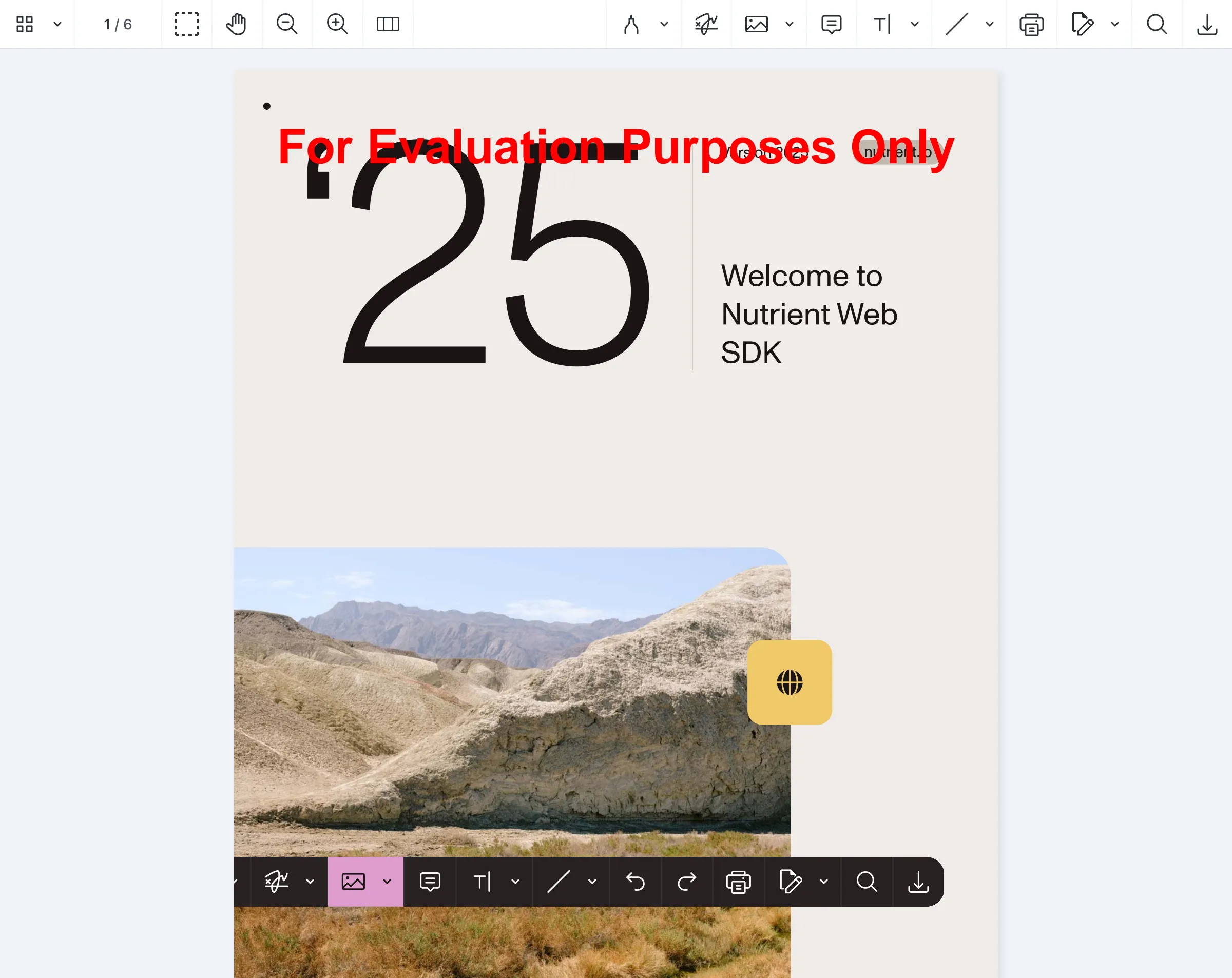
Nutrient Web SDK is a JavaScript-based document viewer that runs in the browser via WebAssembly. No server is required. It supports PDF, DOCX, XLSX, PPTX, and other Office and image formats.
Install
npm install @nutrient-sdk/viewerOr load from a content delivery network (CDN):
<script src="https://cdn.cloud.nutrient.io/pspdfkit-web@1.22.0/nutrient-viewer.js"></script>Basic embedding
<div id="viewer" style="width: 100%; height: 600px;"></div>NutrientViewer.load({ container: "#viewer", document: "/path/to/document.pdf",});The SDK detects the file format automatically — pass a .docx, .xlsx, .pptx, or image file and the same load() call works without additional configuration.
Restrict document permissions
If your app handles contracts or sensitive records, you can prevent users from copying text or printing a document. See the prevent print or download guide for the full set of restriction options:
NutrientViewer.load({ container: "#viewer", document: "/path/to/document.pdf", disableTextSelection: true, toolbarItems: NutrientViewer.defaultToolbarItems.filter( (item) => item.type !== "print" ),});Load a document from an authenticated endpoint
When your documents sit behind a login, fetch them with credentials and pass the resulting bytes (as an ArrayBuffer(opens in a new tab)) to the viewer. This keeps the file URL private and works with any authentication scheme your server already uses (session cookies, bearer tokens, signed URLs). See open a document from an ArrayBuffer for the full guide.
async function loadAuthenticatedDocument() {  const response = await fetch("/api/documents/contract-42.pdf", {    headers: { Authorization: `Bearer ${sessionToken}` },  });
  if (!response.ok) {    throw new Error(`Failed to load document: ${response.status}`);  }
  const arrayBuffer = await response.arrayBuffer();
  NutrientViewer.load({    container: "#viewer",    document: arrayBuffer,  });}
loadAuthenticatedDocument();
Customize the toolbar
defaultToolbarItems is an array you can filter, reorder, or extend before passing to load(). A minimal toolbar for a signing flow might look like this. See the user interface customization guide for every toolbar option and custom item type:
const minimalToolbar = NutrientViewer.defaultToolbarItems.filter((item) =>  ["sidebar-thumbnails", "pager", "zoom-out", "zoom-in", "signature"].includes(    item.type  ));
NutrientViewer.load({  container: "#viewer",  document: "/path/to/contract.pdf",  toolbarItems: minimalToolbar,});
Handle load events
NutrientViewer.load() returns a promise that resolves with an instance handle. Use the promise to know when a document is ready, and addEventListener on the instance to react to user activity like annotation changes or form submissions. See the annotation events guide for the full list of events.
NutrientViewer.load({  container: "#viewer",  document: "/path/to/document.pdf",})  .then((instance) => {    console.log("Document loaded:", instance.totalPageCount, "pages");
    const onAnnotationChange = () => {      console.log("Annotations updated — trigger an autosave here");    };
    instance.addEventListener("annotations.create", onAnnotationChange);    instance.addEventListener("annotations.update", onAnnotationChange);    instance.addEventListener("annotations.delete", onAnnotationChange);  })  .catch((error) => {    console.error("Viewer failed to load:", error.message);  });
Clean up on unmount
If your viewer mounts inside a component that can unmount — React, Vue, Angular, or single-page application (SPA) route changes — call unload so the WebAssembly engine releases memory. Skipping this leaks memory across navigations. See the Web SDK troubleshooting guide for the full lifecycle pattern.
const container = document.querySelector("#viewer");
// On mountNutrientViewer.load({ container, document: "/doc.pdf" });
// On unmount (React useEffect cleanup, Vue onUnmounted, etc.)NutrientViewer.unload(container);
Try the live demo
Try the Nutrient demoWhat to test before committing to a viewer
A quick demo page tells you a viewer can render a document. It doesn’t tell you how the viewer behaves under real conditions. Walk through this checklist with the files, devices, and flows your app will serve. Also check the viewer’s file format support matrix to confirm every format you accept is covered.
File handling
- [ ] The largest PDF you realistically expect (500 pages, 100 MB).
- [ ] A Word document with embedded tables, images, and a multicolumn layout.
- [ ] An Excel sheet with formulas and multiple tabs.
- [ ] A PowerPoint with animations and speaker notes.
- [ ] A scanned-image PDF (no selectable text).
- [ ] A password-protected PDF.
- [ ] A PDF with embedded non-standard fonts.
Device and browser
- [ ] Real mobile Safari (iOS) — not a desktop browser in mobile emulation.
- [ ] Real Chrome on a midrange Android device.
- [ ] A 4K display (zoom, text crispness).
- [ ] A low-bandwidth connection (throttled to 3G in DevTools).
Interaction
- [ ] Annotate, save, close, reopen — annotations persist correctly.
- [ ] Fill a form, export the data — values roundtrip faithfully.
- [ ] Apply a signature — the signed PDF validates in Adobe Acrobat.
- [ ] Print — page breaks and margins are correct.
- [ ] Copy text — selection follows visual order, not PDF internal order.
Accessibility (map items to WCAG(opens in a new tab) if you have compliance requirements)
- [ ] Keyboard-only navigation reaches every toolbar control.
- [ ] VoiceOver/NonVisual Desktop Access (NVDA) announces page numbers and document structure.
- [ ] Zoomed to 400 percent and nothing breaks or hides behind other UIs.
Integration
- [ ] The viewer unmounts cleanly when the user navigates away (no memory leak).
- [ ] Authenticated document URLs work with your authentication scheme (headers, cookies, signed URLs).
- [ ] The bundle is code-split so pages without the viewer don’t pay the cost.
- [ ] Error states (network failure, corrupt file, unsupported format) surface gracefully.
If any item fails for an approach you were considering, that’s your answer — move to the next approach before sinking more time into integration.
What you can build
Beyond viewing, Nutrient Web SDK adds document workflows directly inside your app:
- Document review — Let users highlight text, leave comments, and draw annotations on PDFs and Office files.
- Form filling — Render interactive PDF forms and collect user input without a separate forms tool.
- Electronic signatures — Capture signatures and apply them to documents, removing the need for a third-party signing service.
- Redaction — Mark and permanently remove sensitive content before sharing or exporting a document.
- Document editing — Merge, split, rotate, and reorder pages programmatically or through the built-in UI.
Each capability works across all supported formats and runs entirely in the browser.
Framework integrations
Nutrient Web SDK works with major frameworks. These guides walk through setup for each one:
- How to display a PDF in React
- How to build a React.js file viewer (PDF, image, Office)
- How to display PDFs using Angular
- Angular file viewer for PDF, image, and Office files
- How to build a Vue.js PDF viewer
- How to build a Next.js PDF viewer
For the full getting started guide, see Nutrient Web SDK documentation.
FAQ
Nutrient Web SDK renders PDF, DOCX, XLSX, PPTX, and common image formats (PNG, JPG, and TIFF) through a single API. The SDK detects the format automatically, so you use the same NutrientViewer.load() call regardless of file type.
No. Nutrient Web SDK runs entirely in the browser via WebAssembly. Documents are fetched, parsed, and rendered client-side, so files never leave the user’s device unless you explicitly upload them. If you want managed infrastructure without running servers yourself, DWS Viewer API provides a cloud backend that pairs with the Web SDK.
Nutrient Web SDK is a client-side JavaScript library that renders documents in the browser. Nutrient Document Engine is a self-hosted server that handles rendering, persistence, and collaboration features server-side. Most teams pick the Web SDK for its browser-only deployment; teams with stricter audit, storage, or cryptographic signing needs pair both.
Install Nutrient Web SDK (npm install @nutrient-sdk/viewer), create a container <div> element, and call NutrientViewer.load() with the container selector and document path. For a complete guide with component examples, see how to display a PDF in React.
Yes. Nutrient Web SDK runs entirely in the browser after the initial page load — no network connection is needed once loaded. You can pair it with a service worker to cache the SDK bundle and your documents for fully offline use.
Visit the Nutrient Web SDK demo to test PDF, Office, and image viewing directly in your browser. No installation or signup required. When you’re ready to integrate, see the getting started guide.
Yes. Nutrient Web SDK includes built-in electronic signature support. Users can draw, type, or upload a signature and apply it to any supported document directly in the browser. For cryptographic digital signatures, pair the Web SDK with Nutrient Document Engine.
Yes. NutrientViewer.defaultToolbarItems returns an array you can filter, reorder, or extend before passing to load() via the toolbarItems option. Disable printing, hide text selection, or strip the toolbar down to a minimal signing flow — all without forking the SDK. See the Nutrient Web SDK user interface guide.