Top five JavaScript document viewers for DOCX and PDF

Table of contents
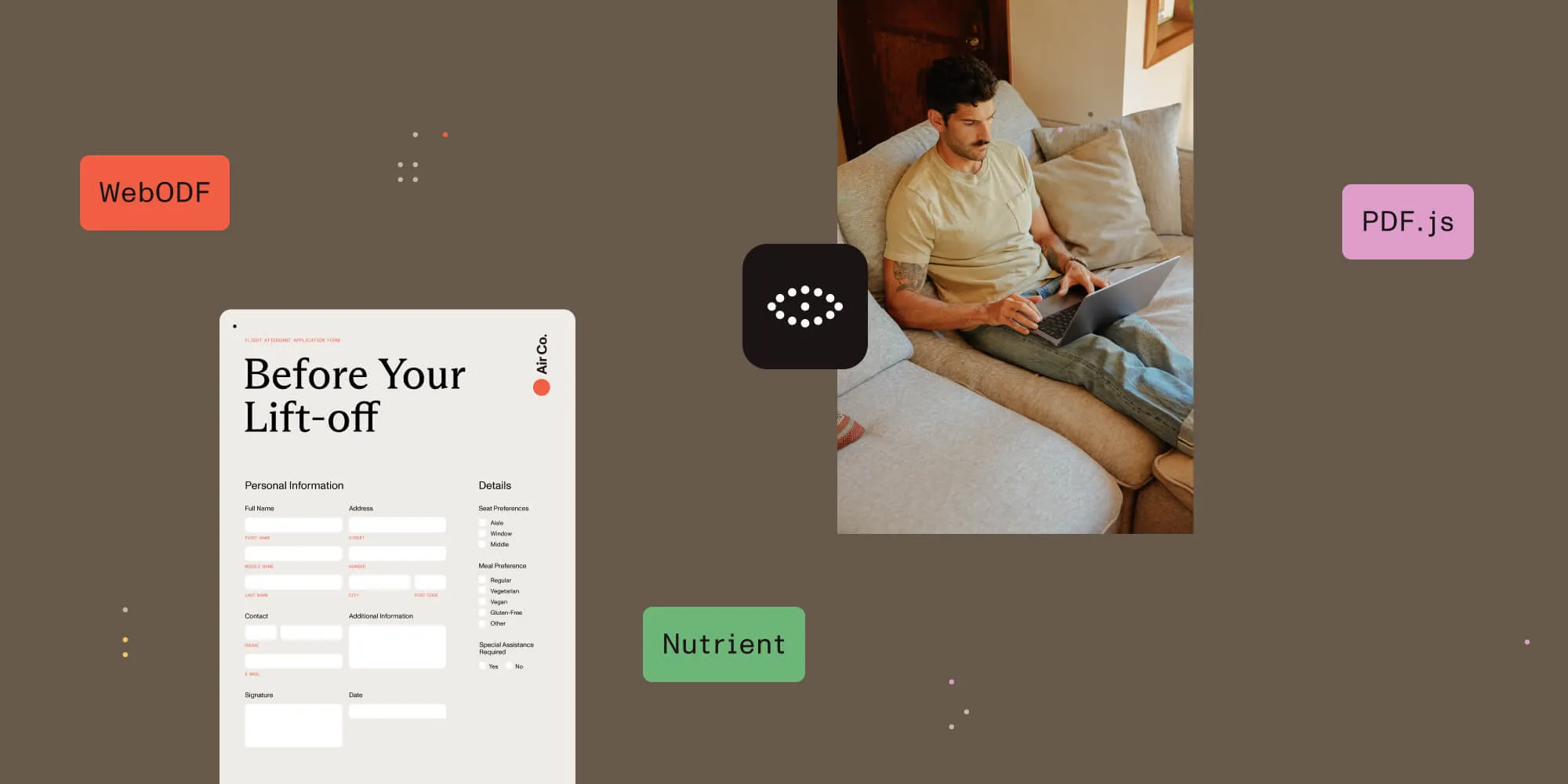
Choose a JavaScript document viewer by its input formats and the output your users need. PDF viewing, Office-to-PDF conversion, and editable DOCX output require different capabilities.
- Nutrient document viewer — View PDFs and Office files, annotate them, and export PDF output.
- Nutrient Document Authoring — Edit document content in the browser and export DOCX or PDF.
- WebODF — Render OpenDocument Format (ODF) files; it doesn’t natively open DOCX or PDF.
- PDF.js — Render PDFs with Mozilla’s open source library or use its prebuilt viewer.
- ViewerJS — Embed a PDF and ODF viewer in an
iframe; DOCX requires a separate conversion step.
A JavaScript document viewer displays files inside a web application, so users can read them without opening a separate desktop application. The file extension matters: A PDF renderer can’t automatically display a Word document, and an ODF viewer doesn’t necessarily support DOCX.
This comparison covers five options with different roles. Nutrient publishes this article and offers the two commercial SDKs listed below. WebODF, PDF.js, and ViewerJS are open source projects.
| Tool | Relevant input formats | Editing and output | Main tradeoff |
|---|---|---|---|
| Nutrient document viewer | PDF and Office files, including DOCX | Annotate or edit the converted PDF; export PDF | Commercial license; Office viewing isn’t DOCX authoring |
| Nutrient Document Authoring | DOCX, ODT, RTF, and DocJSON | Edit text and layout; export DOCX or PDF | Commercial license; DOCX import and export are best effort |
| WebODF | ODF, including ODT | Render ODF; its editor provides ODT editing | AGPL license; no native DOCX or PDF rendering |
| PDF.js | Render PDF pages or embed the prebuilt viewer | Apache 2.0 license; no DOCX support | |
| ViewerJS | PDF and ODF | Embed a document reader | AGPL license; evaluate its bundled dependencies before adoption |
For a DOCX upload that only needs previewing, conversion to PDF can be enough. If users must change paragraphs and download an editable Word document, evaluate an authoring SDK instead.
1. Nutrient document viewer
Nutrient Web SDK displays PDFs and Office documents in a browser. Its Office conversion engine converts DOCX files to PDF for viewing and PDF operations, such as annotations. Choose this approach when users need to review a Word document and save PDF output. For editable DOCX output, see Document Authoring.
Explore the Nutrient demoHow to get started
- Installation:
Follow the installation guide to download the library(opens in a new tab), load its JavaScript, and serve the SDK assets. Create a container with the ID nutrient-container and a defined height. The short example below shows the document and container settings; for licensed use, include your license key with the Office Files component enabled. Refer to the Office viewing guide for the full configuration.
- Basic usage:
NutrientViewer.load({ document: "/path/to/document.docx", container: "#nutrient-container",});Technical features
- Office-to-PDF conversion — Opens Word, Excel, and PowerPoint files using a browser-based conversion engine without Microsoft Office or LibreOffice on a server.
- PDF tools — Offers annotations, form filling, and editing through separately licensed components.
- PDF export — Saves the displayed Office document as PDF. Refer to the Office-to-PDF guide for conversion and font configuration.
Advantages
- One viewer for PDF and Office files — Use the same interface to review both types of documents.
- Prebuilt tools — Add document interactions without implementing each viewer control yourself.
- Client-side processing — Run Office conversion in the browser when your deployment calls for local document processing.
Disadvantages
- Commercial license — Requires a paid license for production. Confirm which components your application needs during evaluation.
- Different output format — This viewing workflow exports PDF, rather than saving changes back to the source DOCX.
- Font configuration — Missing fonts can be substituted during conversion. Test representative documents and provide custom fonts when layout accuracy matters.
To learn more about Nutrient’s document viewer, check out the following blog posts:
- How to build a TypeScript PDF viewer with Nutrient
- How to build a Nuxt.js PDF viewer with Nutrient
- How to display a PDF in React
- How to build a Tauri PDF viewer with Nutrient
- How to display PDFs using Angular
- How to build a PowerPoint (PPT/PPTX) viewer in JavaScript
- How to open Excel (XLS and XLSX) files in the browser with JavaScript
- How to build a React.js file viewer: PDF, image, MS Office
- How to open Word (DOC and DOCX) files in the browser with JavaScript
2. Nutrient Document Authoring
Document Authoring is an SDK for creating and editing document content in the browser. Use it when users need to rewrite paragraphs, change tables, or export an editable Word document. Its import and export guides describe the supported formats and DOCX limitations.
Explore the Nutrient Document Authoring demoKey features
- Import DOCX, ODT, RTF, and other supported formats for editing.
- Edit text, tables, and images with a page-based layout.
- Save working documents in DocJSON, the SDK’s native format.
- Export to PDF, DOCX, Markdown, RTF, or ODT.
Advantages
- Editable document output — Export DOCX when the next step in a workflow requires a Word file.
- Document creation — Build a document from content instead of starting with a finished PDF.
- Native save format — Use DocJSON for everyday saving to avoid repeatedly importing and exporting DOCX.
Disadvantages
- Commercial solution — Requires a paid license. DOCX support is an optional feature, so confirm it’s included in your evaluation.
- Best-effort DOCX conversion — Import and export don’t guarantee an identical Word layout. Test floating tables, positioned images, and text wrapping with your own documents.
To learn more about Nutrient Document Authoring SDK, check out the following blog post:
3. WebODF
WebODF(opens in a new tab) renders ODF files using HTML and CSS. It’s relevant when your documents are already in ODF formats, such as ODT. It doesn’t provide native DOCX or PDF rendering; converting those files to ODF is a separate part of an application.
Explore the WebODF demoEmbedding WebODF in a webpage
Download webodf.js(opens in a new tab) and serve it alongside your HTML page and an ODT document. Update the document path for your deployment. This example creates an ODF canvas and loads document.odt:
<html> <head> <script src="webodf.js" type="text/javascript"></script> <script type="text/javascript"> function initialize() { var odfElement = document.getElementById("odf"), odfCanvas = new odf.OdfCanvas(odfElement); odfCanvas.load("document.odt"); } window.setTimeout(initialize, 0); </script> </head> <body> <div id="odf"></div> </body></html>Technical features
- Renders ODF documents in the browser using HTML and CSS.
- Provides an ODF canvas for embedding document content.
- Includes an editor for ODT text documents.
Advantages
- ODF focus — Useful for applications that already store documents in an open office format.
- Open source — Source code is available under the GNU Affero General Public License (AGPL).
- Browser rendering — Doesn’t require a document conversion service to display ODF files.
Disadvantages
- No native DOCX or PDF support — A DOCX upload needs conversion or another renderer.
- Older release — The project homepage’s latest announced release is 0.5.9, dated 4 September 2015. Test browser compatibility and assess maintenance needs before choosing it for a new application.
4. PDF.js
PDF.js(opens in a new tab) is Mozilla’s open source PDF rendering project. You can use its display API to render pages into a custom interface or embed its prebuilt viewer. It’s a useful starting point when your inputs are PDFs and your team wants control of the implementation.
Explore the PDF.js demoHow to get started
- Installation:
Load PDF.js from a content delivery network (CDN) as an ECMAScript (ES) module, install pdfjs-dist from npm, or build PDF.js from its GitHub source(opens in a new tab). The example below pins pdfjs-dist to version 6.0.227. Keep the library and worker versions matched when upgrading.
The example requires a canvas element with the ID pdf-canvas and an accessible PDF at the configured path. Run it as a module script after the canvas exists. If the PDF is hosted on another origin, configure cross-origin resource sharing (CORS) on that server.
import {  getDocument,  GlobalWorkerOptions,} from "https://cdn.jsdelivr.net/npm/pdfjs-dist@6.0.227/build/pdf.min.mjs";
GlobalWorkerOptions.workerSrc =  "https://cdn.jsdelivr.net/npm/pdfjs-dist@6.0.227/build/pdf.worker.min.mjs";
const loadingTask = getDocument({ url: "path/to/document.pdf" });loadingTask.promise.then((pdf) => {  pdf.getPage(1).then((page) => {    const viewport = page.getViewport({ scale: 1.5 });    const canvas = document.getElementById("pdf-canvas");    const context = canvas.getContext("2d");    canvas.height = viewport.height;    canvas.width = viewport.width;    page.render({ canvasContext: context, viewport });  });});
The snippet renders only the first page to a canvas. It doesn’t add a toolbar, page navigation, search, or selectable text. Use the prebuilt viewer or implement the required controls and text layer in your application.
Technical features
- PDF rendering — Parses PDF files and renders pages in the browser.
- Display API — Lets developers control page scale and rendering in a custom interface.
- Text extraction — Provides access to a page’s text content for application features.
Advantages
- Open source — Available under the Apache 2.0 license.
- Two integration options — Start with the prebuilt viewer or build on the display API.
- Public development — Review releases and implementation details in the GitHub repository(opens in a new tab).
Disadvantages
- PDF format only — Doesn’t render DOCX or ODF documents.
- Integration work — A canvas example isn’t a complete viewer. Plan for navigation, accessibility, error handling, and resource cleanup if you build your own interface.
- Document-dependent performance — Benchmark large files and image-heavy pages on the devices you support.
Check out the following blog posts to learn more about how to use PDF.js:
- How to build a React PDF viewer with PDF.js
- How to build a Vue.js PDF viewer with PDF.js
- How to build a jQuery PDF viewer with PDF.js
- How to build a Bootstrap 5 PDF viewer with PDF.js
- How to build an Electron PDF viewer with PDF.js
- How to build a TypeScript PDF viewer with PDF.js
- How to build a JavaScript PDF viewer with PDF.js
- How to build an Angular PDF viewer with PDF.js
- How to use PDF.js to highlight text programmatically
- Complete guide to PDF.js
- How to print PDFs using PDF.js
- Evaluating the render fidelity of PDF.js
- Creating a web component with PDF.js
- Implement a simple PDF viewer with PDF.js
- Rendering PDF files in the browser with PDF.js
5. ViewerJS
ViewerJS(opens in a new tab) combines WebODF and PDF.js in an embeddable document reader. It displays PDF and ODF documents inside an iframe. It doesn’t include native DOCX support, so a Word file needs conversion before this viewer can display it.
How to get started
- Installation:
Begin by downloading ViewerJS from the official site(opens in a new tab).
- Basic usage:
Host the unpacked ViewerJS directory and your document on your web server. In this example, the path after # is relative to the ViewerJS directory. Replace it with your document’s path:
<iframe src="/ViewerJS/#../path/to/document.odp" width="600" height="400" allowfullscreen webkitallowfullscreen></iframe>Technical features
- Format support — Uses PDF.js for PDF and WebODF for ODF documents.
- Embedding — Loads the document reader through an
iframe. - Self-hosting — Serves viewer assets and documents from your own web server.
Advantages
- Existing viewer interface — Embed a reader without building controls around a rendering API.
- PDF and ODF coverage — Use one embedded interface for these two document families.
- Open source — The project repository(opens in a new tab) identifies AGPL licensing.
Disadvantages
- No native DOCX support — Configuration alone doesn’t add a Word renderer.
- Reading focus — Choose a separate editor if users need to change document content and save a DOCX file.
- Dependency review — The download page(opens in a new tab) offers version 0.5.8. Check its bundled PDF.js and WebODF versions, browser behavior, and update path before deployment.
Conclusion
Start with the files your users upload and the files they must download afterward. PDF.js fits a PDF-only application whose team can maintain the integration. Nutrient Web SDK adds Office viewing and PDF tools, while Document Authoring serves workflows that need editable DOCX output. WebODF and ViewerJS are options for ODF use cases, subject to testing and dependency review.
Before choosing, try a short document, a long document, and a file with your actual fonts, tables, and images. Check rendering, keyboard navigation, mobile behavior, and the exported file. Measure load time with representative documents on the devices your users have. For broader evaluation criteria, refer to how to choose the best PDF viewer for your business.
To learn more about Nutrient’s document viewing and authoring capabilities, reach out to our Sales team. If you have any questions or need assistance, don’t hesitate to contact Support.
Related reading
- Document viewer: What it is, how it works, and how to choose one — Overview of document viewer architecture and how to pick one
- Best document viewers in 2026: A buyer’s guide — Full comparison of document viewers across formats, pricing, and use cases
- Online document viewer: Options, tradeoffs, and how to embed one — JavaScript SDK, iframe, and server-side rendering tradeoffs with a Nutrient quickstart
- How to choose the best PDF viewer for your business — A buyer’s guide covering features, pricing, and evaluation criteria
- Complete guide to PDF.js — In-depth setup, rendering, and customization tutorial for PDF.js
- Top five JavaScript PDF viewers — Comparison focused on JavaScript PDF viewer libraries
- Enterprise PDF SDKs — How developer-first platforms compare to specialized tools
- How to build a JavaScript PDF viewer with PDF.js — Step-by-step PDF.js tutorial with a Nutrient upgrade path
- How to embed a PDF viewer in a website — Six embedding methods compared, from plain HTML tags to a full SDK
- DOCX editor SDK buyer’s guide — Evaluation criteria, architecture choices, and POC benchmarks for Word-document editor SDKs
FAQ
ViewerJS loads a document reader inside an iframe. It uses WebODF for ODF documents and PDF.js for PDFs.
ViewerJS supports PDF and ODF formats. DOCX isn’t a native input format; convert it to a supported format before viewing, or choose a viewer with Office support.
Nutrient Web SDK views PDFs and converts DOCX for viewing and PDF output. Use Nutrient Document Authoring when users need to edit document content and export DOCX.
Yes. Follow the Web SDK installation guide for your framework, serve the required assets, and configure a viewer container. Confirm that your license includes the components your application uses.
PDF.js parses and renders PDF files in a browser. Developers can embed its prebuilt viewer or use its display API to build a custom interface. It doesn’t render DOCX files.
WebODF doesn’t natively display DOCX. Convert the document to ODF before loading it, or use a library with DOCX support. Conversion requires a separate tool and should be tested for layout changes.
Nutrient Document Authoring supports document creation, text and layout editing, and export to formats such as DOCX and PDF. Save documents in DocJSON while users are editing them. DOCX import and export are best effort, so test complex layouts before adopting it.