How to use the PDF.js AnnotationEditorLayer for native annotation editing

Table of contents
AnnotationEditorLayer provides native support for creating and editing annotations — free text, ink (drawing), stamps (images), and highlights — without any third-party libraries. This tutorial walks through enabling, customizing, and saving annotations.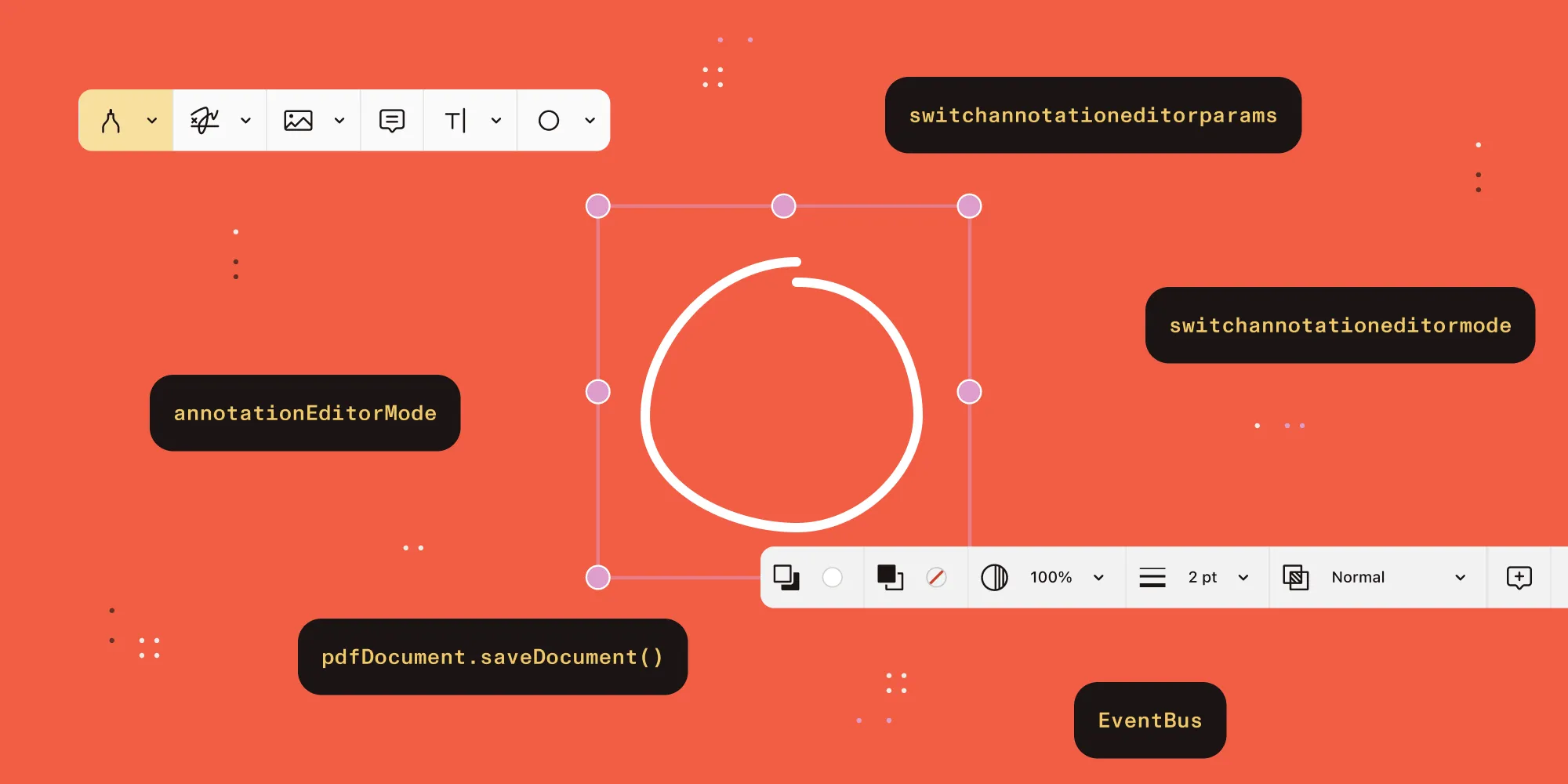
- Enable PDF.js’s built-in
AnnotationEditorLayerfor free text, ink, stamp, and highlight annotations. - Switch between editor tools via
switchannotationeditormodeand tune defaults withswitchannotationeditorparams. - Save the edited PDF (annotations included) with
pdfDocument.saveDocument().
Prerequisites
This guide assumes you’ve already wired up a PDF.js viewer — PDFViewer, EventBus, PDFLinkService, and a loaded pdfDocument. If you haven’t, start with our guide on how to set up a custom PDF.js viewer in React.
You’ll also need:
pdfjs-dist4.x or later (HIGHLIGHTeditor landed late in the 3.x line; 4.x is the safe baseline)pdfjs-dist/web/pdf_viewer.cssimported so the editor layer renders correctly
What it provides
| Annotation type | Description |
|---|---|
| Free text | Editable text boxes placed anywhere on the page |
| Ink | Freehand drawing (pen tool) |
| Stamp | Image annotations dropped onto pages |
| Highlight | Native text highlight annotations |
Enabling the AnnotationEditor
When creating your PDFViewer, pass the AnnotationEditorMode:
const pdfjs = await import("pdfjs-dist/web/pdf_viewer.mjs");
const viewer = new pdfjs.PDFViewer({  container: document.getElementById("pdf-container"),  eventBus,  linkService,  findController,  annotationEditorMode: pdfjs.AnnotationEditorType.NONE, // Start with editing disabled.});
Switching editor modes
Toggle between annotation types by dispatching switchannotationeditormode on the EventBus:
// Enable free text editor.eventBus.dispatch("switchannotationeditormode", {  source: this,  mode: pdfjs.AnnotationEditorType.FREETEXT,});
// Enable ink (drawing) editor.eventBus.dispatch("switchannotationeditormode", {  source: this,  mode: pdfjs.AnnotationEditorType.INK,});
// Enable stamp (image) editor.eventBus.dispatch("switchannotationeditormode", {  source: this,  mode: pdfjs.AnnotationEditorType.STAMP,});
// Enable highlight editor.eventBus.dispatch("switchannotationeditormode", {  source: this,  mode: pdfjs.AnnotationEditorType.HIGHLIGHT,});
// Disable all editors (return to view mode).eventBus.dispatch("switchannotationeditormode", {  source: this,  mode: pdfjs.AnnotationEditorType.NONE,});
AnnotationEditorType enum
The numeric values used by switchannotationeditormode are non-sequential because the enum grew across PDF.js releases:
const AnnotationEditorType = { DISABLE: -1, NONE: 0, FREETEXT: 3, STAMP: 13, INK: 15, HIGHLIGHT: 9,};Customizing free text annotations
You can set default properties for new free text annotations via the EventBus:
// Set default font size.eventBus.dispatch("switchannotationeditorparams", {  source: this,  type: pdfjs.AnnotationEditorParamsType.FREETEXT_SIZE,  value: 14,});
// Set default font color.eventBus.dispatch("switchannotationeditorparams", {  source: this,  type: pdfjs.AnnotationEditorParamsType.FREETEXT_COLOR,  value: "#FF0000",});
Customizing ink annotations
Use switchannotationeditorparams to set the color, thickness, and opacity for new ink strokes:
// Set ink color.eventBus.dispatch("switchannotationeditorparams", {  source: this,  type: pdfjs.AnnotationEditorParamsType.INK_COLOR,  value: "#0000FF",});
// Set ink thickness.eventBus.dispatch("switchannotationeditorparams", {  source: this,  type: pdfjs.AnnotationEditorParamsType.INK_THICKNESS,  value: 3,});
// Set ink opacity.eventBus.dispatch("switchannotationeditorparams", {  source: this,  type: pdfjs.AnnotationEditorParamsType.INK_OPACITY,  value: 80, // 0-100});
Customizing highlight annotations
Highlight annotations support one parameter — color:
// Set highlight color.eventBus.dispatch("switchannotationeditorparams", { source: this, type: pdfjs.AnnotationEditorParamsType.HIGHLIGHT_COLOR, value: "#FFFF00",});Saving annotations
The built-in editor layer can serialize all annotations directly into the PDF. Use PDFDocumentProxy.saveDocument():
// Save the PDF with all editor annotations baked in.const data = await pdfDocument.saveDocument();// data is a Uint8Array of the modified PDF.
// Download it.const blob = new Blob([data], { type: "application/pdf" });const url = URL.createObjectURL(blob);const a = document.createElement("a");a.href = url;a.download = "annotated.pdf";a.click();URL.revokeObjectURL(url);
Because the editor layer ships with PDF.js, you no longer need a separate library to embed annotations into the saved file.
React toolbar example
A minimal React toolbar that wires buttons to switchannotationeditormode and tracks the active tool in state:
function AnnotationEditorToolbar() {  const { eventBus } = useContext(PDFContext);  const [activeMode, setActiveMode] = useState("NONE");
  const setMode = (mode) => {    const modeValue = pdfjs.AnnotationEditorType[mode];    eventBus.dispatch("switchannotationeditormode", {      source: null,      mode: modeValue,    });    setActiveMode(mode);  };
  return (    <div>      <button        className={activeMode === "FREETEXT" ? "active" : ""}        onClick={() => setMode("FREETEXT")}      >        Text      </button>      <button        className={activeMode === "INK" ? "active" : ""}        onClick={() => setMode("INK")}      >        Draw      </button>      <button        className={activeMode === "HIGHLIGHT" ? "active" : ""}        onClick={() => setMode("HIGHLIGHT")}      >        Highlight      </button>      <button        className={activeMode === "STAMP" ? "active" : ""}        onClick={() => setMode("STAMP")}      >        Image      </button>      <button onClick={() => setMode("NONE")}>        Done      </button>    </div>  );}
When to use built-in vs. custom annotations
| Scenario | Recommendation |
|---|---|
| Simple highlighting + free text | Built-in AnnotationEditorLayer |
| Collaborative annotations with comments | Custom layer (need per-annotation metadata, authors, threads) |
| Annotations synchronized to a database | Custom layer (built-in doesn’t expose annotation events for persistence) |
| PDF export with annotations | Built-in saveDocument() |
| Quick markup for personal use | Built-in AnnotationEditorLayer |
CSS
The annotation editor layer requires its own CSS:
import "pdfjs-dist/web/pdf_viewer.css";The default CSS includes styles for .annotationEditorLayer, editor toolbars, and annotation handles.
Key points
AnnotationEditorLayerhas been built into PDF.js since version 3.x — no extra dependencies.- Switch modes by dispatching
switchannotationeditormodeon theEventBus. - Customize colors, sizes, and opacity via
switchannotationeditorparams. pdfDocument.saveDocument()serializes all annotations into the PDF — no separate library required.- The built-in layer handles all coordinate conversion, scaling, and rotation automatically.
- For complex workflows (comments, collaboration, and database synchronization), a custom layer still makes sense.
- For simple markup and export, the built-in layer is significantly less code.
How Nutrient Web SDK handles this
Nutrient Web SDK ships its annotation tools as part of the viewer rather than as a separate editor layer you opt into. Switching tools is a single setViewState call, and annotation events (create, update, delete) are exposed on the instance for autosave and collaboration.
const instance = await NutrientViewer.load({  container: "#pdf-container",  document: "document.pdf",});
instance.setViewState((v) =>  v.set("interactionMode", NutrientViewer.InteractionMode.INK),);
instance.addEventListener("annotations.create", (annotations) => {  // Persist to your backend or synchronize via Instant.});
Compared to the built-in editor layer’s four types (free text, ink, stamp, highlight), Nutrient provides 17+ annotation types with comment threads, @mentions, and real-time synchronization via Instant. Annotation export and embedding are handled by the SDK.
FAQ
AnnotationEditorLayer?The editor layer landed in PDF.js 3.x, but HIGHLIGHT arrived later in that line. Use pdfjs-dist 4.x or later for the full set of free text, ink, stamp, and highlight annotation types.
The editor layer doesn’t expose per-annotation events directly. The two practical hooks are (1) the annotationeditorstateschanged EventBus event for tool-state transitions, and (2) calling pdfDocument.saveDocument() on a debounced timer or on beforeunload. For real per-annotation create/update/delete events, you need a custom annotation layer.
Annotations already embedded in the PDF are read and shown by the editor layer when the document loads. There’s no public API to inject annotations programmatically — you’d have to write them into the PDF first (using pdf-lib or similar) and then open the modified file in PDF.js.
AnnotationEditorType.NONE and DISABLE?NONE (0) keeps the editor layer mounted but with no tool active — users can still click existing annotations to edit them. DISABLE (-1) removes the editor layer entirely, putting the viewer in read-only mode.
saveDocument() produce a flat PDF or one with editable annotations?It produces a PDF with the new annotations encoded as standard PDF annotation objects (FreeText, Ink, Stamp, Highlight). Other PDF viewers can read and continue editing them — they’re not rasterized.
PDF.js’s default viewer UI exposes a toolbar; if you’re using your own (the React example above), call eventBus.dispatch("switchannotationeditormode", ...) and "switchannotationeditorparams" from your own buttons. There’s no built-in component to drop into a custom layout.
See Nutrient Web SDK for built-in annotations with comment threads and real-time synchronization, follow the migration guide to switch from PDF.js, or talk to Sales about your requirements.