How to build area annotations with canvas capture in PDF.js

Table of contents
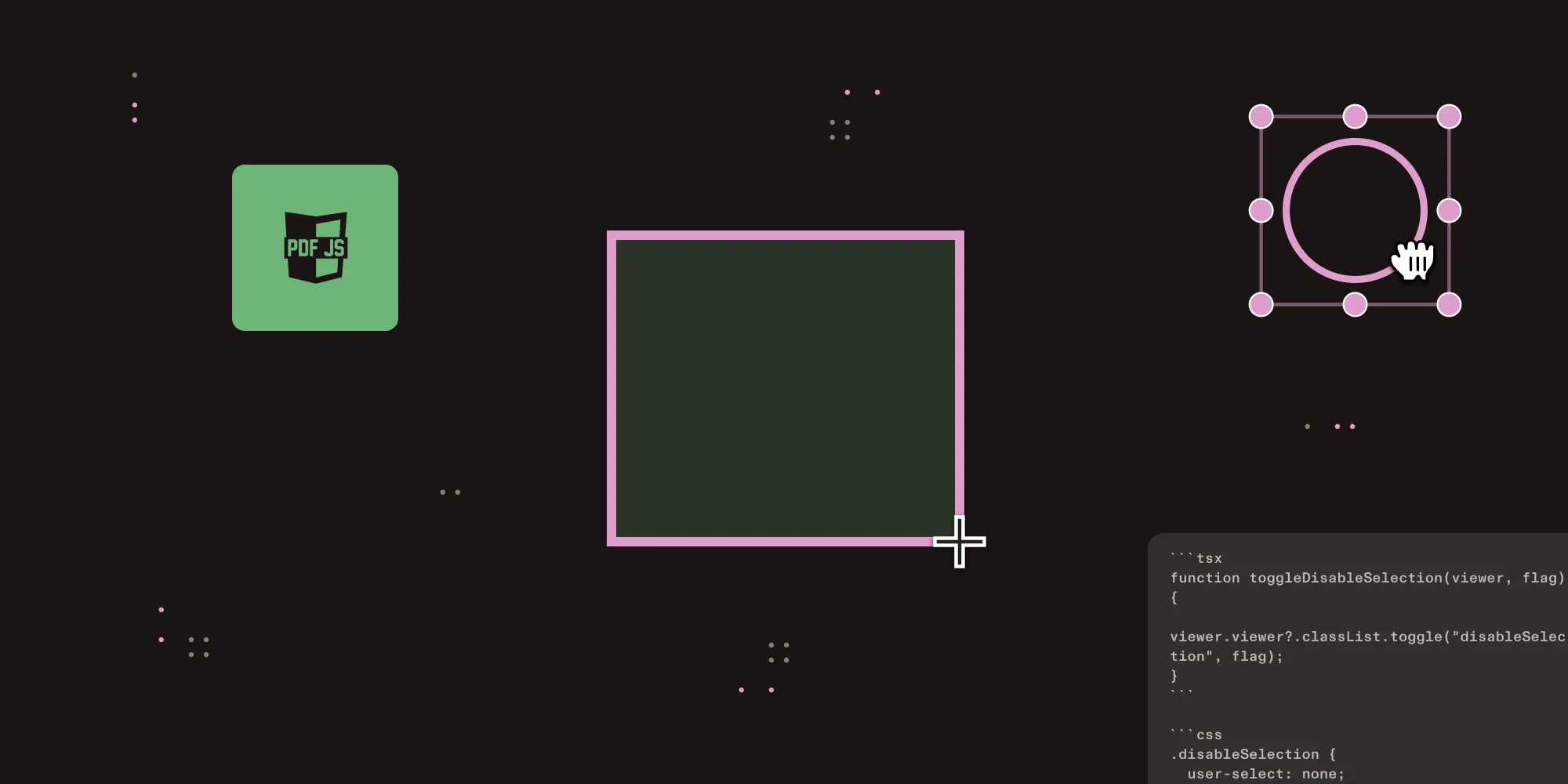
- Capture pointer drag/release on a fullscreen overlay and translate the screen rectangle into PDF coordinates via the page’s
PageViewport. - Crop the rendered canvas region with
drawImageandtoDataURLto store the area as a JPEG or PNG. - Render annotations back over the page with
react-rnd, recropping on drag/resize, and recalculating positions on zoom/rotation.
Prerequisites
This guide assumes a working PDF.js viewer (PDFViewer + EventBus + a loaded pdfDocument). If you don’t have that yet, start with our guide on how to set up a custom PDF.js viewer in React.
You’ll also need:
pdfjs-dist4.x or later- The
react-rndpackage (npm install react-rnd) for draggable/resizable overlays - The
screenToPdf/pdfToScreen/nodeLocationToScaledhelpers from PDF.js coordinate systems: PDF to screen — this post uses them but doesn’t redefine them.
Architecture
User selects area tool -> Pointer tracking overlay captures drag start/end -> Selection box renders during drag -> On release: convert screen rectangle to PDF coordinates -> Capture canvas region as an image (JPEG/PNG) -> Save annotation with coordinates + image data -> Render as draggable/resizable overlayStep 1: Pointer tracking overlay
Create a transparent overlay that captures pointer events when the area tool is active:
function PointerArea({ disabled, selectionBox, style, shouldStart, onStart, onEnd }) {  const [isDrawing, setIsDrawing] = React.useState(false);  const [origin, setOrigin] = React.useState(null);  const [current, setCurrent] = React.useState(null);  const startElementRef = React.useRef(null);
  const handlePointerDown = (e) => {    if (disabled) return;    if (!shouldStart(e)) return;
    startElementRef.current = e.target;    setOrigin({ x: e.clientX, y: e.clientY });    setCurrent({ x: e.clientX, y: e.clientY });    setIsDrawing(true);    onStart?.();  };
  const handlePointerMove = (e) => {    if (!isDrawing) return;    setCurrent({ x: e.clientX, y: e.clientY });  };
  const handlePointerUp = (e) => {    if (!isDrawing) return;    setIsDrawing(false);
    onEnd(startElementRef.current, {      clientOrigin: [origin.x, origin.y],      clientTarget: [e.clientX, e.clientY],    });  };
  return (    <div      style={{ position: "fixed", inset: 0, zIndex: 100 }}      onPointerDown={handlePointerDown}      onPointerMove={handlePointerMove}      onPointerUp={handlePointerUp}    >      {isDrawing && selectionBox && (        <div          style={{            ...style,            position: "absolute",            left: Math.min(origin.x, current.x),            top: Math.min(origin.y, current.y),            width: Math.abs(current.x - origin.x),            height: Math.abs(current.y - origin.y),          }}        />      )}    </div>  );}
Step 2: Handle selection completion
When the pointer is released, determine which page was selected and convert coordinates:
const handlePointerEnd = (startElement, origins) => {  const page = getPageFromElement(startElement);  if (!page) return;
  const pageBounds = page.canvasWrapper.getBoundingClientRect();
  const clientLeft = Math.min(origins.clientOrigin[0], origins.clientTarget[0]);  const clientTop = Math.min(origins.clientOrigin[1], origins.clientTarget[1]);
  const canvasLeft = clientLeft - pageBounds.left;  const canvasTop = clientTop - pageBounds.top;  const width = Math.abs(origins.clientOrigin[0] - origins.clientTarget[0]);  const height = Math.abs(origins.clientOrigin[1] - origins.clientTarget[1]);
  // Skip tiny selections (accidental clicks).  if (width * height <= 100) return;
  const viewport = viewer.getPageView(page.number - 1).viewport;
  // Convert to PDF coordinates for storage.  const pdfCoords = screenToPdf(    { left: canvasLeft, top: canvasTop, width, height, pageNumber: page.number },    viewport,  );
  // Capture the canvas region as an image.  const canvas = viewer.getPageView(page.number - 1).canvas;  const imageContent = getAreaAsImage(canvas, {    left: canvasLeft, top: canvasTop, width, height,  });
  // Save annotation.  onCreateAreaAnnotation(    color,    page.number,    [pdfCoords.x1, pdfCoords.y1, pdfCoords.x2, pdfCoords.y2],    imageContent,  );};
Step 3: Capturing canvas regions
PDF.js renders pages on <canvas> elements. You can extract any rectangular region:
function getAreaAsImage(canvas, position) {  const { left, top, width, height } = position;
  const newCanvas = document.createElement("canvas");  newCanvas.width = width;  newCanvas.height = height;
  const ctx = newCanvas.getContext("2d");  if (!ctx || !canvas) return "";
  // PDF.js renders at its own output scale, which is usually but not always  // `window.devicePixelRatio`. Read the real scale from the rendered canvas.  const dpr = canvas.width / canvas.clientWidth;
  ctx.drawImage(    canvas,    left * dpr,      // source x (scaled for DPI).    top * dpr,       // source y.    width * dpr,     // source width.    height * dpr,    // source height.    0, 0,            // destination origin.    width, height,   // destination size (CSS pixels).  );
  return newCanvas.toDataURL("image/jpeg");}
DPI matters! PDF.js renders canvases at its own output scale, which is usually but not always equal to window.devicePixelRatio (PDF.js caps the scale and lets configurations override it). Derive the real scale from canvas.width / canvas.clientWidth rather than reading devicePixelRatio directly.
Step 4: Render as draggable/resizable box
Use react-rnd to render area annotations that users can drag and resize:
import { Rnd } from "react-rnd";
function AreaAnnotation({ annotation, viewport, page }) {  const ref = React.useRef(null);  const positionRef = React.useRef(null);
  // Update position when viewport changes (zoom/rotation).  React.useEffect(() => {    const pdfCoords = nodeLocationToScaled({      page: annotation.page,      rect: annotation.rect,    });    const position = pdfToScreen(pdfCoords, viewport);    positionRef.current = position;
    ref.current?.updatePosition({ x: position.left, y: position.top });    ref.current?.updateSize({ width: position.width, height: position.height });  }, [annotation.rect, viewport]);
  const handleChangePosition = (newPosition) => {    // Convert back to PDF coordinates.    const pdfCoords = screenToPdf(      { ...positionRef.current, ...newPosition },      viewport,    );    const location = {      page: pdfCoords.pageNumber,      rect: [pdfCoords.x1, pdfCoords.y1, pdfCoords.x2, pdfCoords.y2],    };
    // Recapture the canvas region with new bounds.    const canvas = viewer.getPageView(page - 1).canvas;    const newImage = getAreaAsImage(canvas, { ...positionRef.current, ...newPosition });
    // Save updated annotation.    saveAnnotation(annotation.id, { rect: location.rect, image_content: newImage });  };
  return (    <Rnd      ref={ref}      style={{        position: "absolute",        background: "rgba(255, 94, 94, 0.4)",        borderRadius: "8px",        cursor: "pointer",      }}      onDragStop={(_, data) => {        handleChangePosition({ top: data.y, left: data.x });      }}      onResizeStop={(_, __, ref, ___, position) => {        handleChangePosition({          top: position.y,          left: position.x,          width: ref.offsetWidth,          height: ref.offsetHeight,        });      }}    />  );}
Step 5: Disable text selection during drawing
When the area tool is active, prevent text selection from interfering:
function toggleDisableSelection(viewer, flag) { viewer.viewer?.classList.toggle("disableSelection", flag);}.disableSelection { user-select: none; -webkit-user-select: none;}
.disableTouchAction { touch-action: none;}Enable disableSelection on pointer down, and disable on pointer up.
Minimum size threshold
Ignore accidental clicks by checking the area:
if (width * height <= 100) return; // Less than ~10x10 pixels.Key points
- Use a fullscreen overlay to capture pointer events outside the PDF container.
- Subtract
canvasWrapper.getBoundingClientRect()to get page-relative coordinates. - Derive the output scale from
canvas.width / canvas.clientWidthrather thanwindow.devicePixelRatio— PDF.js caps the render scale and configurations can override it. canvas.toDataURL("image/jpeg")gives you a base64 string for storage (use"image/png"for lossless capture).- Recapture the canvas region when the user drags/resizes the annotation.
react-rndprovides drag and resize with a clean React API.- Update the
Rndposition imperatively viaref.updatePosition()when the viewport changes.
How Nutrient Web SDK handles this
Nutrient Web SDK ships RectangleAnnotation with drag, resize, and draw-on-page interactions wired into the default UI. The rectangle tool appears in the toolbar without any extra code. Use the programmatic API when creating annotations from code — import flows, automation, server-driven annotations:
const annotation = new NutrientViewer.Annotations.RectangleAnnotation({ pageIndex: 0, boundingBox: new NutrientViewer.Geometry.Rect({ left: 50, top: 100, width: 300, height: 200, }), strokeColor: NutrientViewer.Color.RED, strokeWidth: 2,});await instance.create(annotation);To export the pixels under a rectangle as an image — useful for callouts, off-page references, or sharing a region without the source PDF — use renderPageAsArrayBuffer to grab the rendered bytes for the given area. Refer to our guide on how to render visible area in current page for the full pattern.
For other vector overlays, the SDK also supports EllipseAnnotation, PolygonAnnotation, and PolylineAnnotation — all draggable and resizable by default.
FAQ
JPEG keeps file size small for photographs and screenshots of dense pages, but it compresses text and line art poorly. PNG is lossless and noticeably better for scans, diagrams, or text-heavy regions — at the cost of bigger payloads. If you store many annotations per document, default to JPEG and switch to PNG selectively.
canvas.width / canvas.clientWidth instead of window.devicePixelRatio?PDF.js doesn’t always render at devicePixelRatio — it caps the output scale on huge pages and respects configurations that override it. The actual rendered resolution is whatever’s in the canvas’s intrinsic width/height, so deriving the scale from those gives you the correct pixel ratio every time.
Pointer events already cover touch, mouse, and pen — pointerdown/pointermove/pointerup fire for all three. Add touch-action: none (the .disableTouchAction class in the CSS section above) to the drawing surface to stop the browser from interpreting the drag as a scroll.
PageViewport.convertToPdfPoint() returns coordinates in the PDF’s own coordinate space, so a rotated page captures correctly. The catch is that convertToPdfPoint can return x1 > x2 or y1 > y2 for rotated viewports — normalize with Math.min/Math.max before storing.
Rerendering is cheaper at write time and easier to keep current when the underlying PDF changes, but requires the original PDF to be available every time you display the annotation. Storing the cropped image (typical pattern in collaborative apps where the captured area is the artifact) costs storage but makes the annotation portable.
Area annotations take five coordinated pieces: a pointer-tracking overlay, coordinate conversion, canvas DPI scaling, image capture, and a drag-resize library. The individual steps are manageable — the overhead is keeping them in sync as zoom, rotation, and viewport changes update the layout.
See Nutrient Web SDK for built-in image and vector annotations without the canvas wiring, or follow the migration guide to switch from PDF.js. Talk to Sales about your requirements.