PDF.js coordinates: Convert PDF space to screen space

Table of contents
PageViewport.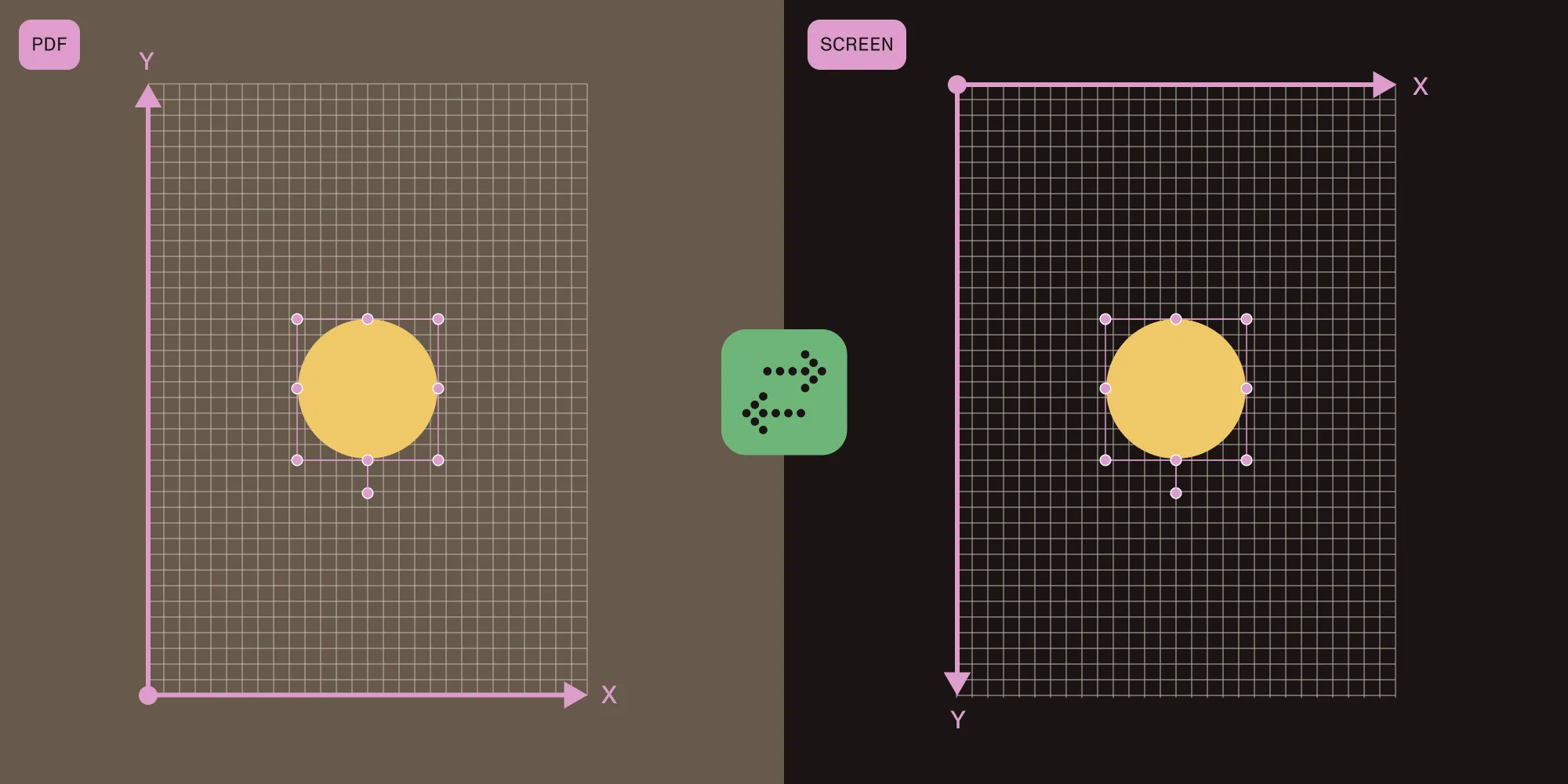
- PDF coordinates have a bottom-left origin in PDF points; screen coordinates have a top-left origin in CSS pixels. Store the PDF form, and render with the screen form.
PageViewport.convertToPdfPoint/convertToViewportPoint/convertToViewportRectangleare the conversion APIs.- Rederive the viewport on
scalechanging/rotationchangingevents and normalize rotated rectangles withMath.min/Math.max.
Prerequisites
This guide assumes you have a working PDF.js viewer (PDFViewer + EventBus + a loaded page). If you don’t, start with the walkthrough on how to set up a custom PDF.js viewer in React.
You’ll also need:
pdfjs-dist4.x or later- A way to access individual page views:
viewer.getPageView(pageIndex)returns aPageViewwith a.viewportand.canvas
The two coordinate systems
When you work with PDF.js, you’re constantly translating between two coordinate systems.
PDF coordinates
- Origin at bottom-left of the page
- Y-axis goes up
- Units are in PDF points (1 point = 1/72 inch)
- Independent of zoom, rotation, or screen size
- This is what you store in your database
Screen coordinates (CSS/Canvas)
- Origin at top-left of the rendered page
- Y-axis goes down
- Units are in CSS pixels
- Changes with zoom, rotation, and dots per inch (DPI)
- This is what you use for positioning HTML overlays
PageViewport: The coordinate bridge
Every rendered page in PDF.js has a PageViewport object that handles conversion between these systems. Access it via the following:
const pageView = viewer.getPageView(pageNumber - 1); // 0-indexed.const viewport = pageView.viewport;Converting screen to PDF (for saving)
When a user draws a rectangle onscreen, you need to convert those CSS coordinates to PDF coordinates for storage:
function screenToPdf(position, viewport) {  const [x1, y1] = viewport.convertToPdfPoint(    position.left,    position.top,  );  const [x2, y2] = viewport.convertToPdfPoint(    position.left + position.width,    position.top + position.height,  );
  const minX = Math.min(x1, x2);  const minY = Math.min(y1, y2);  const maxX = Math.max(x1, x2);  const maxY = Math.max(y1, y2);
  return {    x1: minX,    y1: minY,    x2: maxX,    y2: maxY,    width: maxX - minX,    height: maxY - minY,    pageNumber: position.pageNumber,  };}
Why Math.min/Math.max? When the page is rotated, convertToPdfPoint may return coordinates where x1 > x2 or y1 > y2. Normalizing ensures a consistent rectangle.
Converting PDF to screen (for rendering)
When loading annotations from storage, convert PDF coordinates back to screen position:
function pdfToScreen(scaled, viewport) {  const [x1, y1, x2, y2] = viewport.convertToViewportRectangle([    scaled.x1,    scaled.y1,    scaled.x2,    scaled.y2,  ]);
  const minX = Math.min(x1, x2);  const minY = Math.min(y1, y2);  const maxX = Math.max(x1, x2);  const maxY = Math.max(y1, y2);
  return {    left: minX,    top: minY,    width: maxX - minX,    height: maxY - minY,    pageNumber: scaled.pageNumber,  };}
Converting a single point
For sticky notes or click positions, convert individual points:
// Screen > PDF.const [pdfX, pdfY] = viewport.convertToPdfPoint(canvasLeft, canvasTop);
// PDF > screen.const [screenX, screenY] = viewport.convertToViewportPoint(pdfX, pdfY);
Storing coordinates in PDF space
For persistence, store in PDF coordinate space since it’s independent of zoom/rotation:
// What you store in the database.type NodeLocation = {  page: number;        // 1-indexed page number.  rect: number[];      // [x1, y1, x2, y2] in PDF coordinates.};
// What you use for CSS rendering.type LTWHP = {  left: number;  top: number;  width: number;  height: number;  pageNumber: number;};
Handling scale and rotation changes
When the user zooms or rotates, you need to reconvert all coordinates. Listen for these EventBus events:
React.useEffect(() => {  const updateViewport = () => {    const pageView = viewer.getPageView(page - 1);    if (pageView?.viewport) {      setViewport(pageView.viewport);    }  };
  eventBus.on("scalechanging", updateViewport);  eventBus.on("rotationchanging", updateViewport);
  return () => {    eventBus.off("scalechanging", updateViewport);    eventBus.off("rotationchanging", updateViewport);  };}, [eventBus, page]);
When viewport state changes, all annotations using pdfToScreen(stored, viewport) automatically reposition.
Handling rotated pages
PDF coordinates with a rotation of 180 degrees or more can flip the scroll position logic. When navigating to a location:
function navigateToLocation(location, viewer, linkService) {  const pdfCoords = nodeLocationToScaled(location);  const viewport = viewer.getPageView(pdfCoords.pageNumber - 1)?.viewport;
  let scrollLeft, scrollTop;  if (viewport && viewport.rotation >= 180) {    scrollLeft = pdfCoords.x2;    scrollTop = pdfCoords.y1;  } else {    scrollLeft = pdfCoords.x1;    scrollTop = pdfCoords.y2;  }
  // `PDFLinkService.goToDestination` accepts an integer page index here,  // but the canonical PDF explicit-destination form expects a page reference  // object `{ num, gen }` from `pdfDocument.getDestination(name)`. Use the  // integer form for navigation, and the ref form when you’re roundtripping  // a real PDF destination.  linkService.goToDestination([    pdfCoords.pageNumber - 1,    { name: "XYZ" },    scrollLeft,    scrollTop,    null,  ]);}
Device pixel ratio
When capturing canvas regions (e.g. for area annotation screenshots), account for the canvas’s actual output scale. PDF.js caps render scale and accepts overrides, so reading window.devicePixelRatio directly can be wrong — derive the scale from the rendered canvas instead:
const dpr = canvas.width / canvas.clientWidth;
context.drawImage(  canvas,  left * dpr,    // Source coordinates are scaled by the real DPR.  top * dpr,  width * dpr,  height * dpr,  0, 0,          // Destination at origin  width, height, // Destination at CSS size);
Quick reference: Coordinate conversion methods
| Direction | Method | Use case |
|---|---|---|
| Screen > PDF | viewport.convertToPdfPoint(x, y) | Saving user-drawn annotations |
| PDF > screen | viewport.convertToViewportPoint(x, y) | Rendering a single point (notes) |
| PDF rect > screen rect | viewport.convertToViewportRectangle([x1,y1,x2,y2]) | Rendering annotation rectangles |
| Screen rect > PDF rect | Two convertToPdfPoint calls | Saving area selections |
Always normalize with Math.min/Math.max after conversion to handle rotation edge cases.
Where coordinate conversion shows up in practice
Once you have screenToPdf and pdfToScreen defined, several PDF.js annotation patterns share them:
- Sticky note annotations in PDF.js — Single-point conversion with
convertToPdfPoint/convertToViewportPoint. - Text highlight annotations in PDF.js — Rectangle conversion for selected text ranges.
- Area annotations with canvas capture in PDF.js — Bounding-box conversion plus DPR-aware canvas cropping.
- Rendering overlays with React Portals in PDF.js — Placing React components at PDF-space coordinates.
How Nutrient Web SDK handles this
Nutrient Web SDK ships with a simpler coordinate model than raw PDF: a top-left origin (Y-down), measured in PDF points. The viewer manages viewport transforms, zoom, rotation, and DPI internally, so you set boundingBox once and the SDK keeps it positioned through every change:
const annotation = new NutrientViewer.Annotations.RectangleAnnotation({ pageIndex: 0, boundingBox: new NutrientViewer.Geometry.Rect({ left: 50, top: 100, width: 200, height: 50, }),});await instance.create(annotation);Note that Nutrient’s top is measured from the top of the page, not the bottom — if you’re porting stored PDF-space coordinates from raw convertToPdfPoint output, you’ll need to flip the Y values (pageHeight - y) when handing them to Geometry.Rect.
Learn more about Nutrient Web SDK | Migration guide | Contact Sales
FAQ
Screen coordinates change with zoom, rotation, and device pixel ratio. If you store { left: 240, top: 380 } from a user’s 125 percent zoomed view, the annotation lands somewhere else on someone else’s 75 percent view. PDF coordinates are tied to the document’s intrinsic dimensions (points from the bottom-left origin) and stay stable regardless of how the page is rendered.
Math.min/Math.max after conversion?convertToPdfPoint runs the screen-space rect through the viewport’s inverse transform. For rotated pages (90, 180, 270 degrees), that transform flips axes — so the converted “top-left” can end up with a larger x than the converted “bottom-right.” Normalizing the four numbers gives you a canonical rectangle regardless of rotation.
On the scalechanging event (zoom in/out) and the rotationchanging event. Both invalidate the cached transform on PageView.viewport. The useEffect pattern in the handling-changes section subscribes to both and rereads the viewport from the page view.
convertToViewportPoint and convertToViewportRectangle?convertToViewportPoint(x, y) converts a single PDF point to screen coordinates — use it for sticky notes, click positions, or any single-point annotation. convertToViewportRectangle([x1, y1, x2, y2]) converts all four corners in one call and returns a flat array — use it for highlights, area annotations, or anything with a bounding box.
window.devicePixelRatio work for canvas captures?Not reliably. PDF.js caps the rendered canvas resolution on huge pages and accepts user-supplied overrides, so the canvas’s actual scale can be lower than devicePixelRatio. Derive it from the canvas instead: canvas.width / canvas.clientWidth returns the real ratio every time.
PDF.js’s “PDF coordinates” are PDF user space points (1 point = 1/72 inch), origin at bottom-left, Y-axis up — exactly what the PDF specification defines. A coordinate stored as [100, 200, 300, 400] lands at the same location whether opened in PDF.js, Acrobat, or any other compliant viewer.