How to build sticky note annotations with PDF.js and React

Table of contents
viewport.convertToViewportPoint, drag-and-drop repositioning with react-rnd, and distinguishing clicks from drags.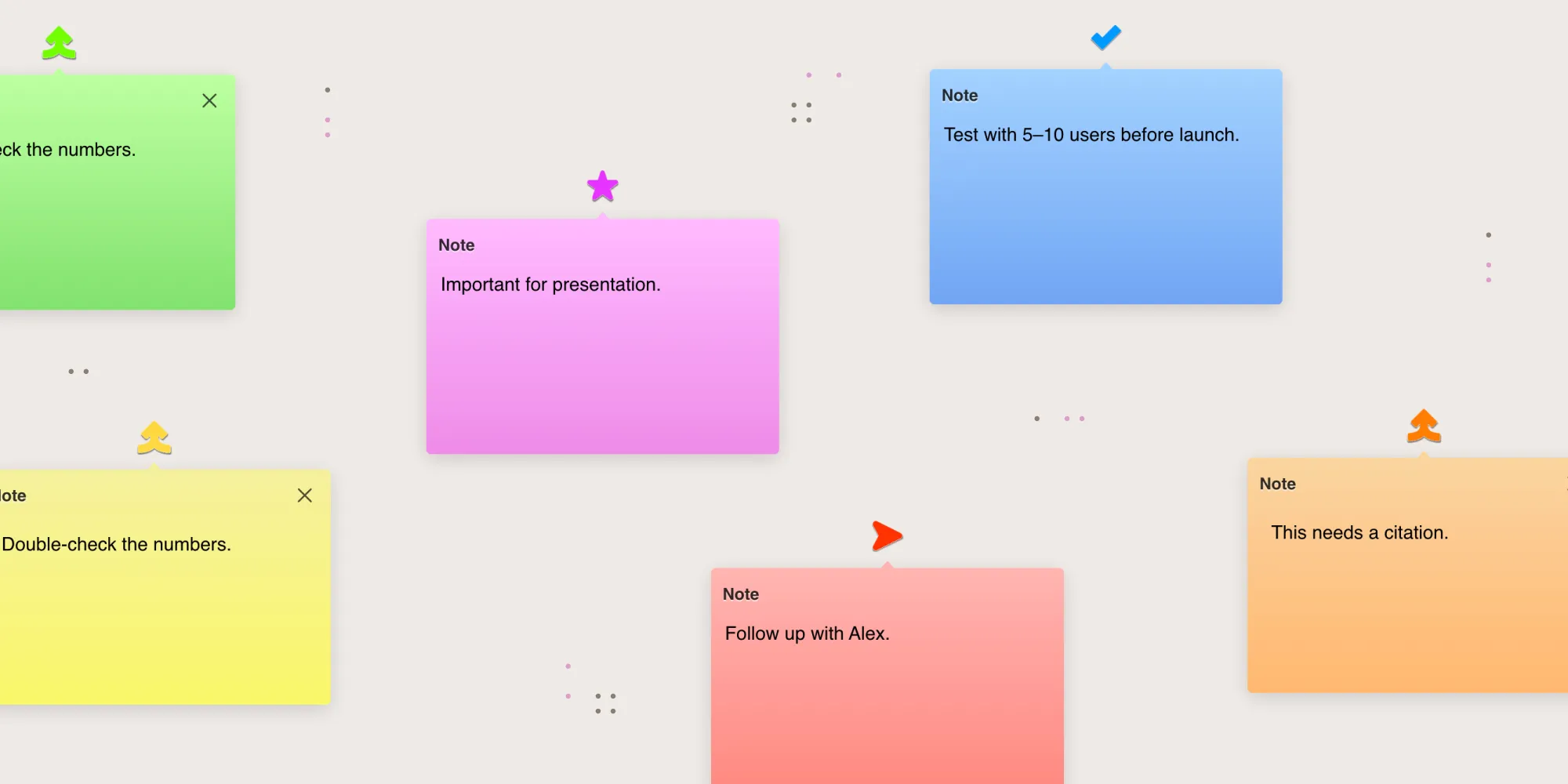
Sticky notes are point-based annotations — a small icon at one [x, y] location on a PDF page. Building them on PDF.js has four moving parts:
- Click-to-place — Convert the click’s canvas coordinates to PDF coordinates with
viewport.convertToPdfPoint(x, y). - Render — Convert PDF coordinates back to screen space with
viewport.convertToViewportPoint(x, y)and place a draggable element there. - Drag-to-move — Use
react-rnd(withenableResizing={false}) and recompute PDF coordinates from the drop position. - Click vs. drag — Use a five-pixel threshold to distinguish opening the note from moving it.
If you’d rather not build this from scratch, Nutrient Web SDK ships NutrientViewer.Annotations.NoteAnnotation with built-in comment threads, mentions, and real-time synchronization.
This tutorial references several application-specific helpers (getPageFromElement, saveAnnotation, openAnnotationPanel, StickyNoteIcon, and useState setters like setNoteCreateAnchor). Treat them as integration points with your own state and UI — none are part of PDF.js.
Sticky notes are point-based annotations — a small icon placed at a specific location on a PDF page. Unlike text highlights (rectangles) or area annotations (regions), notes store just a single coordinate pair.
Data shape
A sticky note is stored as a plain object with five fields:
{ type: "note", page: 3, // 1-indexed page number. coords: [215.5, 680], // `[x, y]` in PDF coordinate space. color: "yellow", comments: [...]}Creating a note: Click to place
When the note tool is active, a click on the page creates a note at that position:
const handlePointerEnd = (startElement, origins) => {  const page = getPageFromElement(startElement);  if (!page) return;
  // Use the page div (not just the canvas wrapper) — it accounts for borders  // and matches what PDF.js's own annotation layer uses.  const pageView = viewer.getPageView(page.number - 1);  const pageBounds = pageView.div.getBoundingClientRect();  const canvasLeft = origins.clientOrigin[0] - pageBounds.left;  const canvasTop = origins.clientOrigin[1] - pageBounds.top;
  const [pdfX, pdfY] = pageView.viewport.convertToPdfPoint(canvasLeft, canvasTop);
  // Show a popover for the user to enter note content.  setNoteCreateAnchor({ left: origins.clientOrigin[0], top: origins.clientOrigin[1] });  setNoteCreatePage(page.number);  setNoteCreateCoords([pdfX, pdfY]);};
Rendering notes
The following component converts the stored PDF point to screen coordinates and renders a draggable icon:
import React from "react";import { Rnd } from "react-rnd";
function NoteAnnotation({ annotation, viewport, saveAnnotation, openAnnotationPanel }) {  const [screenX, screenY] = viewport.convertToViewportPoint(    annotation.coords[0],    annotation.coords[1],  );
  // Track the latest rendered position to distinguish click from drag.  const positionRef = React.useRef({ x: screenX, y: screenY });  positionRef.current = { x: screenX, y: screenY };
  const handleDragStop = (_, data) => {    const dx = Math.abs(positionRef.current.x - data.x);    const dy = Math.abs(positionRef.current.y - data.y);
    if (dx > 5 || dy > 5) {      // Drag — save the new position in PDF coordinates.      const [pdfX, pdfY] = viewport.convertToPdfPoint(data.x, data.y);      saveAnnotation(annotation.id, { coords: [pdfX, pdfY] });    } else {      // Click — open the note panel. The next render restores position via props.      openAnnotationPanel(annotation.id);    }  };
  return (    <Rnd      position={{ x: screenX, y: screenY }}      size={{ width: 32, height: 32 }}      enableResizing={false}      onDragStop={handleDragStop}      style={{        position: "absolute",        background: "#FFF3B0",        borderRadius: "8px",        display: "flex",        alignItems: "center",        justifyContent: "center",        cursor: "pointer",      }}    >      <StickyNoteIcon size={24} />    </Rnd>  );}
Driving Rnd with position and size props (instead of the imperative updatePosition/updateSize ref methods) keeps the component fully declarative — when viewport changes, the parent rerenders and Rnd follows.
Coordinate conversion for points
Notes use single-point conversion instead of rectangle conversion:
// PDF -> Screen (for rendering).const [screenX, screenY] = viewport.convertToViewportPoint(pdfX, pdfY);
// Screen -> PDF (for saving).const [pdfX, pdfY] = viewport.convertToPdfPoint(screenX, screenY);
This is simpler than area/text annotations, which need convertToViewportRectangle.
Click vs. drag detection
A common user experience issue: Clicking a note to view it also fires onDragStop because react-rnd treats every pointerup as the end of a drag. The fix is a small distance threshold — if the cursor moved less than five pixels between pointerdown and pointerup, treat it as a click. The handleDragStop in the previous snippet shows this pattern: Compute dx and dy from positionRef.current, branch on a five-pixel threshold, save the new position on drag, or open the note panel on click.
When the threshold isn’t exceeded, the parent rerenders with the original position prop, and Rnd automatically snaps back to the saved coordinates — no imperative reset needed.
Cursor styles
Use CSS and a class toggle to change the cursor when the note tool is active:
.highlightNoteCursor .pdfViewer .page { cursor: crosshair;}viewer.container.classList.toggle("highlightNoteCursor", tool === "note");Key points
- Notes store a single
[x, y]point in PDF coordinates, not a rectangle. - Use
viewport.convertToViewportPoint/convertToPdfPointfor point conversion. react-rndwithenableResizing={false}gives you a drag-only element.- Use a pixel threshold to distinguish clicks from drags.
- Drive
Rndwithpositionandsizeprops so it rerenders declaratively on viewport changes. - Notes are the simplest annotation type — a good starting point before building text/area annotations.
FAQ
A sticky note’s icon doesn’t grow with zoom — it’s a fixed-size affordance that always renders at one position on the page. Storing only [x, y] means you don’t have to encode arbitrary width/height that the renderer would then have to ignore. Text highlights and area annotations are rectangular because their geometry is semantically meaningful.
convertToPdfPoint and convertToViewportPoint?convertToPdfPoint(screenX, screenY) converts screen → PDF coordinates (use when saving a user-initiated position). convertToViewportPoint(pdfX, pdfY) converts PDF → screen coordinates (use when rendering a stored annotation). Both are methods on pageView.viewport, and they invert each other.
react-rnd fires onDragStop on every pointerup, even when the user only clicked. Without a threshold, every click would save the same coordinates back to your store (a no-operation save, but it triggers your dirty-state logic). The five-pixel threshold matches the operating system–level click tolerance most operating systems use to dismiss accidental drags.
pageView.div and not .canvasWrapper for the bounding rect?pageView.div is the canonical bounding box of the page in the PDF.js viewer — it includes the canvas, text layer, and annotation layer. .canvasWrapper is a child div that PDF.js manages internally; its bounds usually match pageView.div, but borders and CSS transforms can shift them. Using pageView.div matches what PDF.js’s own annotation layer uses for coordinate math.
The post toggles a highlightNoteCursor class on viewer.container when the tool is active. To clear it, set tool back to your default (e.g. "select") and remove the class. Many implementations also clear the active tool after a single placement so users don’t accidentally drop a second note.
Nutrient ships NutrientViewer.Annotations.NoteAnnotation with built-in comment threads, mentions, color picker, and real-time synchronization. There’s no manual coordinate conversion, no react-rnd, and no click-vs.-drag detection — the SDK handles all of it. See the annotations guide and the migration guide.
How Nutrient Web SDK handles this
Nutrient note annotations require no click-vs.-drag detection, no coordinate conversion, and no imperative position updates on zoom — they’re interactive by default:
const annotation = new NutrientViewer.Annotations.NoteAnnotation({ pageIndex: 2, boundingBox: new NutrientViewer.Geometry.Rect({ left: 215, top: 680, width: 32, height: 32, }), text: { value: "Review this section" }, color: new NutrientViewer.Color({ r: 255, g: 243, b: 176 }),});await instance.create(annotation);For threaded discussion on top of any annotation, see Comments and Replies — a separate Nutrient component with @mentions and real-time synchronization.
See Nutrient Web SDK for built-in note annotations, or follow the migration guide to switch from PDF.js. Talk to Sales about your requirements.