How to embed a PDF viewer in a website: Six methods (2026 guide)

Table of contents
embed, iframe, object, and a), plus an advanced, fully customizable viewer built with Nutrient Web SDK.
You can embed a PDF viewer using four native HTML tags — <embed>, <object>, <iframe>, and <a> — which work for display-only use on desktop. For reliable mobile rendering, security controls, or features like annotations, form filling, and digital signatures, use a JavaScript viewer such as Nutrient Web SDK.
You can embed a PDF viewer in a website two ways: with a native HTML tag (<embed>, <object>, <iframe>, or <a>) for simple display, or with a JavaScript viewer when you need annotations, forms, signatures, or reliable mobile rendering. The most common question we hear is some version of “Can I just use an iframe?” — and the honest answer is: sometimes. This guide covers six approaches so you can make that call yourself.
Displaying PDFs directly on your website avoids forcing users to download files first, and it keeps them inside your app rather than opening a separate viewer. Common applications include:
- User manuals — Provide product guides directly on websites for easy access.
- Contracts — Display fillable legal documents for online submission.
- Marketing materials — Showcase brochures or catalogs interactively.
- Educational resources — Share eBooks, research papers, or training materials.
- Reports — Present financial statements or annual reports professionally.
- Event flyers — Embed schedules or promotional materials for quick viewing.
The right method depends on your use case. Simple HTML tags work for basic scenarios, while JavaScript-based viewers are needed for mobile reliability, security controls, and advanced features.
You can also follow along with our step-by-step video tutorial for a visual walkthrough of the HTML methods.
Method 1: Embed a PDF document in HTML with the embed tag
The <embed> tag(opens in a new tab) is used to load external content, including PDFs, directly into a webpage. Here’s an example:
<embed src="document.pdf" type="application/pdf" width="100%" height="1000" title="Embedded PDF Viewer"/>Key attributes
src— Specifies the PDF file’s location.type— Defines the file type (for PDFs, useapplication/pdf).widthandheight— Control the viewer’s size within the parent container.
Use case
This method is easy to implement and works well in most modern browsers. Ensure the parent container has defined dimensions to avoid display issues.
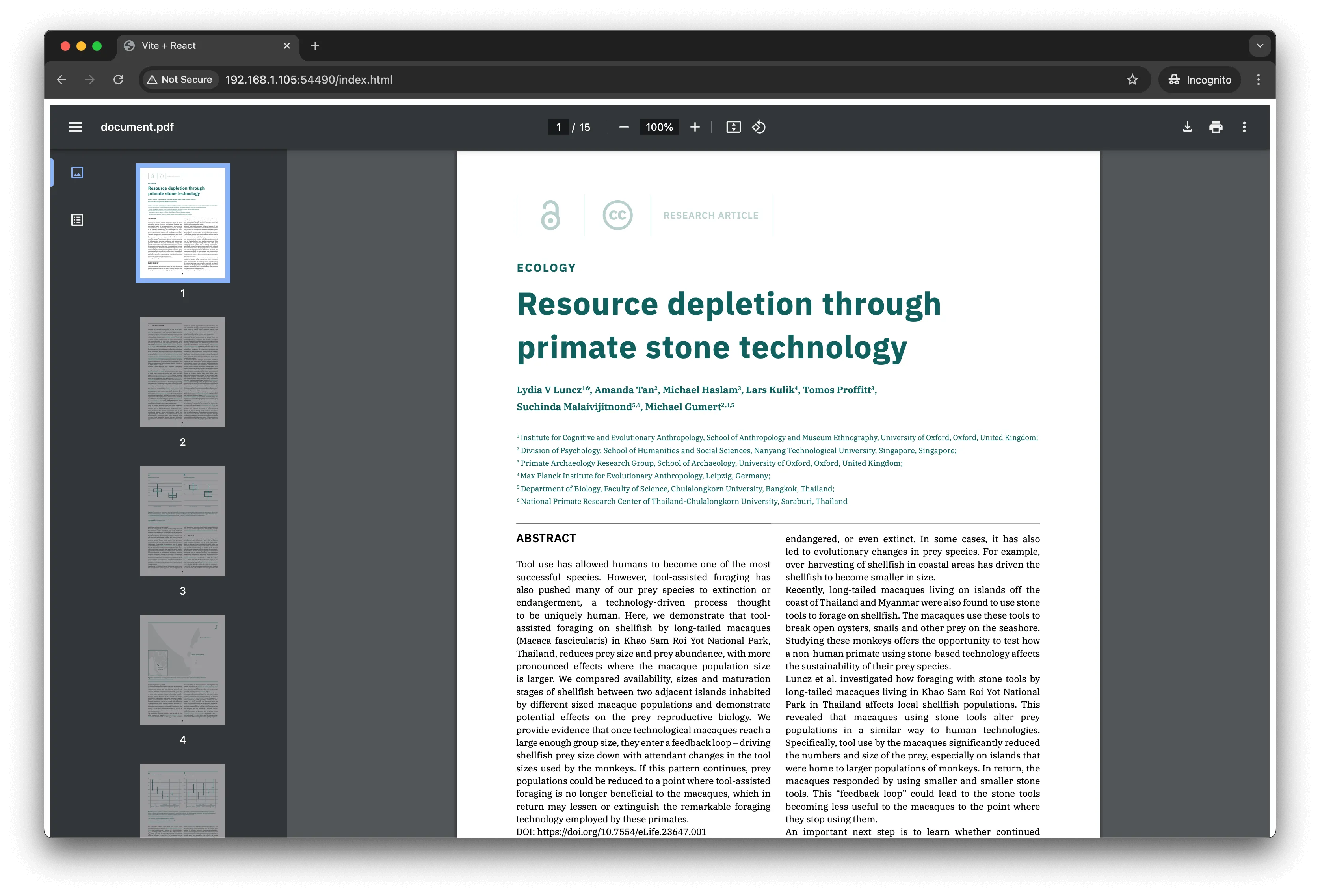
The image below shows an example for embedding PDF documents using the <embed> tag.
Method 2: Use the object tag to embed a PDF document in HTML
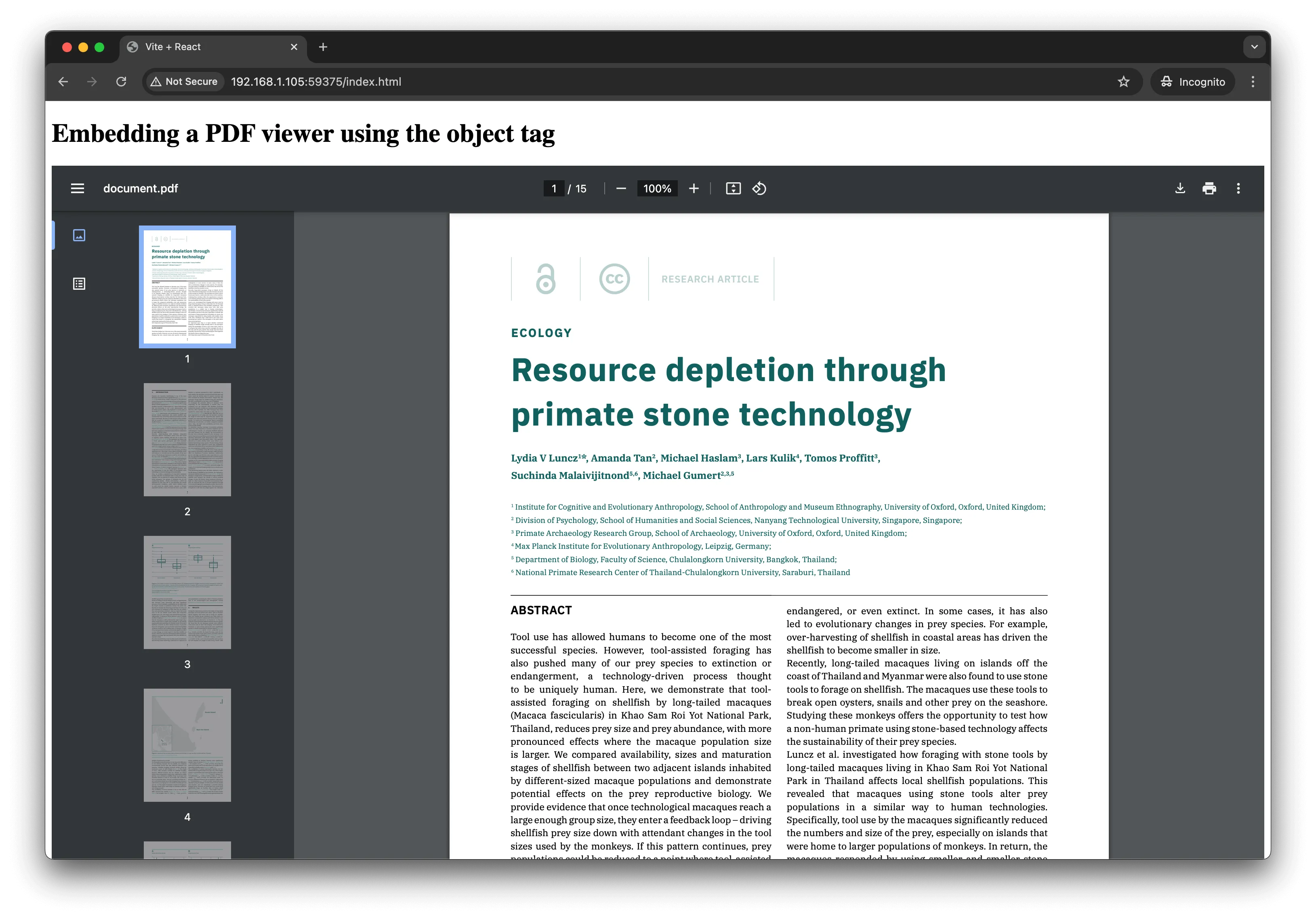
The <object> tag(opens in a new tab) provides a versatile way to embed PDFs while offering fallback content for unsupported browsers:
<object data="document.pdf" type="application/pdf" width="100%" height="1000" title="Embedded PDF Viewer"> <p> Your browser does not support PDFs. [Download the PDF document](document.pdf) </p></object>Key features
data— Specifies the PDF file’s location.- Fallback content — Displays alternative text or links when PDFs aren’t supported.
Use case
This is ideal for environments requiring backward compatibility and fallback mechanisms.
Nutrient Web SDK adds annotations, form filling, digital signatures, mobile support, security controls, and UI customization that native HTML embedding can’t provide.
Method 3: Display a PDF document in HTML with an iframe
An <iframe> embeds web content, including PDFs, into a webpage. Example:
<iframe src="document.pdf" width="100%" height="100%" style="border:none" title="Embedded PDF Viewer"></iframe>To disable the toolbar, append #toolbar=0 to the src attribute:
<iframe src="document.pdf#toolbar=0" width="100%" height="100%" style="border:none" title="Non-downloadable PDF Viewer"></iframe> 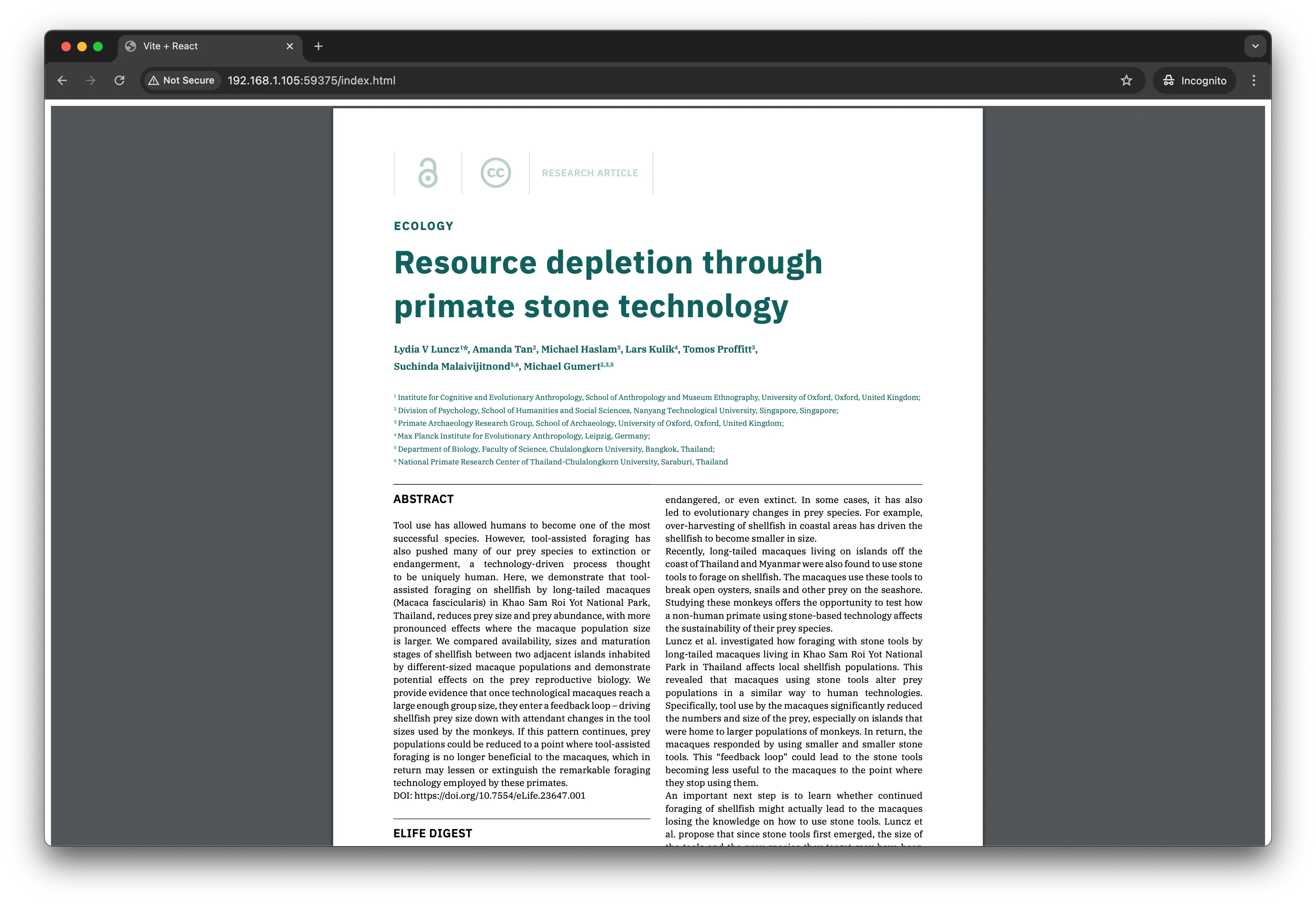
Use case
This works reliably on desktop Chrome and Firefox. In practice, iframes consistently struggle on iOS Safari and Chrome on Android. The browser may show a blank space or trigger a download prompt instead of rendering inline. If your audience is desktop-only, it’s a reasonable starting point. For anything that needs to work on mobile, you’ll want a JavaScript-based viewer.
Method 4: Fail-safe embedding with object and iframe fallback
Combining <object> and <iframe> tags leverages the strengths of both elements. Here’s an example:
<object data="document.pdf" type="application/pdf" width="100%" height="100%" title="Embedded PDF Viewer"> <iframe src="document.pdf" width="100%" height="100%" style="border: none" title="Fallback PDF Viewer" > <p>Your browser does not support PDFs. [Download the PDF](document.pdf)</p> </iframe></object> 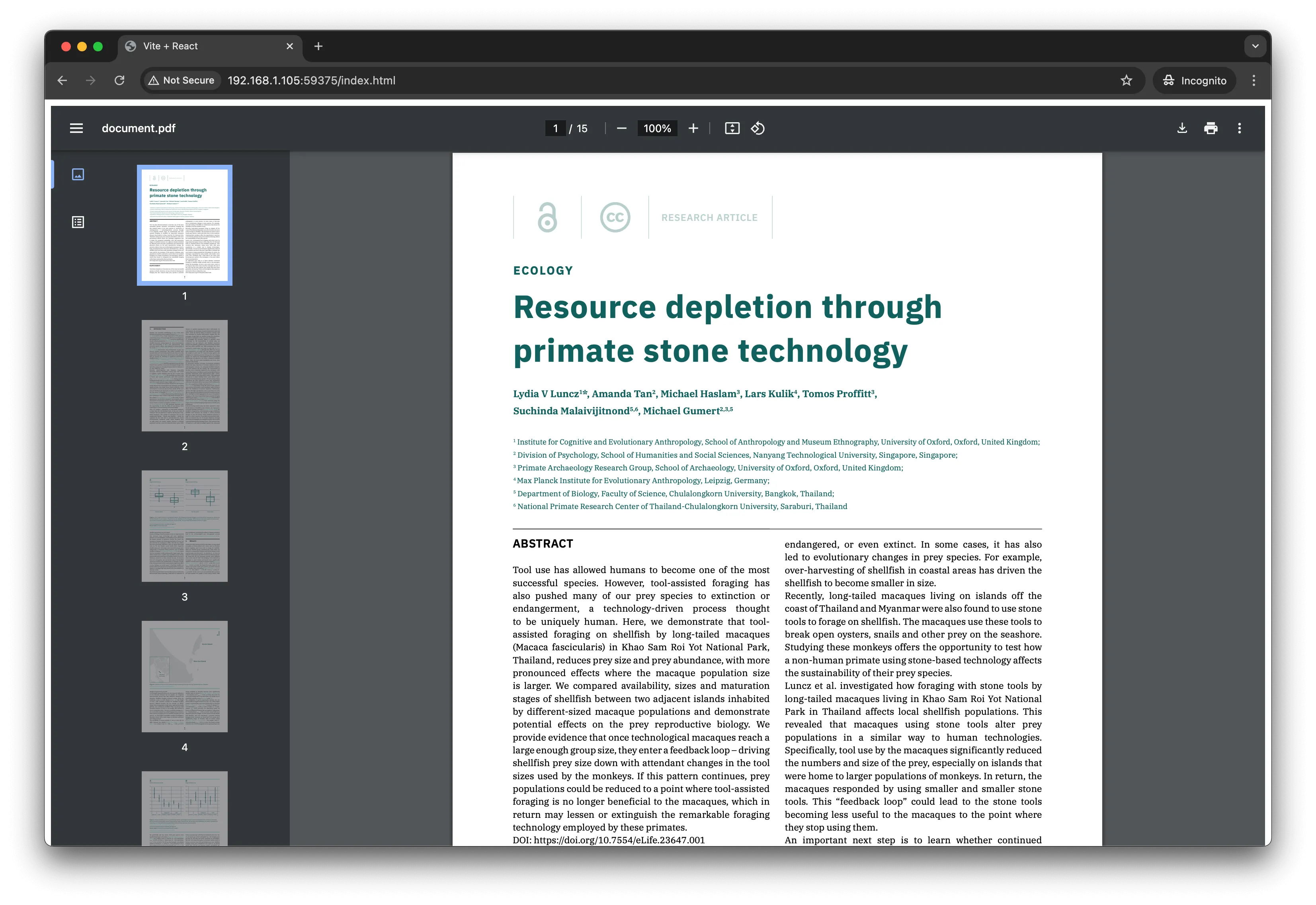
Use case
This option is best for ensuring maximum compatibility. It combines the fallback capabilities of <object> with the customization options of <iframe>.
Method 5: Link out when you can’t embed the PDF
The simplest approach is linking to the PDF directly using an <a> tag:
<p> Open a PDF document: <a href="document.pdf" target="_blank" rel="noopener noreferrer"> View PDF document </a></p>Use case
This method is useful when embedding isn’t necessary and direct access to the PDF file suffices. It’s best for scenarios prioritizing simplicity.
Why do basic HTML PDF embeds fall short in professional applications?
While the HTML embedding methods above work for simple PDF display, they create significant challenges for professional websites and business applications.
Security vulnerabilities
- No access control — Basic HTML methods cannot prevent unauthorized PDF downloads or printing.
- No user authentication — Anyone with the PDF URL can access the document directly.
- Browser-dependent security — Security features like
#toolbar=0are easily bypassed and unreliable. - Direct file exposure — PDFs are accessible via direct URL manipulation, bypassing your website’s security.
Poor user experience on mobile
- Inconsistent rendering — HTML methods rely on browser PDF viewers that vary dramatically across devices.
- No touch optimization — There’s a lack of mobile-friendly navigation like pinch-to-zoom and swipe gestures.
- Loading failures — Many mobile browsers fail to display embedded PDFs, showing blank spaces instead.
- Accessibility issues — Screen readers and assistive technologies struggle with browser-rendered PDFs.
Limited functionality and customization
- No annotation capabilities — Users cannot highlight, comment, or mark up documents.
- Basic navigation only — Navigation is limited to simple page scrolling without advanced search or bookmarks.
- Inconsistent user interface (UI) — The UI can’t match your website’s branding or design system.
Performance and reliability problems
- Slow loading — Large PDFs cause browser freezing and poor page load performance.
- Memory issues — Browser PDF rendering consumes excessive RAM, especially on mobile devices.
- Cross-browser inconsistencies — Different rendering engines produce varying display quality and features.
- No progressive loading — An entire PDF must download before display, unlike with streaming solutions.
Business and compliance limitations
- No digital signatures — There’s no support for secure document signing workflows.
- No form interaction — Interactive PDF forms don’t work reliably across browser PDF viewers.
Method 6: Advanced web embedding with Nutrient Web SDK
While the previous HTML methods work for basic use cases, customer-facing websites often need more than display. Nutrient Web SDK provides advanced features, security, and customization that basic HTML cannot achieve.
Ready to see the difference? Try our interactive demo:
Upload a PDF and try drawing freehand, adding notes, or applying digital signatures to experience the advanced capabilities.
Below is a breakdown of why you might choose Nutrient over native HTML methods.
1. Enhanced PDF viewer features
- Advanced navigation — Nutrient offers interactive navigation options such as custom page modes (single page, continuous scrolling) and page zoom. These go well beyond the basic zoom and scrolling that native methods offer.
- Annotations and markups — Nutrient’s SDK enables users to add annotations, highlights, text, and other markup to PDF documents, a feature not available with basic HTML embedding.
- Advanced text search — Nutrient provides robust search capabilities, making it easy to search for text within a PDF — something basic HTML tags can’t do.
2. Customization
- UI customization — With Nutrient’s SDK, developers can customize the viewer’s UI to match their website design, offering a tighter integration. Basic HTML embedding provides limited customization by comparison.
- Responsive design — Nutrient’s viewer automatically adjusts to various screen sizes, offering a more mobile-friendly experience compared to basic embedding tags.
3. Security
- Secure PDF viewing — Nutrient’s SDK enables developers to implement secure viewing features like encryption, password protection, and restricted access to certain PDF features. This is crucial for organizations handling sensitive or confidential information.
- No file download option — With Nutrient, developers can disable PDF downloads entirely, preventing unauthorized distribution of a document, while basic HTML tags allow users to easily download embedded PDFs.
4. Performance optimization
- Faster load time — Nutrient is optimized for fast loading and smooth performance, particularly when dealing with large PDF files. Basic HTML embedding methods can sometimes suffer from slow load times, especially with heavy or complex documents.
5. Cross-browser compatibility
- Native browser integration — Nutrient ensures full compatibility across modern browsers, handling the quirks and inconsistencies that arise from browser-based PDF rendering. Native methods rely on built-in viewers that behave differently across browsers.
6. Interactive elements
- Form filling and data extraction — Nutrient allows for form filling and data extraction from interactive PDFs, a feature that’s unavailable with basic HTML tags. Our PDF form builder enables creation of these forms. This makes it ideal for applications requiring user input, such as surveys, contracts, or other interactive documents.
Which PDF embedding method to choose
Choose a native HTML tag (<embed>, <object>, or <iframe>) for simple, desktop-only display. Choose a JavaScript viewer like Nutrient Web SDK for mobile reliability, security controls, or interactive features such as annotations, forms, and signatures. The table below summarizes the tradeoffs of each method:
| Method | Pros | Cons | Best for |
|---|---|---|---|
<embed> | Simple to implement; supported across most modern browsers | Limited viewer control; unreliable on mobile | Basic desktop displays |
<object> | Provides fallback content; better compatibility with older browsers | Limited control over viewer features | Legacy support |
<iframe> | Highly customizable via URL parameters; flexible sizing | #toolbar=0 ignored by Firefox/Safari; no mobile guarantee | Quick prototypes |
<a> | Extremely simple; always works | Doesn’t embed the PDF; opens in a new tab or triggers download | Simple access links |
<object> + <iframe> | Combines fallback capabilities of both elements | More complex to implement | Maximum HTML compatibility |
| 🏆 Nutrient Web SDK | Enterprise security; mobile-optimized; annotations; digital signatures; custom UI | Requires commercial license; slightly more complex initial setup | Professional applications |
Our honest take: For internal tools or quick prototypes where you control the environment, <iframe> is fine. For anything customer-facing (especially if you have mobile users, handle sensitive documents, or need consistent behavior across browsers), the HTML methods above will cost you more debugging time than the setup for a proper viewer.
Getting started with Nutrient
Ready to upgrade your PDF embedding? Start a free trial and follow our getting started guide to implement a fully featured PDF viewer in minutes.
Troubleshooting common PDF embedding issues
PDF not displaying on mobile
Why it happens: Chrome on Android often shows a download prompt instead of rendering inline. iOS Safari requires HTTPS and can fail silently on older devices. This is browser-controlled behavior with no reliable HTML-only workaround.
Fix: Use a JavaScript-based viewer (Nutrient, PDF.js). It renders the PDF with its own engine rather than delegating to the browser, so behavior is consistent across devices.
Blank iframe or white space
Why it happens: One of three things is blocking the embed. Open the browser console — the error message will tell you which one:
- The PDF server sends
X-Frame-Options: DENYorSAMEORIGINheaders. - The PDF is served over HTTP while the page uses HTTPS (mixed content blocked by the browser).
- A CORS policy is rejecting the request.
Fix: Address the specific header or protocol issue identified in the console.
#toolbar=0 not working
Why it happens: This URL fragment only works in Chrome’s built-in PDF viewer. Firefox and Safari ignore it entirely.
Fix: Use a JavaScript viewer that gives you programmatic control over the UI rather than relying on browser-specific URL parameters.
PDF downloads instead of displaying inline
Why it happens: Whether the browser renders a PDF inline or triggers a download is a browser-level decision, and not something HTML controls reliably.
Fix: Set Content-Disposition: inline in your server response headers. This helps in most browsers but isn’t guaranteed across all configurations.
Slow loading or page freezing with large PDFs
Why it happens: With HTML embedding, the entire PDF must download before any rendering begins.
Fix: Compress the PDF before serving it, split large documents into smaller files, or use a viewer with streaming support that renders pages progressively as they load.
Conclusion
This post walked you through six methods for embedding a PDF viewer into your website. The pure HTML approaches (<embed>, <object>, <iframe>, and <a>) require no JavaScript and work in most modern desktop browsers, making them a reasonable starting point for simple use cases.
However, for any use case that requires mobile reliability, security controls, or advanced features like PDF annotations, interactive PDF forms, and digital signatures, a JavaScript-based viewer is the right choice.
At Nutrient, we offer a commercial, feature-rich, and completely customizable HTML5 PDF viewer library that’s easy to integrate and comes with well-documented APIs to handle complex use cases. Check out our PDF library using our free trial, and play around with our demo to see what’s possible.
Related reading
The methods above cover PDFs. If you also need to display Office documents, the same SDK renders them without Microsoft Office installed:
- How to build a Word viewer using JavaScript — Render DOC and DOCX in the browser
- Open Excel files in the browser using JavaScript — Handle XLS and XLSX files
- How to build a PowerPoint viewer in JavaScript — Display PPT and PPTX presentations
- How to build a React file viewer — Handle PDF, Office, and image formats in one component
FAQ
Use the <embed>, <object>, <iframe>, or <a> HTML5 elements. Each method works in modern browsers without plugins. For the most reliable cross-browser experience, especially on mobile, use a JavaScript-based viewer like Nutrient Web SDK or PDF.js.
Add #toolbar=0 to your iframe src attribute (<iframe src="document.pdf#toolbar=0">) to hide Chrome’s toolbar. However, this is easily bypassed and only works in Chrome’s built-in viewer. For true, reliable download prevention across all browsers, use Nutrient Web SDK, which lets you disable downloads entirely through its API.
Mobile browsers handle embedded PDFs inconsistently. Chrome on Android often shows a download prompt instead of rendering inline. iOS Safari requires the PDF to be served over HTTPS. The most reliable fix is to use a JavaScript-based PDF viewer, which renders the PDF using its own engine rather than relying on the browser’s built-in PDF handler.
This is usually caused by one of three things: the PDF server sends X-Frame-Options: DENY or SAMEORIGIN headers that prevent iframe embedding; the PDF is served over HTTP on an HTTPS page (mixed content is blocked); or a CORS policy is preventing access. Check the browser developer console for the specific error.
You cannot directly control how a third-party server serves its PDFs. If the external PDF server doesn’t allow iframe embedding (via missing or restrictive CORS/X-Frame-Options headers), embedding will fail. The most reliable options are proxying the PDF through your own server or downloading and rehosting the file yourself. Third-party preview services such as the Google Docs viewer can render public PDFs, but they’re unofficial and can change or break without notice, so don’t depend on them in production.
The #toolbar=0 URL fragment only works in Chrome’s built-in PDF viewer. Firefox and Safari ignore it. There is no cross-browser HTML-only way to remove the toolbar. Use a JavaScript PDF viewer that gives you full UI control, such as Nutrient Web SDK.
For React, you can use a library like react-pdf (built on PDF.js) for lightweight use cases, or integrate Nutrient Web SDK for enterprise features. For Vue, the same options apply. A pure <iframe> also works as a quick solution but lacks mobile reliability and customization options.
With an <iframe>, add the loading="lazy" attribute to hint that loading should be deferred until the user scrolls near it: <iframe src="document.pdf" loading="lazy">. Browser support for lazy-loading iframes varies, so treat it as a progressive enhancement rather than a guarantee. For JavaScript viewers, initialize the viewer only when it enters the viewport using the Intersection Observer API.
It can be, depending on how you configure it. PDFs embedded via <iframe> are accessible directly via their URLs, meaning anyone can download them if they inspect the source. Adding sandbox attributes to the iframe limits what the embedded content can do. For truly secure document viewing (preventing downloads, printing, and direct URL access), use Nutrient Web SDK with its built-in security controls.
Free HTML methods and open source libraries lack consistent mobile support, security controls, and UI customization. Nutrient provides a production-ready PDF viewer with annotations, digital signatures, form filling, and access controls — features that are significant work to build and maintain from scratch. It’s the right choice when your PDF viewer is part of a business workflow rather than a simple document display.