How to build a PowerPoint (PPT/PPTX) viewer in JavaScript

Table of contents
Use Nutrient Web SDK to display PPT and PPTX files in a JavaScript application. The SDK converts the presentation to PDF in the browser. Depending on your license, users can annotate or edit that PDF representation; these changes don’t update the original PowerPoint file. This tutorial covers installation, asset loading, and a complete HTML example.
Users reviewing a presentation in your app shouldn’t need to download it and open PowerPoint. This tutorial builds a JavaScript PowerPoint viewer with Nutrient Web SDK. Conversion runs in the browser; an HTTP server serves the page, document, and SDK assets.
The image below shows what you’ll be building.
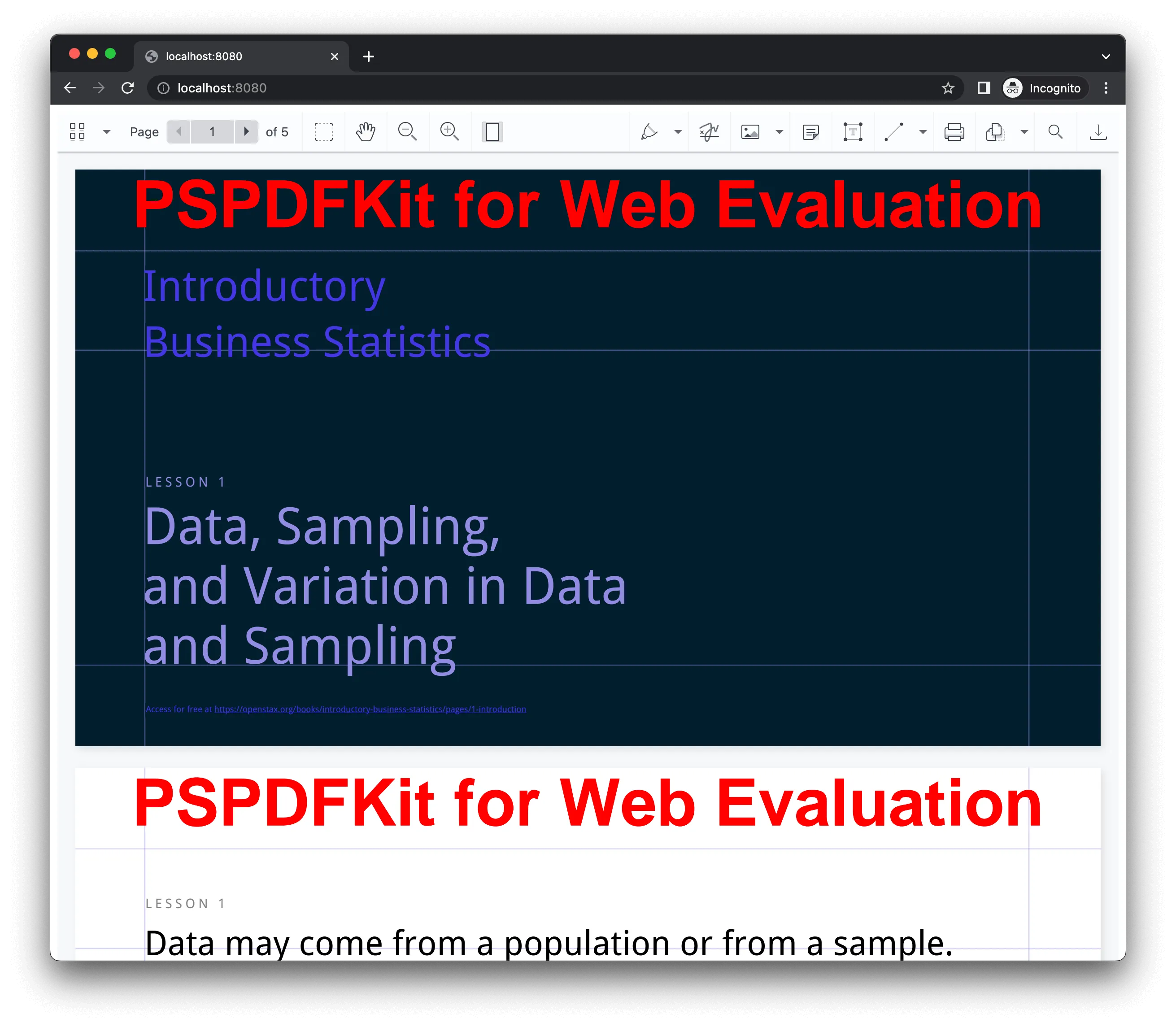
You can check out the demo to see it in action.
Opening and rendering Office documents in the browser
Nutrient Web SDK brings support for Word, Excel, and PowerPoint formats to your application, without you or your users needing any Microsoft Office (MS Office) software, MS Office licenses, or third-party open source software. The technology works by converting an Office document to PDF directly in the browser, and the document is then rendered in our JavaScript viewer.
For both manual and npm installations, copy the SDK assets to a publicly served folder. Make sure your server has the Content-Type: application/wasm multipurpose internet mail extensions (MIME) type set, as explained in our troubleshooting guide.
To serve the files, you need to use an npm package like serve(opens in a new tab) as a simple HTTP server.
Unlocking more capabilities with Office-to-PDF conversion
After converting the presentation to PDF, you can work with the PDF representation. Available features depend on your Nutrient license:
- Text editing — Edit text in the converted PDF.
- Page manipulation — Organize documents by adding, removing, or rearranging pages.
- Annotations — Add text highlights, comments, or stamps to the PDF.
- Adding signatures — Draw, type, or upload a signature on the PDF.
Export the modified document as a PDF by following Nutrient’s download guide. This workflow doesn’t save edits back to PPT or PPTX or provide PowerPoint’s slide-authoring tools.
Explore DemoRequirements to get started
To get started, you’ll need:
- A supported Node.js long-term support (LTS) release from the Node.js downloads page(opens in a new tab).
- A package manager compatible with npm(opens in a new tab). This guide contains usage examples for the npm client(opens in a new tab) (installed with Node.js by default).
- A PPT or PPTX file and a modern browser.
- For production, a Nutrient Web SDK license with the Office Files component enabled. Use the free trial to evaluate the viewer first.
Adding Nutrient to your project
- Install the
@nutrient-sdk/viewerpackage fromnpm. If you prefer, you can also download Nutrient Web SDK manually:
mkdir powerpoint-viewercd powerpoint-viewernpm init -ynpm install @nutrient-sdk/viewer@1.22.0This example uses version 1.22.0. Keep the JavaScript bundle and the library assets from the same installed version.
- For Nutrient Web SDK to work, it’s necessary to copy the directory containing all the required library files (artifacts) to the
assetsfolder. Use the following command to do this:
mkdir -p assetscp -R ./node_modules/@nutrient-sdk/viewer/dist/. ./assets/These copy commands are for macOS and Linux. On Windows, copy the contents of node_modules/@nutrient-sdk/viewer/dist into assets.
Make sure your assets directory contains the nutrient-viewer.js file and a nutrient-viewer-lib directory with the library assets.
Integrating into your project
- Save a PowerPoint document as
slides.pptxin your project’s directory. You can use our demo document as an example. - Add an empty
<div>element with a defined width and height where Nutrient will be mounted:
<div id="nutrient-viewer" style="width:100%; height: 100vh;"></div>- Include
nutrient-viewer.jsin your HTML page:
<script src="assets/nutrient-viewer.js"></script>- Initialize Nutrient Web SDK in JavaScript by calling the
load()method.
This method takes a configuration object as its parameter. The configuration object specifies the location of the document on the page, the path to the source document, and the optional license key:
<script> NutrientViewer.load({ container: "#nutrient-viewer", baseUrl: new URL("assets/", document.baseURI).href, document: "slides.pptx", // Add the path to your document here. licenseKey: "YOUR_LICENSE_KEY", // Remove this line if you're using the free trial. }).catch(function (error) { console.error("Could not load the presentation:", error.message); });</script>This loads slides.pptx into nutrient-viewer. The baseUrl points to the directory containing nutrient-viewer-lib. For a local trial, omit licenseKey; add your license key for a licensed deployment.
You can see the full index.html file below:
<!DOCTYPE html><html lang="en">  <head>    <meta charset="UTF-8" />    <title>PowerPoint viewer</title>    <!-- Provide proper viewport information so that the layout works on mobile devices. -->    <meta      name="viewport"      content="width=device-width, initial-scale=1.0"    />  </head>  <body>    <!-- Element where Nutrient will be mounted. -->    <div id="nutrient-viewer" style="width:100%; height: 100vh"></div>
    <script src="assets/nutrient-viewer.js"></script>    <script>      NutrientViewer.load({        container: '#nutrient-viewer',        baseUrl: new URL('assets/', document.baseURI).href,        document: 'slides.pptx', // Add the path to your document here.      })        .then(function (instance) {          console.log('Nutrient loaded', instance);        })        .catch(function (error) {          console.error(error.message);        });    </script>  </body></html>
Serving your website
You’ll use the npm serve package to serve your project.
- Install the
servepackage locally:
npm install --save-dev serve- Serve the contents of the current directory:
npx serve -l 8080 .- Open
http://localhost:8080to view the presentation. Check that every slide loads, and inspect any font substitutions.
If loading fails, check the browser’s network panel for missing slides.pptx or assets/nutrient-viewer-lib/ requests. Also check the console for license or WebAssembly errors. Don’t open index.html through a file:// URL.
A note about fonts
When you convert an Office document with custom fonts to a PDF, Nutrient Web SDK might not have access to these fonts due to licensing constraints. In this case, Nutrient typically replaces unavailable fonts with their equivalents — like Arial with Noto.
Adding even more capabilities
Once you’ve deployed your viewer, you can start customizing it to meet your specific requirements or easily add more capabilities. To help you get started, here are some of our most popular JavaScript guides:
- Instant synchronization
- Document assembly
- Page manipulation
- Editor
- Forms
- Signatures
- Redaction
- Document security
Try Nutrient with your presentations
Open the Nutrient Office viewer demo to try a presentation, or start a free trial and run this example with your own PPTX file. Check fonts, slide layout, and PDF export before adding the viewer to your application. For integration questions, contact our Support team.
Related reading
- Open Excel files in the browser using JavaScript — Handle XLS and XLSX files without MS Office
- How to build a React PowerPoint viewer — The same walkthrough in React
- How to build an HTML5 PowerPoint viewer — Standalone-mode setup with WebAssembly rendering
- How to build a React Word viewer — Display DOC/DOCX files in React applications
- Angular file viewer for PDFs and Office files — Build a multiformat viewer with Angular
- Top five document viewers for developers — Compare DOCX and PDF viewer libraries side by side
FAQ
Install the @nutrient-sdk/viewer npm package, copy the assets to your project, and load it in your HTML using JavaScript.
Nutrient Web SDK supports Word, Excel, and PowerPoint formats by converting them to PDF for display.
Conversion and rendering run in the browser, so no document-processing backend is required for this example. You still need an HTTP server to serve the page, SDK assets, and presentation.
You can annotate or edit the converted PDF with the appropriate Nutrient features. Those changes don’t modify the original PowerPoint file. Export the result as a PDF.
Nutrient may replace unavailable fonts with alternatives like Noto if it can’t access the original fonts.