How to build a React PowerPoint (PPT and PPTX) viewer

Table of contents
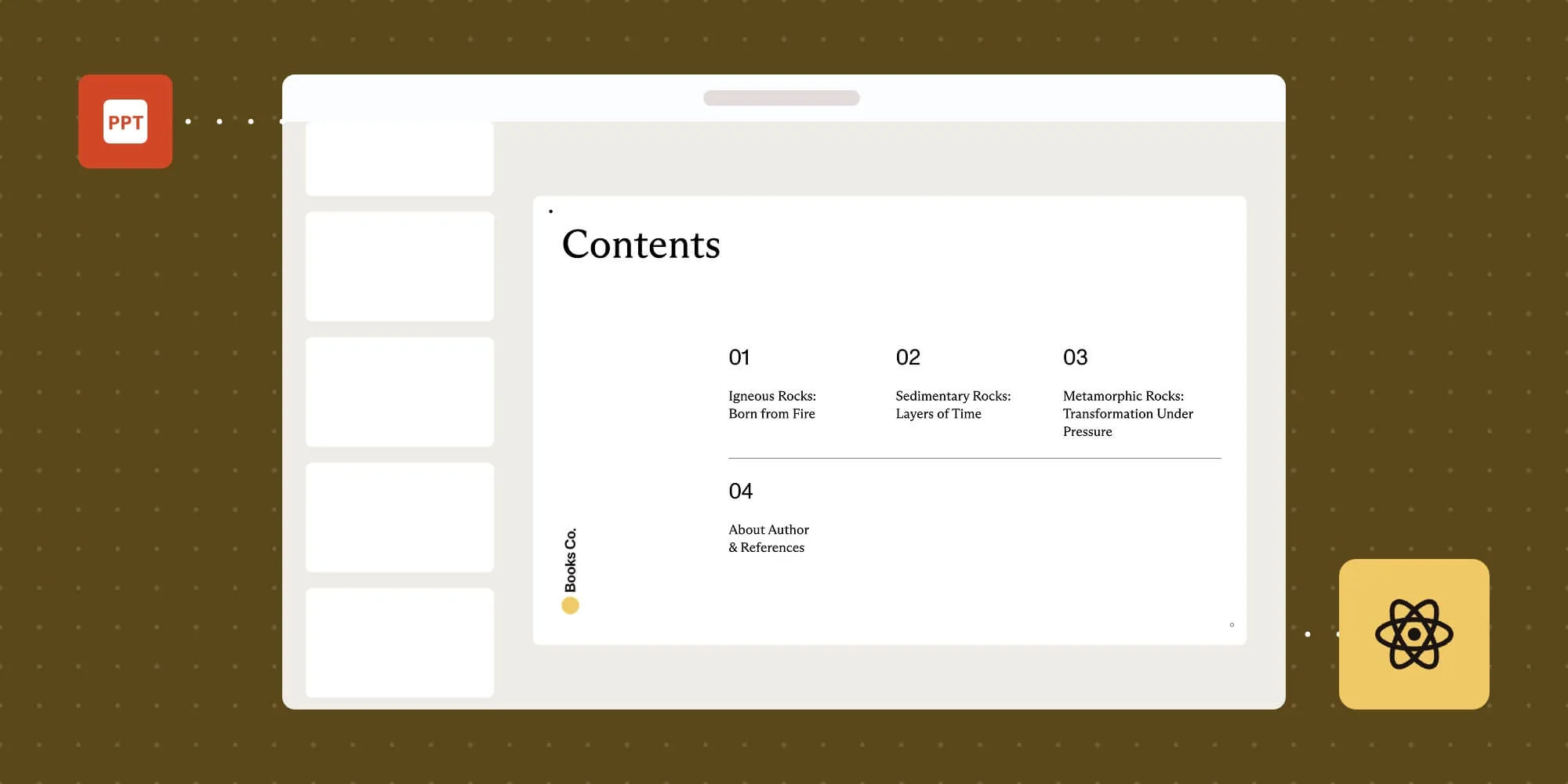
Build a React PowerPoint viewer by loading a PPT or PPTX file with Nutrient Web SDK. The SDK converts the presentation to PDF in the browser and displays its pages. This tutorial uses Vite, matching SDK runtime assets, and a React effect that cancels loading and unloads the viewer when the component unmounts. Office viewing requires the Office Files component in your license.
A React PowerPoint viewer lets people read a presentation inside your application without downloading it or installing Microsoft Office. With Nutrient Web SDK, you can open PPT and PPTX files and display the converted PDF in a viewer.
This approach works for reviewing slides, adding comments, and sharing a document preview. It displays static pages; it doesn’t reproduce PowerPoint animations or provide native PPTX editing.
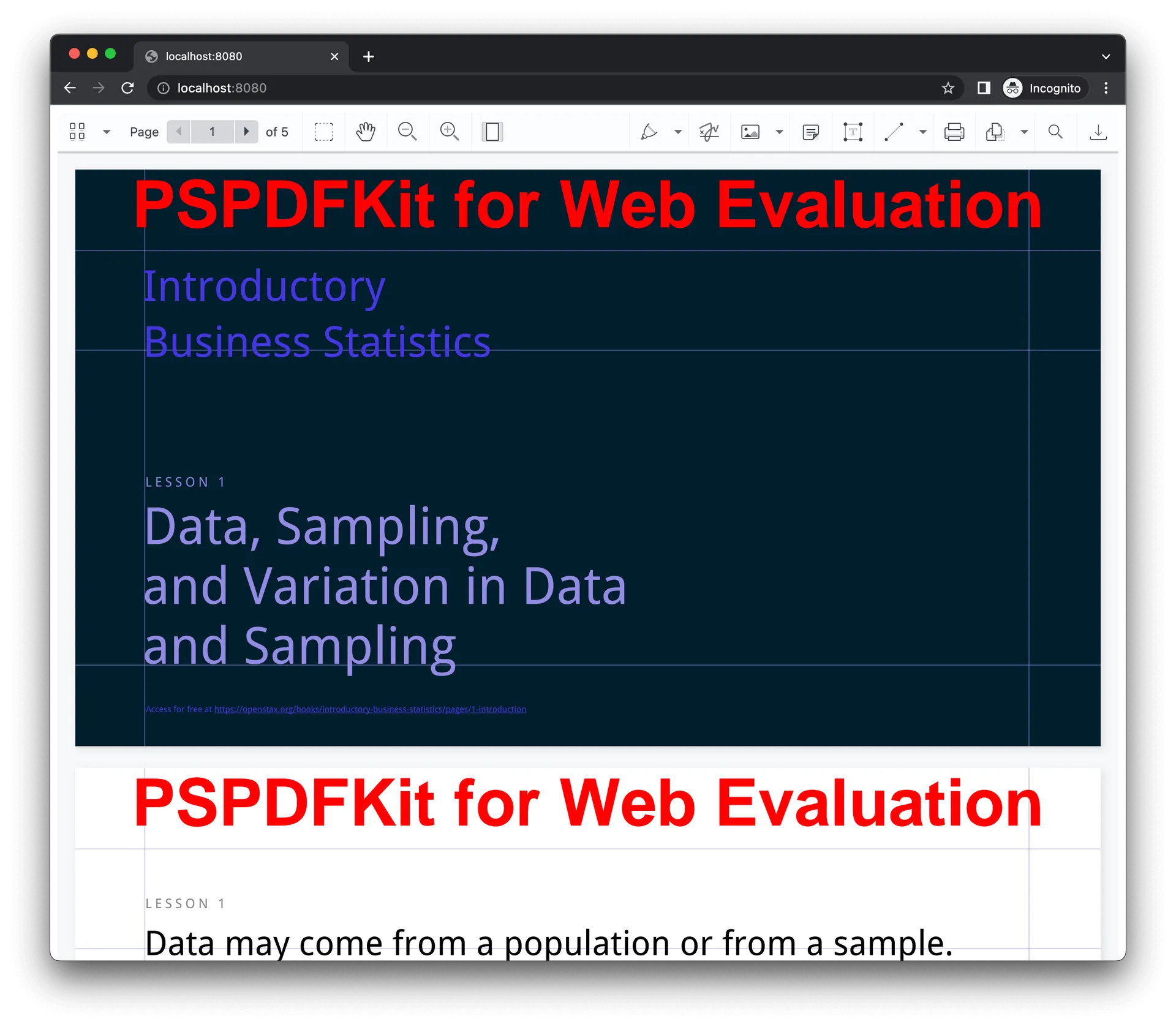
Try the Office viewer demo to see the result before building it.
Opening and rendering Office documents in the browser
Nutrient converts the source presentation to PDF using WebAssembly, and then renders that PDF in the browser. This standalone setup doesn’t require a conversion server or a Microsoft Office installation. Your application still needs to serve the JavaScript, runtime assets, and presentation file over HTTP or HTTPS.
Viewing Office documents requires the Office Files component to be enabled in your Nutrient license. Use a free trial to evaluate it with your presentations.
Requirements to get started
You’ll need a supported Node.js version(opens in a new tab), npm, and a PPT or PPTX file. The example uses Vite’s JavaScript React template, so the component belongs in App.jsx.
The commands below pin Nutrient Web SDK to version 1.21.0 so the package and runtime assets match. When upgrading, update both together using the self-hosting instructions.
Setting up a new React project with Vite
Create the project, enter its directory, and install its dependencies:
npm create vite@latest nutrient-react-example -- --template reactcd nutrient-react-examplenpm installnpm install @nutrient-sdk/viewer@1.21.0Adding Nutrient to your project
Download the runtime asset archive for the same SDK version and extract it into public:
curl --fail --location \ https://cdn.cloud.nutrient.io/assets/pspdfkit-web-assets@1.21.0.zip \ --output nutrient-assets.zipunzip nutrient-assets.zip -d publicIf your system doesn’t include curl or unzip, download that ZIP file in your browser and extract it manually. The resulting directory must be public/nutrient-viewer-lib/. Vite serves files from public at the application’s base URL and copies them into the production build.
The npm package supplies the JavaScript import; the separate asset directory supplies the workers and WebAssembly files. You don’t need a Vite copy plugin for this setup.
Displaying a PowerPoint document
Save your presentation as public/slides.pptx. You can download our demo document for this example. For a PPT file, use its actual filename in the component’s fetch() call.
Replace src/App.jsx with the following component. Remove the starter styles from src/index.css so Vite’s demo layout doesn’t constrain the viewer.
import { useEffect, useRef, useState } from 'react';import NutrientViewer from '@nutrient-sdk/viewer';
export default function App() {  const containerRef = useRef(null);  const [error, setError] = useState('');
  useEffect(() => {    const container = containerRef.current;    const controller = new AbortController();    const baseUrl = new URL(      import.meta.env.BASE_URL,      window.location.origin,    ).href;
    setError('');    async function loadPresentation() {      const response = await fetch(`${baseUrl}slides.pptx`, {        signal: controller.signal,      });      if (!response.ok) {        throw new Error(`Presentation download failed: ${response.status}`);      }      const document = await response.arrayBuffer();      await NutrientViewer.load({        container,        document,        baseUrl,        signal: controller.signal,        // Add your production license key here when deploying.      });    }
    loadPresentation().catch((loadError) => {      if (!controller.signal.aborted) {        setError(loadError.message || 'Could not open the presentation.');      }    });
    return () => {      controller.abort();      NutrientViewer.unload(container);    };  }, []);
  return (    <main>      {error && <p role="alert">{error}</p>}      <div ref={containerRef} style={{ height: '100vh', width: '100%' }} />    </main>  );}
The component checks the download’s HTTP status before passing its bytes to the SDK. The cleanup function aborts a pending download or load and unloads the viewer. Cleanup runs when you navigate away and during React Strict Mode’s extra setup and cleanup cycle in development. The error handler ignores an intentionally canceled load.
Vite’s BASE_URL keeps the presentation and runtime asset URLs aligned when you deploy under a subpath.
Start the development server:
npm run devOpen the local URL printed by Vite. The viewer should show the presentation as PDF pages. Before deploying, add your license key as the licenseKey option in NutrientViewer.load() and confirm that your license includes Office viewing.
A note about fonts
Missing fonts can change line wrapping, slide layout, and pagination during conversion. Nutrient provides fallback fonts, but a substitute won’t necessarily have the same metrics as the presentation’s original font.
Test slides with your actual fonts, charts, and layouts. If you have the necessary font rights, configure custom fonts for Office conversion to improve the match.
More capabilities with Office-to-PDF conversion
Depending on the components in your license, you can add text editing, page manipulation, annotations, signatures, and redaction to the converted PDF. These operations affect the PDF representation; they don’t save edits back into the source PPT or PPTX file.
Explore DemoThe following guides cover additional document workflows. Instant synchronization requires a server-backed setup rather than the standalone configuration above.
- Instant synchronization
- Document assembly
- Page manipulation
- Editor
- Forms
- Signatures
- Redaction
- Document security
Troubleshooting the React PowerPoint viewer
If the viewer doesn’t load, check the browser’s network panel for a missing presentation or runtime file. A request for nutrient-viewer-lib/ that returns HTML usually means the assets are missing or the server rewrote the request to your application’s index page.
If PDF files open but Office files don’t, check the Office Files license component. If a slide renders differently from PowerPoint, check its fonts and supported conversion features before changing the React component.
Conclusion
The React component loads a PowerPoint file, displays the converted PDF, and cleans up when it unmounts. Test it with your own presentations through a free trial or the Office viewer demo. If you need help with integration, contact our Support team.
FAQ
Yes. Nutrient Web SDK supports both formats through Office-to-PDF conversion. Fetch your PPT or PPTX file, pass its bytes to the document option, and enable the Office Files component in your license.
No. In this standalone example, conversion runs in the browser. You need a web server to deliver the application, assets, and presentation, but you don’t need Microsoft Office or a server that converts documents.
The viewer displays the converted PDF as static pages. Licensed PDF editing and annotation features operate on that PDF, rather than the original PowerPoint file. Use a presentation tool if you need native slide editing, animations, or transitions.