PDF.js in Vue.js: Build a PDF viewer (2026)

Table of contents

This tutorial compares two approaches for building a Vue.js PDF viewer: pdfvuer (open source, basic features) and Nutrient Web SDK (commercial, 30+ features including annotations, forms, and signatures). You’ll learn to set up both solutions with complete code examples, from project creation to rendering PDFs in the browser.
Vue.js(opens in a new tab) is a popular frontend JavaScript framework for building single-page applications (SPAs) and user interfaces (UIs). It enables rapid prototyping and building fast, reliable applications.
This tutorial shows how to create a PDF viewer with PDF.js. PDF.js(opens in a new tab) is an open source JavaScript library for viewing PDF files in the browser.
The first part covers creating a PDF viewer with an open source library. The second part provides a step-by-step guide for integrating the Nutrient Vue.js PDF viewer library into a Vue.js project. The Nutrient viewer library provides features beyond what PDF.js offers:
- A prebuilt UI — Save time with a well-documented list of APIs when customizing the UI to meet your exact requirements.
- Annotation tools — Draw, circle, highlight, comment, and add notes to documents with 15+ prebuilt annotation tools.
- Multiple file types — Support client-side viewing of PDFs, MS Office documents, and image files.
- 30+ features — Easily add features like PDF editing, digital signatures, form filling, real-time document collaboration, and more.
- Dedicated support — Deploy faster by working 1-on-1 with our developers.
Requirements
Before starting, install:
- Git(opens in a new tab)
- Node.js(opens in a new tab) (version 18 or later)
- A package manager: npm(opens in a new tab) or yarn(opens in a new tab)
Creating the PDF viewer with open source libraries
Two main PDF.js wrappers simplify creating a PDF viewer with Vue.js: vue-pdf(opens in a new tab) and pdfvuer(opens in a new tab).
| Feature | vue-pdf | pdfvuer |
|---|---|---|
| npm downloads | Higher | Lower |
| Vue 3 support | No | Yes |
| Vue 2 support | Yes | Yes |
| Actively maintained | No | Limited |
| Documentation | Limited | Limited |
| Known issues | Printing bug(opens in a new tab) with unmerged fix(opens in a new tab) | Few customization options |
This tutorial uses pdfvuer because it supports both Vue 2 and Vue 3.
Installing Vue CLI
To work with Vue.js, install Vue CLI(opens in a new tab) (command-line interface), the standard tooling for Vue.js development. It helps create, build, and run Vue.js applications.
Install the CLI using npm(opens in a new tab) (included with Node.js) or yarn(opens in a new tab):
npm install -g @vue/cliyarn global add @vue/cliVerify the installation:
vue --versionThis tutorial uses Vue CLI version 5.x. Note that Vue CLI is now in maintenance mode — for new projects, the Vue team recommends create-vue(opens in a new tab) (Vite-based), the official Vue project scaffolding tool. The Nutrient integration below works the same either way.
Creating the project for pdfvuer
Create a new project:
Terminal window vue create pdfvuer-exampleWhen prompted, select Default (Vue 3) (
[Vue 3] babel, eslint) from the list.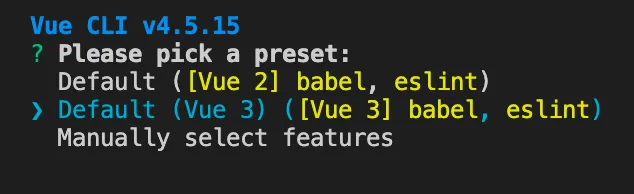
Change to the project directory:
Terminal window cd pdfvuer-example
Adding the pdfvuer library
Install the pdfvuer library:
npm install pdfvuer@next --saveyarn add pdfvuer@nextDisplaying the PDF
Add a PDF document named example.pdf to the public directory (use our demo document as an example).
Open src/App.vue and replace its contents with:
<template>  <pdf src="example.pdf" :page="1" /></template>
<script>import pdf from 'pdfvuer';
export default { components: { pdf, },};</script>- The
scripttag imports thepdfcomponent from thepdfvuerlibrary. - The
templatetag renders apdfelement with thesrcattribute pointing to the PDF file and thepageattribute set to1(first page).
Start the development server:
npm run serveyarn serveThe app runs at http://localhost:8080/ (the port may vary if 8080 is already in use).
The source code for this project is available on GitHub(opens in a new tab).
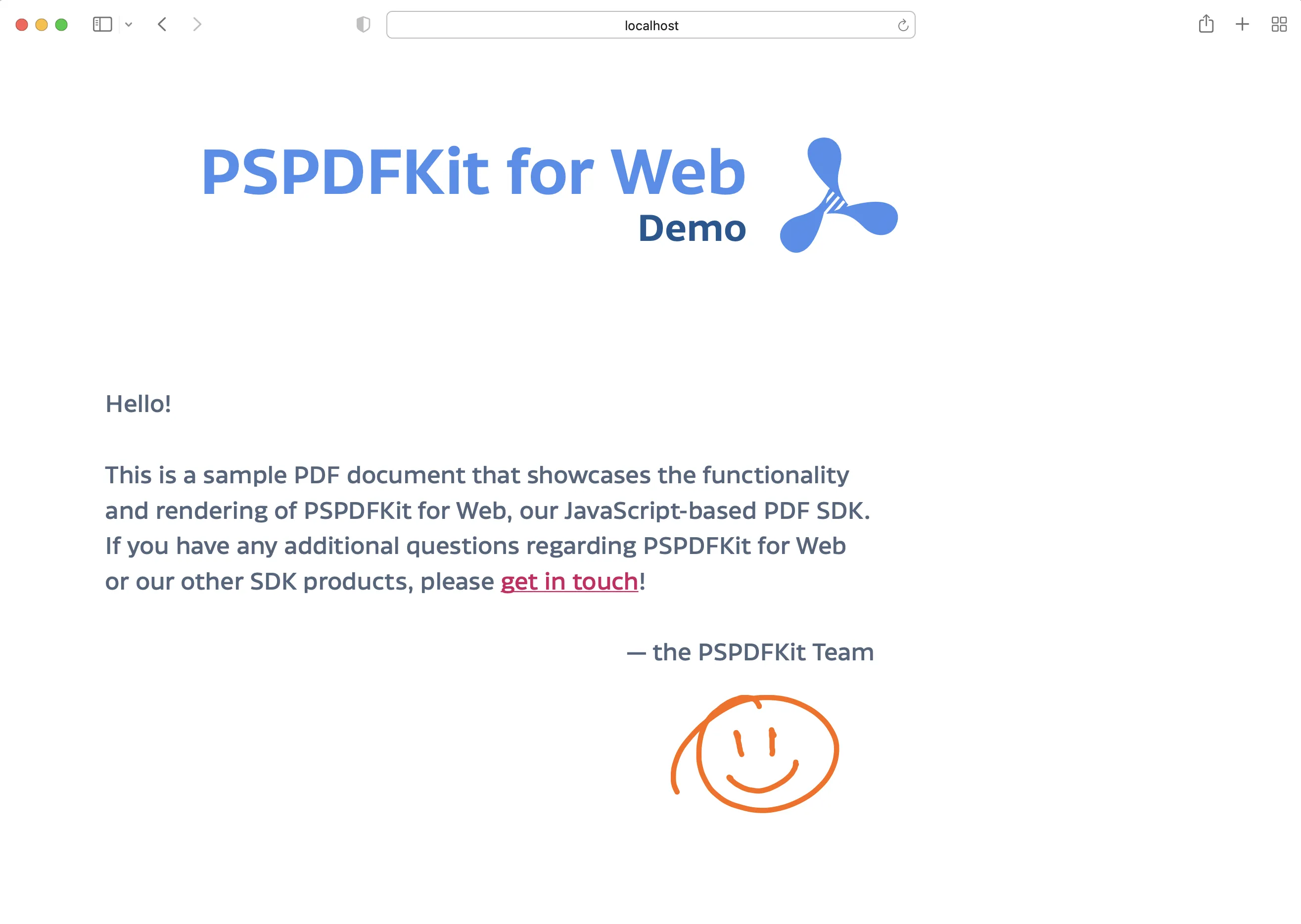
This library has limited customization options. It only displays the first page of the document, with no built-in page navigation.
The next section shows how Nutrient Web SDK addresses these limitations.
Building a Vue.js PDF viewer with Nutrient
Nutrient Web SDK provides a PDF library for building Vue.js PDF viewers. It includes more than 30 features:
- 15+ PDF annotation tools
- PDF form filling and creation
- Digital and electronic signatures
- Document editing (rotate, merge, split, and more)
- Image and Office file viewing
- Real-time collaboration
Integration into new or existing Vue.js projects takes a few steps.
Create a new Vue.js project for Nutrient integration:
Terminal window vue create nutrient-vue-projectWhen prompted, select Default (Vue 3) (
[Vue 3] babel, eslint). Then change to the project directory:Terminal window cd nutrient-vue-project
Adding Nutrient
Install
@nutrient-sdk/vieweras a dependency withnpmoryarn:Terminal window npm install @nutrient-sdk/viewerTerminal window yarn add @nutrient-sdk/viewerThe Nutrient SDK uses private class methods, which require Babel plugins to transpile correctly. Install the required Babel plugins:
Terminal window npm install -D @babel/plugin-transform-private-methods @babel/plugin-transform-class-properties @babel/plugin-transform-private-property-in-objectTerminal window yarn add -D @babel/plugin-transform-private-methods @babel/plugin-transform-class-properties @babel/plugin-transform-private-property-in-objectUpdate your
babel.config.jsfile to include these plugins:babel.config.js module.exports = {presets: ['@vue/cli-plugin-babel/preset'],plugins: ['@babel/plugin-transform-private-methods','@babel/plugin-transform-class-properties','@babel/plugin-transform-private-property-in-object',],};Create a
jsdirectory under thepublicdirectory:Terminal window mkdir -p public/jsCopy the Nutrient Web SDK library assets to the
public/jsdirectory:
cp -R ./node_modules/@nutrient-sdk/viewer/dist/nutrient-viewer-lib public/js/nutrient-viewer-libThis copies the nutrient-viewer-lib directory from node_modules/ into public/js/, making it available to the SDK at runtime.
Displaying the PDF
Add a PDF document named
example.pdfto thepublicdirectory (use our demo document as an example).Add a component wrapper for the Nutrient library and save it as
src/components/NutrientContainer.vue:src/components/NutrientContainer.vue <template><div class="pdf-container"></div></template><script>import NutrientViewer from '@nutrient-sdk/viewer';export default {name: 'NutrientContainer',/*** The component receives the `pdfFile` prop, which is of type `String` and is required.*/props: {pdfFile: {type: String,required: true,},},/*** We wait until the template has been rendered to load the document into the library.*/mounted() {this.loadNutrient().then((instance) => {this.$emit('loaded', instance);});},/*** We watch for `pdfFile` prop changes and trigger unloading and loading when there's a new document to load.*/watch: {pdfFile(val) {if (val) {this.loadNutrient();}},},/*** Our component has the `loadNutrient` method. This unloads and cleans up the component and triggers document loading.*/methods: {async loadNutrient() {NutrientViewer.unload('.pdf-container');return NutrientViewer.load({// To access the `pdfFile` from props, use `this` keyword.document: this.pdfFile,container: '.pdf-container',});},},/*** Clean up when the component is unmounted so it's ready to load another document (not needed in this example).*/beforeUnmount() {NutrientViewer.unload('.pdf-container');},};</script><style scoped>.pdf-container {height: 100vh;}</style>This component:
- Renders a
divwith thepdf-containerclass for mounting the viewer - Defines methods for loading and unloading PDF files
- Sets the container height to fill the viewport
- Renders a
Now, replace the contents of
src/App.vuewith the following:src/App.vue <template><div id="app"><label for="file-upload" class="custom-file-upload">Open PDF</label><inputid="file-upload"type="file"@change="openDocument"class="btn"/><NutrientContainer :pdfFile="pdfFile" @loaded="handleLoaded" /></div></template><script>import NutrientContainer from '@/components/NutrientContainer.vue';export default {data() {return {pdfFile: '/example.pdf',};},/*** Render the `NutrientContainer` component.*/components: {NutrientContainer,},/*** Our component has two methods — one to check when the document is loaded, and the other to open the document.*/methods: {handleLoaded(instance) {console.log('Nutrient has loaded: ', instance);// Do something.},openDocument(event) {// To access the Vue instance data properties, use `this` keyword.if (this.pdfFile) {window.URL.revokeObjectURL(this.pdfFile);}this.pdfFile = window.URL.createObjectURL(event.target.files[0],);},},};</script><style>#app {text-align: center;color: #2c3e50;}body {margin: 0;}input[type='file'] {display: none;}.custom-file-upload {border: 1px solid #ccc;border-radius: 4px;display: inline-block;padding: 6px 12px;cursor: pointer;background: #4a8fed;padding: 10px;color: #fff;font: inherit;font-size: 16px;font-weight: bold;}</style>This component:
- Uses
@change(shorthand forv-on:change) to handle file uploads - Binds
pdfFileto theNutrientContainercomponent with:pdfFile(shorthand forv-bind:pdfFile) - Listens for the
loadedevent from the viewer - Stores the current PDF path in the
pdfFiledata property
- Uses
Start the app:
npm run serveyarn serveThe app runs at http://localhost:8080/ (the port may vary if 8080 is already in use).
If the PDF doesn’t render, verify that example.pdf exists in the public directory.
The demo application supports opening different PDF files via the Open PDF button, as well as adding signatures, annotations, stamps, and more.
The complete source code is available on GitHub(opens in a new tab). The vue-2 branch contains the Vue 2 version. File names in the repository may differ slightly.
Conclusion
This tutorial covered building a Vue.js PDF viewer with both an open source library (pdfvuer) and Nutrient Web SDK.
Similar tutorials are available for other frameworks:
- How to build an Angular PDF viewer with PDF.js
- How to build a React PDF viewer with PDF.js
- How to build a jQuery PDF viewer with PDF.js
- How to build a Bootstrap 5 PDF viewer with PDF.js
- How to build an Electron PDF viewer with PDF.js
- How to build a TypeScript PDF viewer with PDF.js
- How to build a JavaScript PDF viewer with PDF.js
Open source Vue.js libraries work well for basic viewing when building custom UIs. For additional features like annotations, forms, and signatures — plus dedicated support — consider Nutrient’s JavaScript PDF library. It’s easy to integrate and includes well-documented APIs for advanced use cases. For a detailed comparison, see our PDF.js alternative guide. Try it for free, or visit the demo to see it in action.
For a full-featured Vue.js viewer with a prebuilt UI out of the box, see how to build a Vue.js PDF viewer with Nutrient Web SDK.
FAQ
You can install pdfvuer using npm with the command npm install pdfvuer@next --save or with yarn using yarn add pdfvuer@next.
Nutrient offers more than 30 features, including annotation tools, PDF form filling, document editing, and real-time collaboration, along with dedicated support.
Add the pdfvuer library to your project. Then use the <pdf> component in your Vue template to display the PDF by specifying the src attribute with the path to your PDF file.
Use a file input element to upload PDF files, create an object URL for the selected file, and pass it to the Nutrient component in your Vue.js application.