What is a linearized PDF? How it works and how to create one (2026)

Table of contents

PDF linearization (Fast Web View) reorders a document to let compatible viewers display the first page before downloading finishes, boosting load performance. This article defines how linearization works, explains why it matters for web and mobile users, and walks through creating linearized PDFs with Ghostscript, Adobe Acrobat, the dedicated Nutrient PDF linearization API (built on the broader Nutrient DWS API), and Document Engine.
Linearized PDFs place first-page data near the beginning of the file so compatible viewers can display it while downloading continues. The improvement depends on the document, viewer, server, and network connection.
What is a linearized PDF?
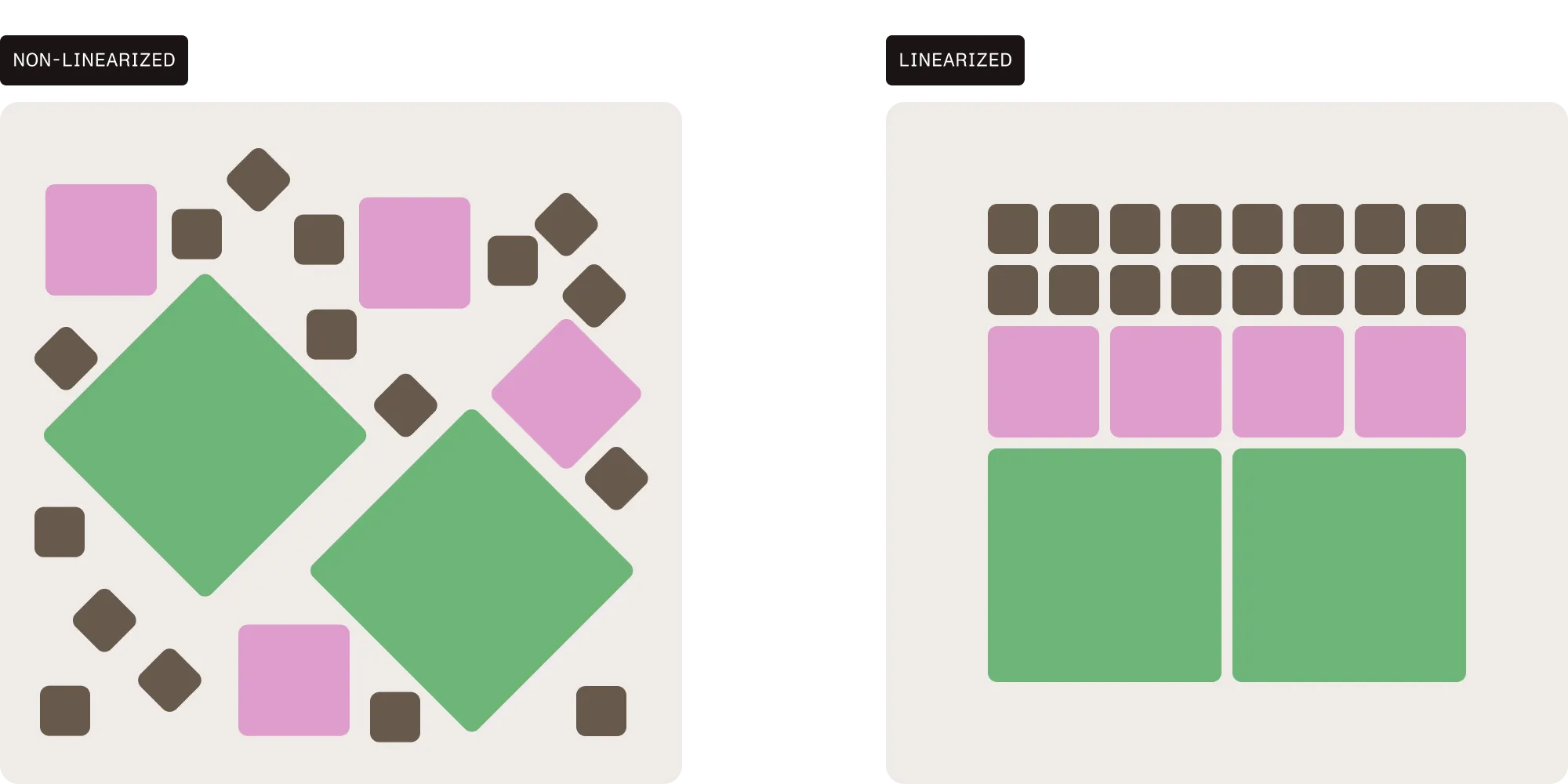
A linearized PDF is a PDF file that has been restructured so a compatible viewer can display the first page before the rest of the document finishes downloading. The format is also called Fast Web View. A non-linearized PDF doesn’t arrange its objects specifically for early first-page display. A linearized PDF places the first page and a lookup table at the beginning of the file so a viewer can render page one while retrieving the remaining pages in sequential byte ranges over HTTP.
The presence of a linearization dictionary at the start of the file — visible as /Linearized 1 in the file header — identifies a linearized PDF. The dictionary includes offsets for each page, hint tables that describe the file layout, and the total file size. This structure allows HTTP servers to satisfy byte-range requests and deliver only the data a viewer needs for the current page.
Linearized PDFs can be created using Nutrient Document Engine, the Nutrient DWS API, or open source tools such as Ghostscript.
What does the “create linearized PDF” option mean?
The “create linearized PDF” checkbox that appears in the save or export dialog of many PDF tools — Adobe Acrobat calls the same setting Fast Web View — controls exactly this restructuring. Enabling it reorders the output file so the first page and its lookup tables sit at the front, which makes the PDF display faster when served over the web. It doesn’t change the document’s content, and it typically has little effect on file size.
How linearization works
PDF linearization restructures a file so the first page and essential lookup tables (dictionary and hint tables) appear at the beginning, enabling viewers to fetch that page immediately and load subsequent pages in sequential chunks. A non-linearized PDF may require additional requests or a full download before rendering, depending on the viewer and file structure.
Key elements of a linearized PDF:
- Linearization dictionary placed at the front, indicating offsets for each page.
- Hint tables that guide the viewer on where to request byte ranges for pages and objects.
- Sequential page storage allowing browsers to progressively load content without waiting for the entire file.
Understanding the importance of linearized PDFs
The primary benefit of linearizing a PDF is its ability to optimize web viewing by enabling the document to be streamed directly to the user. This is similar to how media platforms like YouTube stream videos by loading the initial part first while buffering the rest. This capability offers several advantages:
- Faster document loading — Linearized PDFs can reduce the wait for the first page in compatible viewers.
- Improved user experience — Especially crucial when accessing large files over networks with limited bandwidth.
- Optimized for mobile devices — Can improve time to first-page display on mobile devices; memory use depends on the viewer’s implementation.
Use cases for linearized PDFs
Linearized PDFs are especially beneficial in scenarios where speed and accessibility are critical. Common use cases include:
- Cloud-based PDF viewers — Improve load times for users accessing documents via web applications, particularly in environments with variable network speeds or limited bandwidth.
- Mobile viewing — Enhance performance on smartphones and tablets by enabling earlier first-page display.
- Large document repositories — Enable quicker access to extensive technical manuals, eBooks, or scanned archives before users finish downloading the entire file.
- Streaming document portals — Power web-based reading experiences that mimic streaming platforms (e.g. first-page loads while others buffer), ideal for digital publishing or customer portals.
In these scenarios, test linearized PDFs with your target viewers and network conditions to determine the actual improvement.
Linearized PDF vs. standard PDF: Performance comparison
The practical difference between a standard PDF and a linearized one shows up the moment a user opens a large document over the network:
| Scenario | Non-linearized PDF | Linearized PDF |
|---|---|---|
| First-page data | May be distributed throughout the file | Placed near the beginning of the file |
| Initial display | May need additional requests or the full file | Can render before the full download in a compatible viewer |
| HTTP delivery | Range requests may still be supported | A compatible viewer can use the optimized layout with range requests |
Linearization doesn’t guarantee a particular load time, lower memory use, or download recovery. Test your actual document, viewer, and server. In Nutrient Web SDK, linearized downloading still downloads the full document, and editing is unavailable until that download finishes.
For Nutrient Web SDK users specifically, fast linearized downloads take advantage of this format to render the first page while the rest of the document streams in.
How to create a linearized PDF
There are several ways to create a linearized PDF, depending on your needs:
- Open source CLI tool — Use Ghostscript if you prefer a free, command-line-based approach.
- Adobe Acrobat (desktop UI) — Useful for one-off conversions when you don’t need automation.
- Cloud API — Use Nutrient DWS API (or the dedicated PDF linearization API) for quick integration into software as a service (SaaS) or web platforms.
- On-premises backend service — Use Nutrient Document Engine for enterprise-grade automation and infrastructure integration.
- .NET backend — For C#/.NET teams, see the C# linearization guide.
The following sections detail how each option works.
Using Ghostscript to linearize PDFs
Ghostscript enables you to linearize PDFs using the -dFastWebView flag. Here’s how to install and use it.
Step 1 — Installation of Ghostscript
For macOS (using Homebrew(opens in a new tab)):
brew install ghostscriptFor Ubuntu/Debian:
sudo apt updatesudo apt install ghostscriptFor Windows:
- Download the Ghostscript installer from Artifex’s official website(opens in a new tab).
- Run the installer and follow the installation instructions.
- Add Ghostscript to the system’s
PATHto allow access from the command line.
Once installed, you can verify the installation by running the following command in the terminal:
gs --versionStep 2 — Linearizing a PDF with Ghostscript
To linearize a PDF, use the following Ghostscript command:
gs -dNOPAUSE -dBATCH -sDEVICE=pdfwrite -dFastWebView=true -sOutputFile=output.pdf input.pdf-dNOPAUSE— Tells Ghostscript to process all pages without pausing between them (no user interaction).-dBATCH— Ensures the process runs in batch mode, meaning Ghostscript exits after the job is complete.-sDEVICE=pdfwrite— Specifies that the output format should be PDF.-dFastWebView=true— Enables linearization, which is required for Fast Web View.-sOutputFile=output.pdf— Specifies the name of the output file (in this case,output.pdf).input.pdf— Your original PDF file.
Step 3 — Checking the linearized PDF
Open the linearized PDF in a text editor (like Notepad, TextEdit, or VS Code) and check the header:
%PDF-1.7%«Ïè¢%%Invocation: gs -dNOPAUSE -dBATCH -sDEVICE=pdfwrite -dFastWebView=true -sOutputFile=? ?4 0 obj<</Linearized 1/L 4107/H[ 805 135]/O 6/E 805/N 1/T 3986>>The key part to look for is /Linearized 1, which indicates the PDF has been linearized.
Limitations of Ghostscript for linearization
- Partial support for PDF specification
- Warnings like “We don’t support XRefStm with FastWebView (Linearized PDF)” and “We don’t support ObjStms with FastWebView (Linearized PDF)” indicate that Ghostscript doesn’t fully support handling cross-reference streams (
XRefStm) and object streams (ObjStms) as per the PDF specification for linearization. - While Ghostscript still produces a linearized PDF, these limitations may affect compatibility with certain systems.
- Warnings like “We don’t support XRefStm with FastWebView (Linearized PDF)” and “We don’t support ObjStms with FastWebView (Linearized PDF)” indicate that Ghostscript doesn’t fully support handling cross-reference streams (
- Compatibility level
- The current pdfwrite documentation(opens in a new tab) lists PDF 1.7 as the default compatibility level. Set and test the level required by your receiving systems rather than relying on a historical default.
- Testing required
- While no critical errors typically occur during linearization, testing the output file is essential to ensure it behaves as expected in real-world scenarios, especially with tools that rely on strict adherence to the PDF specification.
Additional considerations
- Performance — Benchmark representative PDFs on the hardware and concurrency settings you plan to use.
- Licensing — Ghostscript offers AGPL and commercial licensing. Review the obligations for your intended integration.
Despite these drawbacks, Ghostscript is a free and viable option for projects relying on open source tools. For a hosted API or document server integration, consider using Nutrient DWS API or Document Engine.
Using Adobe Acrobat to linearize a PDF
For one-off conversions where automation isn’t needed, Adobe Acrobat’s desktop application can save a PDF as Fast Web View:
- Open the PDF in Adobe Acrobat (Pro or Standard).
- Go to File → Save As Other → Optimized PDF.
- In the PDF Optimizer dialog, ensure Fast Web View is enabled (under the Settings panel, this is the same as linearization).
- Click OK and save the file.
You can verify the result the same way as with any other linearized PDF — open the file in a text editor and look for /Linearized 1 near the top.
This method is fine for occasional use, but it doesn’t scale: Every file requires a manual export. For a server-side or batch workflow, use one of the API-based options below.
How to check if a PDF is linearized
There are two quick ways to verify whether a PDF is linearized:
- Text editor — Open the PDF in a text editor (Notepad, TextEdit, or VS Code) and inspect the first lines. A linearized file contains a linearization dictionary near the top, visible as
/Linearized 1. If that entry is absent from the file header, the PDF isn’t linearized. - Adobe Acrobat — Open the file and go to File → Properties. On the Description tab, the Fast Web View field reads Yes for a linearized PDF and No otherwise.
Note that saving a linearized PDF again with a tool that doesn’t preserve linearization — including incremental saves — can silently remove it, so recheck after any post-processing step.
Creating linearized PDFs with Nutrient PDF linearization API
Nutrient offers a dedicated PDF linearization API (built on top of the broader Nutrient DWS API) that linearizes PDFs with a single HTTP request — no infrastructure, no PDF library, no Ghostscript install required. Here’s how.
Step 1 — Preparing the prerequisites
Before making an API call, make sure you have the following:
- API key — You’ll need an API key for authentication. Sign up for a free account(opens in a new tab) to receive 50 credits, but note that a free trial entails a watermark on the output documents. These credits are used for API requests, and different operations consume varying amounts of credits.
- PDF document — Choose the PDF document you wish to linearize. Ensure the file is accessible on your local machine or server.
- API testing tool — Use tools like cURL(opens in a new tab) or Postman(opens in a new tab) for testing the API requests.
Step 2 — Making the API request
Once you have your API key and PDF document ready, make a simple API request to linearize the PDF. Here’s the cURL command:
curl -X POST https://api.nutrient.io/build \ -H "Authorization: Bearer your_api_key_here" \ -o result.pdf \ -F document=@example-document.pdf \ -F instructions='{ "parts": [ { "file": "document" } ], "output": { "type": "pdf", "optimize": { "linearize": true } } }'- Authorization — Replace
your_api_key_herewith your actual Nutrient DWS API key to authenticate the request. - Document — Replace
example-document.pdfwith the file path of the PDF you wish to linearize. Ensure the file exists at the specified path. - Linearize — Setting the
linearizeparameter totrueensures the output will be a linearized PDF, optimized for faster web viewing and streaming.
Step 3 — Executing the request
- Run the cURL command or use Postman to send the request.
- The API will process the document and return a linearized PDF, saved as
result.pdfin your specified directory.
After the API call, verify that result.pdf is linearized. To assess progressive loading, serve it over HTTP and measure time to first page in a compatible viewer. Opening a fully downloaded local file doesn’t test network delivery.
Why choose the Nutrient PDF linearization API?
The PDF linearization API runs on Nutrient DWS API, so you get a comprehensive and scalable platform for document processing alongside one-call linearization. Here are some reasons to consider it for your linearization needs:
- Ease of use — Detailed documentation and clear instructions make it easy to integrate the API into your workflows quickly.
- Scalability — Whether you’re working with a few PDFs or handling high-volume document processing, Nutrient’s API is built to scale with your needs.
- Flexibility — The API supports a wide range of document manipulation tools — from PDF conversion and file optimization, to watermarking, and more.
- Transparent pricing — The credit-based pricing model ensures you only pay for what you use, allowing for cost-effective and predictable billing.
Extending your workflows with Nutrient DWS API
Because the PDF linearization API is part of Nutrient DWS API, the same key unlocks a wider toolset for document workflows beyond linearization:
- Digital signatures — Create secure digital signatures with a trusted certificate, all within a single interface.
- PDF generator — Convert HTML documents into fully formatted PDF files with our generation API.
- PDF editor — Merge, split, delete, flatten, and duplicate PDF documents effortlessly with our editing API.
- Converter API — Easily convert popular file formats such as DOCX, PPTX, and images into PDFs and other image formats like JPG, PNG, and TIFF.
- Watermark — Add custom text or image watermarks to your PDF documents for branding or security.
- Optical character recognition (OCR) — Convert scanned documents into searchable, editable PDFs with our OCR API.
- Data extraction — Extract valuable data from your documents, including text, key values, and tables.
- PDF annotations — Add comments, highlights, and other annotations to PDFs to facilitate collaboration and markup.
- PDF form filling — Automatically fill PDF forms with data from your application workflows.
These additional tools, alongside PDF linearization, enable you to create more efficient and customized document processing workflows tailored to your business needs.
Nutrient Document Engine
Nutrient Document Engine lets you linearize PDFs as part of a customizable API request. The full reference is in our server-side linearization guide. A sample is below.
How to linearize a PDF using Document Engine
Document Engine makes linearizing PDFs straightforward with the following API request. Use the curl command below to linearize a PDF file:
curl -X POST http://localhost:5000/api/build \ -H "Authorization: Token token=<API token>" \ -F document=@/path/to/example-document.pdf \ -F instructions='{ "parts": [ { "file": "document" } ], "output": { "type": "pdf", "optimize": { "linearize": true } } }' \ -o result.pdf- Endpoint — Replace
http://localhost:5000with the URL where Document Engine is hosted, if necessary. Authorization— Replace<API token>with your actual API token to authenticate the request.document— Replace/path/to/example-document.pdfwith the file path to the PDF you want to linearize.instructions— This field specifies the processing instructions. The key part here is"linearize": true, which indicates the PDF should be linearized.output— The final output will be saved asresult.pdf, a linearized PDF.
Licensing considerations for PDF linearization
To use the linearization feature in Document Engine, you must have it included in your license. If this feature isn’t already part of your license, contact Nutrient’s Sales team to add it. After adding the feature, be sure to update your license or activation keys in your configuration.
Combining linearization with PDF compression
You can also combine linearization with other PDF optimizations, like compression. If your license includes both linearization and compression features, you can apply them simultaneously in a single API request:
{ "parts": [ { "file": "document" } ], "output": { "type": "pdf", "optimize": { "grayscaleText": true, "grayscaleGraphics": true, "grayscaleFormFields": true, "grayscaleAnnotations": true, "disableImages": true, "mrcCompression": true, "imageOptimizationQuality": 2, "linearize": true } }}In the instructions above, multiple optimization features are specified, such as:
- Grayscale optimization — Reduces the size of the PDF by converting text, graphics, and form fields to grayscale.
- Image optimization — Compresses images to improve load times.
- MRC compression — Applies mixed raster content (MRC) compression for further file size reduction.
To learn more about the various compression methods supported by Document Engine, refer to our PDF compression guide.
Feature comparison: Ghostscript vs. Nutrient tools
To help you choose the right tool for your use case, here’s a quick comparison of Ghostscript, the Nutrient PDF linearization API, and Nutrient Document Engine.
| Feature | Ghostscript | Nutrient PDF linearization API | Nutrient Document Engine |
|---|---|---|---|
| Linearization support | ✅ | ✅ | ✅ |
| Open source | ✅ | ❌ | ❌ |
| API integration | C API/bindings | ✅ | ✅ |
| Enterprise scalability | ❌ | ✅ | ✅ |
| UI-free CLI option | ✅ | ✅ | ✅ |
| Licensing flexibility | AGPL/Commercial | Freemium | Enterprise only |
Best practices for working with linearized PDFs
- Choose reliable tools — Use trusted software that fully supports PDF linearization and adheres to the PDF specification, such as Ghostscript, Nutrient DWS API, or Document Engine.
- Optimize before linearizing — Reduce image sizes, remove unused content, and simplify complex elements to ensure efficient rendering.
- Combine with compression — Apply grayscale conversion, image optimization, or MRC compression alongside linearization to improve both speed and file size.
- Test across platforms — Verify performance in various browsers, devices, and network conditions to ensure smooth streaming and rendering.
- Avoid incremental saves — Save PDFs as complete files instead of using incremental updates, which can interfere with linearization integrity.
- Limit embedded fonts — When possible, use standard fonts instead of embedding custom ones to keep file sizes low and ensure faster load times.
Conclusion
This article explored Ghostscript(opens in a new tab), the Nutrient PDF linearization API, and Document Engine for creating linearized PDFs. Whether you’re optimizing a handful of files or scaling enterprise workflows, these tools help you deliver fast, efficient, and accessible PDF experiences.
Sign up for a free trial to use the PDF linearization API — or contact our Sales team for Document Engine licensing options.
FAQ
A linearized PDF is a PDF file restructured so the first page is accessible before the full file finishes downloading. A linearization dictionary at the start of the file stores offsets for each page, enabling a viewer to request and render individual pages over HTTP using byte-range requests. Linearized PDFs are also referred to as Fast Web View PDFs.
A linearized PDF is a file that has been reorganized so that the data for the first page, along with hint tables describing the file layout, appear at the beginning of the file. This organization allows a viewer to display page one while the rest of the document is still downloading. The term is interchangeable with Fast Web View.
A linearised PDF is the same as a linearized PDF — a PDF file formatted for progressive delivery, where the first page loads before the full document has been downloaded. The underlying file structure is identical; linearised is the British and Australian English spelling of the same term.
A linearized PDF places first-page data near the beginning so a compatible viewer can display it before the full download. A non-linearized PDF may require additional requests or a full download, depending on its structure and the viewer.
Open the PDF in a text editor and look for /Linearized 1 in the header, or open it in Adobe Acrobat and check File → Properties → Description, where the Fast Web View field reads Yes for a linearized PDF.
“Create linearized PDF” is an option in the save or export dialog of many PDF tools (Adobe Acrobat calls it Fast Web View). Enabling it restructures the output file so a compatible viewer can display the first page earlier over the web, before the rest of the file downloads. It doesn’t change the document’s content.
They solve different problems and aren’t alternatives. PDF/A is an ISO archival standard that restricts a document’s features (fonts embedded, no encryption) so it renders identically in the future. Linearization only changes the byte order of the file so the first page streams quickly over the web. A single PDF can be both PDF/A-conformant and linearized.
Yes. Ghostscript supports linearization with -dFastWebView and can be automated through its CLI or API. Nutrient DWS API offers a hosted service, while Document Engine offers a self-hosted document API.
You can linearize PDFs with Nutrient Document Engine by making an API request that includes the linearize parameter set to true, which optimizes the document for faster web viewing.
Ghostscript provides a C API and language bindings(opens in a new tab), as well as a CLI. You manage installation, updates, licensing, and processing resources yourself; Nutrient DWS API provides a hosted HTTP integration.
Yes. DWS API is designed to scale efficiently, handling high-volume document processing for enterprise-level workflows.
Not directly. Linearization improves load performance by reordering file structure, but you can combine it with compression (e.g. MRC, grayscale) to reduce file size.