Is a PDF a vector file? How to check, create, and work with vector PDFs

Table of contents
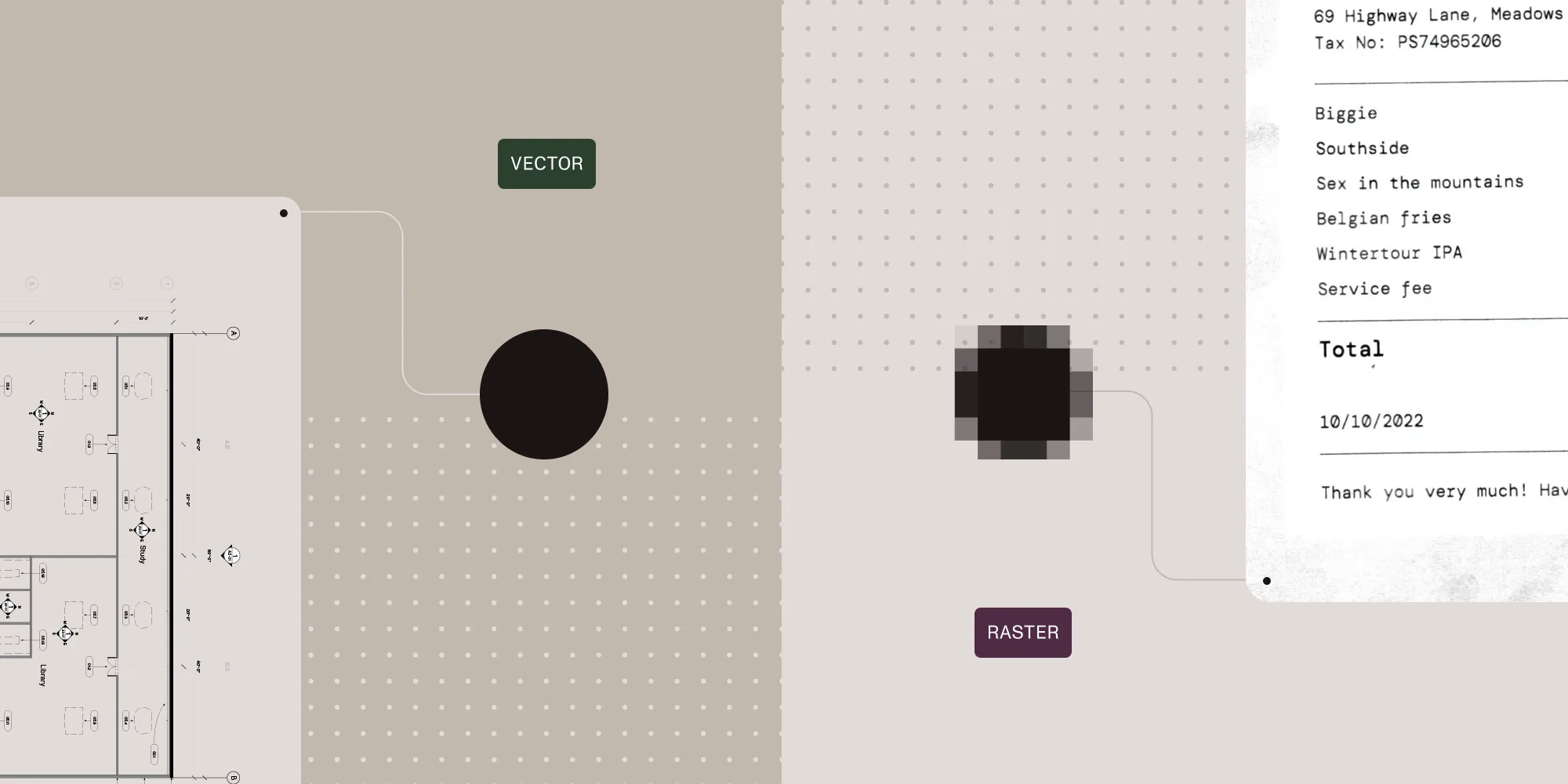
A vector PDF uses mathematical formulas to define graphics, so they scale without losing quality. Raster images get pixelated when enlarged, but vector elements stay sharp at any size. PDFs can contain text, vector graphics, and raster images in the same file. Whether your PDF is vector or raster depends on its contents — this article details how to identify what you have.
This guide explains what a vector PDF is, how it differs from raster images and text, how to identify each type, and why it matters for print quality, file size, and performance.
Is a PDF a vector file?
A PDF isn’t inherently a vector file. The PDF format is a container that can hold text, vector graphics, and raster images in the same document — sometimes all three on a single page. What matters is whether your content is stored as scalable vector paths and real text or as flattened bitmap images.
A PDF is considered “vector” when most of its content — diagrams, lines, logos, and text — exists as vector objects and selectable text rather than embedded bitmaps. Many real-world PDFs are mixed: vector text and diagrams combined with photos or scanned pages.
What is a vector PDF?
A vector PDF contains graphical elements — such as lines, curves, shapes, and fills — described using mathematical formulas instead of pixels. These vector elements are resolution-independent, meaning they can be zoomed or printed at any size without degrading quality.
Origins: The PDF imaging model
Vector graphics in PDFs are based on the PDF imaging model, which itself descends from Adobe’s PostScript language. PostScript was designed in the 1980s to produce scalable, device-independent output for laser printers — and this DNA carries into modern vector PDFs.
What are the three core PDF content types?
PDFs can store three types of content: text, vector graphics, and raster images. Each type has different storage methods, display characteristics, and use cases.
1. Text
Text in PDFs is stored semantically, not just as visual glyphs. A text object in a PDF includes character codes (not just shapes), font references, and precise positioning. This makes it selectable, searchable, and accessible.
PDFs use a sequence of operators to display text, like BT (begin text), Tf (set font), Td (move position), and Tj (show text). Fonts can be embedded or referenced externally, and a ToUnicode map allows character codes to be interpreted and extracted correctly.
Why it matters:
- Enables copy-paste, text search, and screen readers
- Small file size
- Required for accessibility and compliance (e.g. PDF/UA)
Downside: If the text isn’t embedded correctly or appears as a scanned image, it’s no longer accessible as “real” text.
2. Vector graphics
Vector content is composed of paths — lines, curves, and shapes — defined using mathematical coordinates. These are rendered using PDF graphics operators like m (move to), l (line to), c (curve to), and painting operators like S (stroke), f (fill), and B (stroke and fill).
These shapes scale without quality loss because they’re defined mathematically, not as pixels. Common uses include:
- CAD drawings
- Technical illustrations
- Logos and design assets
- Charts and shapes generated via code
Why it matters:
- Stays sharp when printed or zoomed
- Small file sizes for complex drawings
- Can be modified programmatically via APIs
Challenge: Too many small path segments can slow down rendering (e.g. GIS or blueprint files).
3. Raster images
Raster images are bitmaps — grids of pixels representing scanned content or photos. In PDFs, they’re stored as XObjects with metadata like /Width, /Height, /ColorSpace, /BitsPerComponent, and /Filter (compression type).
Filters include:
/DCTDecode→ JPEG compression/JPXDecode→ JPEG2000/FlateDecode→ ZIP compression
When included on the page, the image is referenced and placed using a transformation matrix and the Do operator.
Why it matters:
- Needed for scanned documents and photos
- High-resolution images increase file size significantly
- Fixed resolution — looks pixelated when zoomed
Best practice: Downsample to target DPI during optimization.
Visual and technical comparison
| Feature | Text | Vector graphics | Raster images |
|---|---|---|---|
| Resolution | Infinite | Infinite | Fixed (e.g. 300 DPI) |
| Selectable | ✅ Yes | ❌ No | ❌ No |
| Searchable | ✅ Yes | ❌ No | ❌ No |
| File size | Minimal | Compact (depends) | Large (depends on res) |
| Zoom behavior | Sharp | Sharp | Pixelates at high zoom |
| Editable | With care | Redraw needed | Replace or overlay |
How text, vector, and raster appear in a PDF
The following examples show how text, vector shapes, and images are represented at the PDF operator level.
Text object
BT/F1 12 Tf100 700 Td(Hello, PDF) TjETThis sequence draws the words “Hello, PDF” at coordinates (100, 700), using font F1 at size 12.
Vector drawing (rectangle)
100 100 m200 100 l200 200 l100 200 lhSThis draws a stroked square. These operations define paths and outline them with the current stroke color.
Image (XObject reference)
/Im0 DoThis tells the PDF viewer to paint the image resource named /Im0, which is defined elsewhere in the document as a stream of encoded pixels.
When does vector vs. raster in a PDF matter?
Whether your PDF is mostly vector or mostly raster affects:
- Print quality — Vector graphics stay sharp at any size, while raster images can look blurry when scaled.
- File size — Vector-heavy PDFs can stay small even for complex drawings, while high-resolution raster scans get large quickly.
- Zooming and viewing — Vector content looks crisp in viewers when users zoom in to inspect details.
- Rendering performance — Drawing lots of vector paths versus large images has different performance characteristics, especially in web and mobile apps.
If you’re building your own viewer or document workflow, you want a rendering engine that:
- Handles vector, text, and raster content correctly.
- Preserves vector quality when displaying or processing PDFs.
- Lets you inspect and work with PDF content programmatically.
Nutrient’s PDF SDK handles these requirements.
How to tell if a PDF is vector or raster
There are several ways to check whether a PDF contains vector or raster content — from a quick visual test to programmatic inspection. These methods work whether you created the PDF yourself or received it from someone else.
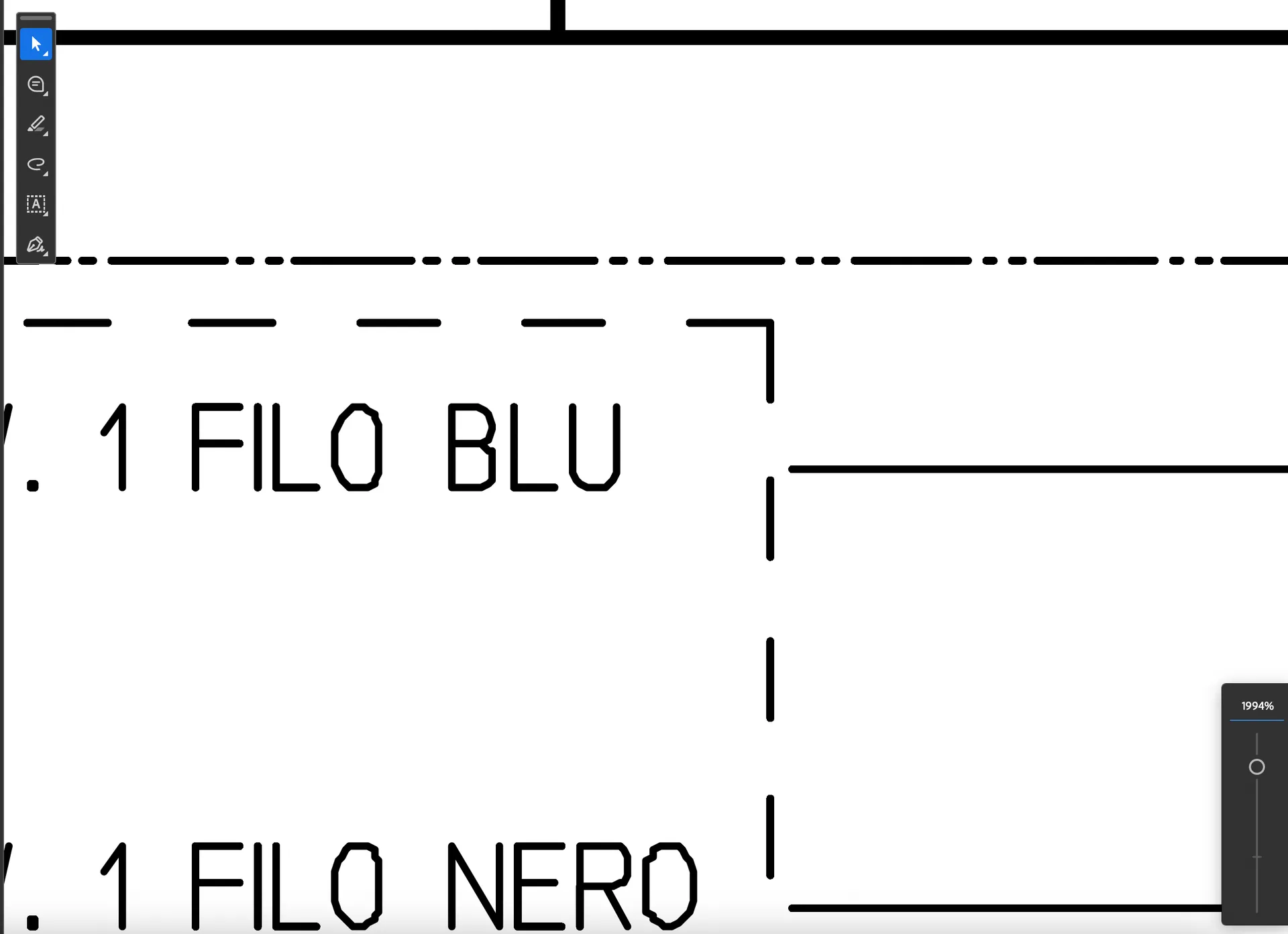
1. Zoom test
This is the fastest method. Zoom in to 400–800 percent. If lines and text stay crisp and sharp, they’re being drawn as vector paths. If they become blocky and pixelated, that content is stored as a raster image instead.
2. Text selection
Try highlighting text on the page. If you can select and copy it, the document contains real text objects — vector-based. If clicking produces no selection at all, the page is likely a flat scan with no underlying text layer.
3. Adobe Acrobat Pro — Edit PDF right-click test
In Acrobat Pro, open Edit PDF and click a graphic element, then right-click it. If the Edit Using menu defaults to Photoshop, the object is a raster image (bitmap). If it defaults to Illustrator, the object is vector. You can also look at the selection behavior: Clicking a raster image selects the entire object as a block, while clicking a vector element may select only part of it.
For a space-usage breakdown, go to File > Save As Other > Optimized PDF > Advanced Optimization > Audit Space Usage. This shows how much of the file’s size comes from images versus other content types.
4. Programmatic detection with Nutrient SDK
If you’re building a document pipeline and need to classify PDFs at scale, you can use Nutrient’s textLinesForPageIndex API to detect whether a page has an extractable text layer. An empty result on a page with visible text means the page has no text objects — most often a raster scan, but it can also indicate text that was converted to vector outlines. For a full vector-vs-raster classification, combine this check with inspection of the page’s image XObjects and vector paths.
// Requires a container element in your HTML, for example:// <div id="nutrient-viewer" style="height: 100vh;"></div>const container = document.getElementById("nutrient-viewer");
const instance = await NutrientViewer.load({  container,  document: "example.pdf",  useCDN: true,});const textLines = await instance.textLinesForPageIndex(0);
if (textLines.size === 0) {  console.log("Page 0 has no extractable text layer — likely a raster scan or text outlined to curves.");  // Consider running OCR (for raster scans) or inspecting image XObjects to confirm.} else {  console.log(`Page 0 contains ${textLines.size} text lines (vector text present).`);}
This approach is useful for automating document classification, routing scanned PDFs to an OCR pipeline, and compliance checks where searchable text is required (for example, PDF/UA accessibility validation).
How to create a vector PDF
The most reliable way to get a vector PDF is to export one from an application that works natively in vector formats. Here’s how to do it in the most common tools.
From Adobe Illustrator
Go to File > Save As and choose Adobe PDF (.pdf). In the export dialog, select a PDF/X or PDF preset and make sure Preserve Illustrator Editing Capabilities is unchecked if you want a clean, production-ready vector PDF. All paths, shapes, and text will be preserved as vector objects.
From Figma
Select your frames and go to File > Export. Choose PDF as the format. Figma exports frames as vector PDFs by default — text and shapes are preserved as paths, not flattened to pixels.
From Adobe InDesign
Go to File > Export and choose Adobe PDF (Print). Use the PDF/X-1a or PDF/X-4 preset for print-ready output. InDesign preserves all vector elements, embedded fonts, and linked vector assets.
From Microsoft Word or Google Docs
Word and Google Docs produce mixed-content PDFs: Text is stored as real text objects (vector), but inserted images remain raster. Export via File > Save As PDF (Word) or File > Download > PDF (Google Docs). The resulting PDF will have vector text but raster photos.
What if I only have a raster PDF?
If your source is a scanned document and you need vector output, your options are:
- Reexport from the original source file if you still have access to it — this is always the cleanest path.
- Use vector tracing software (such as Adobe Illustrator’s Image Trace or Inkscape’s autotrace) to convert raster artwork into approximate vector paths. Results vary depending on image quality and complexity.
- Use an SDK for batch conversion — Nutrient’s conversion API can process large volumes of documents and apply OCR to add a searchable text layer to scanned PDFs, which is often the practical equivalent of “vectorizing” for most document workflows.
Real-world example: Vector stamp annotations
Digital stamps like approval marks, seals, or signatures work best as vector annotations.
A raster stamp (PNG or JPEG) becomes blurry when zoomed or printed at high resolution. It also increases file size. A vector stamp uses shapes and text that stay sharp at any size and support transparency without extra overhead.
Vector stamps are standard in legal, architectural, and compliance workflows where document quality matters. See our guide on vector stamps for implementation details.
Vectorization vs. rasterization: PDF/A conversion
PDF/A is an ISO-standardized format for long-term document archiving. When converting standard PDFs to PDF/A, any content that doesn’t comply with archival requirements must be transformed into something that does. This often involves choosing between vectorization and rasterization.
Vectorization
Vectorization converts incompatible elements (certain fonts, shadings, or transparencies) into shapes and paths. This keeps the document scalable and compliant with PDF/A requirements. The result is usually smaller with better visual quality.
Rasterization
Rasterization flattens complex or incompatible content into bitmap images. This guarantees visual consistency but increases file size and loses text searchability.
| Method | Output type | Advantages | Drawbacks |
|---|---|---|---|
| Vectorization | Paths, curves | Scalability, print quality | Rendering precision required |
| Rasterization | Pixel images | Simpler implementation | Larger files, no selectable text |
Summary: Why vector content matters
Knowing the difference between vector and raster content helps you build better document systems. Vector PDFs offer:
- Sharp output at any size for print and display
- Better long-term accessibility with PDF/A
- Smaller file sizes while keeping visual quality
How Nutrient supports vector and raster PDF workflows
Nutrient SDK handles both vector and raster PDFs without quality loss.
OCR that makes any PDF searchable
Nutrient’s OCR engine adds searchable text to any PDF. Use cases include:
- Scanned or photographed documents
- PDFs where text was converted into outlines or images
- Post-conversion content that lost searchable text
After PDF/A conversion, fonts may become curves or images. Nutrient’s OCR restores searchable text to these documents.
Vector support for engineering workflows
Nutrient’s CAD SDK converts DWG and DXF files to vector PDFs while preserving:
- Colors, layers, fonts, and metadata
- Full vector fidelity from CAD exports
- Print-ready quality for technical drawings
Read our Q4 2024 SDK updates.
PDF conversion and optimization APIs
- Convert multiple file formats to vector PDFs
- Batch process OCR, conversion, and optimization
- Extract text, images, and metadata from PDFs
- Generate PDF/A documents for archival
Nutrient’s PDF SDK supports C#, Python, JavaScript, and other languages with APIs for rendering, conversion, and validation.
Conclusion
Text, vector, and raster content each have distinct roles in PDFs. Developers need to understand these differences to build effective PDF workflows for web display, archiving, or automation.
Nutrient PDF SDK provides APIs to detect, convert, apply OCR, and process both vector and raster documents.
Try Nutrient PDF SDK to render, edit, inspect, and convert vector PDFs at scale.
FAQ
A vector PDF is a PDF in which the primary content — diagrams, shapes, lines, and text — is stored as vector objects defined by mathematical paths rather than pixels. Vector objects in a PDF are resolution-independent: They remain sharp at any zoom level or print size. PDFs generated programmatically from design tools or word processors are typically vector PDFs. PDFs created by scanning paper documents are typically raster PDFs, containing pixel-based images rather than vector paths.
A PDF can be vector, raster, or a mix of both. The format itself is a container — it can store text, vector graphics, and raster images in the same document. A “vector PDF” is simply a PDF where most of the important content is stored as vector objects and real text instead of flat images.
Vector PDFs store shapes and lines using paths, while raster PDFs store pixel-based images. Raster images lose clarity when zoomed in, whereas vector elements stay sharp.
Yes. Most real-world PDFs mix text, vector graphics, and raster images on the same page. For example, a technical manual might use vector diagrams and live text on top of a scanned background image. When people call a document a “vector PDF,” they usually mean the primary content — diagrams, drawings, and text — is stored as vector objects, not just as a flat image.
Zoom in to 400–800 percent and see how the content behaves. If lines and text stay smooth and sharp, that part of the PDF is vector-based. If they become blocky and pixelated, that content is raster. You can also try selecting text: If you can select and copy it, the file isn’t just a raster scan.
Vector PDFs stay sharp at any zoom level or print size because they’re defined as paths and shapes instead of fixed pixels. That makes them ideal for things like technical drawings, floor plans, and diagrams where users need to zoom in and still see crisp details.
Yes. Vectorization is often used during PDF/A conversion to preserve scalability and reduce file size. This ensures documents are legible and usable in the long term.
Export directly from a vector-native application: use File > Save As PDF in Adobe Illustrator, File > Export > PDF in Figma, or File > Export > Adobe PDF (Print) in InDesign. These apps store all shapes, paths, and text as vector objects in the resulting PDF. Microsoft Word and Google Docs also export text as vector, but embedded photos remain raster. If you only have a scanned raster PDF, the best option is to reexport from the original source file — vector tracing tools can approximate vector output but results vary with image complexity.