How to build a .NET MAUI PDF viewer with the Nutrient SDK

Table of contents

You can add a PDF viewer to a .NET MAUI app with the native Nutrient MAUI SDK:
- Install the
Nutrient.MAUI.SDKNuGet package and register it inMauiProgram.cs. - Add the
PDFViewcontrol to your XAML and load a document in itsInitializedhandler. - Run the same codebase on Android, iOS, macOS, and Windows.
In this post, you’ll learn how to build a cross-platform PDF viewer in a .NET MAUI app using Nutrient MAUI SDK — a native SDK that exposes a PDFView control you can drop straight into your XAML.
.NET MAUI(opens in a new tab) stands for .NET Multi-platform App UI. It’s Microsoft’s framework for building native cross-platform mobile and desktop applications from a single codebase using .NET.
An earlier version of this post embedded Nutrient Web SDK in a MAUI Blazor app. That workaround is no longer necessary: The native Nutrient MAUI SDK now integrates directly through XAML. If you have a specific reason to use the Web SDK in a Blazor hybrid app instead, let us know.
Architecture and features
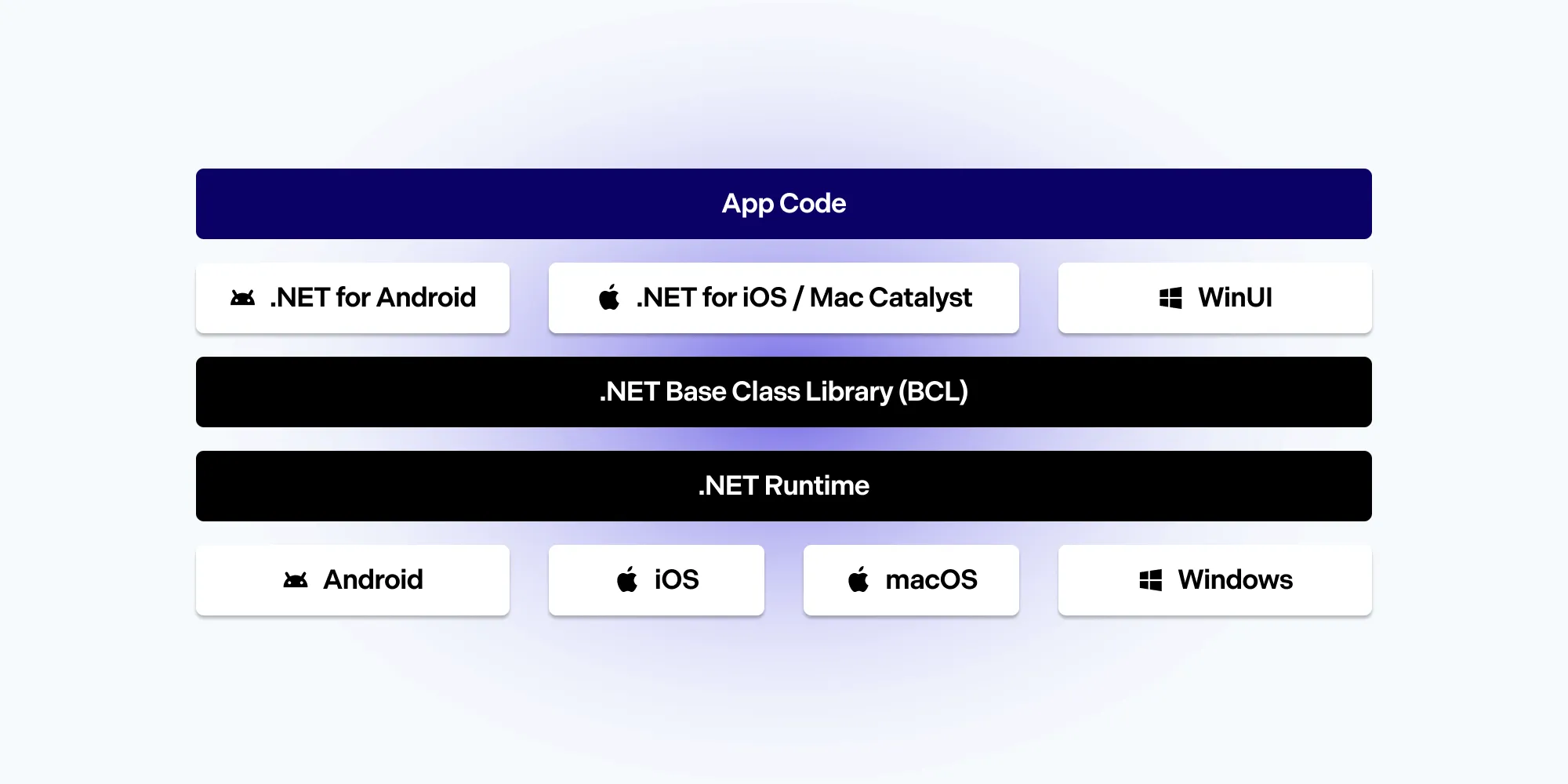
.NET MAUI is the successor to Microsoft’s Xamarin project, which reached end of life in May 2024. It was architected from the ground up to offer:
- Unification of projects — A single multitargeted setup out of the box.
- Truly native applications — They run on the native infrastructure of each supported platform.
- Optimized compilation — .NET for iOS does ahead-of-time (AOT) compilation to produce ARM binaries for the App Store, while .NET for Android uses a mix of just-in-time (JIT) and AOT compilation on the device.
- A single codebase that targets Android, iOS, macOS, and Windows.
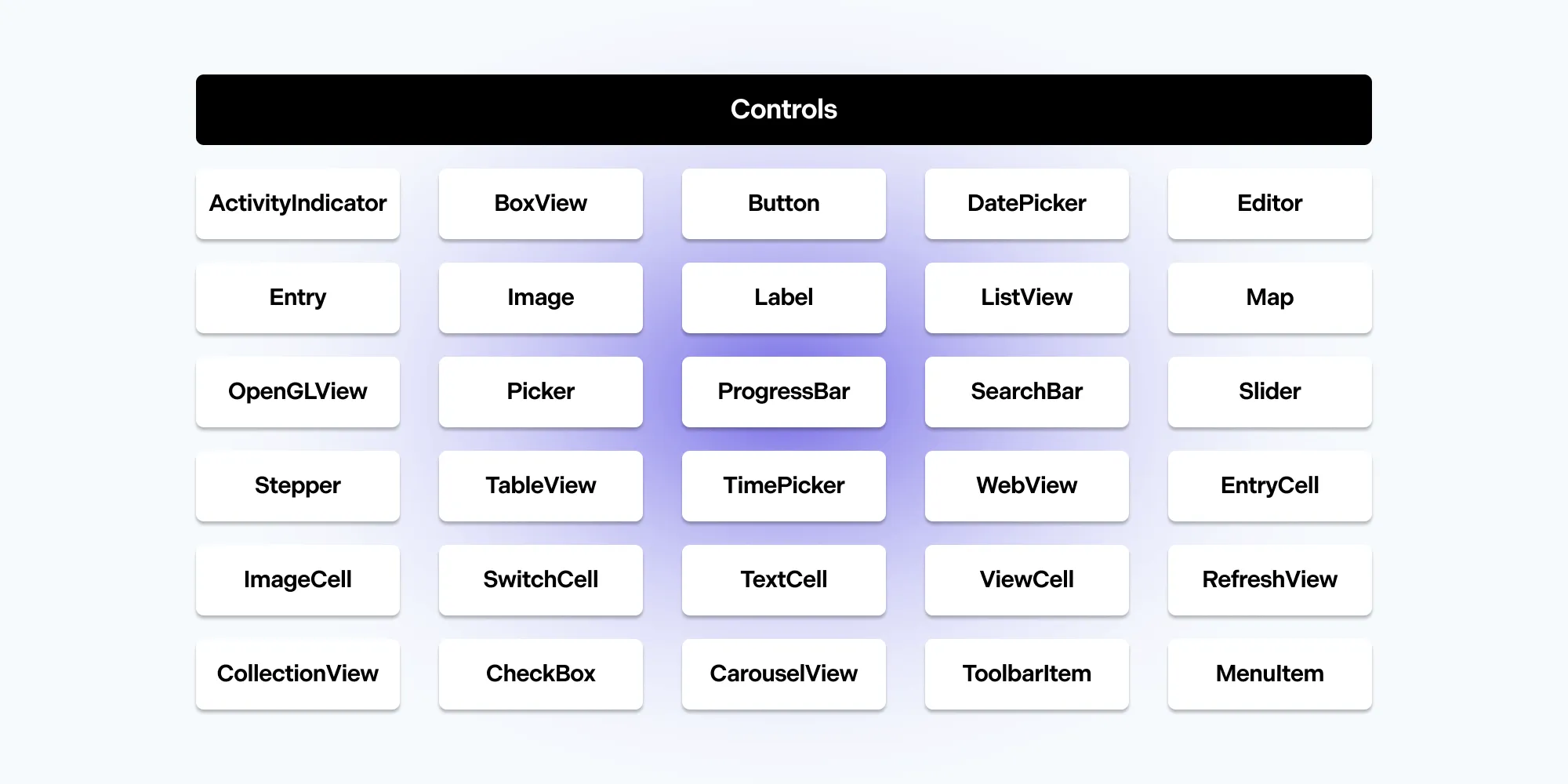
It also ships with MVVM and XAML support, a set of layouts, and a large library of cross-platform views and controls.
Requirements
To follow along, you’ll need:
- For Windows — Visual Studio 2022 17.3 or greater, with the .NET Multi-platform App UI development workload installed.
- For Mac — Visual Studio Code with the .NET MAUI prerequisites installed.
Nutrient MAUI SDK supports four platforms from a single codebase: Android, iOS, macOS (through Mac Catalyst), and Windows.
Creating a new MAUI project
If you already have a MAUI project, skip ahead to adding the Nutrient dependency. Otherwise, create one.
In Visual Studio, choose Create a new project, select .NET MAUI App, and then set the project name and target framework.
From the command line, run:
dotnet new maui -n "Nutrient Demo"cd "Nutrient Demo"Adding the Nutrient dependency
Open your project file and change the first line from
<Project Sdk="Microsoft.NET.Sdk">to<Project Sdk="Microsoft.NET.Sdk.Razor">. Then save.Add the
Nutrient.MAUI.SDKNuGet package(opens in a new tab) — either through the NuGet Package Manager in Visual Studio or from the command line:Terminal window dotnet add package Nutrient.MAUI.SDKOpen
MauiProgram.csand callRegisterPSPDFKitSdk()on the builder:public static MauiApp CreateMauiApp(){var builder = MauiApp.CreateBuilder();builder.UseMauiApp<App>().RegisterPSPDFKitSdk().ConfigureFonts(fonts =>{fonts.AddFont("OpenSans-Regular.ttf", "OpenSansRegular");fonts.AddFont("OpenSans-Semibold.ttf", "OpenSansSemibold");});#if DEBUGbuilder.Logging.AddDebug();#endifreturn builder.Build();}
Displaying a PDF
In the
Resources/Rawfolder, create anAssetsfolder and add a PDF file nameddemo.pdf.The folder has to be named
Assets. PDFs in this folder can be loaded with theLoadDocumentFromAssetsAsyncAPI.Open
MainPage.xaml, remove the existing content ofContentPage, and add thePDFViewcontrol along with its namespace:<ContentPage xmlns:pspdfkit="clr-namespace:PSPDFKit.Sdk;assembly=Sdk"><pspdfkit:PDFView x:Name="PDFView" Initialized="OnPDFViewInitialized" /></ContentPage>If you’ve purchased a license and assigned it to a bundle ID, set it per platform. Omitting the
Licenseproperty initializesPDFViewin trial mode:<pspdfkit:PDFView x:Name="PDFView"License="{OnPlatformAndroid={StaticResource AndroidLicenseKey},iOS={StaticResource iOSLicenseKey},MacCatalyst={StaticResource MacCatalystLicenseKey},WinUI={StaticResource WindowsLicenseKey}}" />In
MainPage.xaml.cs, handle theInitializedevent and loaddemo.pdf:private async void OnPDFViewInitialized(object sender, EventArgs e){try{var configuration = PDFView.Controller.CreateViewerConfiguration();await PDFView.Controller.LoadDocumentFromAssetsAsync("demo.pdf", configuration);}catch (Exception ex){// Handle exception.}}Wait for the
PDFViewto finish initializing before usingPDFView.Controller. Loading a document earlier will fail.
Running on each platform
With the document wired up, build and run the same project on any supported platform.
In Visual Studio, choose the platform in the Debug toolbar and select Build > Build Solution. Then start the app. From the command line, target each framework directly:
dotnet build -t:Run -f net10.0-android # Androiddotnet build -t:Run -f net10.0-ios # iOSdotnet build -t:Run -f net10.0-maccatalyst # macOSdotnet build -t:Run -f net10.0-windows10.0.19041.0 # WindowsYou’ll see demo.pdf rendered in the Nutrient UI on each target.
Open source options vs. Nutrient
For generating PDFs in .NET, open source libraries like QuestPDF and PDFsharp work well — they create documents programmatically from code. What they don’t provide is a way to display, annotate, or let users interact with PDFs inside a MAUI app, and .NET MAUI has no built-in PDF viewer of its own.
That’s the gap the native Nutrient MAUI SDK fills: a XAML PDFView control with viewing, annotation, form filling, and signing across Android, iOS, macOS, and Windows. Use an open source generator if you only need to produce PDFs on the server or in code; reach for Nutrient when your app needs to render and edit them.
Conclusion
With .NET MAUI and the native Nutrient MAUI SDK, you can add PDF viewing, annotation, and editing to a single codebase that runs on Android, iOS, macOS, and Windows. For a complete sample, see the Nutrient MAUI example project on GitHub(opens in a new tab).
To go further, follow the getting started guide and explore annotations and UI customization.
Links
Here are some additional links worth checking out:
- .NET MAUI on GitHub(opens in a new tab)
- .NET MAUI Community Toolkit(opens in a new tab)
- Build mobile and desktop apps with .NET MAUI(opens in a new tab)
- Learn .NET MAUI — full course for beginners(opens in a new tab)
FAQ
Add the Nutrient.MAUI.SDK NuGet package, register it in MauiProgram.cs, and place the PDFView control in your XAML.
Yes. Nutrient MAUI SDK runs on Android, iOS, macOS (through Mac Catalyst), and Windows from a single codebase.
On Windows, you need Visual Studio 2022 17.3 or greater with the .NET MAUI workload. On Mac, you need Visual Studio Code with the .NET MAUI prerequisites.
Yes. PDFView is a native XAML control, so you can add it directly to your pages and bind to it like any other MAUI control.
It supports PDF documents and common image formats, including PNG, JPEG, JPG, TIFF, and TIF.
.NET MAUI is the successor to Xamarin, which reached end of life in May 2024. To move a Xamarin PDF viewer to MAUI, add the Nutrient.MAUI.SDK NuGet package, register it in MauiProgram.cs, and place the PDFView control in your XAML. The same native viewer then runs on Android, iOS, macOS, and Windows from a single codebase.