Convert DOCX, EPUB, Markdown, and HTML to PDF in Node.js

Table of contents
md-to-pdf, and Puppeteer. This tutorial also covers OCR processing with ocrmypdf and a complete upload processing pipeline.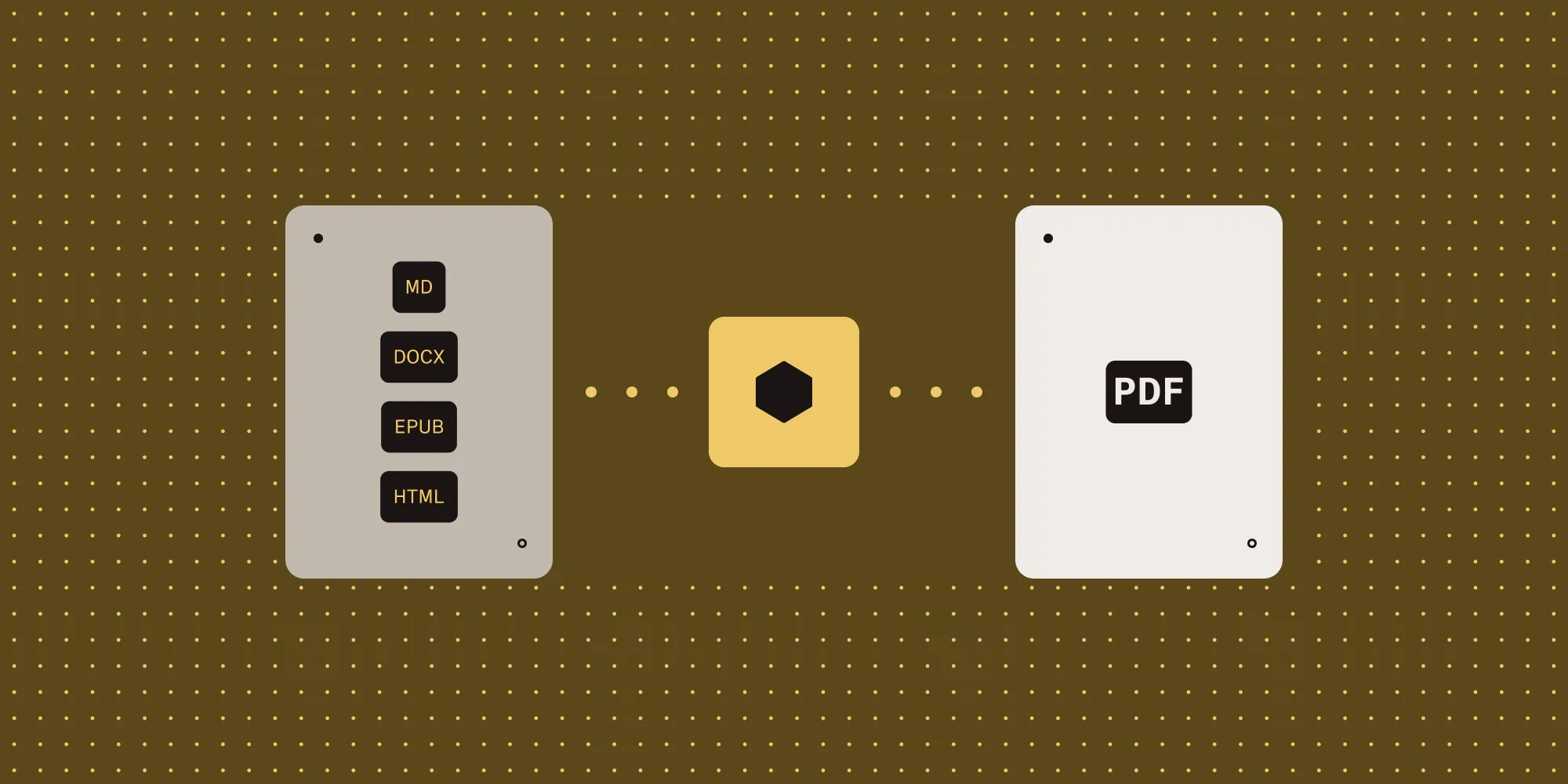
- LibreOffice (via
libreoffice-convert) handles DOCX, XLSX, PPTX, RTF, TXT, and other Office formats. - Calibre’s
ebook-converthandles EPUB, MOBI, and AZW3;md-to-pdfhandles Markdown; Puppeteer’spage.pdf()handles HTML/webpages. - After conversion, run
ocrmypdfover scanned pages to make them searchable. Pipe everything together in one upload handler.
Prerequisites
This guide is server-side — you’ll need Node.js and the ability to install system packages. The pipeline reads/writes temporary files, so the process needs write access to os.tmpdir().
You’ll also need:
- Node.js 18 or later
- LibreOffice, Calibre, and ocrmypdf installed (see each tool’s section below)
- The npm packages
libreoffice-convert,md-to-pdf,puppeteer, anduuid
A PDF viewer only handles PDFs — but users upload Word documents, EPUBs, PowerPoints, and more. This guide covers the ecosystem of tools for converting different formats to PDF on the server.
Overview of conversion tools
| Format | Tool | Type |
|---|---|---|
| DOCX, XLSX, PPTX, RTF, TXT | LibreOffice (headless) | System CLI |
| EPUB, MOBI, AZW3 | Calibre (ebook-convert) | System CLI |
| Markdown | md-to-pdf | npm package |
| HTML/webpages | Puppeteer (page.pdf()) | npm package |
LibreOffice: Office documents to PDF
LibreOffice handles the widest range of Office formats through a single headless CLI call.
Setup
Install LibreOffice on the target platform:
# macOSbrew install --cask libreoffice
# Ubuntu/Debiansudo apt-get install libreoffice
# DockerFROM node:20RUN apt-get update && apt-get install -y libreoffice
Usage with libreoffice-convert
Install the npm wrapper. Then convert a buffer to PDF:
npm install libreoffice-convertimport libre from "libreoffice-convert";import { promisify } from "util";
const convertAsync = promisify(libre.convert);
async function officeToPdf(inputBuffer) { const pdfBuffer = await convertAsync(inputBuffer, ".pdf", undefined); return pdfBuffer;}Supported input formats include: .doc, .docx, .xls, .xlsx, .ppt, .pptx, .odt, .ods, .odp, .rtf, and .txt.
Calibre: eBooks to PDF
Calibre’s ebook-convert CLI handles eBook formats that LibreOffice doesn’t, and it can also extract metadata from eBooks and PDFs.
Setup
Install Calibre on the target platform:
# macOSbrew install --cask calibre
# Ubuntu/Debiansudo apt-get install calibre
Usage
Convert an eBook buffer to PDF by shelling out to Calibre’s ebook-convert CLI:
import { exec } from "child_process";import { promisify } from "util";import { writeFile, readFile, unlink } from "fs/promises";import { join } from "path";import { tmpdir } from "os";import { v4 as uuid } from "uuid";
const execAsync = promisify(exec);
async function ebookToPdf(inputBuffer, inputExtension) {  const inputPath = join(tmpdir(), `${uuid()}${inputExtension}`);  const outputPath = join(tmpdir(), `${uuid()}.pdf`);
  try {    await writeFile(inputPath, inputBuffer);    await execAsync(`ebook-convert "${inputPath}" "${outputPath}"`);    return await readFile(outputPath);  } finally {    await unlink(inputPath).catch(() => {});    await unlink(outputPath).catch(() => {});  }}
Extracting metadata
Calibre also extracts metadata from eBooks and PDFs:
async function getMetadata(inputBuffer, mimeType) {  const ext = mimeToExtension(mimeType); // e.g. ".epub", ".pdf".  const inputPath = join(tmpdir(), `${uuid()}${ext}`);
  try {    await writeFile(inputPath, inputBuffer);    const { stdout } = await execAsync(`ebook-meta "${inputPath}"`);    return parseMetadataOutput(stdout);  } finally {    await unlink(inputPath).catch(() => {});  }}
md-to-pdf: Markdown to PDF
Install the package:
npm install md-to-pdfimport { mdToPdf } from "md-to-pdf";
async function markdownToPdf(markdownBuffer) { const markdownString = markdownBuffer.toString("utf-8"); const result = await mdToPdf({ content: markdownString }); return result?.content; // PDF as `Buffer`.}md-to-pdf uses Puppeteer under the hood — it renders the Markdown as HTML and prints to PDF.
Puppeteer: Webpages to PDF
Install Puppeteer:
npm install puppeteerimport puppeteer from "puppeteer";
async function webPageToPdf(url) { const browser = await puppeteer.launch({ headless: true }); const page = await browser.newPage();
await page.goto(url, { waitUntil: "networkidle2" });
const pdfBuffer = await page.pdf({ format: "A4", printBackground: true, margin: { top: "20mm", right: "20mm", bottom: "20mm", left: "20mm", }, });
await browser.close(); return pdfBuffer;}Puppeteer tips
- Use
waitUntil: "networkidle2"to wait for dynamic content. - Set
printBackground: trueto include background colors/images. - Consider ad blocking and cookie consent handling for web scraping use cases.
OCR: Making scanned PDFs searchable
After detecting that a PDF needs OCR (see the server-side text extraction tutorial), use ocrmypdf:
# Installsudo apt-get install ocrmypdf
# macOSbrew install ocrmypdf
async function ocrPdf(pdfBuffer, language = "eng") { const inputPath = join(tmpdir(), `${uuid()}.pdf`); const outputPath = join(tmpdir(), `${uuid()}.pdf`);
try { await writeFile(inputPath, pdfBuffer); await execAsync( `ocrmypdf -l ${language} --skip-text --output-type pdf -q "${inputPath}" "${outputPath}"`, ); return await readFile(outputPath); } finally { await unlink(inputPath).catch(() => {}); await unlink(outputPath).catch(() => {}); }}Options:
-l eng— OCR language.--skip-text— Skip pages that already have text (don’t re-OCR).--output-type pdf— Output standard PDF (not PDF/A).-q— Quiet mode.
Complete processing pipeline
The pipeline below ties everything together. The helpers isOfficeFormat, isEbookFormat, mimeToExtension, checkPdf, generatePreview, and extractText are reader-implemented — checkPdf and extractText are covered in server-side text extraction, and generatePreview can be built with pdf2pic.
async function processUpload(buffer, filename, mimeType) {  let pdfBuffer;
  // Step 1: Convert to PDF if needed.  if (mimeType === "application/pdf") {    pdfBuffer = buffer;  } else if (isOfficeFormat(mimeType)) {    pdfBuffer = await officeToPdf(buffer);  } else if (isEbookFormat(mimeType)) {    pdfBuffer = await ebookToPdf(buffer, mimeToExtension(mimeType));  } else if (mimeType === "text/markdown") {    pdfBuffer = await markdownToPdf(buffer);  }
  // Step 2: Check if OCR is needed.  const { pages, needsOcr } = await checkPdf(pdfBuffer);
  // Step 3: Run OCR if needed.  if (needsOcr) {    pdfBuffer = await ocrPdf(pdfBuffer);  }
  // Step 4: Generate preview thumbnail.  const preview = await generatePreview(pdfBuffer);
  // Step 5: Extract text for indexing.  const text = await extractText(pdfBuffer);
  return { pdfBuffer, preview, text, pages };}
Key points
- LibreOffice handles most Office formats but requires a system installation.
- Calibre handles eBook formats (EPUB, MOBI) and metadata extraction.
md-to-pdfis the simplest Markdown converter (uses Puppeteer internally).- Puppeteer’s
page.pdf()captures any webpage as a perfectly rendered PDF. ocrmypdfadds searchable text to scanned PDFs without changing the visual content.- Always clean up temporary files in
finallyblocks. - Most CLI tools need temporary file I/O — write buffer to disk, convert, read result, delete both.
How Nutrient Web SDK handles conversion and OCR
Nutrient Web SDK converts Office documents to PDF directly in the browser and runs OCR on scanned PDFs through the same instance — no LibreOffice, Calibre, Puppeteer, or temporary file plumbing on the server is necessary.
const instance = await NutrientViewer.load({  container: "#pdf-container",  document: "report.docx", // Word, Excel, and PowerPoint are all supported.});
await instance.applyOperations([  { type: "performOcr", language: "english", pageIndexes: "all" },]);
Supported input formats include Word, Excel, PowerPoint, TIFF, JPG, and PNG — all converted client-side without an MS Office license. For server-side workflows, Nutrient Document Engine exposes the same conversion and OCR through a REST API.
Learn more about Nutrient Web SDK | Conversion guide | OCR guide | Migration guide | Contact Sales
FAQ
LibreOffice is a desktop application that needs file-system access, a Java runtime, and ~300 MB of disk space. There’s no browser-shippable version. Conversion has to happen on a server (or in a desktop/Electron app); the browser-only options for Office documents are commercial libraries or REST APIs.
--skip-text and --force-ocr in ocrmypdf?--skip-text leaves pages that already contain a text layer alone — safe for mixed batches. --force-ocr re-OCRs every page, overwriting any existing text layer. Use --skip-text by default; switch to --force-ocr only when you suspect the existing text layer is wrong (poor, old OCR or corrupted text). They’re mutually exclusive.
Extract a text sample from the first few pages with pdfDocument.getPage(i).getTextContent(). If the total characters are below a threshold (say 50 across the sampled pages), the PDF is likely image-only and needs OCR. See the server-side text extraction post for a full implementation.
headless: true actually doing under the hood?In current Puppeteer (v22+), headless: true runs Chromium’s native headless mode, which renders pages closer to what a real user would see in a visible browser — important for PDFs of complex layouts. The legacy chrome-headless-shell binary is still available via headless: 'shell' for faster startup at the cost of fidelity. The "new" string used in older guides has been removed.
Yes. The example FROM node:20 Dockerfile shows the LibreOffice setup. For Calibre, install with apt-get install -y calibre — note the image will be ~1 GB larger. For production, use a multistage build that copies only the binaries needed, or split conversion into a dedicated microservice.
Reverse conversion (PDF to DOCX, HTML, images) is harder to do well because text layout reconstruction is brittle. LibreOffice supports PDF → DOCX with mixed results; Calibre handles PDF → EPUB. For high-fidelity output, commercial tools (including Nutrient’s conversion API) generally beat the open source options.