How to digitally sign a PDF using a YubiKey

Table of contents
- Use a YubiKey hardware device to store certificates and private keys securely
- Integrate YubiKit SDK with Nutrient iOS SDK for NFC-based PDF signing
- Implement a custom
DataSigningclass to communicate with the YubiKey - Sign PDFs wirelessly on iPhone 7 or newer using NFC
Updated for Nutrient iOS SDK 13.2+ — This post has been updated to use the modern DataSigning protocol and Document.sign() API. If you’re using an older SDK version, refer to the migration guide.
Digital signatures guarantee the integrity and authenticity of PDF documents. However, storing cryptographic assets on every computer you use is inconvenient and potentially a security risk. This post shows how to sign a PDF with Nutrient iOS SDK using a YubiKey hardware device.
What is a YubiKey?
The YubiKey(opens in a new tab) is a hardware device manufactured by Yubico(opens in a new tab) that supports public-key cryptography. It’s the size of a small USB drive and is commonly used to protect access to computers, encrypt documents, and sign files. Several YubiKey models are available; some support USB connections, while others support wireless connectivity via NFC(opens in a new tab) (near-field communication). The following sections describe how to integrate an NFC YubiKey with Nutrient to sign PDFs wirelessly using an iPhone.
Step 1 — Prepare the YubiKey with the required certificates
Before writing any code, you first need to prepare the YubiKey and load the certificates and keys that will be used to sign the PDF documents. The simplest way to do this is to use the YubiKey Manager application, which you can download for free(opens in a new tab).
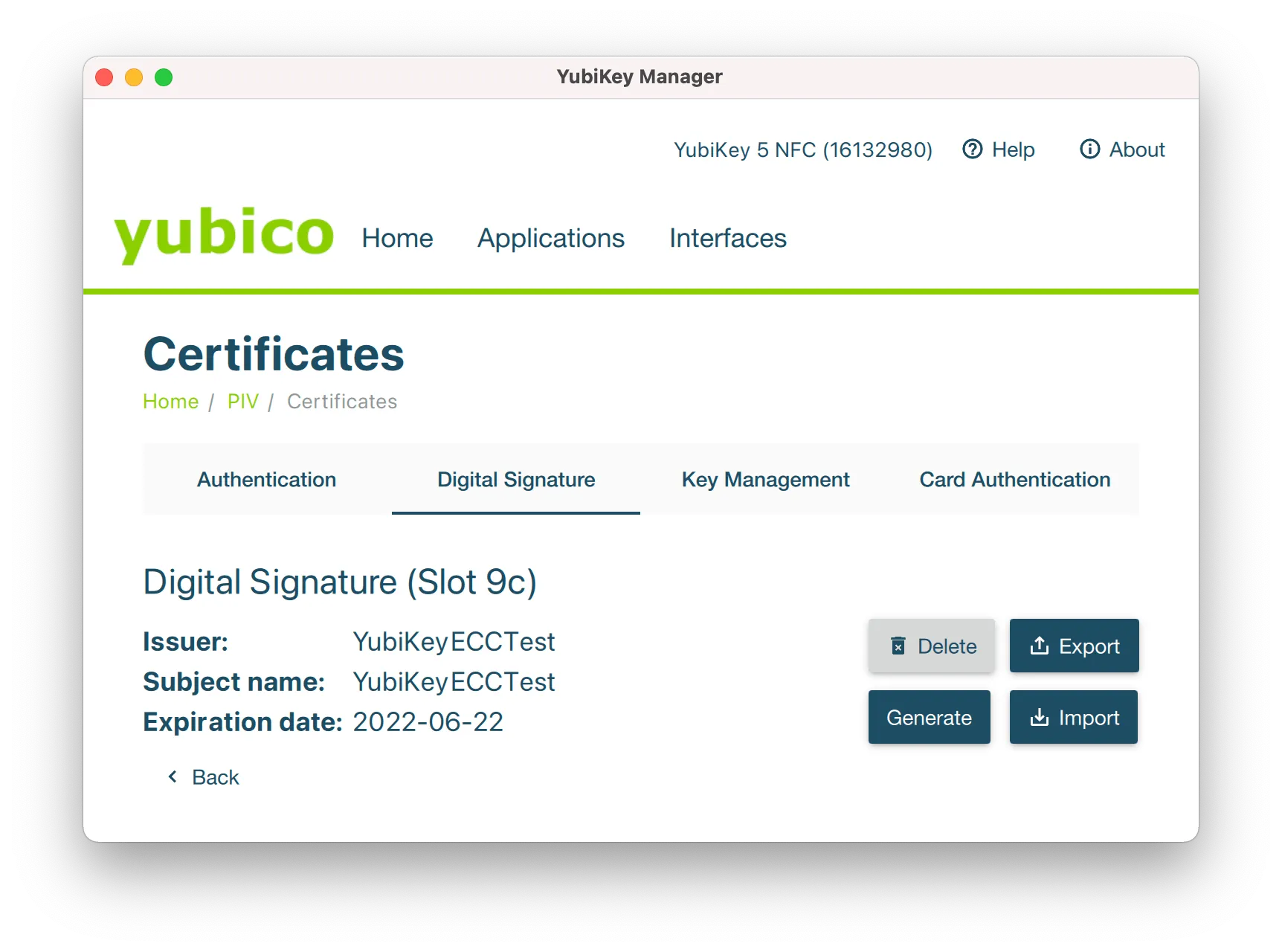
With your YubiKey inserted into your computer, open the YubiKey Manager application and go to Applications > PIV, click Configure Certificates > Digital Signature, and then click Import. Select the public/private key pair you want to use to sign PDFs, and click OK. The image below shows how the YubiKey Manager will look after you load the certificate.
Once you’ve prepared your YubiKey device, create a Swift project that integrates Nutrient’s PDF signing capabilities with the YubiKey.
Step 2 — Create an iOS project that integrates the YubiKey SDK and the Nutrient SDK
To integrate Nutrient in a blank iOS project, follow the instructions in our integration guides. The sample project needs to communicate with the YubiKey, so integrate the YubiKey SDK for iOS (YubiKit) from this repository(opens in a new tab). How to integrate YubiKit in an iOS project is outside the scope of this article, but we recommend using Swift Package Manager.
The main class you need to add to the project is a view controller that inherits from Nutrient’s PDFViewController so that it can present PDF files:
private class YubiKeyPDFViewController: PDFViewController {}Inside YubiKeyPDFViewController, override the viewDidLoad: method to add a bar button item to sign the document:
private lazy var signBarButtonItem = UIBarButtonItem(    image: UIImage(systemName: "signature"),    style: .plain,    target: self,    action: #selector(signBarButtonItemPressed))
override func viewDidLoad() {    super.viewDidLoad()    navigationItem.setRightBarButtonItems([signBarButtonItem], for: .document, animated: false)}
Here’s the implementation of the signBarButtonItemPressed: method that’s responsible for signing using the YubiKey:
@objc private func signBarButtonItemPressed(_ sender: UIBarButtonItem) {    guard let document = self.document else {        return    }
    Task {        do {            try document.save()
            // Get the first signature form element from the document.            guard let signatureFormElement = document.annotations(at: 0, type: SignatureFormElement.self).first else {                return            }
            // Load the signing certificate from the YubiKey.            let certificates = ... // Extract certificates from YubiKey.
            // Create custom data signer that communicates with the YubiKey.            let yubiKeySigner = YubiKeyDataSigner()
            // Configure signing with the custom signer and certificates.            let configuration = SigningConfiguration(                dataSigner: yubiKeySigner,                certificates: certificates            )
            // Define where the signed document will be saved.            let signedDocumentURL = ... // The destination URL for the signed document.
            // Sign the document.            try await document.sign(                formElement: signatureFormElement,                configuration: configuration,                outputDataProvider: FileDataProvider(fileURL: signedDocumentURL)            )
            // Load and display the signed document.            let signedDocument = Document(url: signedDocumentURL)            await MainActor.run {                // Push `signedDocument` into the navigation controller.            }        } catch {            await MainActor.run {                // Inform the user about why the document couldn't be signed.            }        }    }}
The code above works as follows: First, save the document to ensure you sign it with the latest changes. Next, create a SigningConfiguration with a custom DataSigning implementation that communicates with the YubiKey. The key part is the implementation of YubiKeyDataSigner, which handles the actual signing using the YubiKey hardware. Here’s the implementation:
private class YubiKeyDataSigner: DataSigning {    private let connection = YubiKeyConnection()
    func sign(unsignedData: Data, hashAlgorithm: PDFSignatureHashAlgorithm) async throws -> (signedData: Data, dataFormat: SignedDataFormat) {        return try await withCheckedThrowingContinuation { continuation in            connectToYubiKey { connection, yubiKeyCompletion in                connection.authenticatedPivTestSession { session in                    // A production app should not use the default PIN!                    session.verifyPin("123456") { retries, error in                        session.signWithKey(in: .signature, type: .ECCP384, algorithm: .ecdsaSignatureMessageX962SHA512, message: unsignedData) { signature, error in                            yubiKeyCompletion()                            if let signature = signature {                                continuation.resume(returning: (signature, .genericSignedData))                            } else {                                continuation.resume(throwing: error ?? NSError(domain: "YubiKey", code: -1))                            }                        }                    }                }            }        }    }
    private func connectToYubiKey(completion: @escaping (_ connection: YKFConnectionProtocol, _ cleanup: @escaping () -> Void) -> Void) {        connection.connection { connection in            let cleanupBlock = {                if connection as? YKFNFCConnection != nil {                    YubiKitManager.shared.stopNFCConnection()                } else {                    YubiKitManager.shared.stopAccessoryConnection()                }            }            completion(connection, cleanupBlock)        }    }}
In the code above, the custom DataSigning implementation handles signing the PDF data using the YubiKey. The sign(unsignedData:hashAlgorithm:) method receives the data to be signed and returns the signature along with its format. The method connects to the YubiKey via NFC using iOS 13+ APIs. After establishing the NFC connection, the YubiKey session is authenticated using a PIN (for security, the PIN should be provided by the user and not hardcoded). The data is then signed using the ECC public/private key stored on the YubiKey device.
Here’s a possible implementation of the YubiKeyConnection class, which encapsulates access to YubiKit’s accessory and NFC connectivity APIs:
class YubiKeyConnection: NSObject {    var accessoryConnection: YKFAccessoryConnection?    var nfcConnection: YKFNFCConnection?    var connectionCallback: ((_ connection: YKFConnectionProtocol) -> Void)?
    override init() {        super.init()        YubiKitManager.shared.delegate = self        YubiKitManager.shared.startAccessoryConnection()    }
    func connection(completion: @escaping (_ connection: YKFConnectionProtocol) -> Void) {        if let connection = accessoryConnection {            completion(connection)        } else {            connectionCallback = completion            YubiKitManager.shared.startNFCConnection()        }    }}
Here’s the extension to the YKFConnectionProtocol that authenticates the YubiKey Personal Identity Verification (PIV)(opens in a new tab) session:
extension YKFConnectionProtocol {    func pivTestSession(completion: @escaping (_ session: YKFPIVSession) -> Void) {        self.pivSession { session, error in            guard let session = session else { return }            completion(session)        }    }
    func authenticatedPivTestSession(completion: @escaping (_ session: YKFPIVSession) -> Void) {        self.pivTestSession { session in            // As mentioned at https://developers.yubico.com/yubico-piv-tool/YubiKey_PIV_introduction.html, the default management key is 010203040506070801020304050607080102030405060708. In a real application, you should change this default management key first!            let defaultManagementKey = Data([0x01, 0x02, 0x03, 0x04, 0x05, 0x06, 0x07, 0x08, 0x01, 0x02, 0x03, 0x04, 0x05, 0x06, 0x07, 0x08, 0x01, 0x02, 0x03, 0x04, 0x05, 0x06, 0x07, 0x08])            session.authenticate(withManagementKey: defaultManagementKey, type: .tripleDES()) { error in                guard error == nil else { return }                completion(session)            }        }    }}
Finally, you need to implement YKFManagerDelegate so that you can handle connect/disconnect events from NFC:
extension YubiKeyConnection: YKFManagerDelegate {    func didConnectNFC(_ connection: YKFNFCConnection) {        nfcConnection = connection        if let callback = connectionCallback {            callback(connection)        }    }
    func didDisconnectNFC(_ connection: YKFNFCConnection, error: Error?) {        nfcConnection = nil    }
    func didConnectAccessory(_ connection: YKFAccessoryConnection) {        accessoryConnection = connection    }
    func didDisconnectAccessory(_ connection: YKFAccessoryConnection, error: Error?) {        accessoryConnection = nil    }}
If you run this application on iPhone 7 or newer, after you tap the icon to sign a PDF, you’ll see the prompt shown below.
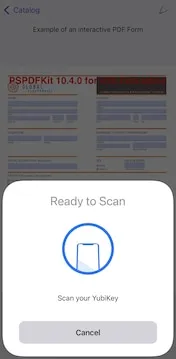
Place the YubiKey near the iPhone, and after a few seconds, a signed PDF will be presented on the screen.
Conclusion
Nutrient iOS SDK and YubiKey combine to enable PDF signing on iPhone with hardware-backed security. The YubiKey stores your certificate and private key in a portable device. This post demonstrated how to create a project that signs PDFs on iPhone using a YubiKey via NFC.
To learn more about Nutrient’s PDF signing capabilities, contact our Sales team.
FAQ
YubiKey 5 NFC and YubiKey 5C NFC support wireless connectivity via NFC. iPhone 7 and newer devices can communicate with these YubiKeys for PDF signing.
Yes. The PIN verification is required each time you sign a document. This ensures that even if someone has physical access to your YubiKey, they can’t sign documents without knowing the PIN.
Yes. Since the certificate and private key are stored on the YubiKey hardware device, you can use it to sign PDFs on any compatible device without needing to copy certificates between machines.
YubiKey supports X.509 certificates in PEM or DER format. You can import certificates using the YubiKey Manager application or the yubico-piv-tool command-line utility.