Build a powerful JavaScript document viewer and editor

Table of contents
Managing documents within web applications is essential for organizations across various industries, including healthcare, engineering, and finance. This tutorial guides you through setting up a robust JavaScript-based document viewer and editor using the Nutrient Document Authoring SDK. You’ll learn how to handle Microsoft Word (DOCX) files directly in your browser, without the need for external software.
Introducing the Nutrient Document Authoring SDK
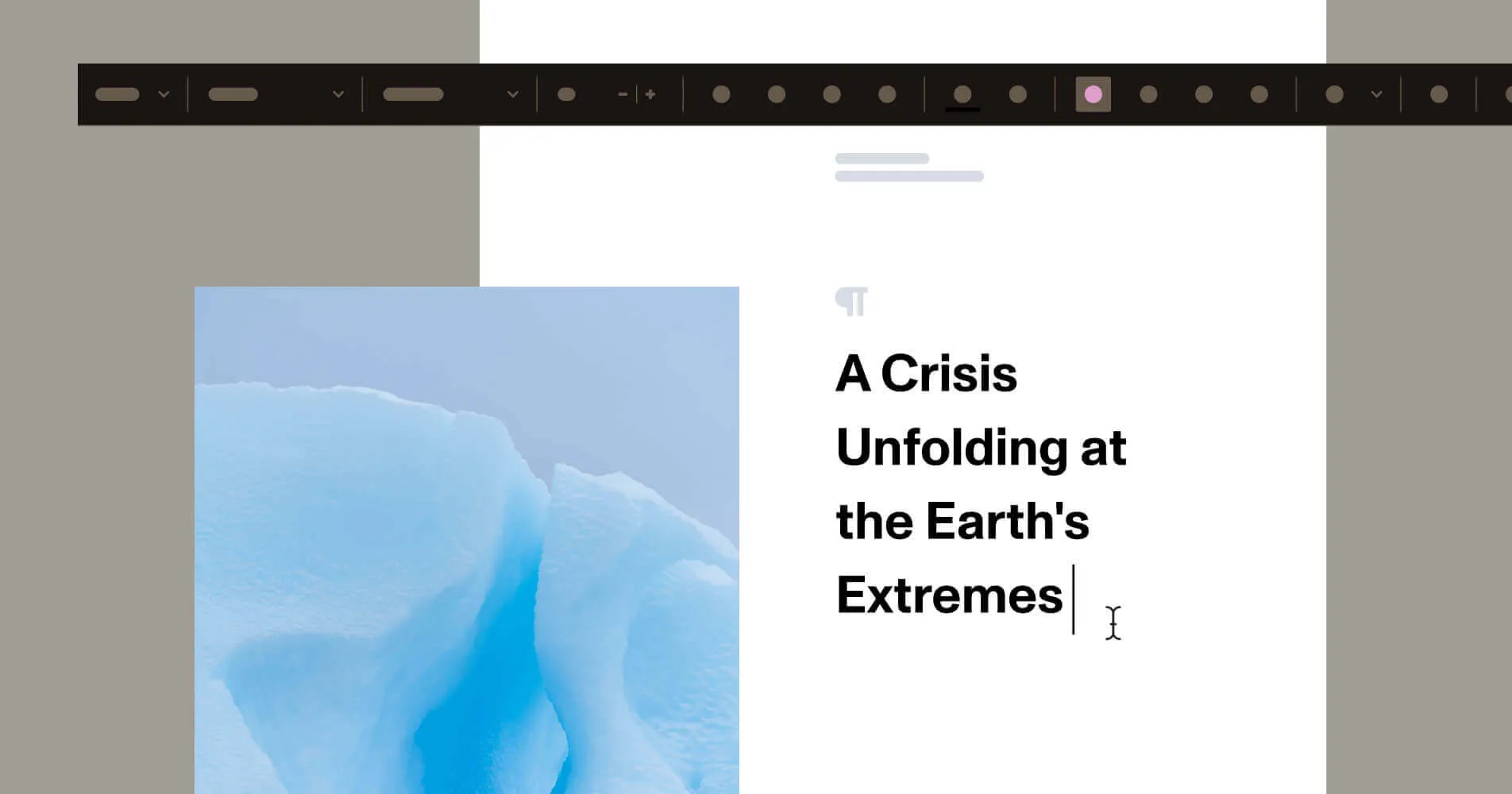
Nutrient’s Document Authoring SDK offers a comprehensive solution for building an advanced document viewer and editor within your web application. With a familiar what-you-see-is-what-you-get (WYSIWYG) interface, similar to Google Docs or Microsoft Word, the SDK allows users to open, edit, and export complex documents, providing page-based editing and PDF output. DOCX import and export are best effort, so check representative files before relying on a roundtrip.
Key benefits of using the Document Authoring SDK
Below, we’ve outlined a few key benefits of using the Document Authoring SDK.
A familiar and intuitive editing experience
The SDK provides a page-based layout for rich text editing that resembles the interfaces of popular document editing tools. This familiarity helps users quickly adapt to the editor, enhancing productivity and user satisfaction. With advanced features like complex tables, floating images, headers, footers, and sophisticated numbering, it goes beyond the capabilities of standard text areas and other rich text libraries.
Page-based editing and export fidelity
Document Authoring provides a paginated editor and PDF export for document workflows. DOCX import and DOCX export are best effort: Unsupported features or layout differences can affect a roundtrip. Save ongoing work in DocJSON and validate exported files against your formatting requirements.
Seamless integration and customization
The SDK is designed with our fully customizable Baseline UI, allowing developers to easily integrate it into any web application and customize it to fit their specific needs. This flexibility ensures that the document viewer and editor align with the overall design and functionality of your platform, providing a consistent user experience.
Getting started with the Document Authoring SDK
In this tutorial, you’ll learn how to set up the Nutrient Document Authoring SDK to create a powerful JavaScript-based document viewer and editor that supports DOCX files. You’ll use Vite(opens in a new tab) as your development environment to ensure a fast and efficient setup.
Step 1 — Creating a new Vite project
First, create a new Vite project. Vite offers a modern development experience with fast project setup:
npm create vite@latest my-document-appcd my-document-appSelect vanilla for the framework and JavaScript for the variant. This command sets up a new Vite project in the specified directory.
Step 2 — Installing the Nutrient Document Authoring SDK
Next, install the Nutrient Document Authoring SDK, which provides the tools needed to implement the document editor and viewer:
npm install @nutrient-sdk/document-authoringThe SDK leverages WebAssembly (Wasm) to deliver high performance, enabling in-browser document editing without the need for server-side processing.
Step 3 — Integrating the document editor and viewer
To integrate the editor and viewer into your project, follow the steps outlined below.
- In
index.html, create a<div>element where the editor will be rendered:
<div id="editor" style="position: relative; width: 100%; height: 100vh; border: 1px solid #dcdcdc;"></div>- In
main.js, add the following JavaScript code to import the Nutrient library and set up the editor:
import { createDocAuthSystem } from "@nutrient-sdk/document-authoring";
(async () => {  const docAuthSystem = await createDocAuthSystem();  const editor = await docAuthSystem.createEditor(    document.getElementById("editor"),    {      document: await docAuthSystem.createDocumentFromPlaintext("Hello world!"),    },  );})();
This code initializes the document authoring system, creates an editor instance, and loads a sample document.
Step 4 — Running the Vite development server
Start the Vite development server to view your editor in action:
npm run devOpen your browser and go to the provided local URL to see the JavaScript document editor and viewer in operation.
Working with DOCX files
The Nutrient Document Authoring SDK supports importing and exporting DOCX files on a best-effort basis. DOCX support is an optional licensed feature.
Importing DOCX files
To load a DOCX file into your editor, use the importDOCX method:
// Assuming the `docAuthSystem` instance is initialized.
const doc = await docAuthSystem.importDOCX(await fetch("/document.docx"));
const editor = await docAuthSystem.createEditor(  document.getElementById("editor"),  { document: doc },);
This code fetches a DOCX file from the specified URL and loads it into the editor.
To see this in action, you can try out the demo to experience the document loading and editing functionality directly.
Explore DemoExporting DOCX files
To export the current document as a DOCX file, use the exportDOCX method:
// Assuming the `editor` instance is initialized.
const currentDoc = editor.currentDocument();const doc = await currentDoc.exportDOCX();
The exported DOCX file is returned as an ArrayBuffer, which you can then save or use as needed.
Working with PDF files
The Nutrient Document Authoring SDK also supports exporting documents to PDF without additional setup. Use the exportPDF method:
// Assuming the `editor` instance is initialized.
const currentDoc = editor.currentDocument();const doc = await currentDoc.exportPDF();
This method returns the PDF file as an ArrayBuffer, allowing you to handle it as required.
First-class JSON support with DocJSON
DocJSON is the internal format used by the Nutrient Document Authoring SDK for high portability and integration with modern web technologies. It retains key features of existing formats while being more compatible with JSON-based workflows.
Working with DocJSON in the editor
DocJSON is used when loading and saving documents. It’s designed for easy customization and integration.
Loading DocJSON:
// Assuming the `docAuthSystem` instance is initialized.
const doc = await docAuthSystem.loadDocument(  await fetch("./document.json").then((response) => response.json()),);
const editor = await docAuthSystem.createEditor(  document.getElementById("editor"),  { document: doc },);
Saving DocJSON:
// Assuming the `editor` instance is initialized.
const currentDoc = editor.currentDocument();
const docObj = await currentDoc.saveDocument();console.log("JS object", docObj);
const docJSON = await currentDoc.saveDocumentJSONString();console.log("JSON string", docJSON);
Here, the document is saved as both a JavaScript object and a JSON string.
Example DocJSON format
Here’s a simple example of a DocJSON document:
{ "type": "https://www.nutrient.io/document-authoring/persistence/container", "version": 1, "container": { "document": { "body": { "sections": [ { "elements": [ { "type": "p", "elements": [ { "type": "r", "text": "Hello world!" } ] } ] } ] } } }}The example illustrates the basic structure of a DocJSON document. This JSON format is designed to represent documents in a straightforward manner, with formatting styles and page setups being optional and defaulting to standard settings if not specified.
In this example, the JSON format is version 1 and organizes documents as a body containing sections. Each section includes various elements, which can be of different types and include inline content.
Specifically, this document consists of a single paragraph with one text run displaying “Hello world!”. Unlike HTML, where elements can be nested, DocJSON represents inline elements like text runs as a flat sequence.
Conclusion
Setting up a JavaScript-based DOCX editor and viewer with the Nutrient Document Authoring SDK and Vite is efficient and effective. This solution brings DOCX editing into the browser. Validate imported and exported layouts, and save ongoing work in DocJSON.
The SDK supports DocJSON for easy integration and customization, making it a versatile choice for web development needs.
To explore more features or discuss how the SDK can fit your specific requirements, contact our Sales team for further assistance. Try the demo(opens in a new tab) to see the SDK in action and get started with your document editing and viewing solution today!
If you’re evaluating DOCX editor SDKs, the DOCX editor SDK buyer’s guide covers architecture choices, evaluation criteria, and POC benchmarks.
FAQ
The Nutrient Document Authoring SDK is a comprehensive toolkit for building a document viewer and editor directly within web applications. It offers a what-you-see-is-what-you-get (WYSIWYG) interface, similar to popular tools like Google Docs and Microsoft Word, allowing users to open, edit, and export documents. Features include tables, floating images, headers, footers, numbering, and PDF export. DOCX import and export are best effort.
Check fonts, pagination, tables, and positioned content on representative files. PDF export produces a document from the editor’s layout; DOCX import and export are best effort and can introduce differences. Use DocJSON for ongoing editing and DOCX for finalized documents.
The SDK supports importing DOCX files and exporting documents in both DOCX and PDF formats. This makes it versatile for various use cases where you need to handle DOCX input and PDF output.
DocJSON is the internal format used by the Nutrient Document Authoring SDK for document editing and storage. It offers high portability and is designed for easy integration with modern web technologies. DocJSON retains key features of traditional document formats while allowing seamless integration with JSON-based workflows.